Can I upload videos?
Sometimes yes, sometimes no – unlike photos, this isn’t decided by the app but by the event. Two things have to line up before videos are possible.
What it depends on
Section titled “What it depends on”- The event’s plan has to include videos. If the video allowance is zero, videos are switched off for this event entirely. They then don’t even show up in the file picker.
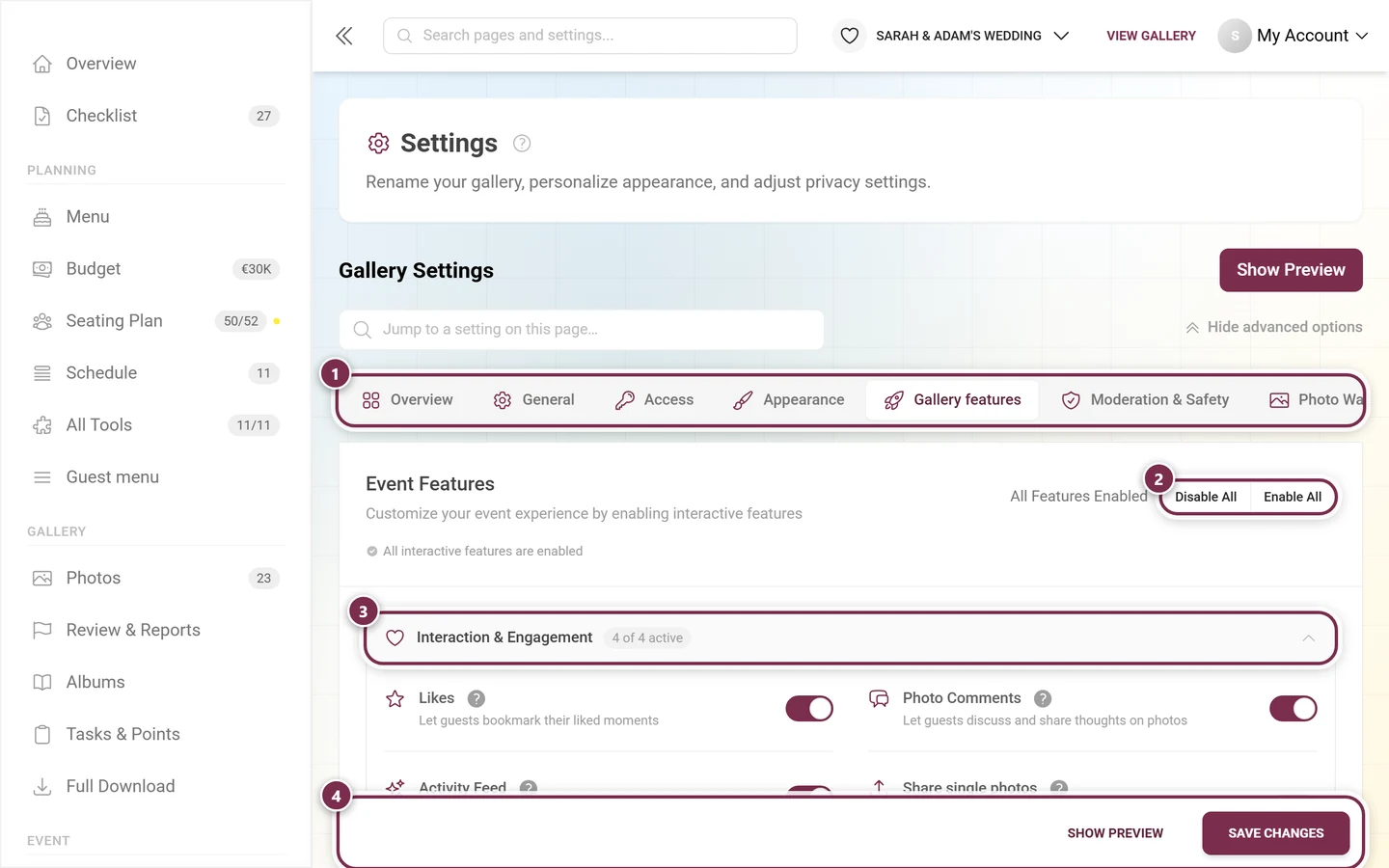
- The host has to allow videos. The switch is called Enable Video Uploads and lives in the settings under Features. If it’s off, a video added anyway is skipped during upload – with the reason “Video uploads are currently disabled.”
“I can’t find a video option at all”
Section titled ““I can’t find a video option at all””This is the most common case, and it doesn’t look like an error:
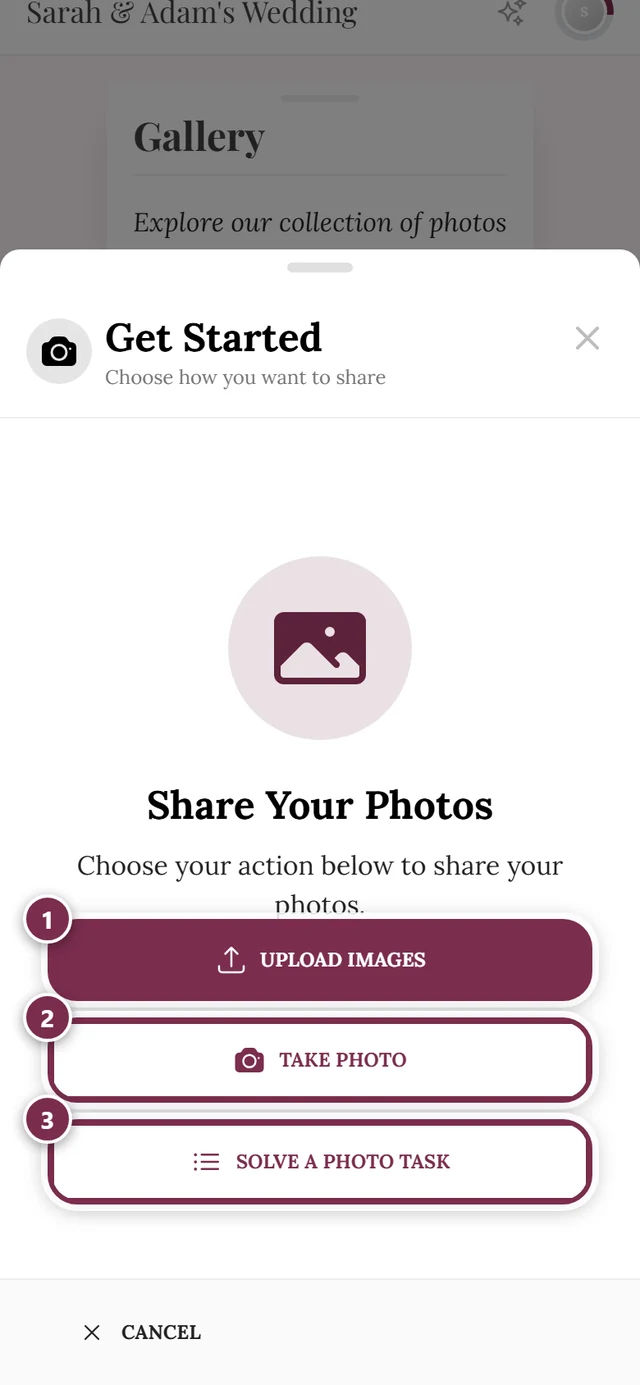
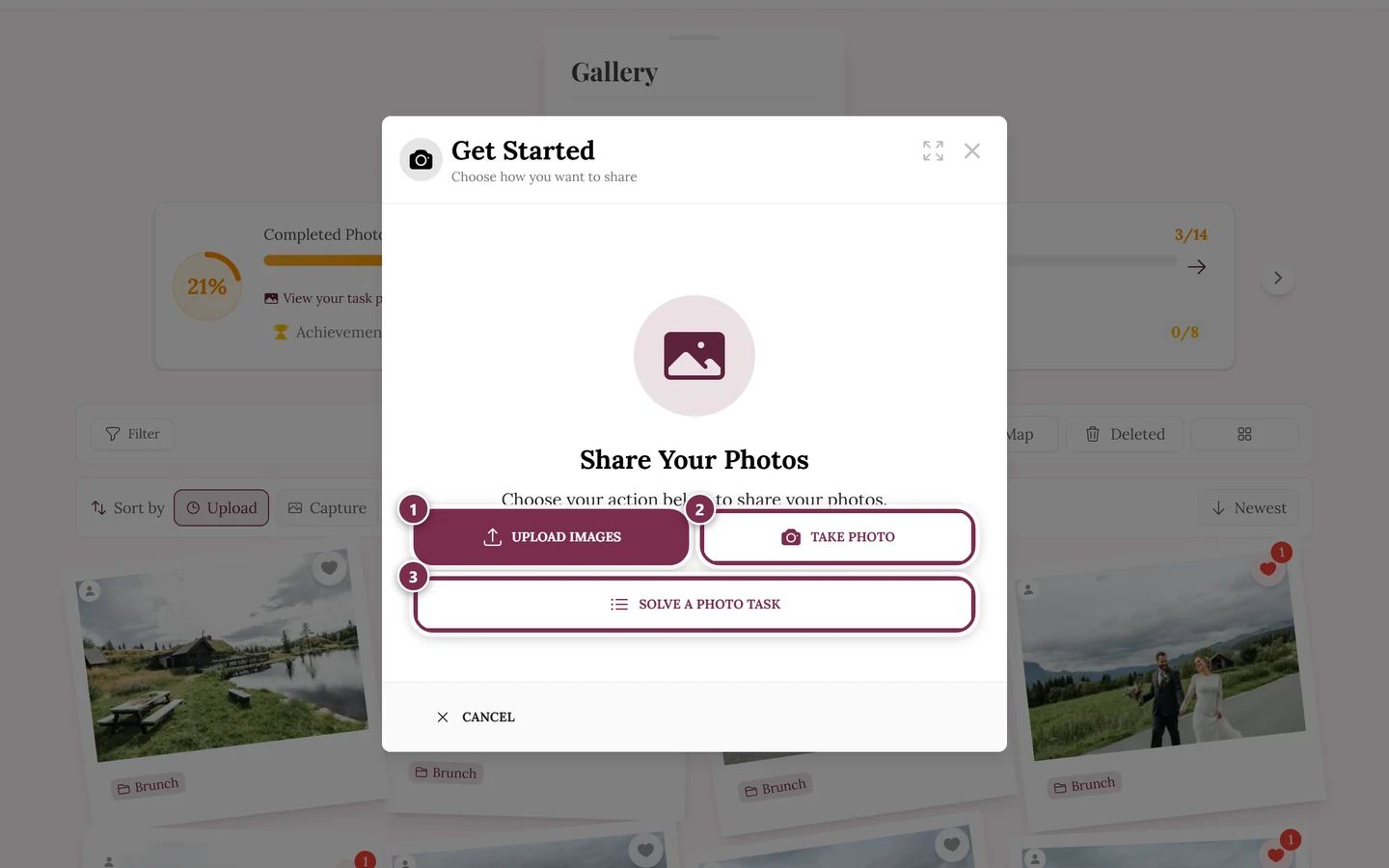
- You tap Choose photo and your device’s file picker shows photos only. Videos are simply filtered out.
- If you drag a video into the window on a computer anyway, it is accepted but marked Skipped during the upload.
- On the final screen it then appears under Videos not allowed:.
There is no hidden extra button for videos – when they are allowed, they simply appear in the normal file selection.
Supported formats
Section titled “Supported formats”Once videos are unlocked, Photogala accepts the common formats and a good deal more:
- From phones: MP4, MOV (iPhone), 3GP and 3G2
- From computers and cameras: AVI, MKV, WebM, WMV, M4V, MPEG, OGV
- Named after the codec: H.264, H.265/HEVC, AV1
- Professional and legacy formats: MXF, DV, FLV, DivX, XviD and others
If a very exotic format doesn’t get through after all, the file is skipped with “This file type isn’t supported for upload.”
The video limit is a limit of its own
Section titled “The video limit is a limit of its own”Videos do not count against the photo limit – they have their own cap:
- When it’s full you see Video limit reached and photos still work: “Video limit reached. Only photos can be uploaded.”
- The same applies the other way round: with a full photo limit, videos may still be possible.
- On top of both sits the event’s storage limit. Because videos take a lot of space, that’s the more common brake for them.
Size and length
Section titled “Size and length”- The app sets no fixed maximum file size. What counts is the event’s free storage.
- Big files take correspondingly long. Keep the tab open and the device unlocked until the bar is through.
- Short clips are the better choice: they upload faster, use less of the storage limit and are more likely to be watched.
- On a shaky connection, add large videos later on Wi-Fi, see Poor connection at the event.