The digital invitation
The digital invitation is a designed page of its own with everything you need to know about the event – date, venue, dress code, schedule and more. You also take care of your reply right there, without leaving the page.
How to get there
Section titled “How to get there”All you need is the link or the QR code your host sent you – by message, email or printed on the card.
- No account, no registration, no sign-in.
- Just open it: anyone who merely looks at the invitation appears in no guest list.
- The invitation does not look like the app: no navigation, no footer – just the invitation. Right at the bottom sit Imprint and Privacy.
The entrance animation
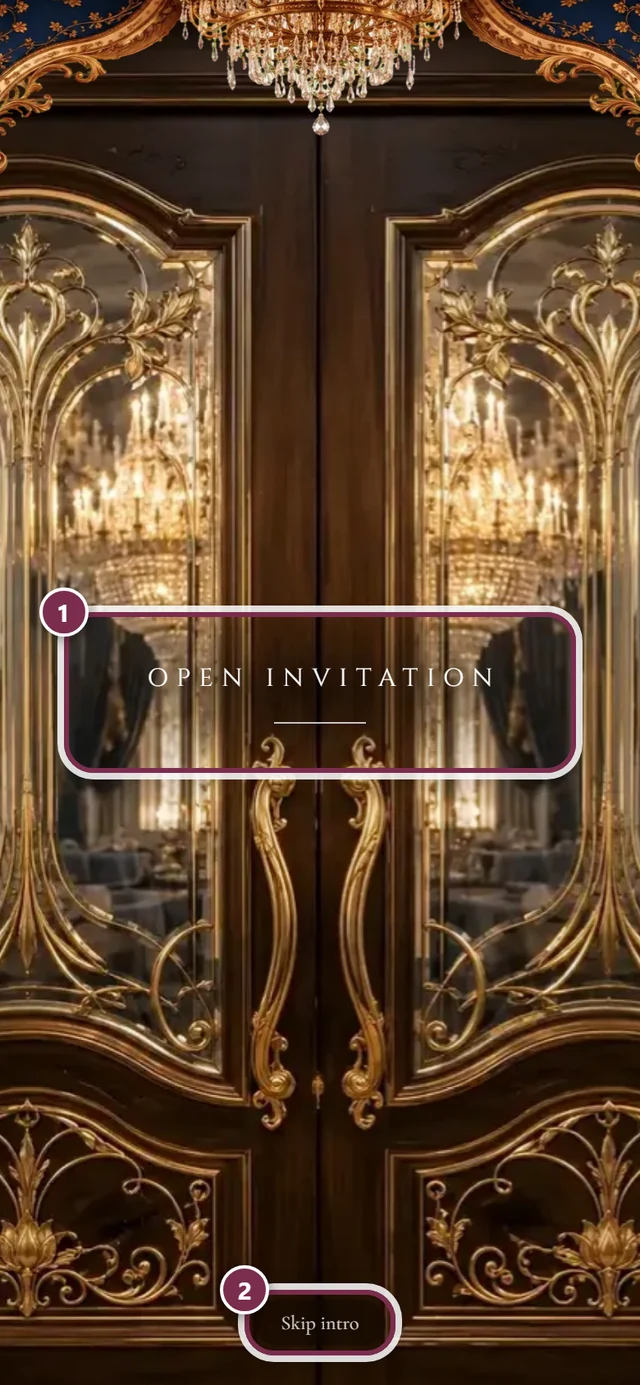
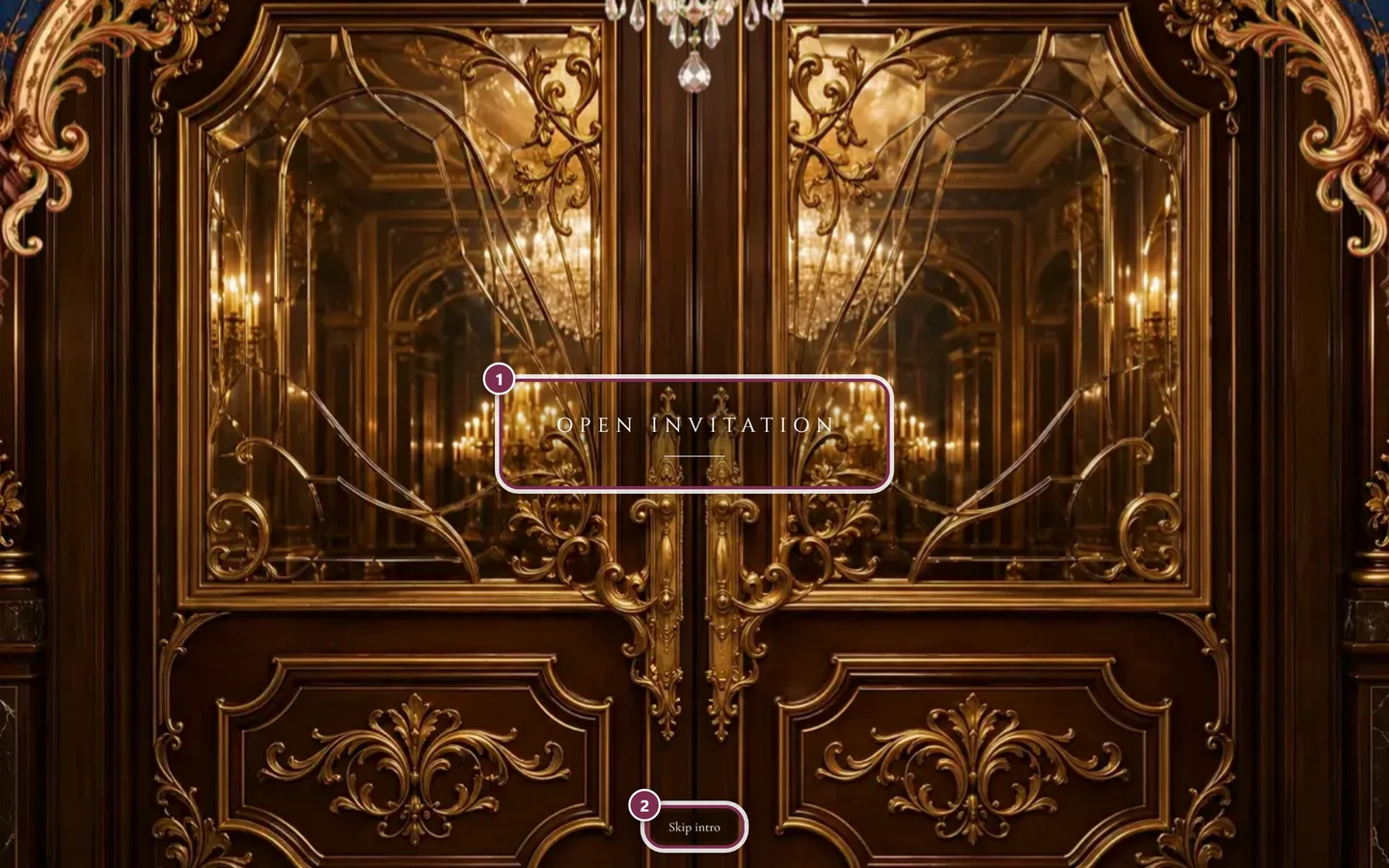
Section titled “The entrance animation”When you open it, you first stand in front of an entrance. Depending on the design that is a gate with two door wings or a sealed envelope.
-
Tap Open invitation. The doors swing open or the envelope opens, and the invitation rises out of it.
-
If you would rather not wait, tap Skip intro at the bottom. You land on the invitation straight away.
-
Scroll down – a Scroll down cue shows you that there is more.
Many designs bring a quiet piece of music with them. What matters:
- The music never starts by itself on load – at the earliest once you have opened the invitation.
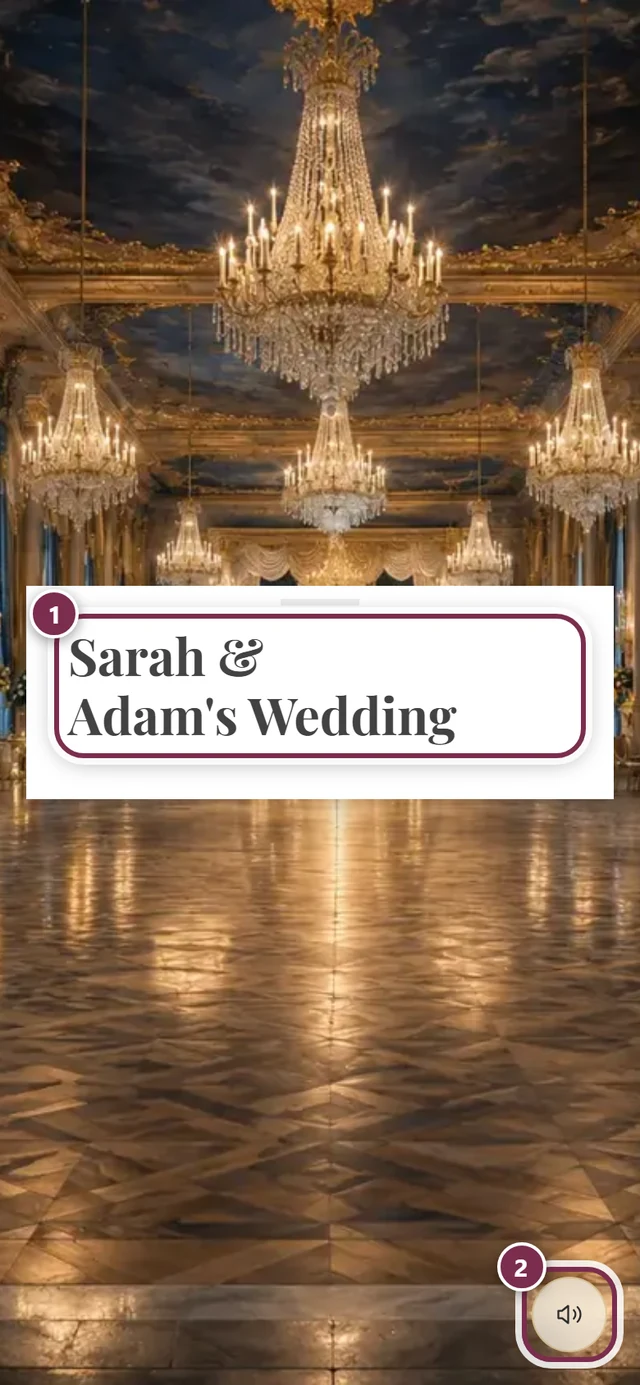
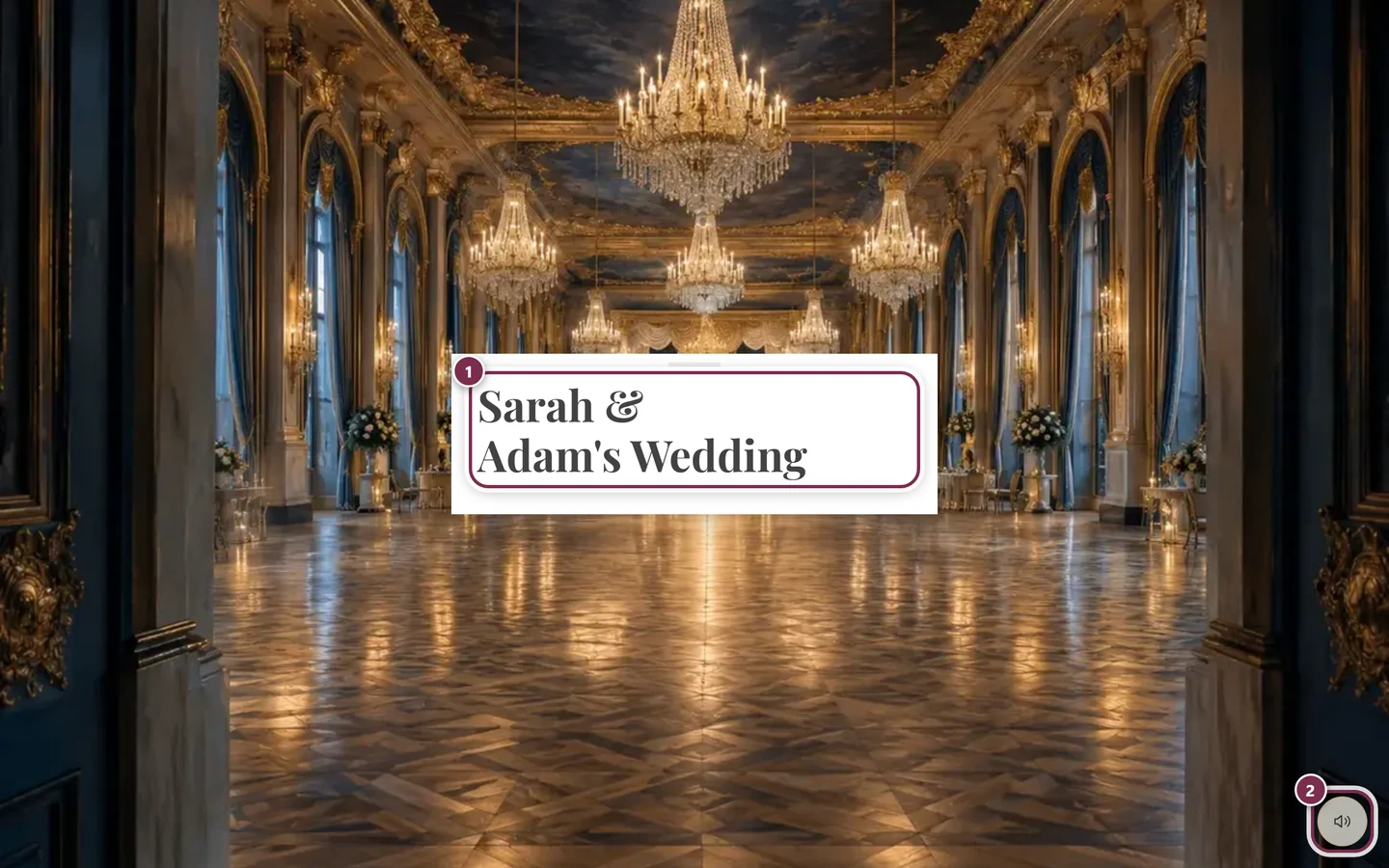
- While it plays, a round speaker button sits at the bottom right, wrapped in a pulsing ring. One tap and it is quiet. It carries no visible label; its title reads Turn music off.
- The button stays put while you scroll: it is pinned to the bottom right edge of the screen, whichever section you are in. That is why it appears in the same corner on every screenshot on this page.
- Turning it back on uses the same button in the same spot – the icon then shows a crossed-out speaker and the title reads Turn music on.
- Before you open the invitation the button is not there at all: it appears only once the invitation is open.
- The page remembers your choice for the current session: page back into the invitation and the music does not start over.
What is in the invitation
Section titled “What is in the invitation”Which sections you see is up to the host. The screenshots below walk through them in order.
For your calendar
Section titled “For your calendar”If the hosts have switched the section on, a card with the date sits directly below the header. Add to calendar opens a choice: Google Calendar adds the date straight to your Google calendar, Apple, Outlook & others (.ics) downloads a calendar file for all other calendar apps. The entry contains a link back to the invitation. If it still says “The calendar entry is being prepared.”, the button is temporarily disabled.
Countdown
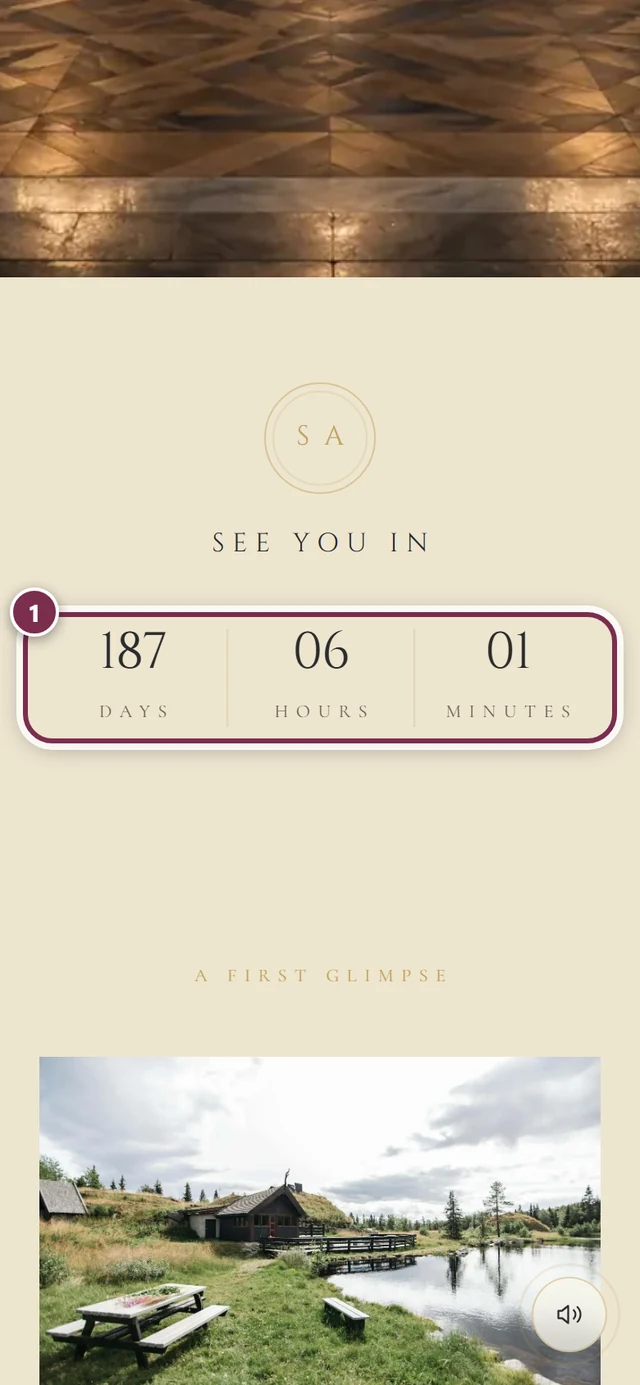
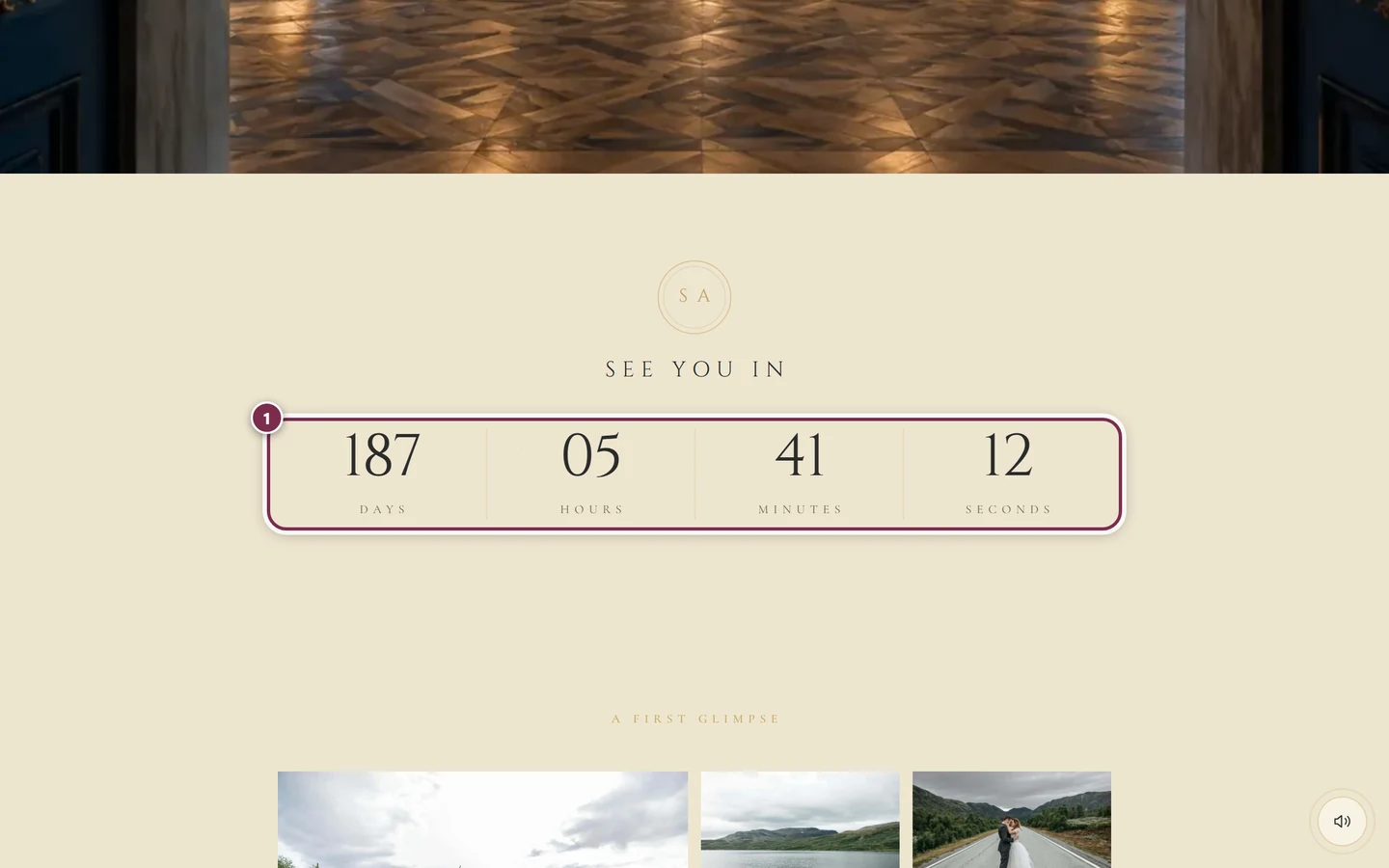
Section titled “Countdown”How long there is to go – counted out in days, hours and minutes.
The venue
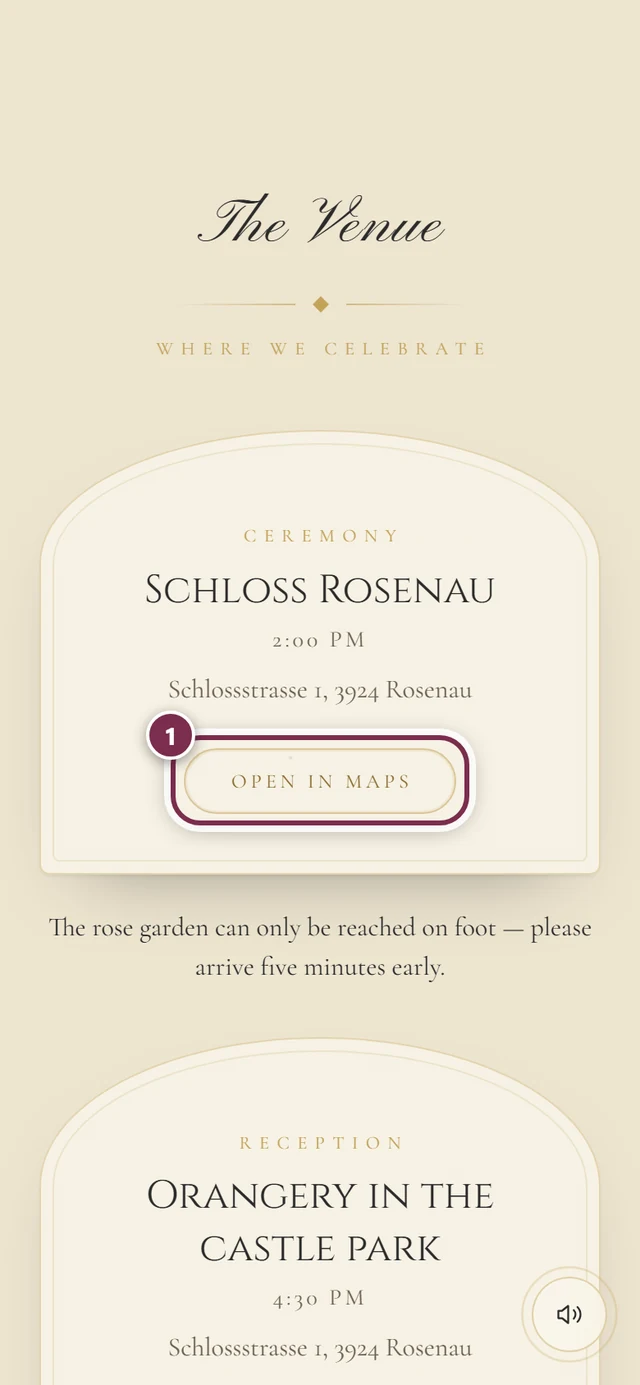
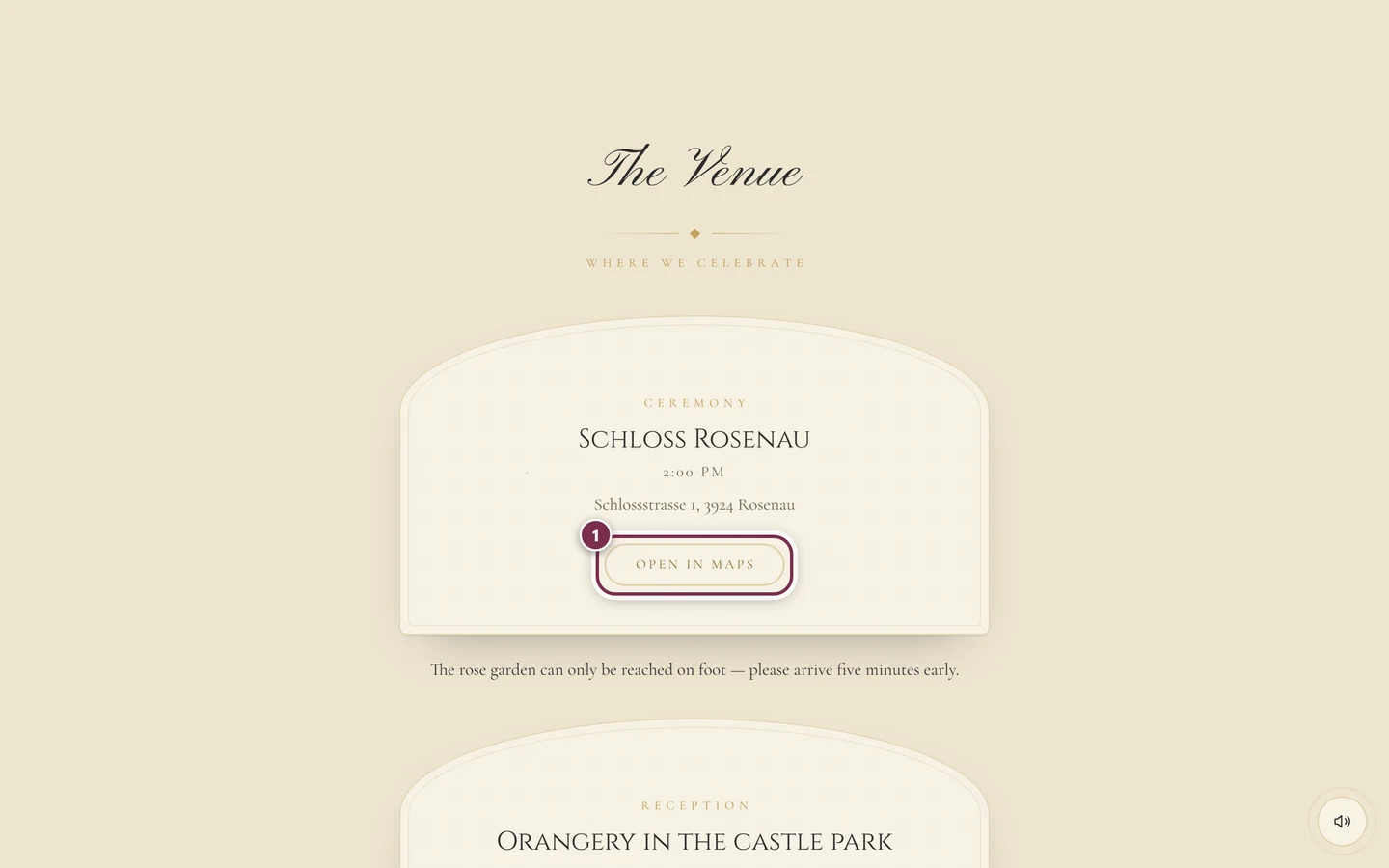
Section titled “The venue”Name, address, time and a note about directions or parking. Your host can enter several places – ceremony and reception, say – and label each one.
Schedule
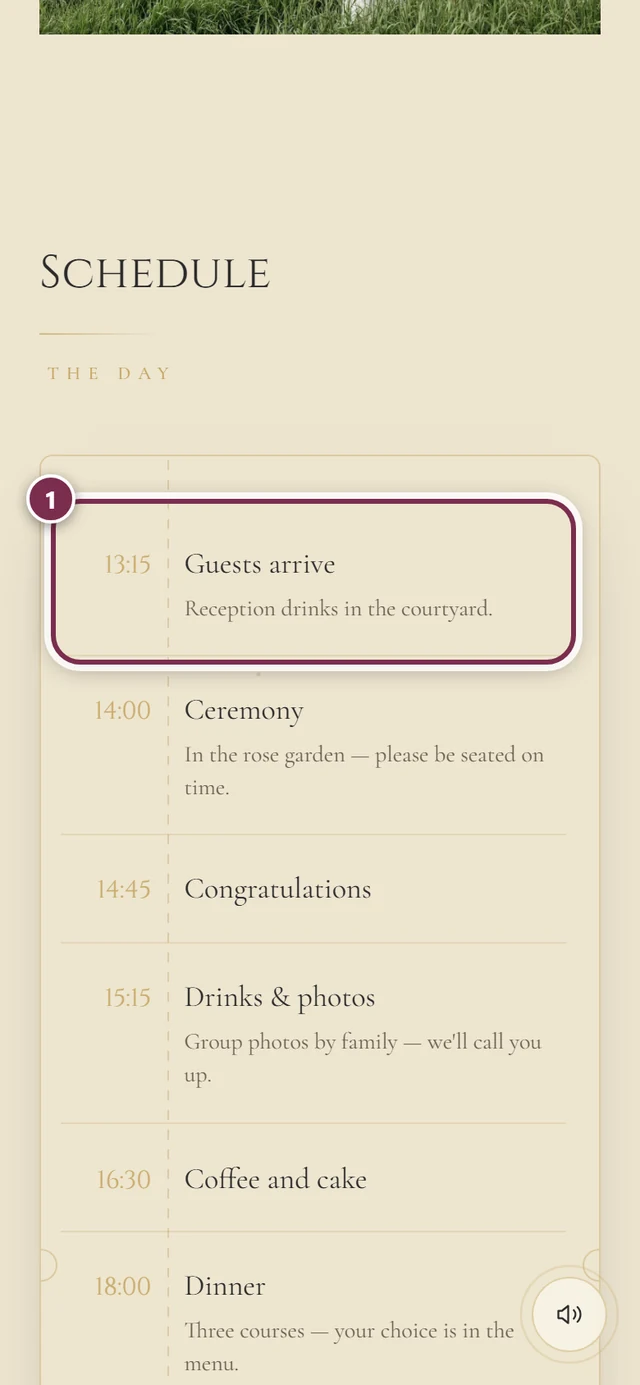
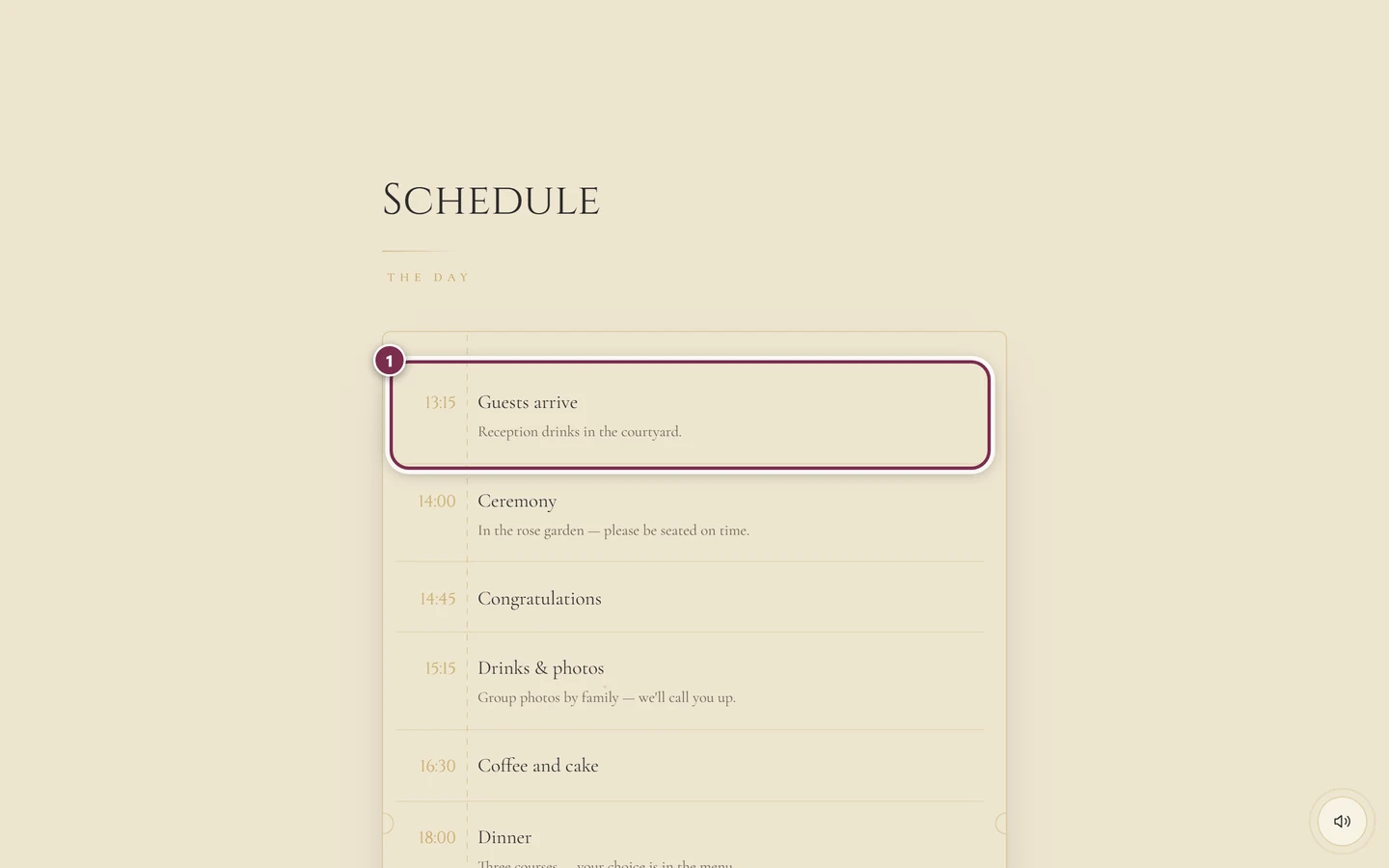
Section titled “Schedule”How the day runs, item by item with a time and an optional description.
Dress code
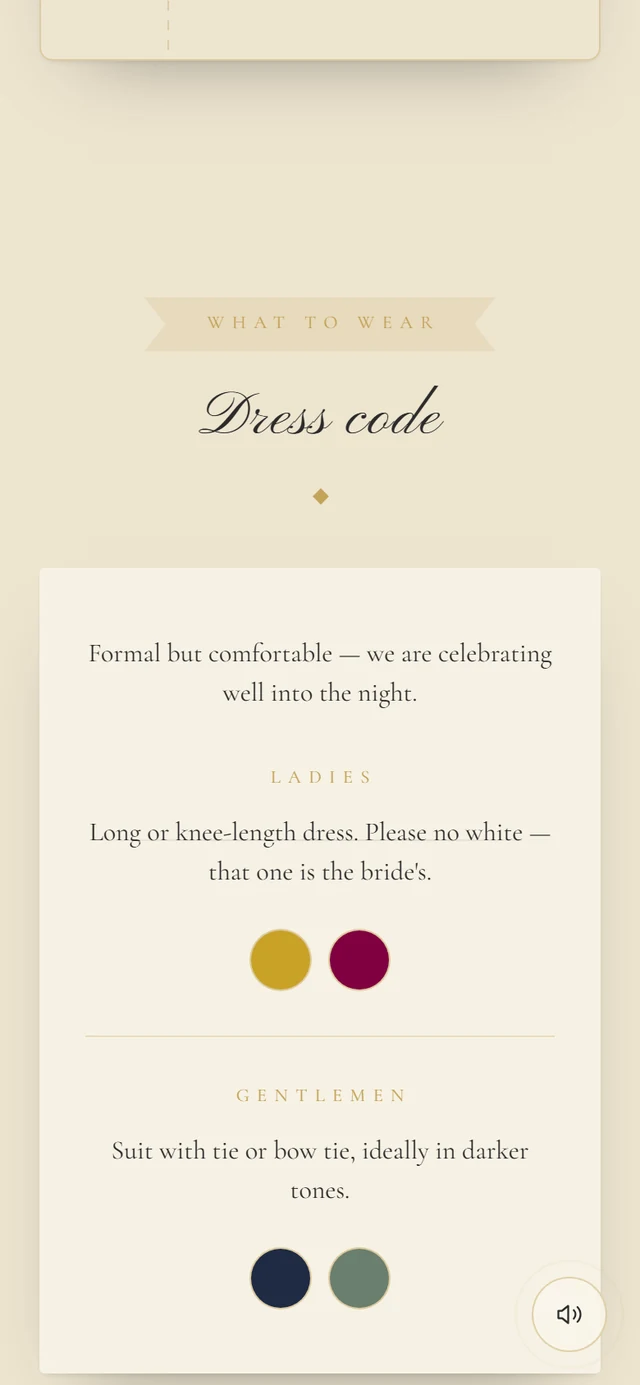
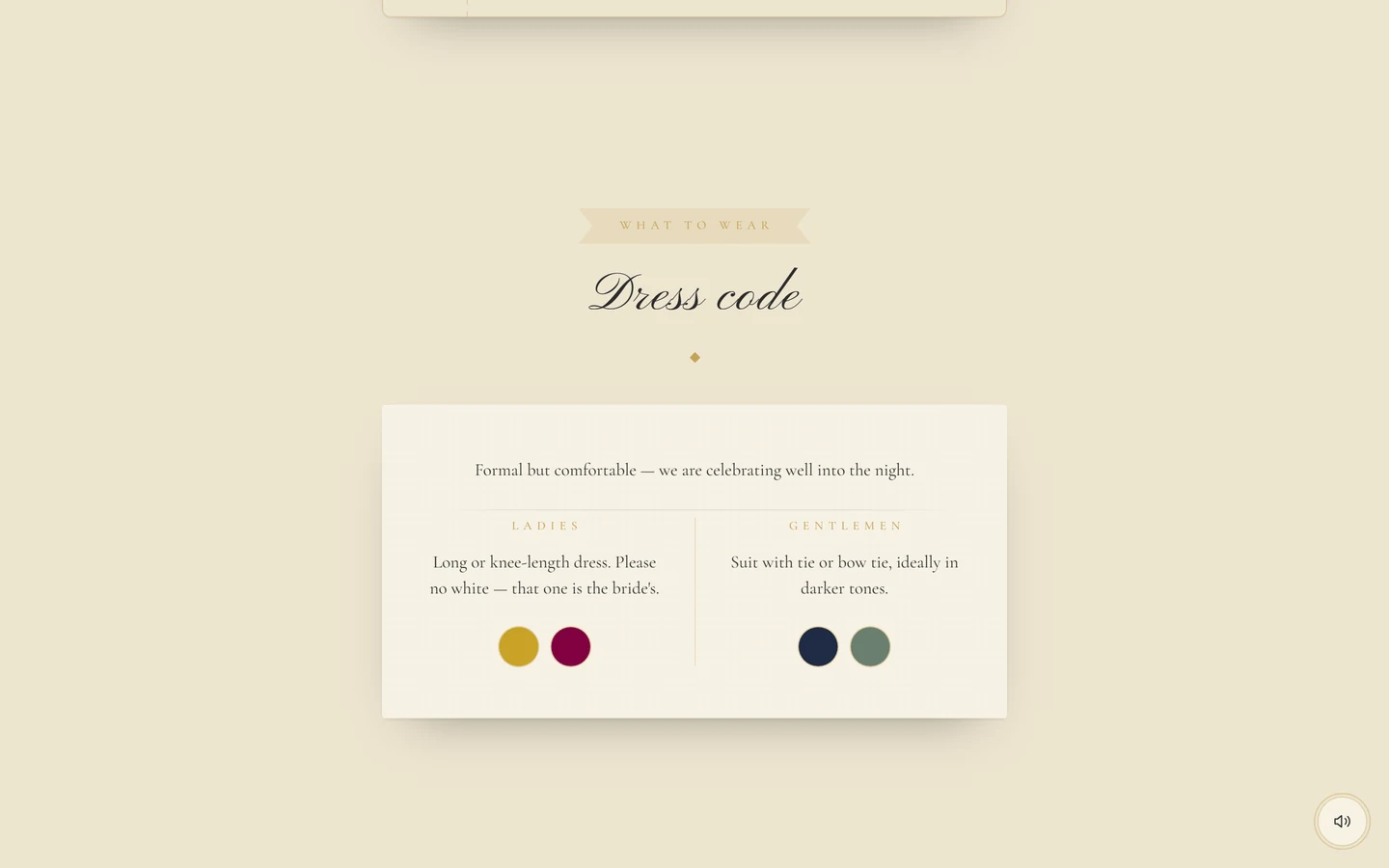
Section titled “Dress code”What to wear, usually split for ladies and gentlemen, often with color swatches.
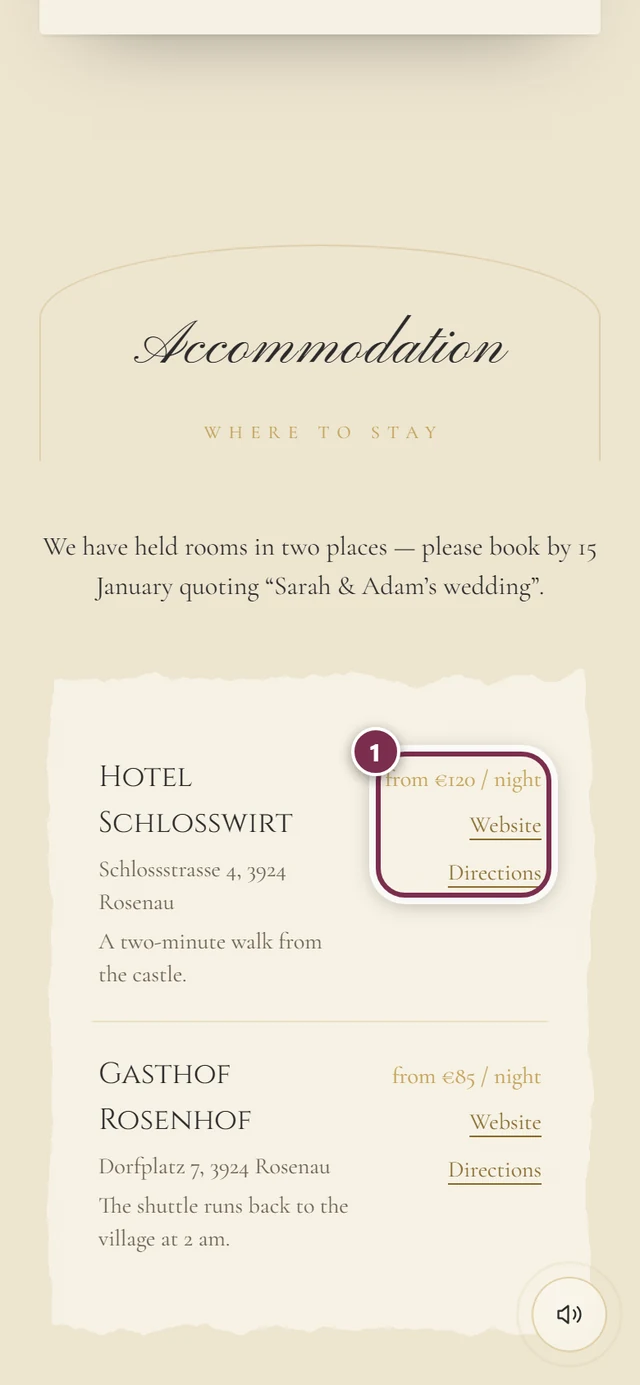
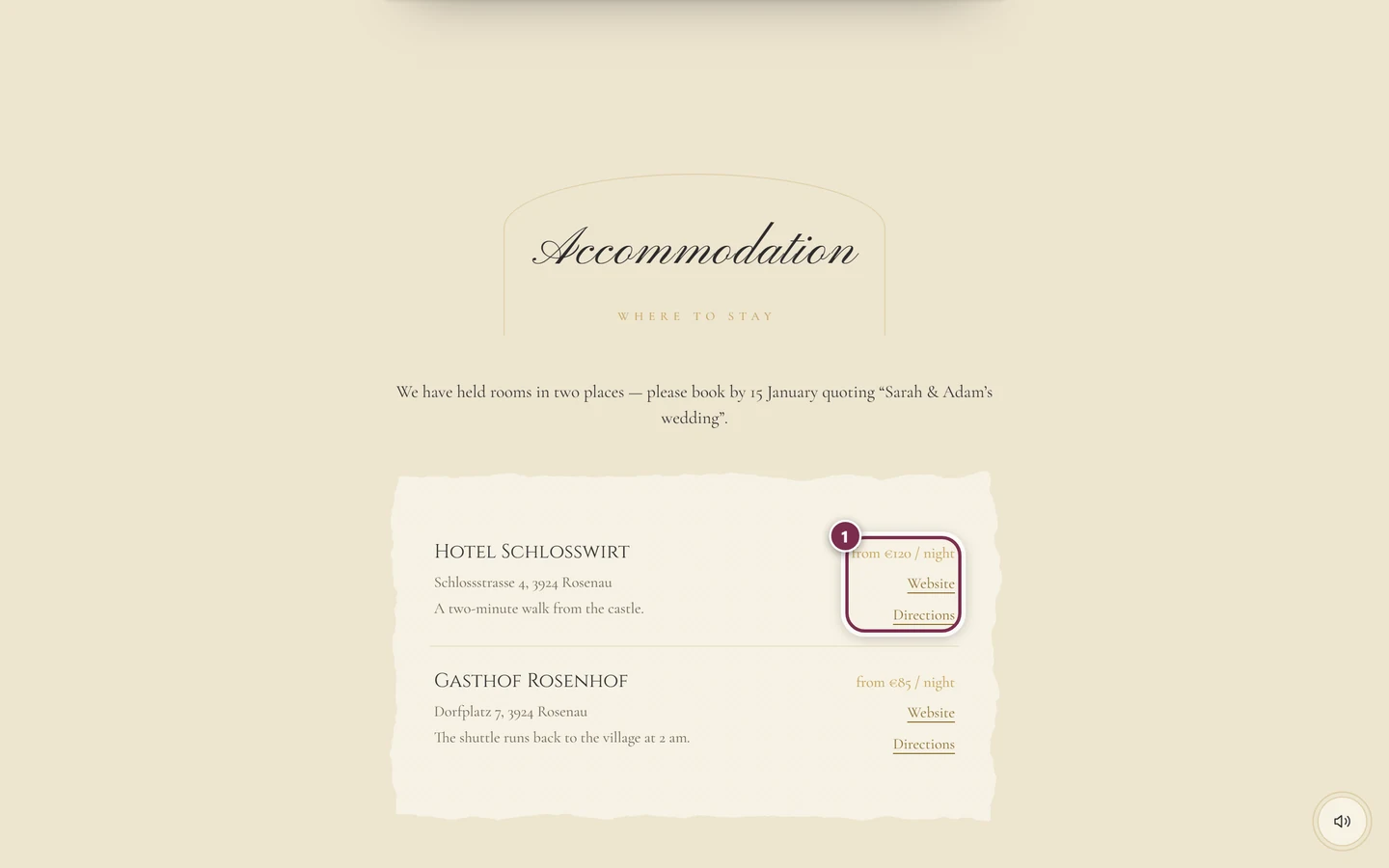
Accommodation
Section titled “Accommodation”Hotels and guest houses nearby, each with a price hint and links.
A few lines from the hosts, sometimes with links.
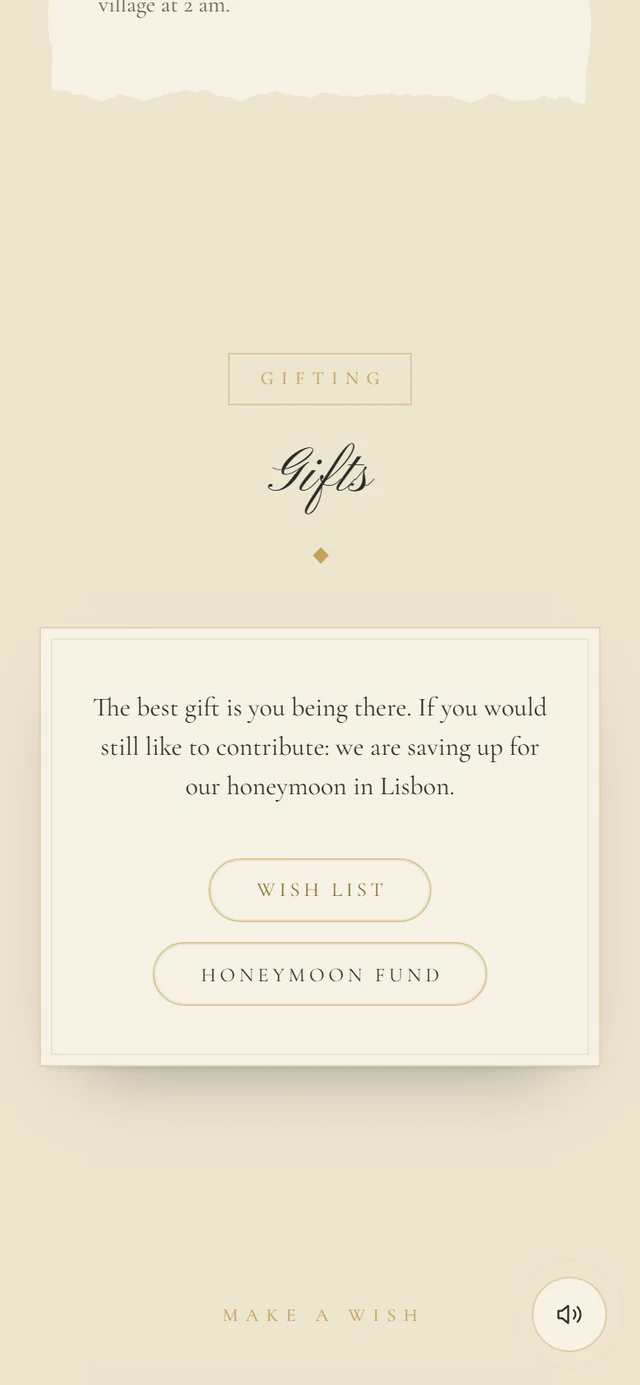
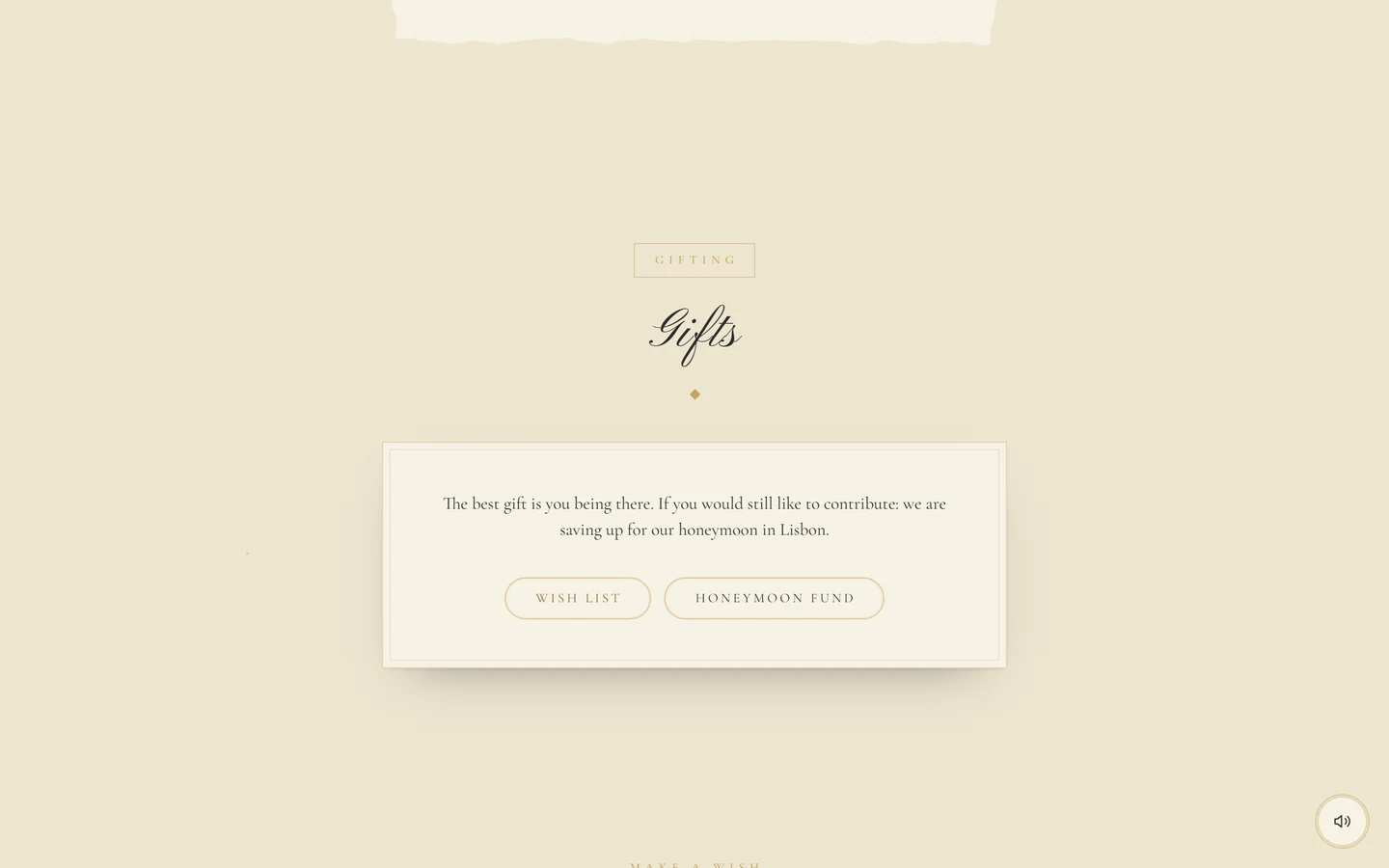
Photo preview
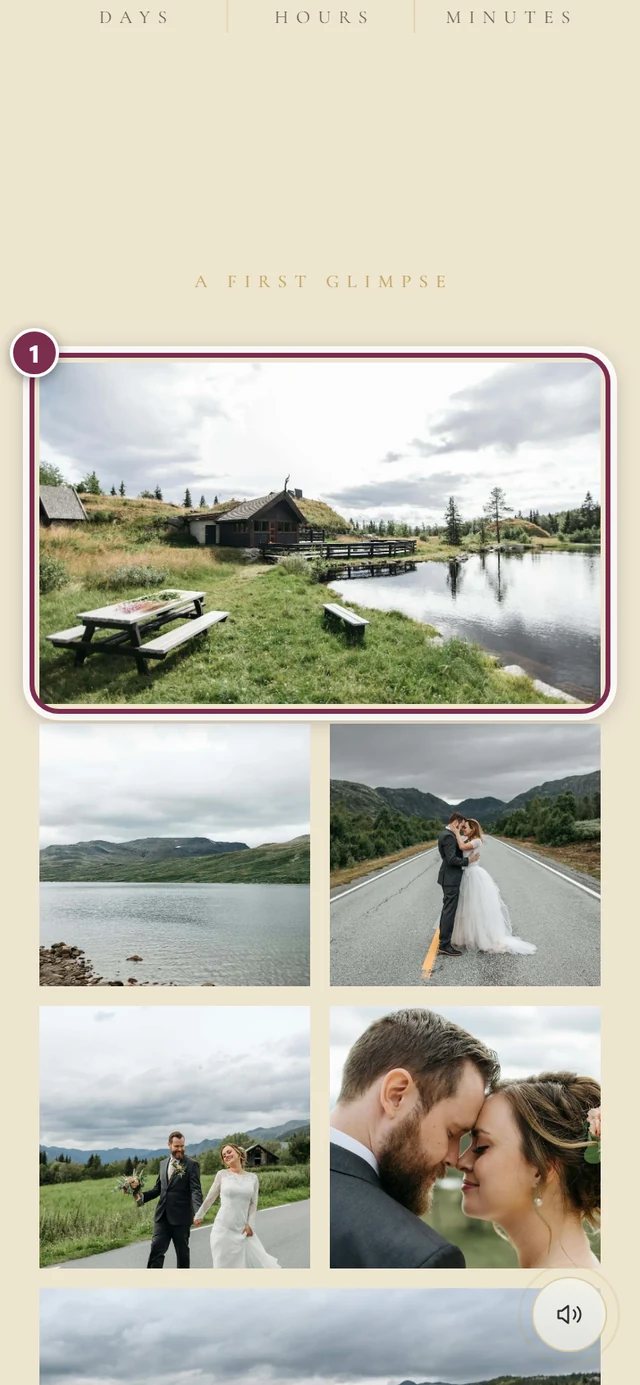
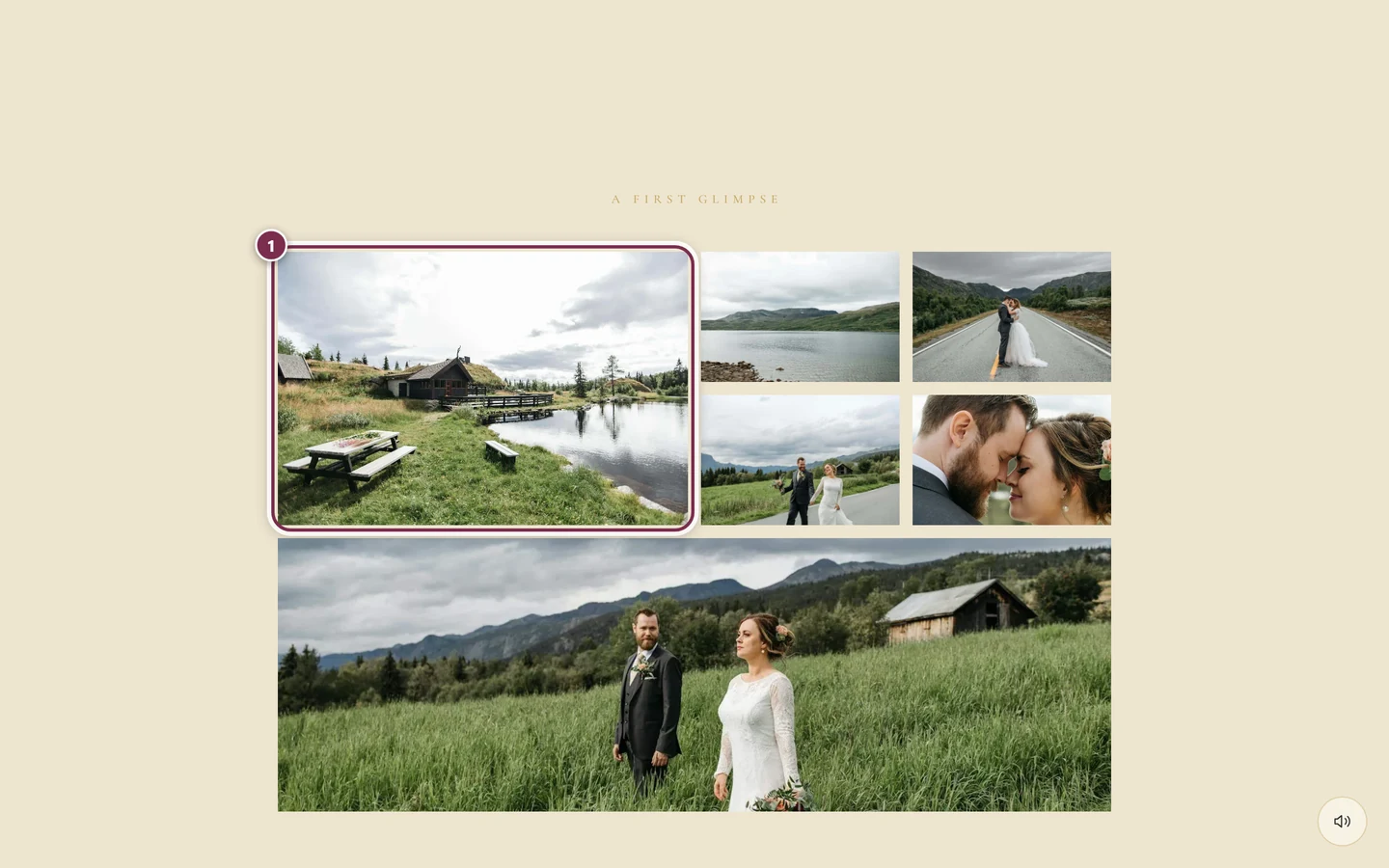
Section titled “Photo preview”The latest pictures from the gallery – a first glimpse before you even open the gallery.
Seating plan
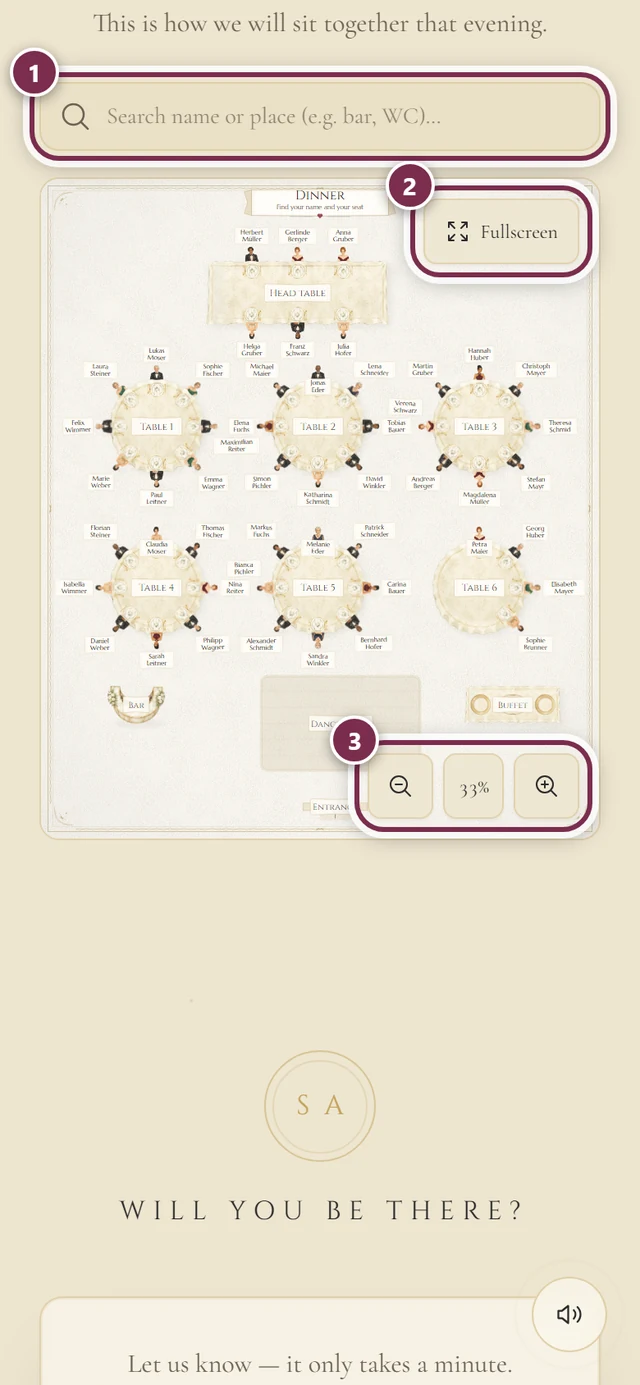
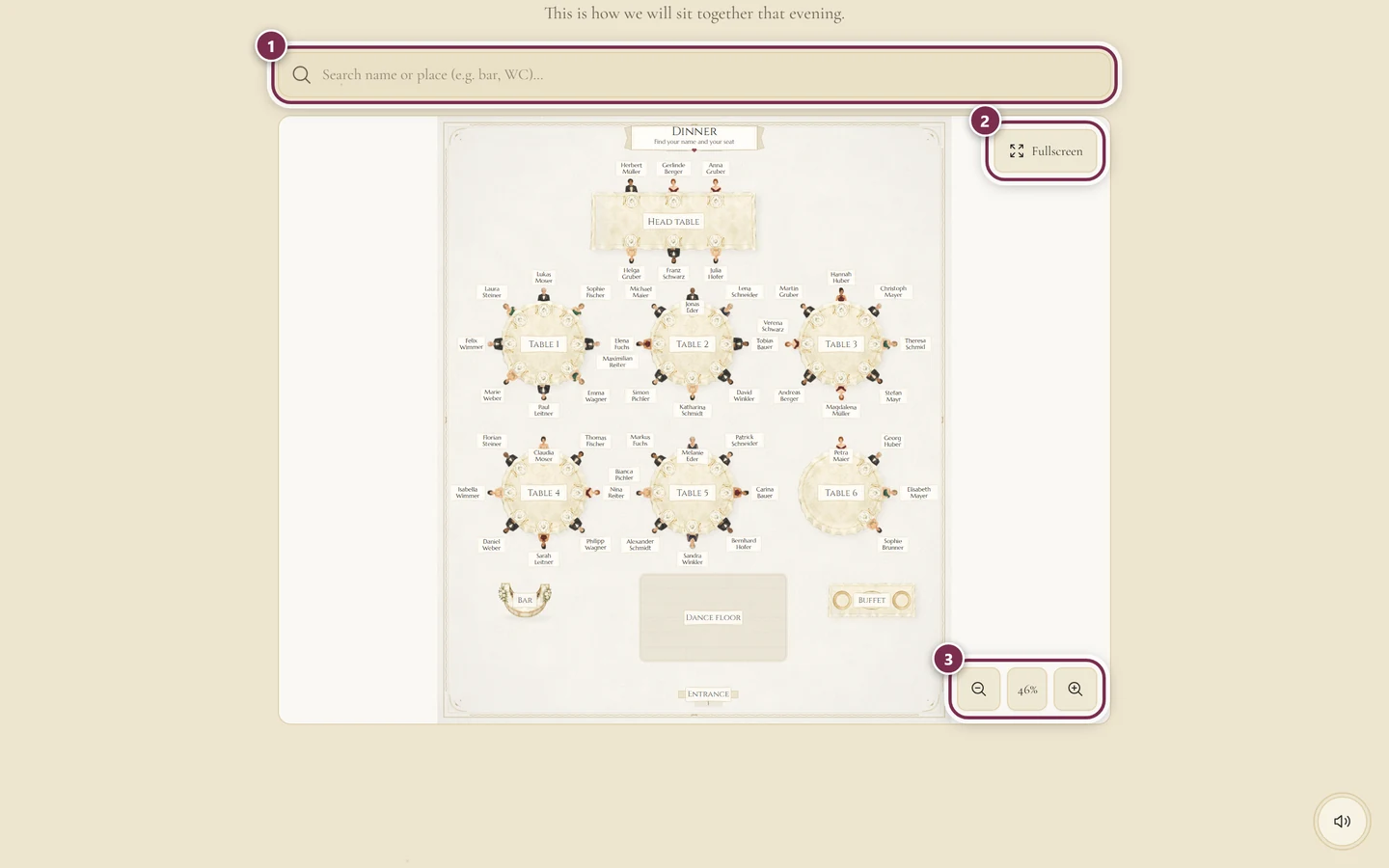
Section titled “Seating plan”The plan for the evening, right in the invitation – no detour through the gallery.
Further sections
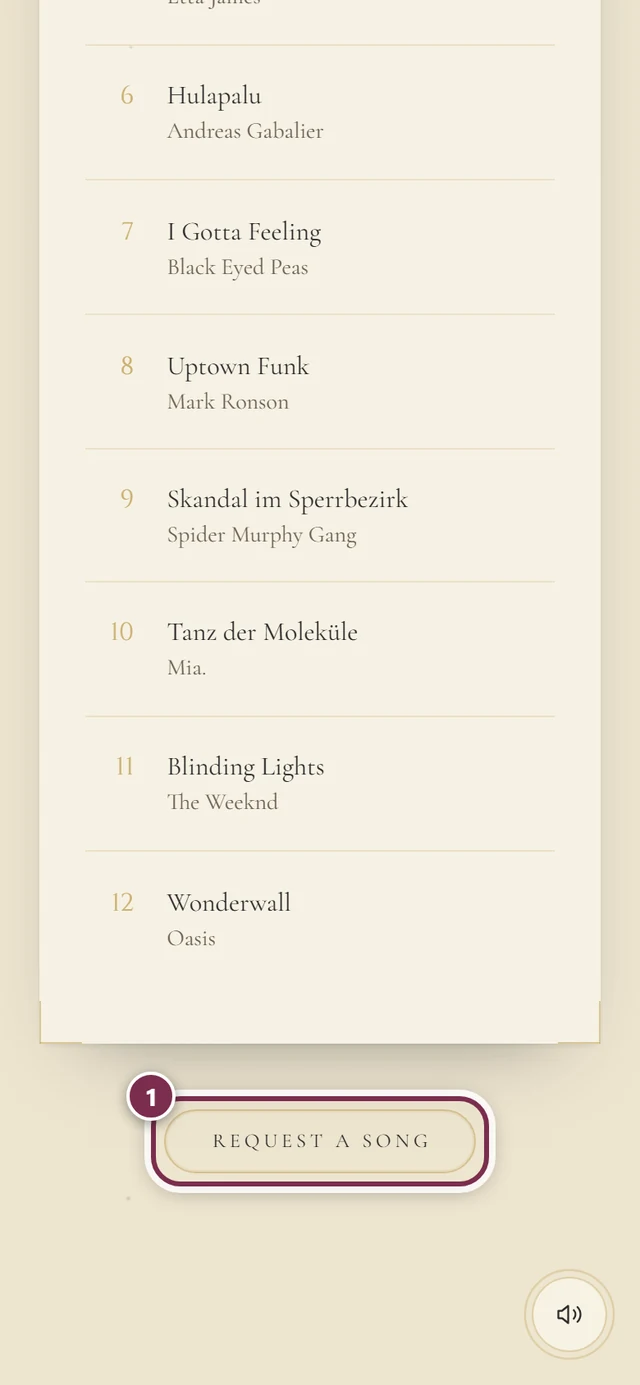
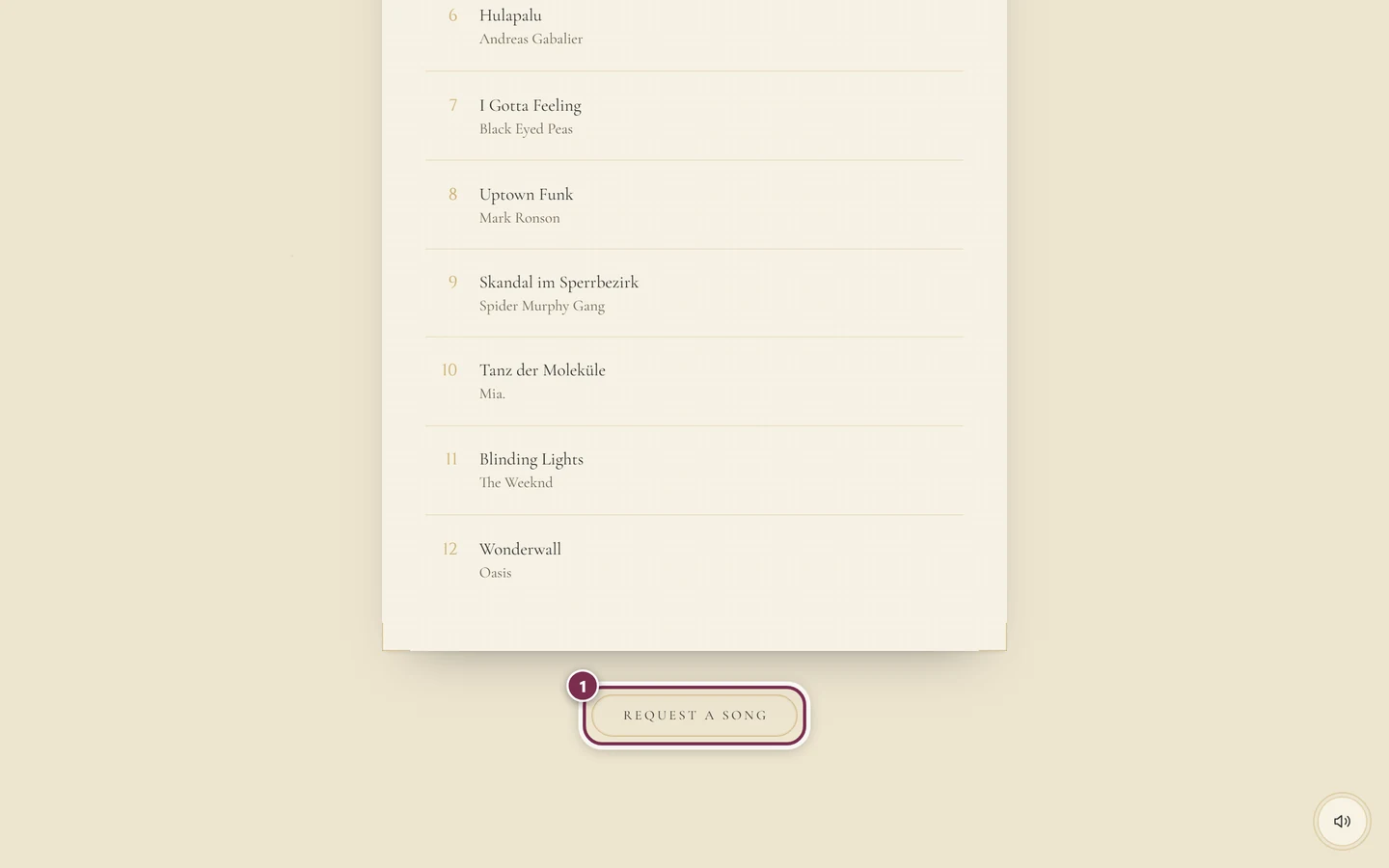
Section titled “Further sections”- Our Playlist – the most requested songs, with a button for your own request (see below).
- Will you be there? – your acceptance or your regrets (see below).
- On top of that come the hosts’ own sections, about a shuttle bus, childcare or the wedding party, for instance.
If the invitation is still a Save the Date, you deliberately only see names, date, countdown and possibly the calendar entry. The rest follows later – under the same link.
Doing everything inside the invitation
Section titled “Doing everything inside the invitation”You do not have to leave the invitation for any of this.
Accept or decline
Section titled “Accept or decline”Scroll to Will you be there? and tap Reply now. The reply form opens as a window over the invitation, in the same design.
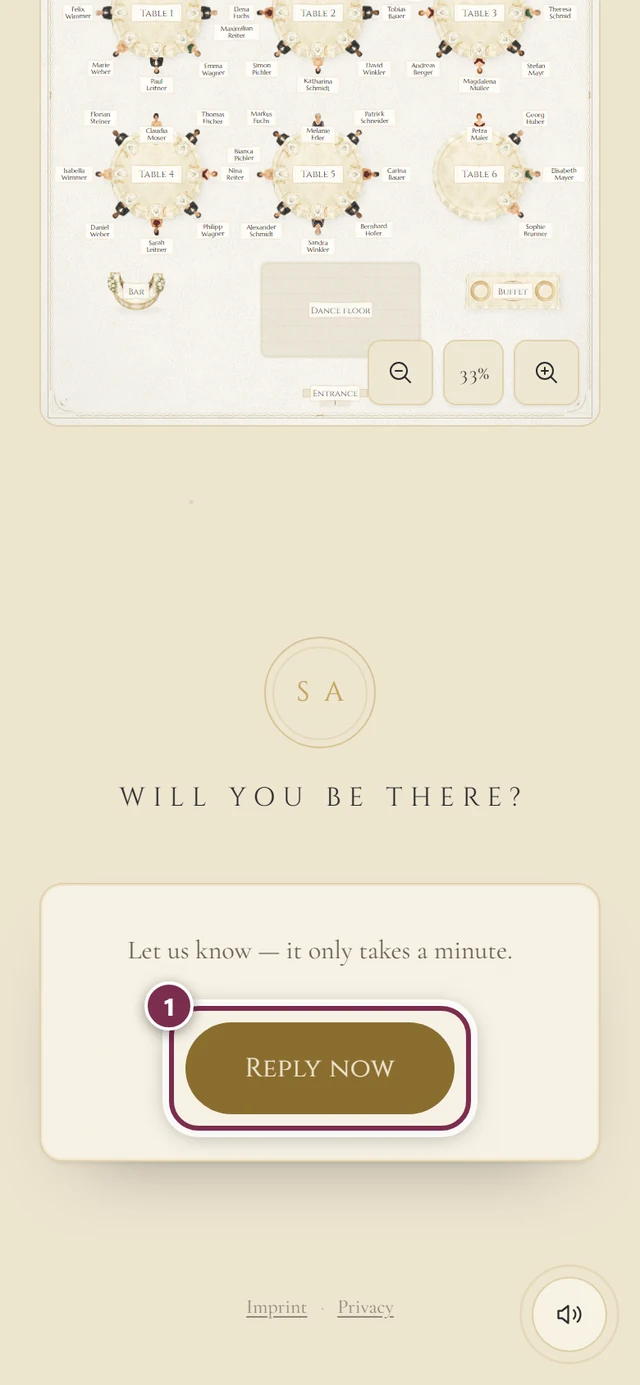
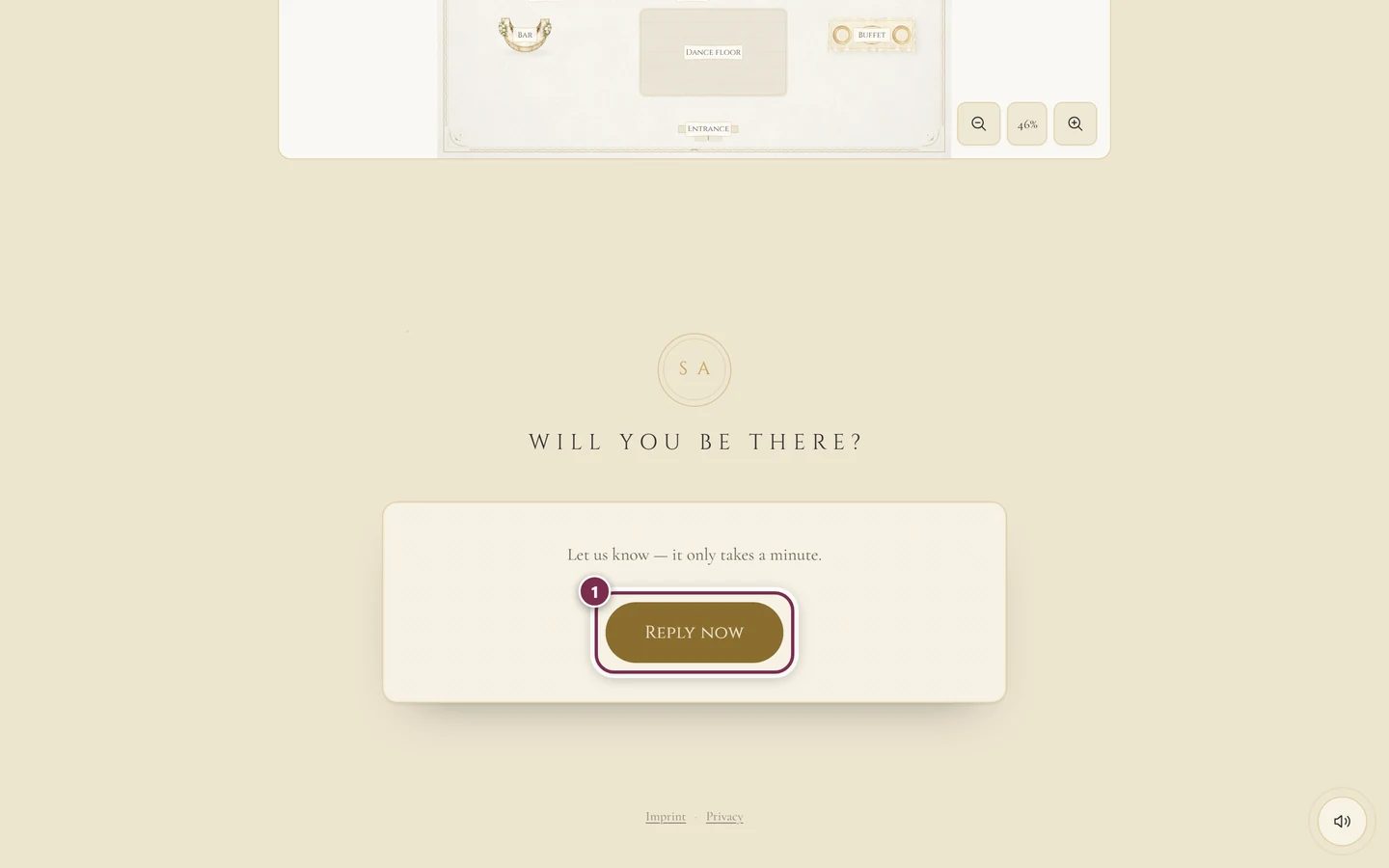
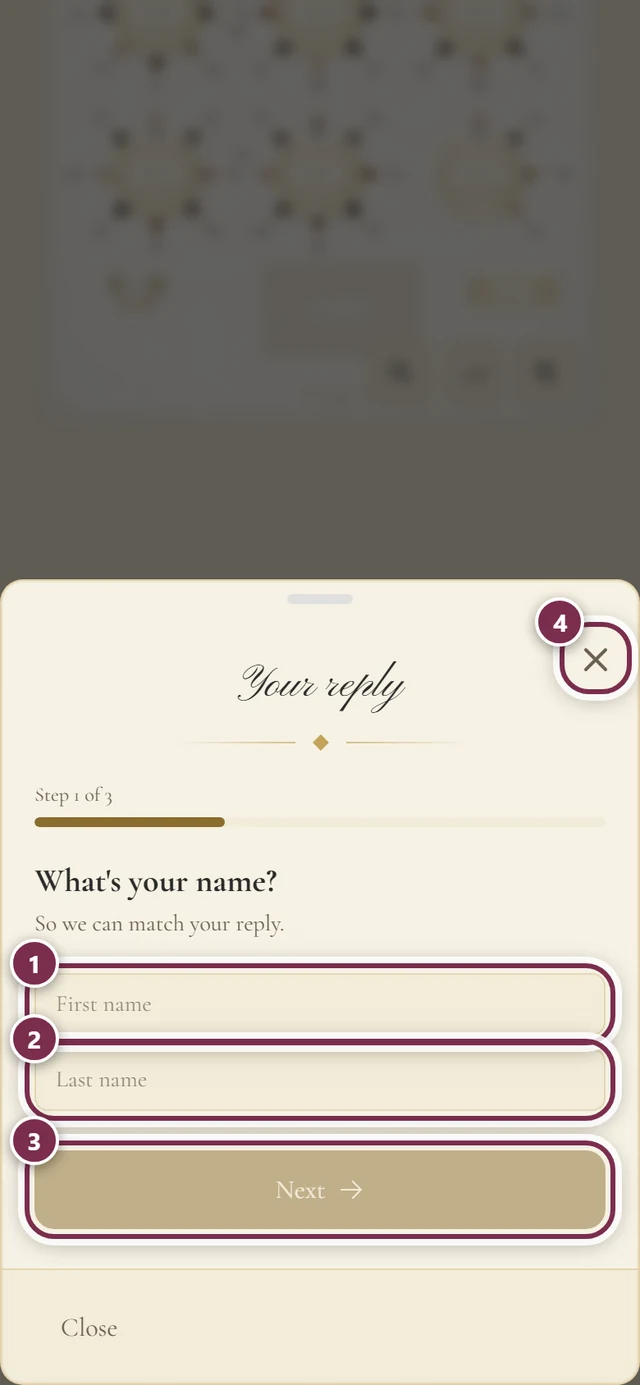
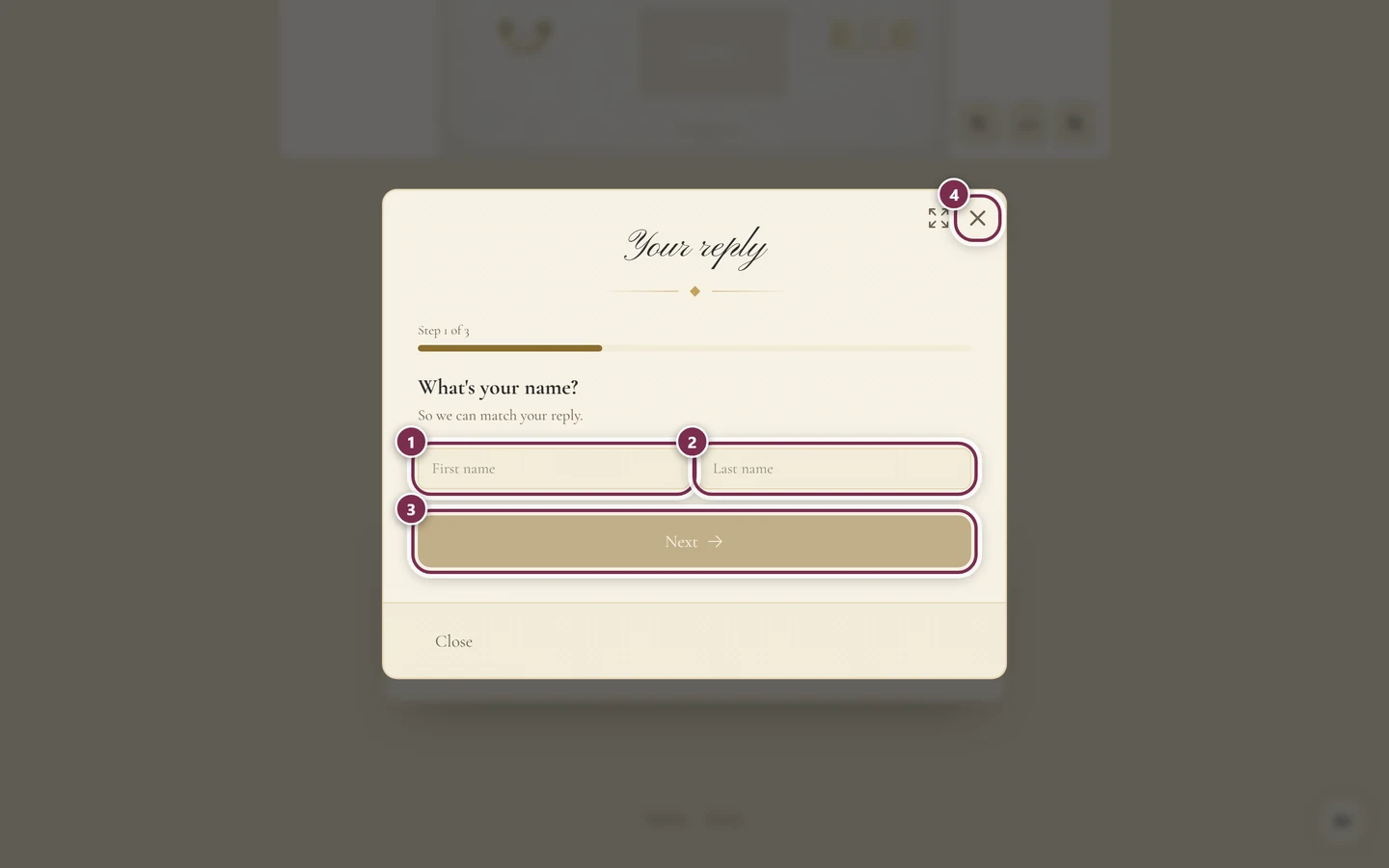
Everything about the later steps – menu choice, companions, dietary notes, seating wishes – is in the RSVP guide.
Request a song
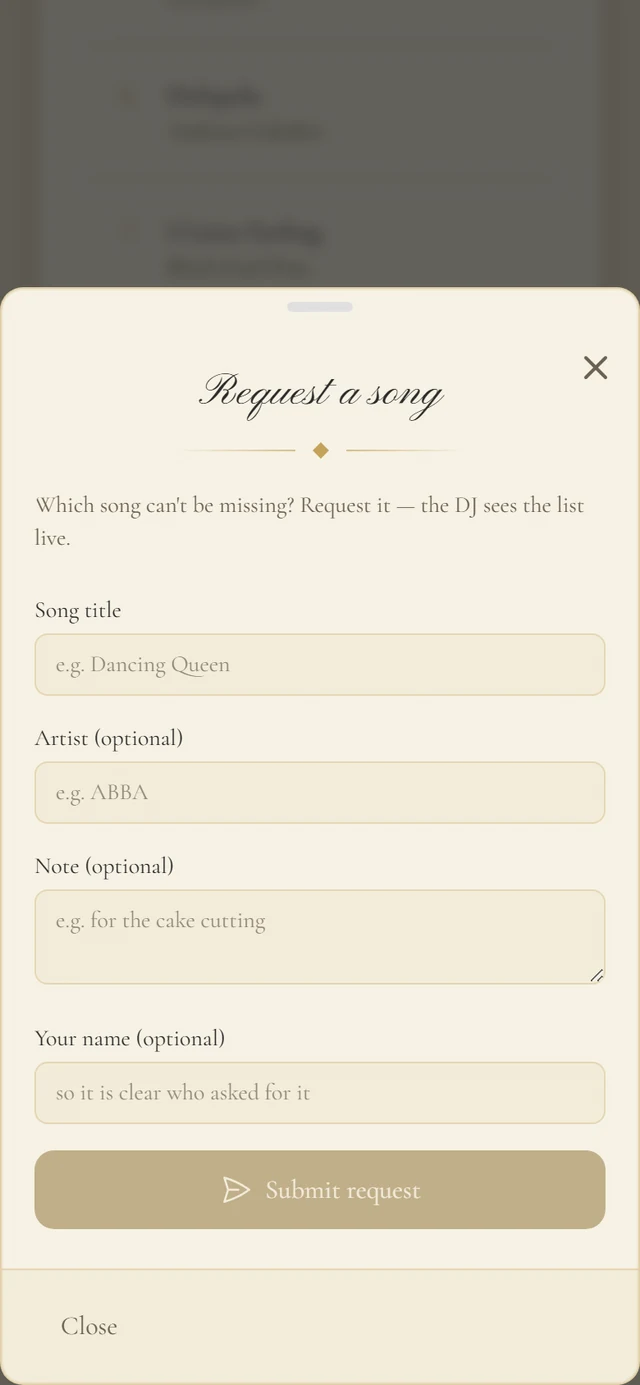
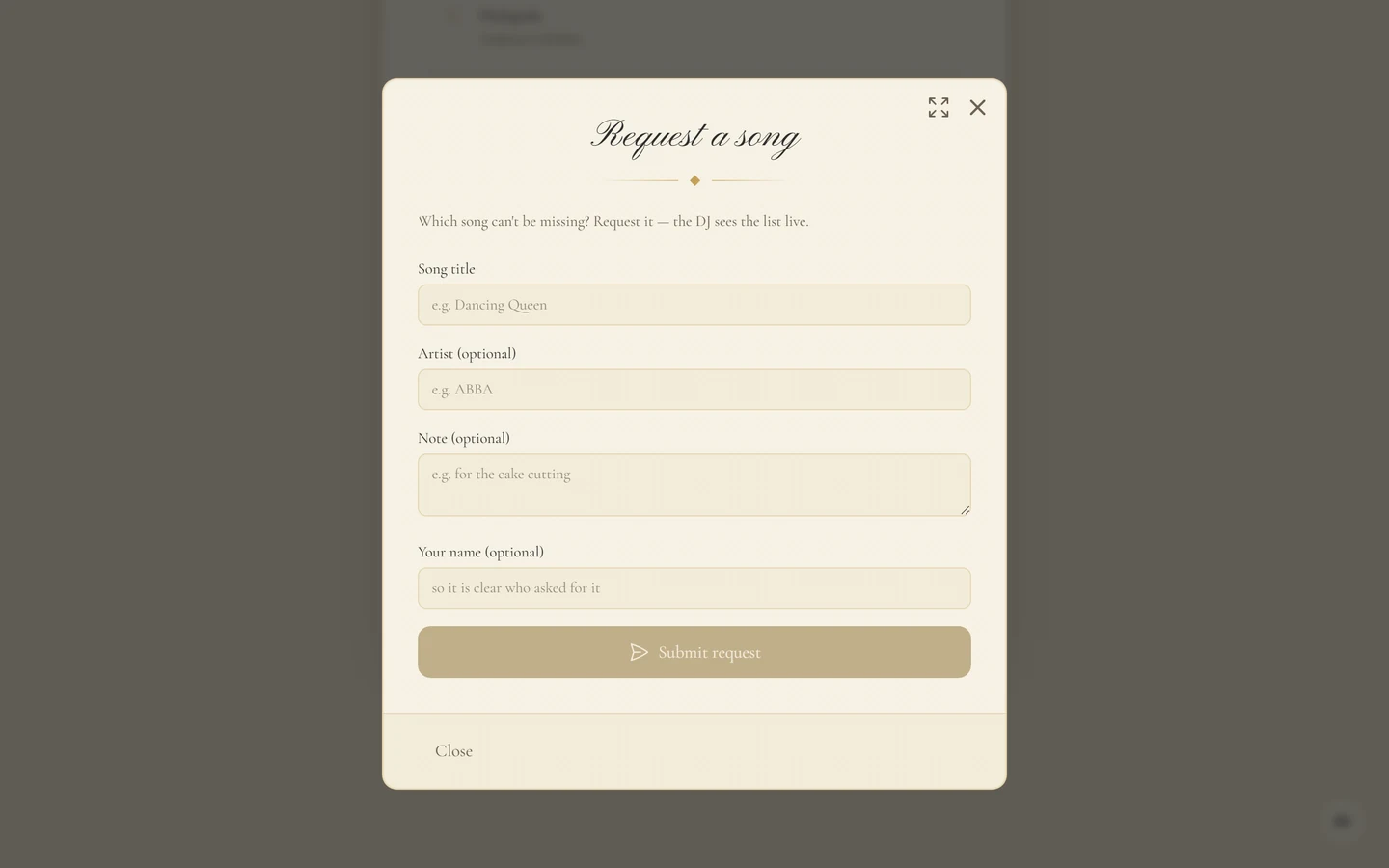
Section titled “Request a song”Under Our Playlist, tap Request a song and enter your wish in the window.
View photos large
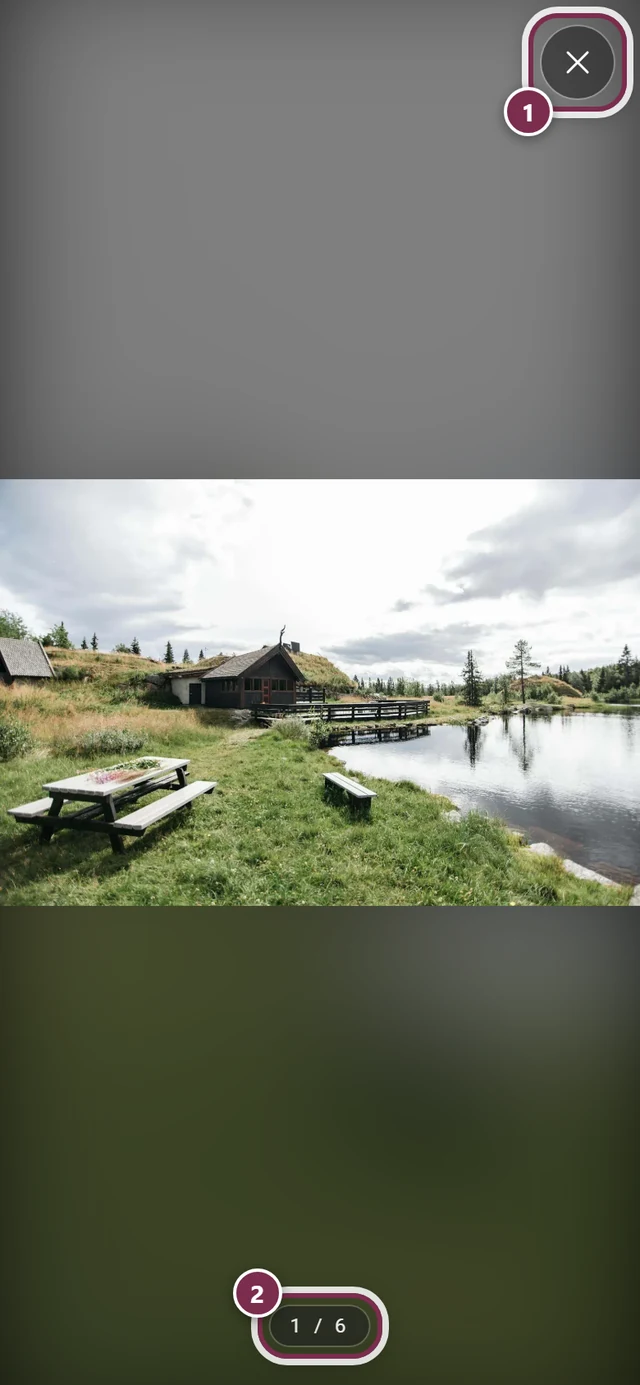
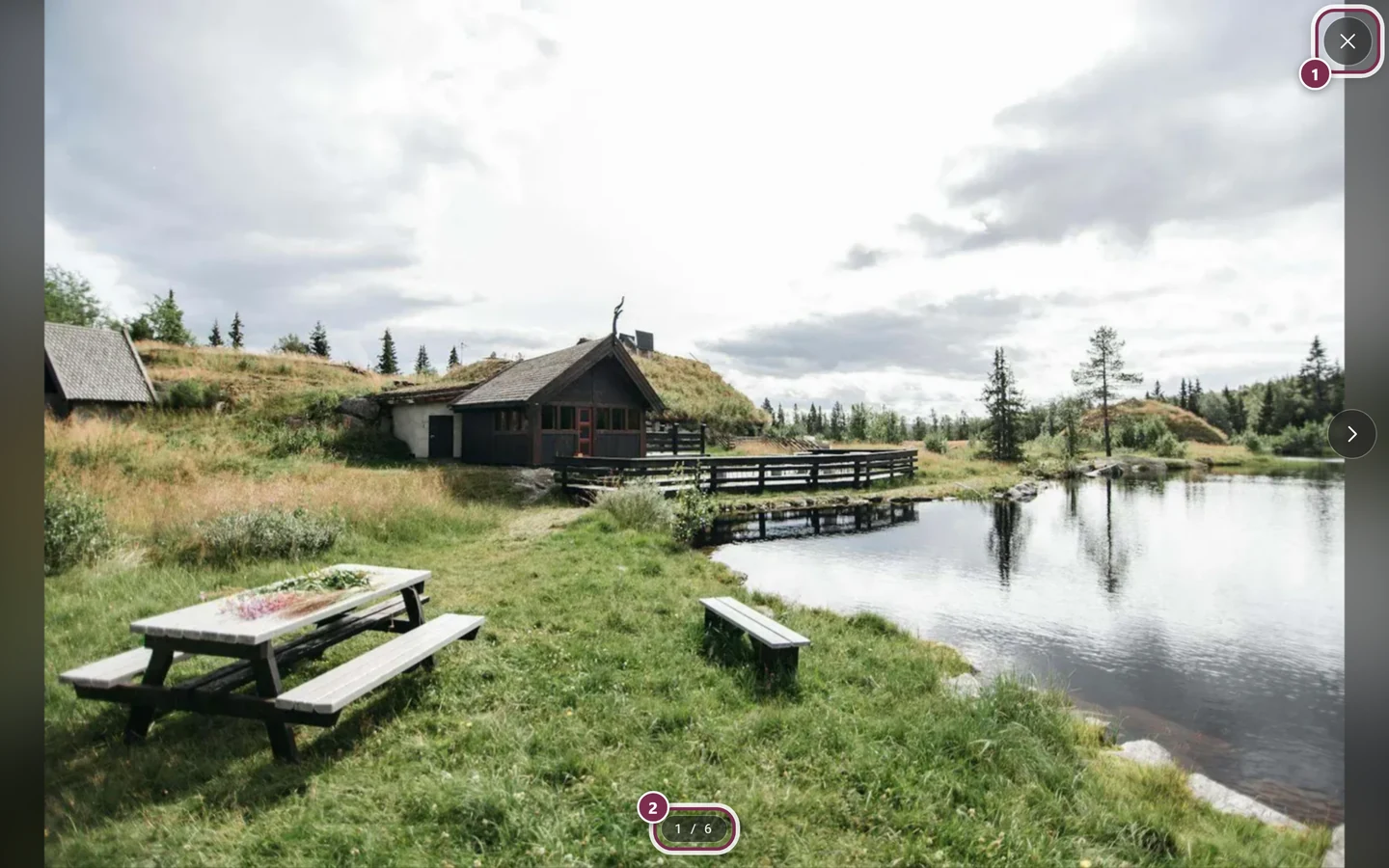
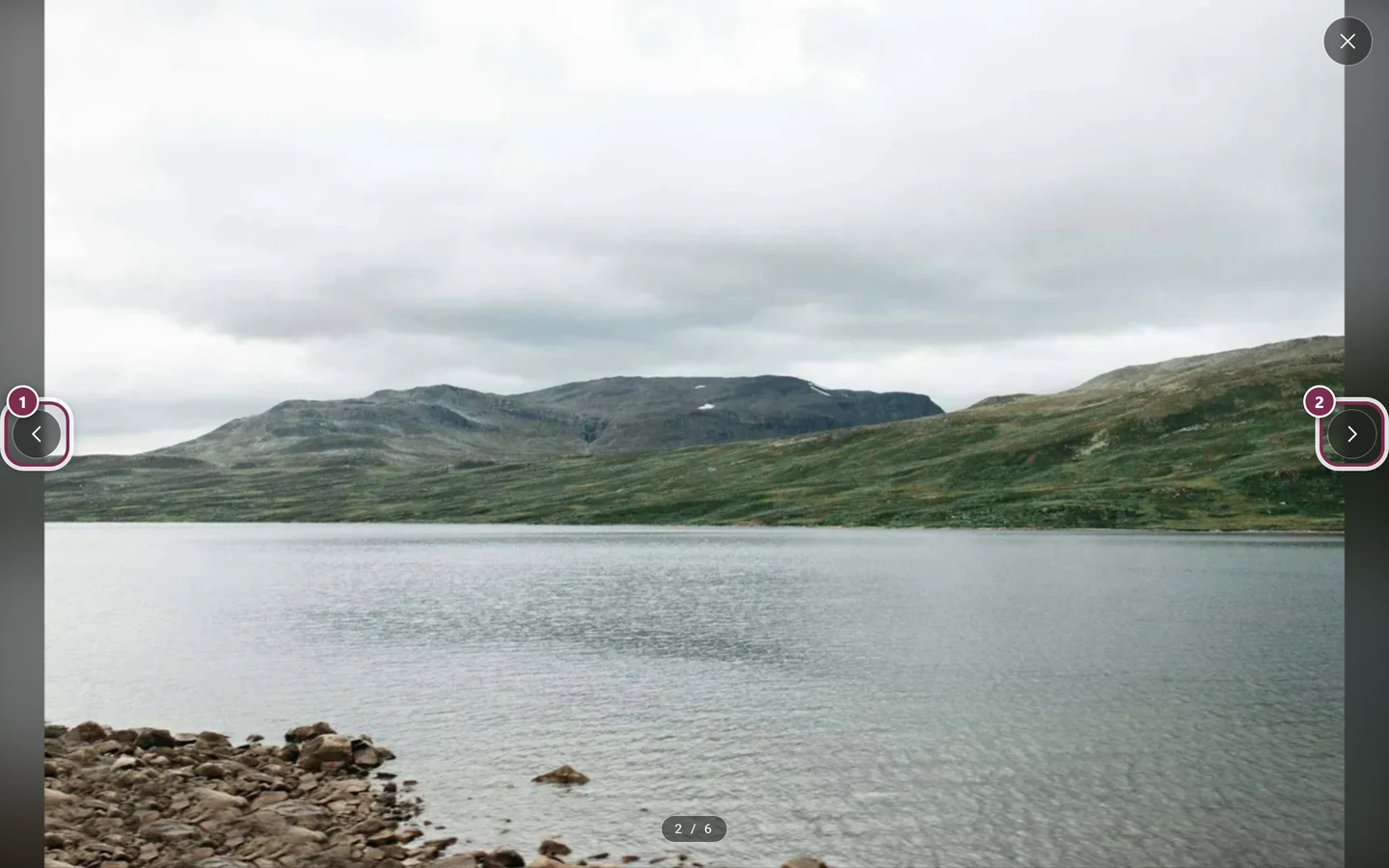
Section titled “View photos large”Tap a picture in the Photo preview. It opens full size over the invitation.
Small playful touches
Section titled “Small playful touches”Some designs build in a few physical moments:
- Scratch card – a foil covers the countdown with a Scratch to reveal hint. Swipe across it with a finger (or the mouse) until the date appears. Once revealed, it stays revealed. Most invitations do without it; if the countdown sits there openly as in the screenshot above, no scratch card is set up.
- Creatures and lights – birds, butterflies, fireflies or shooting stars drift across the scene. Purely decorative, nothing to tap.
- Tilt and move – tilt your phone or move the mouse and the scenery leans along with it.
The link after the event
Section titled “The link after the event”The invitation link is also the gallery link. From the event day on, the very same address no longer leads to the invitation but into the event’s photo gallery. So there is only one link to remember.
Troubleshooting
Section titled “Troubleshooting”The invitation is empty or says “This invitation is currently unavailable.” The host has not published it yet, or has switched it off again. Wait a little or ask your host.
I get no sound First check whether the round button at the bottom right reads Turn music on – it then shows a crossed-out speaker. If it stays silent, your browser has blocked playback: switch the button off and on again and the music starts. Remember the silent switch on your phone too. If the design brings no music at all, the button is missing entirely.
I see no seating plan / no schedule / no playlist Those sections come from other tools of the host. If the tool in question is not switched on, the section stays hidden completely.
I see no venue, no dress code, no accommodation Those sections belong to the invitation itself and can be switched on one by one. Whatever the host did not fill in is not shown as an empty box – it drops out entirely.
The paging arrows are missing on a photo On a phone there are none – swipe left or right instead. From tablet width up they appear, but always only in the direction where another picture exists.
I land in the gallery instead of the invitation The event day has started – from then on, the same link deliberately shows the gallery.
The link asks for a password The event is protected and the link does not carry the password. Ask your host for the link with the password embedded, or for the password itself.
Related pages
Section titled “Related pages”- For guests: Accept or decline (RSVP) · Find your seat · Tools at the event · Questions about the invitation link
- For hosts: Set up the digital invitation – how the invitation is built.