Redeeming rewards
If you’ve offered real rewards, you manage handout on the Real Rewards page. Here you verify a guest’s confirmation code, hand out the reward, and document the handover. Your guests can claim a reward in the app – only you or your team at the handout point can confirm and hand it out.
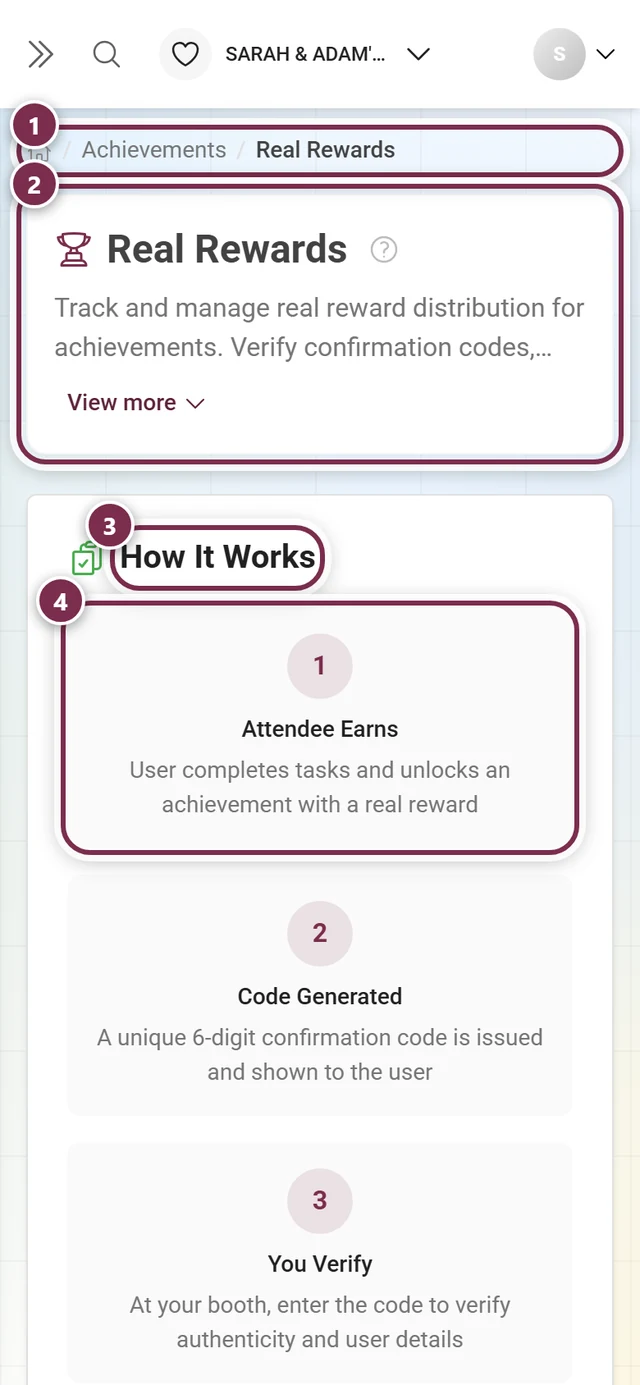
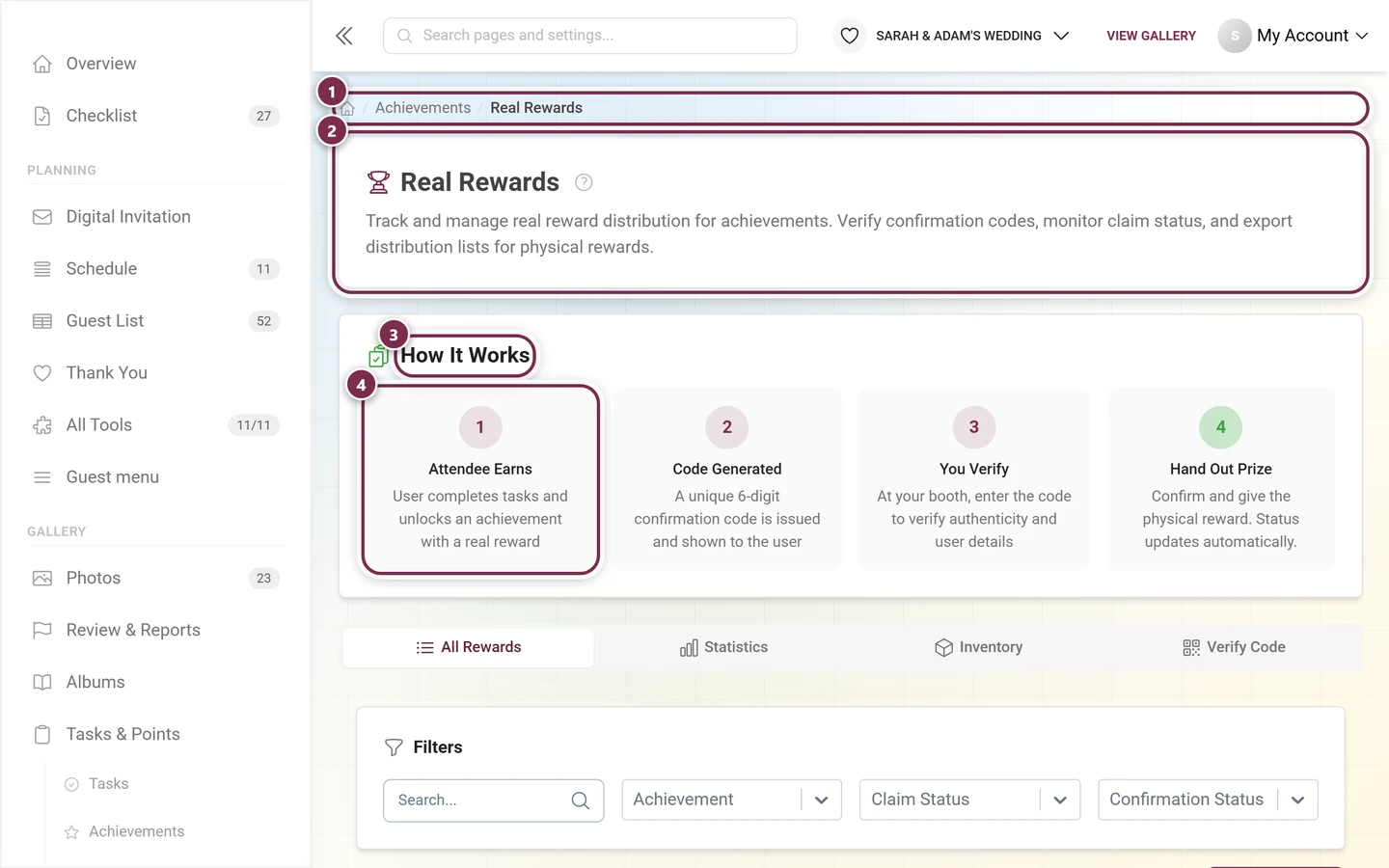
How the flow works
Section titled “How the flow works”At the very top of the page a fixed card, How It Works, explains a real reward’s full journey in four steps:
-
Attendee Earns – the guest completes tasks and unlocks an achievement with a real reward.
-
Code Generated – a unique 6-digit confirmation code is issued and shown to the guest in the app.
-
You Verify – at your booth, you enter the code to verify authenticity and user details.
-
Hand Out Prize – you confirm and give the physical reward. The status updates automatically.
How do I reach the page?
Section titled “How do I reach the page?”Since the admin rework, Real Rewards sits in the sidebar – as a sub-entry of Tasks & Points.
-
From the sidebar (recommended): In the Gallery group, click Tasks & Points. The entry unfolds and shows, below its three tabs, the two follow-up pages Real Rewards and Winners. Choose Real Rewards. If the page is available to you, its own four sub-entries unfold below it too: All Rewards, Statistics, Inventory, Verify Code.
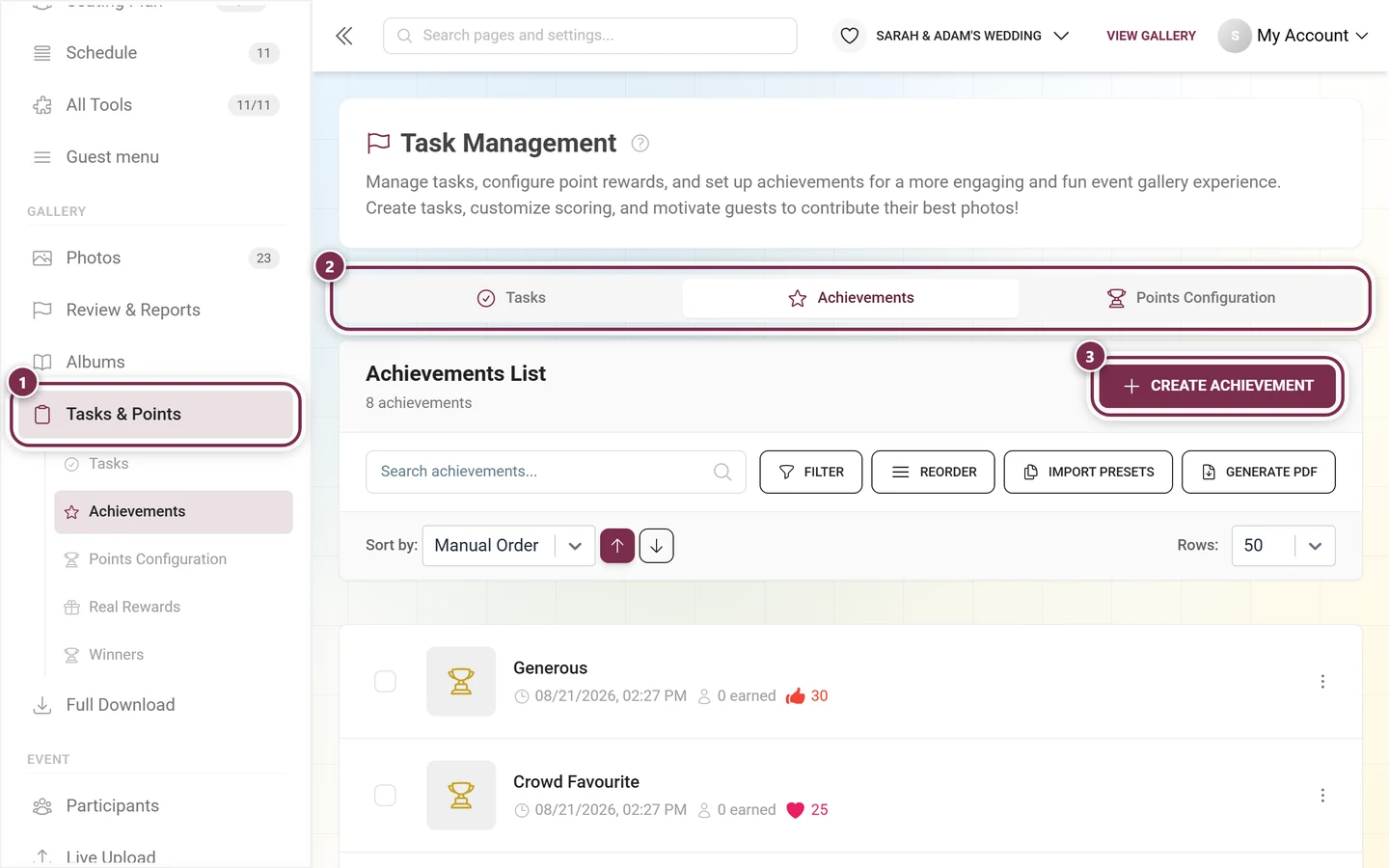
“Real Rewards” and “Winners” hang below “Tasks & Points” as follow-up pages. ① Tasks & Points in the sidebar. Once you are inside this area, the three tabs Tasks, Achievements and Points Configuration unfold below it, together with the follow-up pages Real Rewards and Winners. ② The same three tabs at the top of the page. They are always there; if your plan does not include one of the features, that tab shows a plan notice instead of the list. ③ Create Achievement – the button belongs to the Achievements tab; on the Tasks tab it reads Create Task. -
From the achievements list: Open Tasks & Points ▸ Achievements. As soon as at least one achievement has a real reward, an info card “Real rewards detected!” appears with a Real Rewards link – one click brings you straight here.
-
Via the direct link or the breadcrumbs: The page shows the breadcrumbs Achievements › Real Rewards on top. The first crumb takes you back to the achievements tab. Direct path in the admin area:
/admin/gallery/achievement-tracking. -
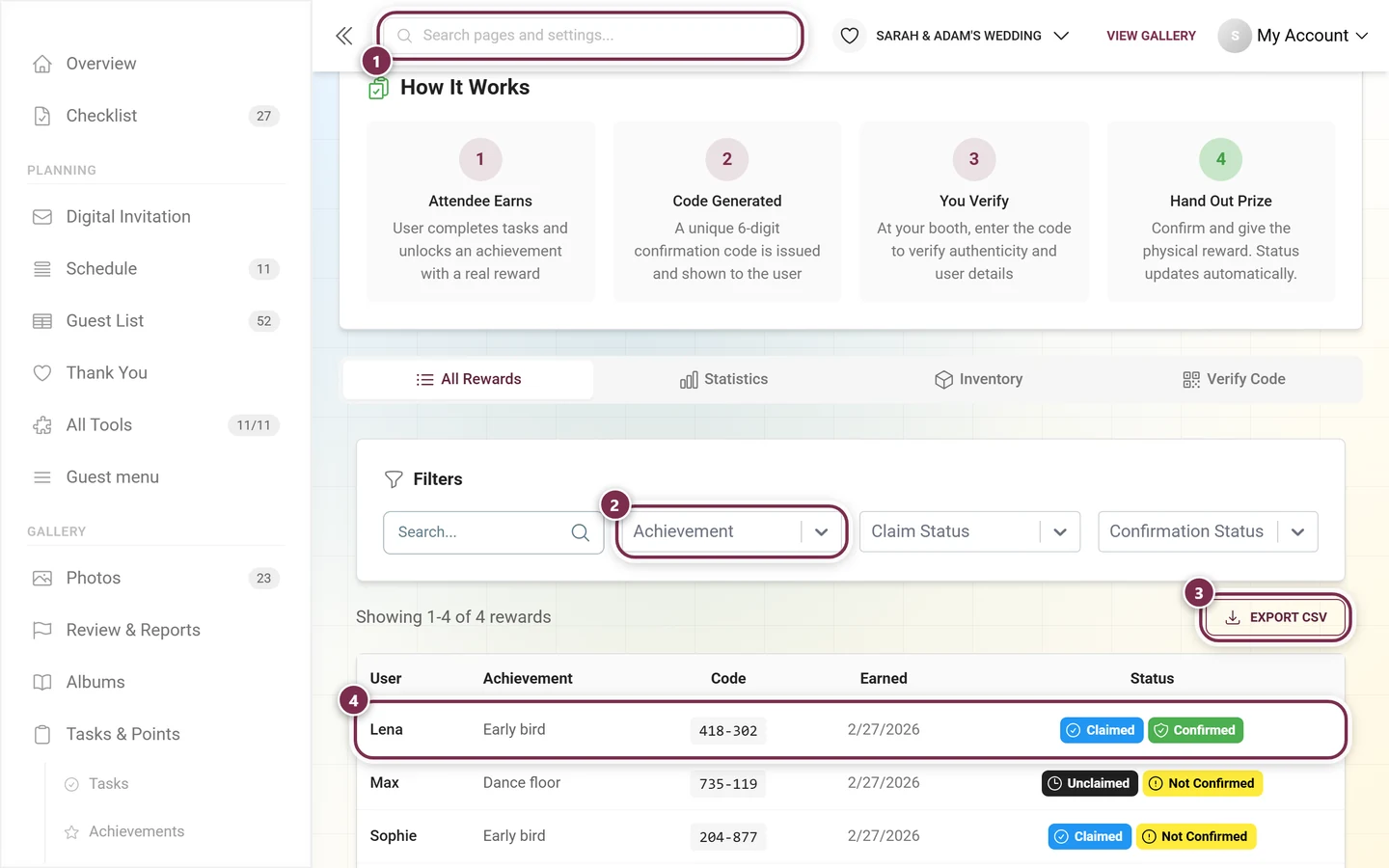
Via global search: Use the search at the top of the admin area and type e.g. “rewards”, “achievements” or “tracking” – the Real Rewards result jumps straight to this page.
The four tabs
Section titled “The four tabs”The page has four tabs. Each has a deep link via the ?tab=… parameter, so you can open it directly or save it as a bookmark. On narrow screens you’ll only see the tabs’ icons.
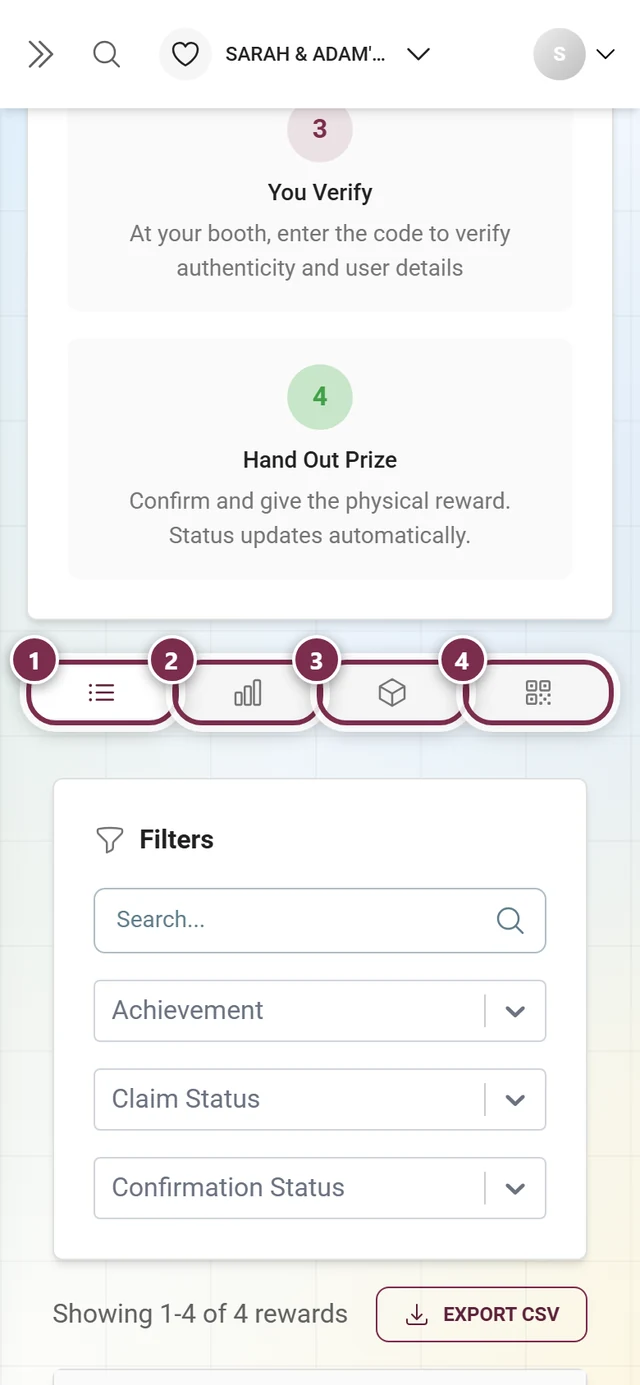
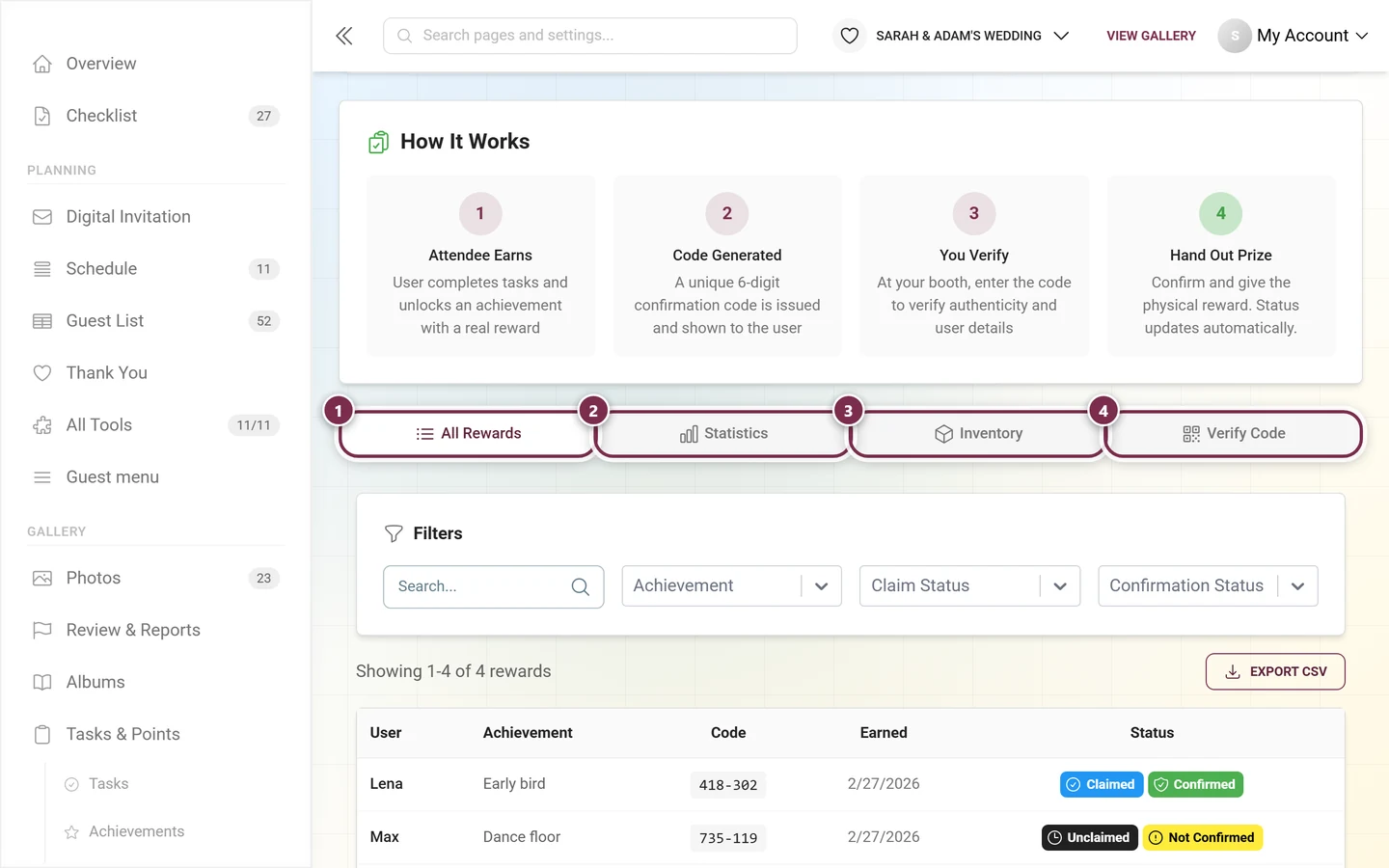
- All Rewards (
?tab=list) – the full, filterable and exportable list of all redeemable rewards. This is the default tab. - Statistics (
?tab=stats) – summary cards and a breakdown per achievement. - Inventory (
?tab=inventory) – the stock per reward with remaining count. - Verify Code (
?tab=verify) – the quick way to hand out a reward right there with the guest.
“All Rewards” tab
Section titled ““All Rewards” tab”This tab lists every real reward earned by a guest. It’s ideal for keeping an overview, filtering precisely, managing individual cases, and exporting the distribution list.
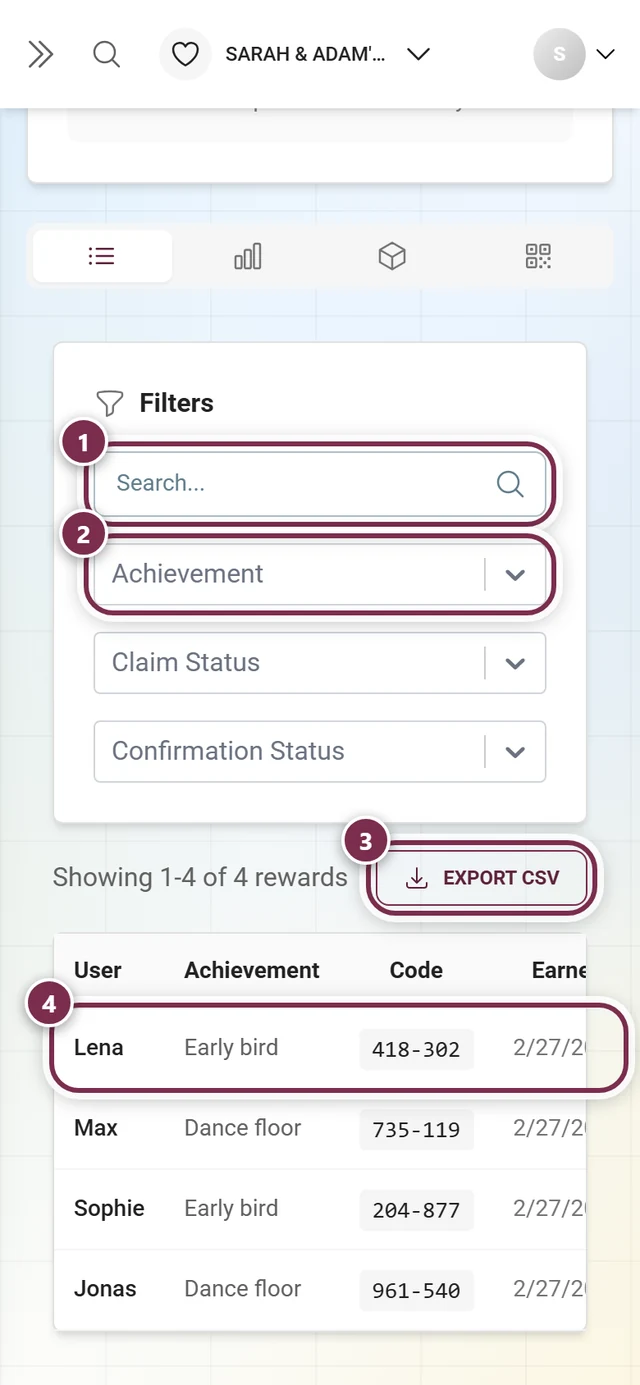
Filter bar
Section titled “Filter bar”Above the table, under the Filters heading, you find four fields:
- Search… – free text. Searches achievement name, email, nickname and the confirmation code (with or without the dash).
- Achievement – dropdown All Achievements plus each achievement that has a real reward. Use it to show only one specific achievement.
- Claim Status – All Statuses / Claimed / Unclaimed.
- Confirmation Status – All Statuses / Confirmed / Not Confirmed.
As soon as a filter or search is active, a red Clear All button appears that resets all filters, the search, and the page number.
Table and export
Section titled “Table and export”Above the table it says “Showing 1-50 of … rewards” on the left and shows an Export CSV button on the right. Each table row shows:
- User – the guest’s nickname; if none is set, it reads “No nickname set”.
- Achievement – the achievement’s name.
- Code – the 6-digit confirmation code in the XXX-XXX format.
- Earned – the date the achievement was earned.
- Status – two chips: the claim status (Claimed blue / Unclaimed gray) and the confirmation status (Confirmed green / Not Confirmed yellow).
The list is paginated at 50 entries per page. If there are no matches, it reads “No rewards found”.
Managing a single case
Section titled “Managing a single case”A click on a row opens the Manage Real Reward dialog – here you manage that one reward. The dialog shows:
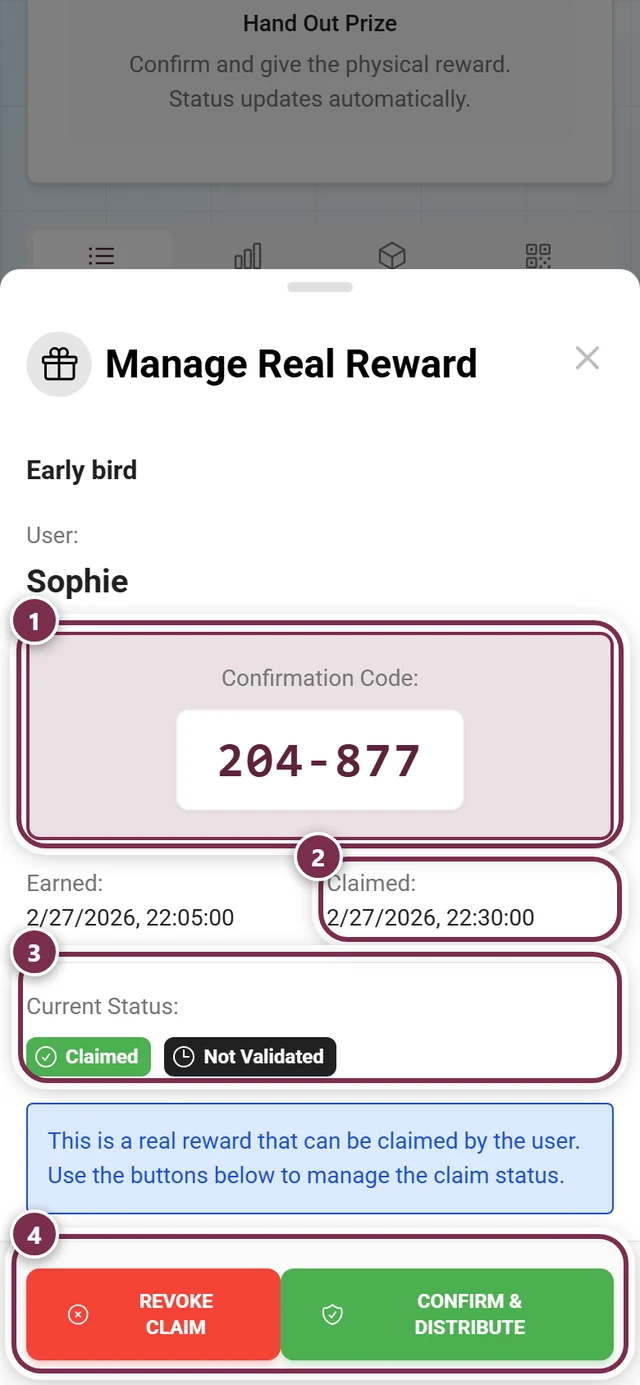
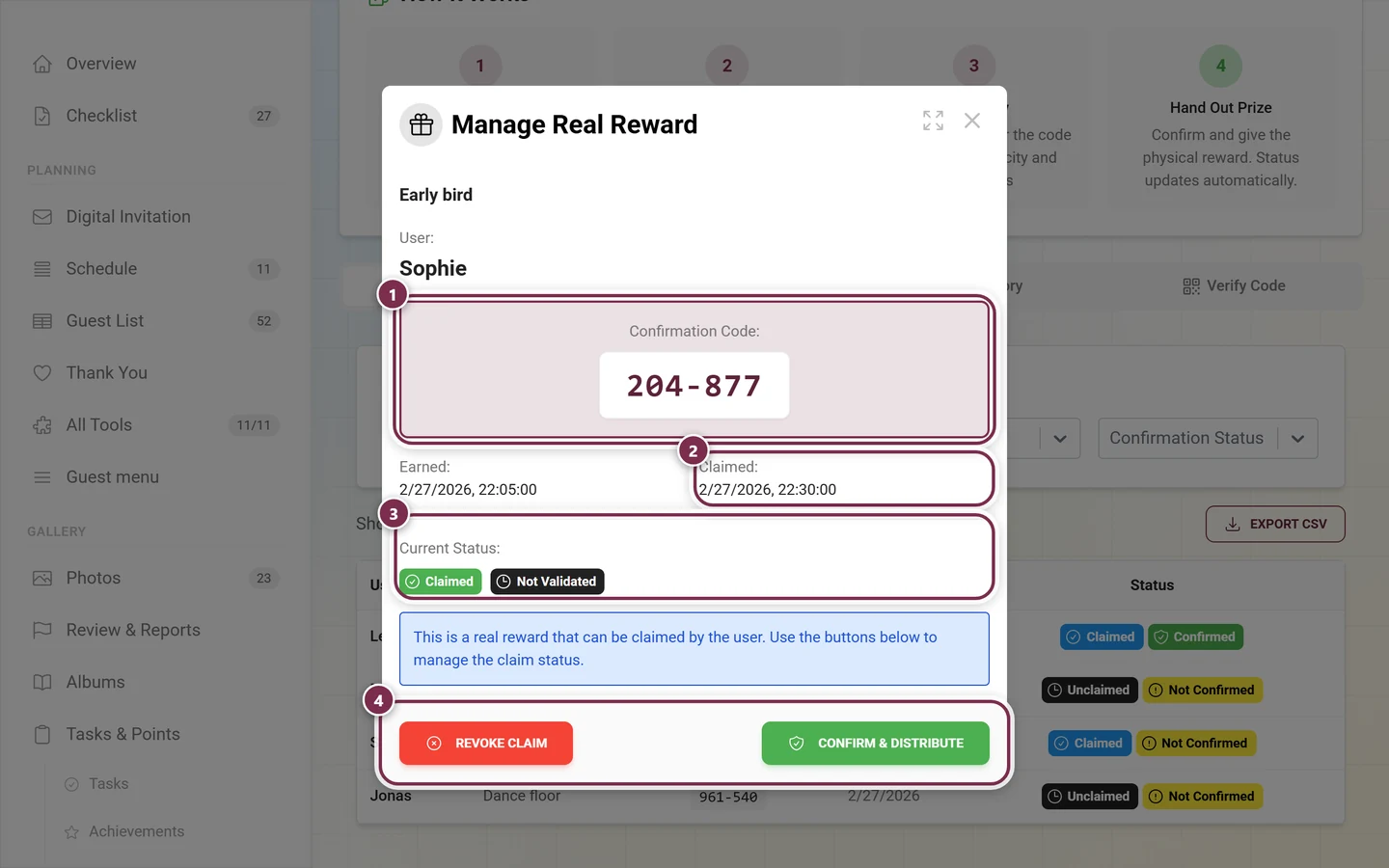
- the achievement name and the User (nickname or “No nickname set”);
- the Confirmation Code in large XXX-XXX form;
- the date fields Earned, Claimed (if present) and Validated (if present);
- the Current Status as chips.
At the bottom, depending on status, there are two buttons:
- Confirm & Distribute (green) – appears while the reward is not yet confirmed. Marks it as handed out. This is the alternative to code verification when you want to confirm a reward straight from the list.
- Revoke Claim (red) – appears once claimed or confirmed. Reverts the claim and the confirmation. This is the right way to undo an accidental confirmation.
“Statistics” tab
Section titled ““Statistics” tab”The statistics tab shows at a glance how your real rewards are doing.
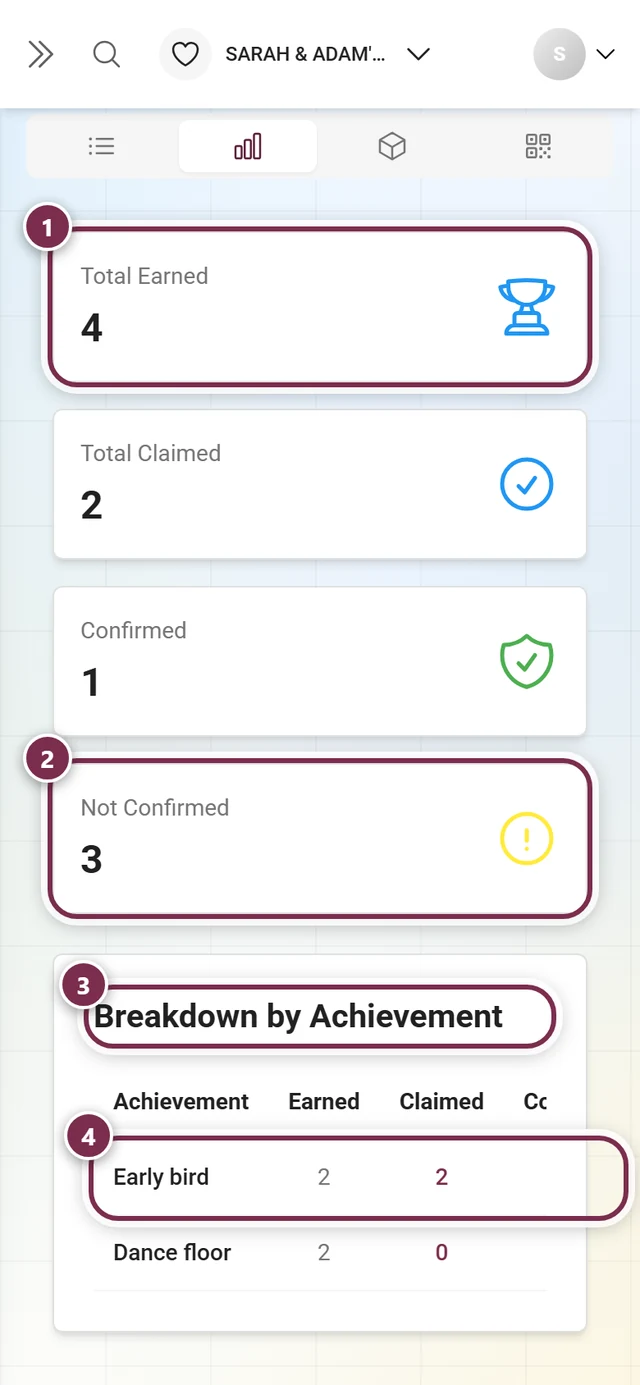
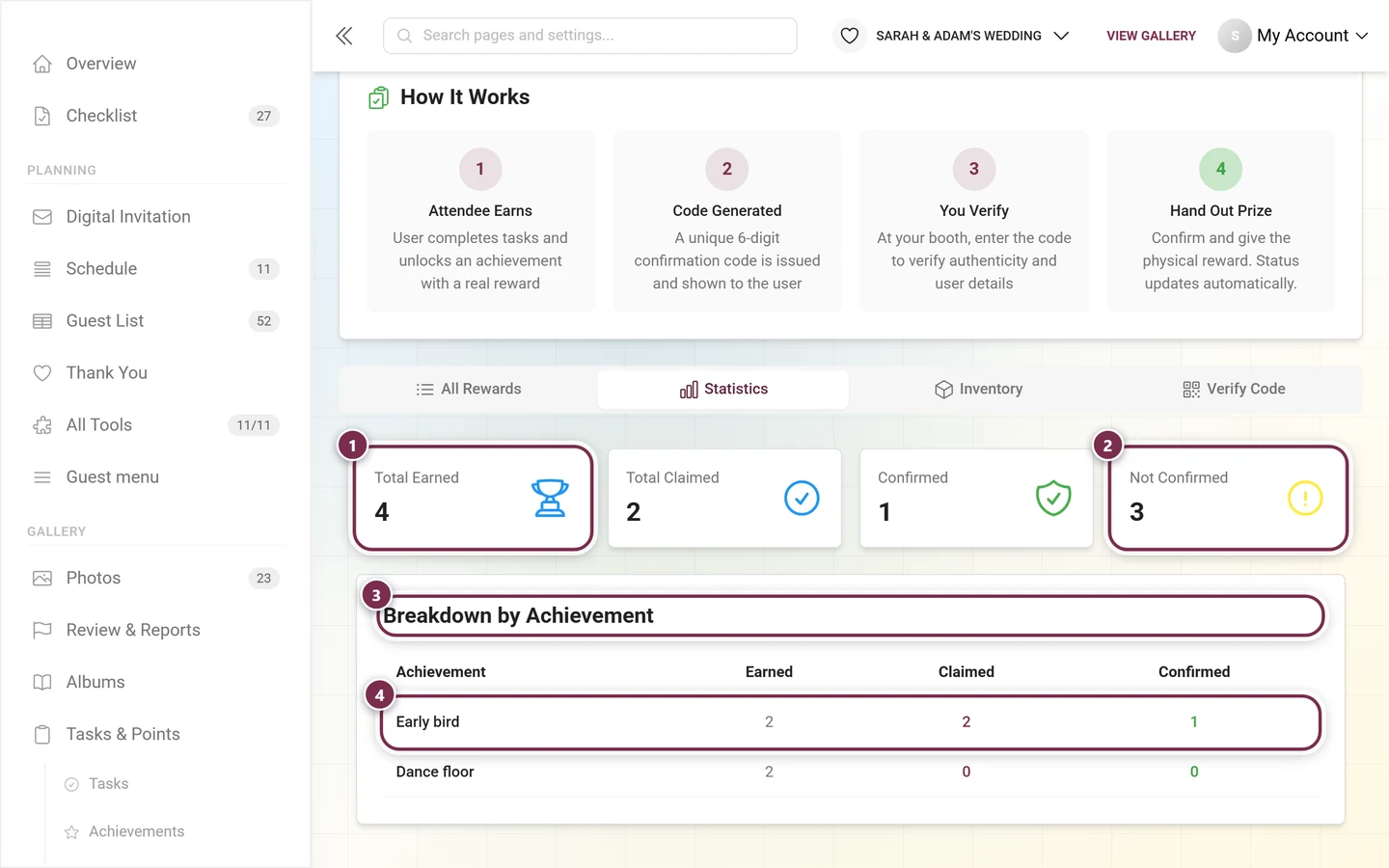
At the top are four summary cards. They only count achievements that carry a real reward (type physical, voucher or custom) – points-only achievements never show up here:
- Total Earned – how often achievements with a real reward were earned in total.
- Total Claimed – how many of them guests have claimed.
- Confirmed – how many you have handed out and confirmed (green).
- Not Confirmed – every other earned reward, including the ones nobody has claimed yet (yellow).
Below follows the Breakdown by Achievement with the columns Achievement, Earned, Claimed and Confirmed. Each row is clickable: a click jumps automatically to the All Rewards tab, already pre-filtered to that achievement. The breakdown only appears once rewards have been earned.
“Inventory” tab
Section titled ““Inventory” tab”Under the heading Inventory Management you manage the stock per real reward. The tab only shows achievements that have a real reward attached.
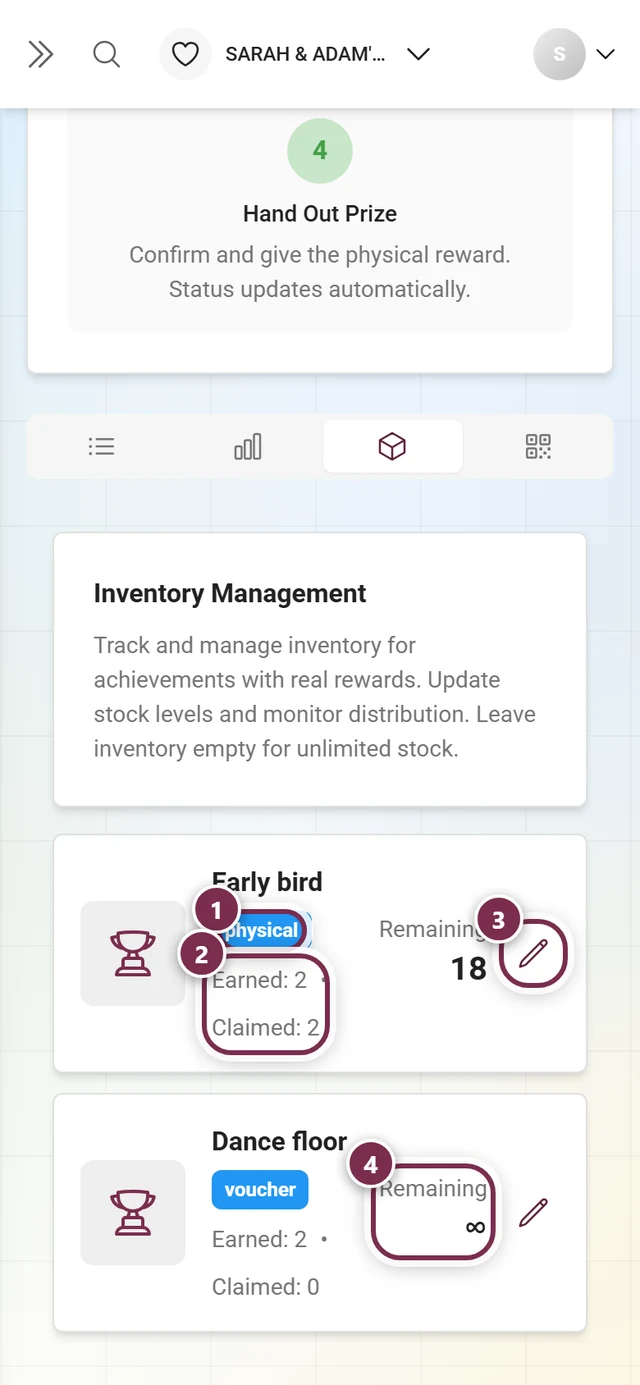
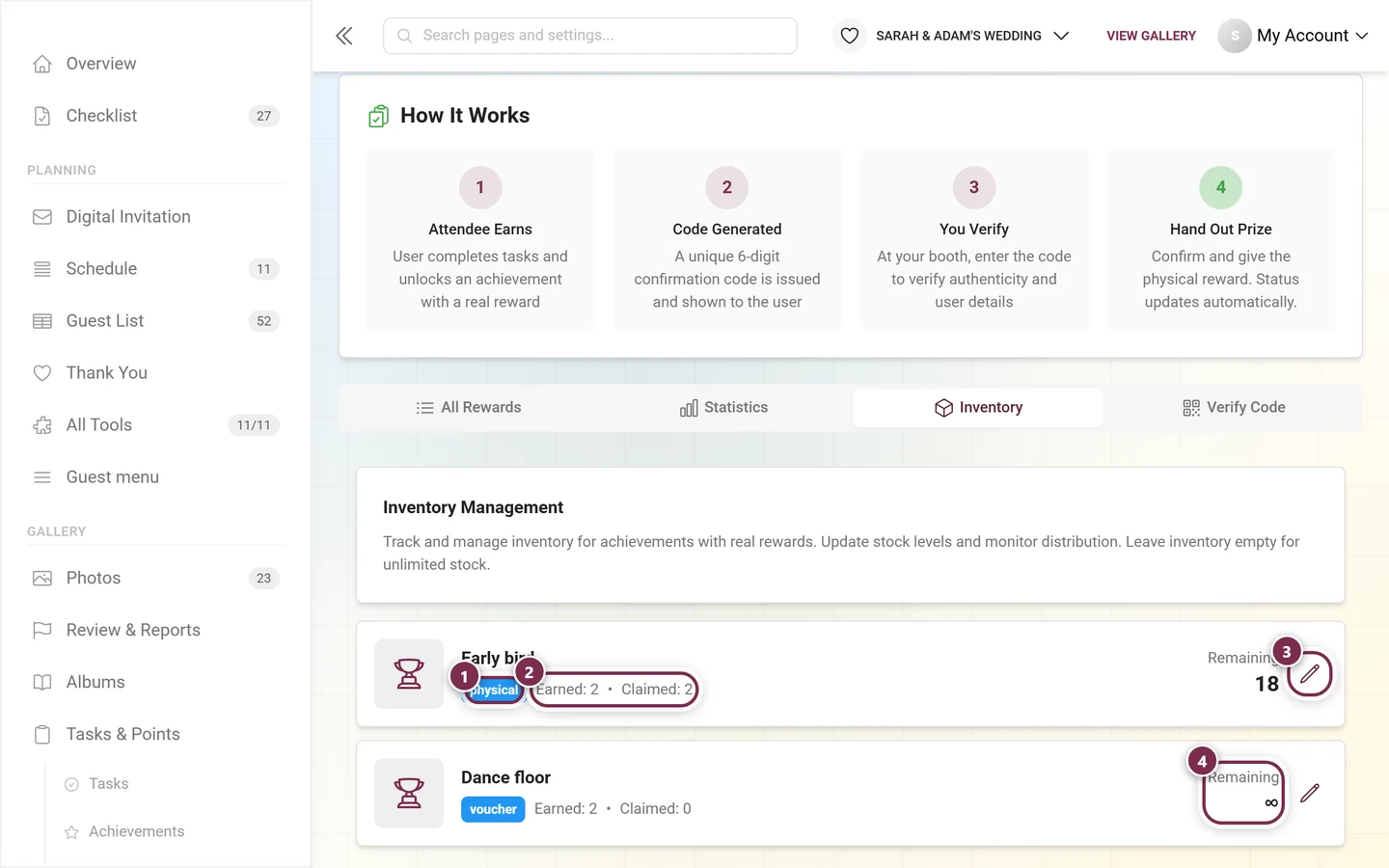
Per reward you see a card with an image (or trophy icon), name, a chip with the reward type (physical, voucher or custom), plus Earned and Claimed. On the right, the value under Remaining is shown large – or the infinity sign if stock is unlimited.
-
Tap the pencil icon next to a reward to edit the stock.
-
Enter the total quantity in the Stock field. The hint “Empty = unlimited” means: if you leave the field empty, stock counts as unlimited.
-
Save with the green check or discard with the X.
If no achievement has a real reward yet, the tab shows No Real Rewards Found with a hint to create an achievement with a physical, voucher or custom reward under Achievements & rewards.
“Verify Code” tab – the core workflow
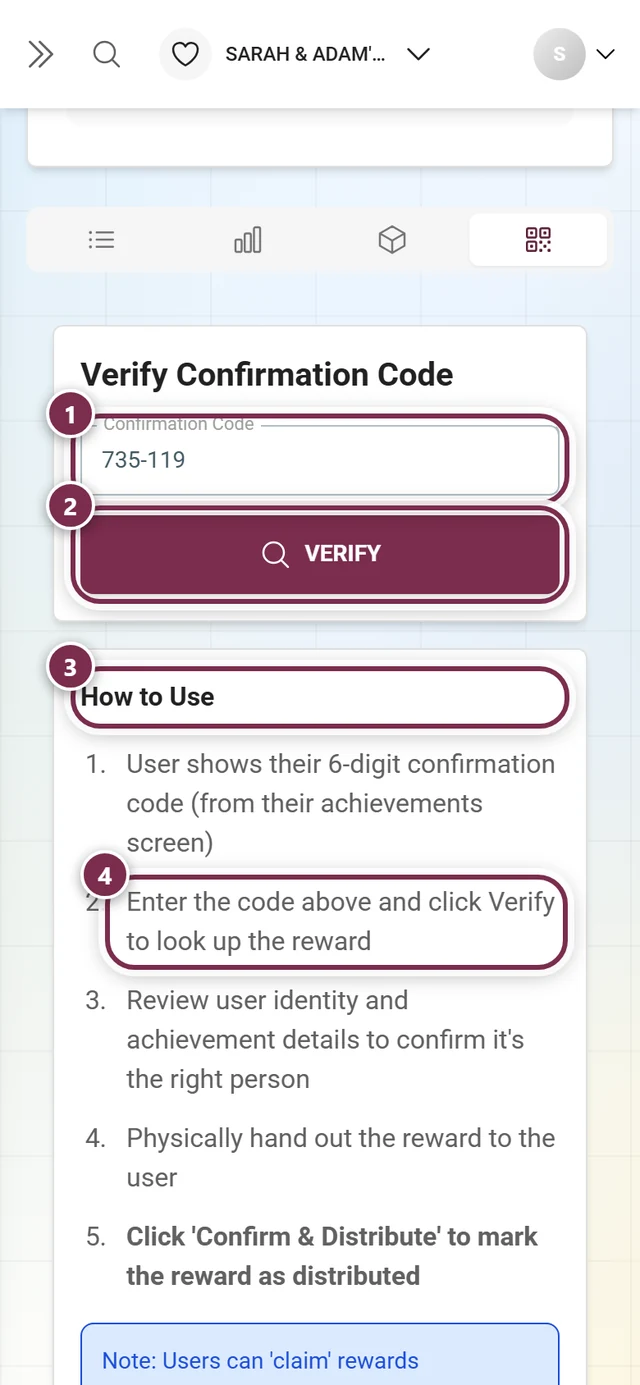
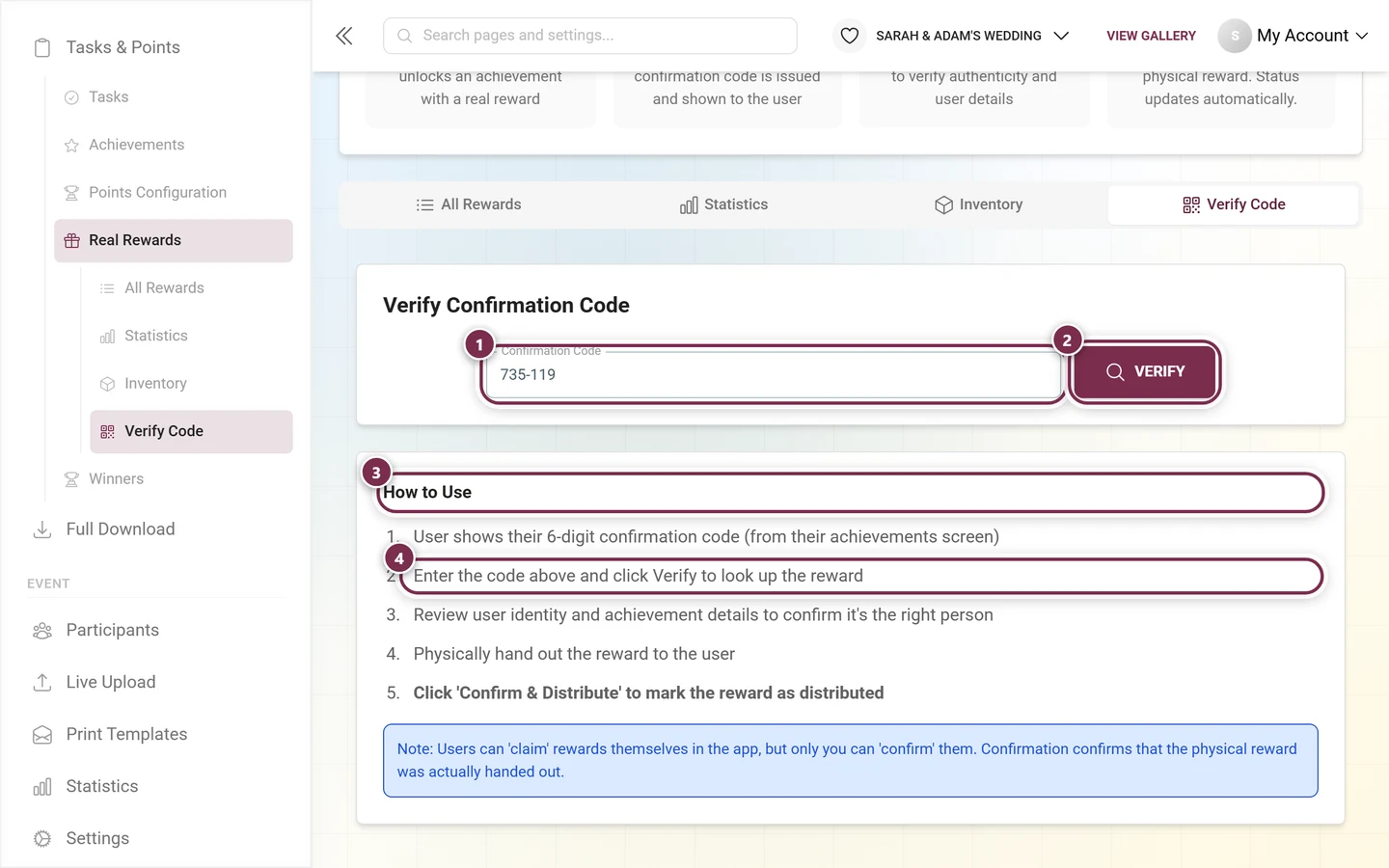
Section titled ““Verify Code” tab – the core workflow”This is the fastest way at the handout point: enter the code, check the person, hand over, confirm. The card is headed Verify Confirmation Code.
-
The guest shows you their 6-digit confirmation code from the app (see Redeeming real rewards).
-
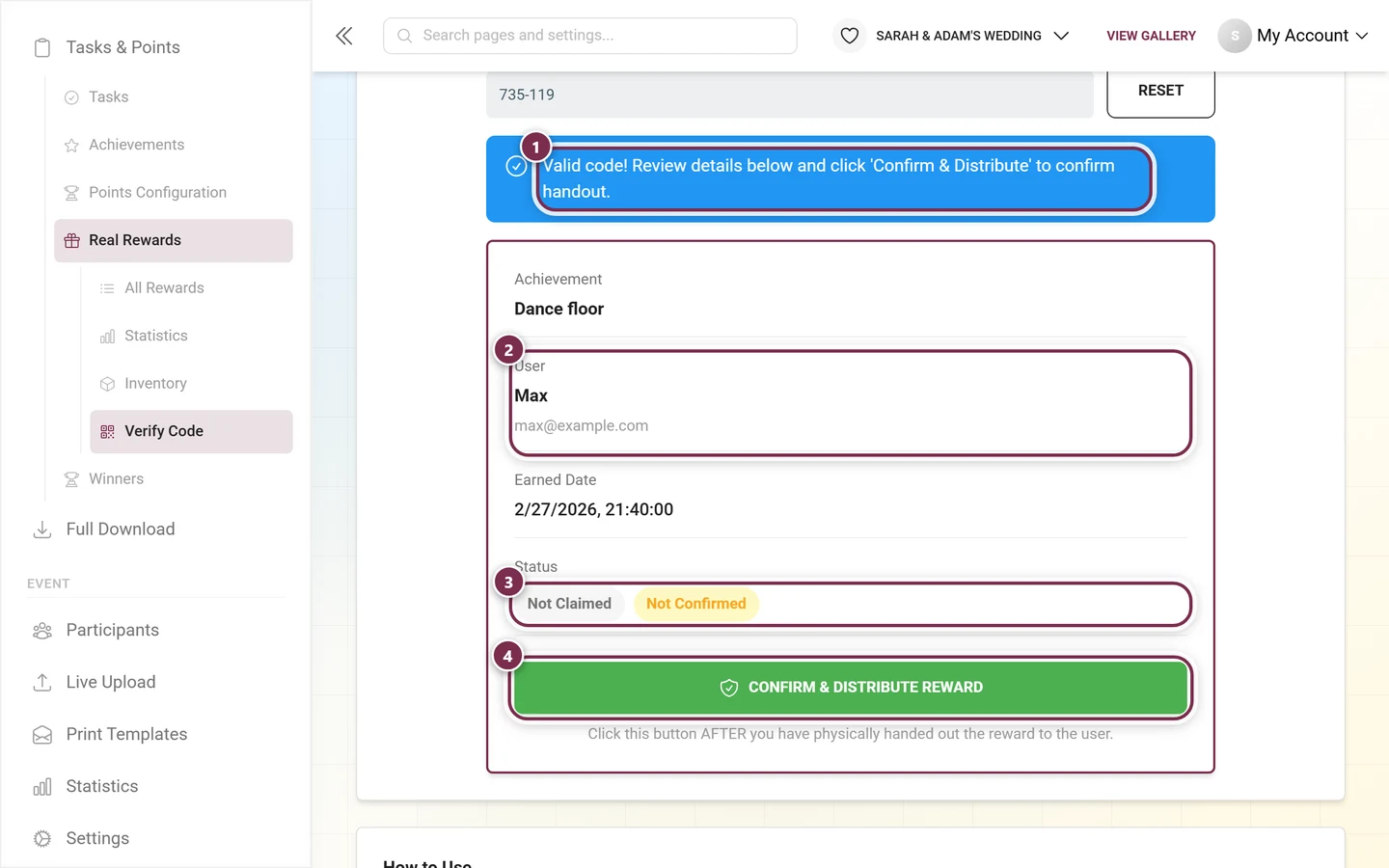
Enter the code in the Confirmation Code field (placeholder XXX-XXX). The input formats itself as you type; the Verify button only becomes active once 6 digits are entered. Tap Verify.
-
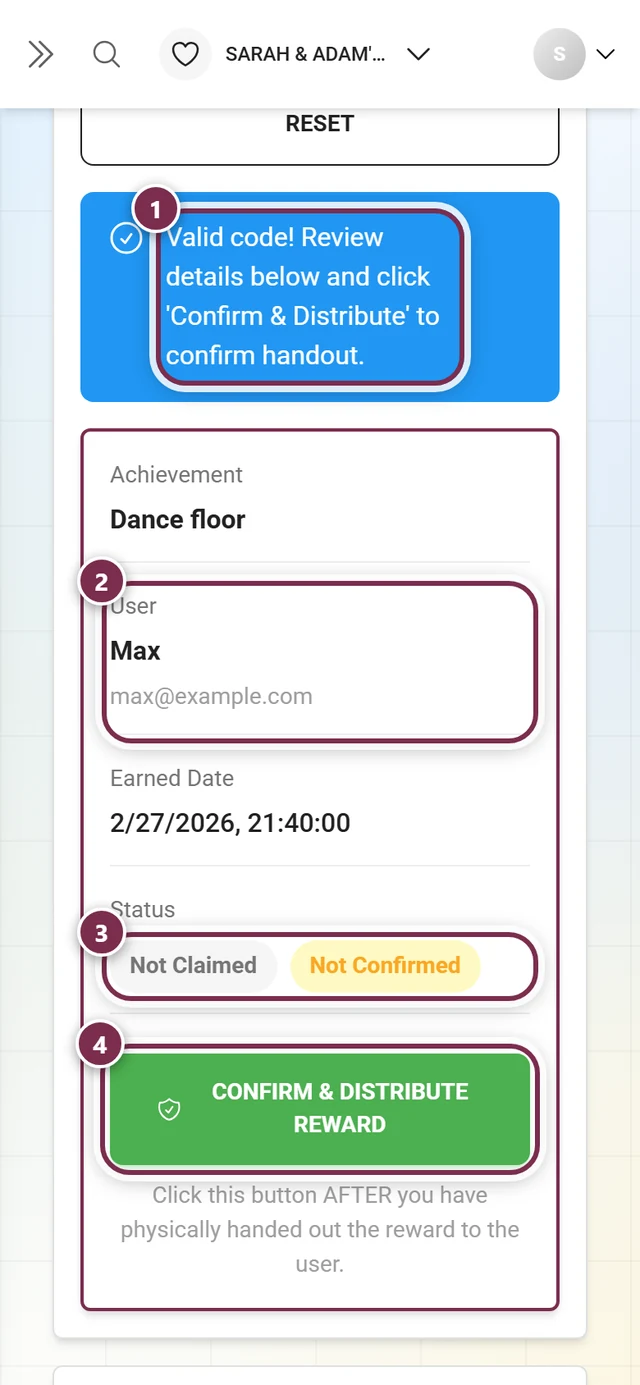
If the code matches, the notice “Valid code!” appears along with the prompt to review the details. Below it a detail card shows Achievement, User (nickname and email), Earned Date and, under Status, two chips (User Claimed or Not Claimed, and Confirmed or Not Confirmed). Use the nickname and email to check the right person is in front of you.
-
Hand over the reward now.
-
Only after handing over tap Confirm & Distribute Reward (green). “Reward confirmed and marked as distributed!” appears – the reward now counts as confirmed and handed out. The hint below the button says the same: hand out first, then click.
-
Tap Reset to clear the field for the next guest.
If something is off, the page shows an error: “Code must be 6 digits” when fewer than 6 digits are entered, or “Code not found or already confirmed” when the code is unknown or already confirmed. If the reward was already handed out, it reads “This reward has been confirmed and distributed.” Below the input field, the How to Use card sums up the flow in five steps and notes: guests can claim rewards themselves in the app, but only your team can confirm them.
Claimed, confirmed, revoked
Section titled “Claimed, confirmed, revoked”Three terms come up again and again – here’s how they relate:
- Claimed: The guest requests the reward in the app. That’s just a statement of intent, not yet a handover.
- Confirmed: Only you confirm, after the real handover. This documents that the reward was handed out.
- Revoke: Reverts both claim and confirmation – via the red button in the row dialog.
This page is not for leaderboard winners
Section titled “This page is not for leaderboard winners”Here you only manage the rewards that come from achievements. The winner mode of the leaderboard – where the top places are crowned at the end – has its own page with its own code checker. A winner code therefore cannot be verified here and never shows up in any list.
Everything about places, freezing the standing and handing out prizes is under Leaderboard & winners.
FAQ & troubleshooting
Section titled “FAQ & troubleshooting”- “Code not found or already confirmed”: Typo, wrong event, or the code was already confirmed or revoked. Search for the code in All Rewards and check the status. If it is a winner code, it belongs on the Leaderboard & winners page.
- Guest has no nickname: It reads “No nickname set”. Verify the person via the email address in the verify detail.
- Accidentally confirmed: Open the row in All Rewards and tap Revoke Claim.
- Accidentally limited the stock: Clear the Stock field = unlimited again.
- “No Real Rewards Found” despite existing achievements: The achievement has no real reward. Fix this under Achievements & rewards.
- Export incomplete: The free search text has no effect on the CSV. Filter with the achievement or status dropdown before exporting.