Creating challenges
Challenges bring energy to your event: little photo tasks motivate your guests to take creative pictures, join in, and collect points. In Task Management you create these tasks, configure the points, and set up achievements. This page walks you through every tab, every dialog, and every field step by step.
How to reach task management
Section titled “How to reach task management”-
Open the admin area of your event (see Reaching the admin area).
-
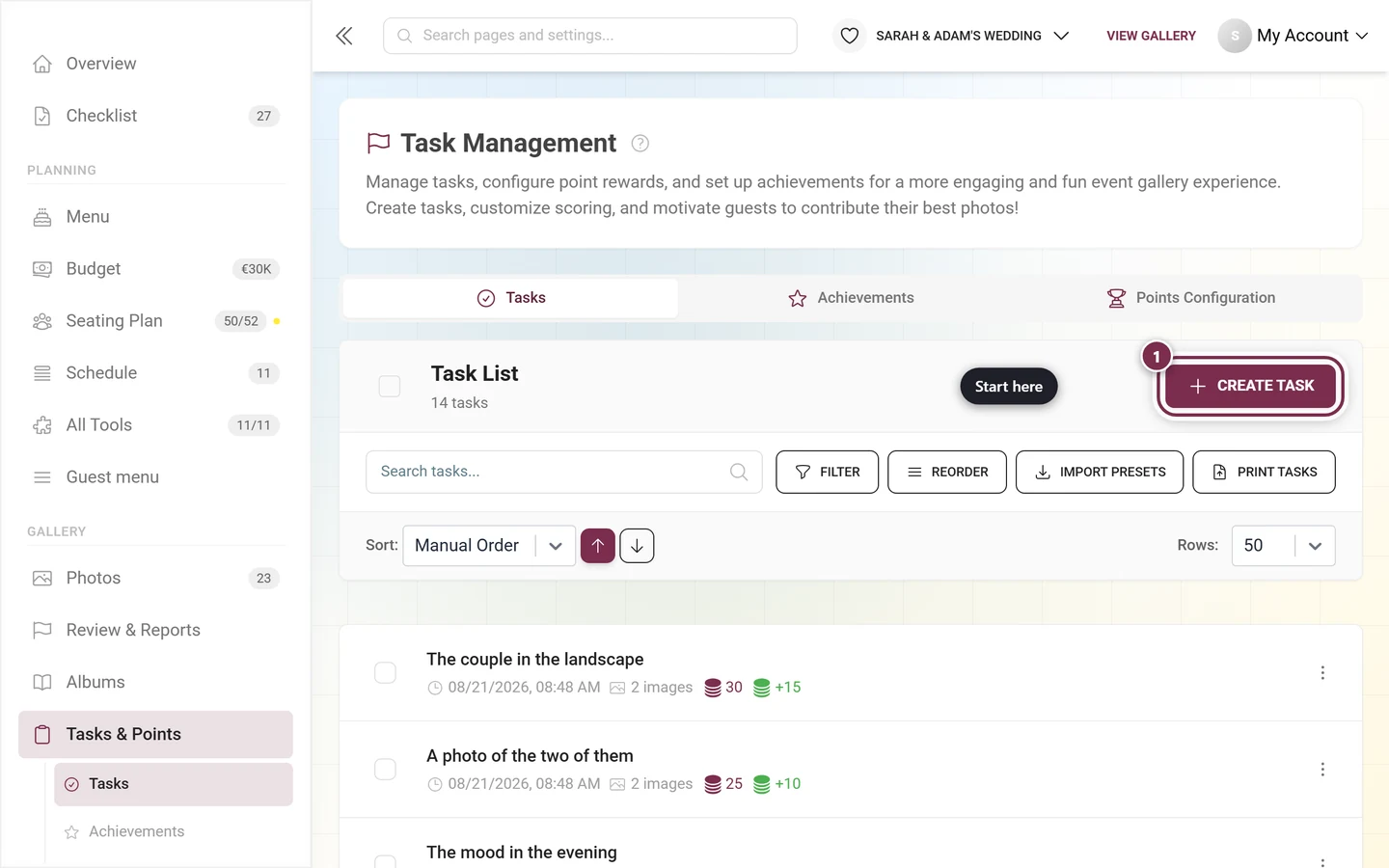
In the left sidebar, under the Gallery category, click Tasks & Points. The page is titled Task Management and opens on the Tasks tab by default. Direct path:
/admin/gallery/tasks-manager.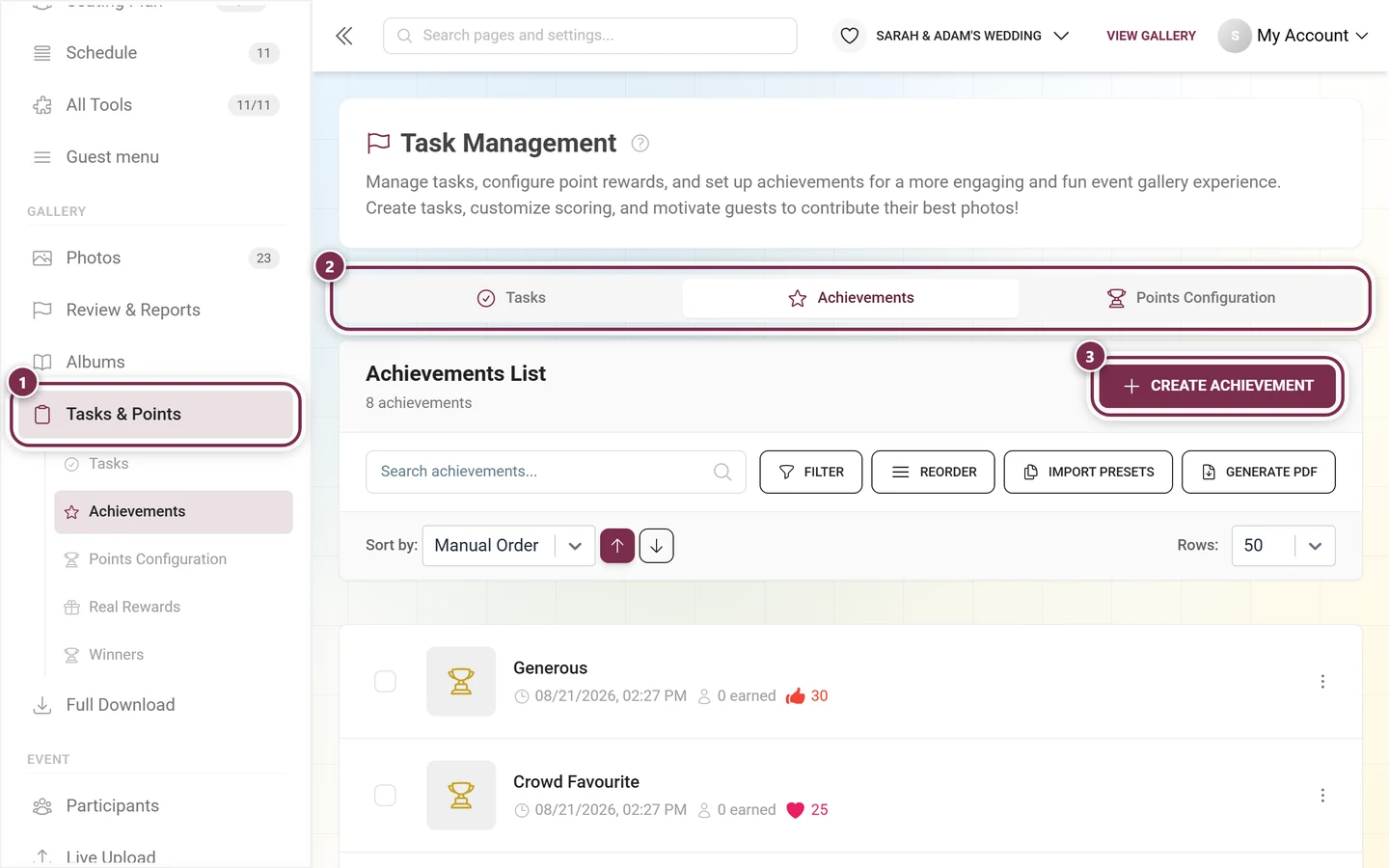
Once you are inside this area, the sidebar unfolds the three tabs plus the follow-up pages “Real Rewards” and “Winners”. ① Tasks & Points in the sidebar. Once you are inside this area, the three tabs Tasks, Achievements and Points Configuration unfold below it, together with the follow-up pages Real Rewards and Winners. ② The same three tabs at the top of the page. They are always there; if your plan does not include one of the features, that tab shows a plan notice instead of the list. ③ Create Achievement – the button belongs to the Achievements tab; on the Tasks tab it reads Create Task.
The three tabs
Section titled “The three tabs”The tabs are always visible. If you lack permission for a tab, its content is replaced by an upgrade hint (premium overlay).
- Tasks – create, edit, reorder and filter your photo tasks.
- Achievements – achievements and real rewards. Covered in detail in Achievements & rewards; handing out real prizes runs through Redeeming rewards.
- Points Configuration – set event-wide how many points each action is worth.
The first available tab (in the order Tasks → Achievements → Points Configuration) is shown automatically on open.
The “Tasks” tab — the toolbar
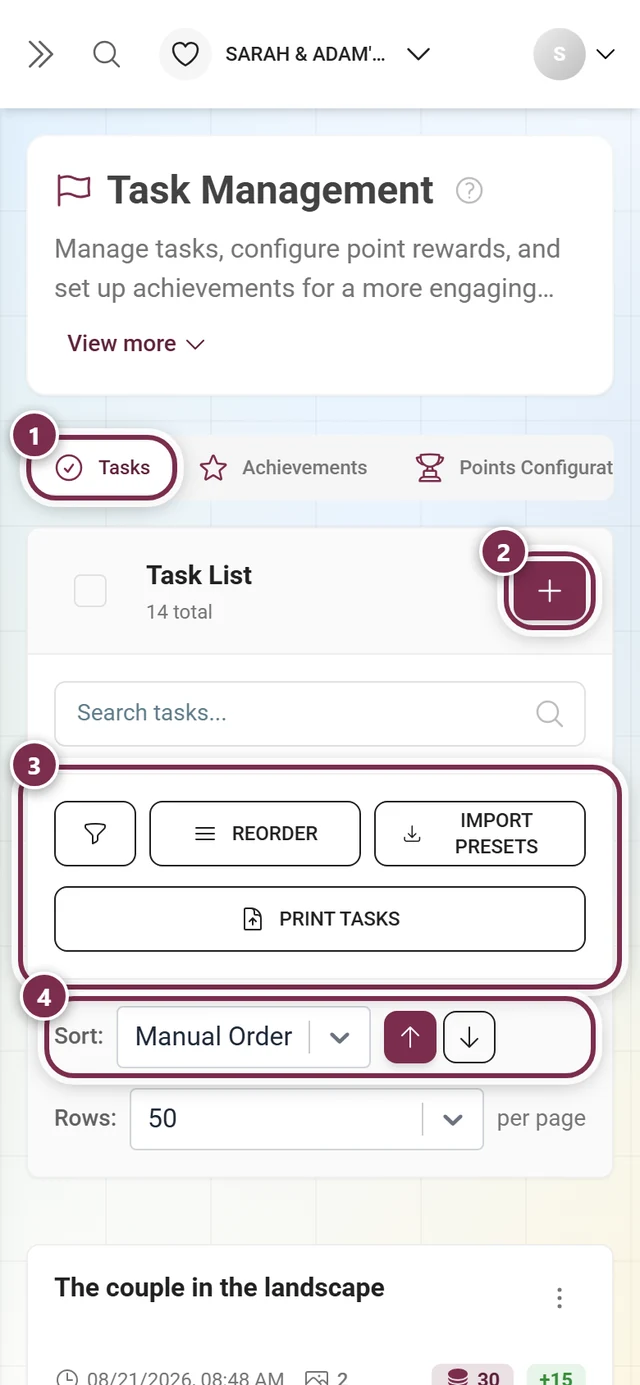
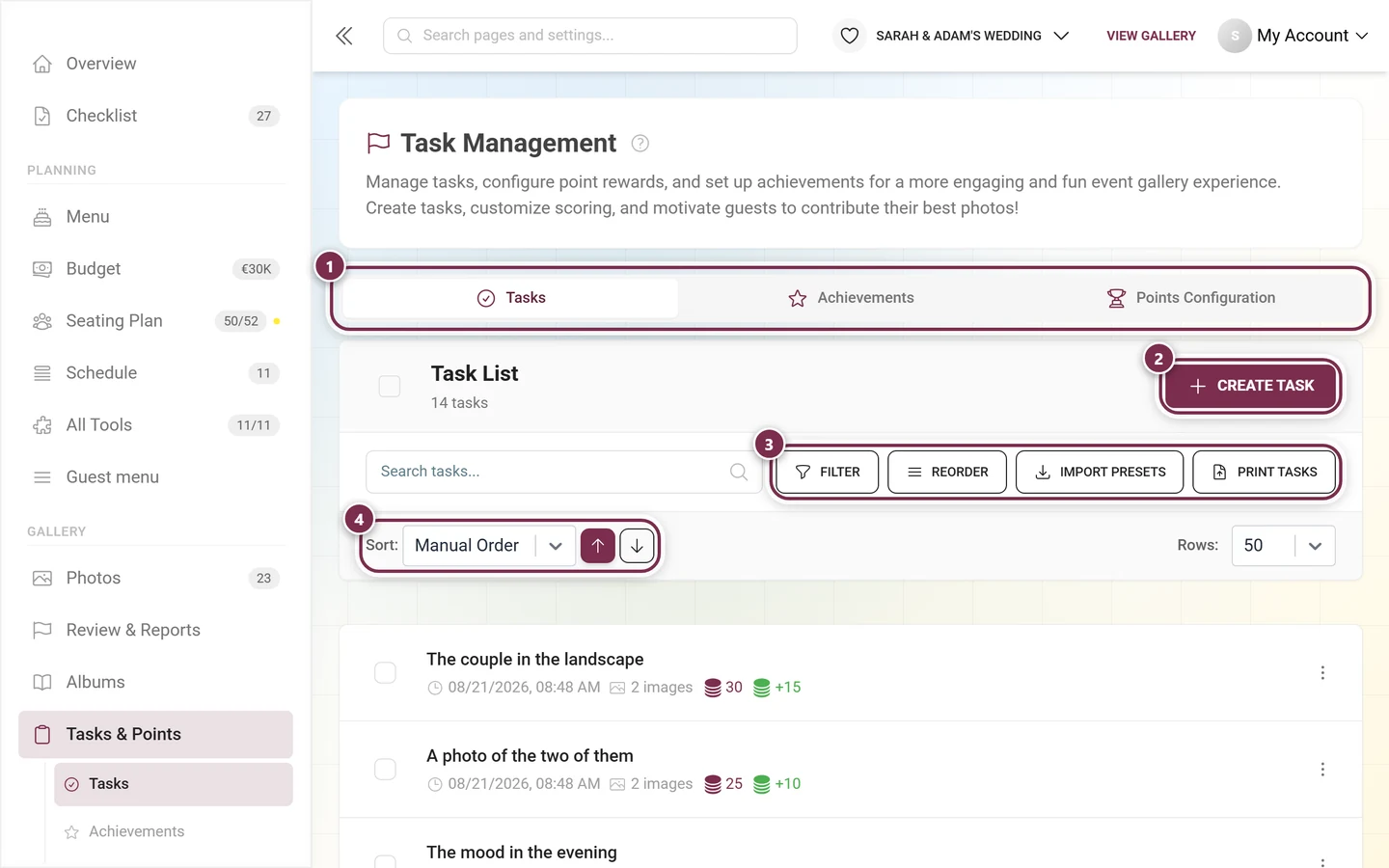
Section titled “The “Tasks” tab — the toolbar”At the top you see the title Task List with the number of tasks below it (e.g. “12 tasks”). If your plan sets a limit, used/limit (e.g. 12/20) is shown next to it; at 75 % the number turns yellow, at 90 % red, and an info icon shows the hint Task limit almost reached!.
The toolbar offers:
- Create Task (button with a plus icon) – opens the task editor. Locked if your plan does not include creating your own tasks.
- Search field “Search tasks…” – filters the list by text.
- Filter (funnel icon) – opens the filter panel; a red badge shows the number of active filters.
- Reorder – enables the sort mode for reordering by dragging; Done ends it.
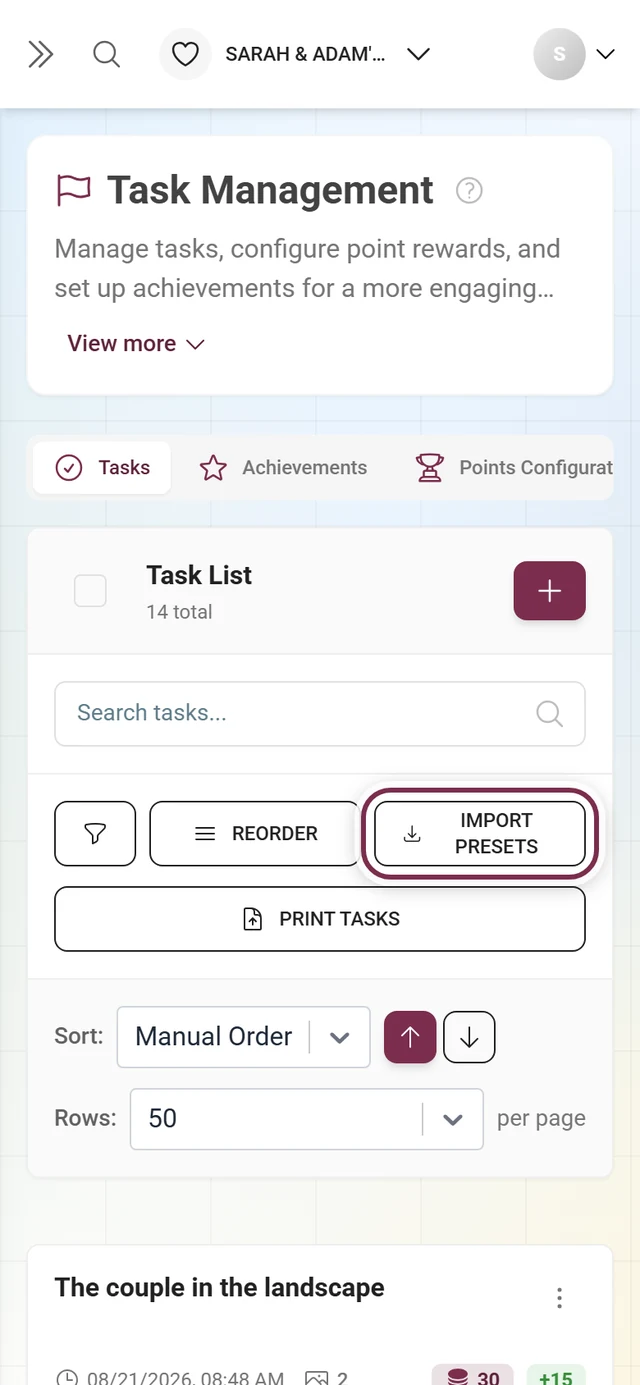
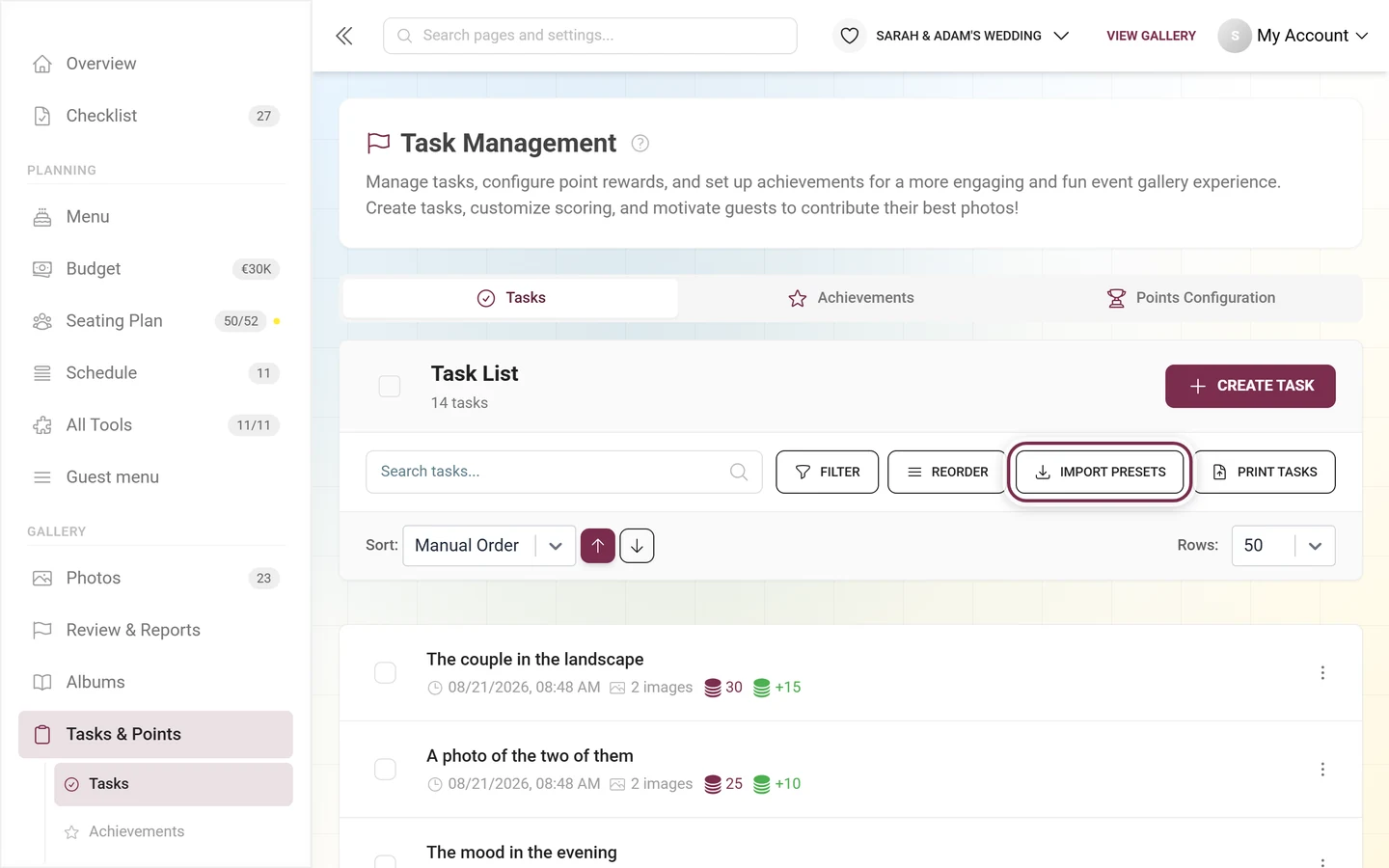
- Import Presets – opens the template import.
- Print Tasks – creates QR card PDFs for your tasks.
- Below that: Sort: with up/down arrows and Rows: to adjust the list view.
The sort options are Manual Order, Task Name, Initial Points, Uploaded Images and Creation Date.
Creating a task
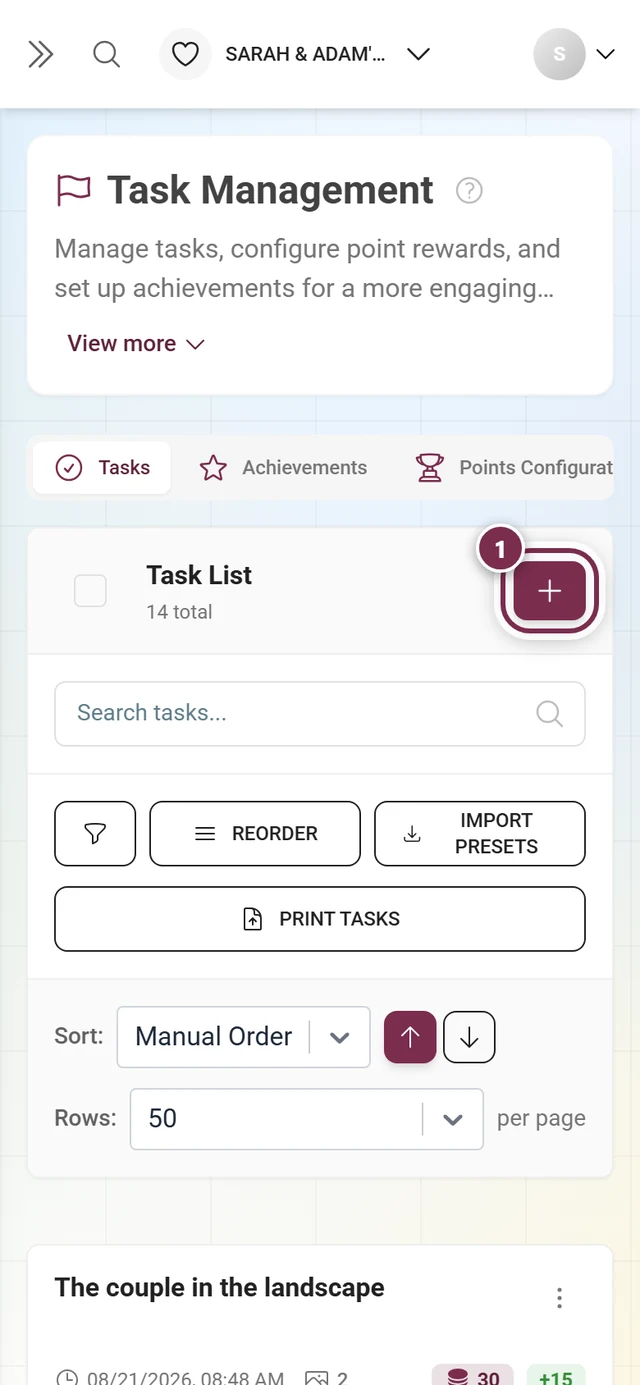
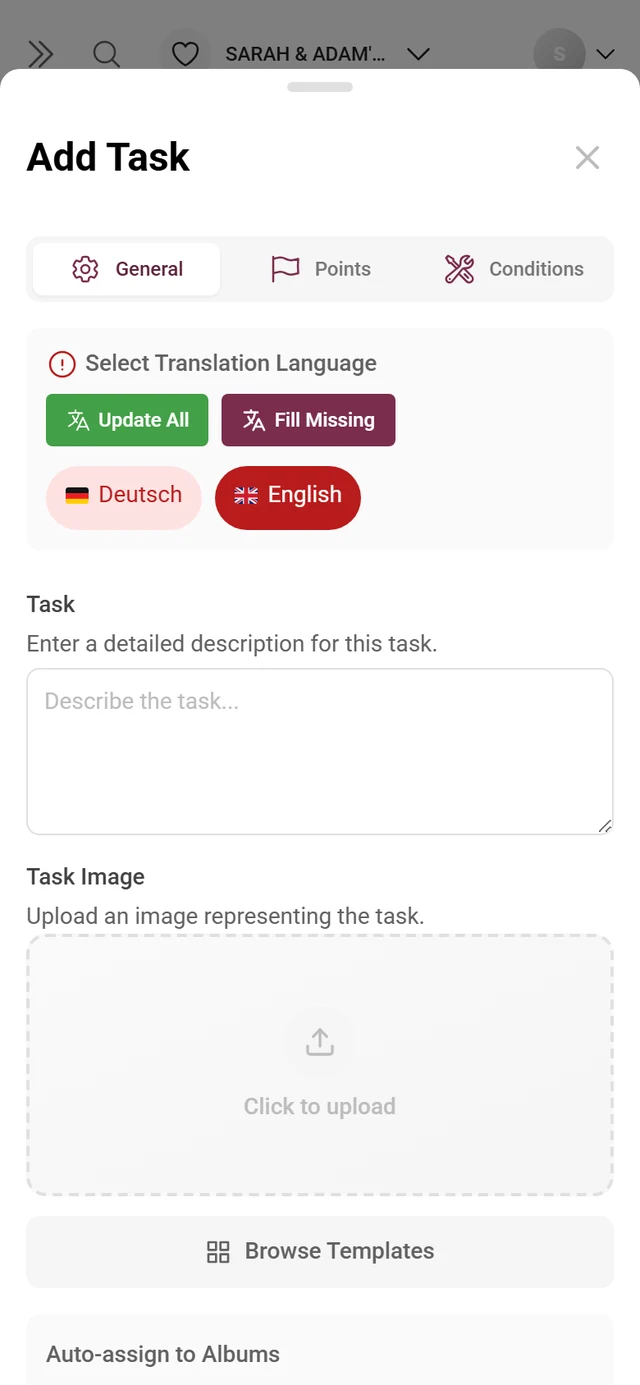
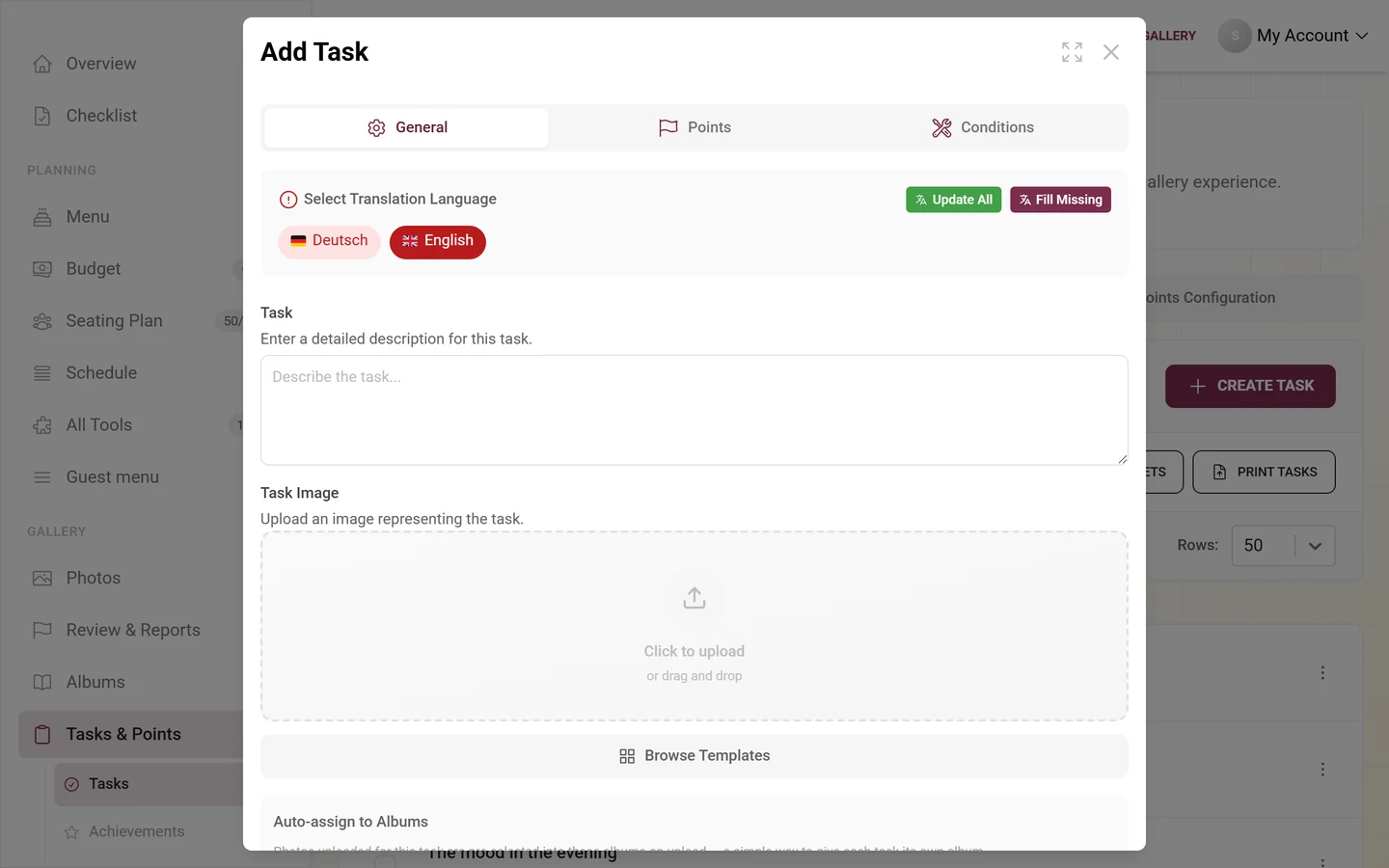
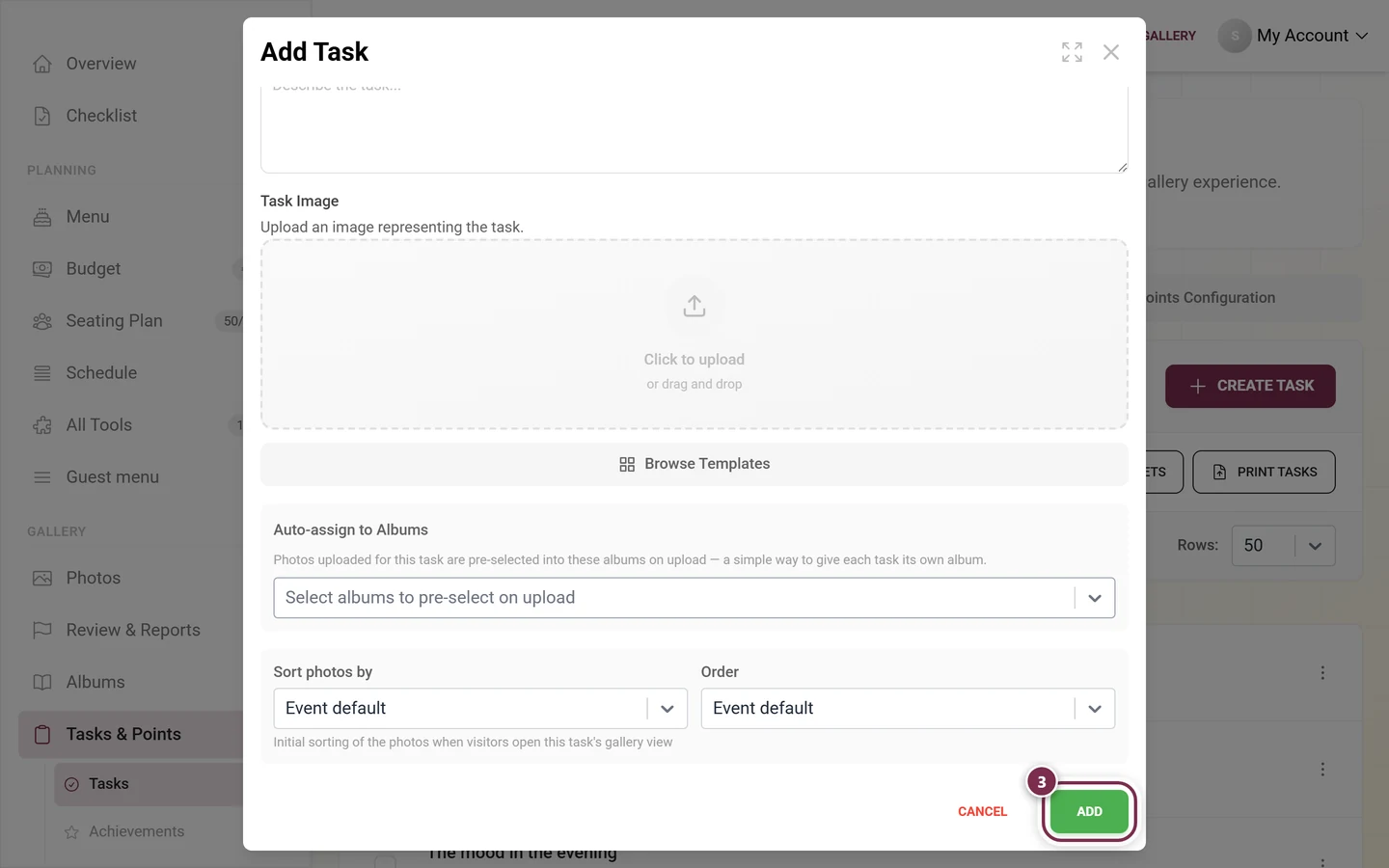
Section titled “Creating a task”Click Create Task. The task editor opens, titled Add Task (or Edit Task when editing). It has up to three tabs: General, Points and Conditions. At the bottom you find Cancel and Add (or Save when editing); while saving, a loading label appears there.
The “General” tab
Section titled “The “General” tab”Here you define what guests should photograph.
-
Language – for a multilingual event you can enter the task per language. Pick the language to edit at the top.
-
Task – the text field for the task itself (placeholder “Describe the task…”, hint “Enter a detailed description for this task.”). This text is both the name and the description. Be specific, e.g. “Photograph the bride and groom during their first dance”.
-
Task Image – optionally upload a reference image (single drop zone with a template picker). It shows guests what you are after.
-
Auto-assign to Albums – pick one or more albums; photos uploaded for this task are pre-selected for those albums on upload. Once the task text has at least three characters, a one-click button offers to create an album of the same name (Create album … for this task) or to reuse a matching one (Use album …). With no album and no name yet, the hint reads “Give the task a name to get an album suggestion.” See Managing albums.
-
Sort photos by / Order – set how photos appear in this task’s gallery: Event default, Upload date, Capture date, Likes or Comments, each Newest first or Oldest first.
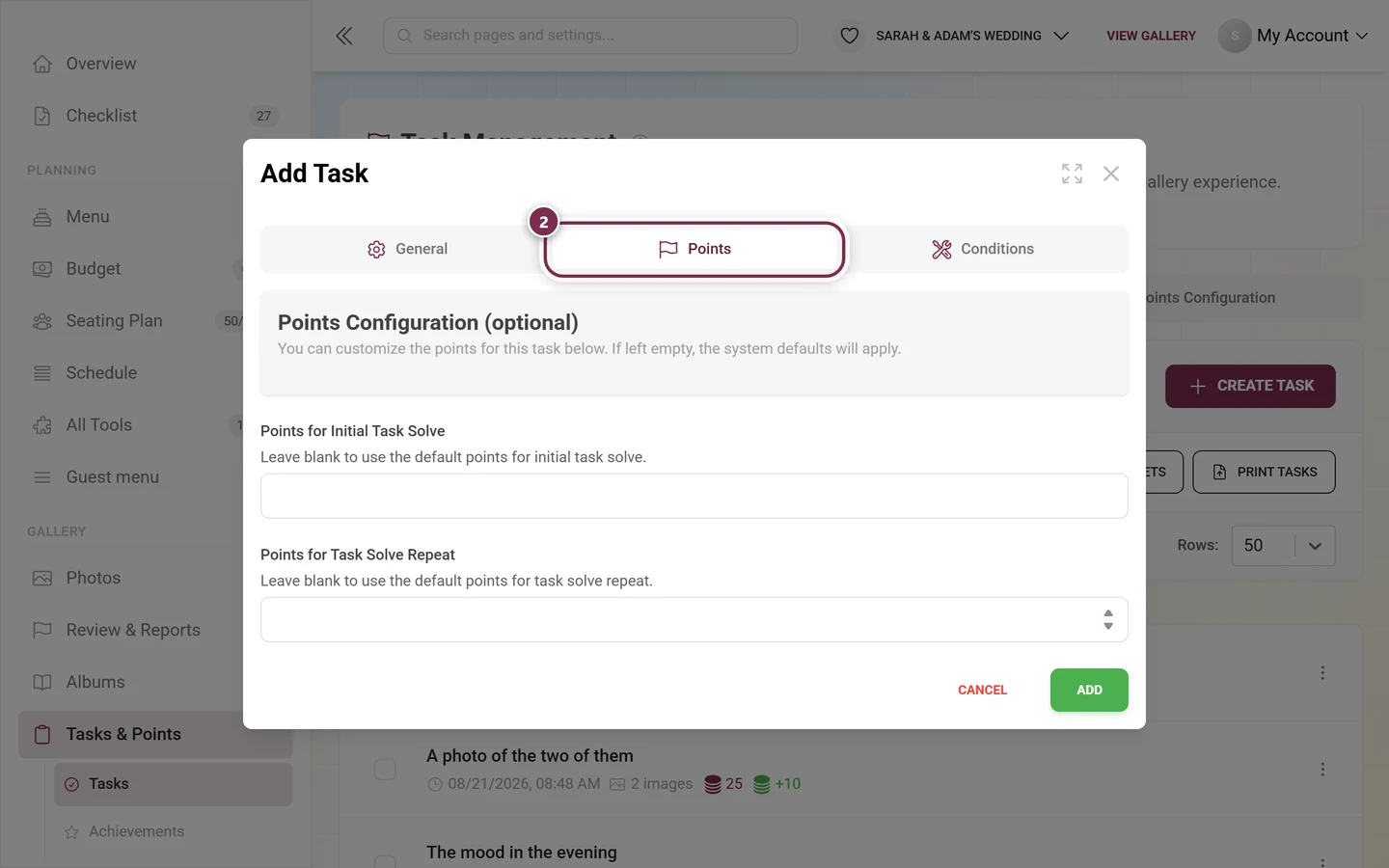
The “Points” tab
Section titled “The “Points” tab”This tab appears when the points module is active for your event and included in the plan (or the task already has its own points). Here you override the event-wide default points for this task only.
- Heading Points Configuration (optional) with the hint “You can customize the points for this task below. If left empty, the system defaults will apply.”
- Points for Initial Task Solve – points for solving it the first time.
- Points for Task Solve Repeat – points when the same task is solved again.
The “Conditions” tab
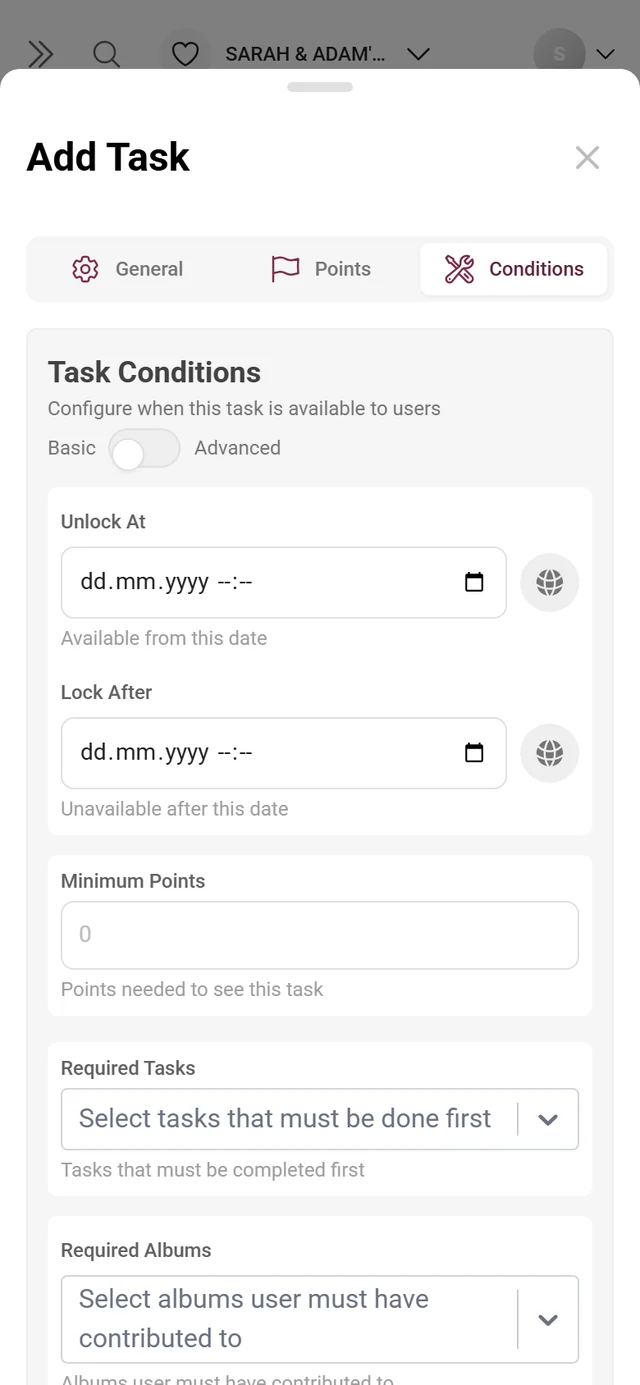
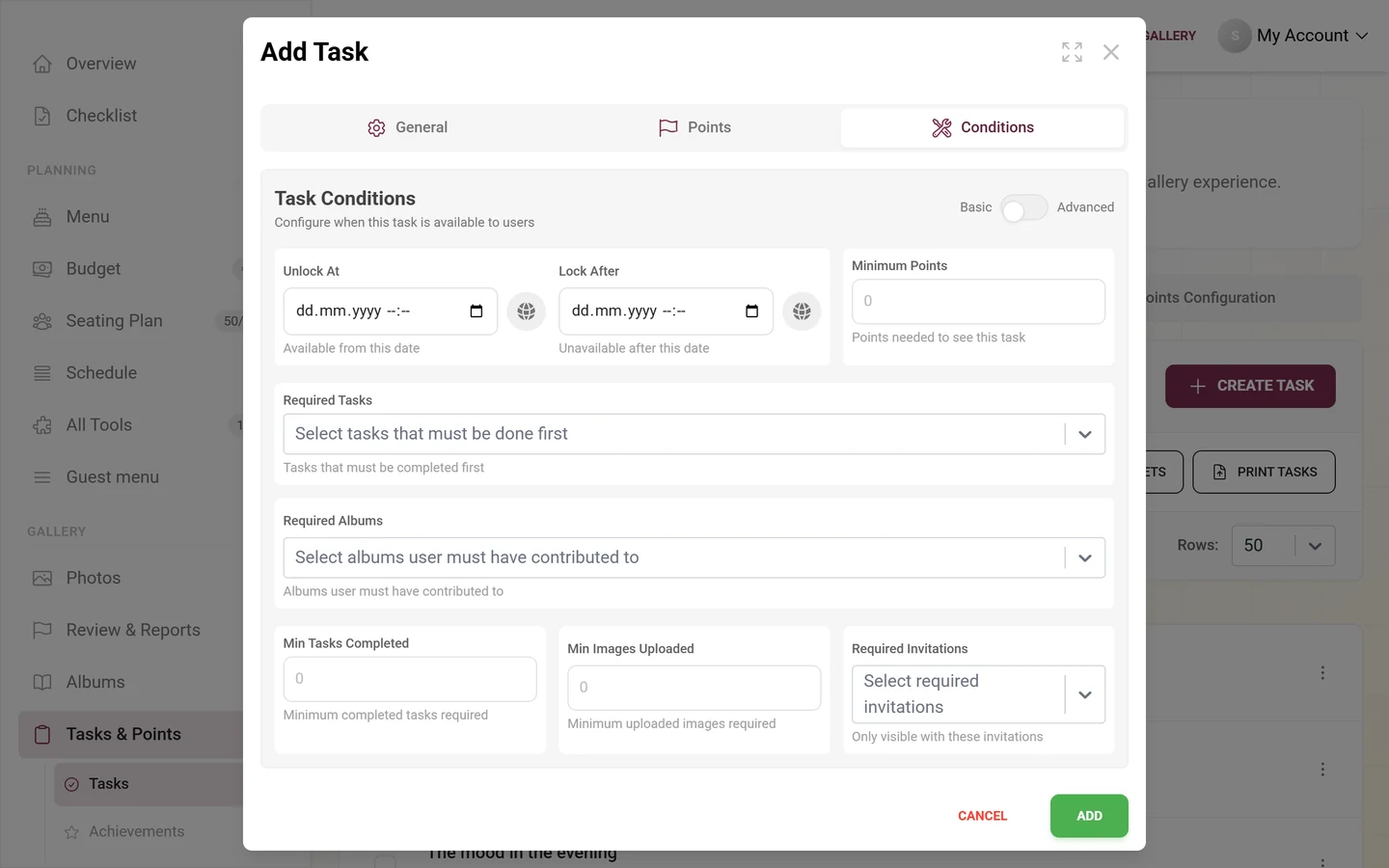
Section titled “The “Conditions” tab”Here you control when a task is available to guests. The section is called Task Conditions; at the top you find a toggle between Basic and Advanced. Advanced mode is a premium feature.
Always visible (Basic):
- Unlock At – task available only from this point (date/time with time zone). Ideal for reveal moments.
- Lock After – task no longer available after this point.
- Minimum Points – a guest needs this many points to see the task.
- Required Tasks – multi-select: these tasks must be solved first. This lets you build a story or progression.
- Required Albums – the guest must have contributed to these albums.
- Min Tasks Completed, Min Images Uploaded, Required Invitations – a minimum number of solved tasks or uploaded images, or visibility only for specific invitations.
Additionally in Advanced mode:
- Points & Achievements: Max Points, Min Achievements, Required Rewards (which rewards the guest must already hold).
- Task Progression: Max Tasks Completed (locks after this many solves), Min Unique Tasks, Max Images Uploaded.
- User Engagement: Min Received Likes, Min Media Shares, Min Media Downloads, Min Album Contributions.
- For Required Tasks and Required Albums, Minimum Contributions Per Task and Minimum Contributions Per Album appear – one number field per entry.
Refresh from Template
Section titled “Refresh from Template”If a task was imported from a template, the editor shows a banner at the top with the Refresh from Template button. Clicking it reloads the original template – after the confirmation Refresh from Template?. Careful: your own changes to the name, conditions, points and image are overwritten. Only confirm with Yes, Refresh if that is what you want, otherwise Keep Current.
Importing templates
Section titled “Importing templates”Instead of writing every task yourself, you can take over ready-made challenges from categories. Click Import Presets.
-
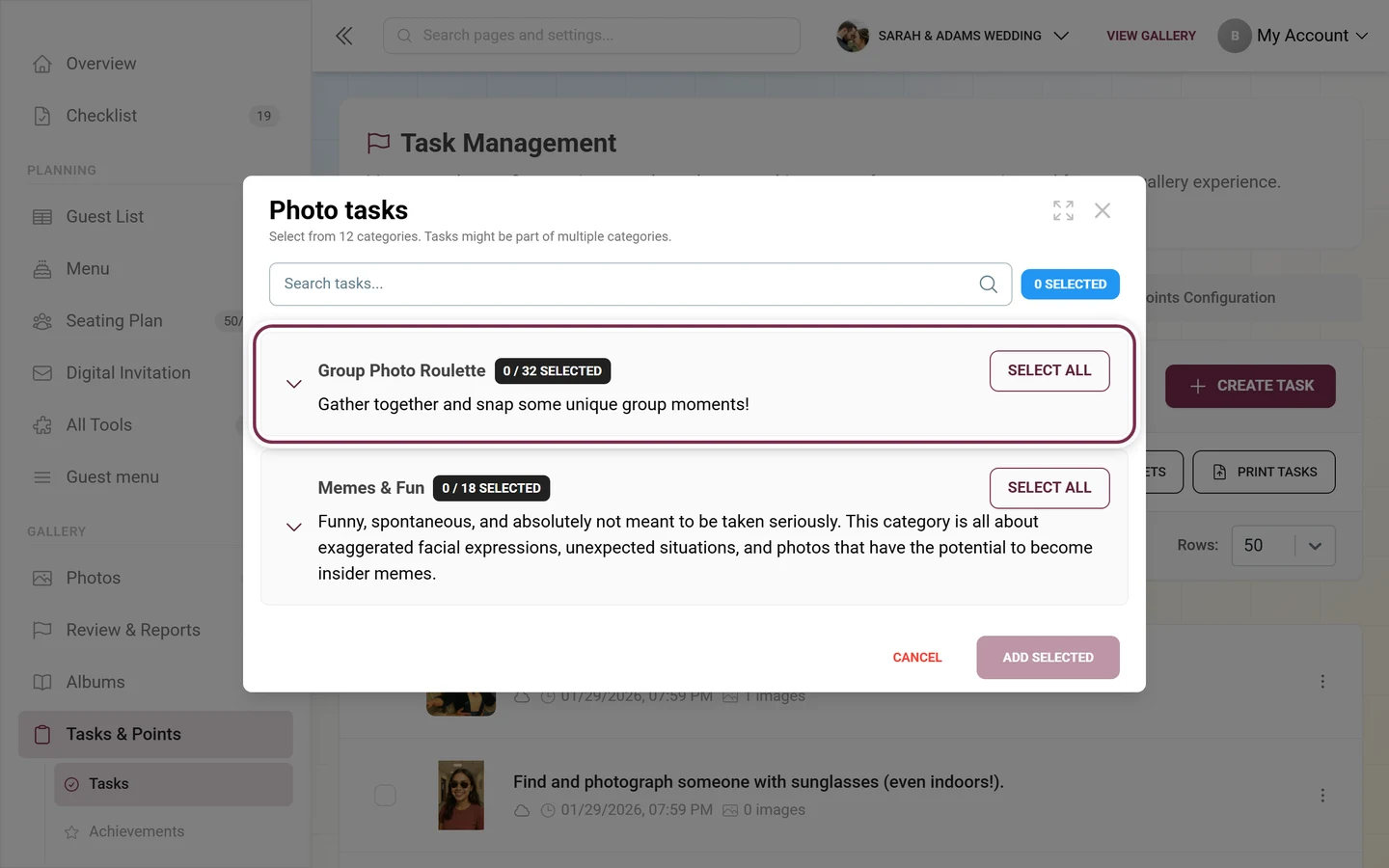
The Photo tasks dialog opens. Below the title it says how many categories you can pick from (currently 12), then the search field “Search tasks…” and the collapsible categories.
-
Expand a category using the arrow on the left. Pick individual tasks via checkbox, or use Select All on the right of the category row – once something is selected it turns into Deselect All. The dark chip next to the category name counts along (e.g. “0 / 32 selected”), the blue chip at the top right shows the overall selection. A task can appear in several categories.
-
Click Add Selected at the bottom. Tasks already in use are hidden; if nothing is left, it shows “No tasks are left to import.”
The “Points Configuration” tab
Section titled “The “Points Configuration” tab”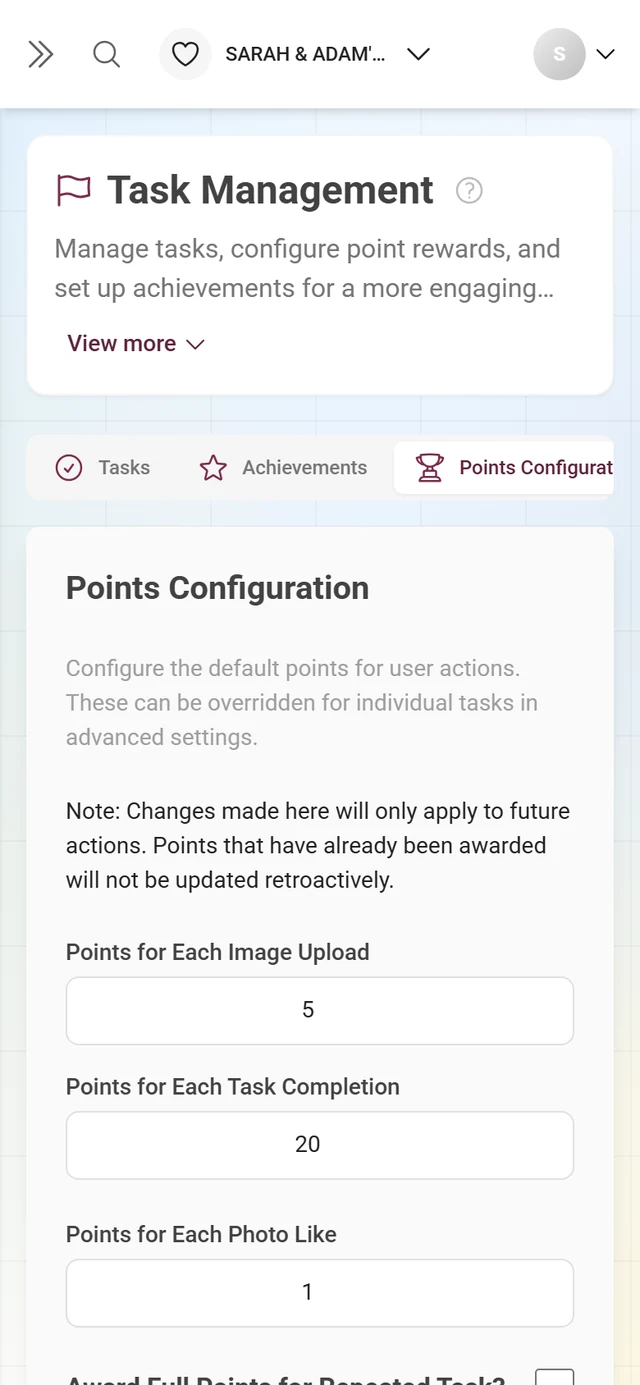
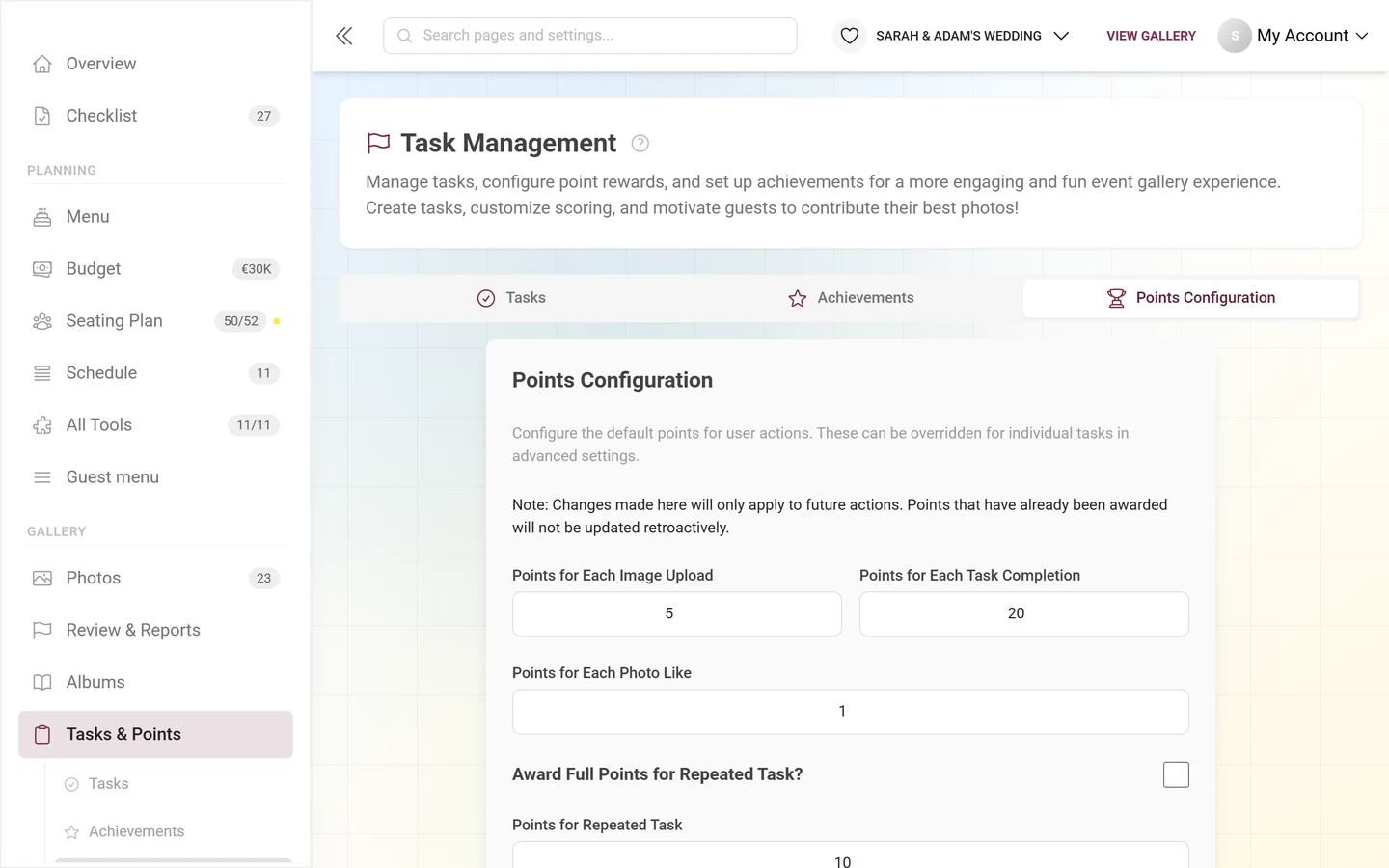
Here you set the event-wide default points (the Points tab in the editor overrides these per task). Changes apply only to future actions, not retroactively – the page states this too.
-
Enter the points: Points for Each Image Upload (default 5), Points for Each Task Completion (default 20) and Points for Each Photo Like (default 1).
-
The Award Full Points for Repeated Task? toggle decides whether repeated solves award full points. When off, the Points for Repeated Task field applies (default 10).
-
Click Save Changes.
Filtering, sorting, reordering and printing
Section titled “Filtering, sorting, reordering and printing”- Filter – click the funnel icon. Under “Select filter conditions:” pick the filter types (Initial Points, Repeat Points, Unlock Time, Lock Time, Task Dependencies, Achievement Requirements, Min Upload, Max Upload, Creation Date), set a Has/No toggle or a range per type, and confirm with Apply Filters. Reset All Filters clears everything again.
- Sorting – via Sort: and the up/down arrows.
- Reordering – enable Reorder, drag tasks into order, finish with Done.
- Printing – Print Tasks creates a QR card for each task that takes guests straight to it on site. Layout and colors are set in the dialog; more about print templates in the Design Studio.
Who can do what? (plan & roles)
Section titled “Who can do what? (plan & roles)”- Page visible: as soon as one of the three features (points, tasks or achievements) is in the plan.
- Custom tasks & points: part of the standard.
- Advanced conditions, template import and QR printing: depend on your event plan.
- Roles: The whole admin area – and therefore task management too – requires the Admin or Owner role. There is no extra owner-only hurdle here: whoever may open the admin area may also edit tasks, achievements and points. Moderators never get in at all; they work in Moderation. You assign roles under Roles & permissions.
Troubleshooting
Section titled “Troubleshooting”- The Tasks tab only shows an upgrade overlay: the feature is not in your plan – upgrade your plan.
- No Points tab in the editor / points have no effect: enable the points module under Features.
- Conditions seem lost: empty fields and zero values are dropped on save by design – only the conditions you set count.
- Task limit reached: the counter turns yellow or red and shows the hint Task limit almost reached! – upgrade your plan if needed.
- Tasks do not show up in the gallery: a notice above the list then tells you that tasks are not enabled yet. Switch them on under Features.
- “Refresh from Template” overwrites your own changes: consider this beforehand.
Tips for strong challenges
Section titled “Tips for strong challenges”- Word the task text concretely and upload a reference image – that makes the task instantly clear.
- Use Auto-assign to Albums with the album suggestion so every task gets its own album.
- Set time conditions for reveal moments (e.g. a task only from 8 pm).
- Build a story with Required Tasks; reach for the advanced conditions only when you really need them.
- Prefer a few strong tasks over many half-hearted ones. The template import is a good starting point.
- Post the QR cards at the entrance or on the tables.
Related topics
Section titled “Related topics”- Guest view: Challenges & tasks
- Points & rewards and Real rewards (guest)
- Achievements & rewards and Redeeming rewards (admin)
- Leaderboard & winners – prizes for places instead of achievements
- Managing albums, Turning features on & off, Design Studio, Inviting guests