I can't upload at all
If you never even get as far as picking files, that isn’t a bug in the app – it’s a permission or a state of the event. The upload dialog tells you with a padlock icon which case applies. If the upload does start and individual files fail, read My upload stops or fails instead.
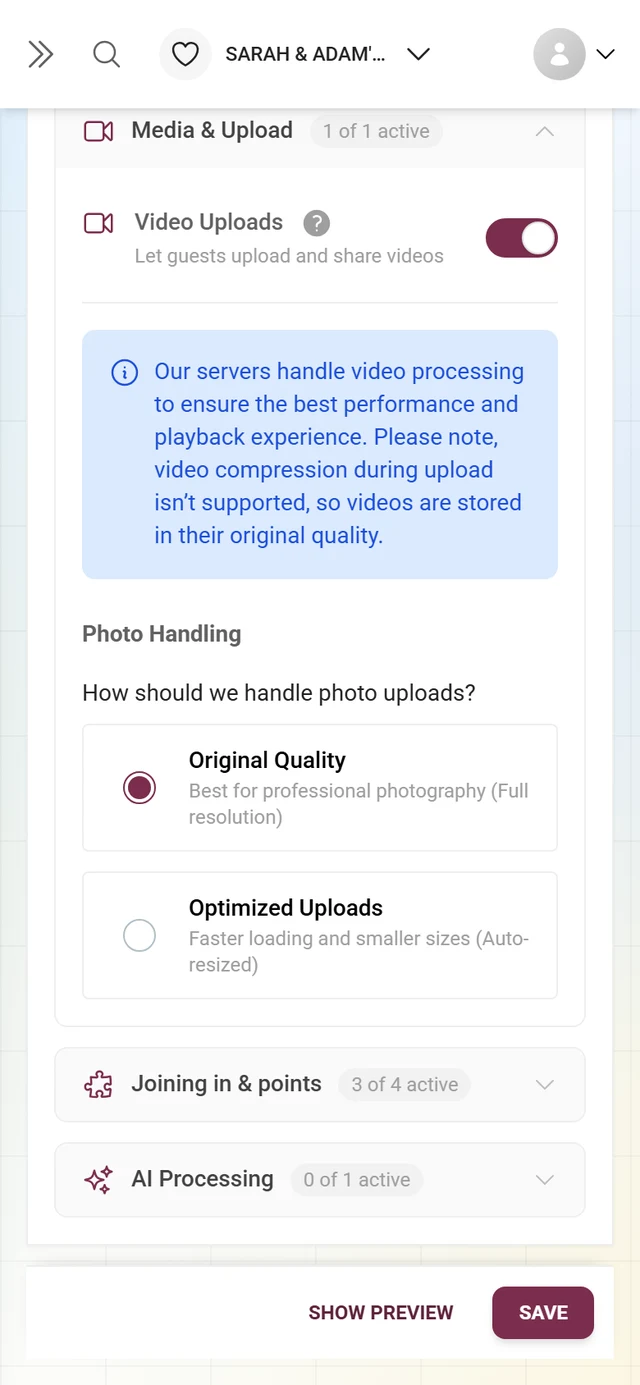
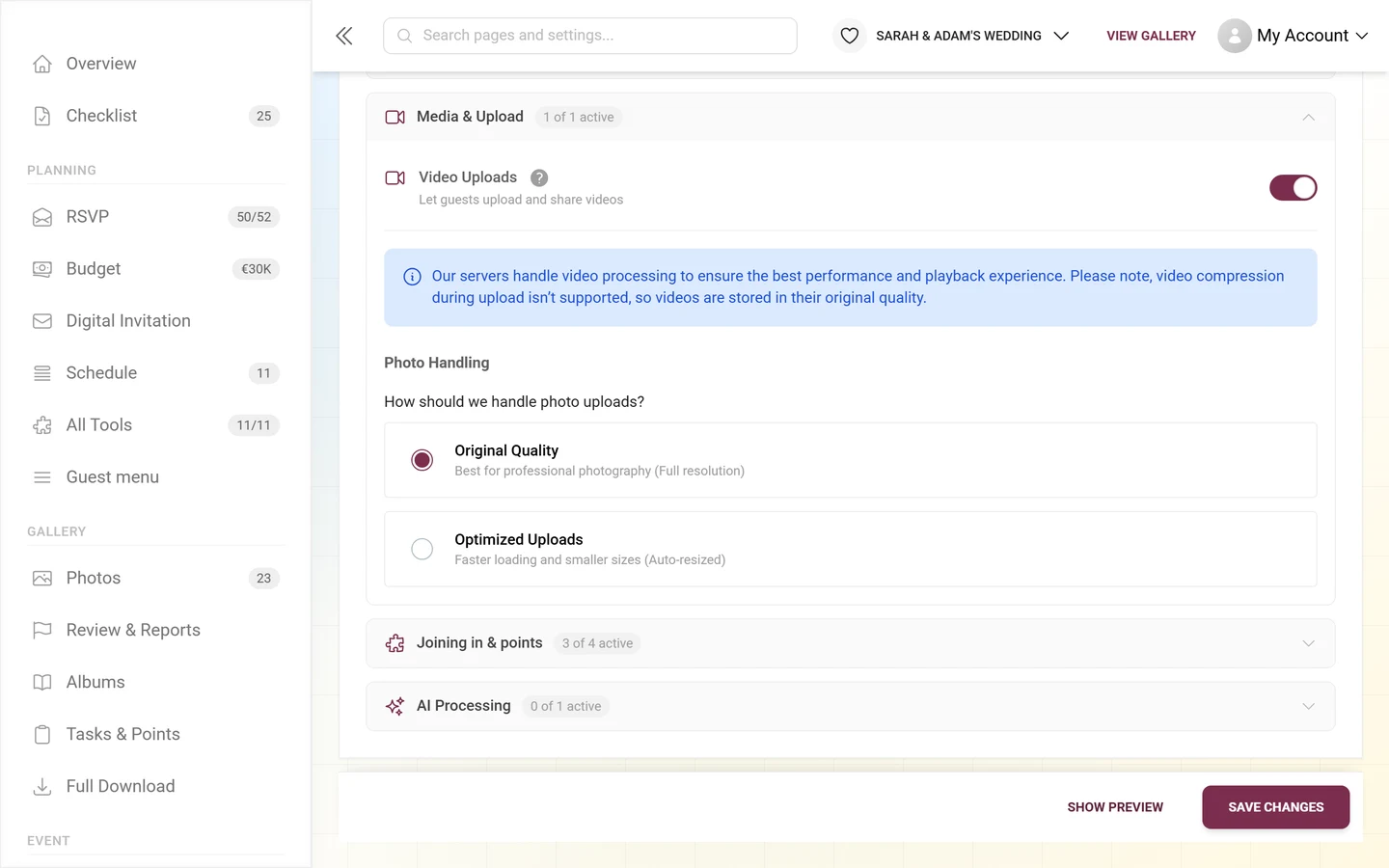
The host turned guest uploads off
Section titled “The host turned guest uploads off”You see No Upload Permission with the text “You don’t have permission to upload content to this event. You can browse and view the gallery instead.”
The gallery is then deliberately view-only. The host can change that at any time – just ask. Where that is set is described in Roles & permissions.
Your role is viewer only
Section titled “Your role is viewer only”Whether you may upload depends on your role in the event:
- Viewers can look and like, but never upload. No host setting changes that.
- Contributors and moderators can upload as long as guest uploads are allowed for the event.
- Admins and the owner can always upload while the event is running.
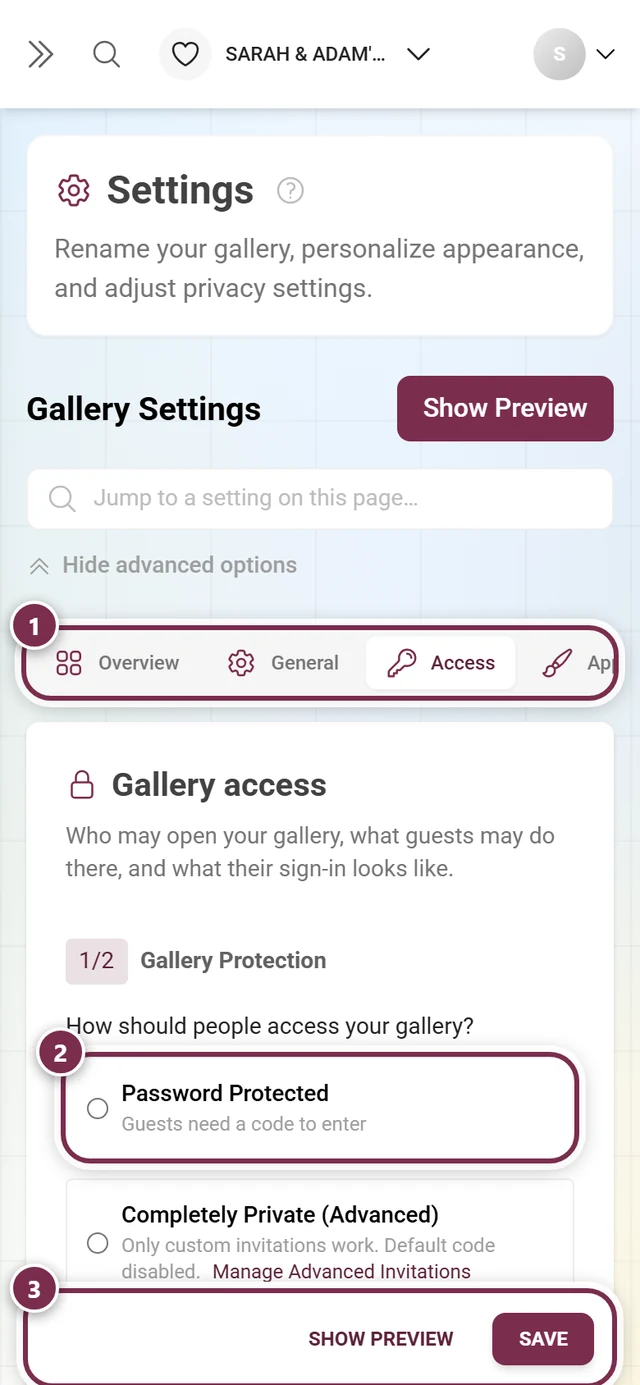
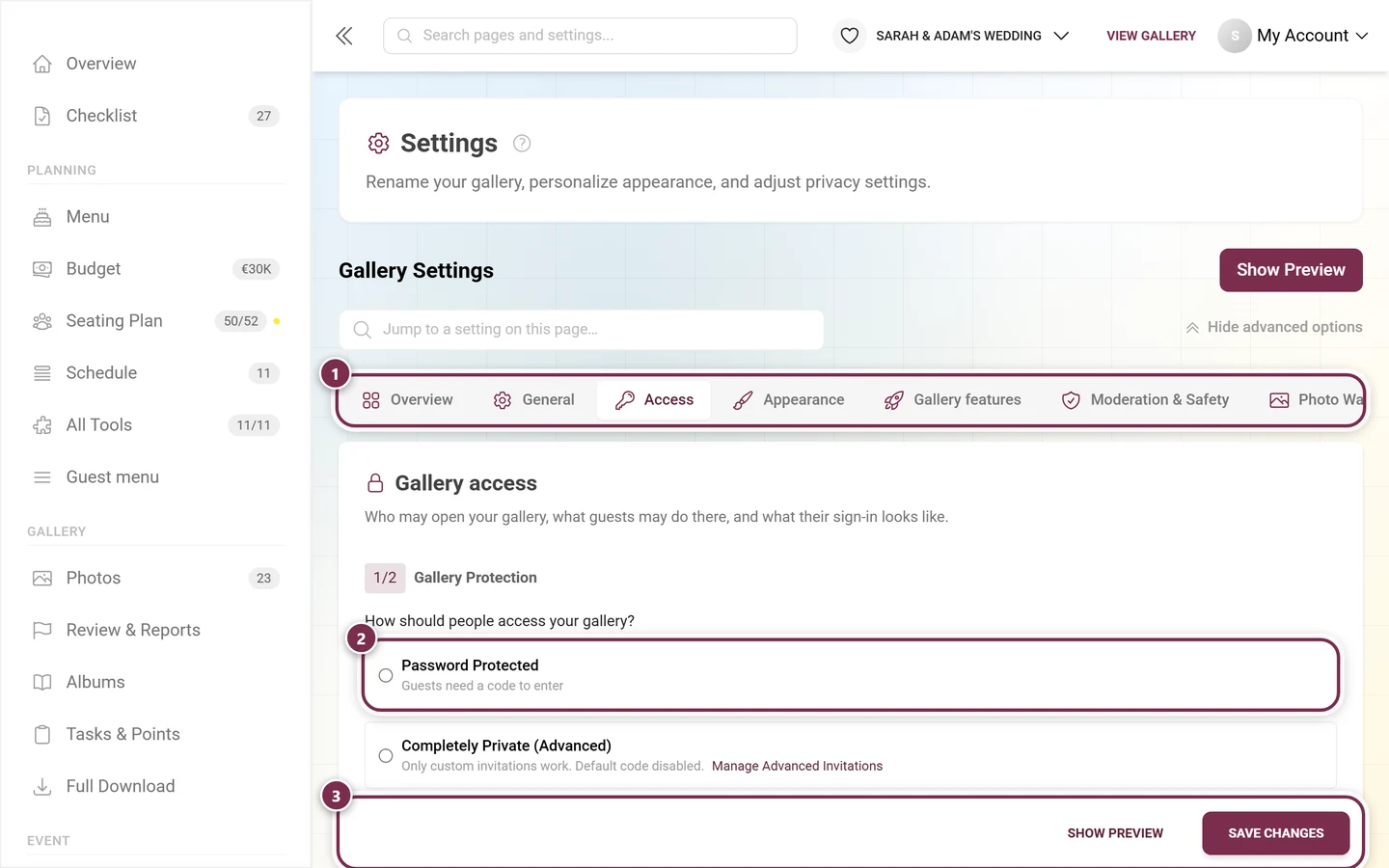
Only the host can change your role. More on this: Roles & permissions.
You have been banned from uploading
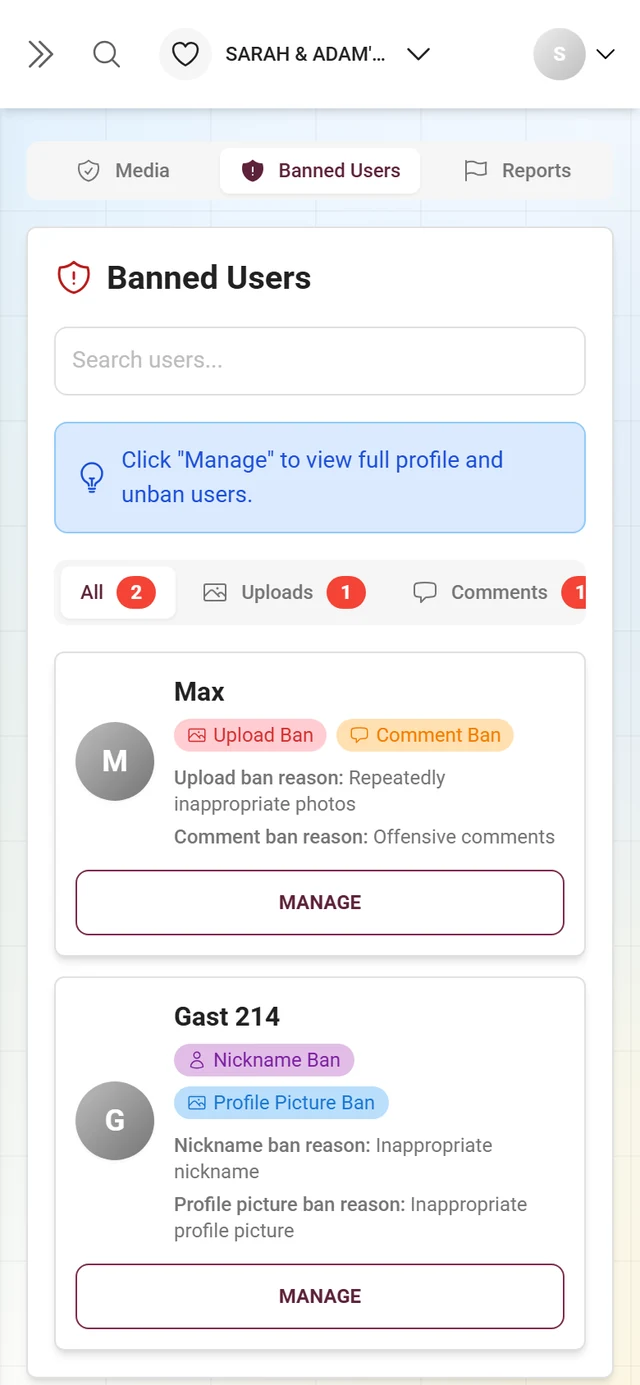
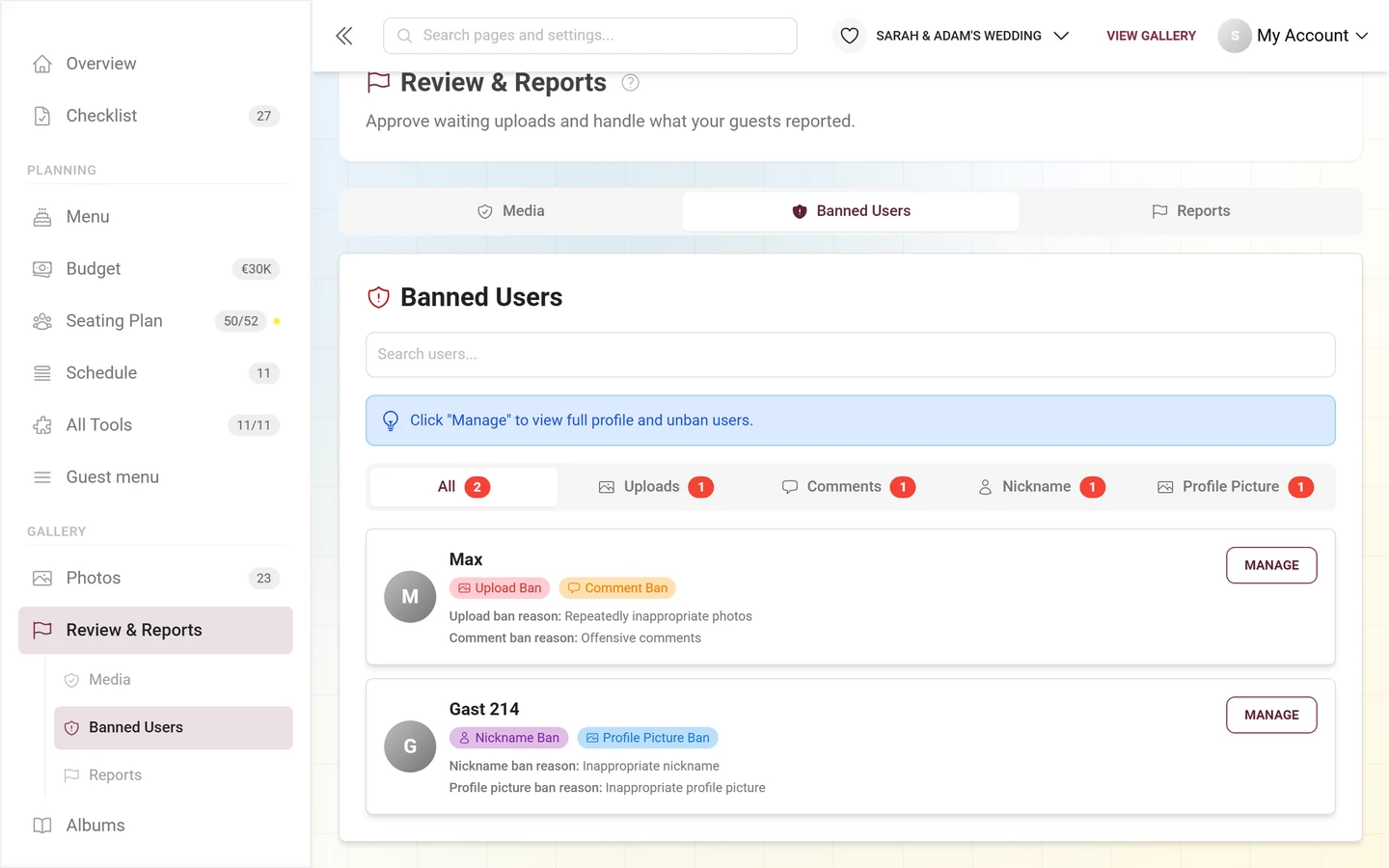
Section titled “You have been banned from uploading”You see Upload Banned with the text “A moderator has restricted your ability to upload content. Please contact an event administrator for more information.”
- This only affects new contributions. The photos and comments you already posted stay intact.
- A ban can cover commenting as well.
- Only a moderator or admin of the event can lift it, see Banning users.
The event has ended or expired
Section titled “The event has ended or expired”- Event Has Ended – “This event has ended and is no longer accepting new uploads. You can still browse and view the gallery.”
- Event Has Expired – “This event has expired and is no longer accepting new uploads. You can still browse and view the gallery.”
In both cases uploads are closed for every guest, not just for you. Whether and for how long the gallery stays reachable afterwards is covered in How long do photos stay online?
The gallery is in the archive
Section titled “The gallery is in the archive”After the event, the host can move the gallery to the archive. It then stays online – you can still browse, download, like and comment –, but nothing new gets added. Uploads are closed for everyone, the host included. At the top of the gallery you then see the notice This gallery is in the archive.
The upload dialog then shows This gallery is in the archive as well (older app versions still show No Upload Permission). In this case it has nothing to do with your role. Only the host can reopen the gallery, by upgrading to a full plan – see Archive – keep it for less.
New guests can no longer join a gallery in the archive. If you had already joined, open it on the device you joined with, or sign in with your account.
The photo task is still locked
Section titled “The photo task is still locked”If you upload through a task, the task itself can be the reason:
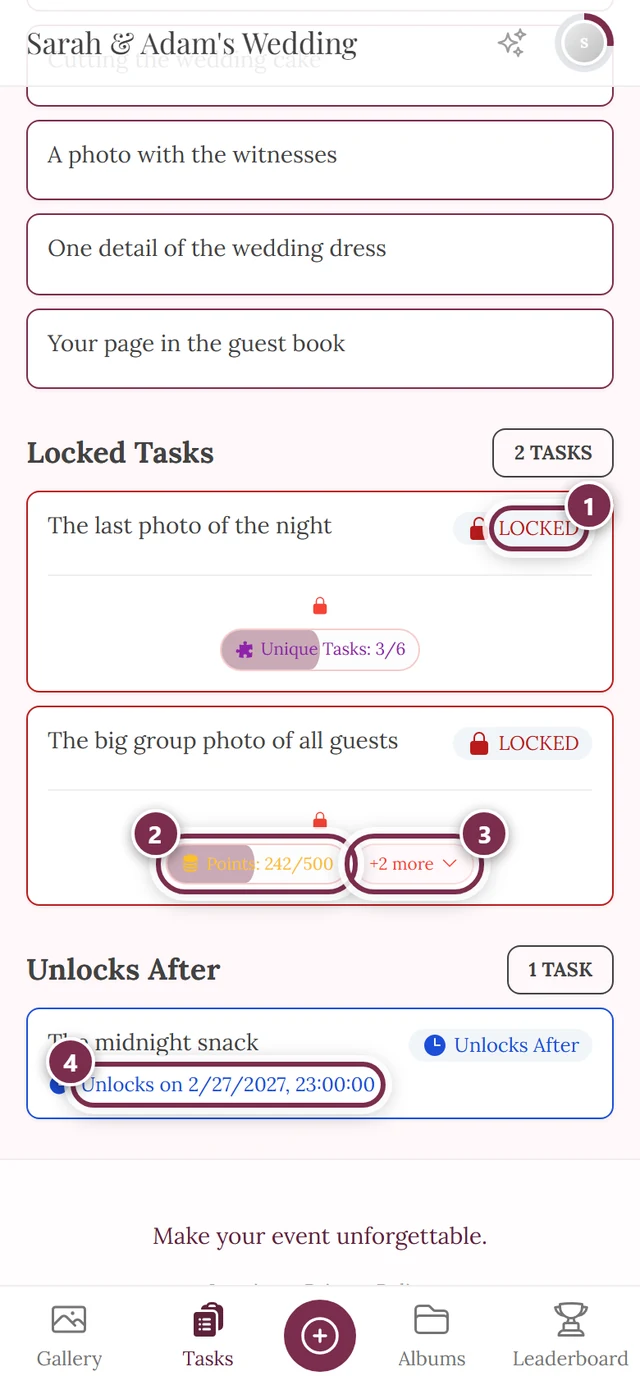
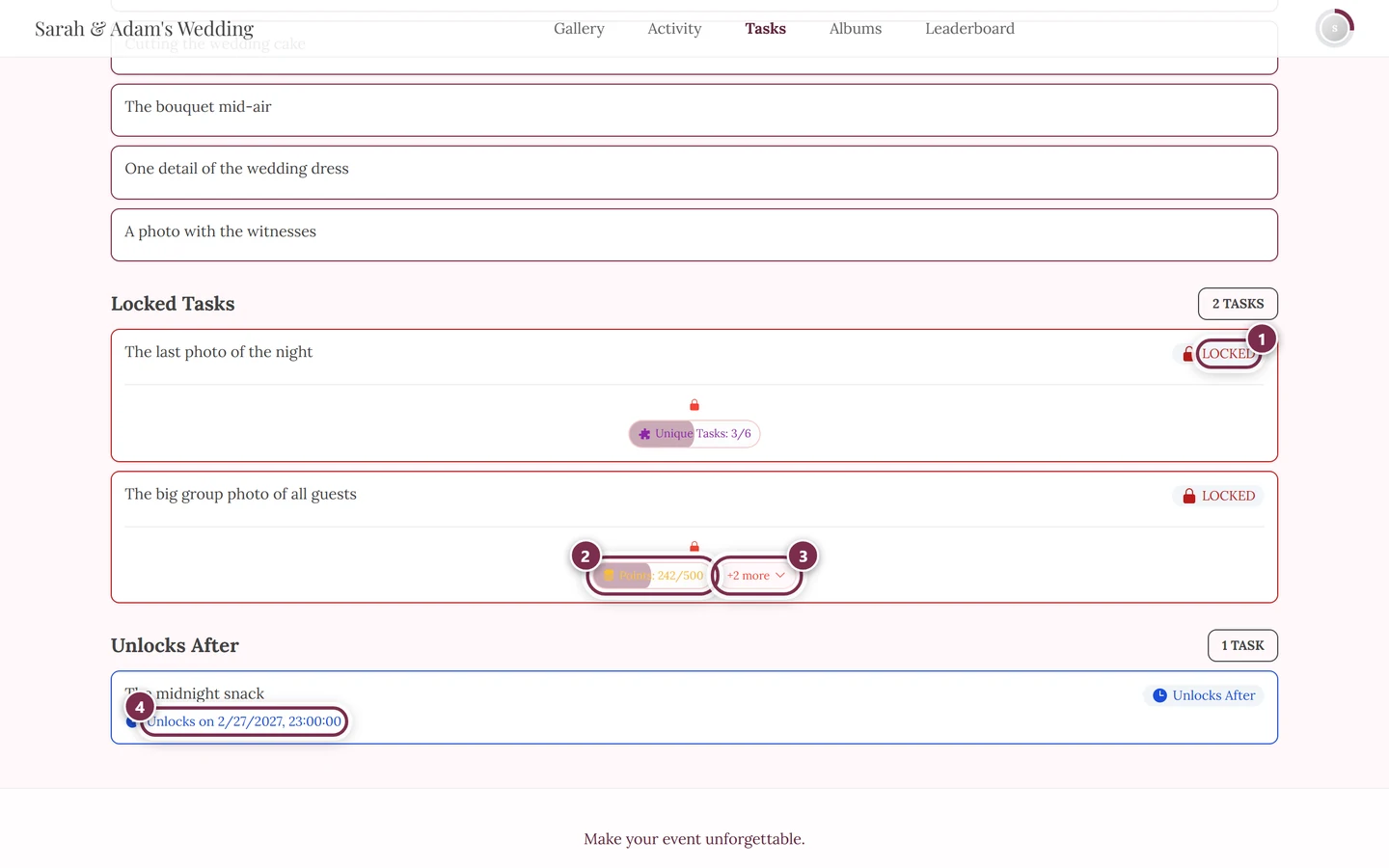
- The task card carries the chip Locked Task and the note “This task is locked. Complete the requirements to unlock it.” Under Requirements to unlock: you see what is still missing.
- Some tasks are time-scheduled and only become available later – or are already over.
- If a file is rejected for this reason, the button Skip Task appears next to Try Again. The photo then lands in the gallery as usual, just without the task assignment.
How tasks get unlocked is explained in Solve photo tasks.
Videos are a special case
Section titled “Videos are a special case”If only videos are missing while photos work, it isn’t about your permission. That’s explained in Can I upload videos?