Connecting a photo booth live
With Live Upload you connect a photo booth, camera or computer directly to your event. Every photo the device sends appears in the gallery and on the photo wall within seconds — no manual uploading needed. The connection works over FTP/FTPS (the device pushes photos to us) or over WebDAV (you mount the event like a network drive).
Who needs this?
Section titled “Who needs this?”Live Upload is for hosts/owners who run a photo booth or an FTP-capable camera at the event. Only the host can create and manage accesses. Operators matter when you hand out an access with the Full event permission. Moderators are only indirectly affected: moderation still applies to live uploads — unless an access deliberately bypasses it (see Skip moderation).
Opening the Live Upload page
Section titled “Opening the Live Upload page”-
Open your event’s admin area. If you are in the gallery, tap your profile menu at the top right and choose Management → Admin portal. See also Reaching the event admin.
-
In the sidebar, in the Event group, click Live Upload. Direct link:
/admin/live-upload.
How the page is laid out
Section titled “How the page is laid out”From top to bottom you will find these areas:
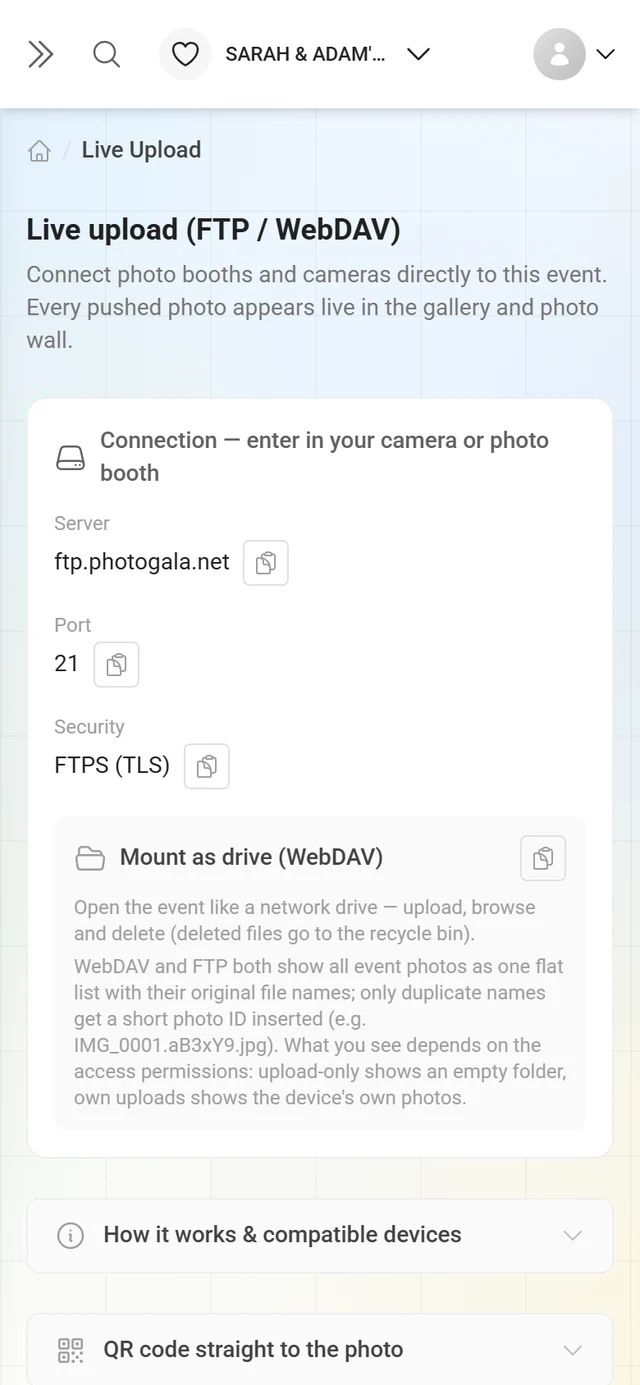
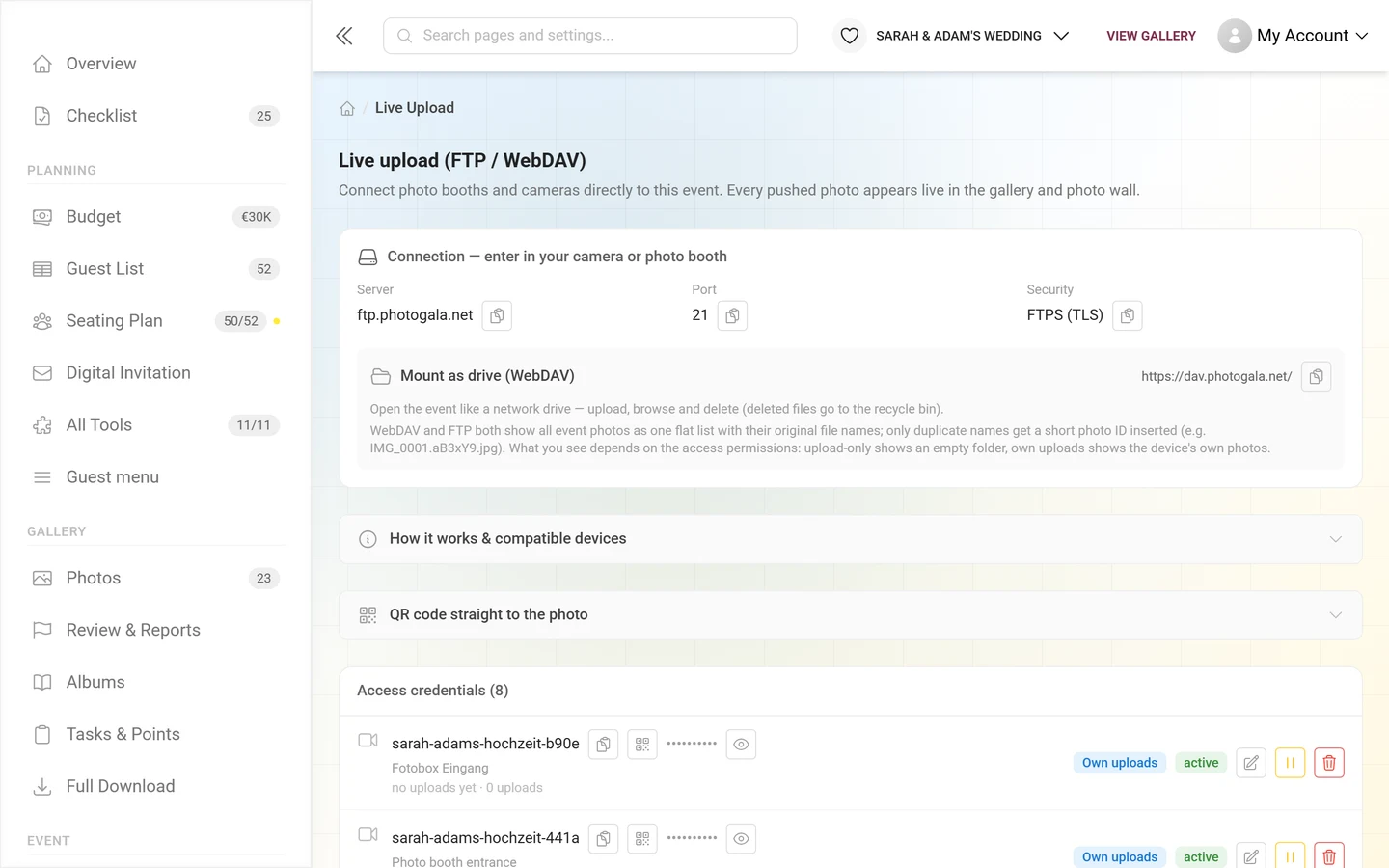
Connection card — this goes into your device
Section titled “Connection card — this goes into your device”At the very top is the card Connection — enter in your camera or photo booth. It shows the three values that belong in every photo booth or camera — each with a Copy button:
- Server — the address (host) the device connects to. On photogala.net it is
ftp.photogala.net. - Port — the connection port. The default is 21.
- Security — either FTPS (TLS) (encrypted, recommended) or FTP (no TLS).
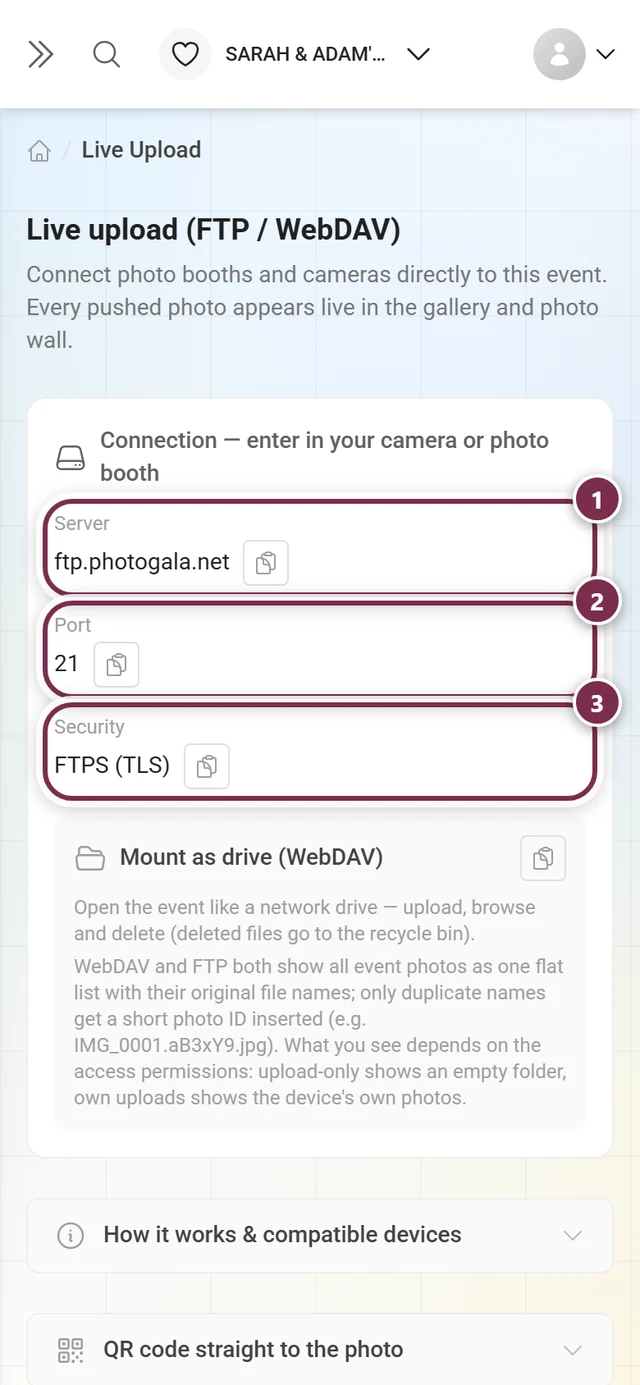
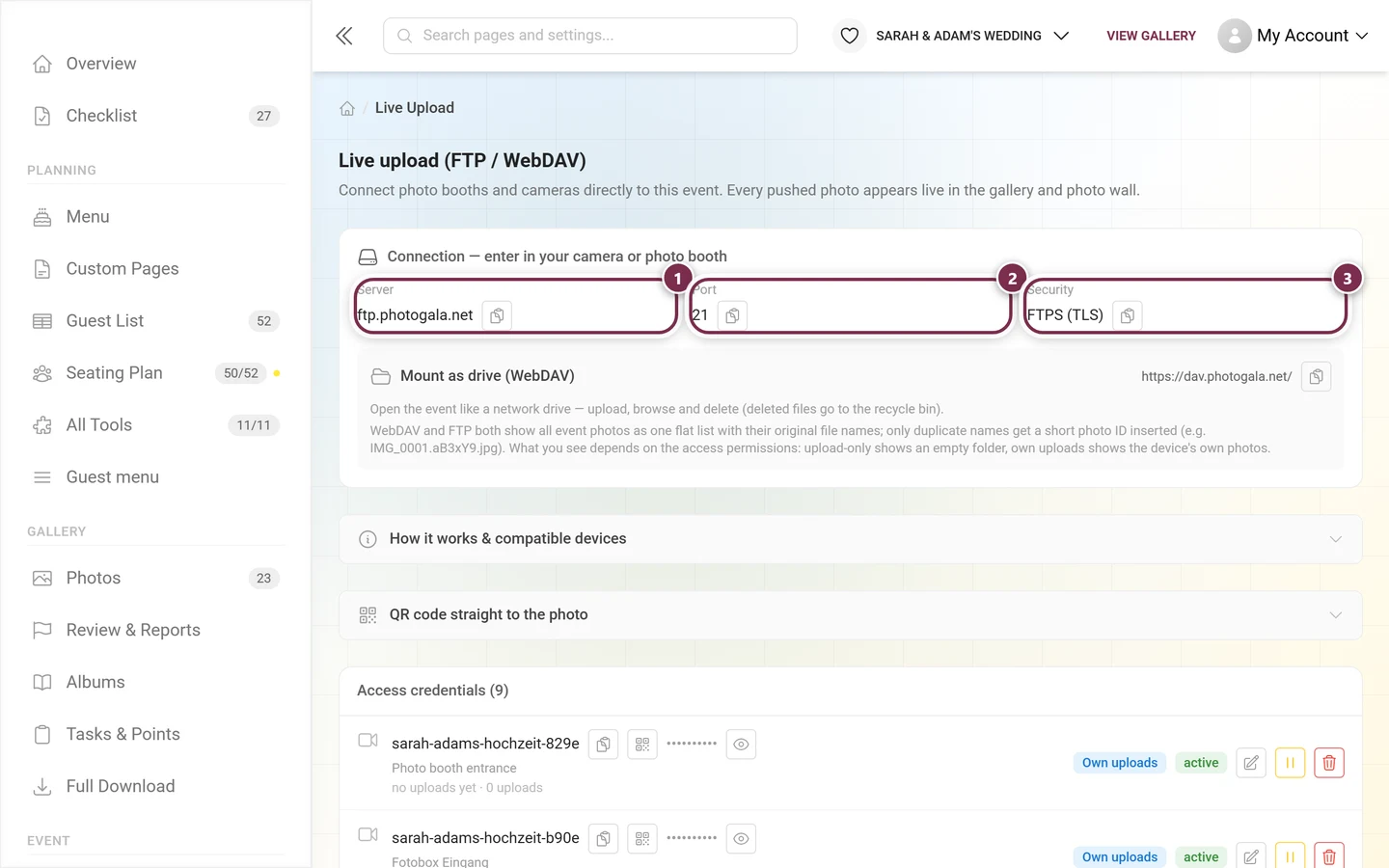
Below it sits the WebDAV box Mount as drive (WebDAV) with its own WebDAV URL (https://dav.photogala.net/) and copy button. With this you open the event on a computer like a network drive — upload, browse and delete (deleted files go to the recycle bin).
The three connection modes
Section titled “The three connection modes”The server accepts photos over three routes — old camera and photo booth firmwares often speak only one of them:
| Mode | Port | When to use it |
|---|---|---|
| Explicit FTPS (AUTH TLS) | 21 | The normal case. FileZilla calls it Explicit FTP over TLS. Recommended. |
| Implicit FTPS | 990 | When your device offers only “FTPS” or “FTP with SSL” without a choice and does not connect on port 21. TLS from the first byte. |
| Plain FTP (unencrypted) | 21 | Only if the device has no TLS at all. The password travels in the clear. |
Passive mode and firewall
Section titled “Passive mode and firewall”FTP opens a second connection for every file. To get that through routers and event Wi-Fi:
- Set the client to passive mode (PASV/EPSV). Almost all booth programs and cameras do this by themselves; FileZilla calls it Transfer mode: Passive.
- The network at the venue must allow outbound: 21/tcp (or 990/tcp) for the control connection and 31000–31099/tcp for the data connections.
- At the same time, 64 connections per server and 16 connections per IP address are allowed. Several booths behind one event router share those 16.
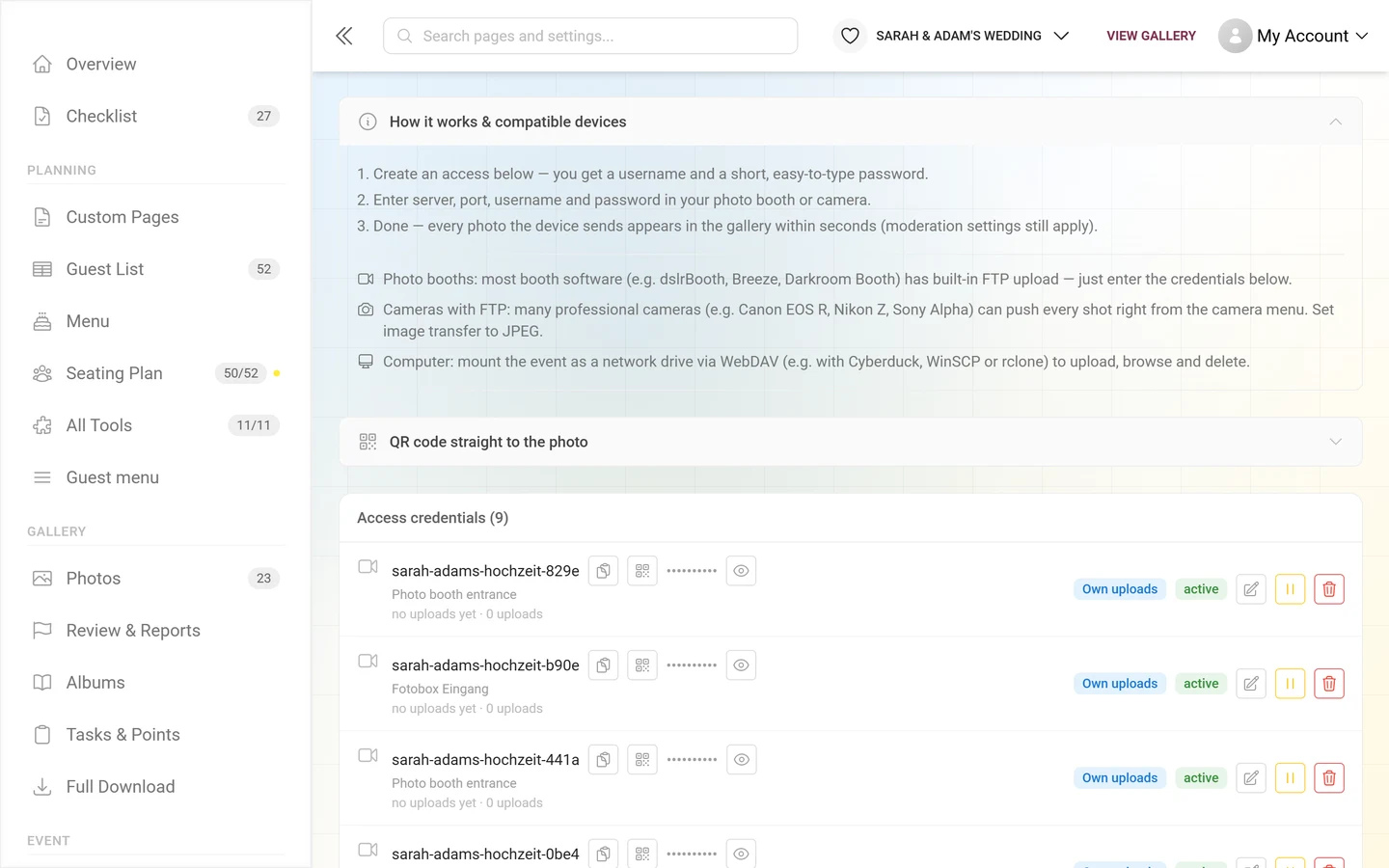
“How it works & compatible devices” fold
Section titled ““How it works & compatible devices” fold”Collapsed by default. It explains the flow in three steps and lists compatible devices:
- Photo booths: most booth software (e.g. dslrBooth, Breeze, Darkroom Booth) has built-in FTP upload.
- Cameras with FTP: many professional cameras (e.g. Canon EOS R, Nikon Z, Sony Alpha) can push every shot right from the camera menu — set image transfer to JPEG.
- Computer: mount the event as a network drive via WebDAV (e.g. with Cyberduck, WinSCP or rclone).
“QR code straight to the photo” fold
Section titled ““QR code straight to the photo” fold”This fold is available for every event. It shows no QR code itself, but the link template your booth app builds one from: many booth apps show a QR code per printed or displayed photo that leads straight to that exact photo in the gallery — guests land there even while the upload is still finishing. To do this, you enter the template with a file-name placeholder in the booth software. If your event runs on its own brand domain, that domain appears in the template as well.
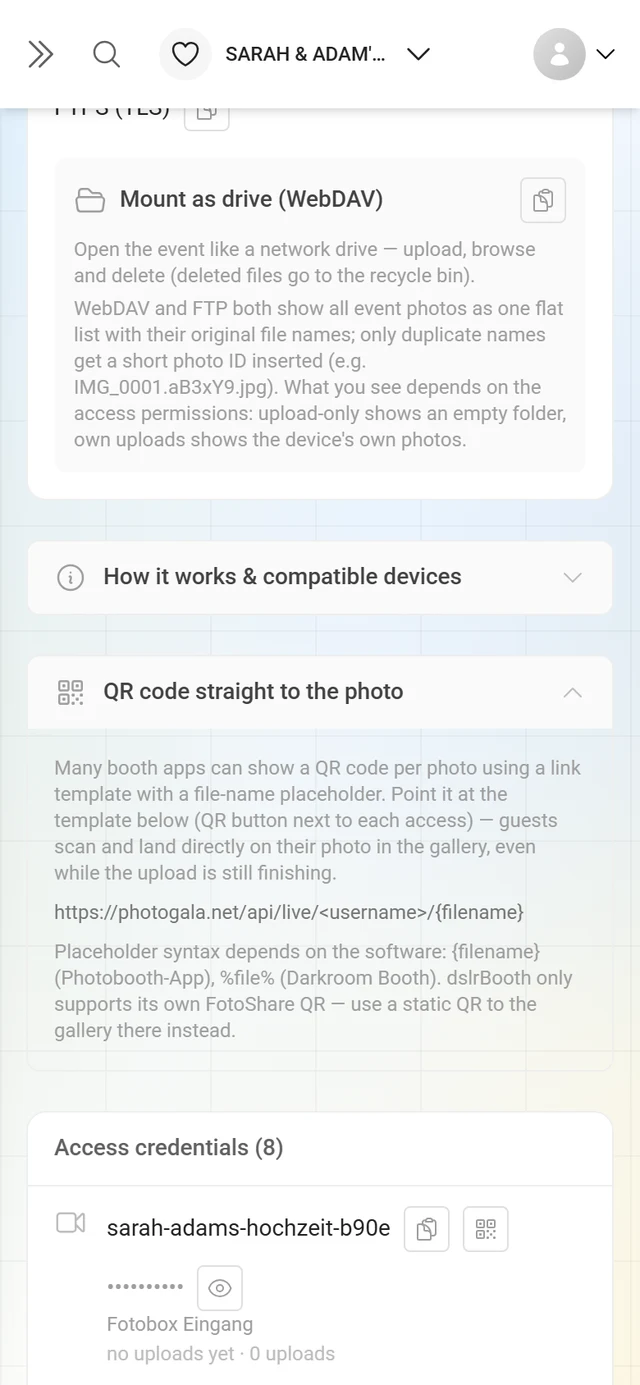
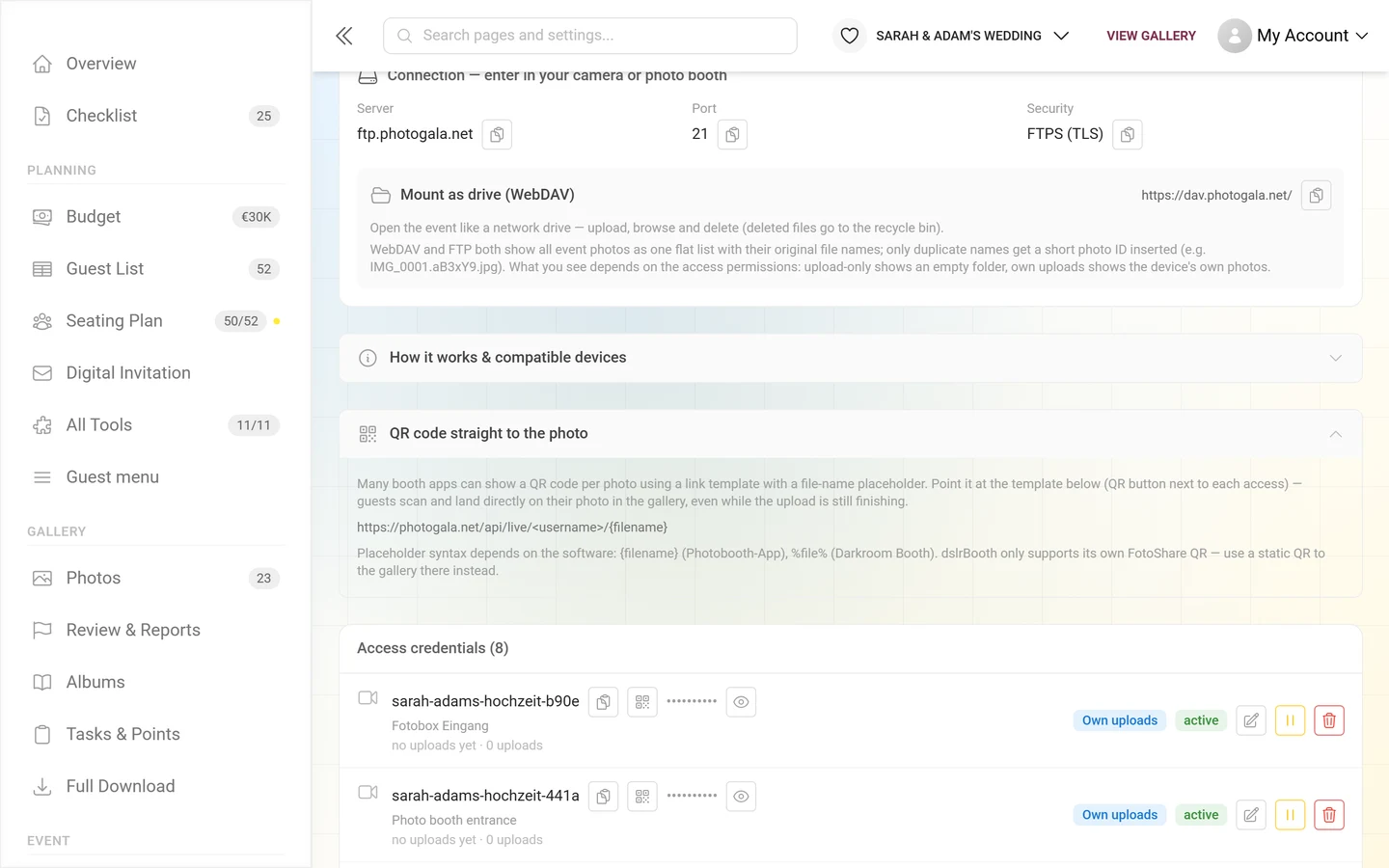
The template has the form …/<username>/{filename}. The placeholder syntax depends on the software:
- Photobooth App:
{filename} - Darkroom Booth:
%file% - dslrBooth can only show its own FotoShare QR. Use a static QR code to the gallery there instead.
Every active access also gets a QR copy button in the list (Copy QR link template for this device) that copies the finished template with the correct username.
What the guest sees when scanning depends on where the photo currently is:
- Photo already there: the gallery opens with the picture in the lightbox.
- Photo still on its way: a waiting page that refreshes itself — as soon as the picture arrives, it jumps to it.
- Photo awaiting approval: the link still shows the photo right away as a preview, with a note that it will appear in the gallery only after approval. Where no preview is possible (see below), a self-refreshing waiting page with a note about moderation appears instead.
- Photo rejected or deleted: a notice, without auto-refresh.
During the first minute the waiting pages refresh every 2.5 seconds, then less often — after about eight minutes only every 30 seconds.
Instant preview of photos awaiting approval
Section titled “Instant preview of photos awaiting approval”The preview is always on, for every access and also for connected partner devices; there is no switch for it. Whoever scans at the photo booth should see their photo without waiting for approval. In the gallery it still appears only after approval.
- For 24 hours after the upload, anyone with the link can see the photo. After that only phones that already opened it during those 24 hours; they remember it for 30 days.
- Not with Completely Private. For password-protected events only if Include default password in the QR link is on for the access.
- If the NSFW filter is on, the preview only appears once the filter has rated the photo as safe; until then the waiting page stays. Flagged photos are never shown. Videos have no preview.
- Rejecting, deleting, pausing, revoking and a plan without Live Upload end the preview immediately.
- The preview page does not refresh itself. Anyone who opens the link again after approval lands directly in the gallery.
If photos awaiting approval should never be shown to anyone, do not enter the template in the booth software: without a QR code per photo, no guest knows the link.
Creating an access
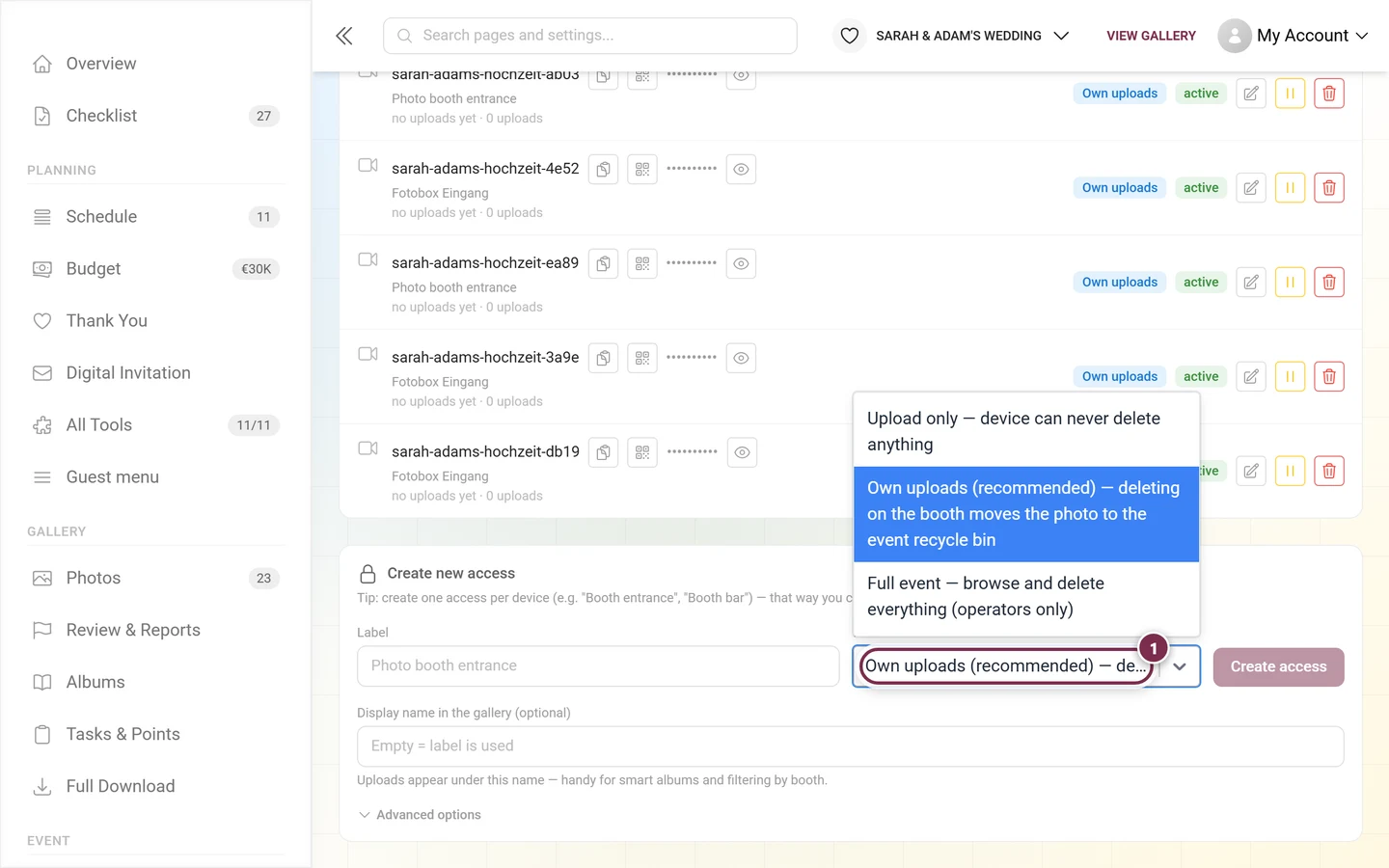
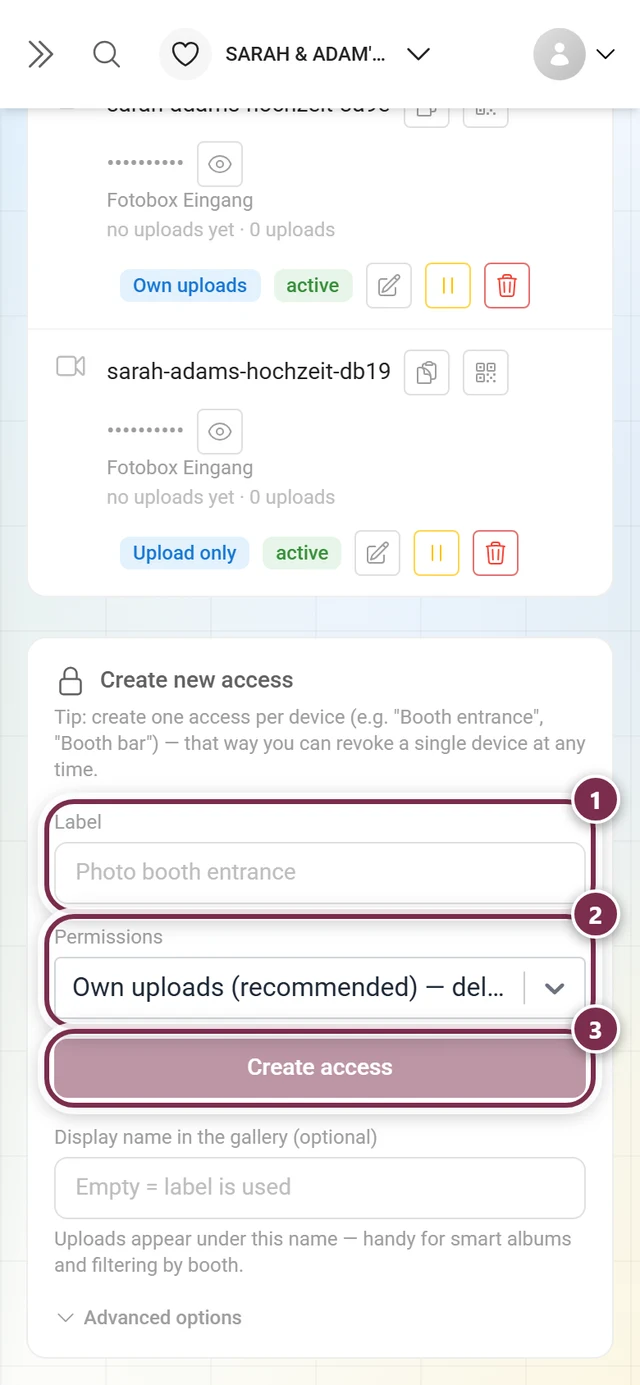
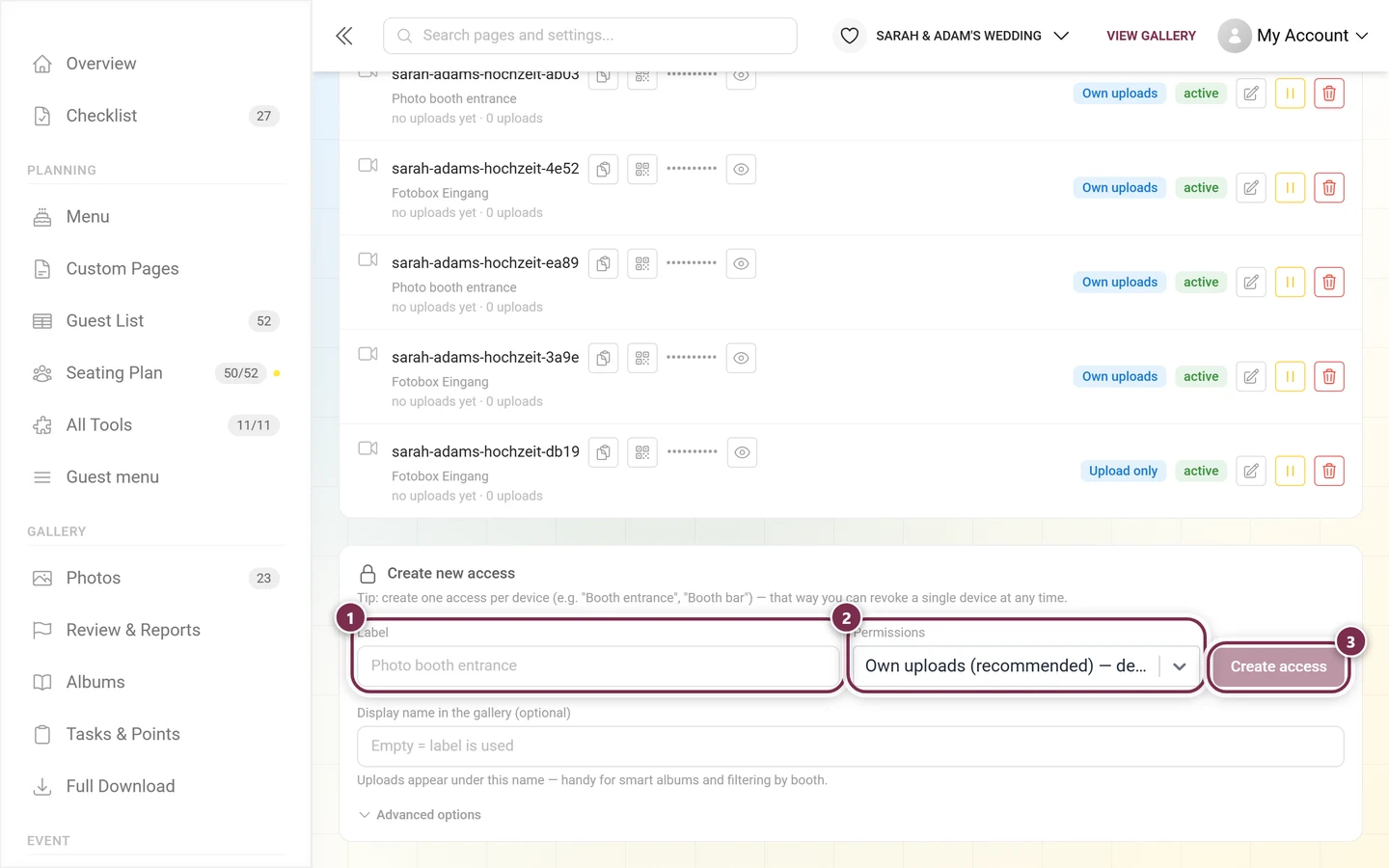
Section titled “Creating an access”Scroll all the way down to Create new access (lock icon).
-
Enter a Label (required). Example: “Photo booth entrance”. Without a label the Create access button stays disabled.
-
Choose Permissions. The dropdown offers three levels:
- Upload only — the device can never delete anything. It sees an empty folder over FTP/WebDAV.
- Own uploads (recommended) — the default. The device sees only its own photos; deleting on the booth moves the photo to the event recycle bin.
- Full event — browse and delete everything (operators only).
-
Optional: Display name in the gallery (max. 50 characters). Empty = the label is used. Uploads appear under this name — handy for smart albums and filtering by booth.
-
Optional: expand Advanced options (see below).
-
Click Create access. A green panel then shows the fresh credentials once, large.
What the username looks like
Section titled “What the username looks like”The platform assigns the username automatically from the event and the label, followed by four random characters — for example anna-wedding-booth-entra-9f2c. It contains only lower-case letters, digits and hyphens and is at most 32 characters long. That is deliberate: it can be typed on a booth touchscreen or in a camera menu without any special characters.
How long an access is valid
Section titled “How long an access is valid”The server sets the expiry date itself when the access is created — event date + 7 days. If your event has no date, 7 days from now apply. If the event date is so far back that this deadline would already have passed, 30 days from now apply instead. The date cannot be changed on the page; in the access list you only see it indirectly, as the red expired badge.
Advanced options
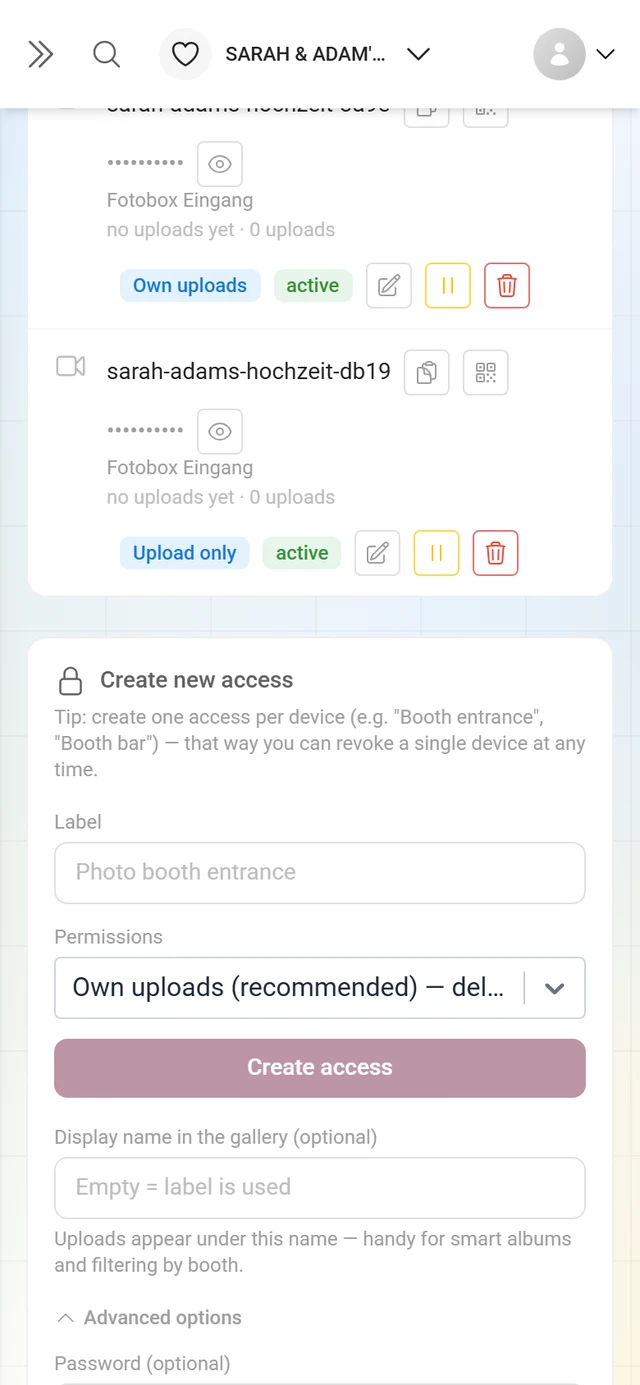
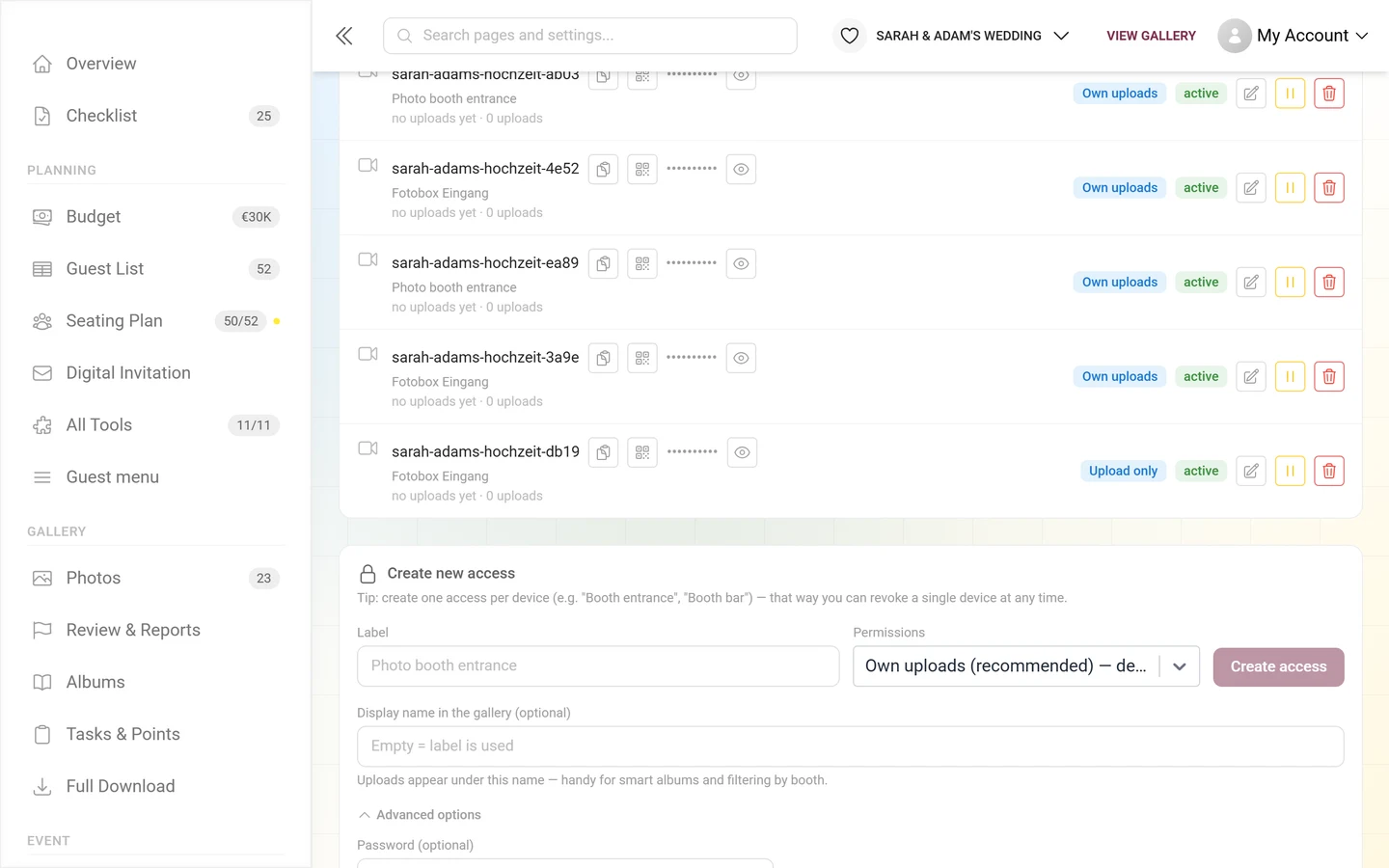
Section titled “Advanced options”Behind Advanced options sits the Password (optional) field first, and below it three collapsible option groups. You will meet the same three groups again in the edit dialog.
Password (optional) — leave empty to generate one automatically. A custom password must be 10–64 characters, contain only printable ASCII (no spaces, no accented characters) and use at least 4 different characters. Otherwise it is rejected.
Group “Moderation & gallery access”
Section titled “Group “Moderation & gallery access””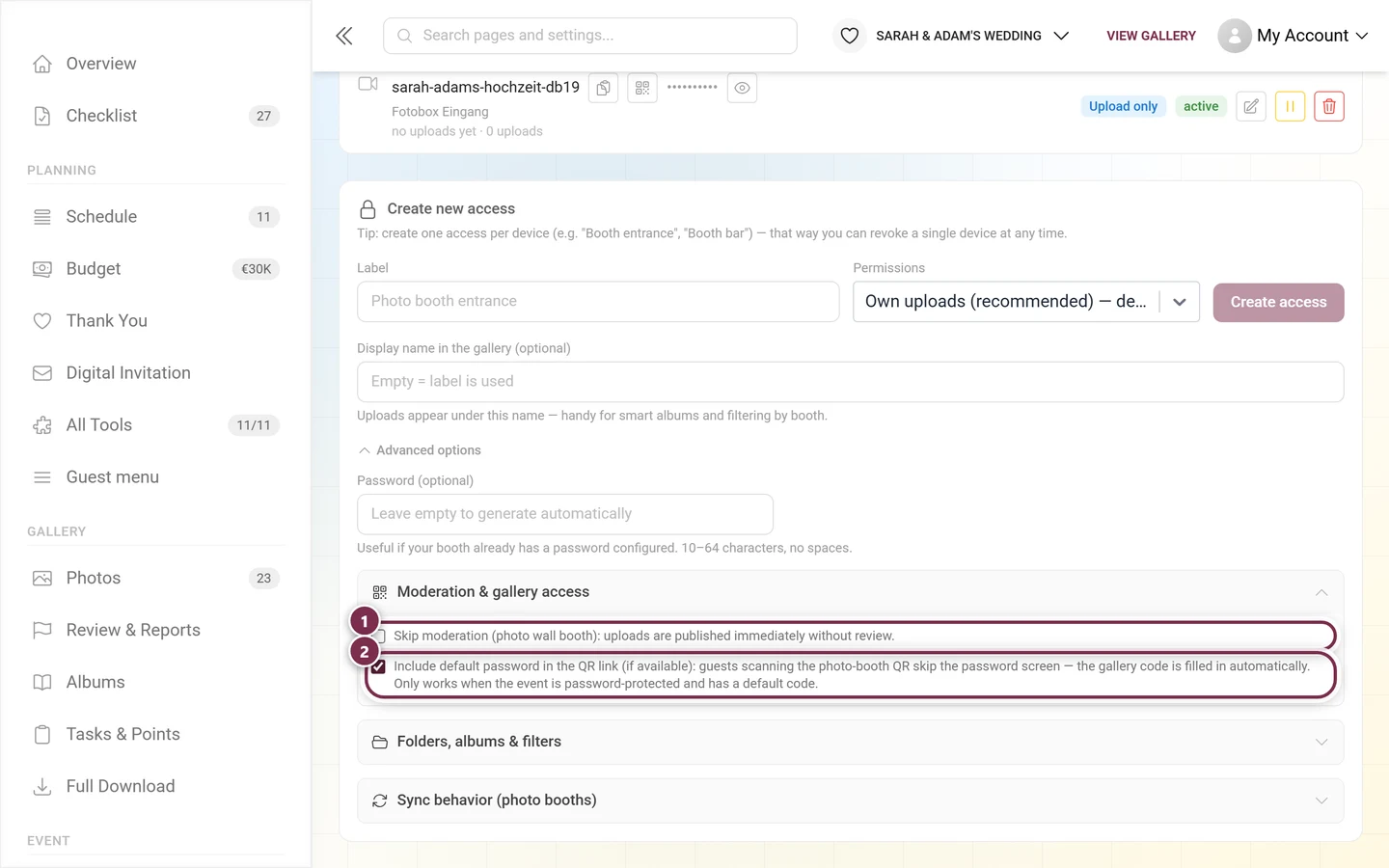
- Skip moderation (photo wall booth) — uploads from this access are published immediately without review. The access list then shows the moderation bypassed warning. Off by default; only enable it deliberately for photo wall booths.
- Include default password in the QR link — guests scanning the photo-booth QR skip the password screen; the gallery code is filled in automatically. On by default. Only works when the event is password-protected and has a default code.
Group “Folders, albums & filters”
Section titled “Group “Folders, albums & filters””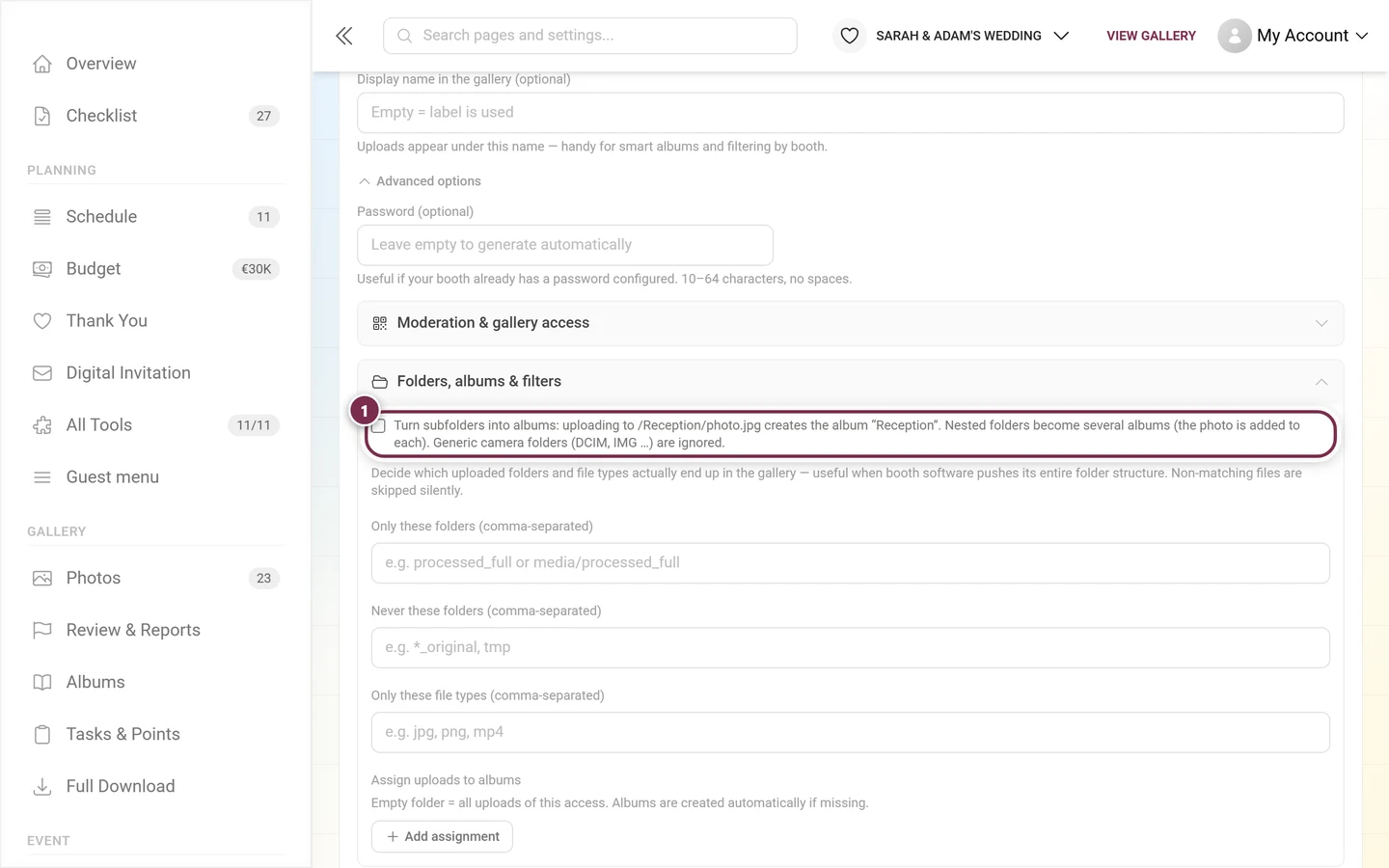
- Turn subfolders into albums — if the device uploads to
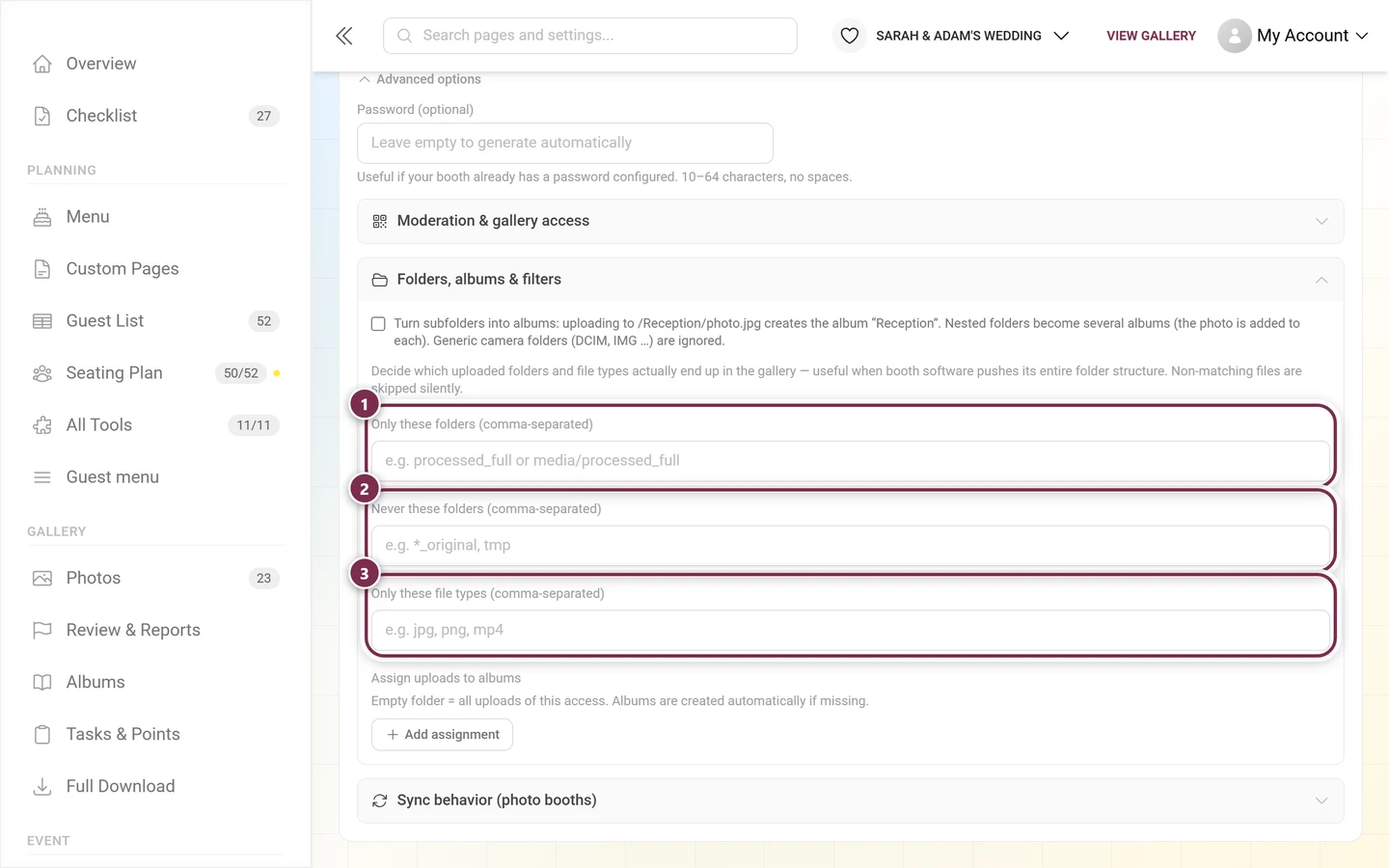
/Reception/photo.jpg, the album “Reception” is created automatically. Nested folders create several albums (the photo is added to each; the albums sit side by side, not inside one another). Off by default. - Upload filters — three comma-separated lists decide what actually ends up in the gallery. Useful when booth software pushes its entire folder structure. Non-matching files are skipped silently (the device sees no error):
- Only these folders (comma-separated) — e.g.
processed_fullormedia/processed_full. - Never these folders (comma-separated) — e.g.
*_original, tmp. - Only these file types (comma-separated) — e.g.
jpg, png, mp4. A leading dot is stripped automatically.
- Only these folders (comma-separated) — e.g.
- Assign uploads to albums — row by row you map a Folder (empty = all) to an Album. Add assignment adds a row, Remove deletes one. An empty folder covers all uploads of this access. Missing albums are created automatically. Rows without an album title are dropped on save.
Each list holds up to 20 entries (up to 120 characters each, file extensions up to 16), plus up to 20 album assignments with album titles up to 60 characters. Duplicates are merged and backslashes are straightened to /.
Group “Sync behavior (photo booths)”
Section titled “Group “Sync behavior (photo booths)””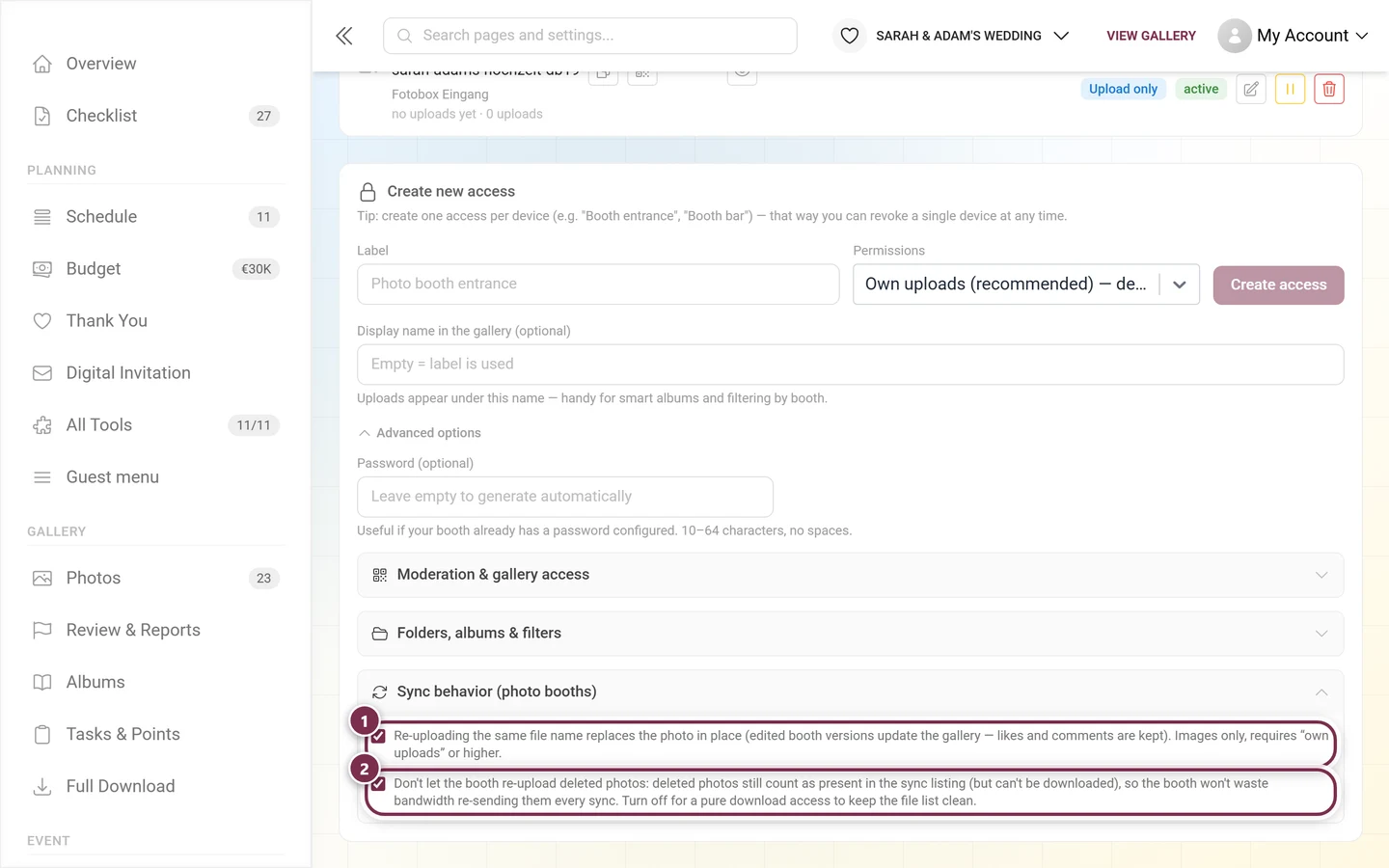
- Re-uploading the same file name replaces the photo in place — edited booth versions update the picture in the gallery, and likes and comments are kept. On by default for new accesses. Applies to images only and requires at least the Own uploads permission.
- Don’t let the booth re-upload deleted photos — deleted photos still count as present in the sync listing (but cannot be downloaded), so the booth does not re-send them on every sync. This stops photos you sorted out from reappearing and saves bandwidth. On by default; turn it off for a pure download access to keep the file list clean.
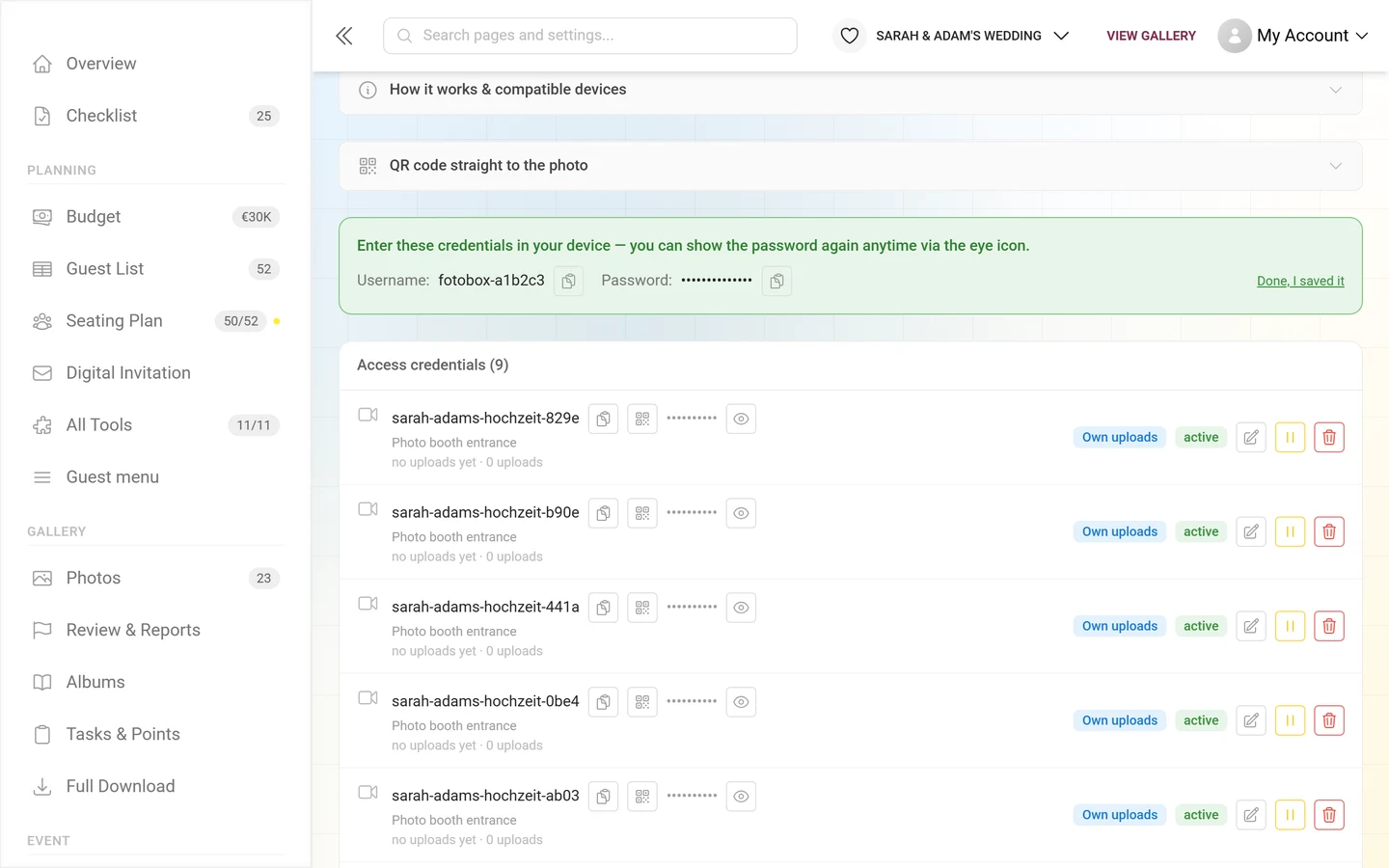
Saving the fresh credentials
Section titled “Saving the fresh credentials”After creating (and after every new password) a green one-time panel shows Username and Password, each with a copy button. Enter these along with Server, Port and Security into your device and confirm with Done, I saved it.
Connecting a device — step by step
Section titled “Connecting a device — step by step”Every device needs the same handful of values:
| Field on the device | Value |
|---|---|
| Server / host / address | from the connection card, e.g. ftp.photogala.net |
| Port | 21 (with implicit FTPS 990) |
| Encryption | FTPS / TLS — explicit on 21, implicit on 990 |
| Username | the access username, e.g. anna-wedding-booth-entra-9f2c |
| Password | the password from the green panel |
| Target folder / path | empty or / — unless you want albums from folders |
| Mode | passive |
FileZilla (for testing and for a laptop)
Section titled “FileZilla (for testing and for a laptop)”-
File → Site Manager → New site.
-
Protocol: FTP – File Transfer Protocol. Host: the address from the card. Port:
21. -
Encryption: Require explicit FTP over TLS. (If no connection is established, try Require implicit FTP over TLS with port
990.) -
Logon type: Normal. Below it, enter the user and password of the access.
-
On the Transfer Settings tab: Passive.
-
Connect. The first time, you confirm the certificate.
On the right you then see the contents of the access (deliberately empty with Upload only). Drag a test image in — it should show up in the gallery within seconds, or in moderation first if moderation is active.
A camera with FTP (Canon, Nikon, Sony and others)
Section titled “A camera with FTP (Canon, Nikon, Sony and others)”The menus differ per manufacturer and firmware, but the values are always the same. You will usually find the settings under Network, Communication or FTP transfer.
-
Get the camera onto the Wi-Fi (the same network that allows outbound 21/990 and 31000–31099).
-
FTP mode: FTPS or FTP with SSL/TLS. If the camera lets you pick between explicit and implicit: explicit + port 21. If there is no choice: try 21 first, then 990.
-
Enter the address and port from the connection card, plus the username and password of the access.
-
Leave the target directory empty (or
/). Only enter a folder name here if you want albums from folders — and then enable Turn subfolders into albums. -
Enable passive mode if the camera offers that option.
-
Transfer: JPEG — with RAW+JPEG, send the JPEG only, otherwise every shot takes needlessly long. (RAW files are accepted, but they are too large and too slow for live display.)
-
Switch on automatic transfer after each shot.
Photo booth software (dslrBooth, Breeze, Darkroom Booth, photobooth-app)
Section titled “Photo booth software (dslrBooth, Breeze, Darkroom Booth, photobooth-app)”-
Open the FTP upload section in the software’s settings and enter server, port, encryption, user and password.
-
Leave the remote path empty (
/). -
Have exactly one output folder uploaded — usually the one with the finished, framed images. If the software insists on uploading everything, filter on our side: set Only these folders to the finished folder (e.g.
processed_full) and Never these folders to the raw ones (e.g.originals). -
For photo wall use, enable Skip moderation (photo wall booth) on the access so pictures appear without approval.
-
If the software prints a QR code per picture: copy the QR link template from the access list and enter it in the booth as the QR target (placeholders see above).
Lightroom Classic (FTP export)
Section titled “Lightroom Classic (FTP export)”In the export dialog choose Export To: FTP, enter the address under Server, the user and password of the access, leave the server path empty, enable passive mode and pick FTPS/TLS as the protocol if offered. Export as JPEG with a limited edge length — then every picture is up within a second or two.
rclone (computer as the source, unattended sync)
Section titled “rclone (computer as the source, unattended sync)”rclone is explicitly supported: its “upload as a temporary file, then rename” pattern is mirrored on our side, as is setting modification times (MFMT) so comparisons stay stable. You do not need --inplace.
An FTP remote (rclone config, type ftp) needs: host, port 21, user, password, explicit_tls = true, passive = true. Alternatively a WebDAV remote (type webdav) with the WebDAV URL, vendor = other and user/password — WebDAV uses basic authentication over HTTPS.
After that a call like rclone copy "C:\Booth\finished" photogala: is enough — in a loop or as a scheduled task it keeps feeding by itself. WinSCP and Cyberduck work the same way; both speak FTPS as well as WebDAV.
Mounting WebDAV as a drive
Section titled “Mounting WebDAV as a drive”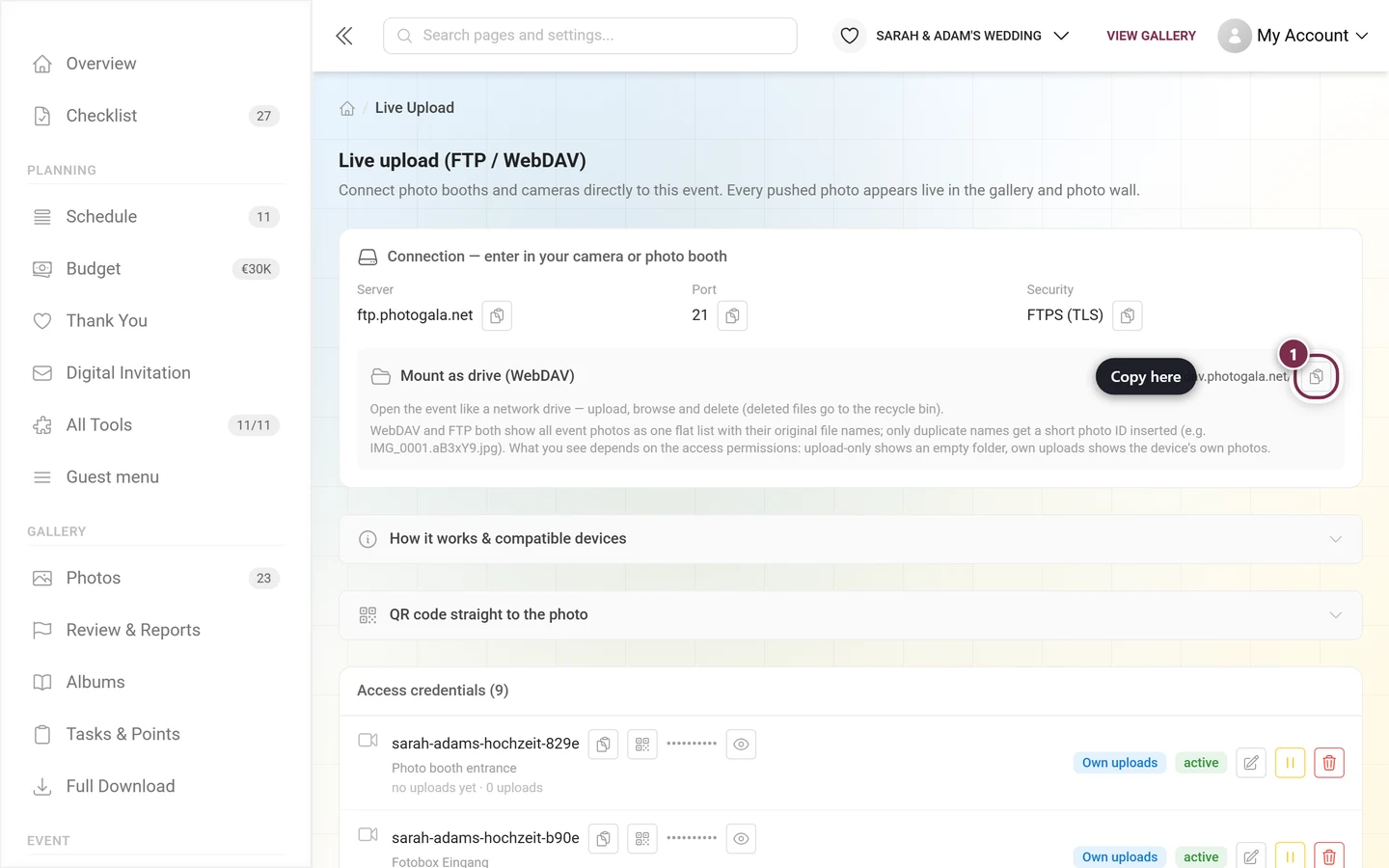
Windows: Explorer → This PC → Map network drive → enter the WebDAV URL from the card → Connect using different credentials → username and password of the access.
macOS: Finder → Go → Connect to Server (⌘K) → enter the WebDAV URL → Connect → username and password.
What happens to your files
Section titled “What happens to your files”Which files are accepted
Section titled “Which files are accepted”The file type is detected from the content, not from the extension. Accepted are:
- Images: JPEG, PNG, WebP, BMP, TIFF, HEIC/HEIF, AVIF, JXL
- RAW formats: including CR2, CR3, CRW, NEF, NRW, ARW, ORF, RW2, RAF, PEF, DNG
- Videos: MP4, MOV, AVI, MKV, WebM, 3GP and more
- Motion pictures: GIF as well as live/motion photos
Size: up to 2 GB per file. Anything larger is rejected with 403 over WebDAV; over FTP the file is transferred in full and then discarded silently — so the booth reports a successful upload while nothing appears in the gallery. With long videos it is worth checking the file size.
What gets discarded silently
Section titled “What gets discarded silently”Always discarded, with no feedback to the device:
thumbs.db,desktop.ini,.ds_store- anything starting with
._or with a dot - files ending in
.tmp,.part,.partial,.crdownload,.filepart - 0-byte files
Duplicates and deleted photos
Section titled “Duplicates and deleted photos”- Identical files are detected and discarded silently — even under a different name. That is why an access’s upload counter can be lower than the number of files sent; duplicates are not counted.
- Photos you deleted once (recycle bin) cannot be re-uploaded over FTP/WebDAV for 30 days — regardless of the file name and regardless of the Don’t let the booth re-upload deleted photos switch. This stops photos you sorted out from returning with the next sync. Via the normal browser upload page it would still work.
- Aborted transfers need no cleanup on your part: orphaned partial files expire by themselves (after about 12 hours over WebDAV).
What happens after the upload
Section titled “What happens after the upload”Every accepted file goes through: type detection → duplicate check → storage → gallery entry (with or without moderation) → preview size rendering → AI check (unsuitable content, faces) → live notification to every open gallery.
Which means: even with Skip moderation it can take a moment until the picture is ready in all sizes. If a photo visibly stays “processing”, it is the processing that is stuck, not the transfer.
The access list “Access credentials”
Section titled “The access list “Access credentials””This lists all active accesses, with the count in brackets after the heading. At the top right, the Show revoked link (with a count) leads to revoked accesses — it only appears when some exist. If there is no access yet, you see a hint to create the first one below.
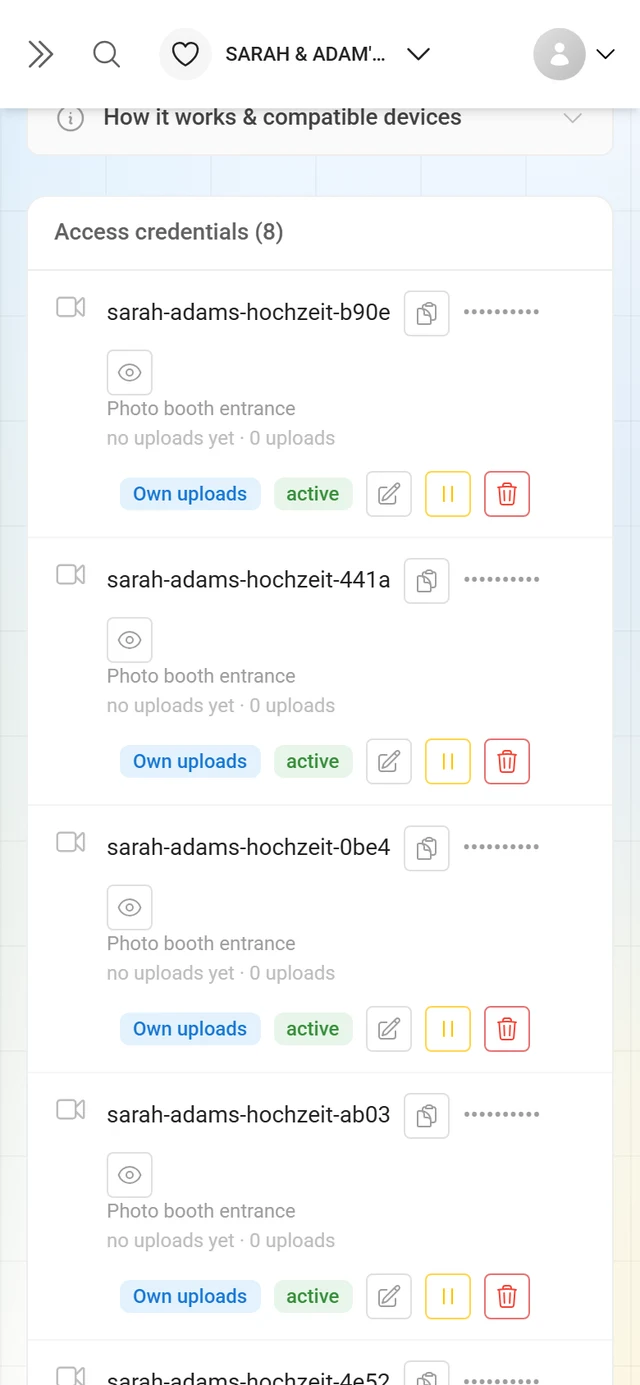
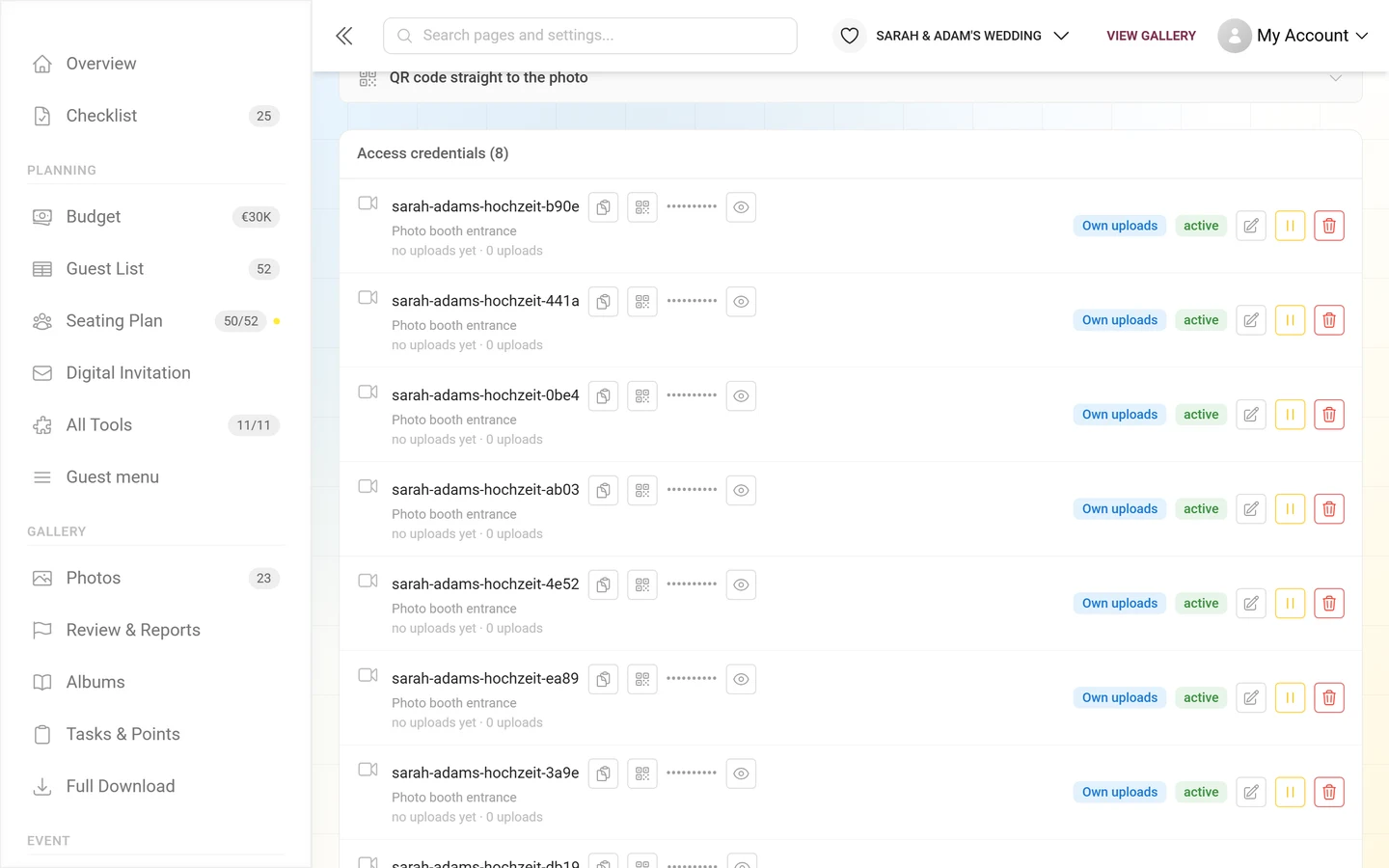
Each row shows:
- Logo (if set) or a camera icon.
- Username (monospace) with a copy button; active accesses also get the QR copy button.
- Password masked as dots. Show password (eye icon) reveals it on demand; a copy button then appears and the icon switches to Hide password.
- Label and optionally “appears as …” (display name), plus the amber moderation bypassed warning if applicable.
- Activity: “last active …” or “no uploads yet” and the number of uploads.
- Permission badge (blue): Upload only / Own uploads / Full event.
- Status badge: active (green) / paused (amber) / expired (red).
Actions per access
Section titled “Actions per access”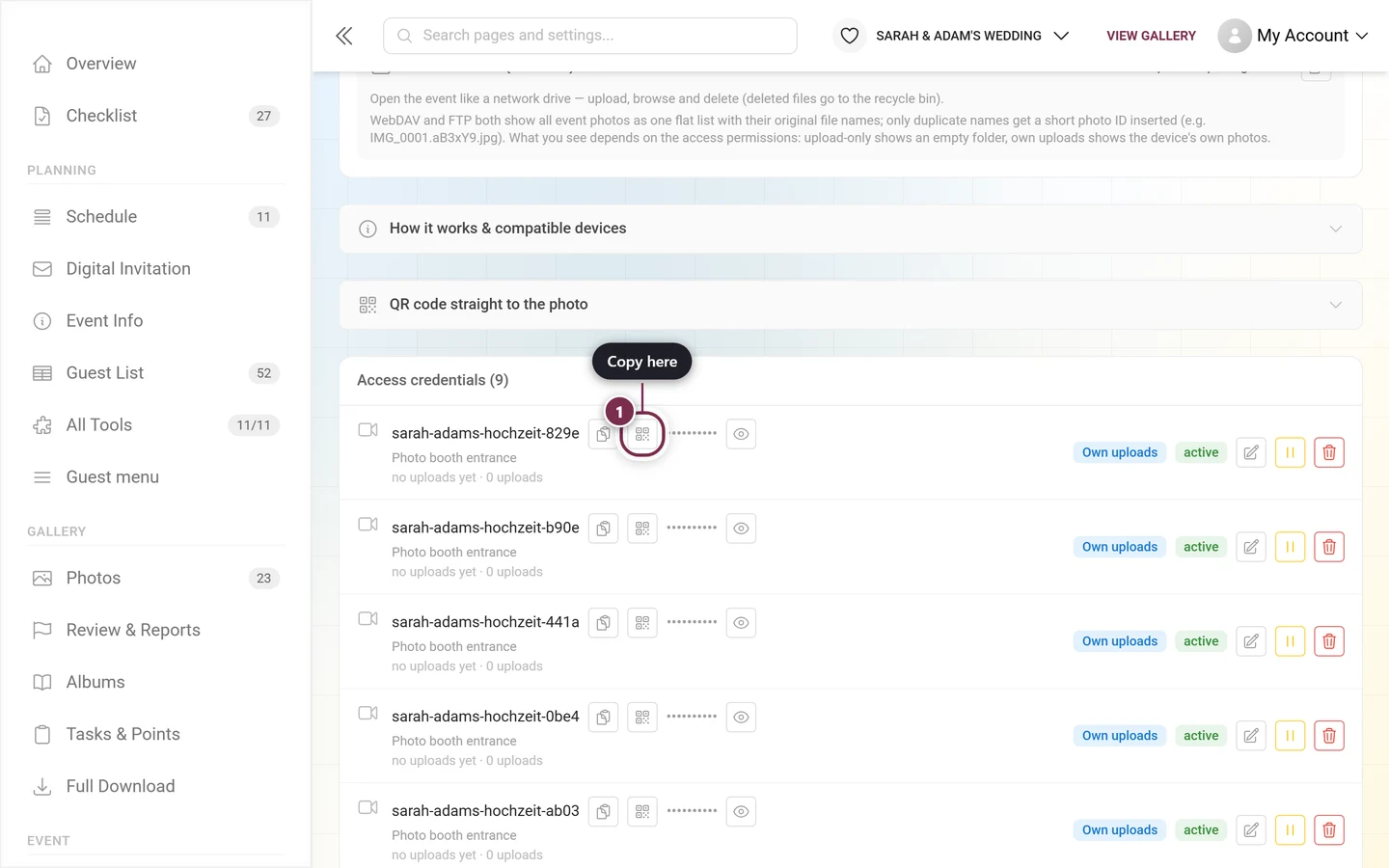
- Edit (pencil) — opens the edit dialog (see below).
- Pause (active accesses only) — stops the device. The prompt “Pause access?” appears — the device stops uploading until you resume it.
- Resume (paused accesses only) — reactivates the device.
- Revoke (trash) — revokes the access for good. Prompt “Revoke access?” — the device can no longer upload. Revoked accesses disappear from the main list but remain in the revoked dialog for traceability.
Edit dialog
Section titled “Edit dialog”The pencil icon opens Edit access (subtitle = username). Here you adjust:
- Label
- Display name in the gallery — existing uploads switch to the new name immediately.
- Permissions (same three levels)
- The three option groups Moderation & gallery access, Folders, albums & filters and Sync behavior (photo booths) — identical to the advanced options when creating, including upload filters and album assignments.
- Display logo — upload an image (JPEG/PNG/WebP) as the uploader avatar for all uploads of this access. A small × removes it. The logo takes effect immediately.
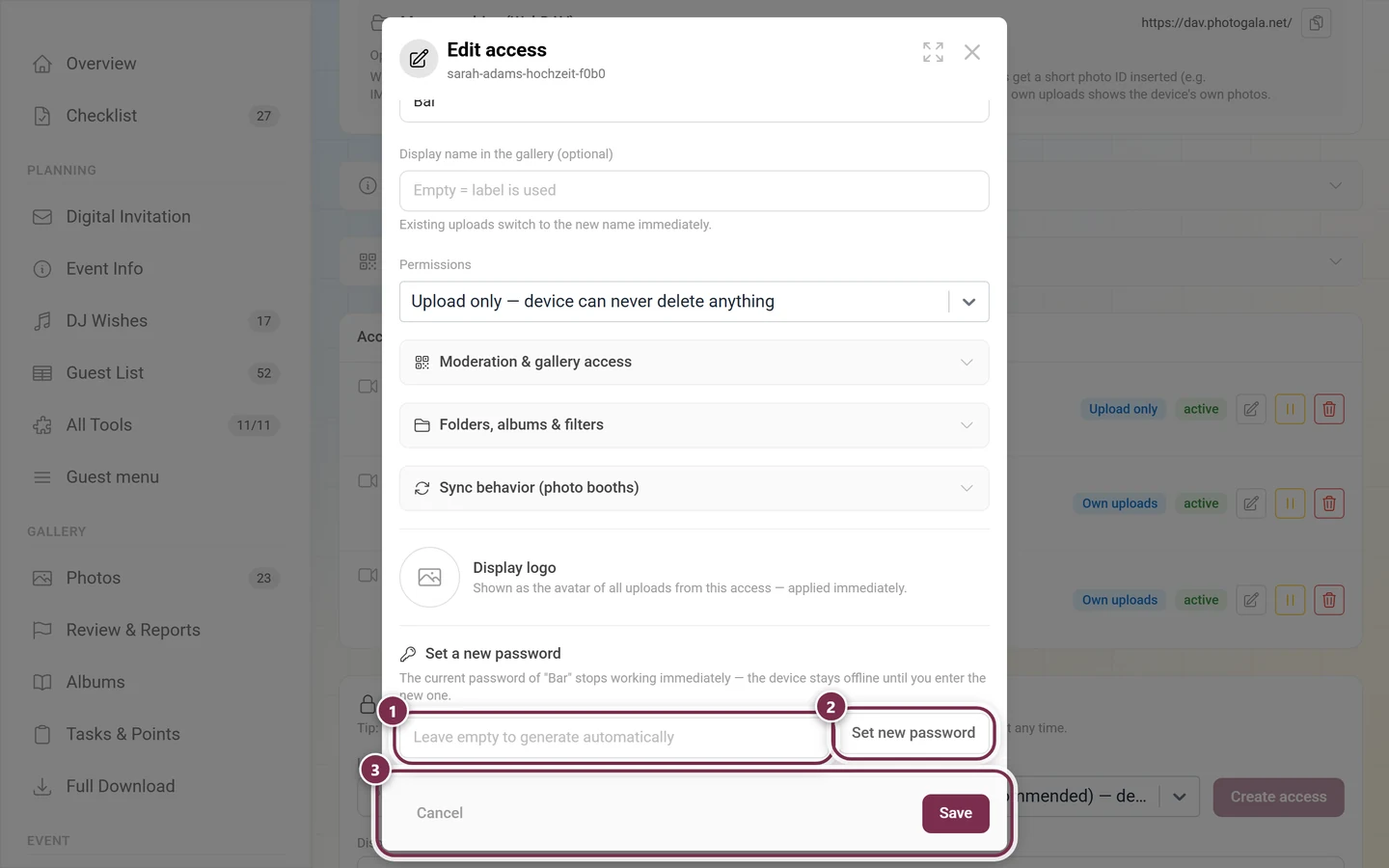
- Section Set a new password — password field (empty = automatic), then Set new password with a prompt. The old password stops working immediately; the device stays offline until you enter the new one. The new password then appears in the green one-time panel.
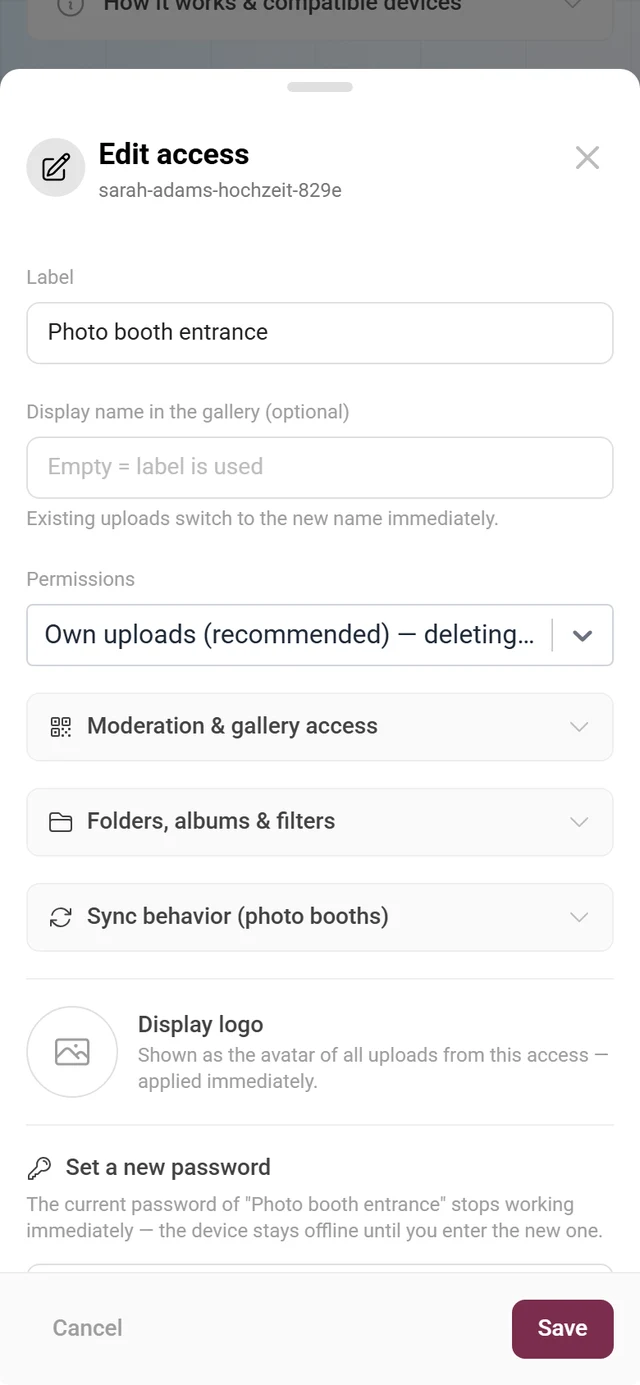
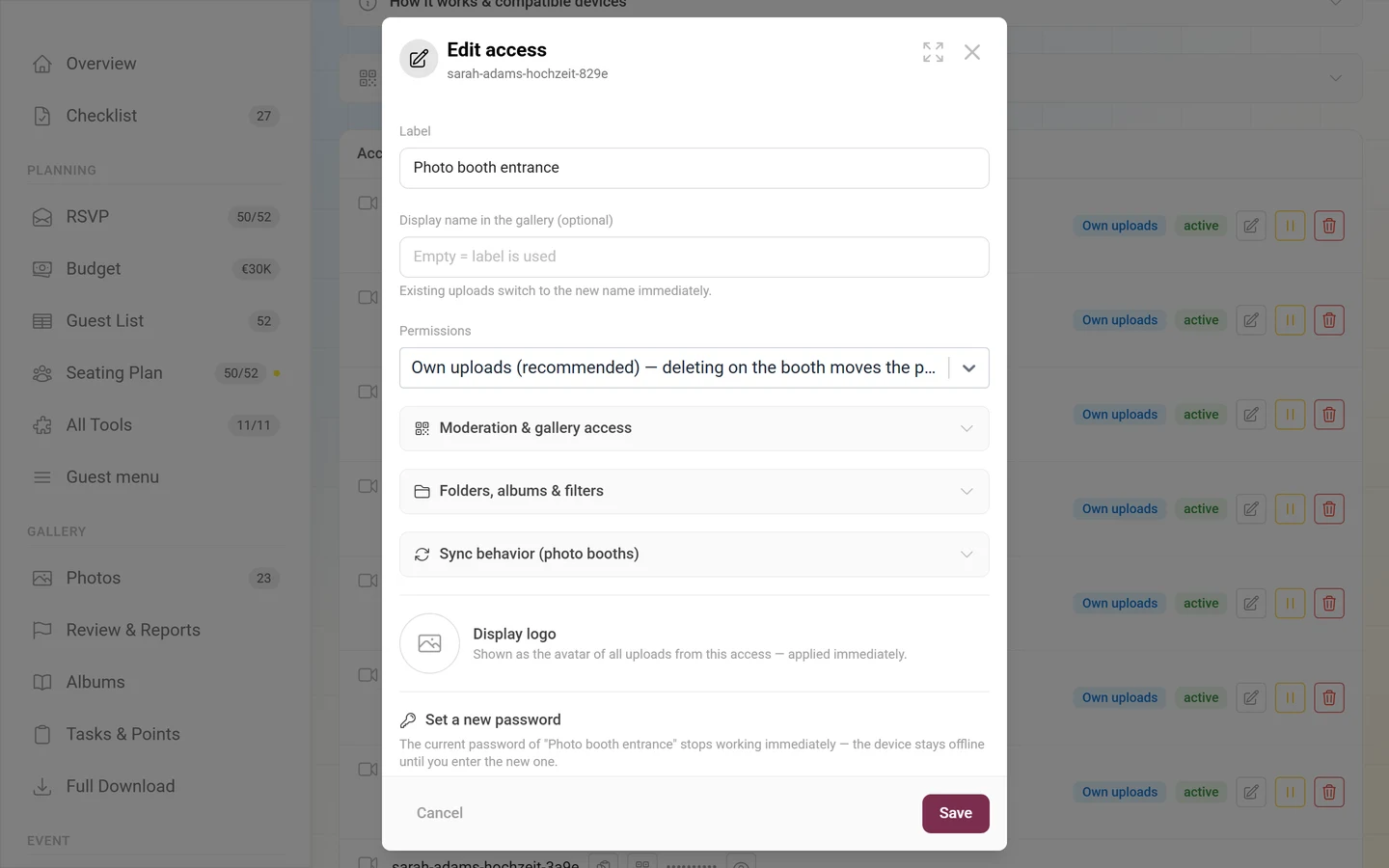
At the bottom you close with Cancel or apply with Save.
What the device sees over FTP/WebDAV
Section titled “What the device sees over FTP/WebDAV”What shows up in the file list depends on the permissions and on the Turn subfolders into albums switch:
- Upload only — an empty folder. The device may send, but must not see or delete anything. That is by design.
- Own uploads — only the photos this device sent itself.
- Full event — all photos of the event.
- With “Turn subfolders into albums” the event’s albums additionally appear as browsable folders. You can enter them and upload into a specific album; a new top-level folder creates an empty album. Deleting a folder does not delete an album.
- Without that switch the view is flat — all photos side by side. If a sync program creates folders anyway, that is tolerated.
The original file name is shown in a cleaned-up form. Only for duplicate names is a short photo ID inserted (IMG_0001.aB3xY9.jpg) — nothing is lost.
Reading and deleting photos
Section titled “Reading and deleting photos”With Own uploads or Full event the device may also download the originals — over WebDAV as well as over FTP. An interrupted download can only be resumed forwards; programs that want to seek backwards will fail.
Deleting never deletes for good: the file moves to the event’s recycle bin. With Own uploads only its own pictures, with Full event all of them. Renaming existing gallery files is not possible.
Controlling a device from its profile
Section titled “Controlling a device from its profile”Every live-upload access has its own profile in the gallery — that is where its uploads appear. Open that profile as an admin and you get the Device settings card, so you can handle the essentials without switching to Settings:
- The status badge active / paused and the button Pause uploads or Resume uploads.
- Logo — Set logo (JPEG/PNG/WebP) and Remove logo.
- Display name in the gallery (max. 50 characters) plus Save.
Password, permissions and revoking stay deliberately on the Live Upload page — reach it via the sidebar Event ▸ Live Upload. For device profiles the usual moderation actions (edit user, ban) are hidden.
Revoked accesses
Section titled “Revoked accesses”The Revoked accesses dialog lists accesses that can no longer connect. They are kept for traceability — who was allowed to upload, and when. Each entry: username, label, “created …”, “last used …” or “never used” and the revoked badge. If there are none, it reads “No revoked accesses.”
Partner devices
Section titled “Partner devices”If you run the event with a photo booth partner or reseller, two extra areas appear.
Device permission for the partner
Section titled “Device permission for the partner”The card Partner devices from … controls whether your partner may connect their upload devices without asking:
- Allow automatically — the partner may connect photo booths to this event at any time.
- Revoke — with a prompt. The partner’s devices are disconnected immediately and can no longer access the event or upload. After that the partner needs your approval again for every single device.
Without the permission the partner has to request your approval before each connection.
Connected partner devices
Section titled “Connected partner devices”The Connected partner devices section only appears when a device is actually bound. It shows the name, a brand badge, the usernames and the last activity. Via Disconnect you detach a device at any time; it stays with the partner, who can only reconnect it with your consent. For the partner side of this, see Managing devices as a reseller.
Time, time zone and order
Section titled “Time, time zone and order”For a normal event access: the camera’s clock is irrelevant. What counts is the moment the photo arrives with us — so a wrongly set camera clock shifts nothing and misfiles nothing.
Assignment by capture time (including time zone, from the EXIF data) exists only for partner devices in the reseller area, because one device there serves several bookings in a day. See Managing devices as a reseller.
What takes effect immediately vs. only with “Save”?
Section titled “What takes effect immediately vs. only with “Save”?”- Immediately: creating an access, a new password, setting/removing a logo, pause/resume, revoke, disconnecting a partner device, granting/revoking the device permission, every action in the Device settings card on the profile.
- Only with Save (edit dialog only): label, display name, permissions, the three option groups including upload filters and album assignments.
Troubleshooting
Section titled “Troubleshooting”The connection is not established at all
Section titled “The connection is not established at all”- Login rejected although the password is right: after 5 failed attempts the combination of username and device is locked for 15 minutes — even with the correct password. Wait a moment instead of fiddling with the password; a successful login resets the counter.
- Login rejected, password is new: a new password invalidates the old one immediately. Enter the new one on the device.
- Login rejected although the access is active: check whether the access is paused, expired or revoked — whether your plan still includes Live Upload, and whether the gallery is in the archive (Live Upload is paused there). Downgrading a plan stops running uploads immediately, without anything changing on the access itself.
- Connection drops while encrypting: wrong FTPS variant. Explicit belongs on port 21, implicit on port 990.
- Login works, directory listing stays empty or the transfer hangs: the data connection is not getting through. Enable passive mode and open 31000–31099/tcp outbound in the network.
- Several booths, only some get through: 16 simultaneous connections per IP address are allowed. Behind a shared router all devices share that quota — reduce the number of parallel uploads in the booth software.
Understanding server replies
Section titled “Understanding server replies”These messages show up in your booth’s log:
| Reply | Meaning |
|---|---|
550 Folder is excluded by the upload filter. |
The folder is in Never these folders (or missing from Only these folders). Not a fault — configured that way. |
550 Credential no longer valid. |
Access paused, expired or revoked. |
550 Not allowed with this access scope. |
This permission level does not allow the action — e.g. deleting with Upload only. |
550 No matching file (or not yours to delete). |
The file does not exist — or it belongs to another device. |
250 File moved to the event recycle bin. |
Deleting worked: the file is in the recycle bin. |
403 (WebDAV) |
File over 2 GB, or folder excluded. |
Photos do not arrive (or not all of them)
Section titled “Photos do not arrive (or not all of them)”- Photo does not appear in the gallery: without Skip moderation the photo waits in moderation. Also check server, port and security on the device.
- Some photos are missing: most likely the upload filters are kicking in. Non-matching folders and file types are skipped silently — clear the three filter fields to test. The most common single case: Only these folders is set, but the booth drops its images directly (without a folder) — then nothing gets through at all.
- Large videos missing, everything else arrives: 2 GB per file is the limit. Over FTP this happens silently.
- Certain files always missing: check the names — anything starting with a dot, plus
.tmp,.part,.partial,.crdownload,.filepartand 0-byte files, is discarded. - Sent, but neither in the gallery nor in the recycle bin: probably an identical duplicate — or the photo was already deleted once in this event (30-day block, see above).
- Expected album missing: its folder name is probably on the ignore list (
images,camera,100CANON, purely numeric …). Use Assign uploads to albums. - A photo was overwritten: the device sent the same file name again and Re-uploading the same file name replaces the photo in place is on. Turn it off for cameras with counter file names.
- Deleted photos reappear after the next sync: enable Don’t let the booth re-upload deleted photos.
Around passwords and visibility
Section titled “Around passwords and visibility”- Password cannot be revealed: old access without a stored password → set a new password in the edit dialog.
- Custom password rejected: 10–64 characters, printable ASCII only, no spaces, at least 4 different characters.
- The password keeps being “mistyped”: generated passwords contain no
0/O, no1, noland noi. Whatever looks like one is something else. - Files not visible over FTP/WebDAV: Upload only shows an empty folder (by design); Own uploads only the own photos.
- Duplicate file names: a short photo ID is inserted automatically (
IMG_0001.aB3xY9.jpg) — no data loss. - Per-photo QR does not work with dslrBooth: dslrBooth can only show its own FotoShare QR — use a static QR to the gallery there.
- Guests still have to type a password despite the QR: enable Include default password in the QR link. It only works when the event is password-protected and has a default code.
- QR link shows only the waiting page for a photo awaiting approval: the photo is still being processed or checked by the NSFW filter (the page then switches over by itself), it is a video, or it is older than 24 hours and was never opened on this phone before. Also check whether the event is set to Completely Private, or whether the default password is missing from the QR link of a password-protected event.
- Partner device no longer binds: after disconnecting, or after revoking the device permission, the partner can only reconnect with your consent.
Best-practice tips
Section titled “Best-practice tips”- Test it beforehand — connect once with FileZilla from a laptop and send a test image, ideally on the venue’s network.
- One access per device — for targeted pausing and revoking.
- Keep Own uploads as the default; Full event only for trusted operators.
- Set a display name → clean smart albums and filters by booth.
- Enable Skip moderation only deliberately for photo wall booths; otherwise keep moderation on.
- Use Turn subfolders into albums for booths with a station or folder logic — or map them precisely with Assign uploads to albums.
- If the booth pushes its whole folder structure, narrow it down to the finished output folder with Only these folders.
- Set the camera to JPEG transfer.
- Prefer FTPS (TLS) if the device supports it.
- Set a display logo per access so uploads appear with a brand or booth avatar.
Related help
Section titled “Related help”- Set up the photo wall — booths that skip moderation feed the live wall
- Moderation — non-bypassed uploads land here
- Albums manager — smart, folder and assigned albums
- Recycle bin — WebDAV deletions
- QR cards & print templates — design a QR poster for the device
- Managing devices as a reseller — the partner side of device binding
- Plan & term — unlock the feature