Uploading photos
Contributing photos only takes a few seconds – right in the browser, no app needed. This guide covers every way to upload: from picking files on your device to capturing directly, plus reviewing, sorting and controlling the upload. Where the entry point lives depends on your screen – on a computer there is a fixed upload bar, on a phone you start from the bottom navigation or from buttons in the gallery.
The quick way (in 4 steps)
Section titled “The quick way (in 4 steps)”-
Open the gallery via the event link or the QR code.
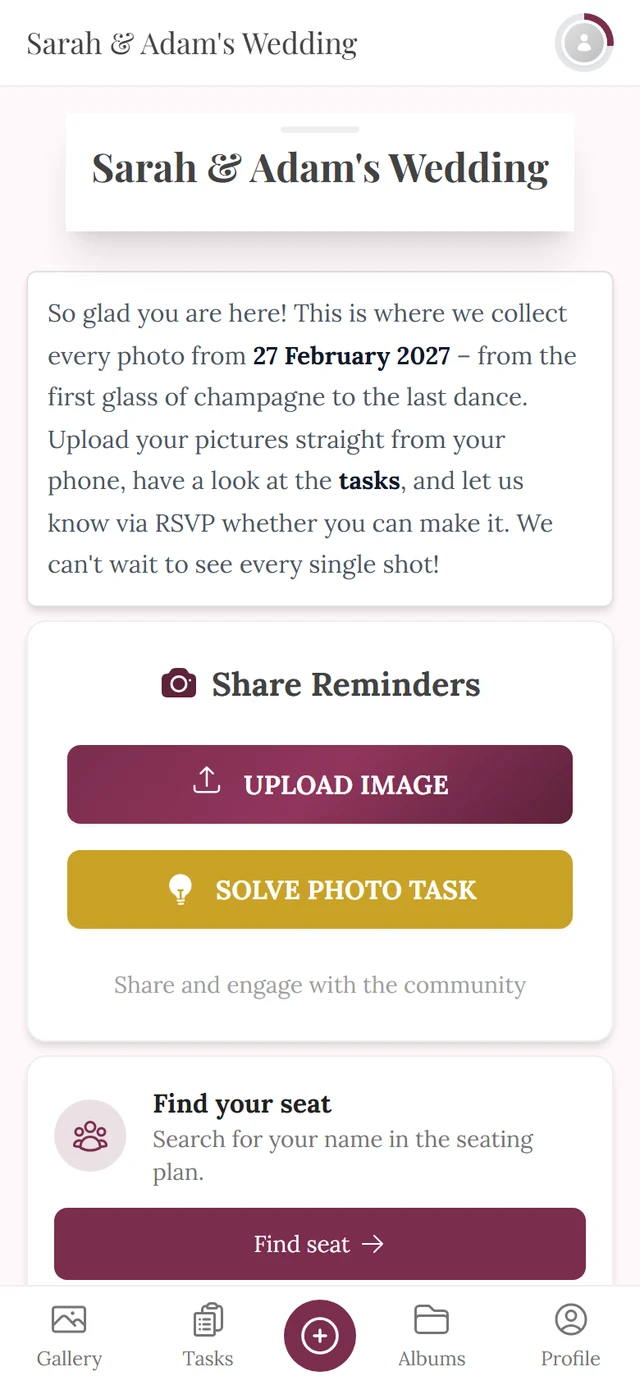
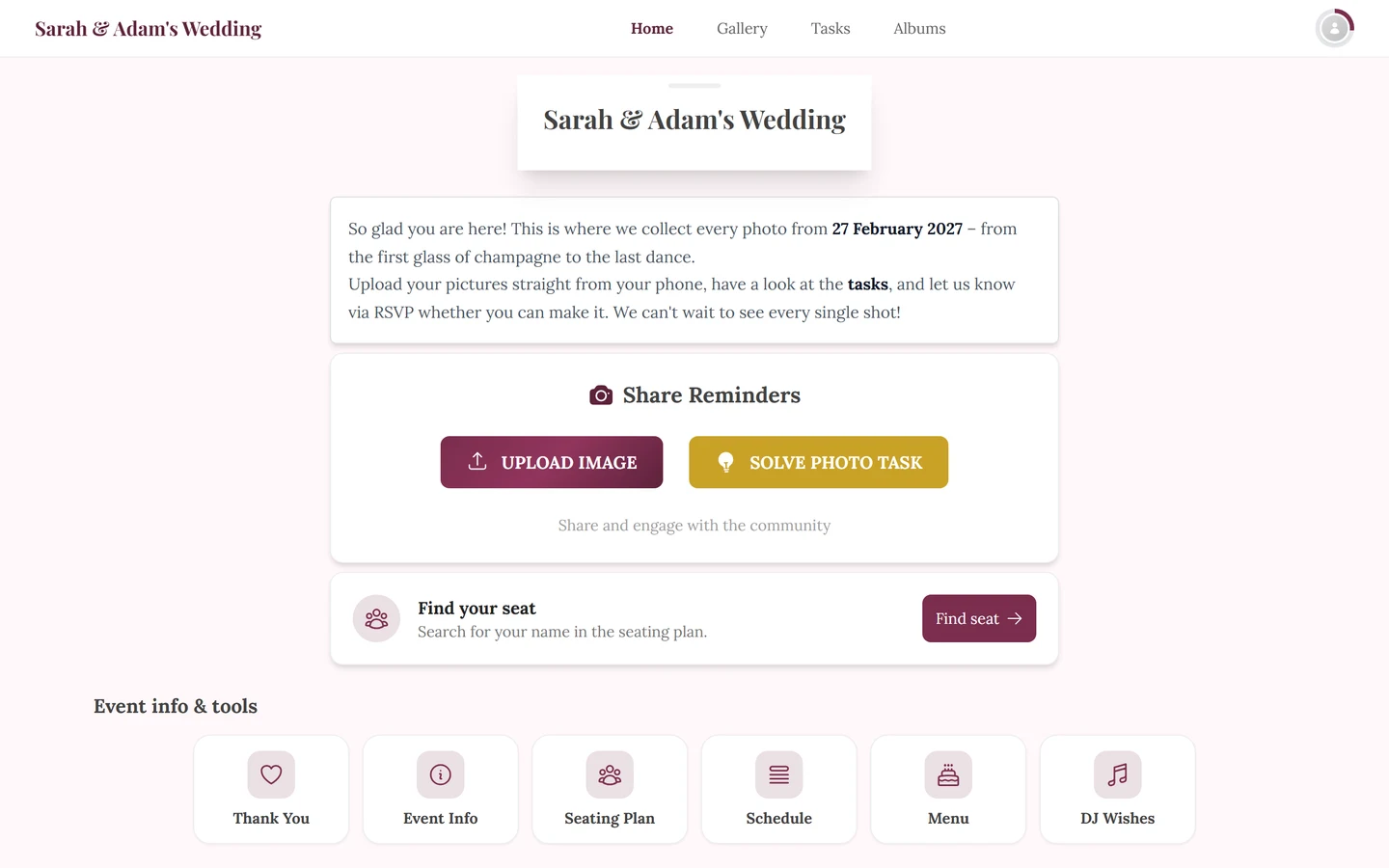
The event gallery right after opening. -
Tap the Upload button.
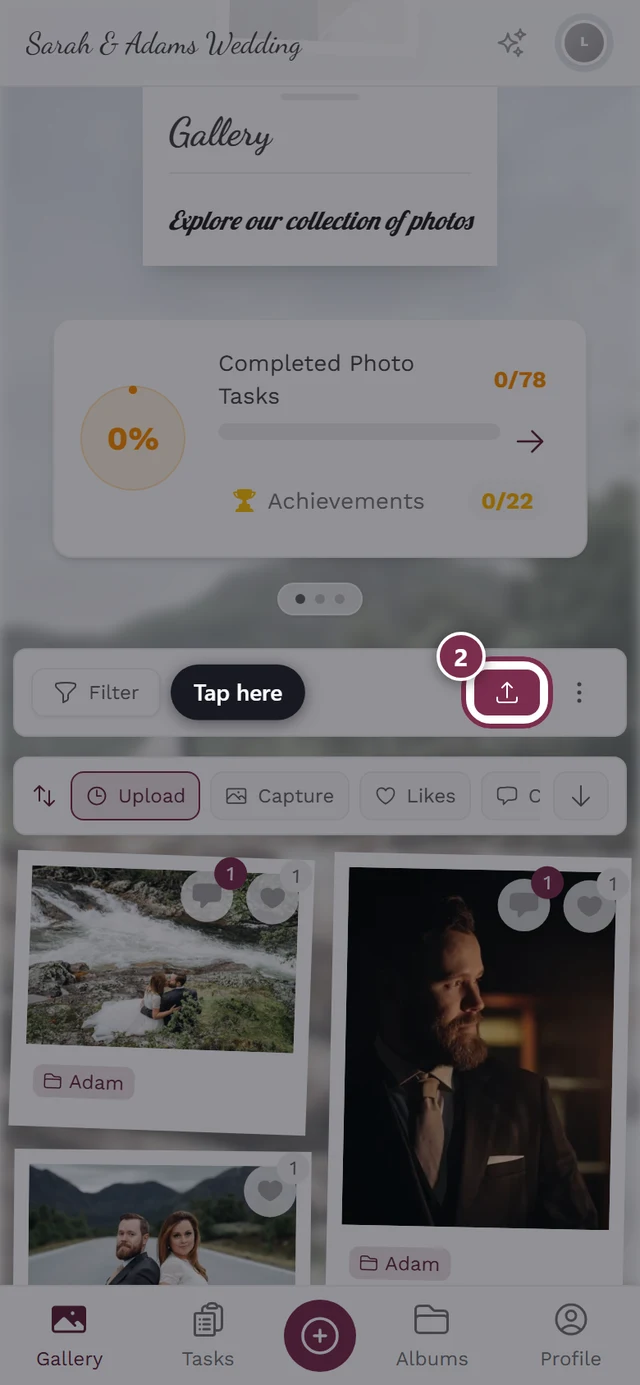

The upload button is highlighted – tap here. -
In the Share photos dialog tap Choose photo and pick photos or videos – multi-select is supported.
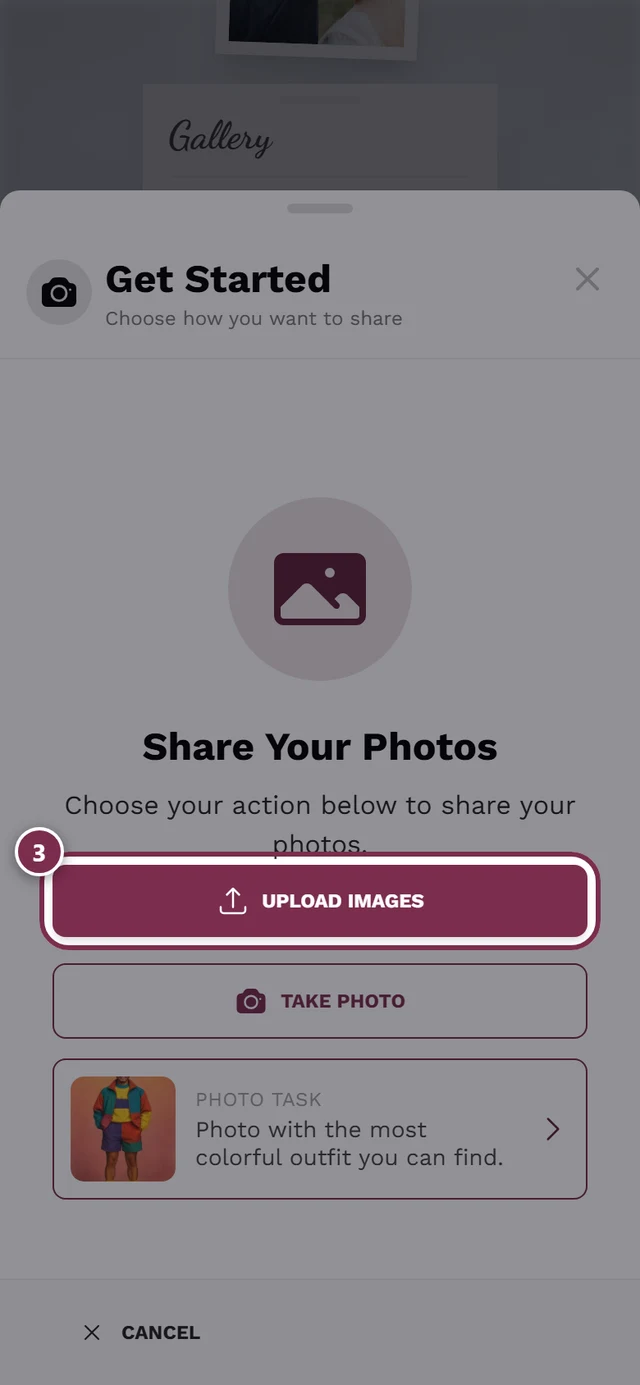
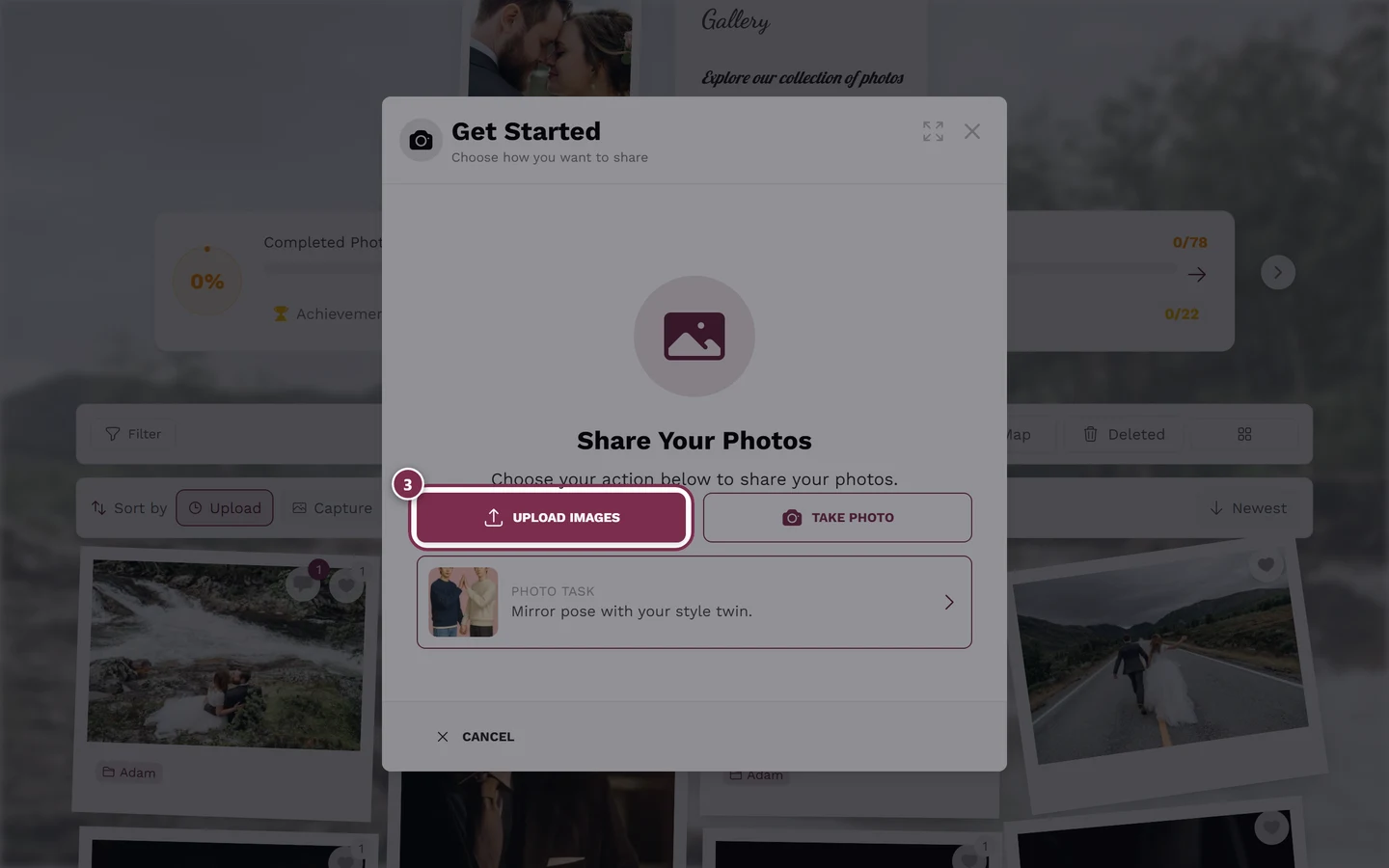
Start your selection in the upload dialog. -
Review your selection and tap Start Upload. The transfer runs; you can minimize the window and keep browsing. As long as the dialog is open, Photogala keeps your phone’s screen on.
The remaining sections explain each of these steps in detail – including every alternative, edge case and error message.
Where to start the upload (all entry points)
Section titled “Where to start the upload (all entry points)”Several paths lead to the same upload window. Just use whichever is currently visible:
- Computer – upload bar at the bottom. A fixed bar with the text “Upload your photos!” and the Upload button. This bar only appears on large screens. A small X (“Dismiss Upload Bar”) hides it until the next reload.
- Phone – bottom navigation bar. The large upload button in the middle of the bottom bar opens the dialog.
- Empty or filtered gallery. If nothing is there yet (or your current filter hides everything), an Upload Photos button (or a +) appears in the center.
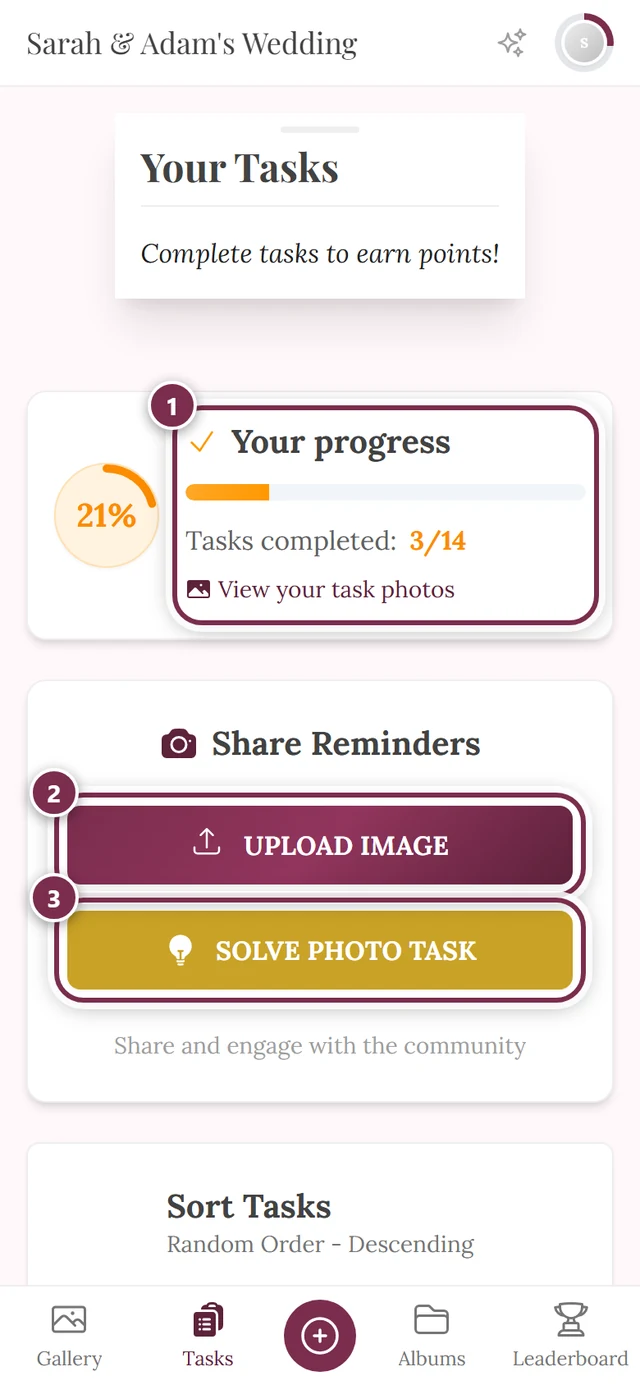
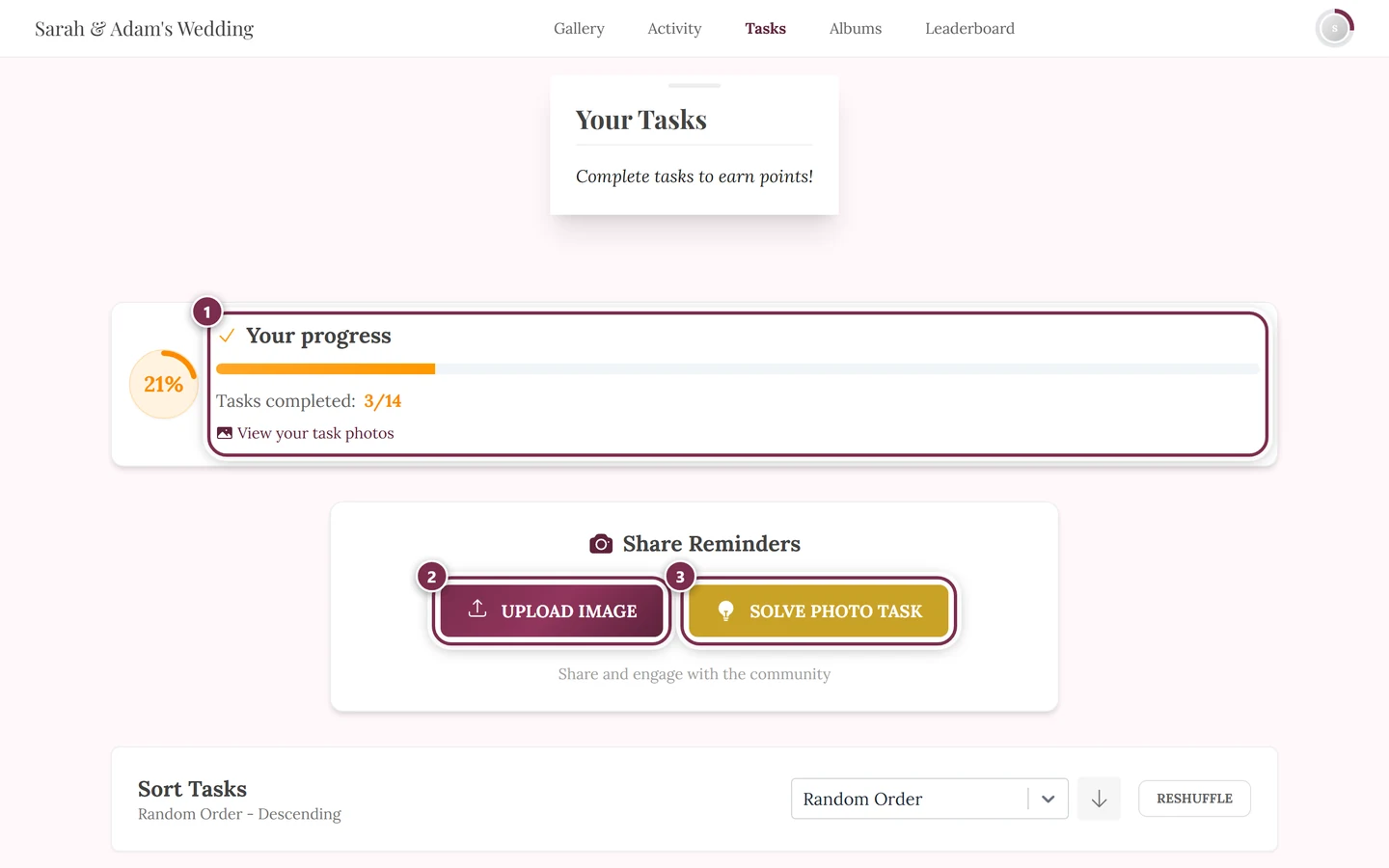
- From a photo task. From the tasks area you start an upload with the task already pre-selected (see Solve photo tasks).
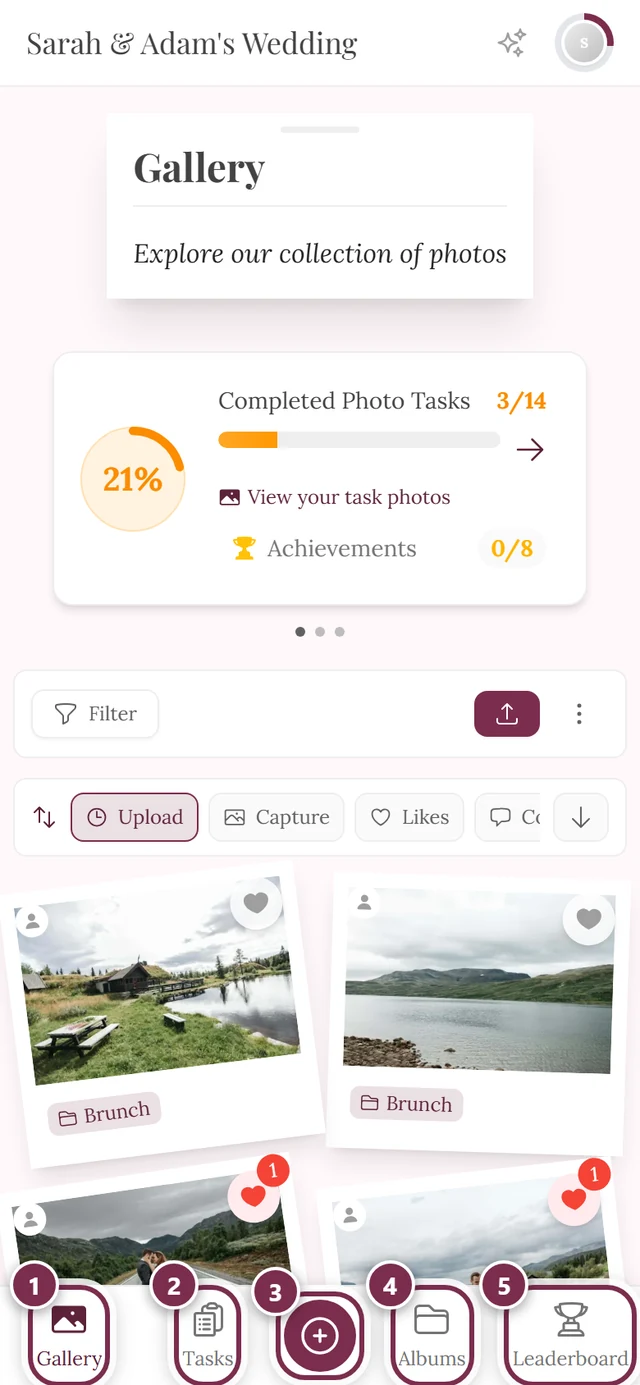
When NO upload button appears
Section titled “When NO upload button appears”Sometimes uploading is blocked for guests. That is always the host’s decision, not the app’s. In those cases the first step shows a notice instead of the sources:
- No Upload Permission – the host disabled guest uploads.
- Event Has Ended or Event Has Expired – the event no longer accepts new photos.
- Upload Banned – your access was blocked from uploading. Contact an event admin.
If photo tasks exist, View Photo Tasks often stays available anyway.
Step 1 – Choose a source
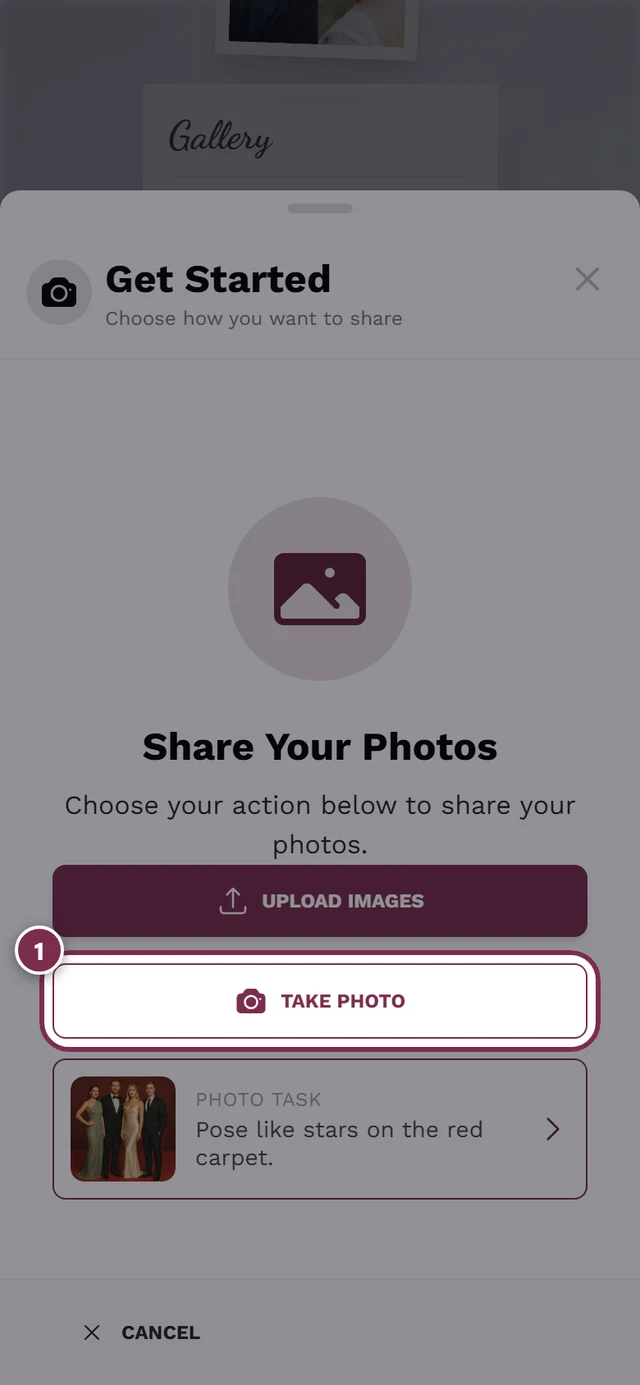
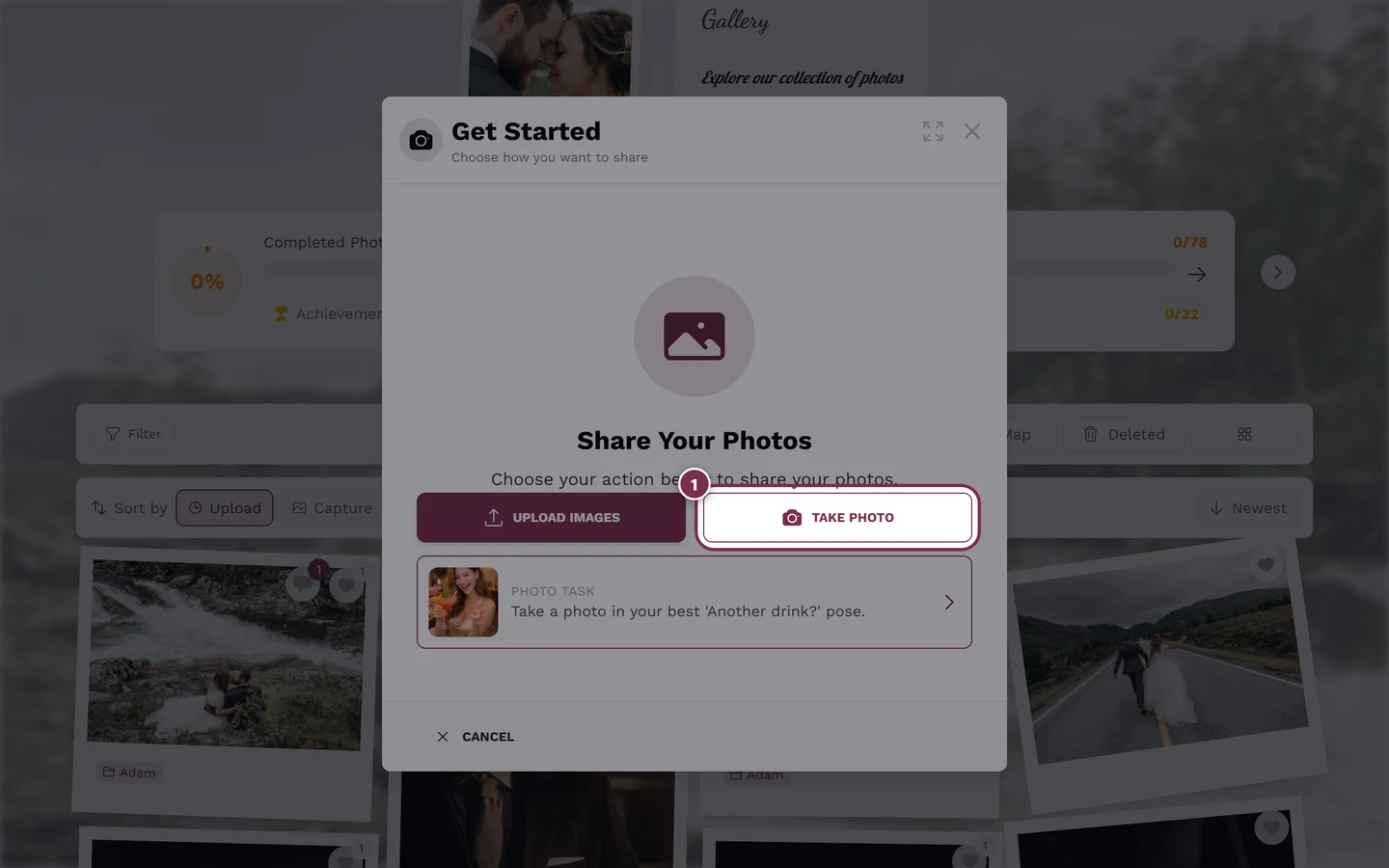
Section titled “Step 1 – Choose a source”The upload dialog opens with the heading Share photos and the line “A photo says more.” On a phone it fills the whole screen. Here you decide where the photos come from:
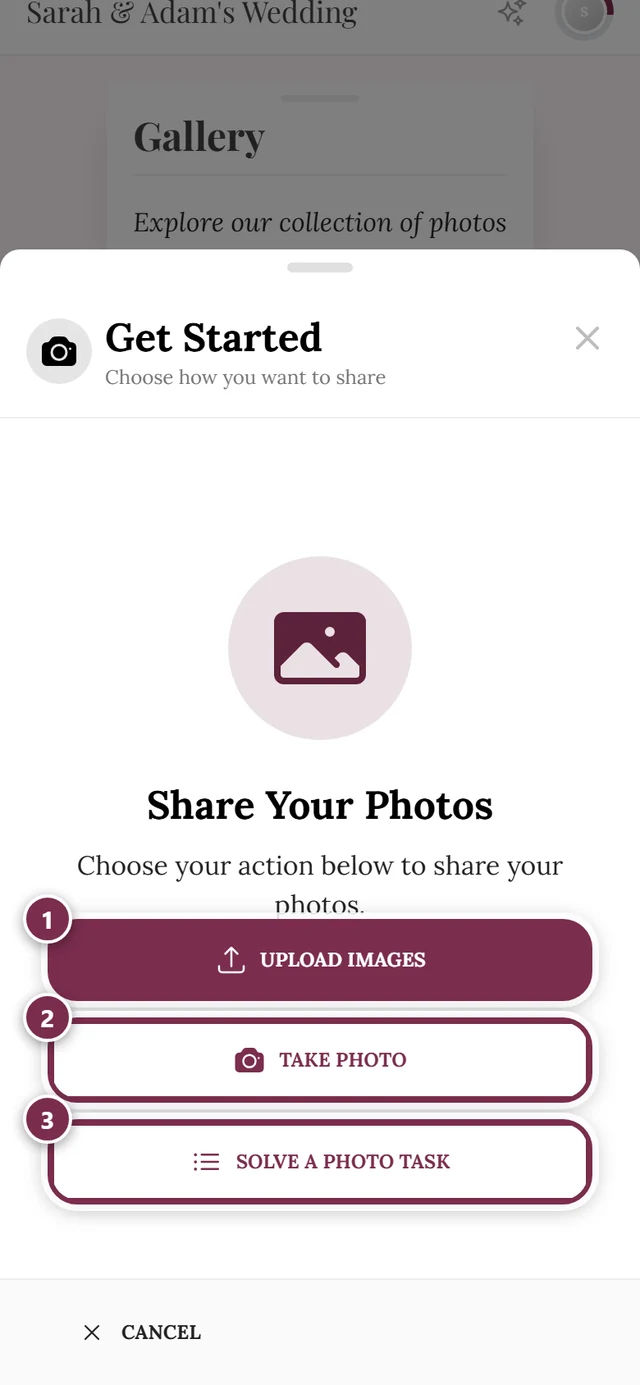
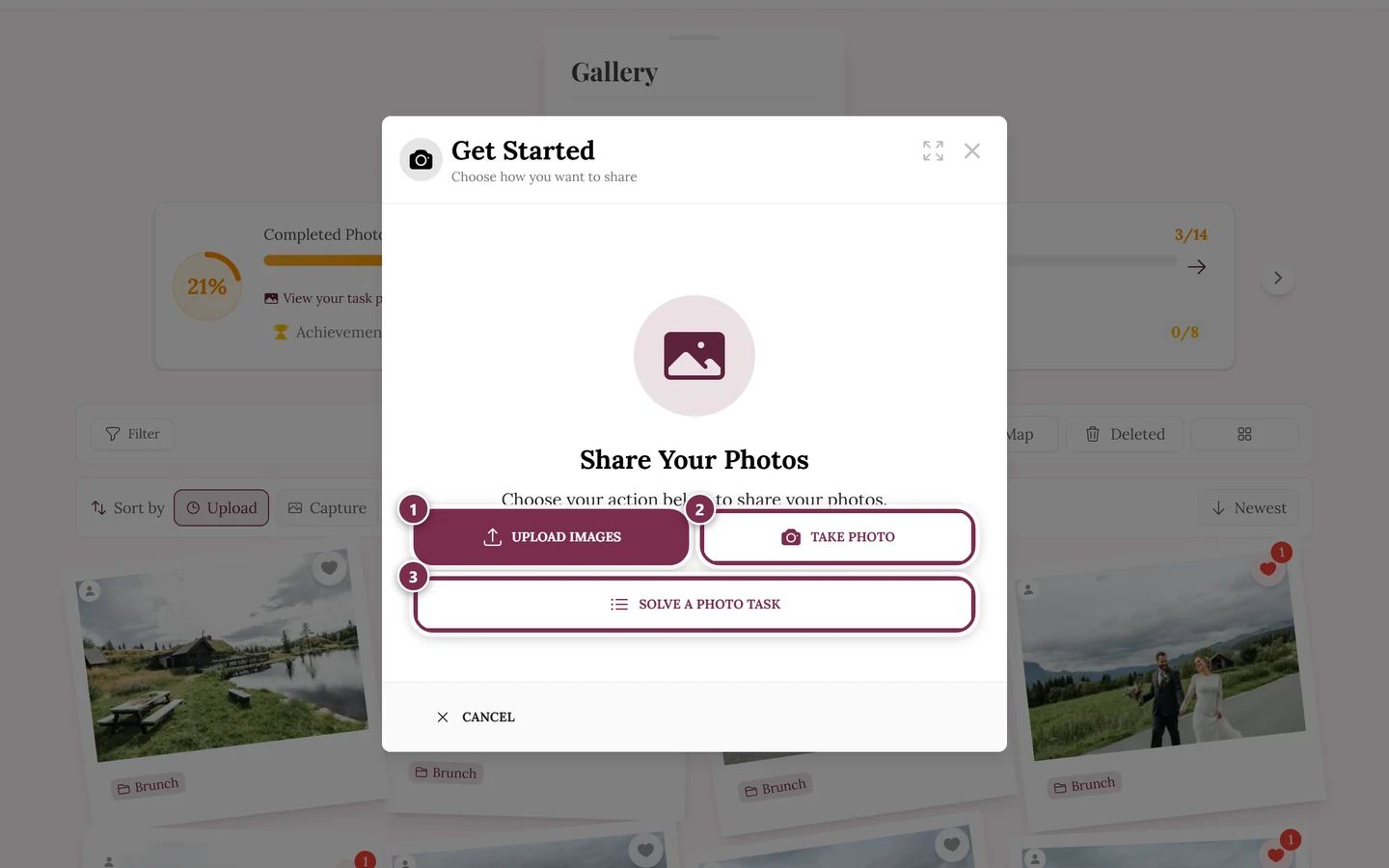
- Choose photo – opens your device’s file picker. You can select several photos or videos at once.
- Take Photo – opens the camera directly. A single photo uploads right away in the background, without any review view. Details under Take a photo directly.
- Photo task – if there are tasks you can solve, a “Photo task” card with the suggested task appears below. See Solve photo tasks.
Album already pre-selected
Section titled “Album already pre-selected”If the gallery is currently filtered to one album and you start the upload from there, that album is already pre-selected for the newly picked files. You see it in the review view under “Selected Albums:” and can deselect it there. A single photo taken via Take Photo goes straight into this album without a review view. More on albums: Albums.
Which files work? (formats and videos)
Section titled “Which files work? (formats and videos)”Images. Photogala accepts far more than just JPG and PNG. HEIC/HEIF (iPhone), WebP, AVIF, TIFF, BMP, SVG as well as many RAW formats (Canon CR2/CR3, Nikon NEF, Sony ARW, Adobe DNG and more) are supported too. Exotic, unlisted types are skipped during upload as “Unsupported types”.
Step 2 – Assign to a task (task path only)
Section titled “Step 2 – Assign to a task (task path only)”If you started from a photo task, the task selection comes next. It only appears when tasks are active – otherwise the dialog skips this step.
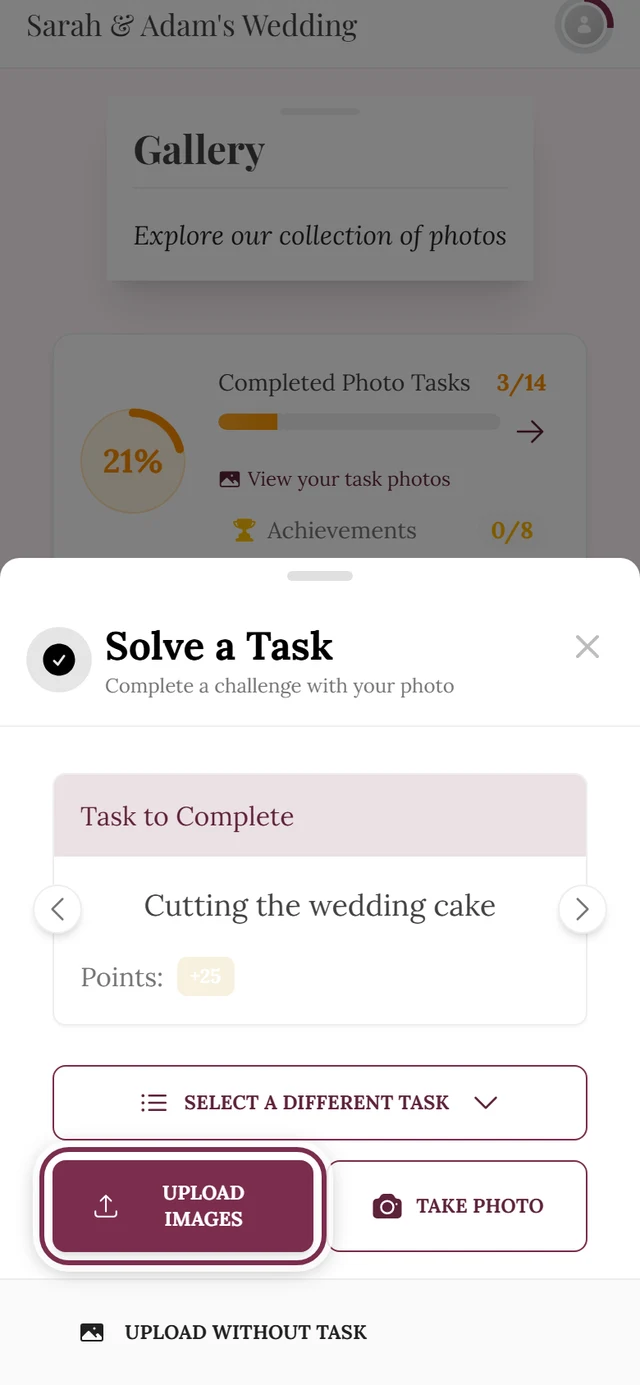
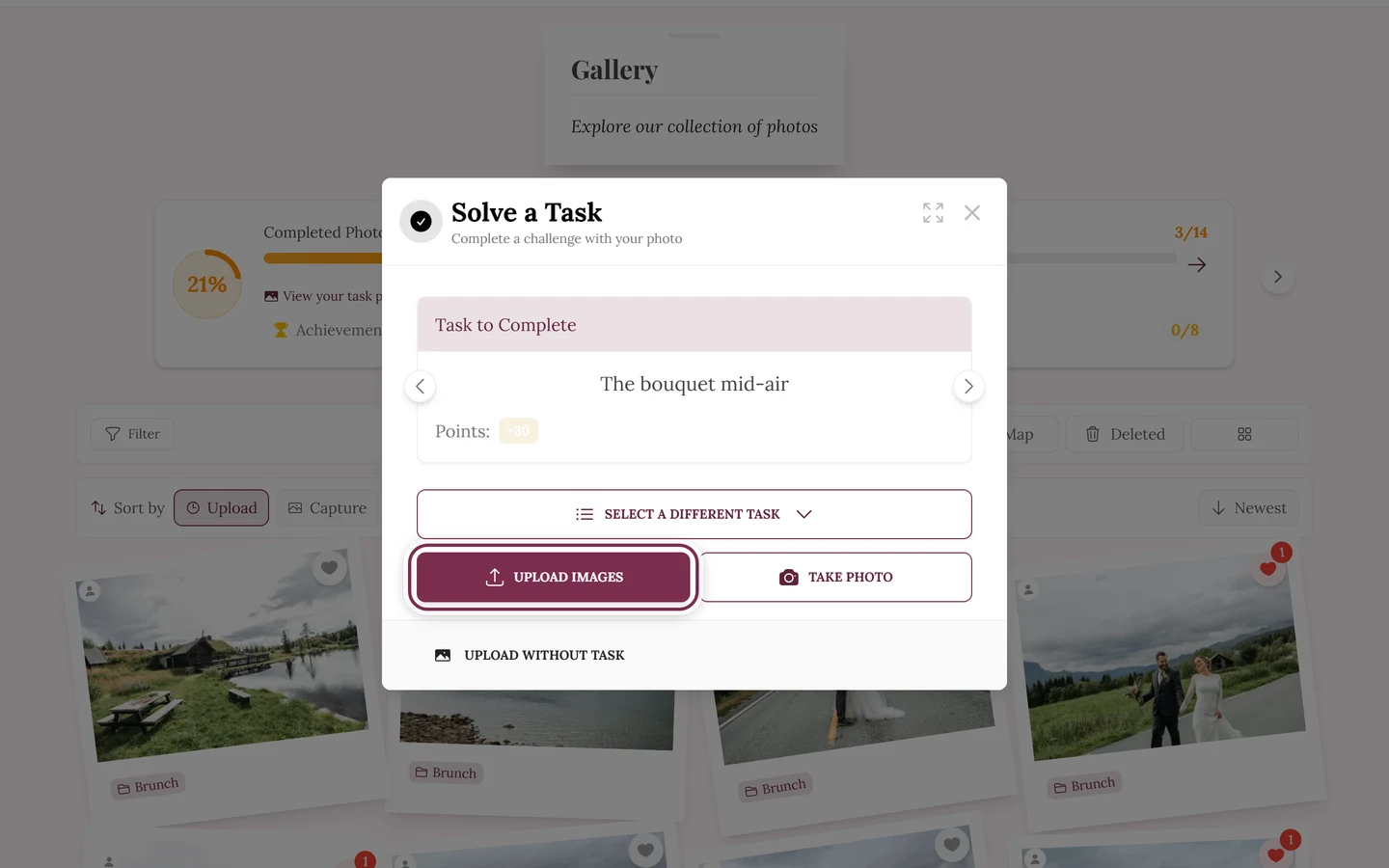
- Browse the task carousel with Previous task / Next task.
- Completed tasks carry a Solved chip; not-yet-unlocked ones show Locked Task.
- The “+N” chip next to the task name shows how many points the task is worth.
- Some tasks add your photos to specific albums automatically. Then it reads “Your photos will be added to: …”.
- Choose photo and Take Photo are available here too. A single camera photo uploads right away; after your first contribution the button reads Another photo.
- Other task opens the list of all tasks.
- Under More you find Album & description (optional) – where you give your photo a Description and pick Albums, then Done – as well as View in Gallery and Upload without task.
More on task logic, points and unlocking under Solve photo tasks.
After the task photo: the thank-you moment
Section titled “After the task photo: the thank-you moment”When you upload a photo for a task – directly via the camera or via Start Upload in the review view – the transfer runs in the background and the dialog shows a thank-you card right away:
- Thank you for your photo! or Thank you for your photos! with the task name and your points. Next to it it says Confirmed or, while processing is still running, Confirmation pending.
- The Your uploads line shows the status: “Uploading · 40%”, “Uploaded · processing” or “Photo processed”.
- Next task jumps to the next photo task. If you do nothing, it moves on by itself after ten seconds (“Continuing in 10 …”). Pause stops the countdown, Resume lets it run on.
- If there is no further task, it says “You can repeat an available task or return to the gallery.”
- Back to gallery minimizes the dialog; the upload keeps running.
On an error or a skipped file the countdown stops so you can react.
Step 3 – Review and sort your photos
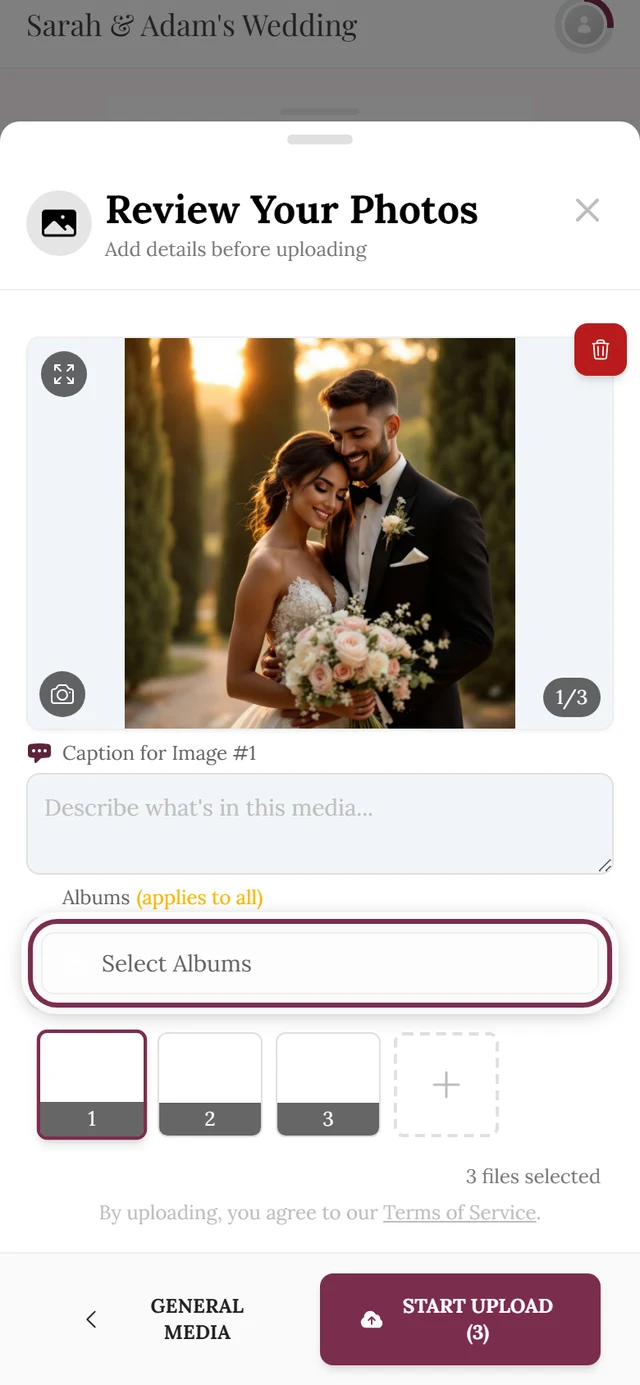
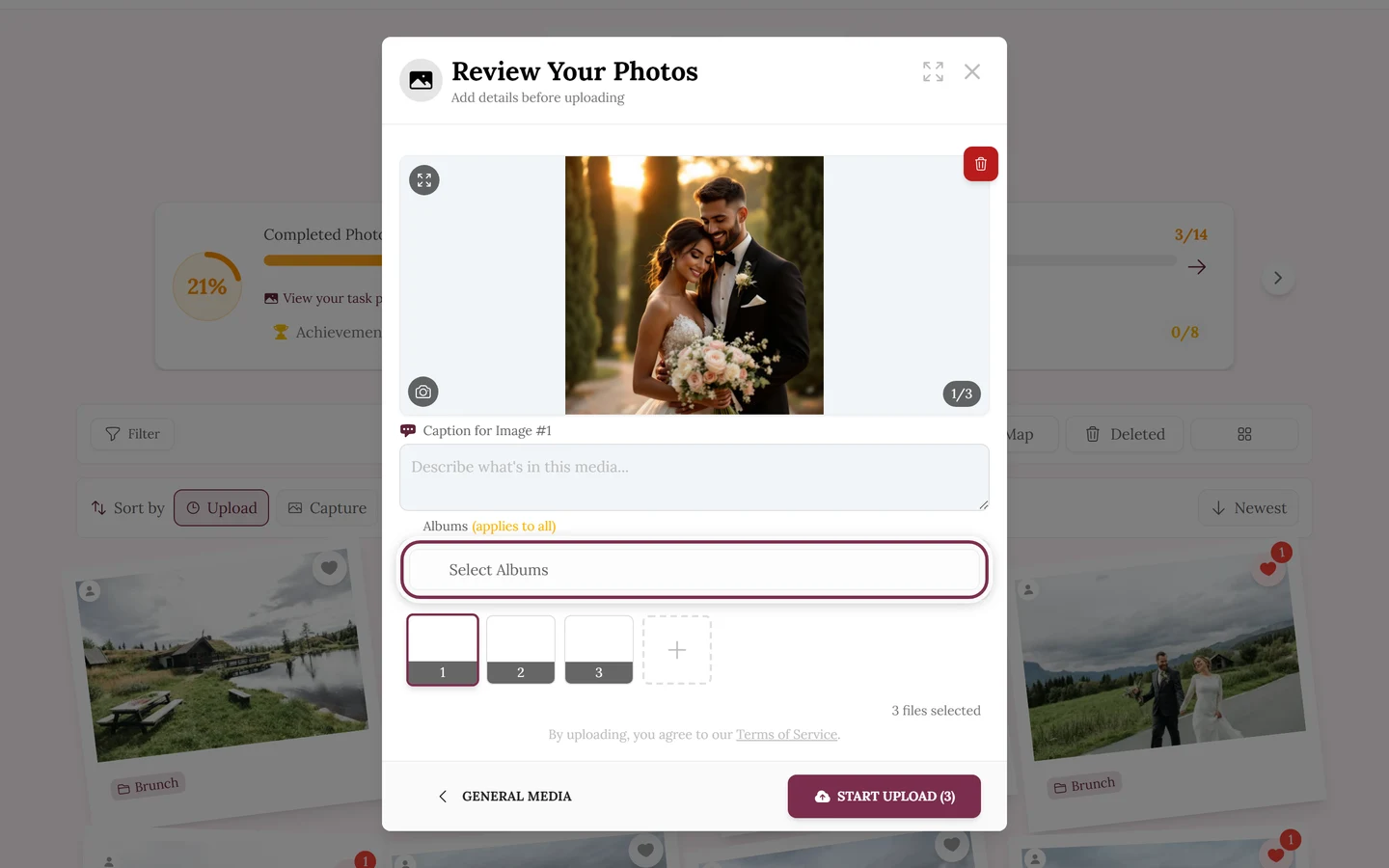
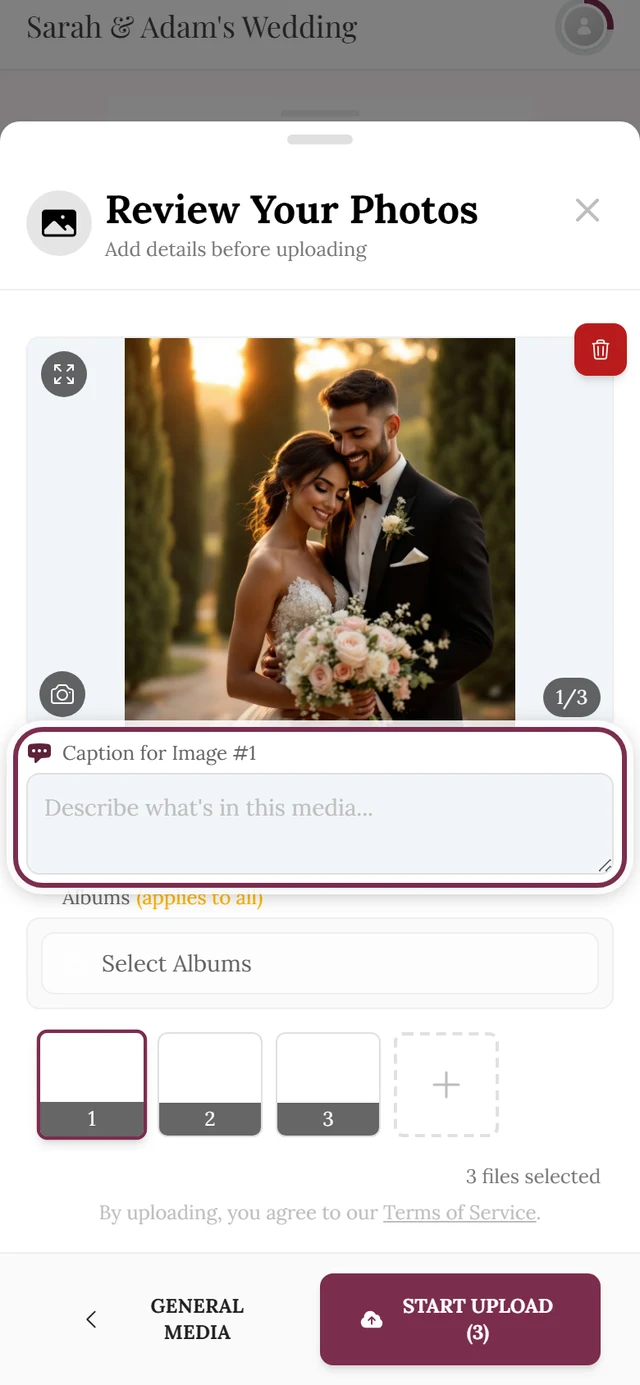
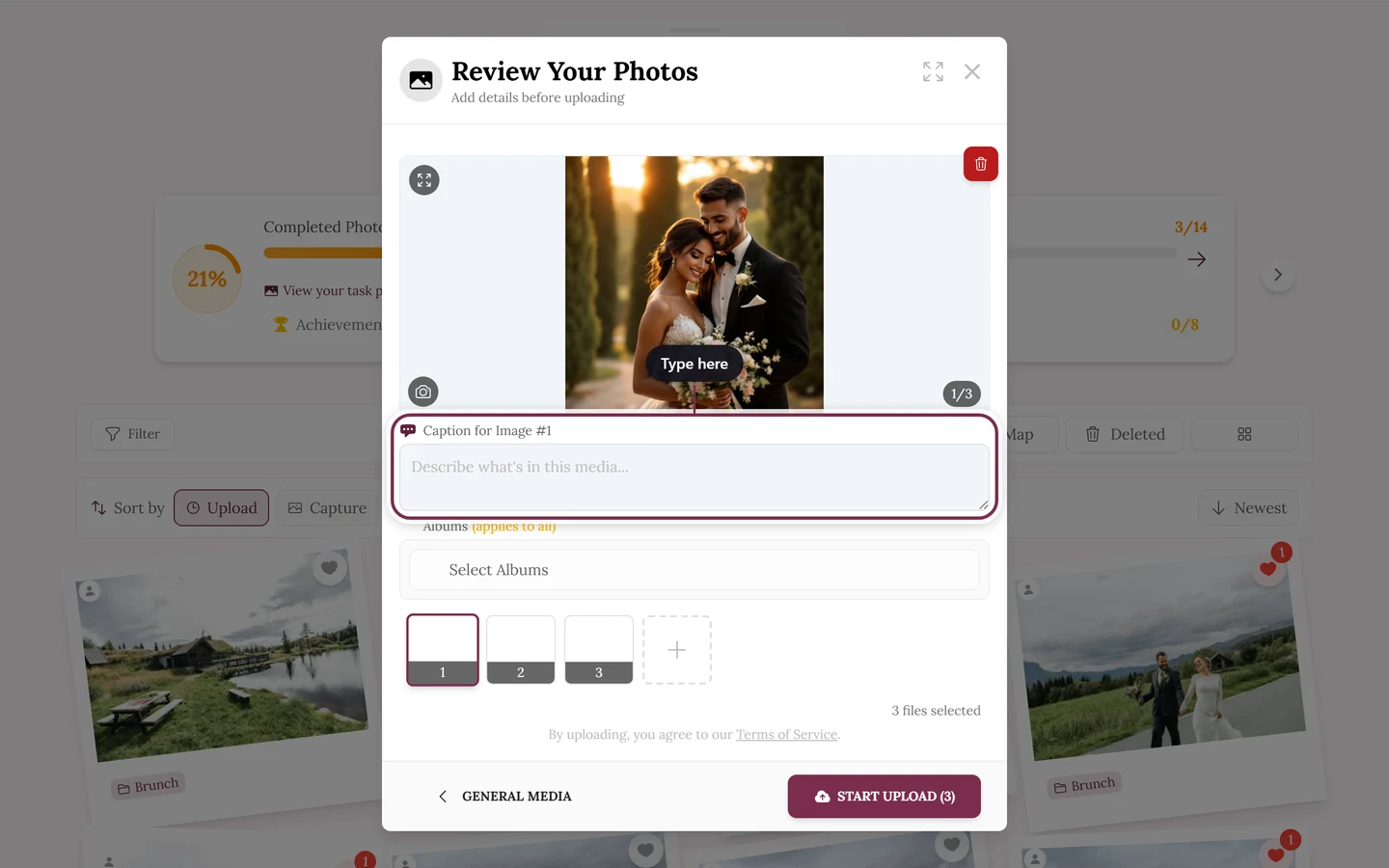
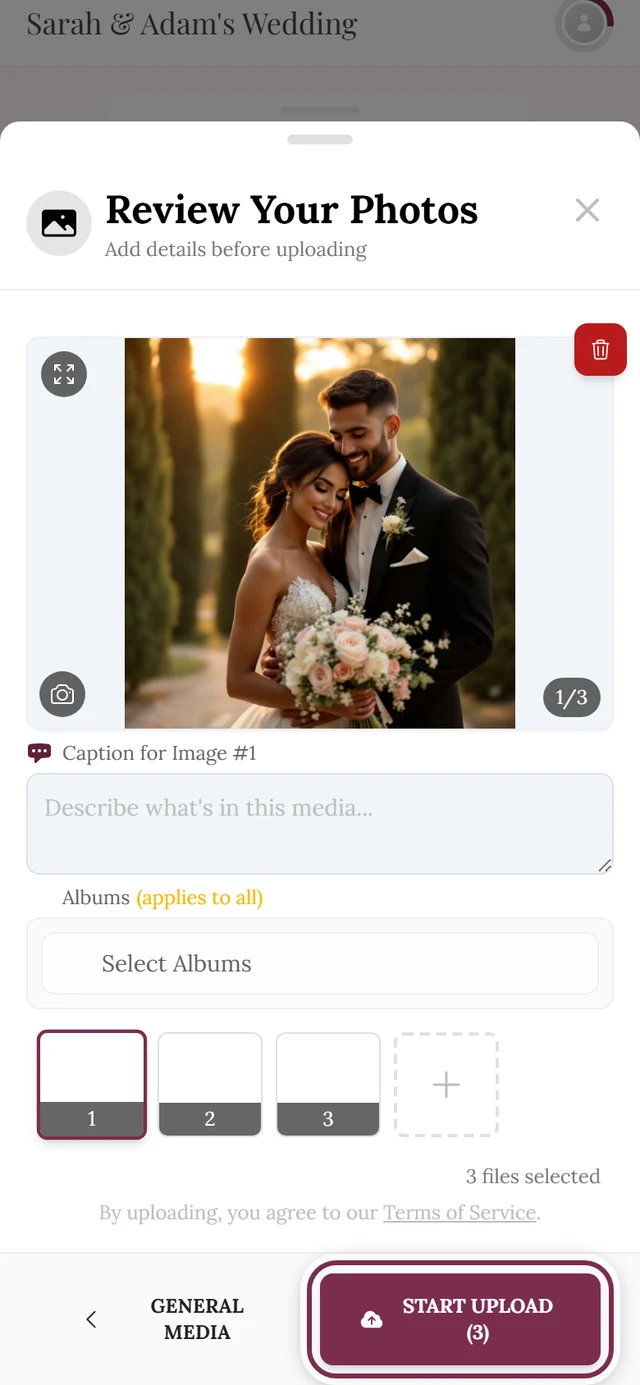
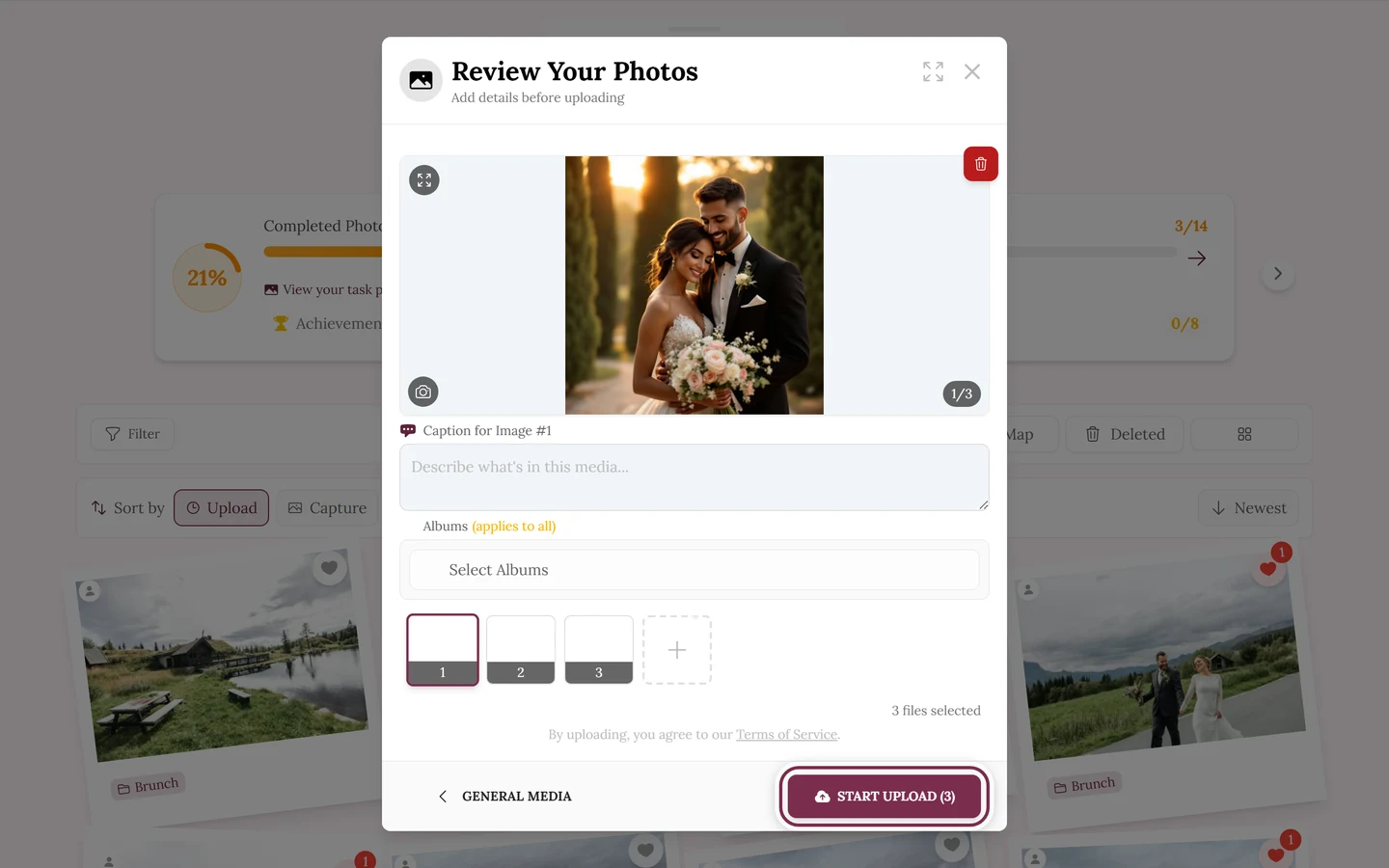
Section titled “Step 3 – Review and sort your photos”Before the actual upload you land in the review view (“Review Your Photos”). This is your last chance to add, remove, caption and assign albums.
-
Look through the selection. At the top you see a large preview, below it a thumbnail strip with all selected files. Tap a thumbnail to view it large.
-
Add more photos. The + in the thumbnail strip reopens the file picker. On a computer you can also simply drag and drop files into the window.
-
Remove individual photos. A photo you don’t want after all can be removed from the selection here, before the upload.
-
Write a caption. Each photo has a field “Caption for Image #1”, “… #2” and so on. Optional, but nice for context.
-
Assign albums. Under the heading “Albums” you choose which albums the photos go into. The chosen albums appear as chips under “Selected Albums:”.
-
Start the upload. Tap Start Upload.
Step 4 – The upload runs
Section titled “Step 4 – The upload runs”Now the files transfer. You stay in full control:
- Progress. A bar shows “3 of 12 files done” plus an estimated time remaining (“About … remaining”).
- Pause and resume. Pause Upload stops briefly; Continue Uploading carries on.
- Cancel everything. Stop & Cancel All aborts the whole batch and takes you back to the review view.
- Speed details. More info opens details; on a computer there is a slider between “Slow” and “Fast”, on a phone it says “Mobile optimized”.
- Minimize and keep browsing. You can minimize the window at any time and keep browsing the gallery. If you tap close or back during the upload, the window is only minimized as well. A small indicator shows the progress and afterwards “Uploaded · processing” or “Upload failed”.
- The screen stays on. As long as the dialog is open or uploads are running, Photogala prevents your phone’s screen from switching off.
Changing pages during the upload
Section titled “Changing pages during the upload”One distinction is worth getting right – it is the most common annoyance:
- After the start: Once you have pressed Start Upload, the upload window survives a page change inside the app. So you may switch to the gallery, your profile or the tasks – the transfer keeps running in the minimized window.
- Before the start: If you change the page while you are still selecting or reviewing, the upload dialog is closed like any other dialog – and your selection is gone. You have to pick the files again afterwards.
When individual files don’t go through
Section titled “When individual files don’t go through”Some files get skipped rather than uploaded. The reason shows right on the file:
- Duplicate – “This file already exists in your gallery.” It gets skipped.
- Unsupported type – “This file type isn’t supported for upload.”
- Videos disabled – “Video uploads are currently disabled.”
- Task locked – the assigned task has restrictions. With Skip Task you upload without a task.
- Limit reached (photo, video, storage or uploader limit) – see the completion-screen section below. You can acknowledge it with Understood.
For photos uploaded directly via the camera or for a photo task, a card of its own appears on errors: Photo could not be uploaded. On short network problems the app itself retries three more times – you see “We will try again in 5 seconds (attempt 2 of 3).” You also have three buttons:
- Retry sends the same photo again.
- Choose another photo replaces it with a different one.
- Discard this upload removes it; afterwards it says “Upload discarded”.
If the photo is already in the gallery, the card is called Already in the gallery; Remove hides the notice.
Step 5 – The completion screen
Section titled “Step 5 – The completion screen”After a clean upload you don’t just get a dry “done”, but a small moment of its own:
- Your photo, large. The screen shows the photo you just uploaded. With several photos they sit on top of each other as a slightly rotated stack.
- A rotating line. Above it sits a sentence that changes with every upload – for example “Captured — thank you for being here.” or “Your photo is now part of this day’s story.”
- The tally. Below it simply reads “1 photo in your gallery” or “3 photos in your gallery” (for videos and mixed uploads it says “videos” or “uploads” accordingly).
- Task note. If the upload belonged to a photo task, the photo is shown larger, gets a checkmark in the corner and a chip with the task name underneath. With several photos the chip adds “3 moments”.
- On to the next task. If open photo tasks remain, the Next photo idea button takes you straight to the next one. After an upload without a task you get a subtle banner instead: “There’s a photo idea to join in on” or “There are 4 photo ideas to join in on”. Without the tasks feature, or with no open tasks, neither appears.
- What next? Upload More and Close are available; if there are open photo tasks, also Solve Another Task. If files are still running, it says below “3 more files are uploading in the background.”
- Your progress. If points, achievements, the leaderboard or photo tasks are active, the screen shows a card with exactly one moment from your upload – for example a newly earned achievement, an unlocked task, a better place on the leaderboard or a shared milestone of all guests. While the photos are still being processed, this progress is provisional (“With these uploads, you have …”). When the card is shown, Next photo idea, Solve Another Task and the banner about photo ideas are left out.
When an event limit is reached
Section titled “When an event limit is reached”If a photo, video, storage or uploader limit is full, a red box Upload Limits Reached! appears instead of the moment, naming the exact cause. What sits below it depends on who you are:
- As the host you read “Your guests can’t upload anything right now. Lifting the limit keeps the same gallery, link and QR code.” The Remove the limit button takes you straight to your event’s plan overview (see Plan & term).
- As a guest you read “Your photo isn’t lost — right now nobody can upload.” and “The host can unlock this in two minutes.” The Let the host know button opens your device’s share menu with a ready-made message and the unlock link. If there is no share menu, the message goes to your clipboard instead – the button then switches to Message copied — send it to the host. All you have to do is send it.
While a limit applies, Upload More is hidden.
After the upload: processing
Section titled “After the upload: processing”Freshly uploaded media are not immediately normal gallery items. For a short while an orange Media Processing section appears above the gallery with the text “2 Media Files are currently being processed”. Expanded, you see the state per file – “Processing” or “NSFW Check”. Once everything is done the section disappears by itself and the photos show up in the grid as usual.
Limits and sizes
Section titled “Limits and sizes”- There is no fixed maximum file size in the front-end. Very large photos are passed through.
- Event-wide limits are set by the plan or host: photo limit, video limit, storage limit, uploader limit. When reached, further uploads are skipped (see above).
- Duplicates are checked twice. First within your own selection: picking the same file twice gives you the notice “Duplicate Files Detected” – recognized by name, size and modified date. After that the server additionally checks the content of the file. That is why a renamed copy of the same photo is rejected as well and skipped as a Duplicate. So a photo never ends up in the gallery twice by accident.
- Large selections on a phone. Before switching to the review view the app briefly prepares the files (overlay “Preparing files…”). The rules: individual files above 50 MB are passed through unchanged; from 100 MB total the app stores the selection on device storage rather than in memory. It waits at most 30 seconds for a file that is not readable yet (60 seconds when adding files in the review view). Anything still unreadable after that is skipped – with the notice “Some Files Could Not Be Added”.
More detail on limits: Upload limit and Upload a video.
Why my photos don’t show up on the map
Section titled “Why my photos don’t show up on the map”The map places photos using the GPS data stored inside the photo itself. Photogala reads that data straight from the file while uploading. The catch: phone operating systems and browsers strip the GPS data when you pick a photo from the photo library for upload. The file already arrives without a location – the app cannot change that.
So:
- Photos you upload from the library on a phone usually carry no location.
- Photos taken directly via Take Photo generally carry no location either.
- Originals uploaded from a computer (for example transferred from a camera by cable) often keep their GPS data.
How the map handles this and which alternatives exist is covered under Photo map.
Phone and computer compared
Section titled “Phone and computer compared”- Computer: fixed upload bar at the bottom, drag and drop into the window, visible speed slider between “Slow” and “Fast”.
- Phone: entry via the bottom navigation or buttons in the gallery; the dialog fills the whole screen; Take Photo uses the camera directly and uploads a single photo right away; the speed is “Mobile optimized”; large selections are briefly prepared.
Roles: hosts and moderators
Section titled “Roles: hosts and moderators”As a guest the host settings only affect you indirectly (whether uploads, videos and tasks are allowed, which limits apply). If you are a host or moderator yourself, you reach the controls via the profile menu at the top right and the management area there.
Useful management pages:
- Privacy and moderation – allow or block guest uploads in the first place.
- Turning features on & off – allow videos, turn tasks on and off.
- Managing albums – create new albums (guests cannot).
- Moderation and Banning users – block individual guests from uploading, lift bans.