Managing face clusters
When face recognition is on, Photogala automatically groups photos by person – each detected person becomes a cluster. As a moderator you organize these clusters: you give people a name, merge duplicate clusters, split wrongly grouped ones, hide irrelevant clusters and set a preview image. Well-kept clusters make the guest filter by people accurate.
Reaching the cluster manager
Section titled “Reaching the cluster manager”Moderation lives in two places – with the same interface. Take the route your role gives you:
-
As a host or admin: admin sidebar → Gallery group → Review & Reports. Face Clusters is also a sub-entry you can click directly.
As a moderator: profile menu top right → Moderation.
-
At the top, choose the Face Clusters tab.
Understanding the cluster overview
Section titled “Understanding the cluster overview”The top row controls the display:
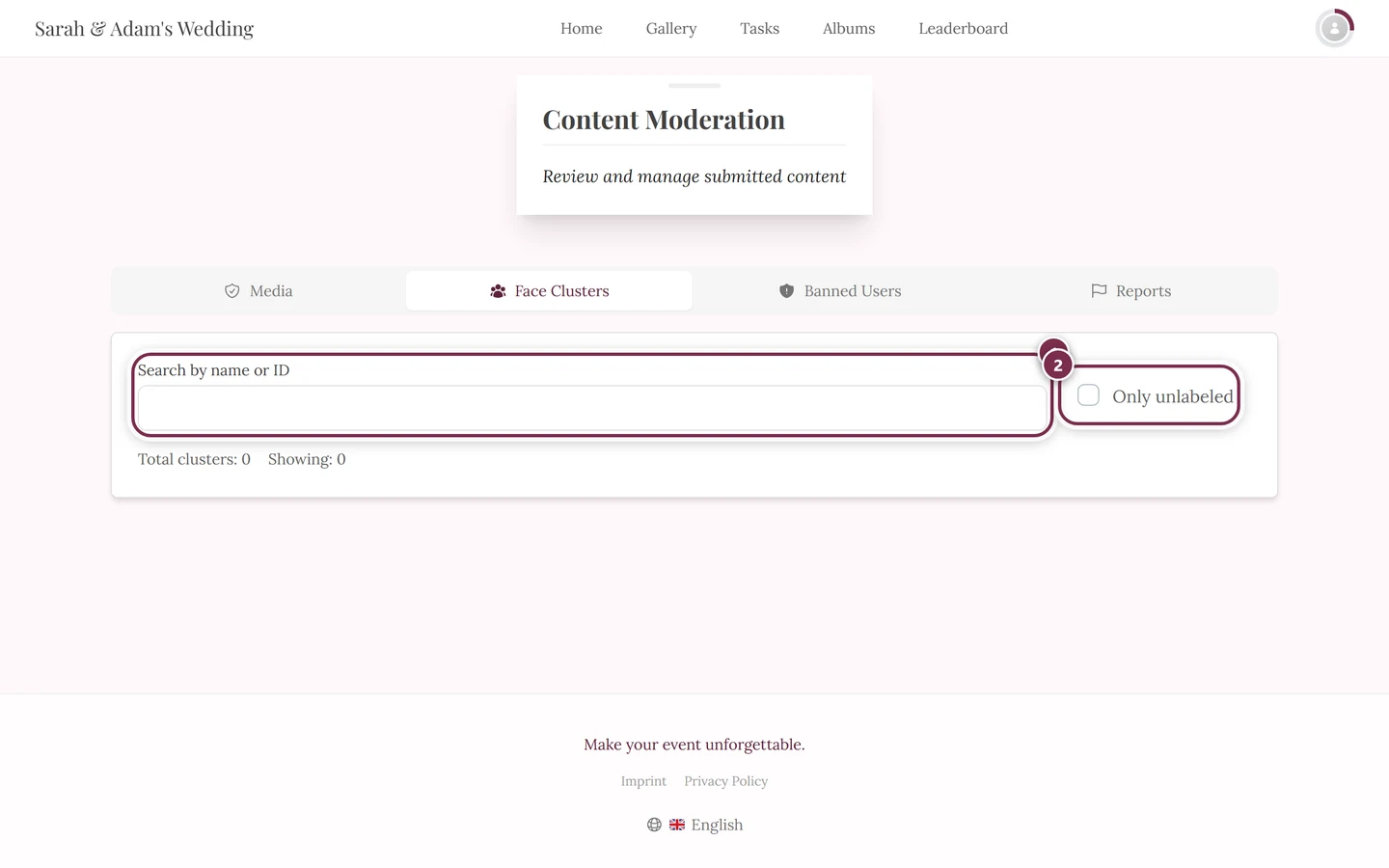
- Search by name or ID – filters the clusters live by name or cluster ID.
- Only unlabeled – hides every already-named cluster so you can focus on the open ones.
- Total clusters and Showing – how many clusters exist and how many are visible after filtering.
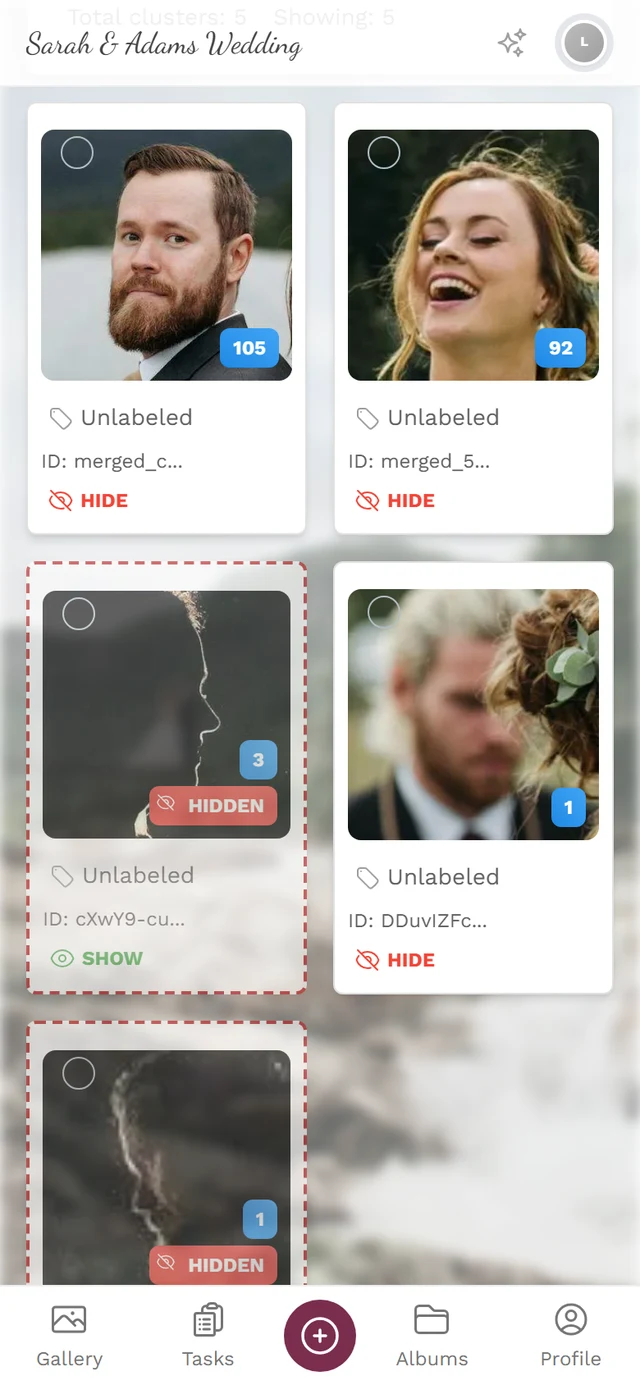
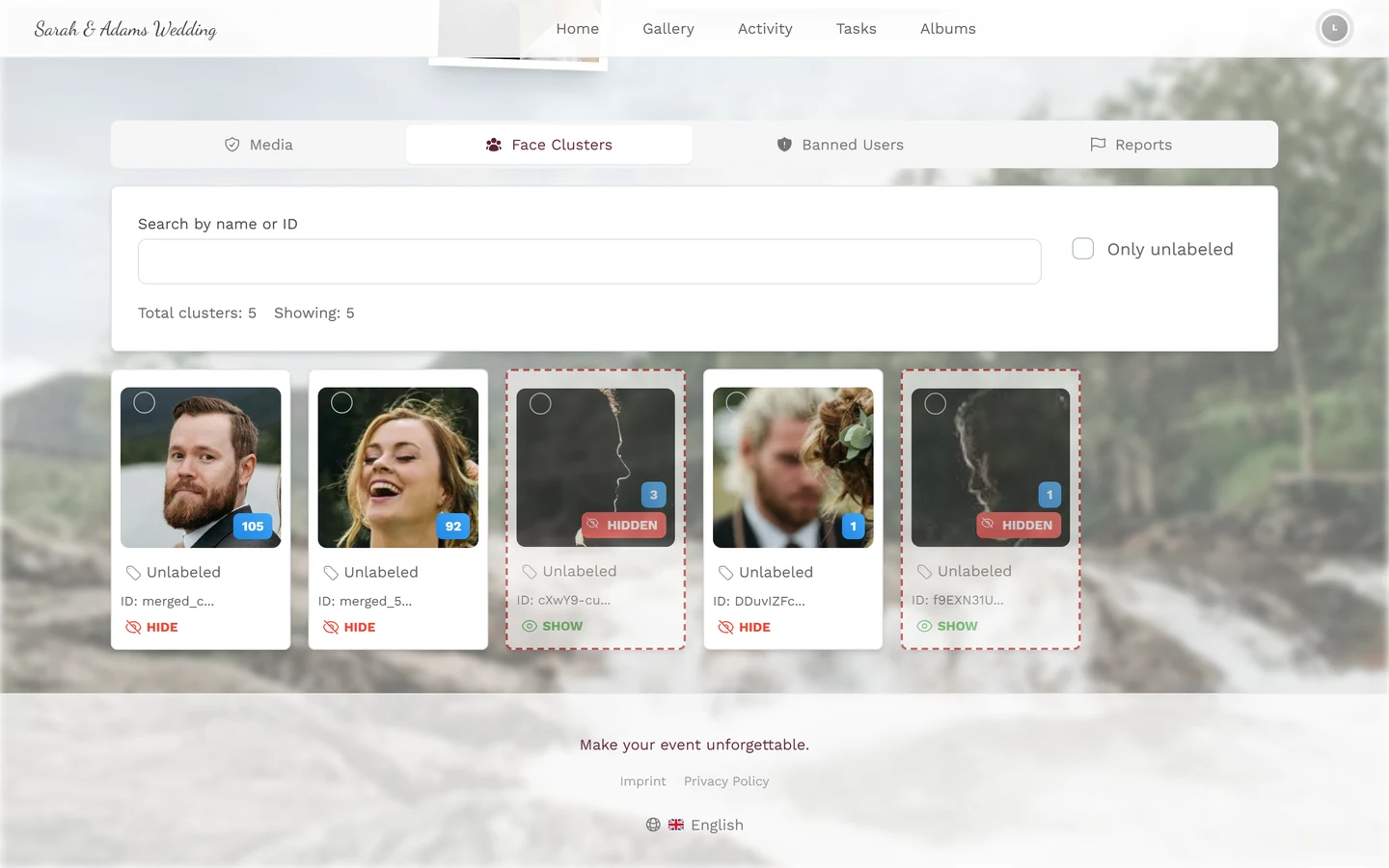
Each cluster tile shows:
- a preview face and the number of faces in the cluster;
- a selection checkbox for merging (see below);
- the name – Unlabeled at first – and below it the shortened cluster ID;
- a Hide or Show button. Hidden clusters carry a red Hidden badge and a dashed border.
Naming a person
Section titled “Naming a person”A name makes the cluster clear for you and for the guest filter. There are two ways to do it.
Way A – right on the tile (fast)
Section titled “Way A – right on the tile (fast)”The fastest route when working through many clusters in a row – you don’t open a dialog at all.
-
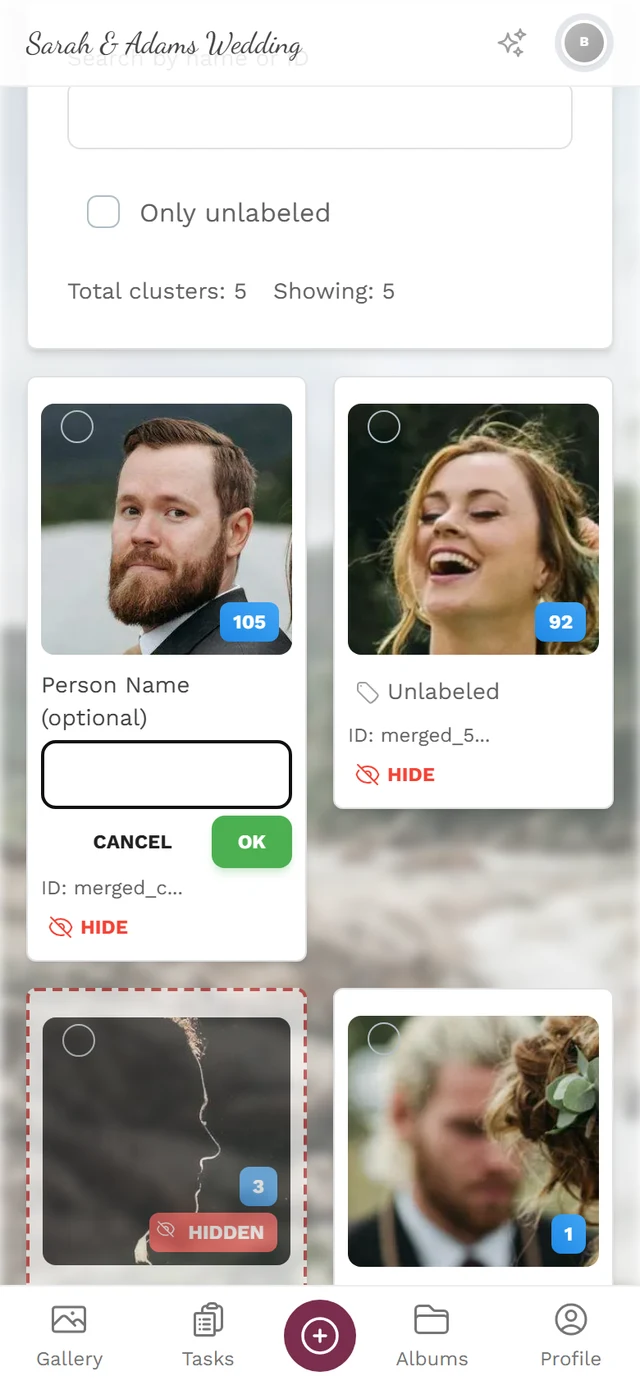
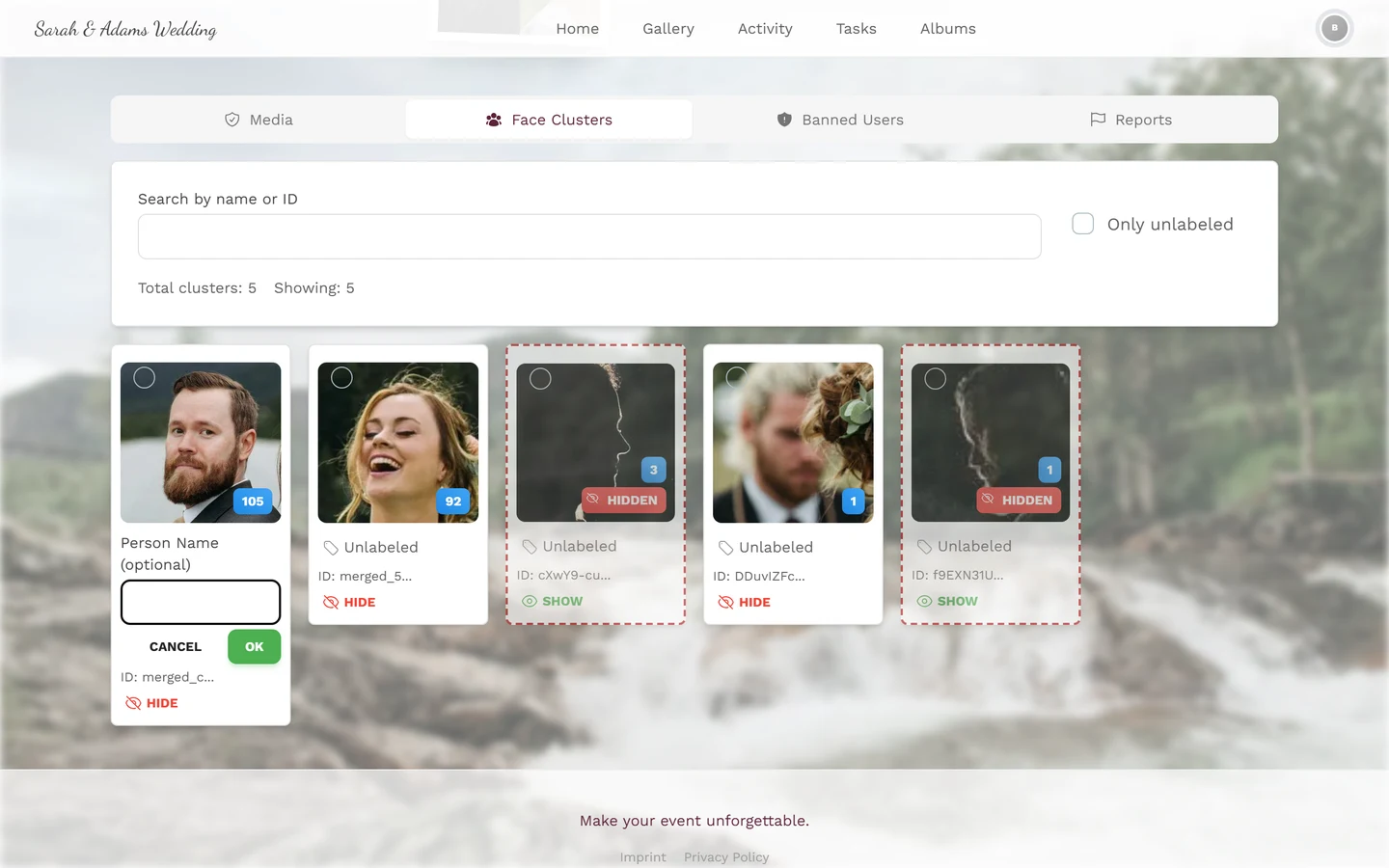
On the tile, click the name row (tag icon; on unnamed clusters it reads Unlabeled). It turns into a Person Name (optional) input field.
-
Type the name and confirm with Enter or with OK. Cancel discards the change.
-
A toast Label updated confirms it; the name appears on the tile right away.
Way B – in the detail dialog
Section titled “Way B – in the detail dialog”-
Open the cluster by clicking the preview face. The Cluster details dialog opens.
-
At the top, click Unlabeled - Click to name (pencil icon), enter the name in the Enter person name field and confirm with OK.
Merging clusters
Section titled “Merging clusters”When the AI detects the same person as several separate clusters (different lighting, glasses, angle), merge them.
-
Tick the checkbox on at least two tiles of the same person. A bar appears at the top with the number of selected clusters and a Merge button. With fewer than two selected, a toast says “Select at least 2 clusters to merge”.
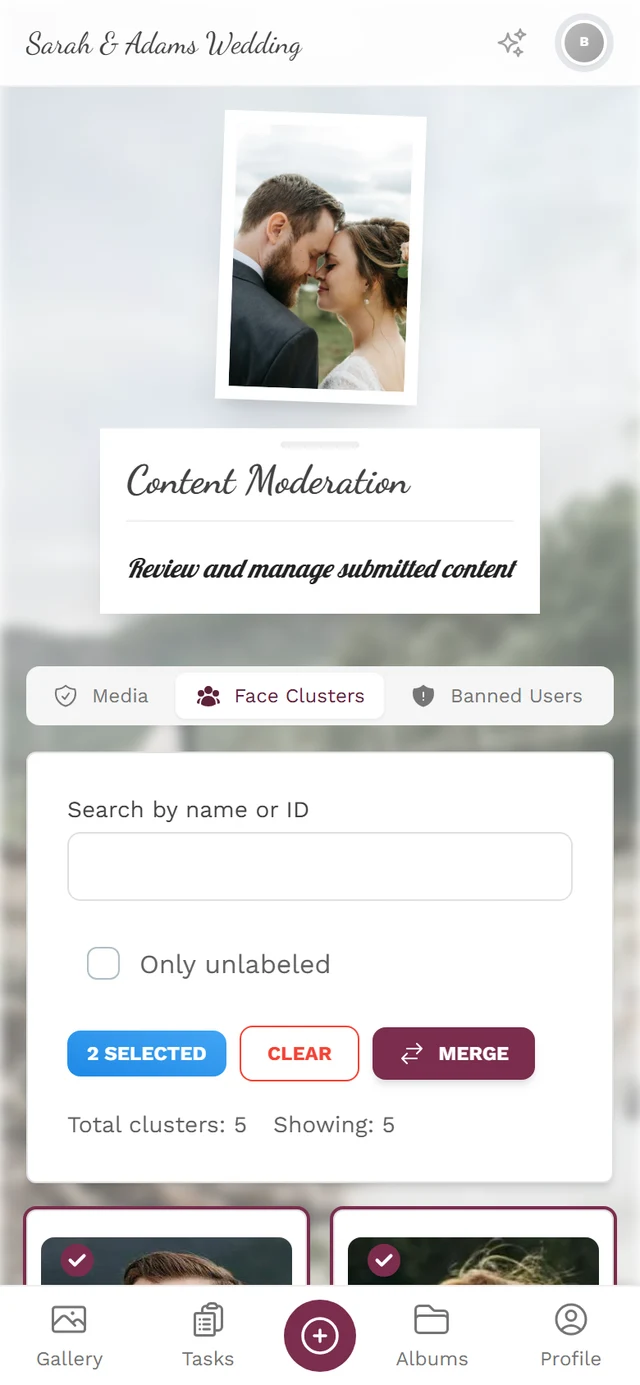
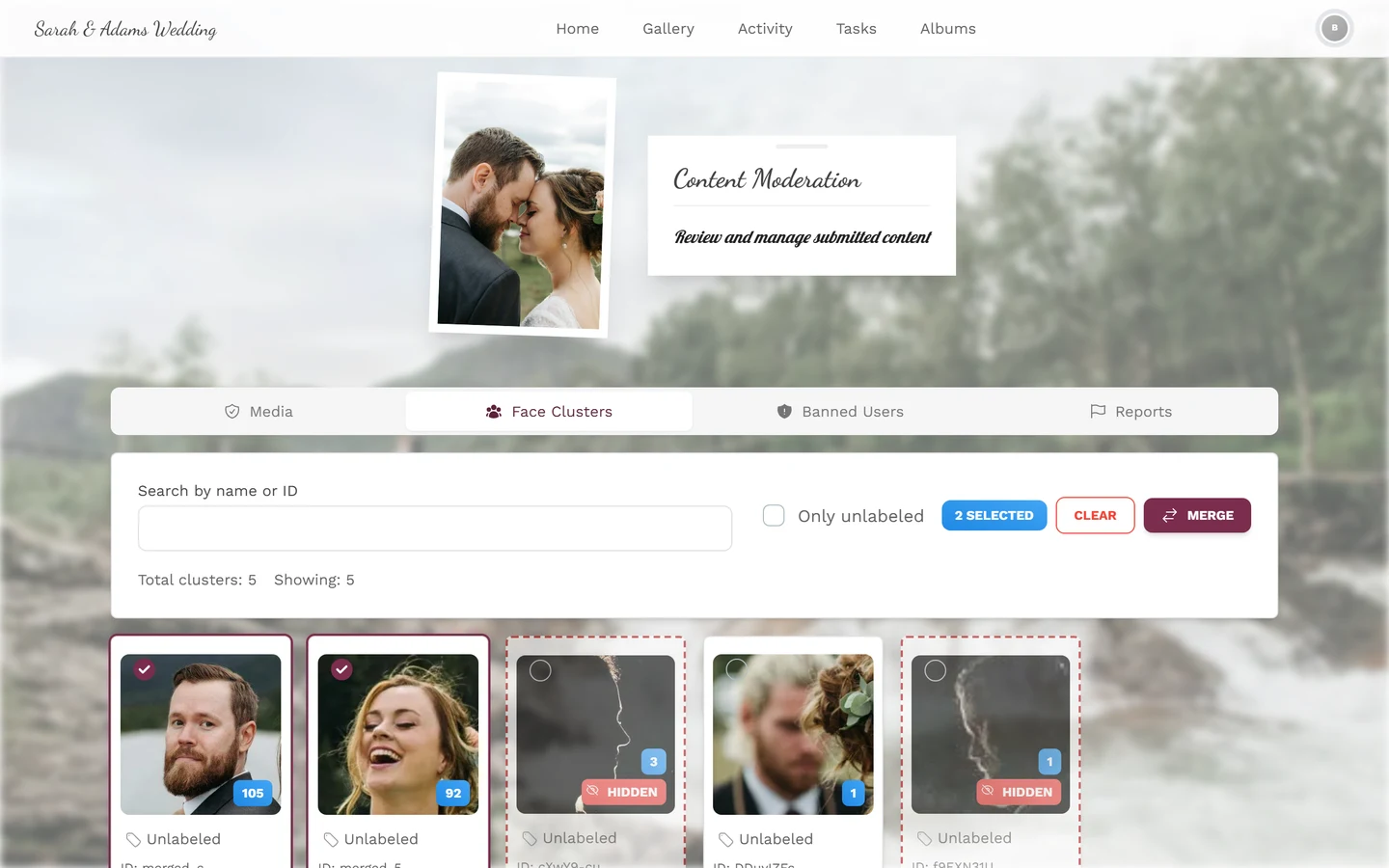
Two tiles are ticked – they get a colored ring and a check mark. The bar above counts 2 selected and offers Clear and Merge. -
Click Merge. The Merge Face Clusters dialog opens and names how many clusters are affected. You can optionally set a Person Name (optional) for the result right away.
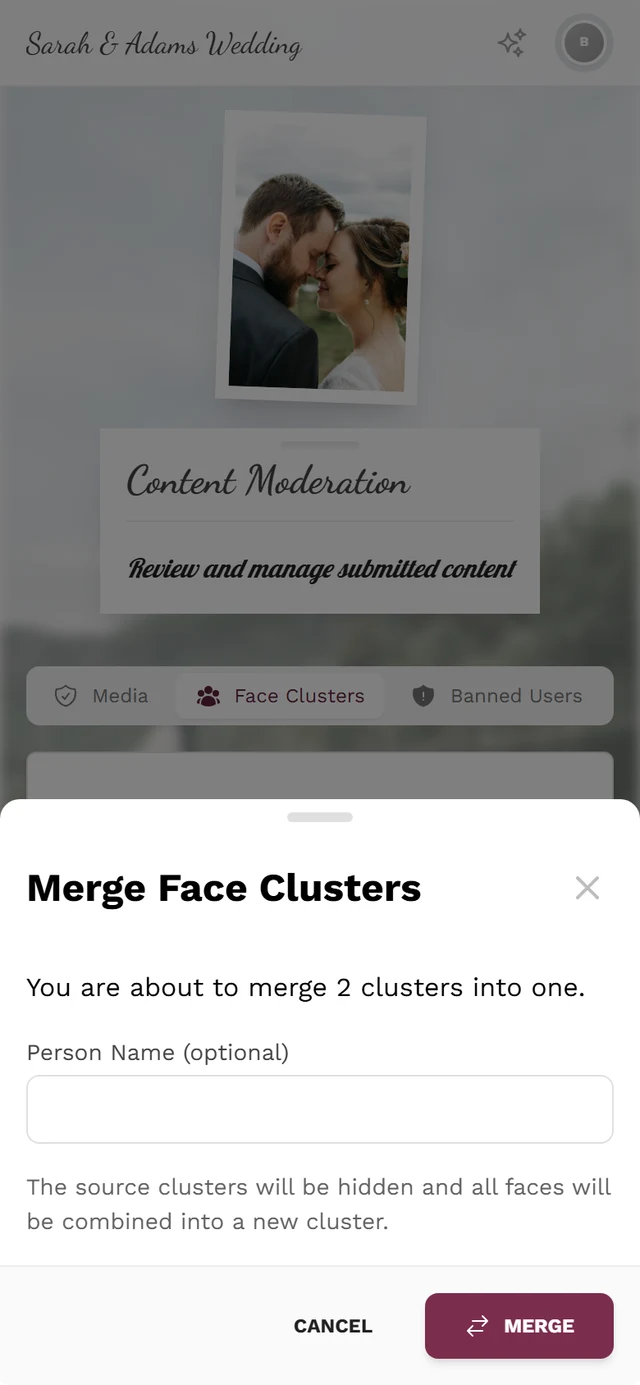
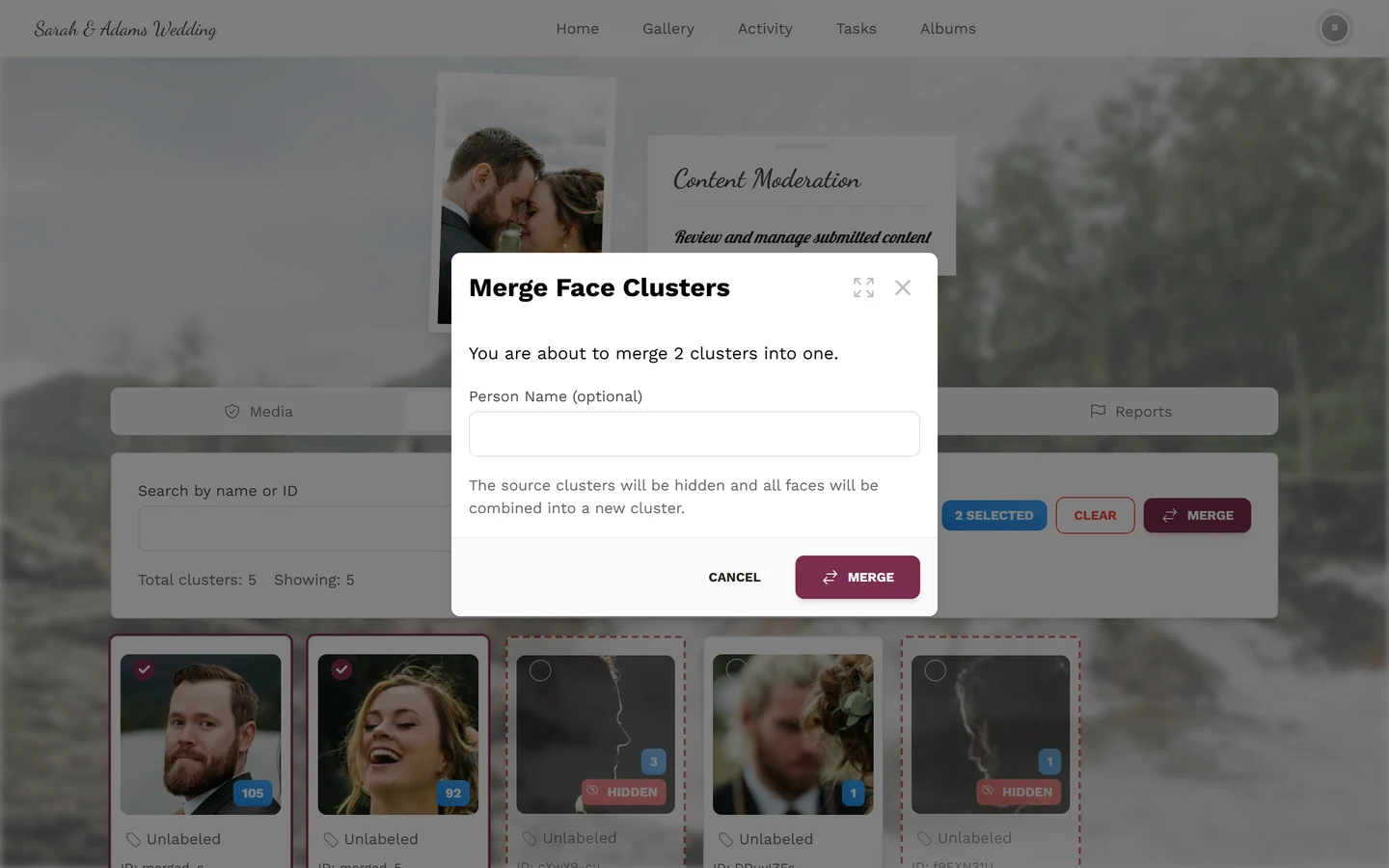
The dialog names the count – 2 clusters here – and offers the Person Name (optional) field. Its note calls the source clusters *hidden*; in fact they vanish from the list entirely (see the warning below). -
Confirm with Merge.
Splitting a cluster
Section titled “Splitting a cluster”If the AI put two people into one cluster, extract the wrong faces into a new cluster.
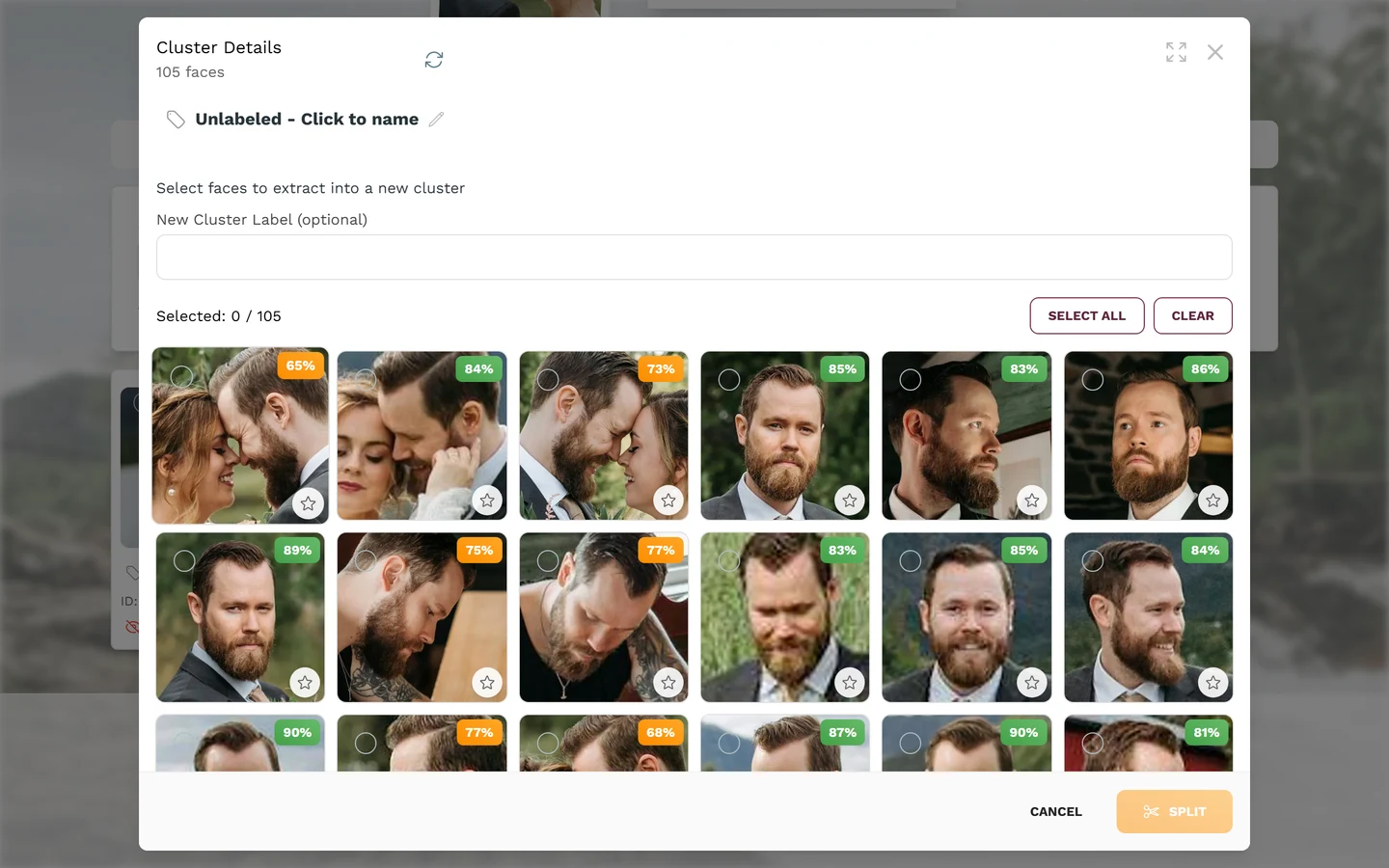
-
Open the cluster. The Cluster details dialog reads “Select faces to extract into a new cluster”. Every face carries a confidence percentage – how sure the match is. Low values (red or orange) are good candidates to sort out.
-
Select the faces that don’t belong to this person. Select All and Clear help; the counter shows Selected: N / total.
-
Optionally enter a New Cluster Label (optional) and click Split at the bottom. The chosen faces form their own cluster.
Setting a preview image
Section titled “Setting a preview image”In the Cluster details dialog every face carries a star icon with the tooltip Set as preview. A click makes that photo the cluster’s preview image – handy when the automatic preview is blurry or not descriptive. The currently set face is marked Current preview, and a toast Preview image updated confirms the change.
Refreshing the list in the dialog
Section titled “Refreshing the list in the dialog”At the top right of the Cluster details dialog there is a Refresh button (circular arrow). It reloads the faces of this cluster – useful when photos are still being processed in the background, or when you just split something and want to see the new state.
Hiding and showing clusters
Section titled “Hiding and showing clusters”Not every cluster is relevant (background guests, blurry faces, strangers).
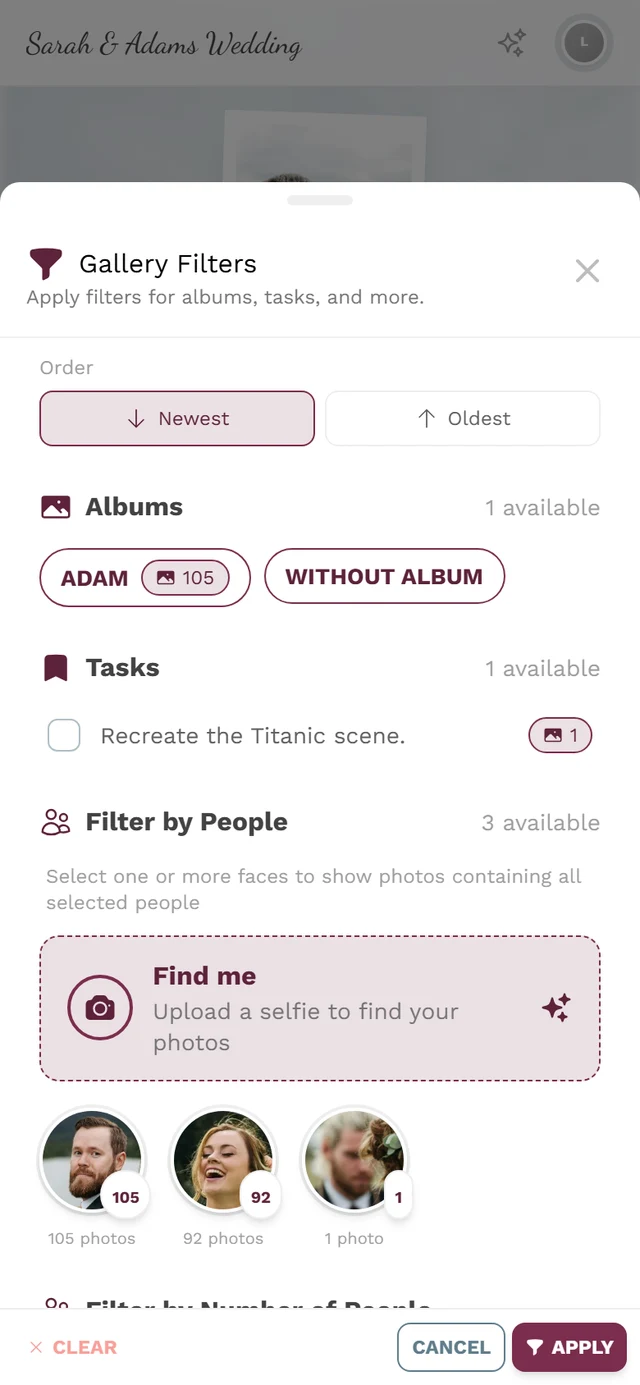
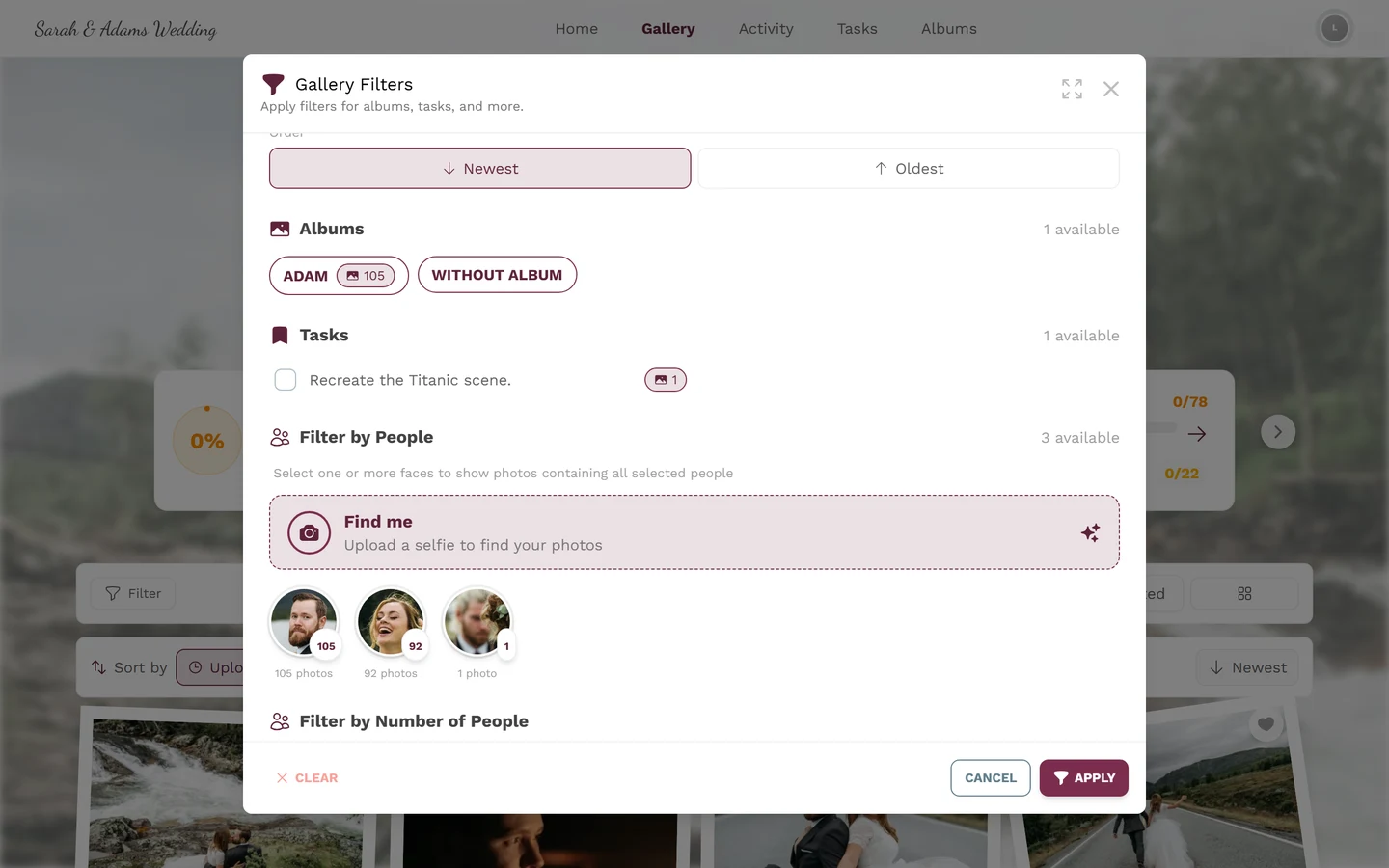
- Hide removes the cluster from the people selection in the guest filter without deleting any photos. The cluster stays here with a Hidden badge. A toast confirms: “Cluster is now hidden”.
- Show makes a hidden cluster available again (“Cluster is now visible”).
Privacy
Section titled “Privacy”Face data is biometric, especially sensitive data. Guests have a right to erasure and can remove their selfie and face data themselves – see Your privacy. As the host you must enable face recognition deliberately and provide a contact for data-subject rights; background under AI processing.
Troubleshooting
Section titled “Troubleshooting”- No “Face Clusters” tab → AI face processing not in your plan, or face recognition off for the event.
- No or few clusters → processing runs while photos are uploaded. New faces appear gradually; in the detail dialog use Refresh to reload.
- Merge does nothing → fewer than two clusters are selected. Tick at least two tiles.
- Split is rejected → you selected every face. At least one has to stay in the original cluster.
- A cluster vanished after merging → that is intended: the source clusters are absorbed into the new cluster and do not reappear.
- Wrong person in a cluster → use Split to extract the foreign faces into a new cluster.
Related help
Section titled “Related help”- Moderator: Approving & moderating photos · For moderators
- Guests: Finding photos of you (face search) · Your privacy
- Host: AI processing (face recognition, GDPR)