Turning features on & off
The Gallery features tab is your event’s central control panel. Here you decide what your guests can do and see in the gallery: likes, comments, activity feed, sharing, downloads, map, video uploads and image quality, Joining in & points (photo tasks, achievements, points, leaderboard including winner mode) and AI face processing.
How to reach the features
Section titled “How to reach the features”-
Open your event’s admin area. As a guest you reach it via the profile menu at the top right under Management → Admin Portal.
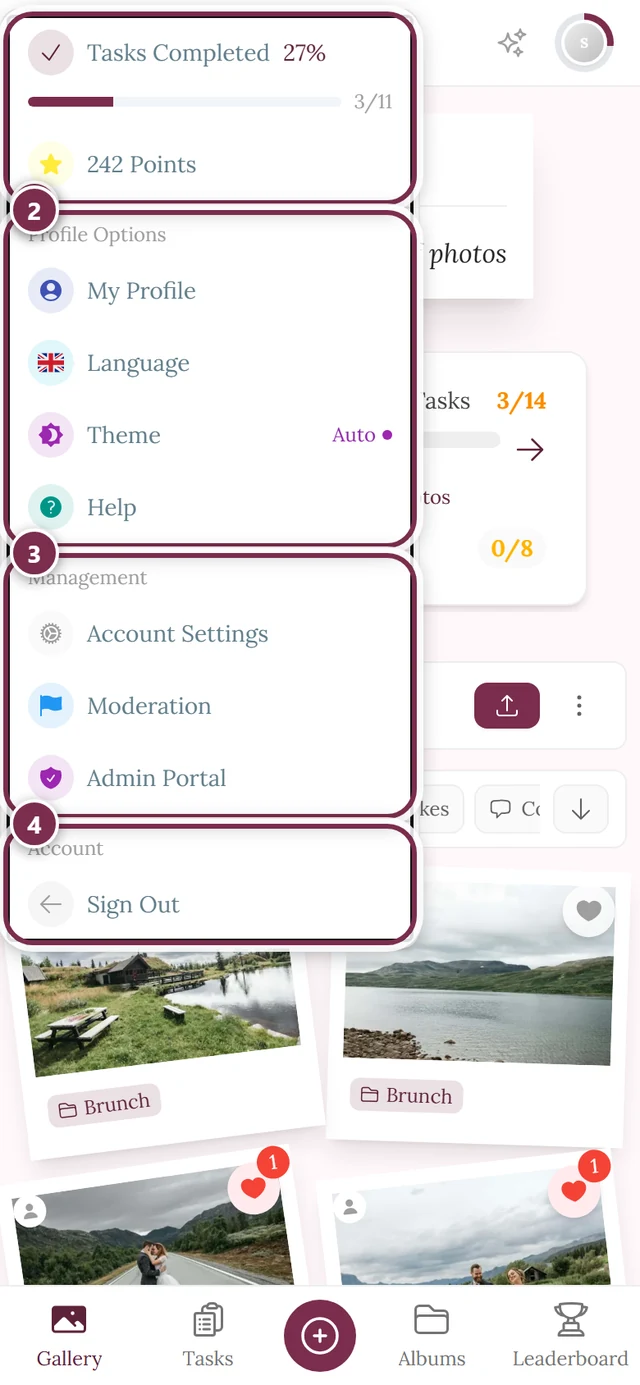
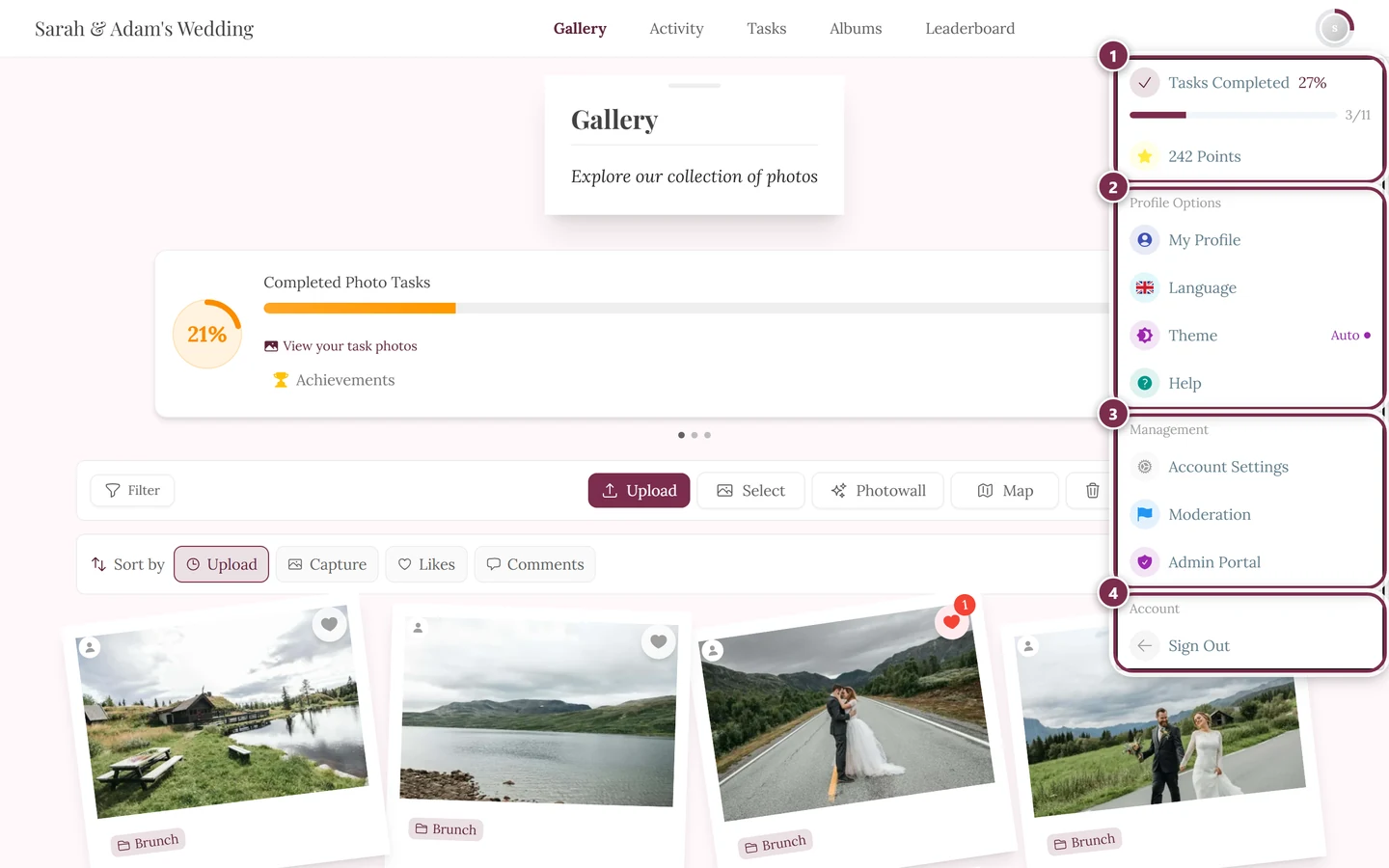
Use the profile menu at the top right to reach Management and the Admin Portal. ① your points and solved tasks, ② Profile options with My Profile, Language, Theme and Help, ③ Management with Account Settings, Moderation and Admin Portal – this section is missing until you hold a role for it, ④ Account with Sign out. -
In the left sidebar, under the Event group, choose Settings (the cog icon).
-
At the top, click the Gallery features tab (the rocket icon). The order of the eight areas is: Overview → General → Access → Appearance → Gallery features → Moderation & Safety → Photo Wall Settings → White-Label.
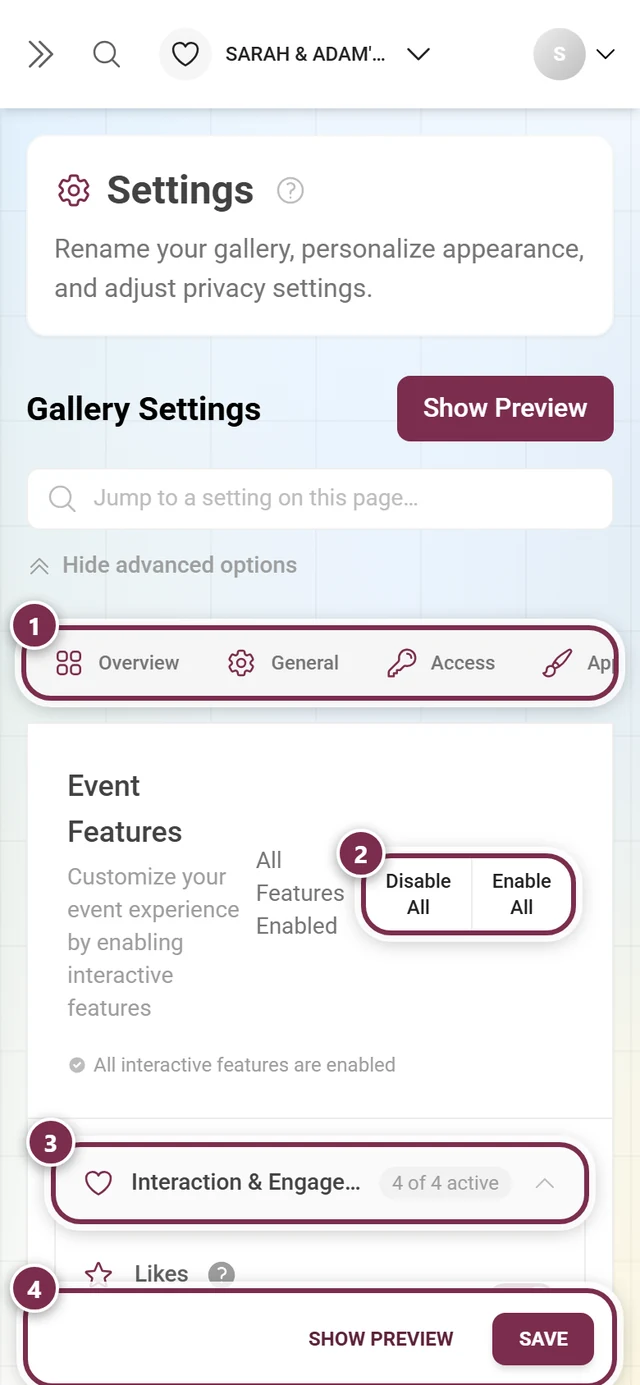
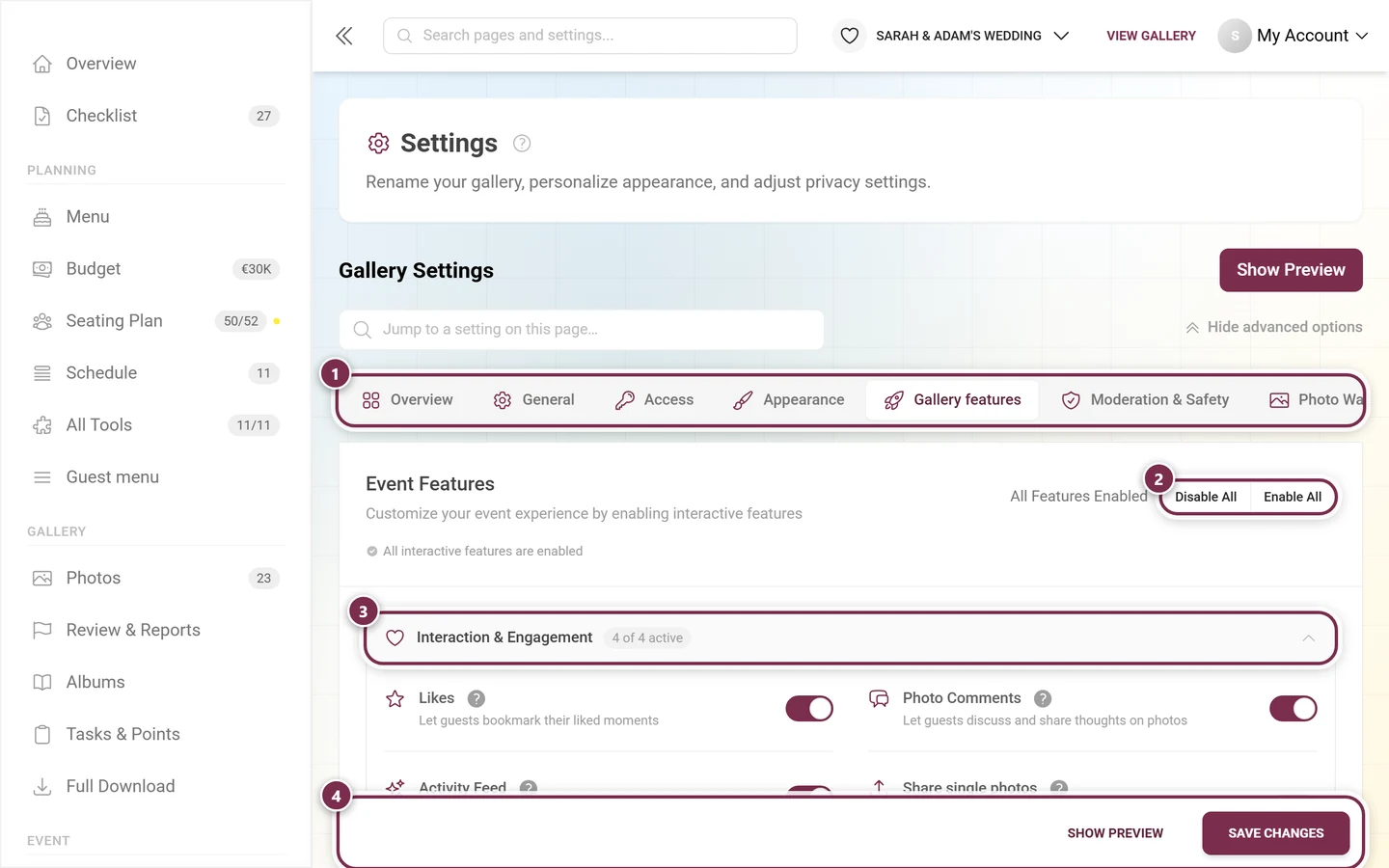
Settings → Gallery features: each section holds feature cards with a toggle. ① the tab row, with Gallery features open, ② Disable All and Enable All flip every feature at once, ③ a group header with its counter 4 of 4 active – one click folds the group open or shut; below it every feature has its own switch, ④ nothing takes effect until Save Changes at the bottom (Save on a phone).
Two helpers above the tabs
Section titled “Two helpers above the tabs”- Search field “Jump to a setting on this page…” – searches all settings tabs at once. Type “leaderboard” or “map”, pick a hit, and you land right on the matching card: the tab switches, the right section unfolds automatically and the card is briefly highlighted. If nothing matches you see No matching settings; Clear search resets it.
- “Show all advanced options” – expands every collapsed section across all tabs in one go, which here means all the feature sections. The toggle then reads “Hide advanced options” and folds them back. Your choice is remembered in this browser, and between two clicks you can still open and close individual sections by hand.
The top of the tab: bulk switches
Section titled “The top of the tab: bulk switches”At the top of the tab you’ll see the title Event Features with a short description. In the top right there are two bulk switches:
- Disable All – turns off every main feature and its sub-toggles and empties the leaderboard categories.
- Enable All – turns on every main feature, plus the four sub-toggles Show on Home Page, Show Task Progress on Gallery, Show Achievement progress on the tasks page and Show Next Achievement on Gallery, and all leaderboard categories.
When all main features are on, the note All Features Enabled appears in the top right and All interactive features are enabled below it.
Understanding saving
Section titled “Understanding saving”How the page is structured
Section titled “How the page is structured”The tab is an accordion of collapsible sections: Interaction & Engagement (open by default), Downloads, Gallery Views, Media & Upload, Joining in & points and AI Processing.
Next to its name, every section carries a small counter pill in the form {{count}} of {{total}} active – for example “2 of 6 active”:
- The second number is how many cards this section actually shows.
- The first number is how many cards are switched on and included in your plan.
Every feature card has an icon, a title, a short description, an info icon with a tooltip, and a toggle. If a feature isn’t part of your plan, you’ll see a premium hint instead of the toggle (on branded white-label events a locked card is hidden entirely).
Interaction & Engagement
Section titled “Interaction & Engagement”This section is open by default.
-
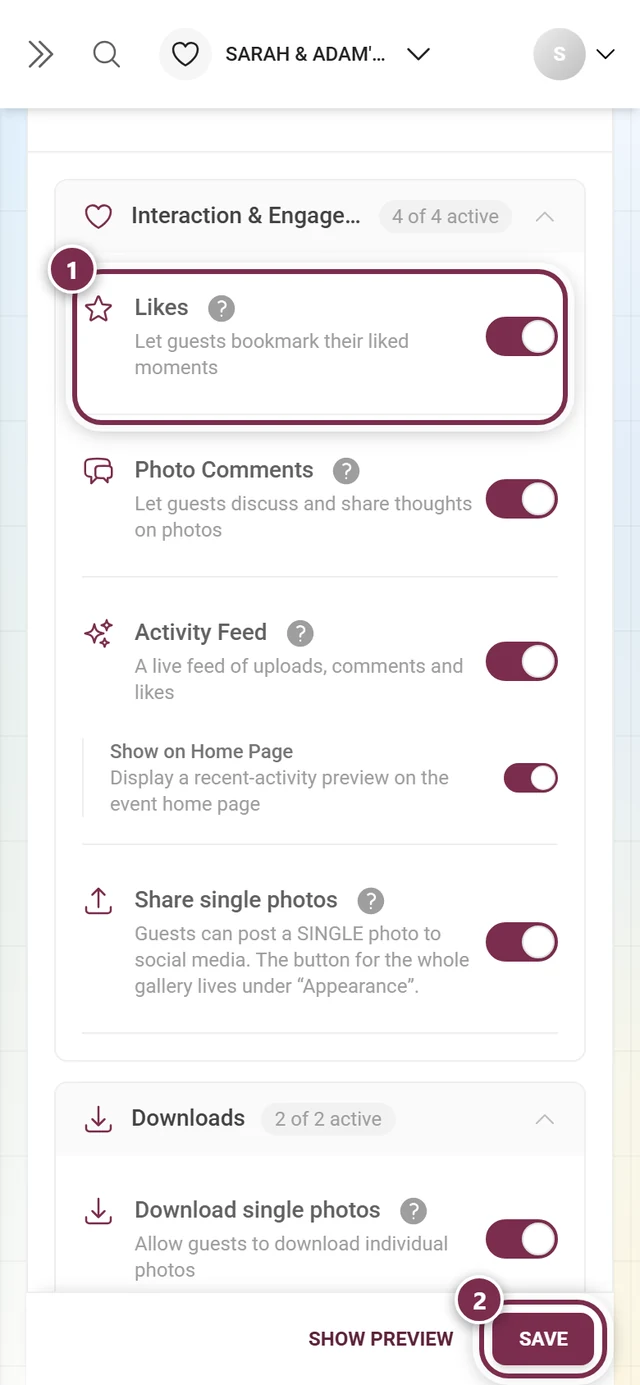
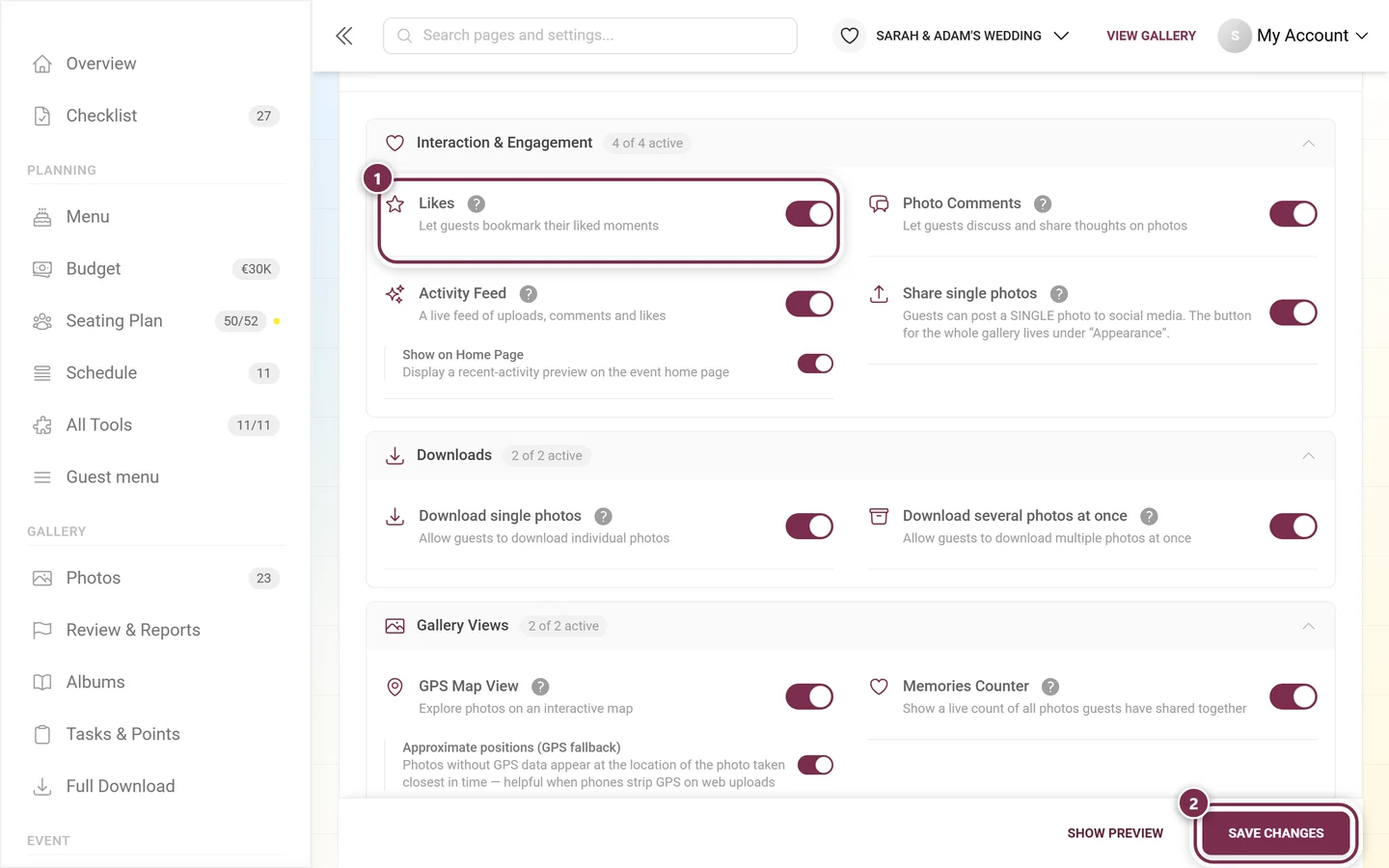
Likes – “Let guests bookmark their liked moments”: guests can mark photos with a heart.
-
Photo Comments – guests can write below photos and join the conversation.
-
Activity Feed – a live feed of uploads, comments and likes. This feature is always available (not plan-dependent). When the feed is on, you can additionally enable Show on Home Page.
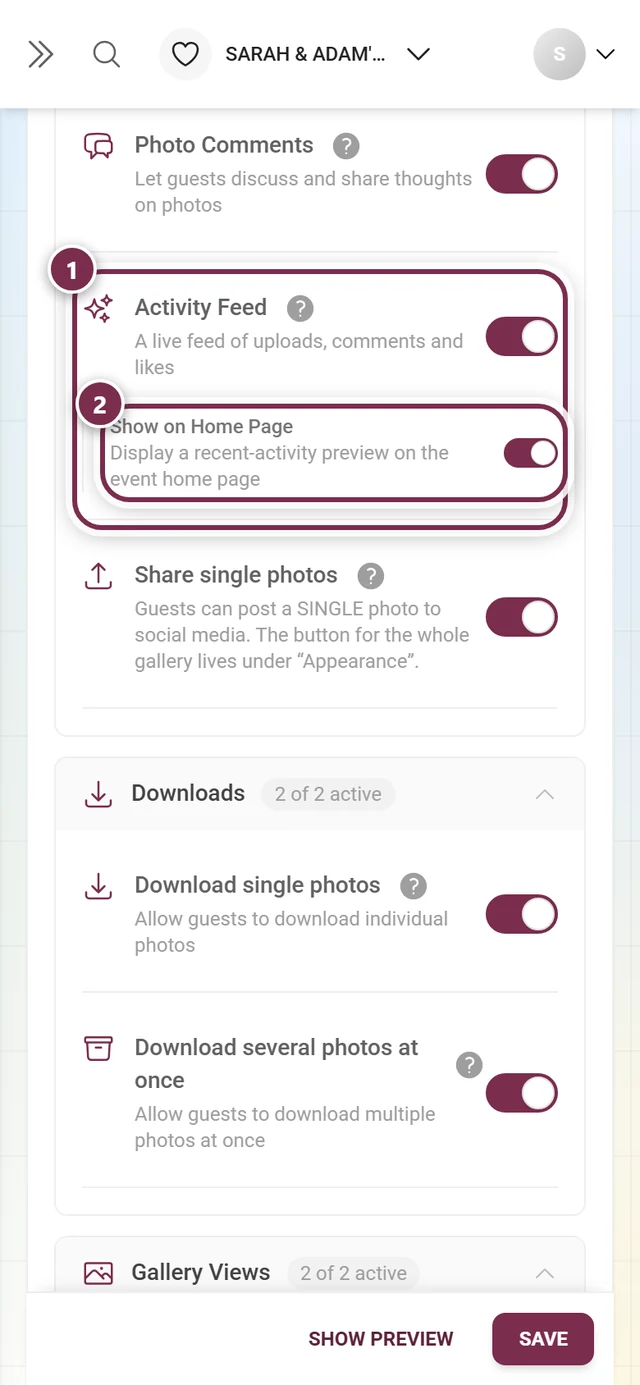
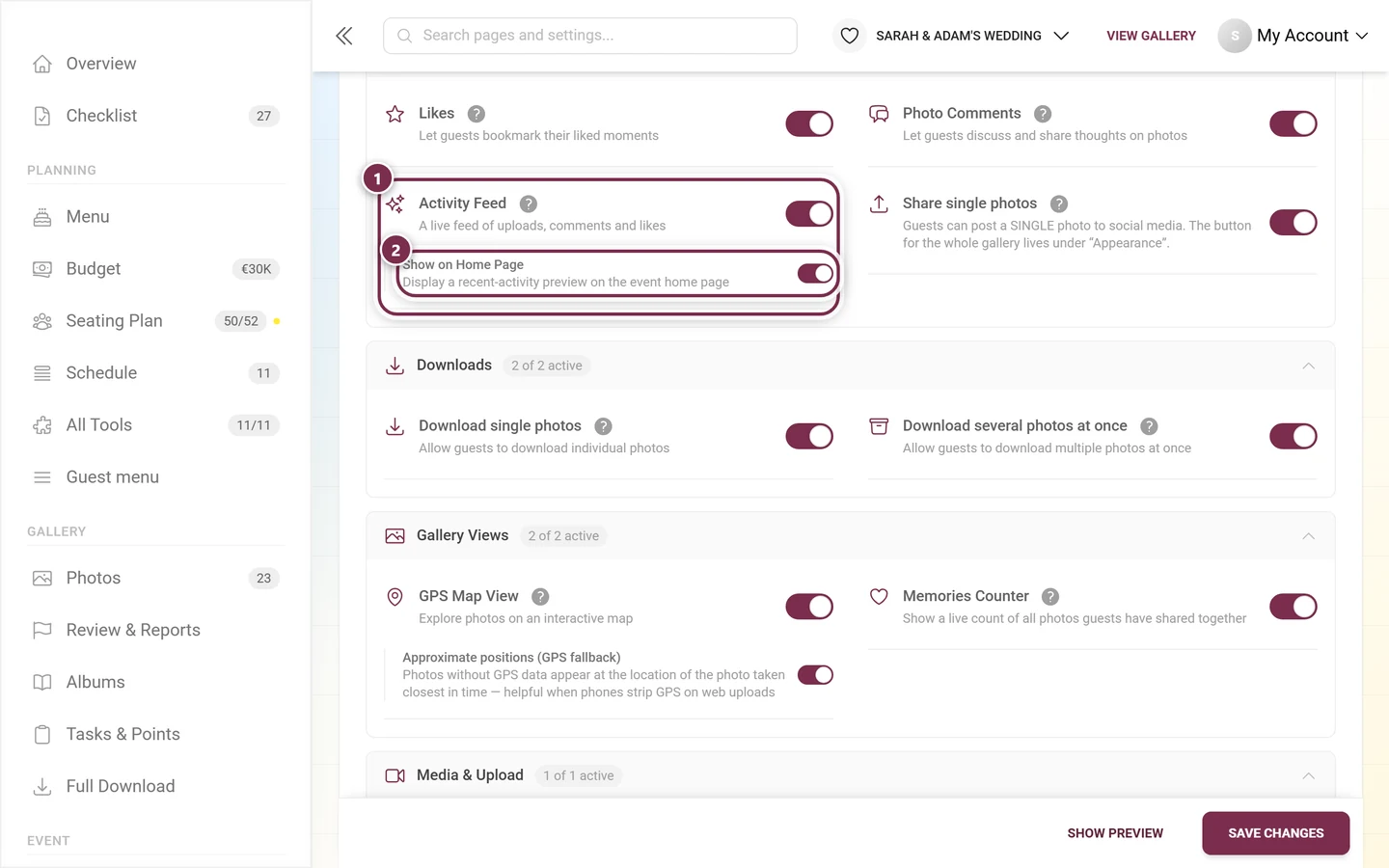
① The switch on the “Activity Feed” card. ② The “Show on Home Page” sub-toggle belongs to the same card and stays grayed out while the feed is off. -
Share single photos – guests can post a single photo to social media. The share button for the whole gallery lives on the Appearance tab, not here.
For what these features mean for guests, see Like & comment, Activity Feed and Sharing.
Downloads
Section titled “Downloads”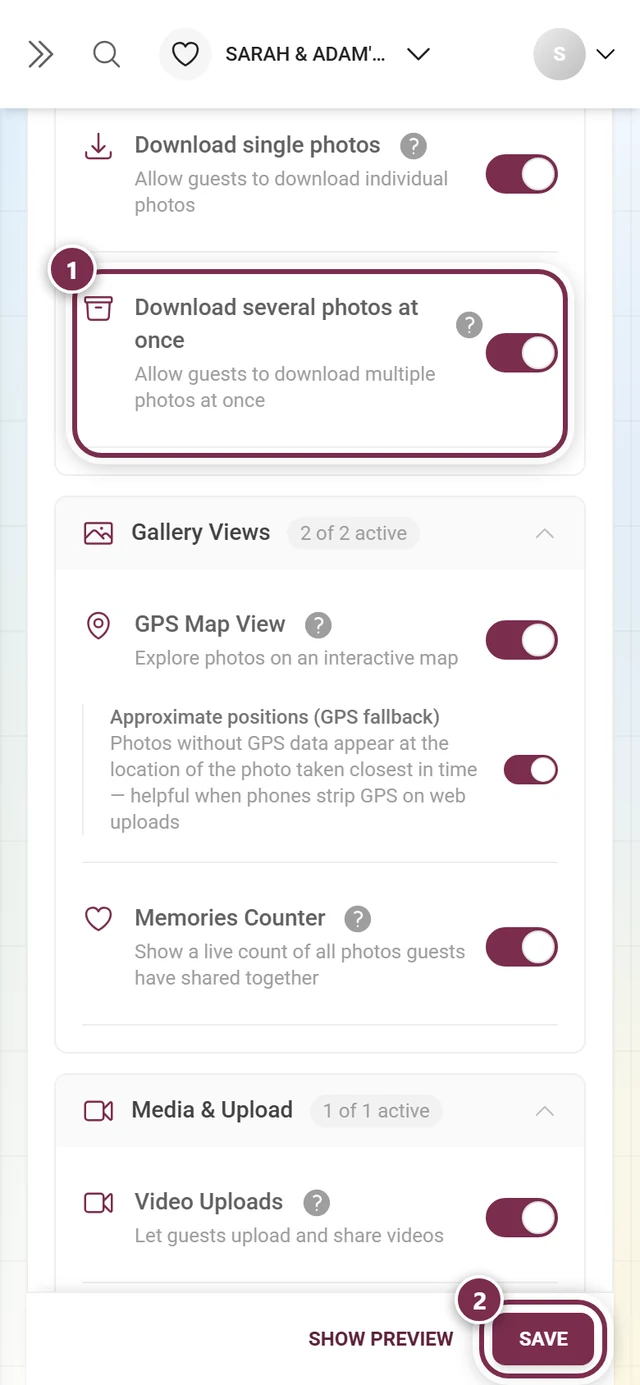
-
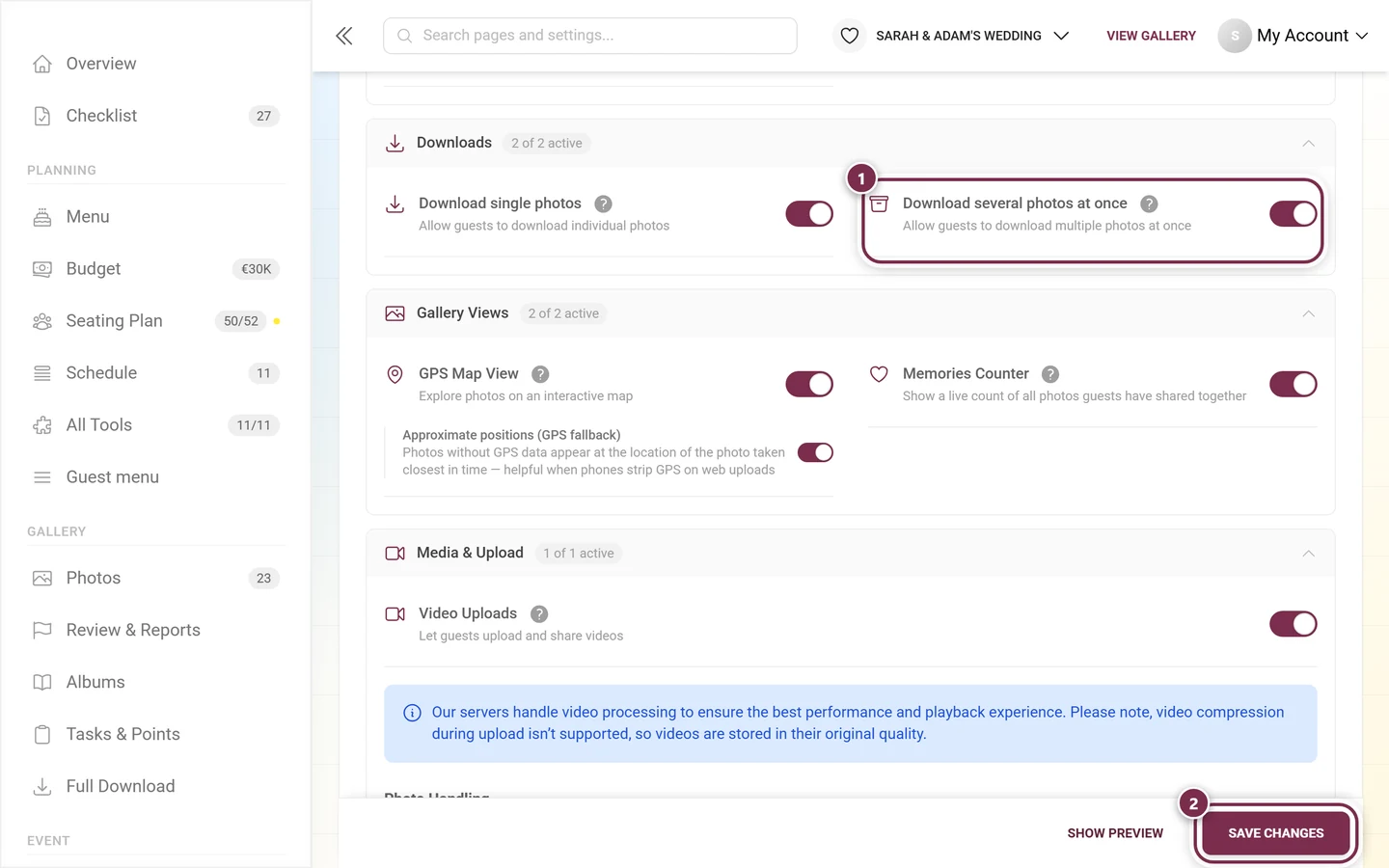
Download single photos – allow guests to download individual photos.
-
Download several photos at once – allow guests to download multiple photos at once (entire albums or a selection as a ZIP file).
From the guest side: Download and Select & Download. As a host you export all photos via Download & export.
Gallery Views
Section titled “Gallery Views”The August 2026 rework shrank this section down to two cards. Four toggles that used to live here now sit where they belong – see the box below.
-
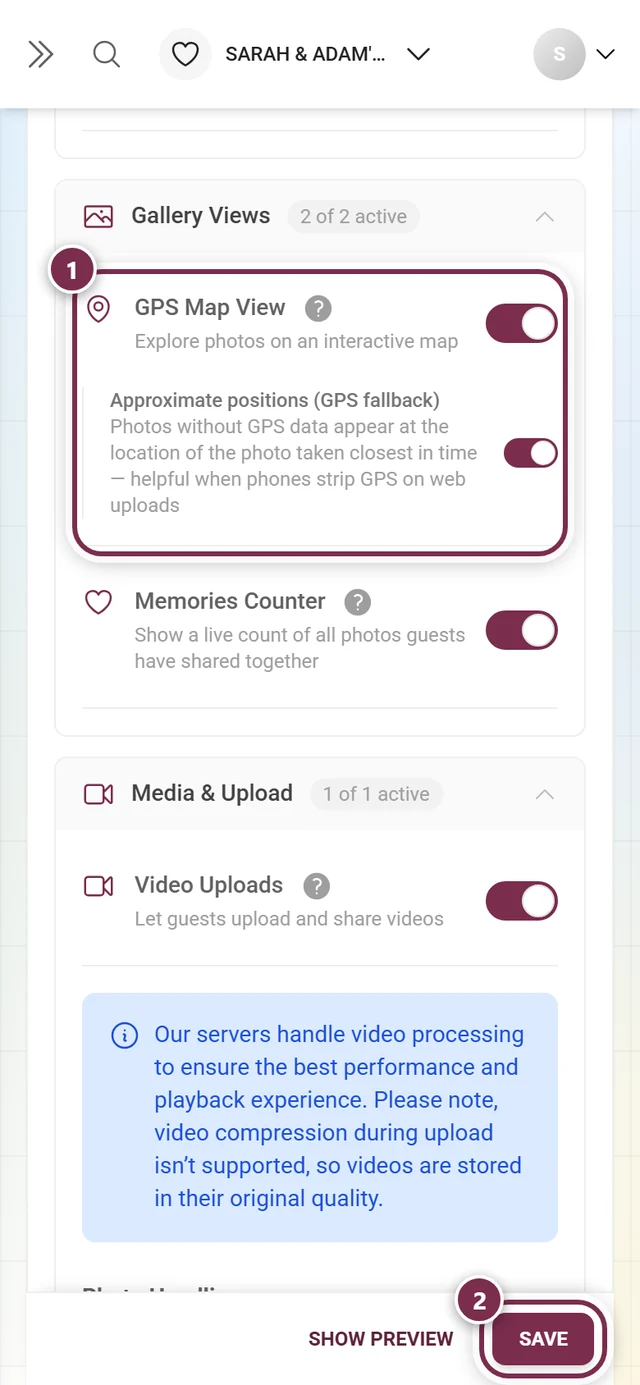
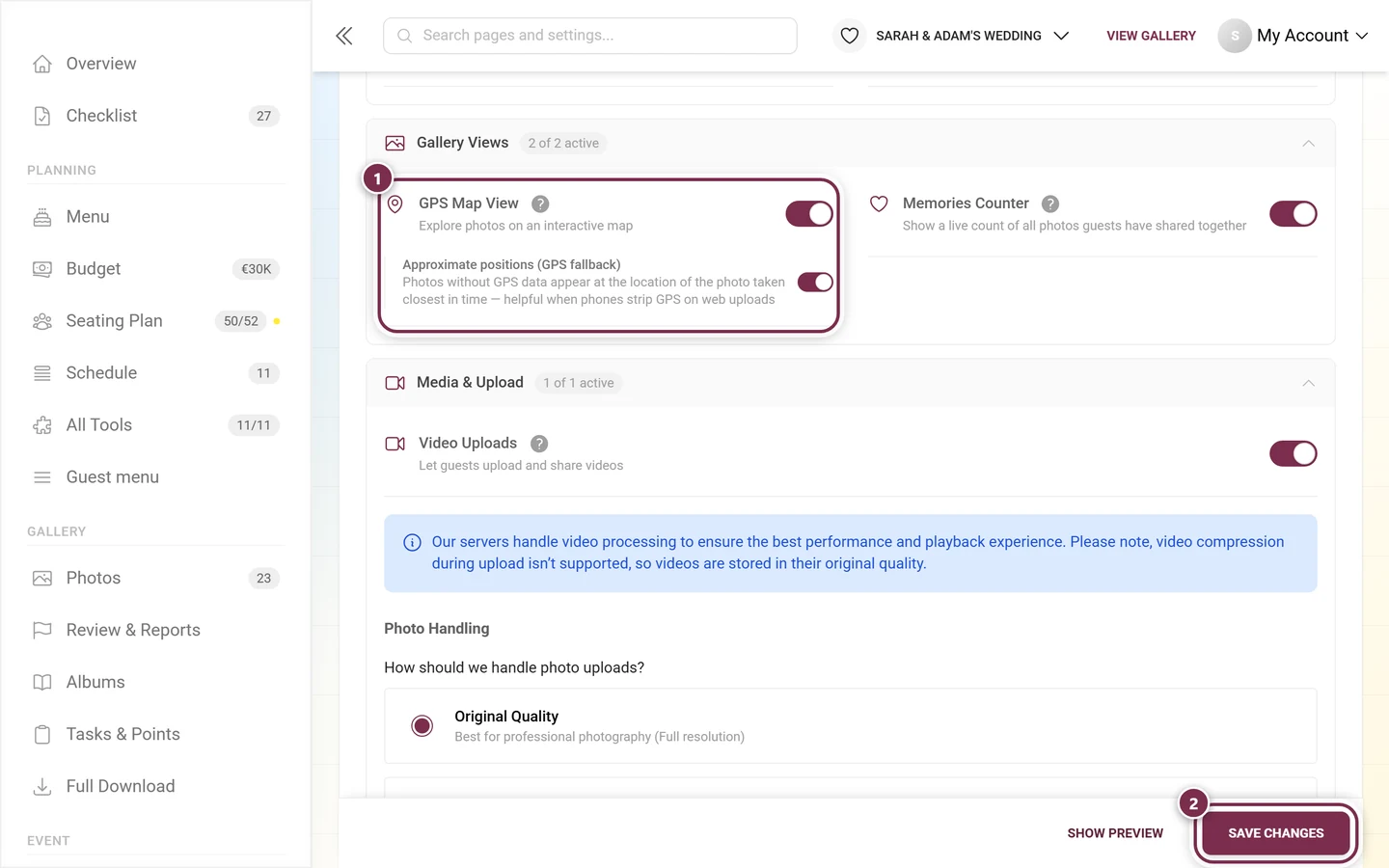
GPS Map View – guests explore photos on an interactive map. Sub-toggle Approximate positions (GPS fallback): photos without GPS data appear at the location of the photo taken closest in time – helpful when phones strip GPS on web uploads.
-
Memories Counter – a live count of all photos guests have shared together, ticking up as they upload.
From the guest side: Map, Albums and Photo Wall.
Media & Upload
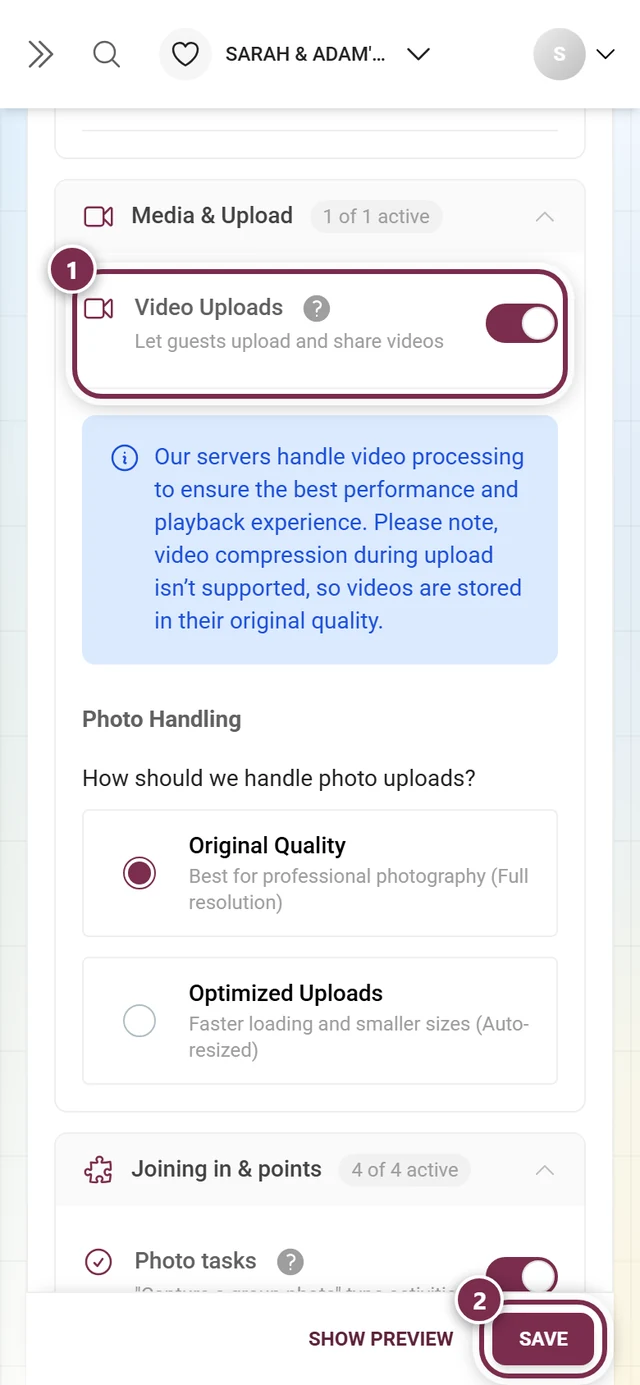
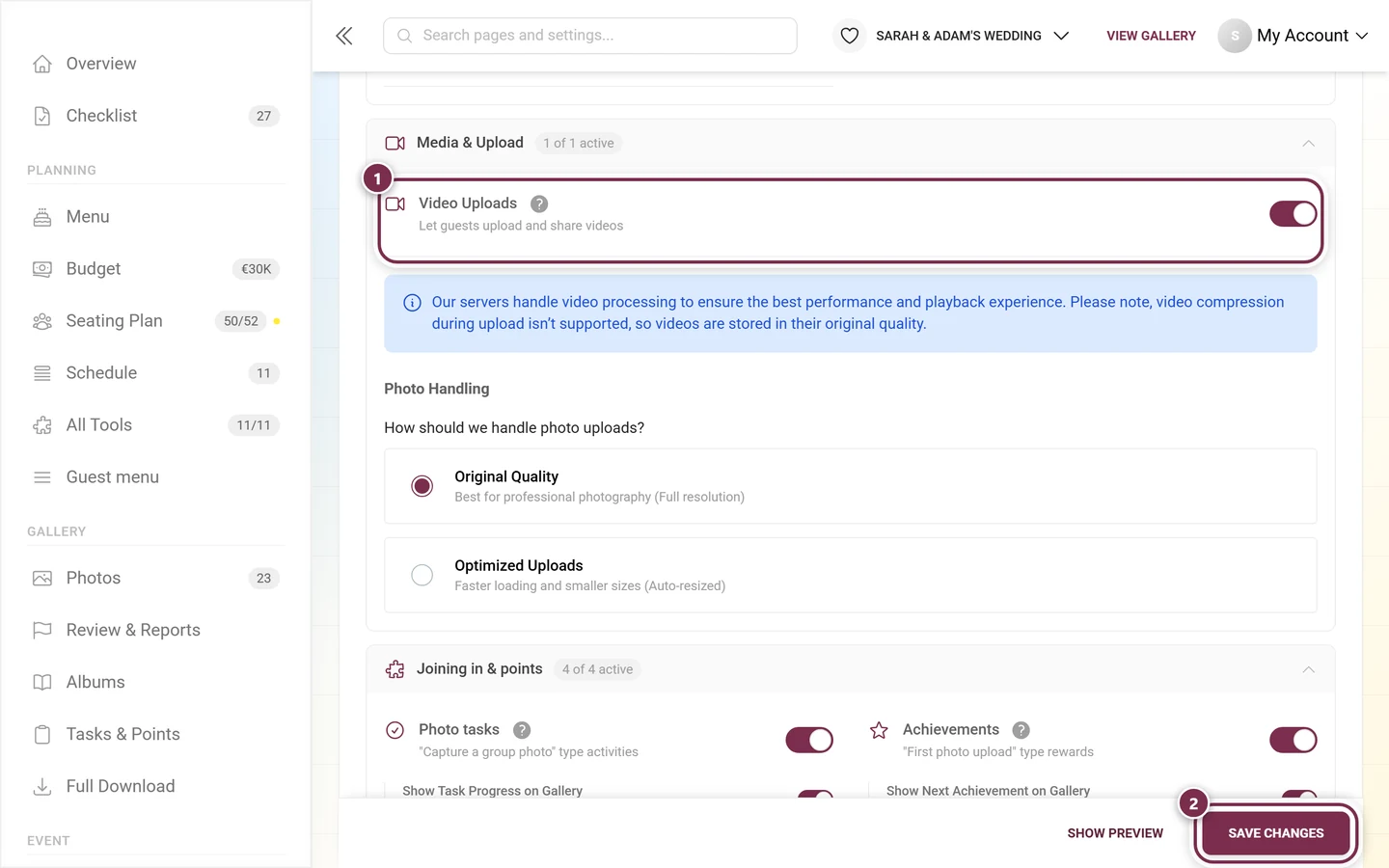
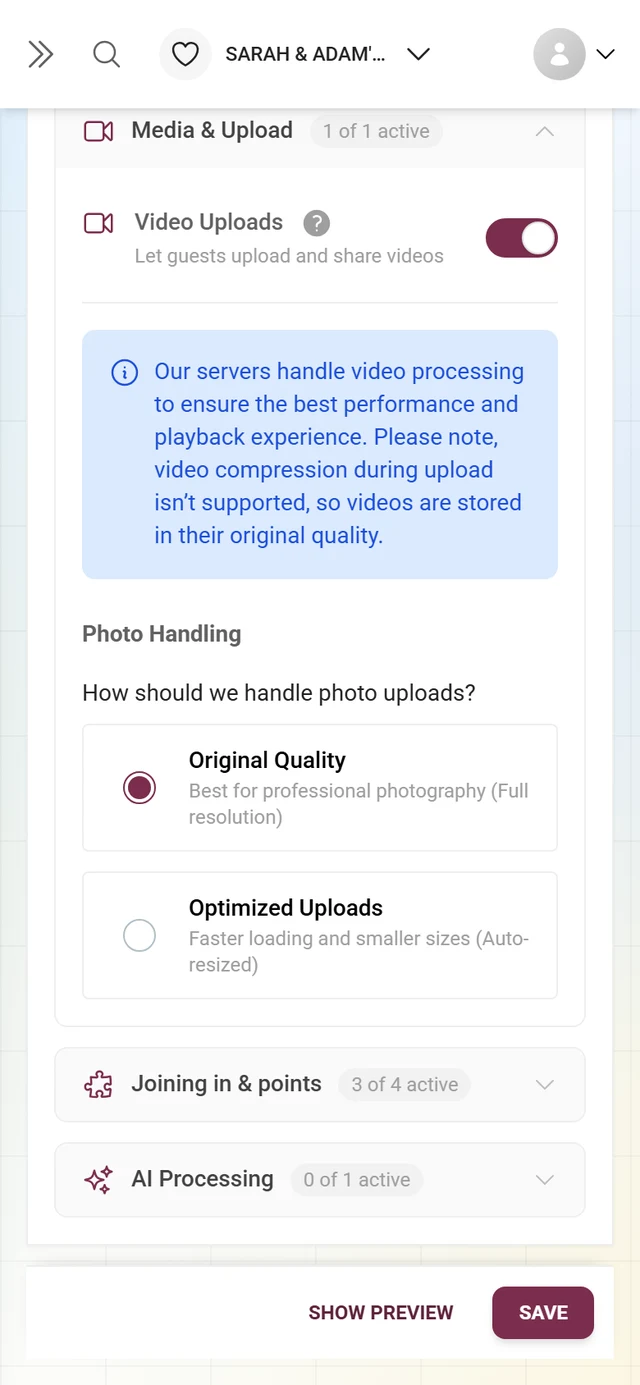
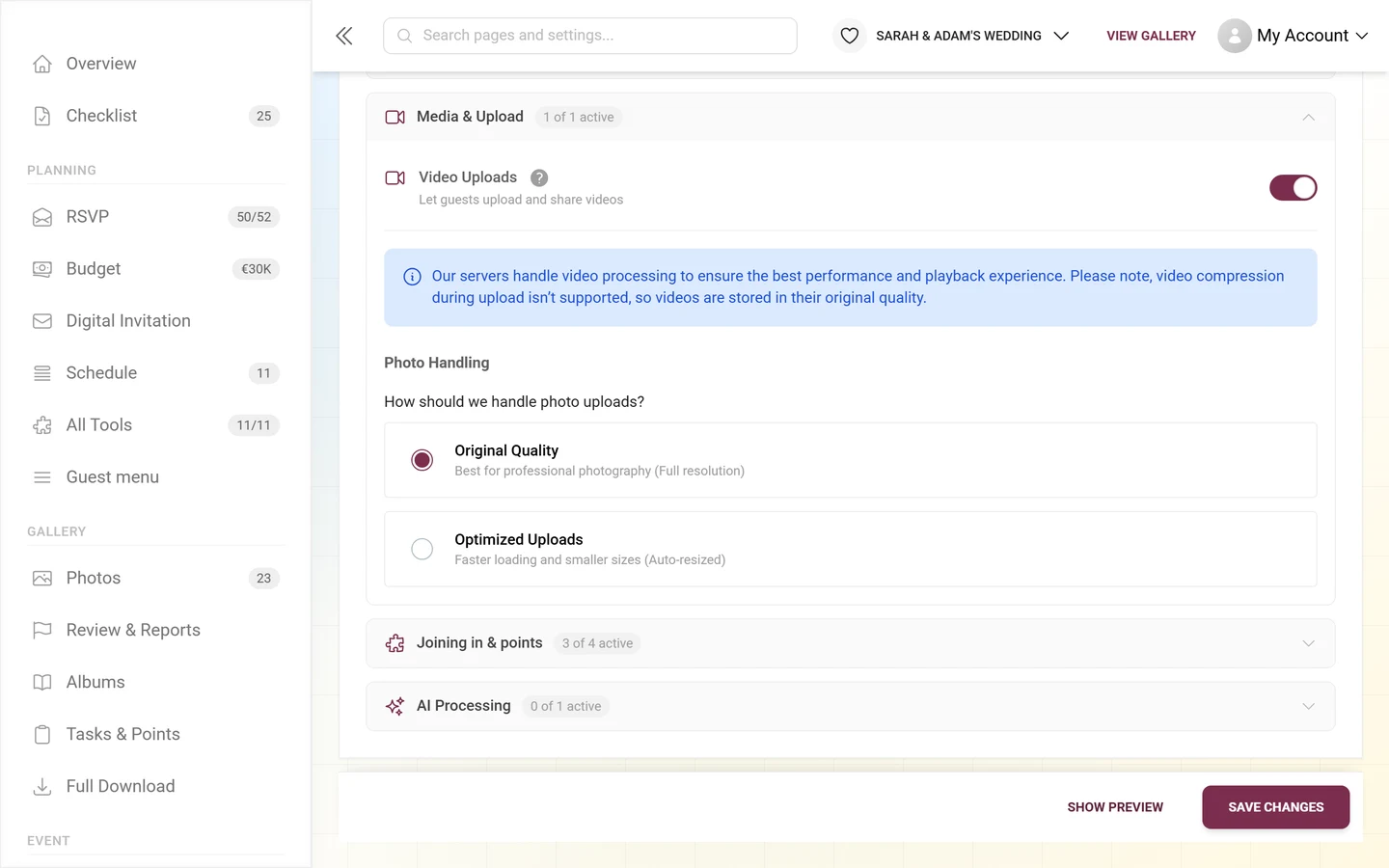
Section titled “Media & Upload”This fold answers two questions about the same uploads: whether videos are allowed and how the files are stored. The second part was a tab of its own called Image Quality until August 2026.
-
Video Uploads – lets guests upload and share videos. This card depends on whether your plan includes video uploads.
-
Note on video processing – right below it, a blue box explains why there is no choice for videos: “Our servers handle video processing … video compression during upload isn’t supported, so videos are stored in their original quality.”
-
Photo Handling – the question “How should we handle photo uploads?” with two options:
- Original Quality – “Best for professional photography (Full resolution)”.
- Optimized Uploads – “Faster loading and smaller sizes (Auto-resized)”. When picked, an Optimization Benefits box lists: up to 70 % smaller files, faster loading on mobile devices, automatic format optimization.
From the guest side, uploading photos and videos is described in Uploading photos.
Joining in & points
Section titled “Joining in & points”The section used to be called Gamification. Nothing inside it changed – only the name, which now matches the sub-entry in the sidebar.
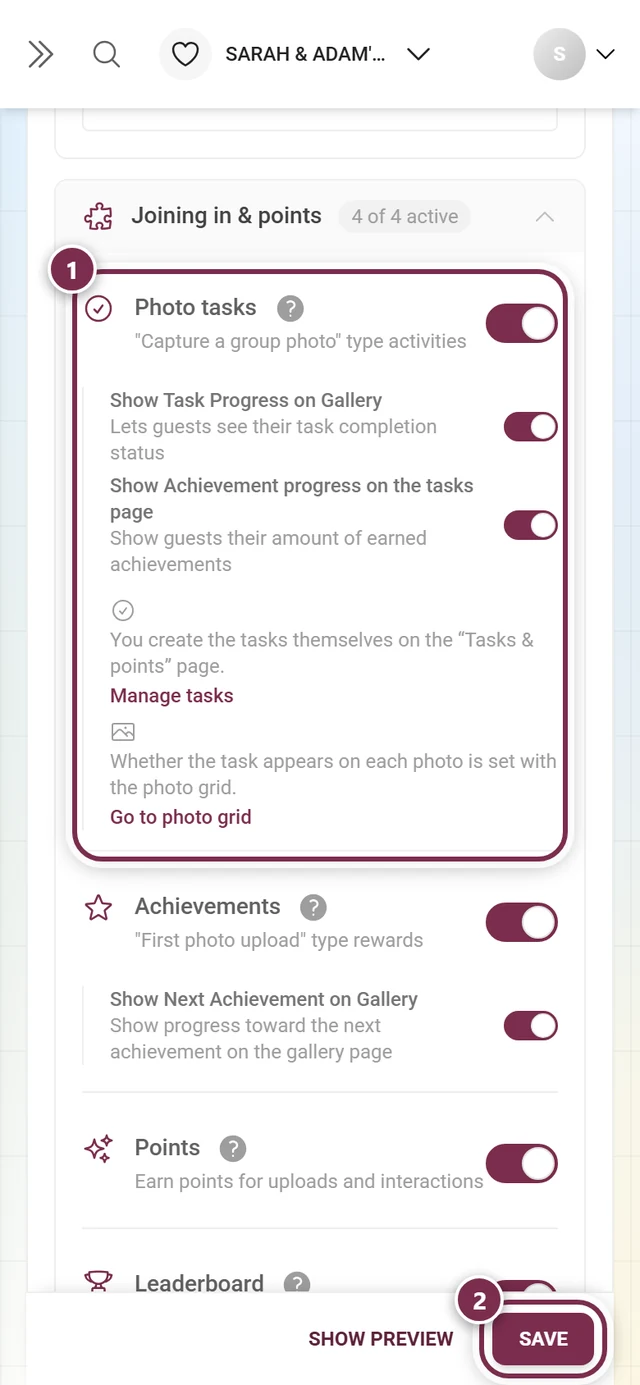
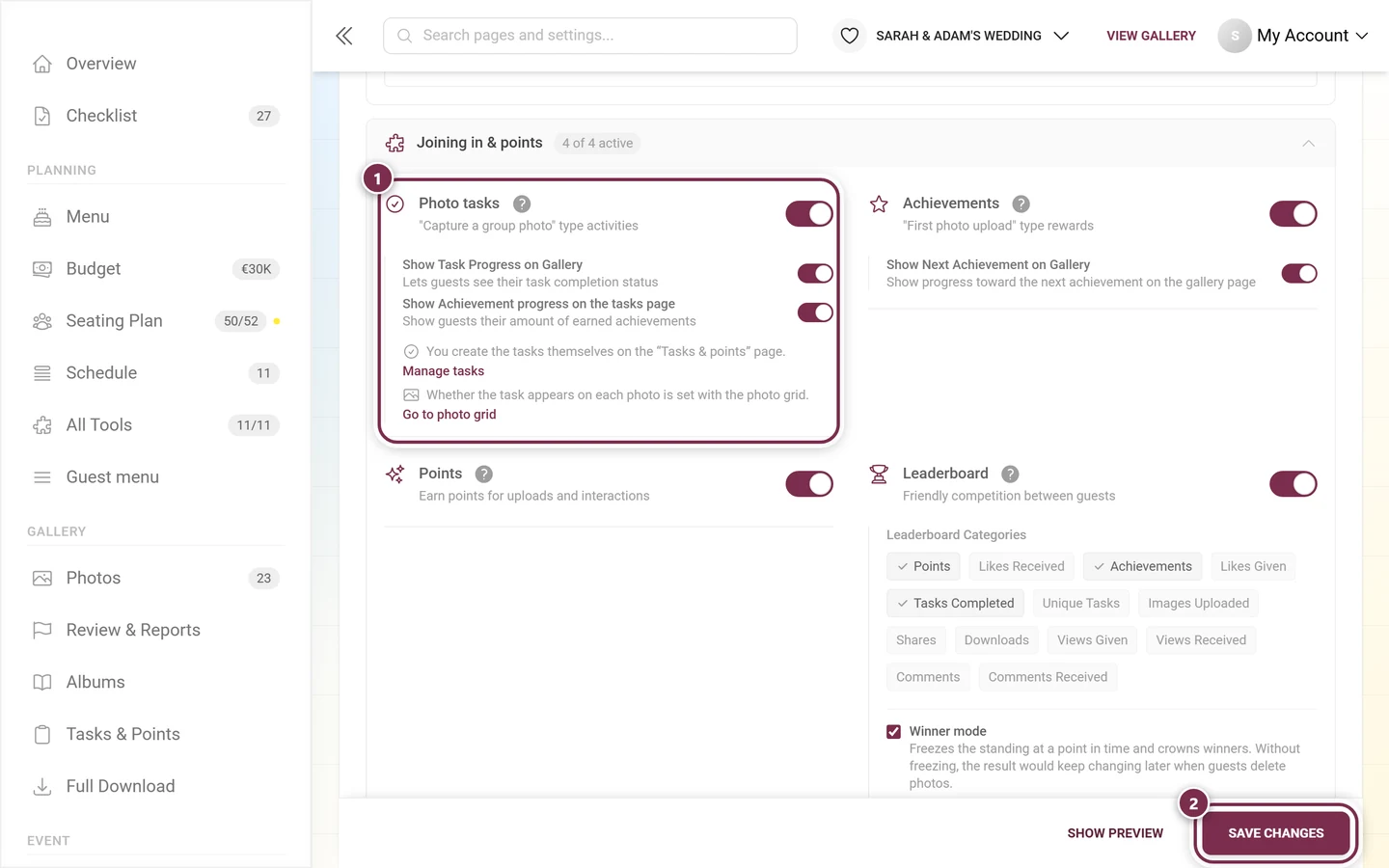
-
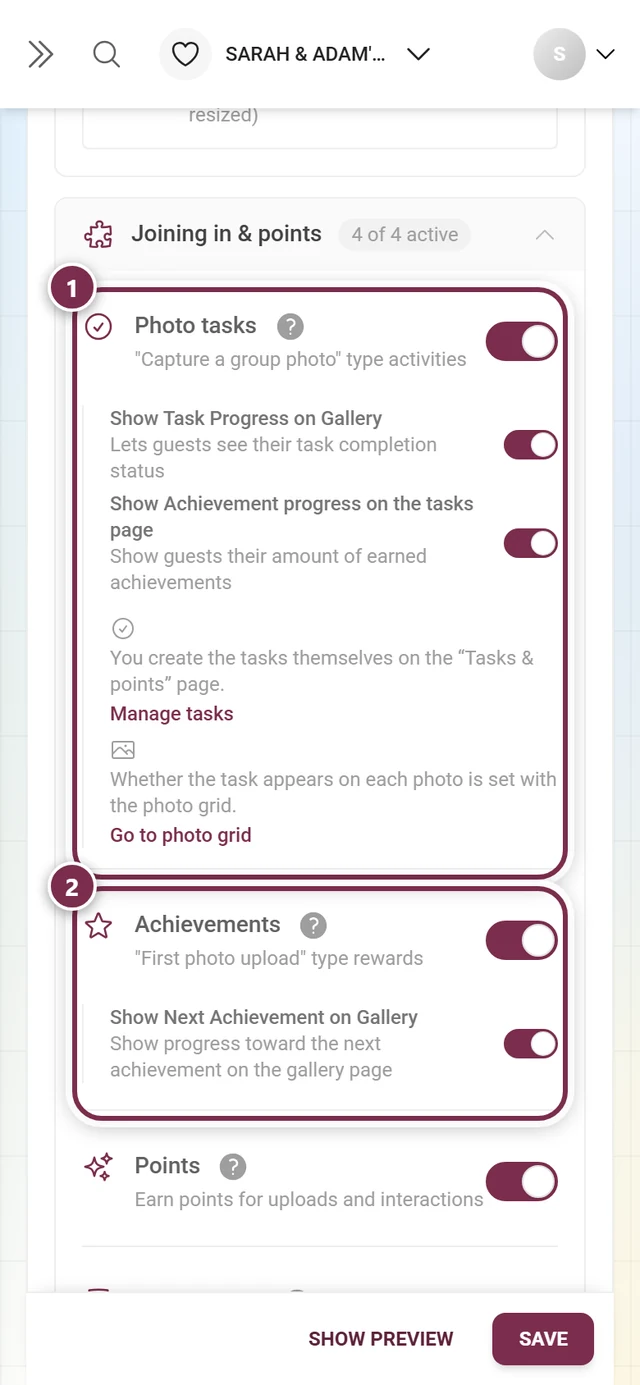
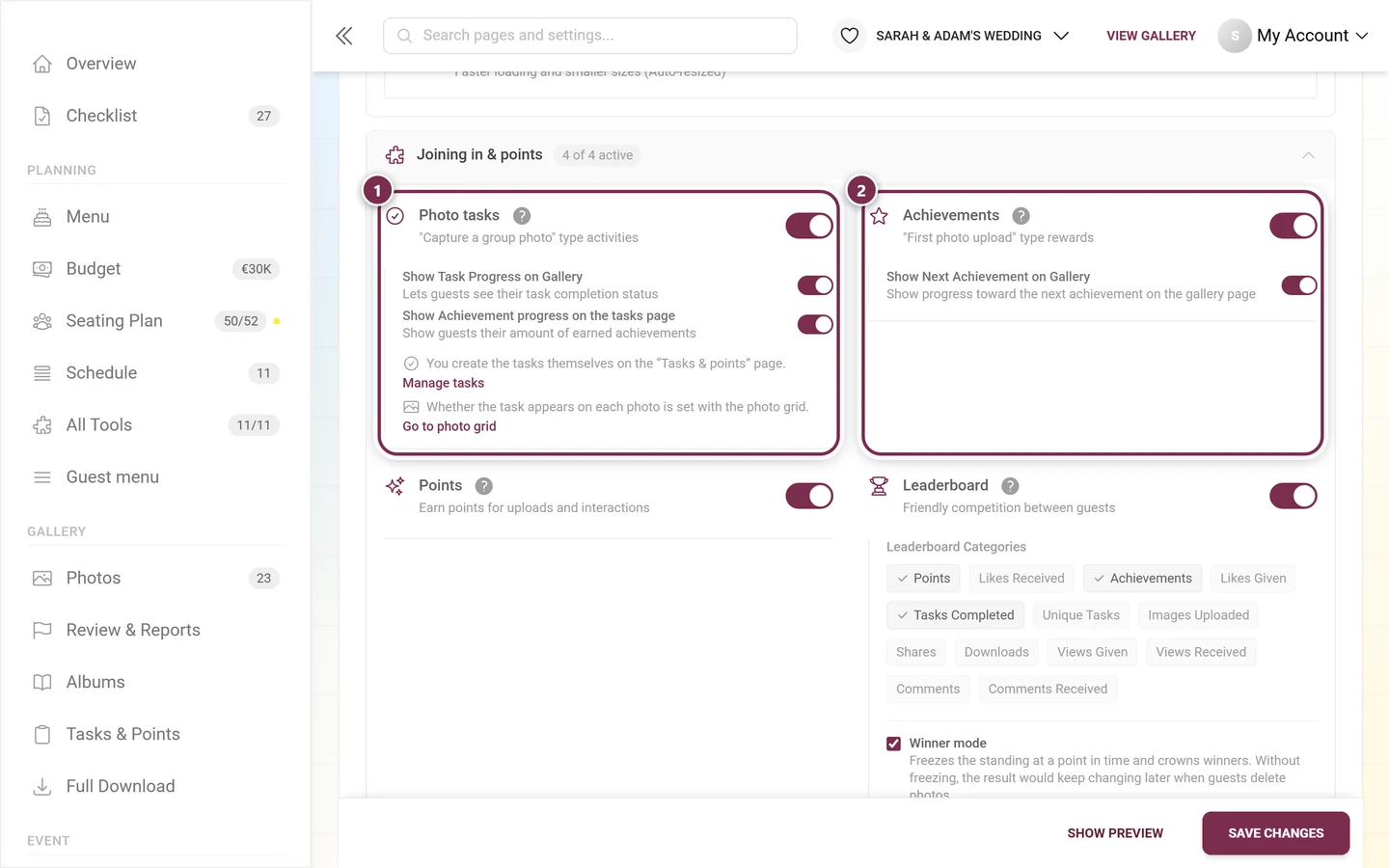
Photo tasks – “Capture a group photo” type activities. Sub-toggles: Show Task Progress on Gallery and Show Achievement progress on the tasks page (only active when both achievements and task progress are on).
-
Achievements – “First photo upload” type rewards. Sub-toggle: Show Next Achievement on Gallery.
-
Points – “Earn points for uploads and interactions”.
-
Leaderboard – “Friendly competition between guests”. Below it the Leaderboard Categories area appears with 13 on/off chips: Points, Likes Received, Achievements, Likes Given, Tasks Completed, Unique Tasks, Images Uploaded, Shares, Downloads, Views Given, Views Received, Comments and Comments Received.
Winner mode
Section titled “Winner mode”Below the category chips, inside the same card, sits Winner mode. It freezes the standing at a point in time and crowns winners – without freezing, the result would keep changing later when guests delete photos. Once ticked you get:
- Freeze the standing on – choose between Fixed moment (date + time) and Relative to the event date (on the event day / 1, 2, 3 days after / 1 week after, each at a time of day). The relative variant moves along automatically when you change the event date. Leave the fixed moment empty to freeze manually at the award ceremony instead.
- Scoring categories – the same categories as above; each one gets its own winners.
- Places per category – how many places receive a prize.
- Exclude organizers – so you don’t win your own party (on by default).
- The link Manage winners, freeze the standing and hand out prizes takes you to the management page where you see the winners after freezing and tick off the prizes.
Once enabled, you create the content: Managing tasks, Achievements and Rewards & Tracking. From the guest side: Challenges and Points & rewards.
AI Processing: Face Processing
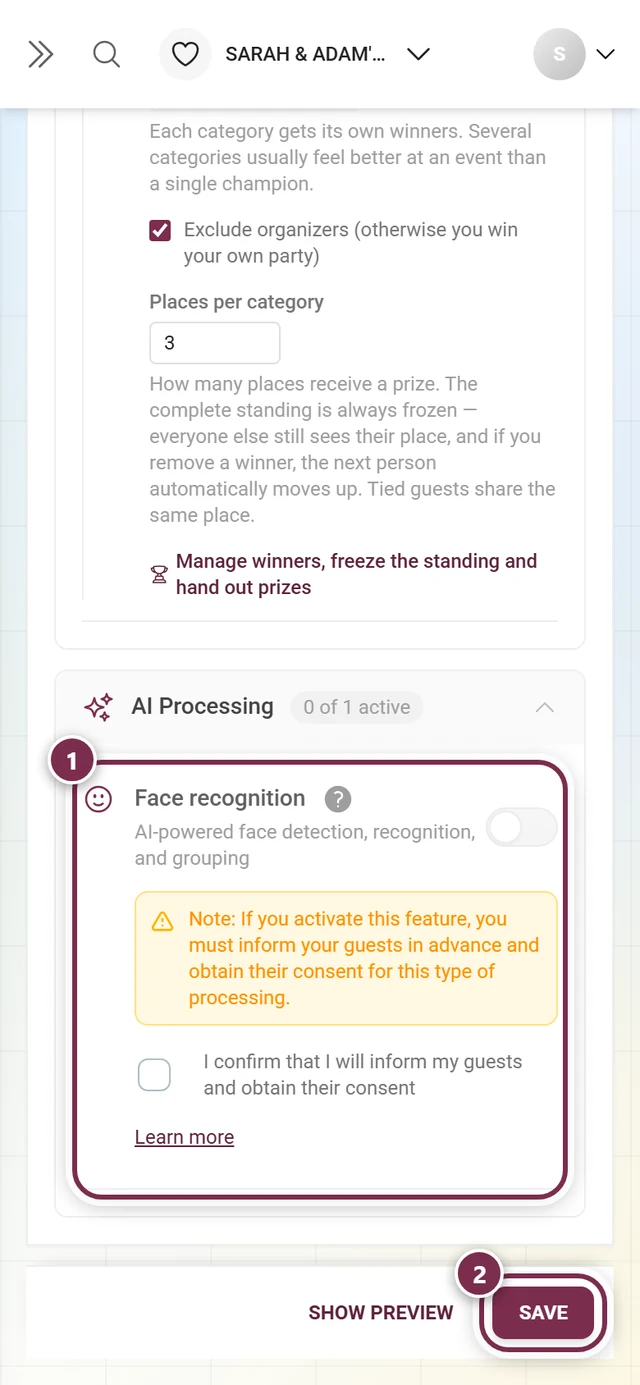
Section titled “AI Processing: Face Processing”The Face Processing card enables AI-powered face detection, recognition and grouping so guests can find photos of themselves. This card is special: because biometric data is processed, consent is mandatory.

-
While the feature is off, you see a warning box: “Note: If you activate this feature, you must inform your guests in advance and obtain their consent for this type of processing.”
-
Below it sits the mandatory checkbox “I confirm that I will inform my guests and obtain their consent”. As long as that box is unticked, the card’s toggle stays locked – clicking it does nothing. Only with the box ticked can face processing be switched on. That is deliberate: nobody should start biometric processing by accident without confirmed consent.
-
The Learn more link opens a detailed GDPR info dialog titled Face Recognition - Guest Information. It contains the sections “Before the Event”, “At the Event”, “What to Communicate” (including a sample consent text for your invitation) and “Guest Rights”. Close it with I understand.
-
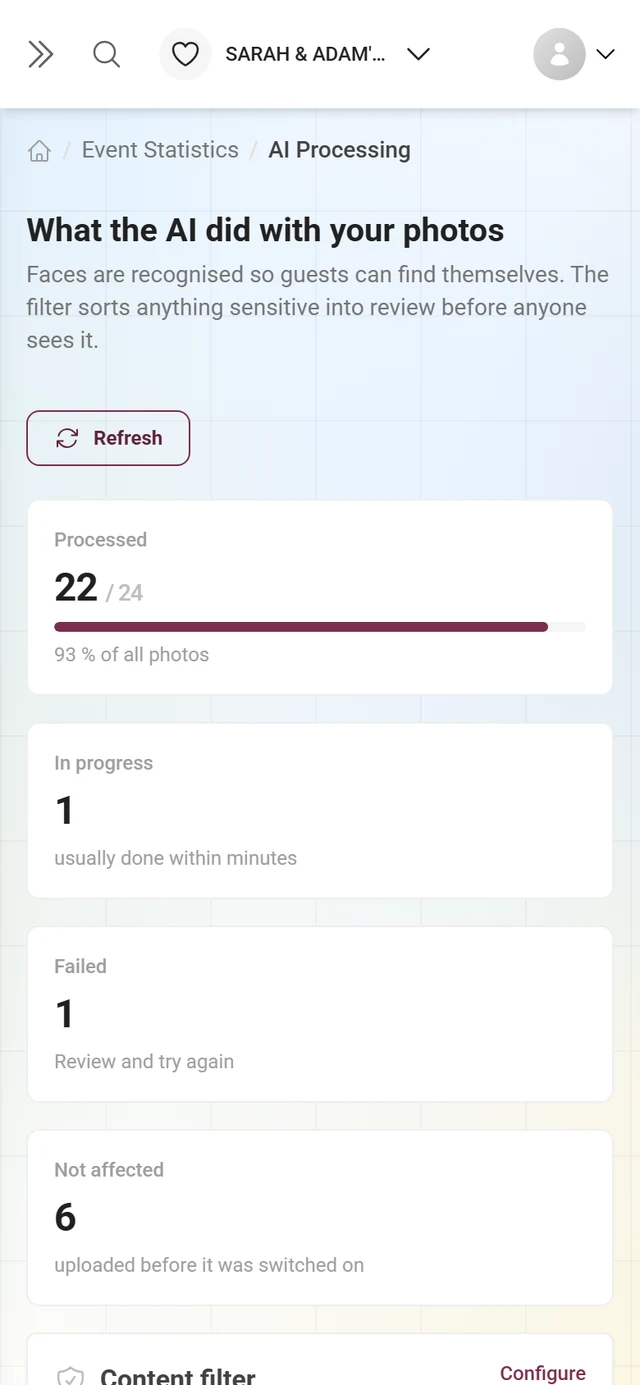
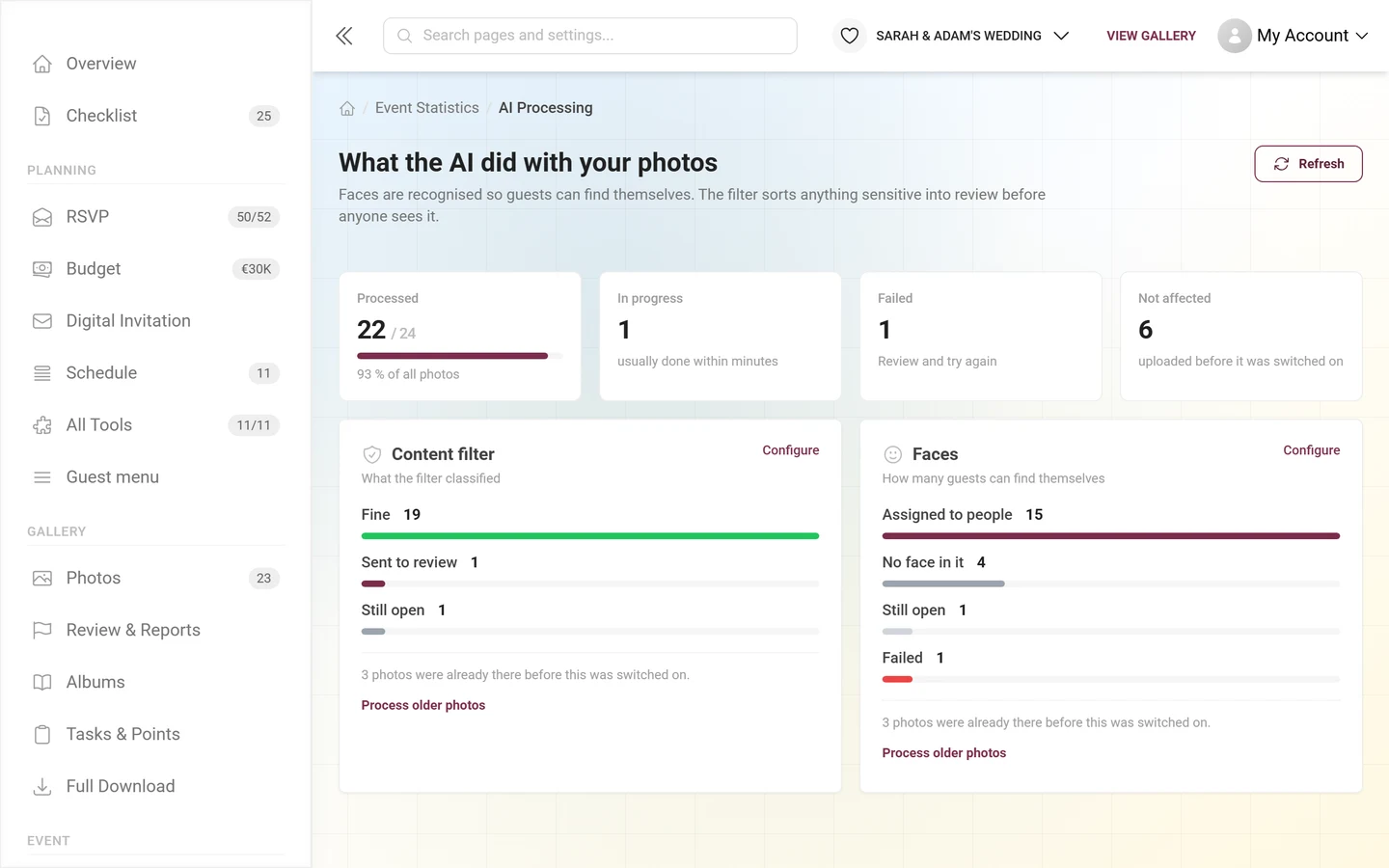
When the feature is on, an info box appears with a link to the AI Processing Stats page, since processing existing photos can take a while.
For details on processing, see AI processing. From the guest side: Face search and Face recognition & privacy.
Creating content
Section titled “Creating content”After enabling a feature, you create the matching content in the relevant area. Here’s an overview of the key dialogs – full guides are on the linked pages.
Create an album
Section titled “Create an album”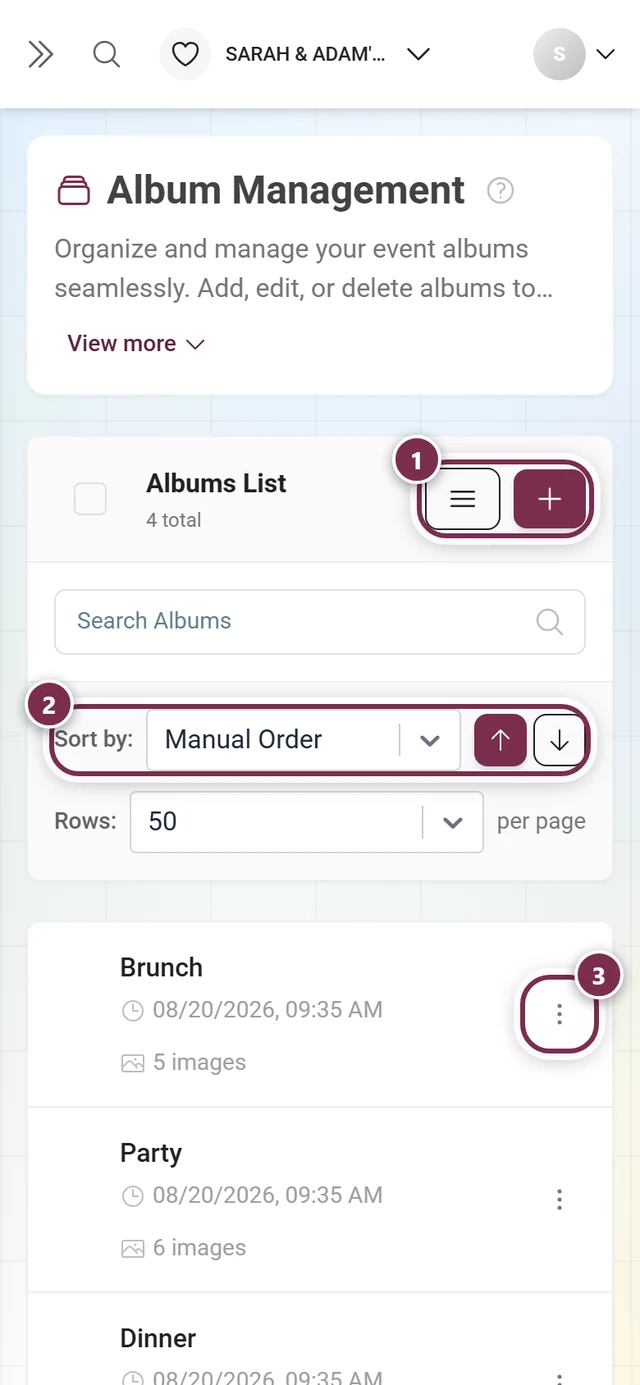
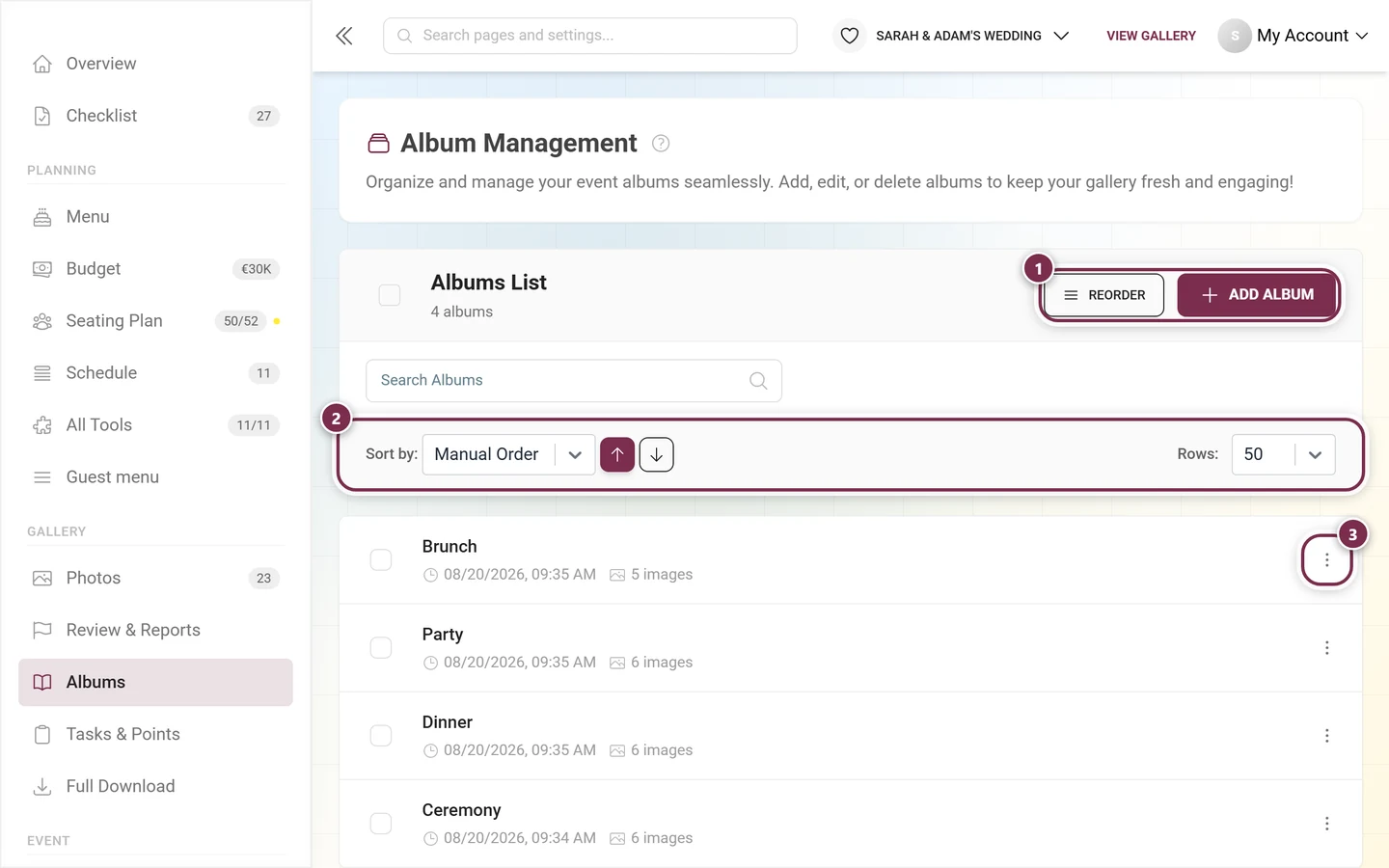
Open the Albums Manager and click Add Album (on a phone the button shows only a plus symbol). In the dialog you pick the album type (Manual or Smart), the language, a Title (required) and a Description, and for smart albums the rule builder – whose “Person” (face) criterion requires active face processing. Below that you set the in-album sorting and the Cover image. Full guide: Albums Manager.
Create a photo challenge
Section titled “Create a photo challenge”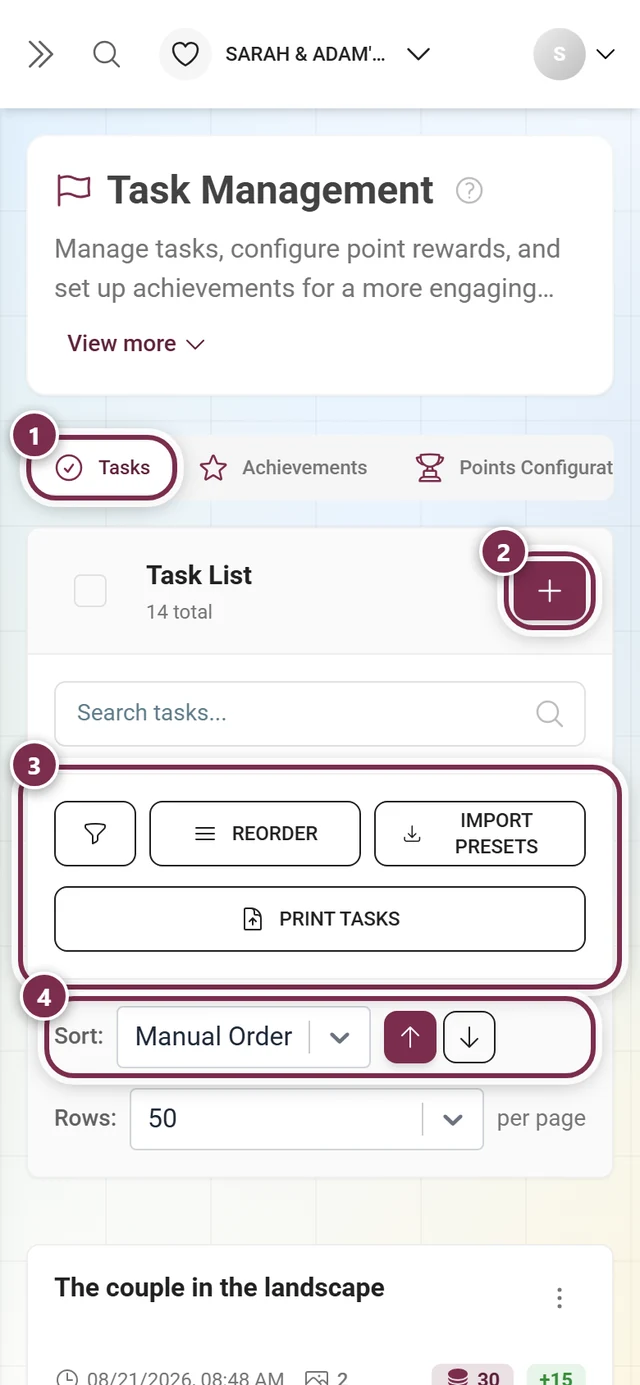
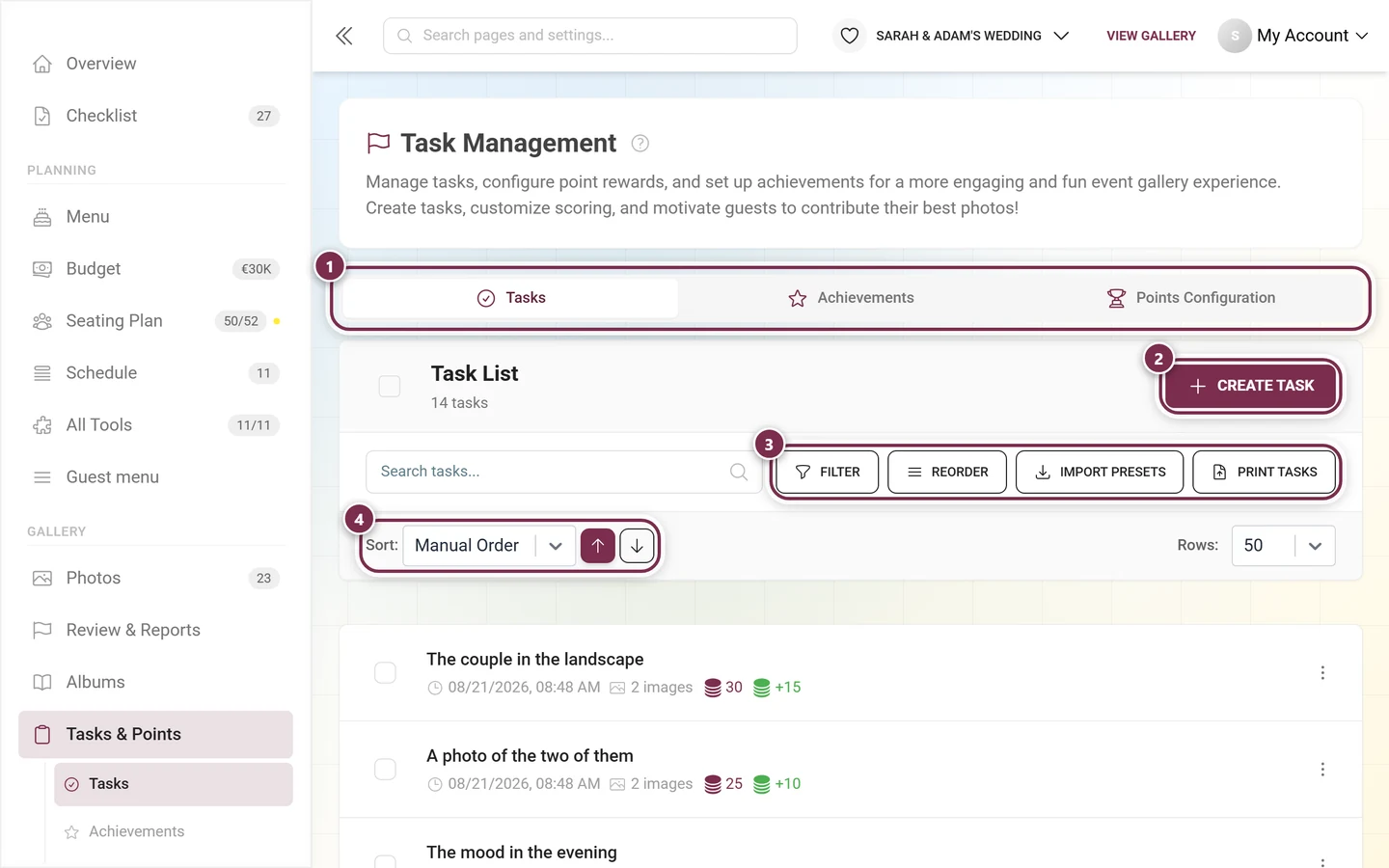
In the sidebar under Gallery, open the Tasks & Points area, choose the Tasks tab and create a new task: language, the description text and a Task Image (drop zone with template selection), plus conditions and points. Instead of writing your own, you can Import Presets. Full guide: Managing tasks.
Create an achievement
Section titled “Create an achievement”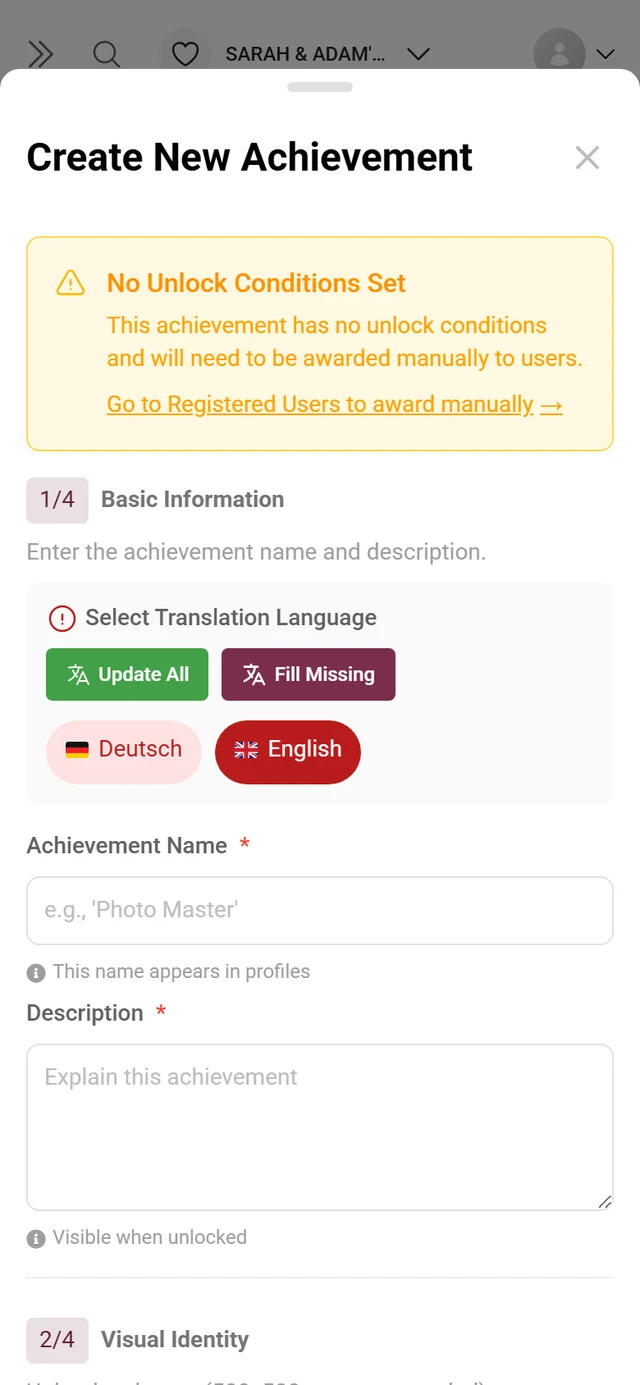
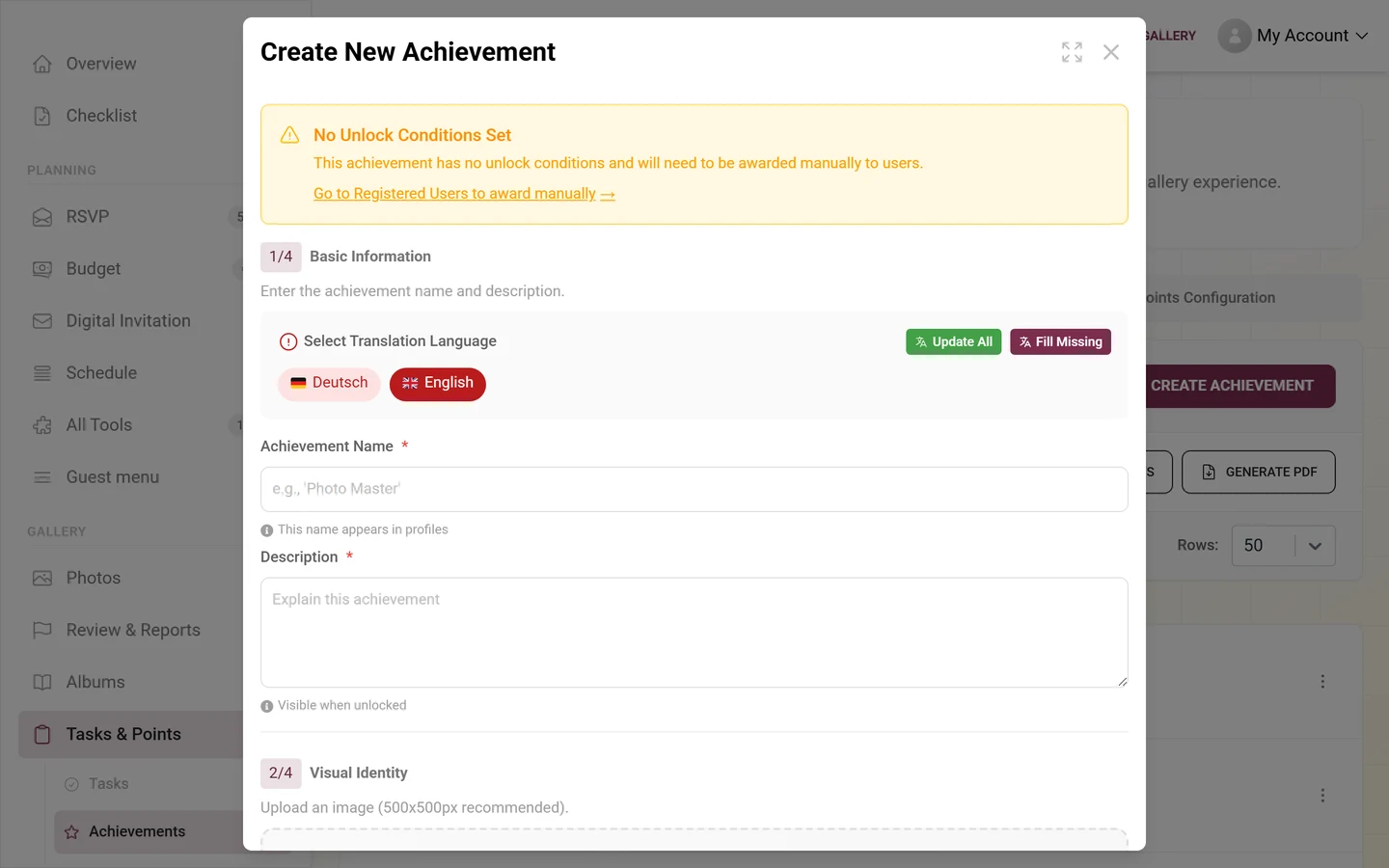
In the same area, open the Achievements tab and click Add. The dialog guides you through Basic Information (name and description, both required), Visual Identity, Reward Type and Unlock Conditions. The area also has a Points Configuration tab. Full guide: Achievements.
Premium & gating
Section titled “Premium & gating”Troubleshooting
Section titled “Troubleshooting”Tips from practice
Section titled “Tips from practice”Related help
Section titled “Related help”- Neighbouring areas: General · Access · Appearance · Moderation & safety · Image quality (now inside Media & Upload)
- Content: Albums Manager · Tasks · Achievements · Rewards & Tracking · Winners & prizes
- Display & export: Set up the photo wall · Download & export · AI processing
- Terms: Glossary