Photo Wall setup
The photo wall shows your guests’ new photos live on a big screen – a TV or a projector. The settings tab is organized around four questions, and this page follows the exact same order: How does it look?, What plays on it?, Which photos?, What gets overlaid?
How to reach the photo wall settings
Section titled “How to reach the photo wall settings”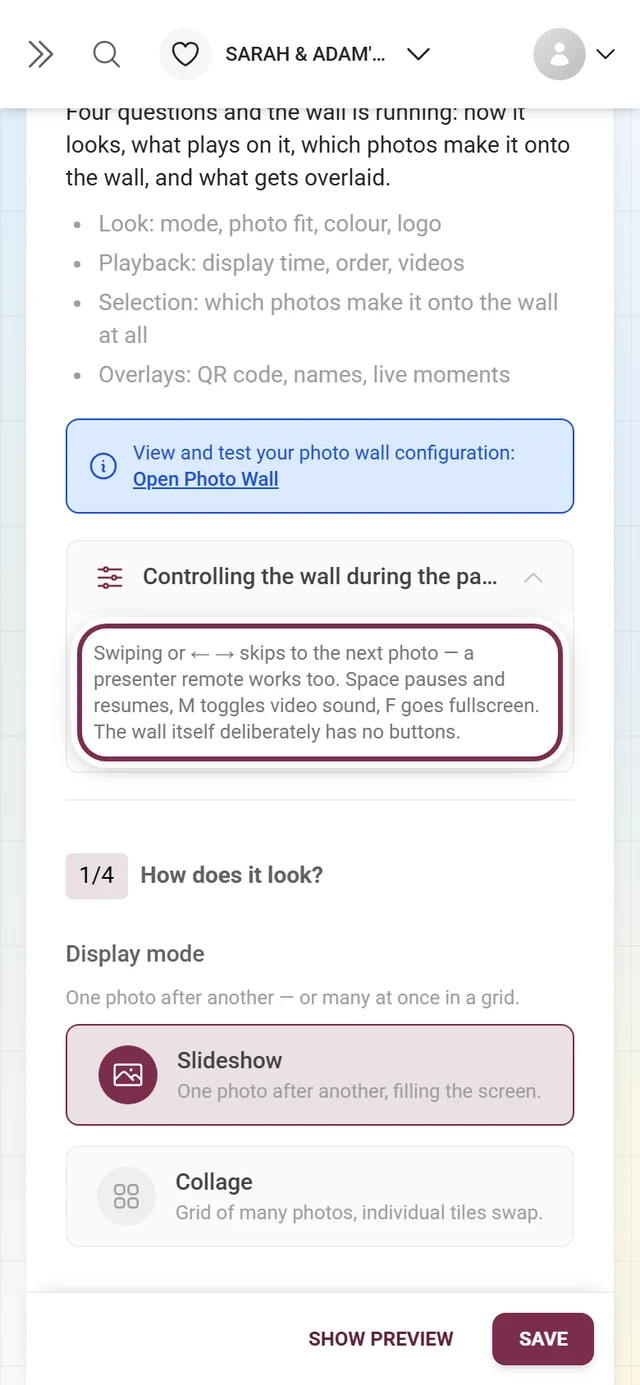
-
Open the profile menu at the top right of the gallery and pick Admin Portal under Management. Details: Go to event / management.
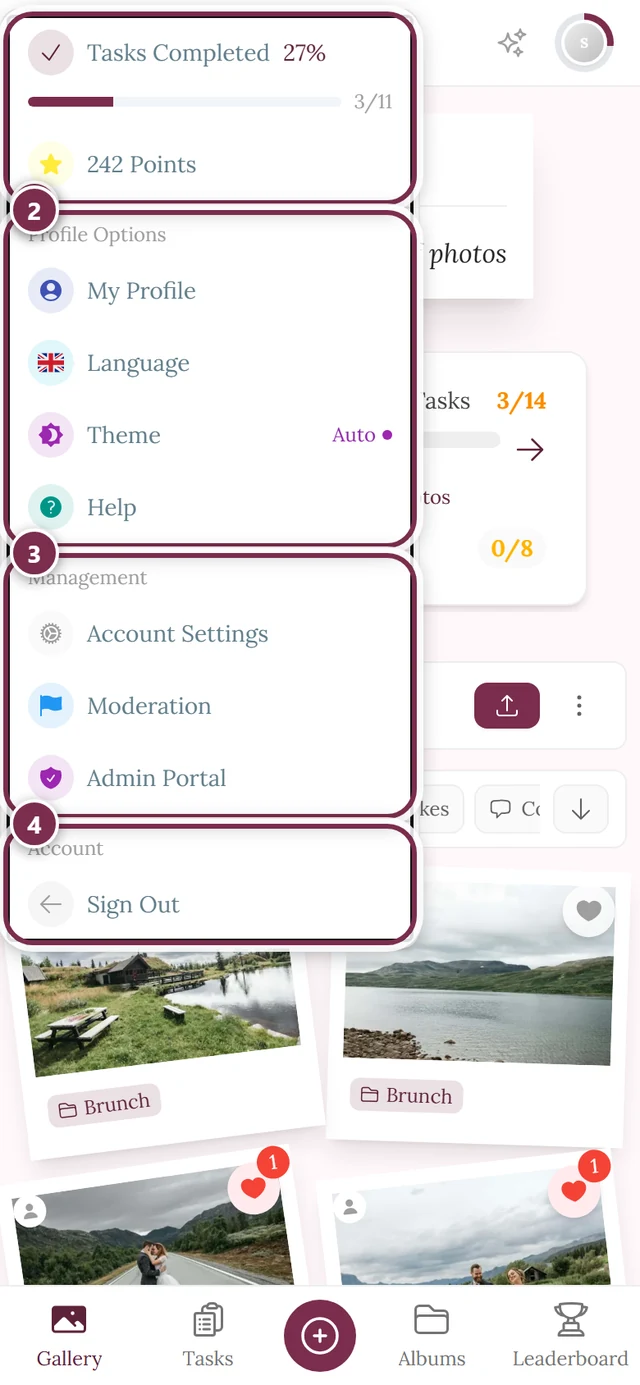
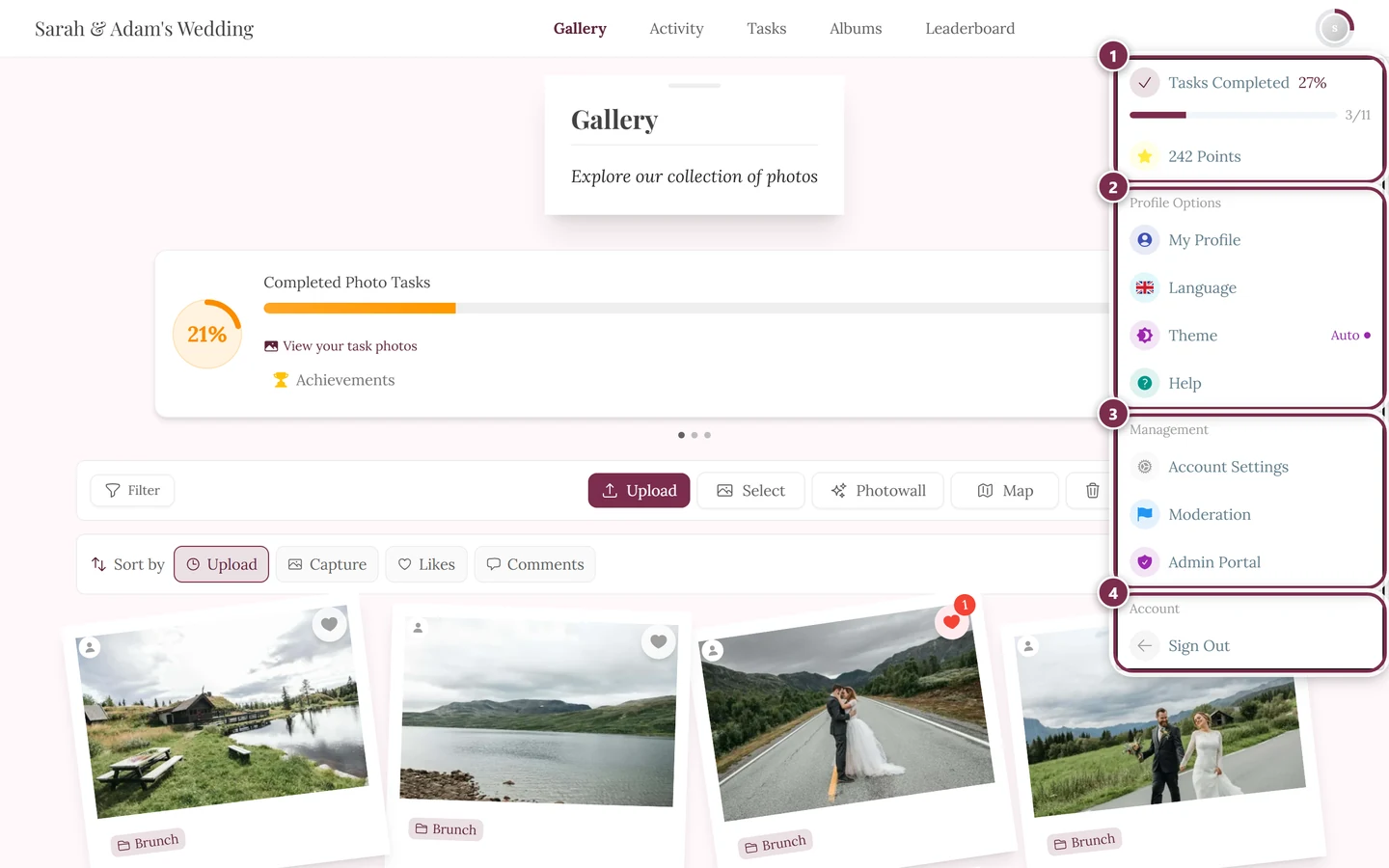
The profile menu at the top right takes you to the admin portal. ① your points and solved tasks, ② Profile options with My Profile, Language, Theme and Help, ③ Management with Account Settings, Moderation and Admin Portal – this section is missing until you hold a role for it, ④ Account with Sign out. -
Open Settings in the left sidebar.
-
Click Photo Wall Settings (photo icon) in the tab bar. The address becomes
/admin/settings?tab=photo-wall.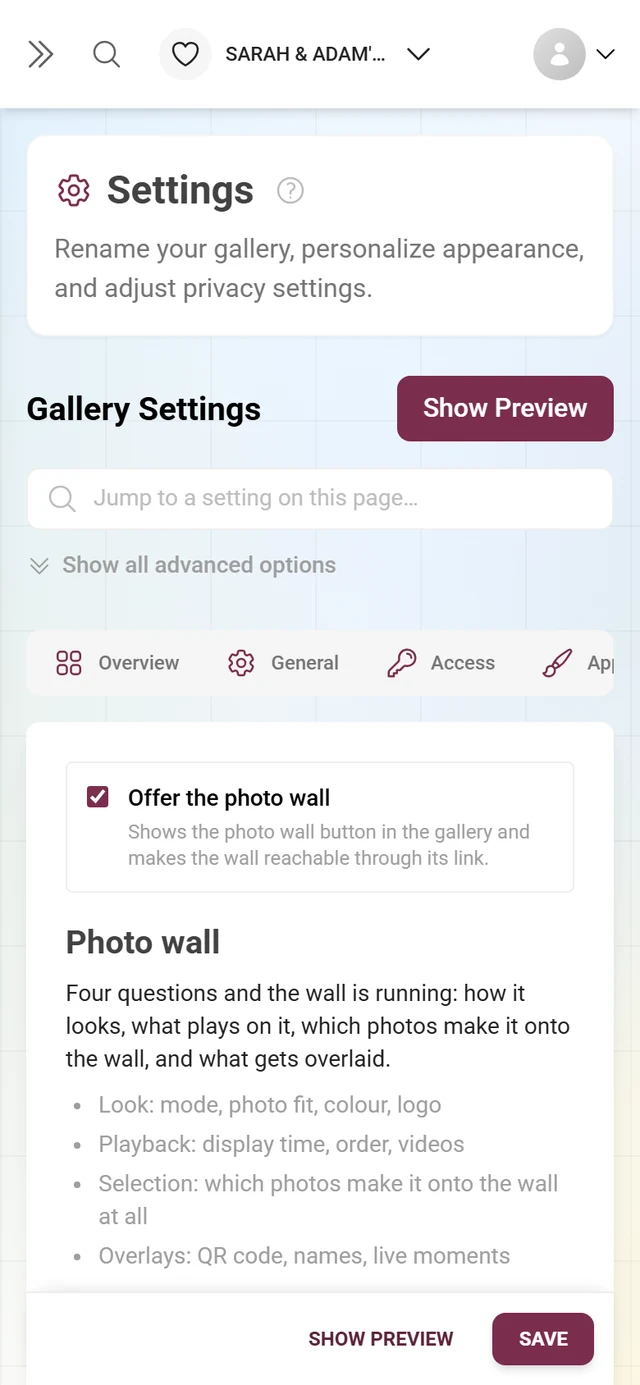
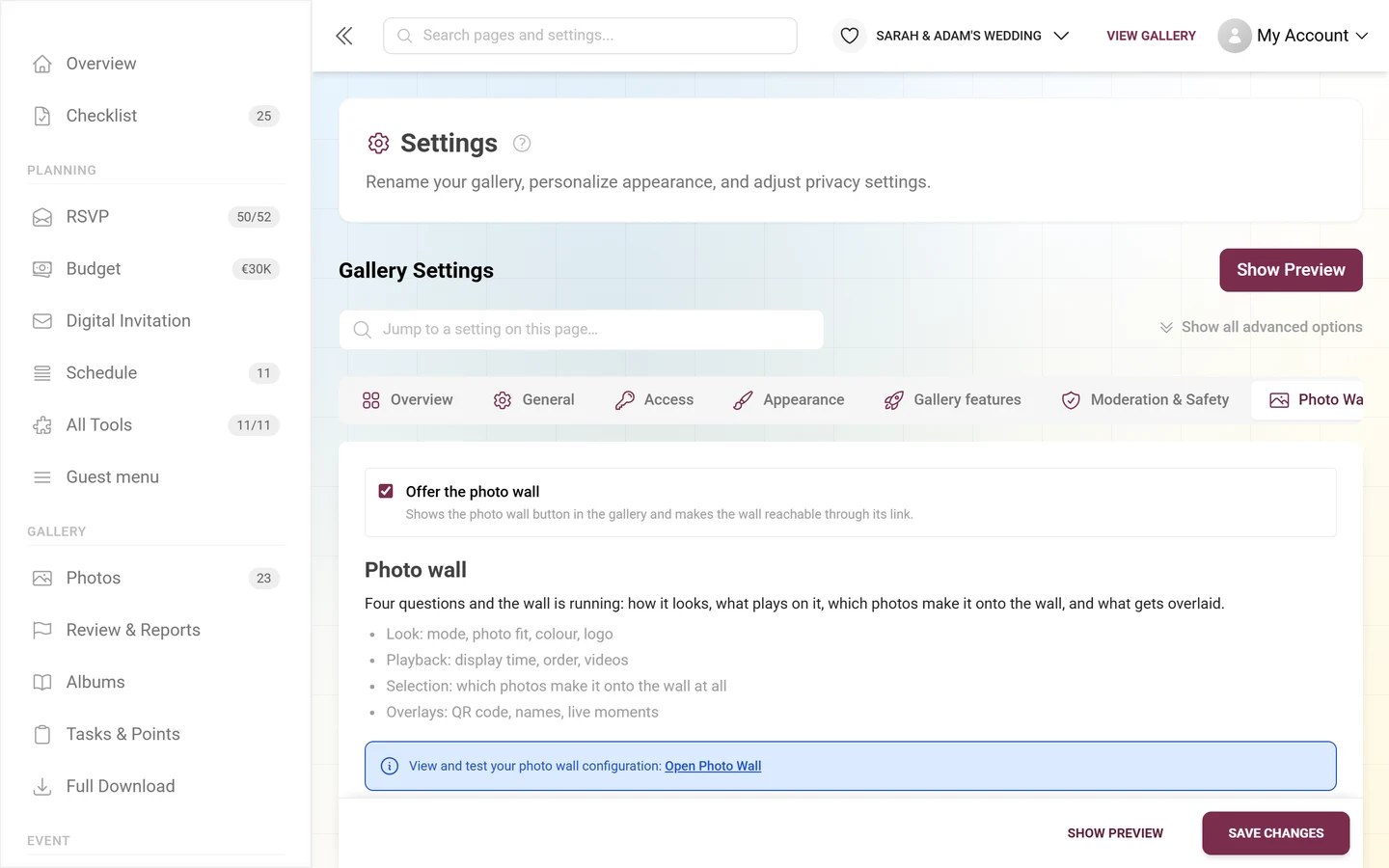
The switch sits at the very top, followed by the four questions the wall is made of.
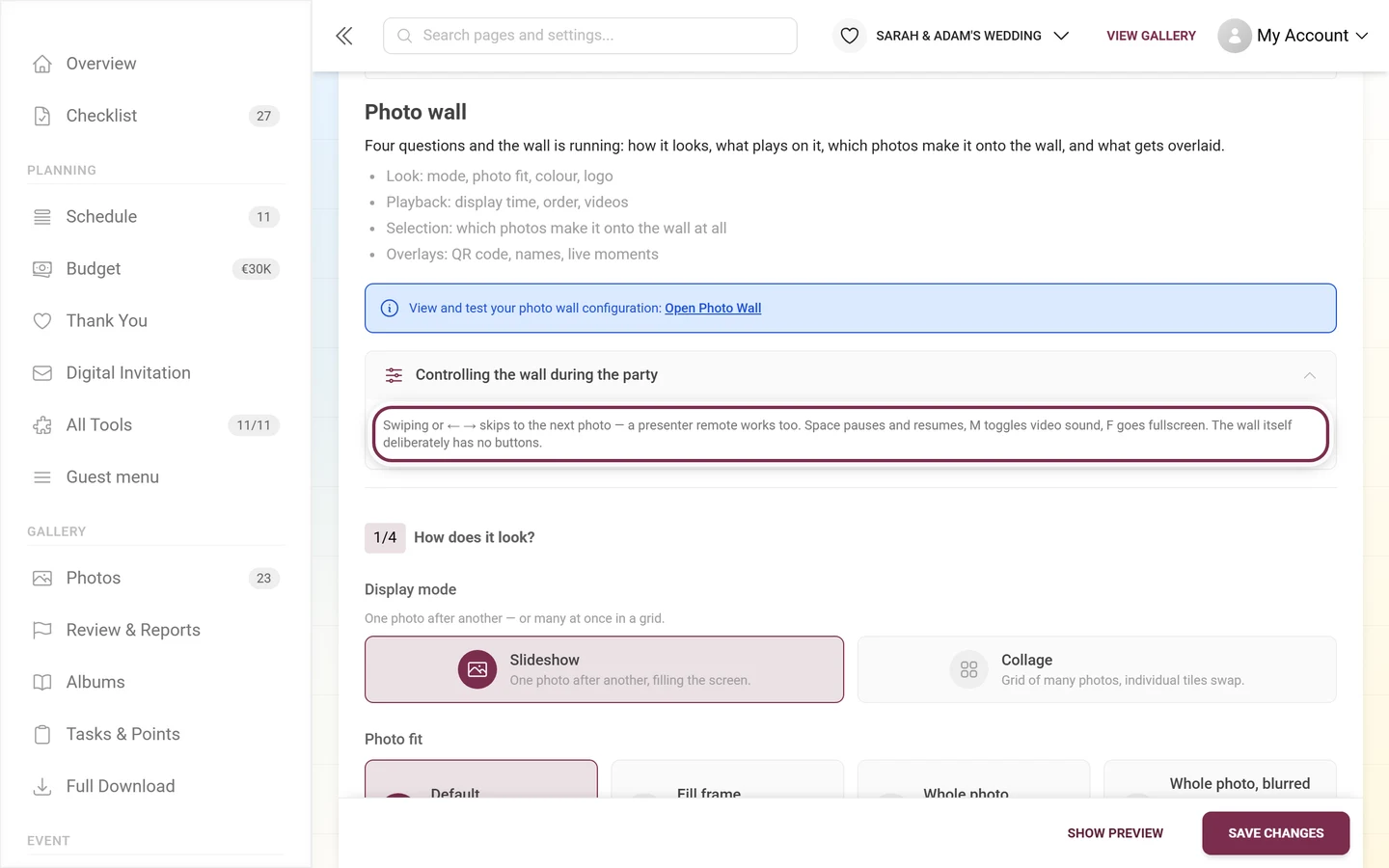
The very first thing on the page is the switch Offer the photo wall. Below it come the heading Photo wall and the sentence “Four questions and the wall is running: how it looks, what plays on it, which photos make it onto the wall, and what gets overlaid.” with a short table of contents:
- Look: mode, photo fit, color, logo
- Playback: display time, order, videos
- Selection: which photos make it onto the wall at all
- Overlays: QR code, names, live moments
Question 1 – How does it look?
Section titled “Question 1 – How does it look?”Display mode
Section titled “Display mode”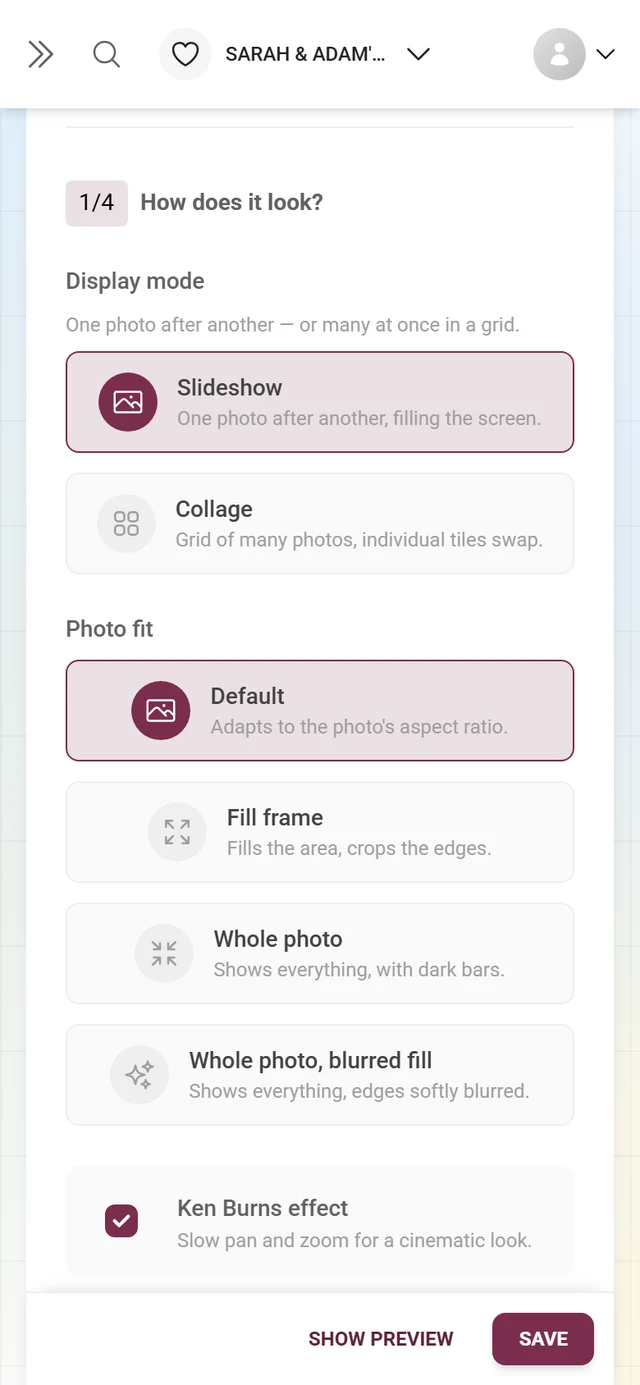
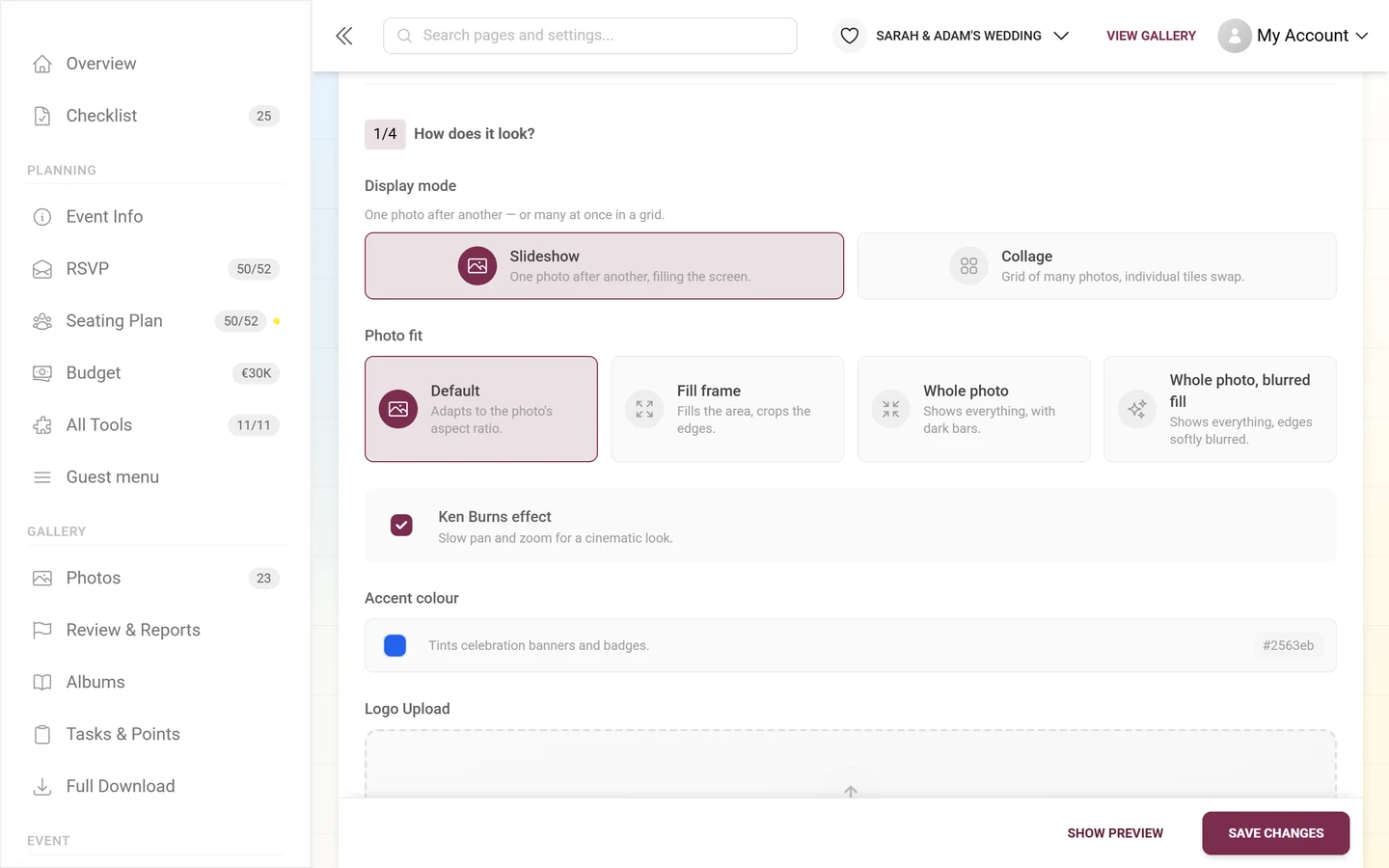
Two cards, described as “One photo after another — or many at once in a grid.”:
- Slideshow – “One photo after another, filling the screen.”
- Collage – “Grid of many photos, individual tiles swap.”
Photo fit
Section titled “Photo fit”“How each photo fills its frame.” – four cards:
- Default – “Adapts to the photo’s aspect ratio.”
- Fill frame – “Fills the area, crops the edges.” The crop follows the photo’s focus point.
- Whole photo – “Shows everything, with dark bars.”
- Whole photo, blurred fill – “Shows everything, edges softly blurred.”
Ken Burns effect
Section titled “Ken Burns effect”“Slow pan and zoom for a cinematic look.” On by default.
Accent color
Section titled “Accent color”“Tints celebration banners and badges.” The hex value sits on the right, and the color can be reset. Without your own value the wall inherits the event’s accent or primary color (see Customizing the look); the last fallback is the brand blue #2563eb.
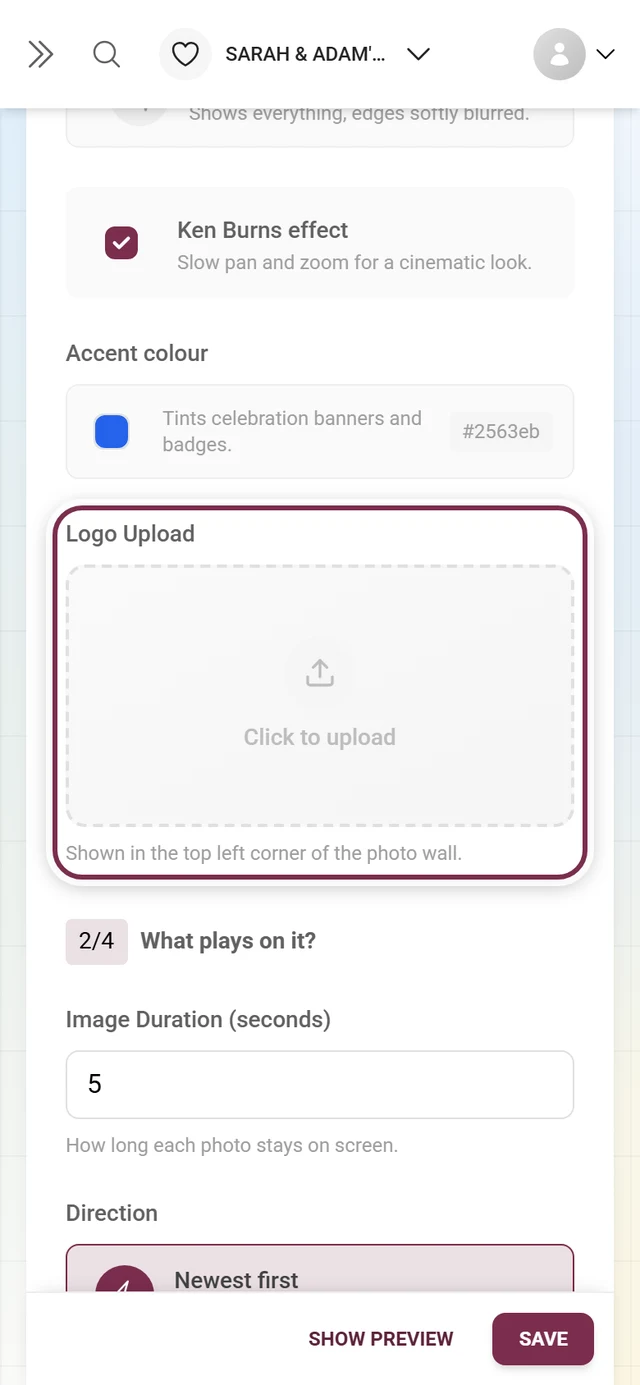
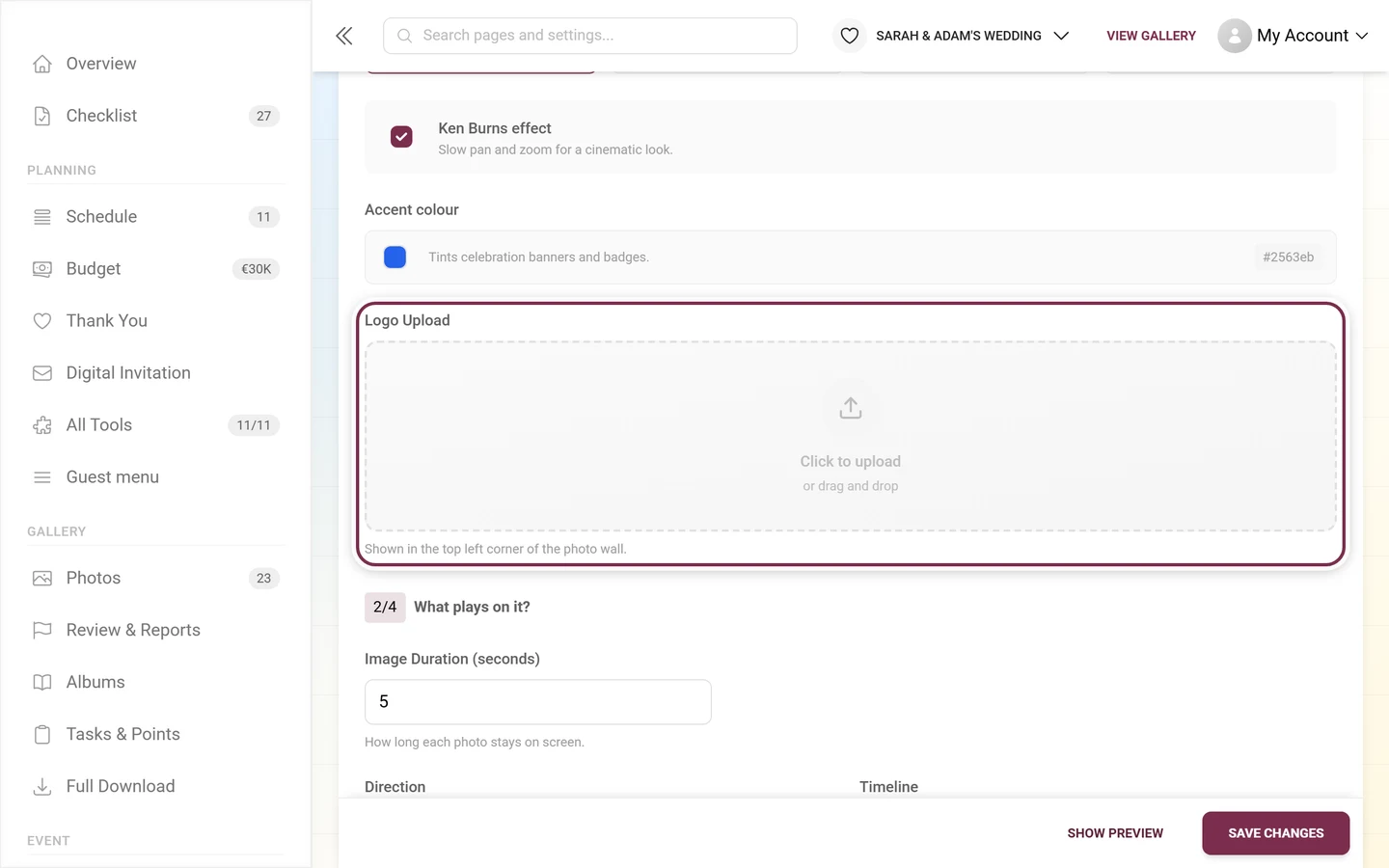
Logo Upload
Section titled “Logo Upload”Drag an image file into the drop area or click into it. The hint below reads: “Shown in the top left corner of the photo wall.” And that is where it stays – the wall has five fixed zones: top left the logo, top right the QR code, bottom left the photo context, bottom right the live celebration, bottom center the status.
Question 2 – What plays on it?
Section titled “Question 2 – What plays on it?”Image Duration (seconds)
Section titled “Image Duration (seconds)”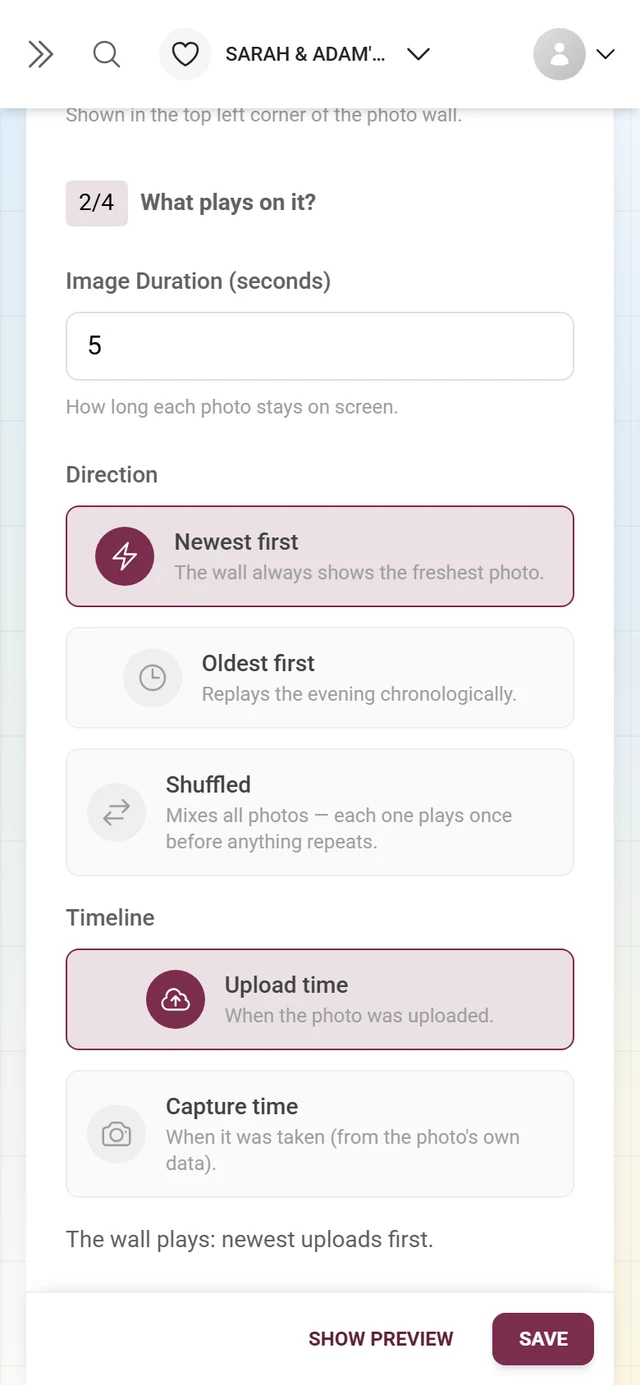
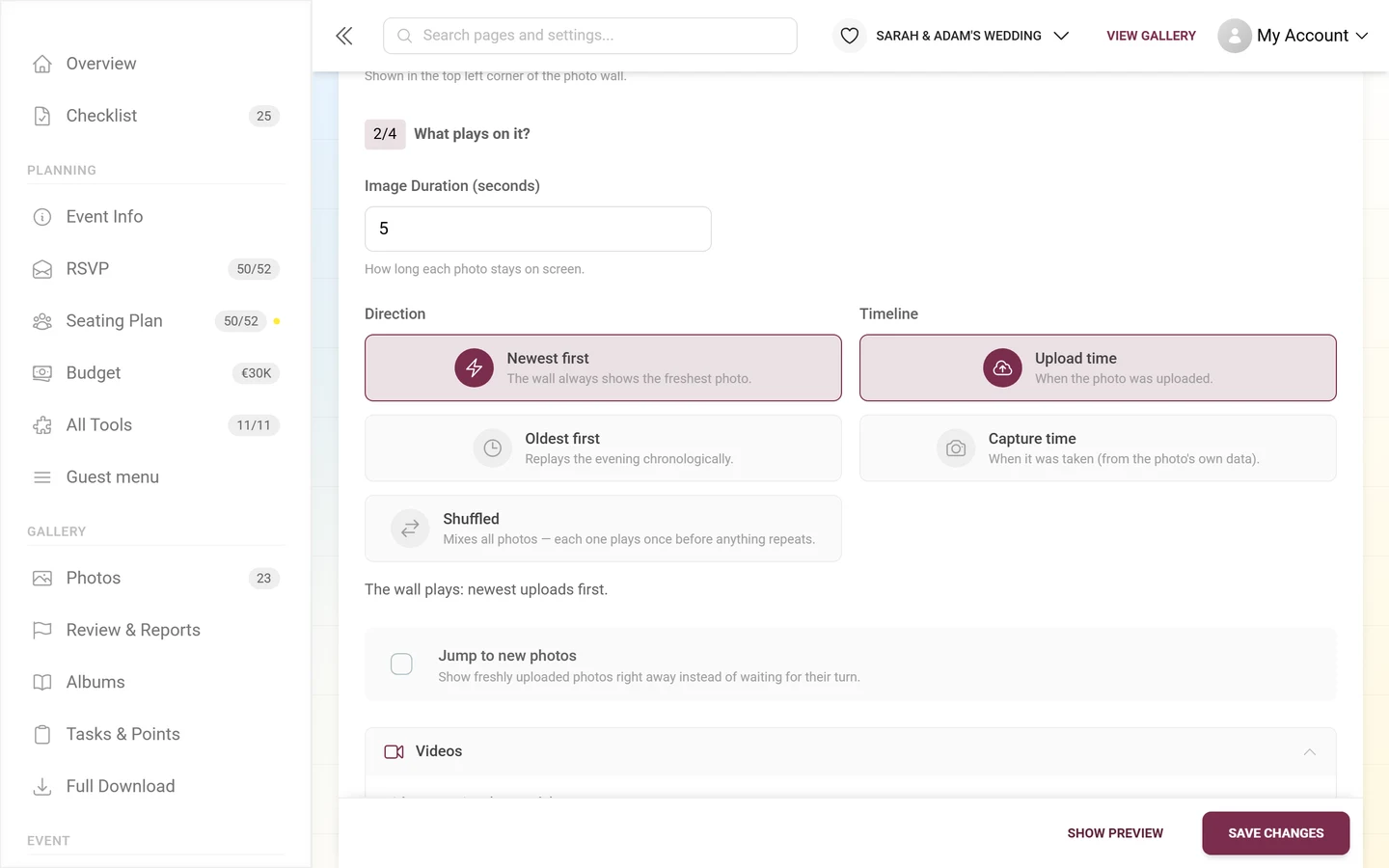
“How long each photo stays on screen.” Minimum 1, default 5.
Direction & Timeline
Section titled “Direction & Timeline”These two fields sit side by side because they are one decision. Below them the page echoes the result in plain words: “The wall plays: …”
Direction – three cards:
- Newest first – “The wall always shows the freshest photo.”
- Oldest first – “Replays the evening chronologically.”
- Shuffled – “Mixes all photos — each one plays once before anything repeats.”
Timeline – two cards:
- Upload time – “When the photo was uploaded.”
- Capture time – “When it was taken (from the photo’s own data).”
Jump to new photos
Section titled “Jump to new photos”“Show freshly uploaded photos right away instead of waiting for their turn.” That rewards guests immediately after they upload.
Videos
Section titled “Videos”A collapsed block of its own:
-
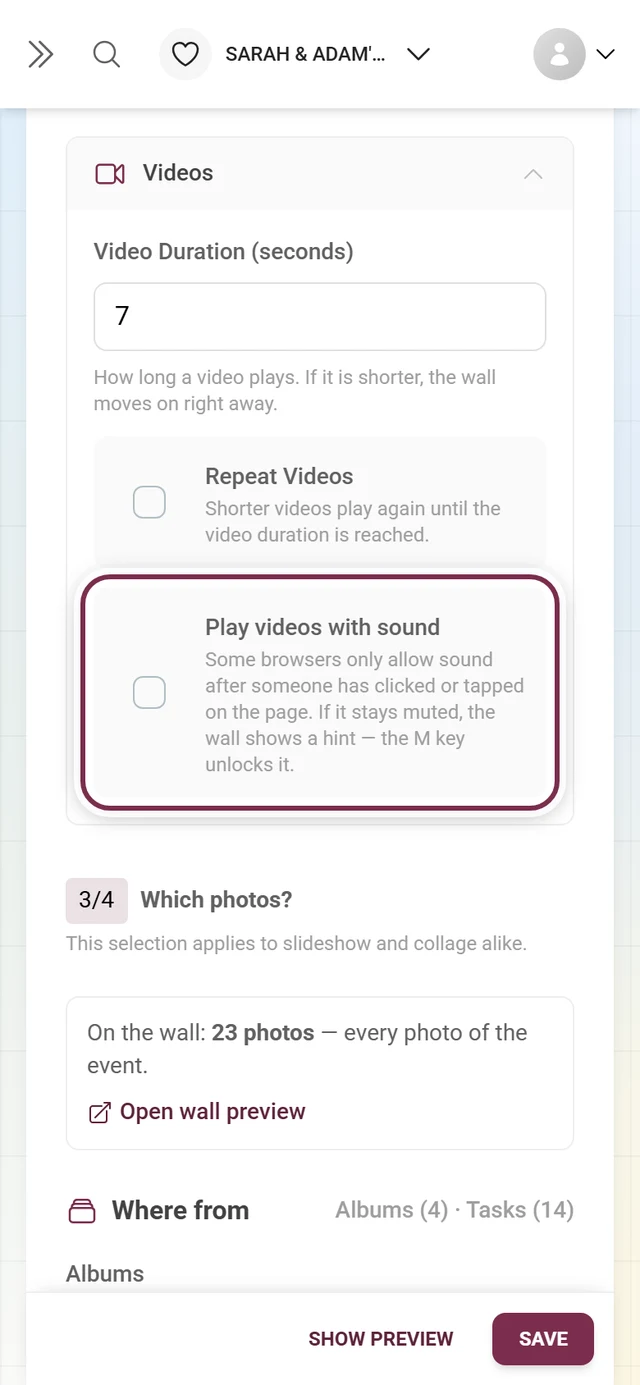
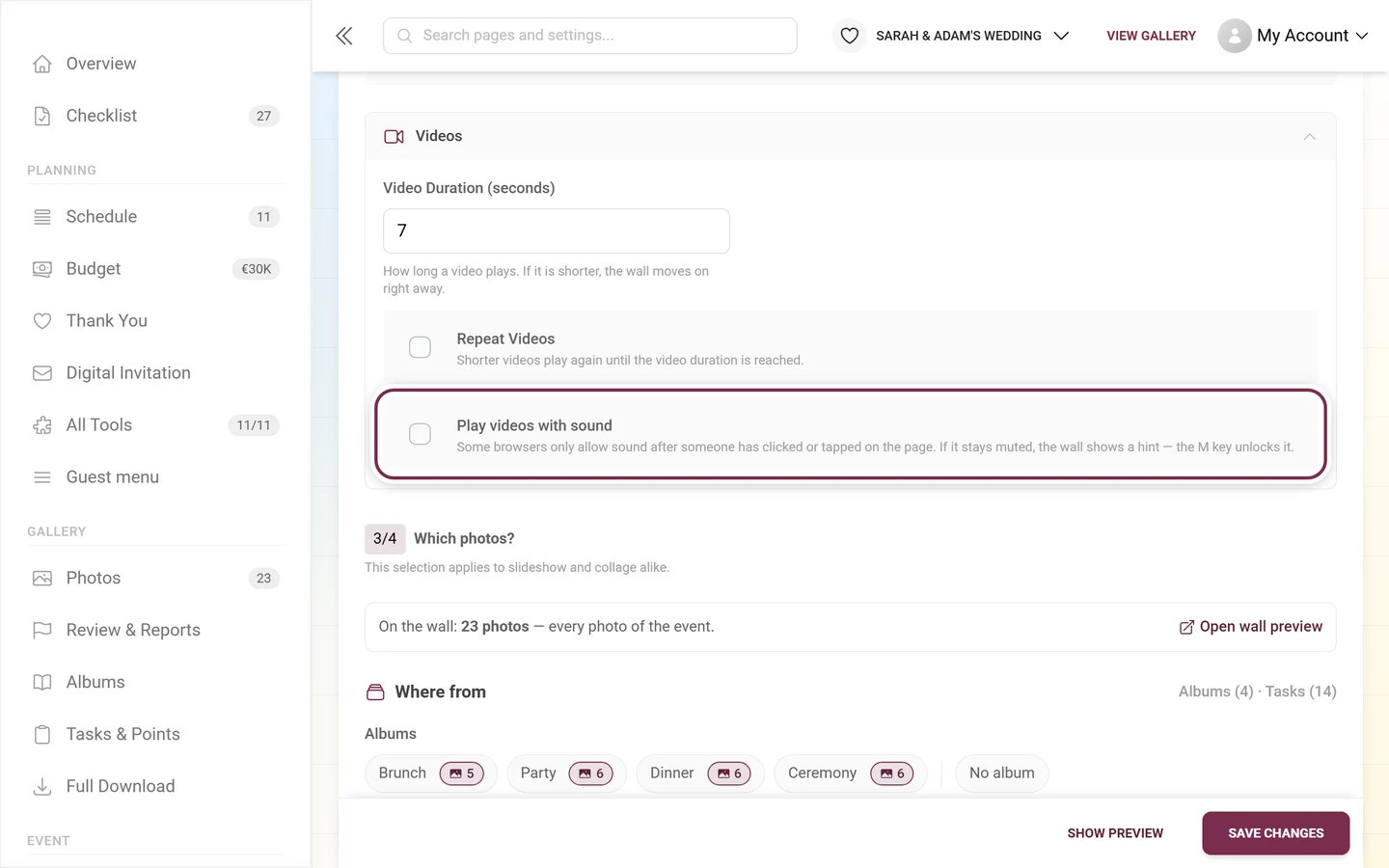
Video Duration (seconds) – “How long a video plays. If it is shorter, the wall moves on right away.” Minimum 1, default 7.
-
Repeat Videos – “Shorter videos play again until the video duration is reached.”
-
Play videos with sound – “Some browsers only allow sound after someone has clicked or tapped on the page. If it stays muted, the wall shows a hint — the M key unlocks it.”
Question 3 – Which photos?
Section titled “Question 3 – Which photos?”The area opens with the sentence “This selection applies to slideshow and collage alike.”
The preview count at the top
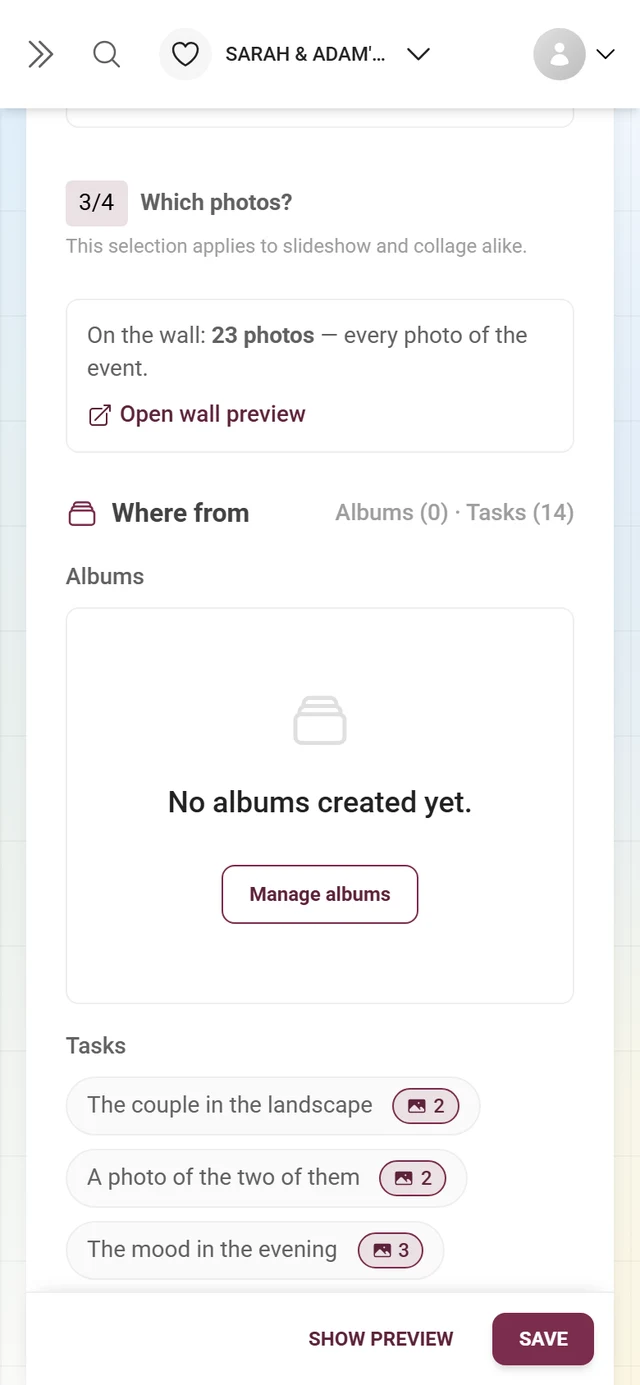
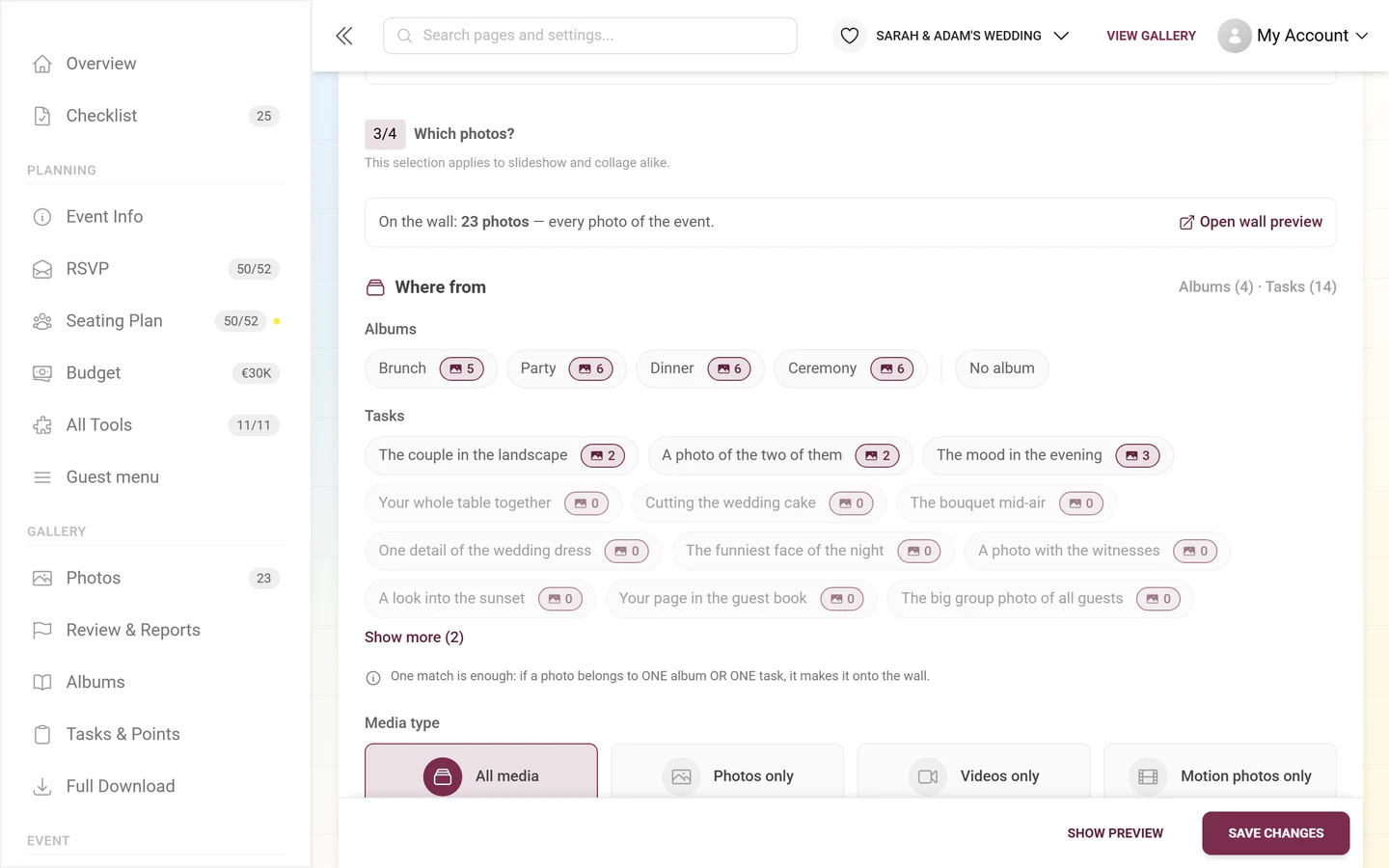
Section titled “The preview count at the top”The area starts with a line telling you what your settings actually leave: “On the wall: 42 of 310 photos · 3 restrictions active”. Without restrictions it reads “— every photo of the event.”
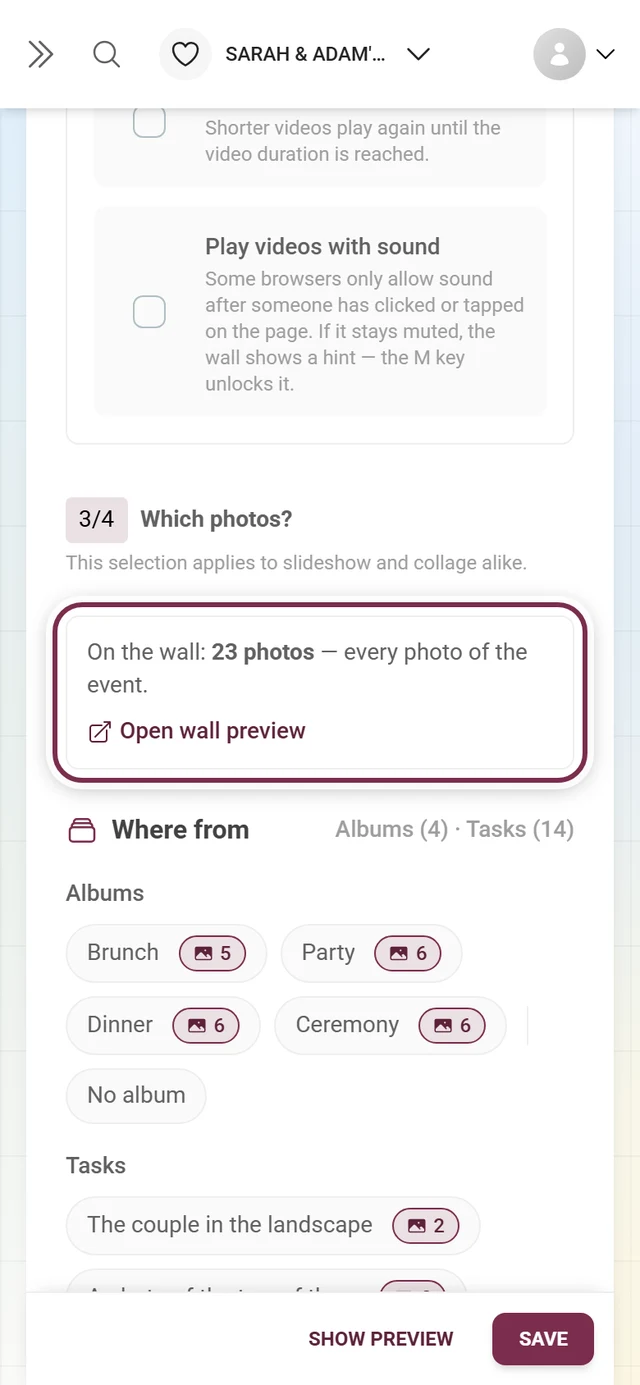
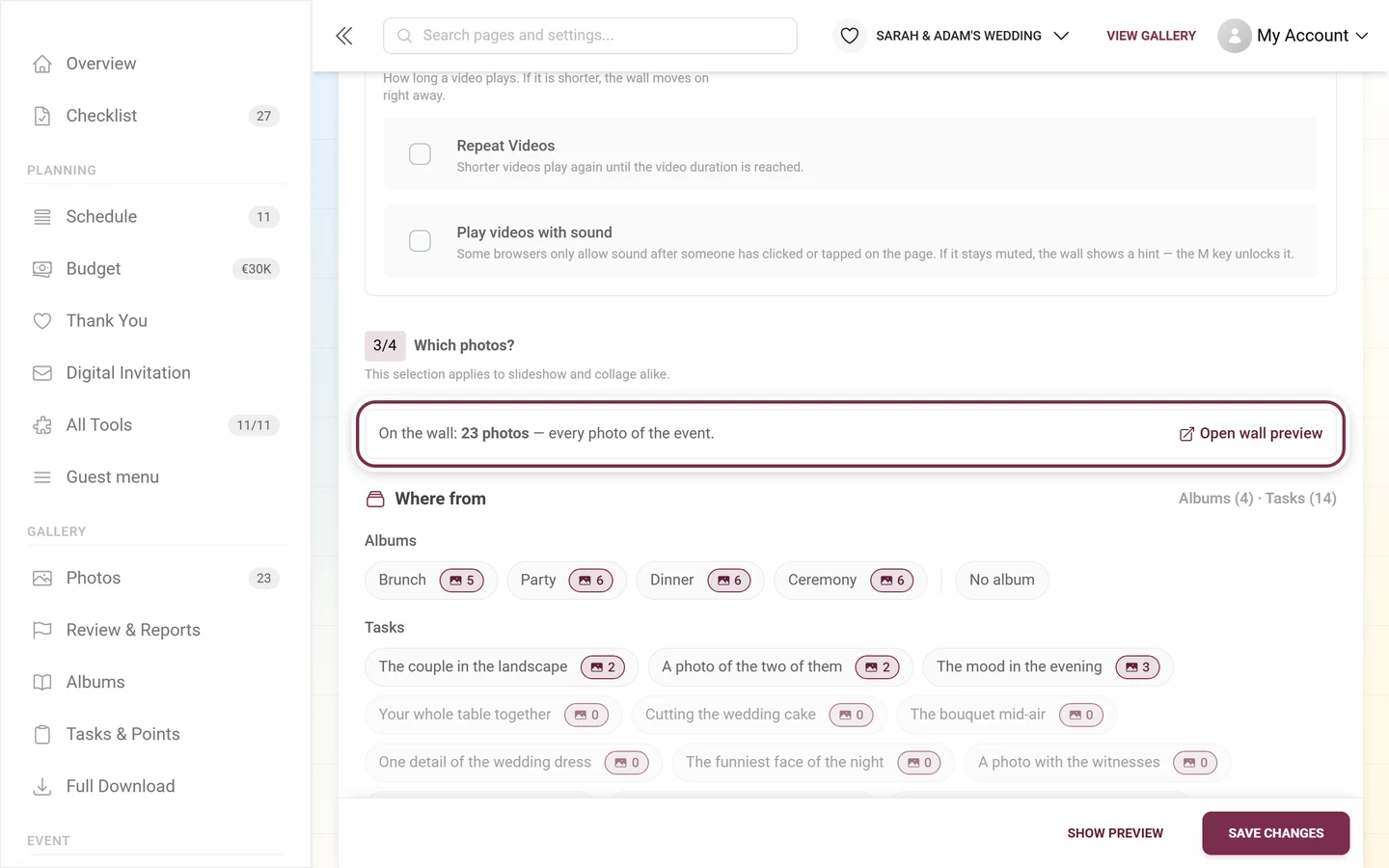
- The number is “calculated with your current, not yet saved settings” – so you see the effect before you save.
- A time window (see Recency) is not included in that number; the line says so explicitly.
- Every active restriction shows up as a chip (Album: Ceremony, Photos only, From 3 likes, Last 60 min only …). Reset all restrictions clears everything – no confirmation dialog, but an Undo button that stays up for a few seconds.
- If nothing is left, the line reports “With these settings the wall stays empty.” and offers Why is it empty?: it lists, per restriction, how many photos there would be without it (“Without … it would be 118 photos.”).
- If very little is left it warns: “Only 4 photos — the wall will repeat itself very quickly.”
Where from
Section titled “Where from”Albums and Tasks as chip lists. The hint above them matters, because it works differently from what people expect: “One match is enough: if a photo belongs to ONE album OR ONE task, it makes it onto the wall.” The two lists are not an AND.
- Nothing selected = no restriction.
- The No album chip specifically picks the photos that are in no album at all.
- If there is nothing yet, it reads “No albums created yet.” or “No tasks created yet.” with a link to Managing albums or Managing tasks.
- With many entries, Show more unfolds the rest.
Media type
Section titled “Media type”One choice: All media, Photos only, Videos only or Motion photos only.
Task relation
Section titled “Task relation”All photos (“Task photos and free photos”), Task photos only or Free photos only. This is a different thing from the task list under Where from: it is not about specific tasks, but about whether a photo belongs to a task at all.
Popularity
Section titled “Popularity”- Only show popular photos – “Hide photos until they have collected enough likes — a live ‘best of’.” With the switch on, Required likes appears (minimum 1).
- At most this many likes – “Give the quieter photos a stage — hide everything above this many likes.”
0 = no limit.
Recency
Section titled “Recency”- Recent photos only (minutes) – “Only show photos from the last N minutes. 0 = show all.”
- Show older photos if none are recent – appears as soon as the minute value is above 0, and is on by default: “Prevents an empty wall when nothing was uploaded recently.”
People
Section titled “People”This block needs AI face recognition:
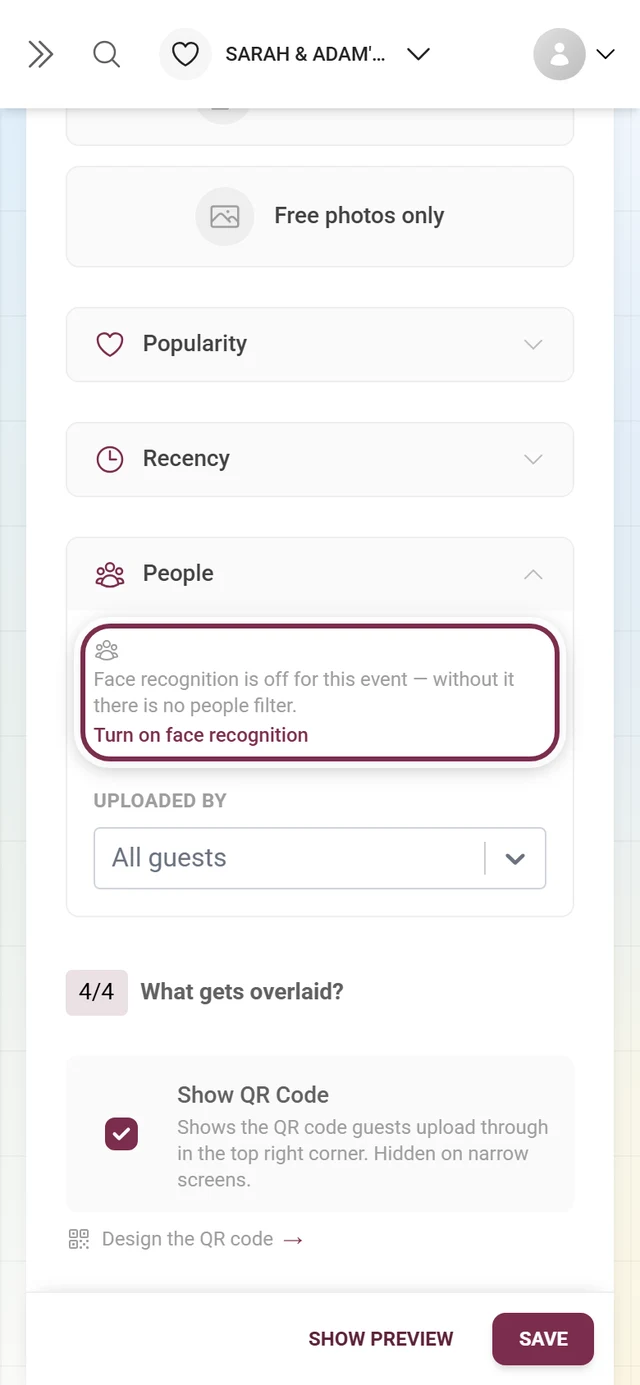
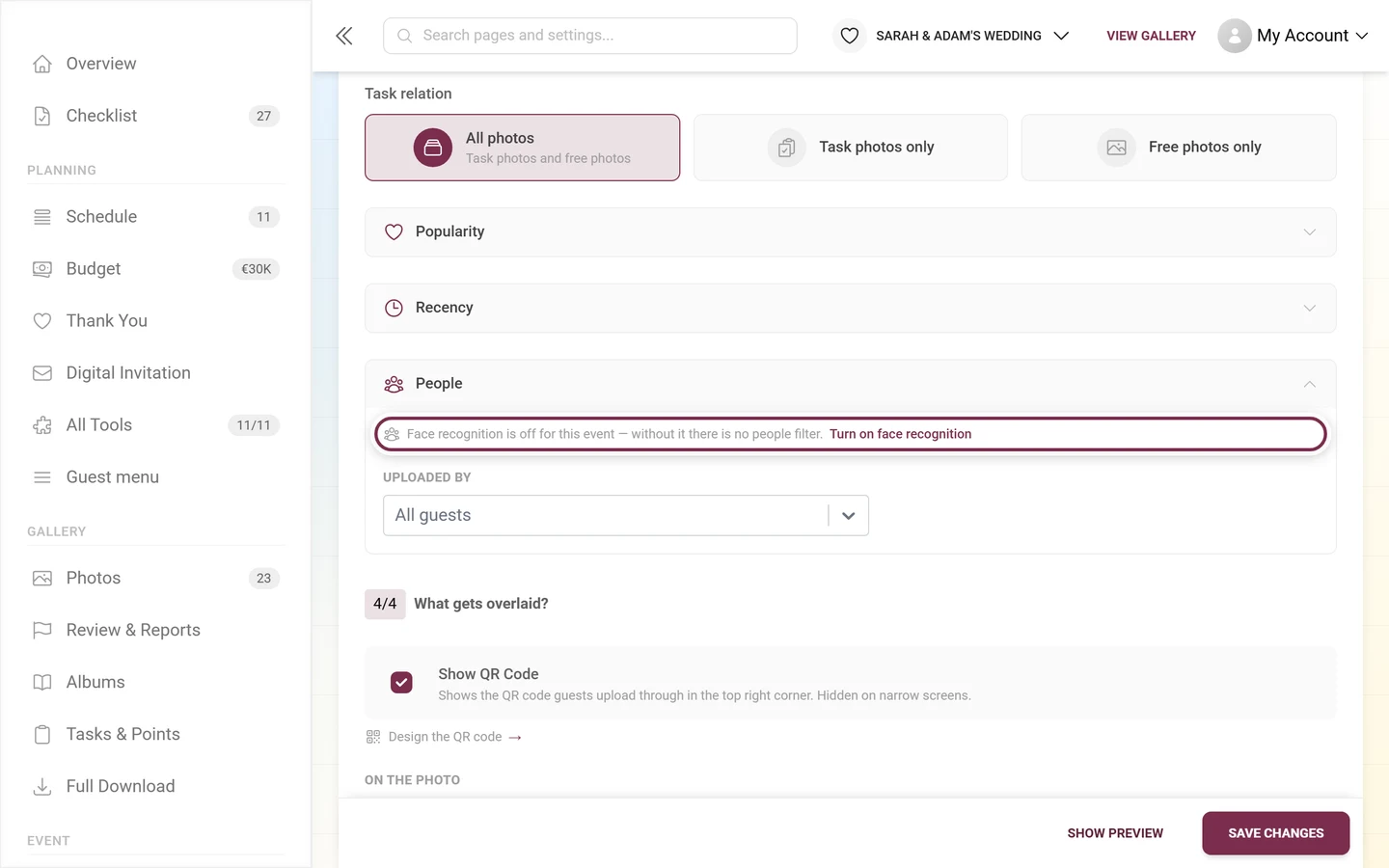
- Only photos showing these people – the event’s recognized people as chips. “A photo has to show every selected person. Nothing selected = no restriction.” While nothing has been recognized yet: “No people recognized yet — recognition starts as soon as photos are uploaded.”
- Min. people and At most people (
0 = off) – “Show only group shots, or only portraits — counted from the faces detected in each photo.” - Uploaded by – placeholder All guests; each name shows how many photos that guest contributed.
Question 4 – What gets overlaid?
Section titled “Question 4 – What gets overlaid?”Show QR Code
Section titled “Show QR Code”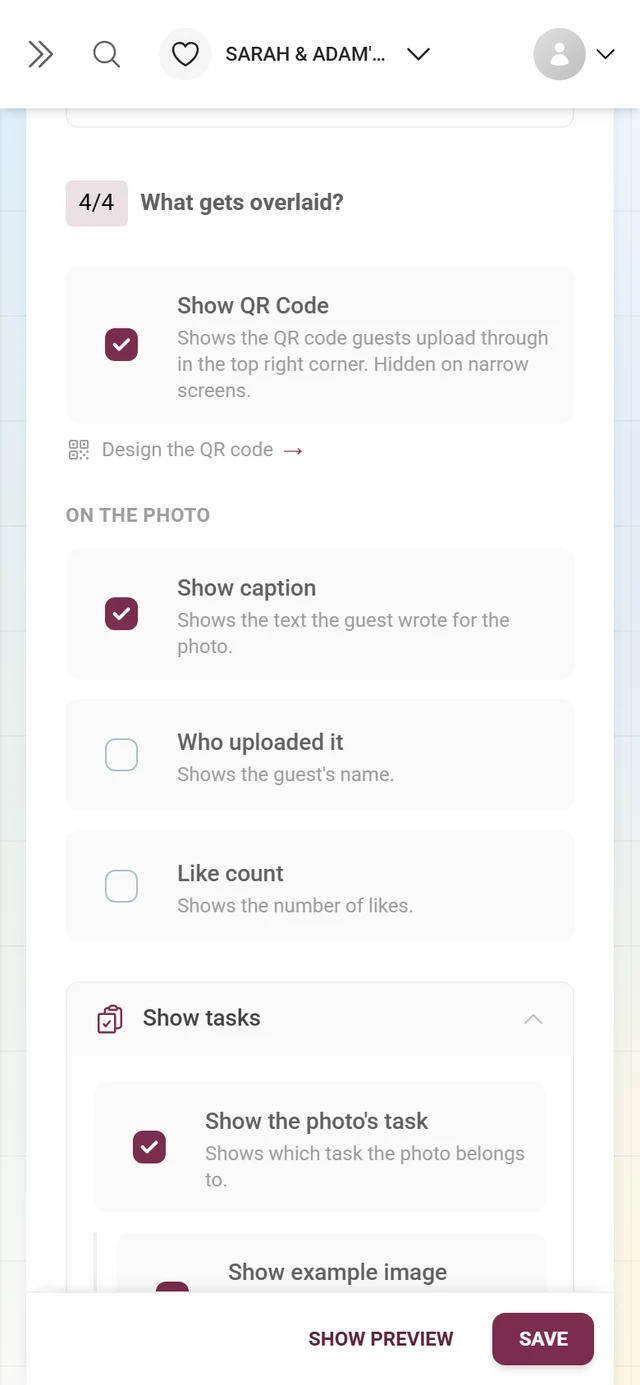
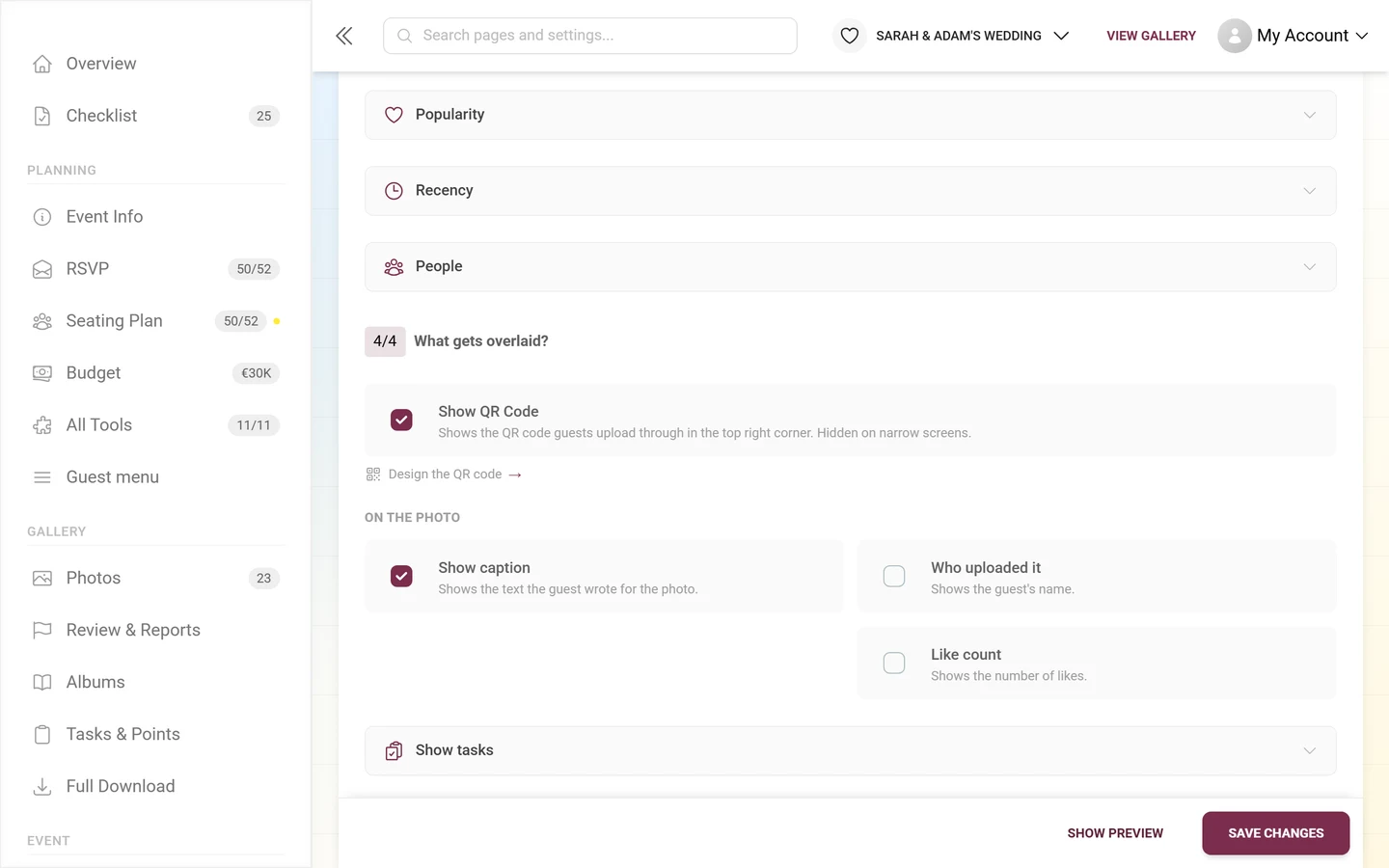
“Shows the QR code guests upload through in the top right corner. Hidden on narrow screens.” On the wall it carries the line “Scan to view/upload”. The link Design the QR code takes you straight to the QR design under Customizing the look.
On the photo
Section titled “On the photo”-
Show caption – “Shows the text the guest wrote for the photo.”
-
Who uploaded it – “Shows the guest’s name.”
-
Like count – “Shows the number of likes.” Only appears when likes are active for the event.
Show tasks
Section titled “Show tasks”A collapsed block that only exists when photo tasks are active:
- Show the photo’s task – “Shows which task the photo belongs to.”
- Show example image – “Also shows the task’s example image.” Below it the hint “Requires ‘Show the photo’s task’.” – without the first switch the second does nothing.
You maintain tasks under Manage photo tasks.
Live moments
Section titled “Live moments”A collapsed block with three switches:
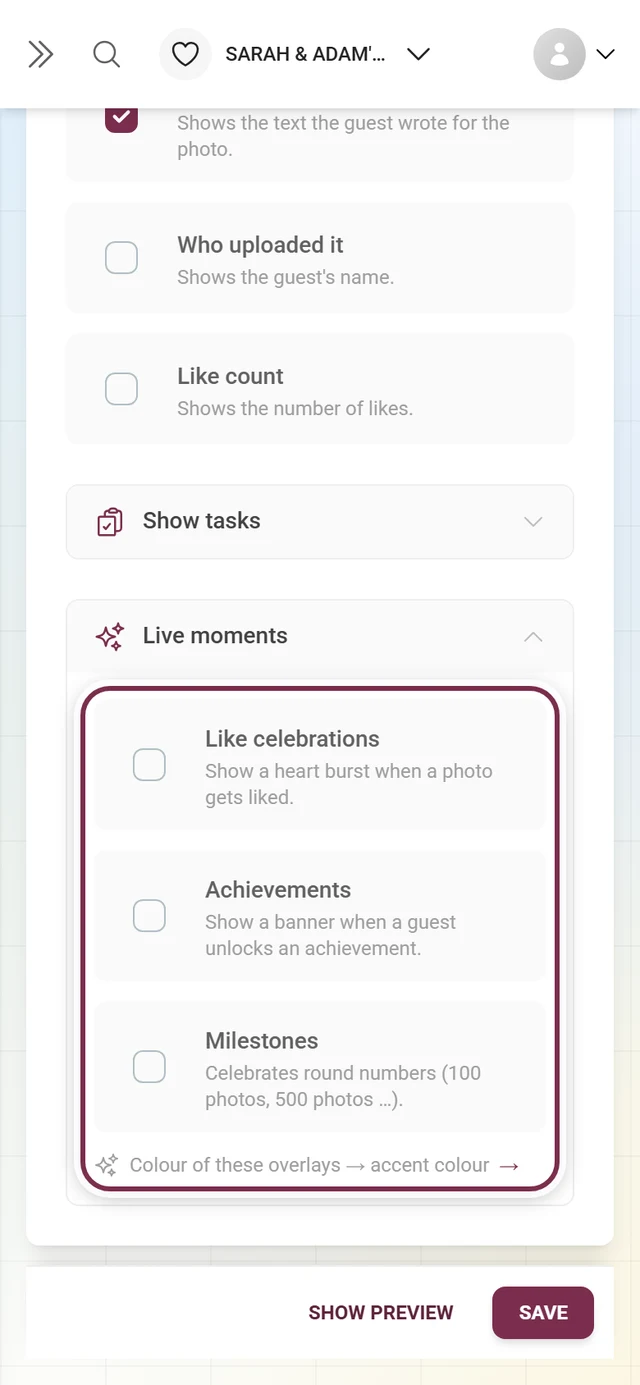
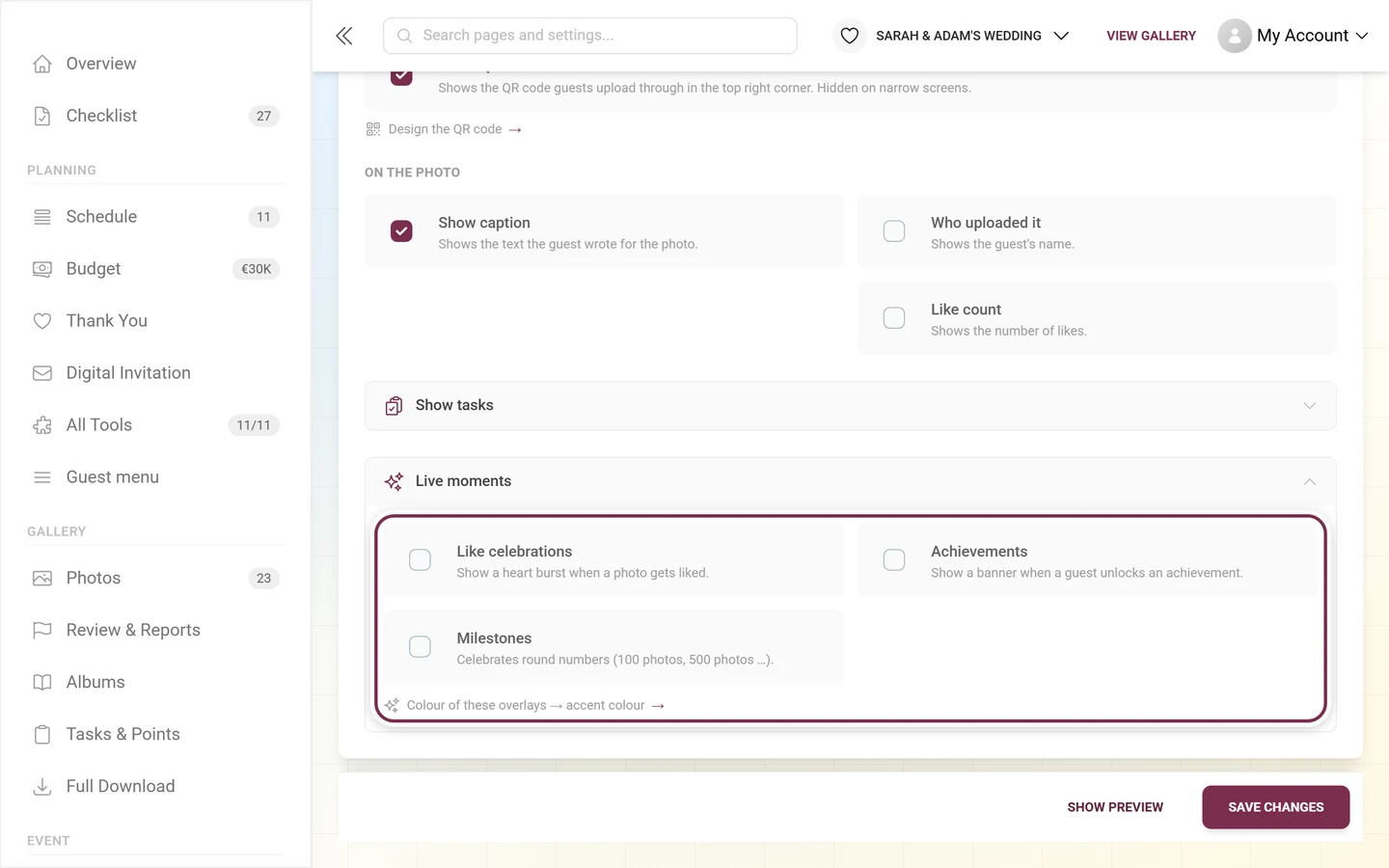
- Like celebrations – “Show a heart burst when a photo gets liked.”
- Achievements – “Show a banner when a guest unlocks an achievement.” See Achievements.
- Milestones – “Celebrates round numbers (100 photos, 500 photos …).” The celebrated marks are 10, 25, 50, 100, 250, 500, 1000, 2500, 5000 and 10,000 photos.
Below them the cross-link Color of these overlays → accent color – the celebration banners carry exactly the color you set in question 1.
Opening the wall & fullscreen
Section titled “Opening the wall & fullscreen”-
The info box at the top of the tab carries the Open Photo Wall link. It opens the wall at
/photowallin a new tab – for testing, without saving anything.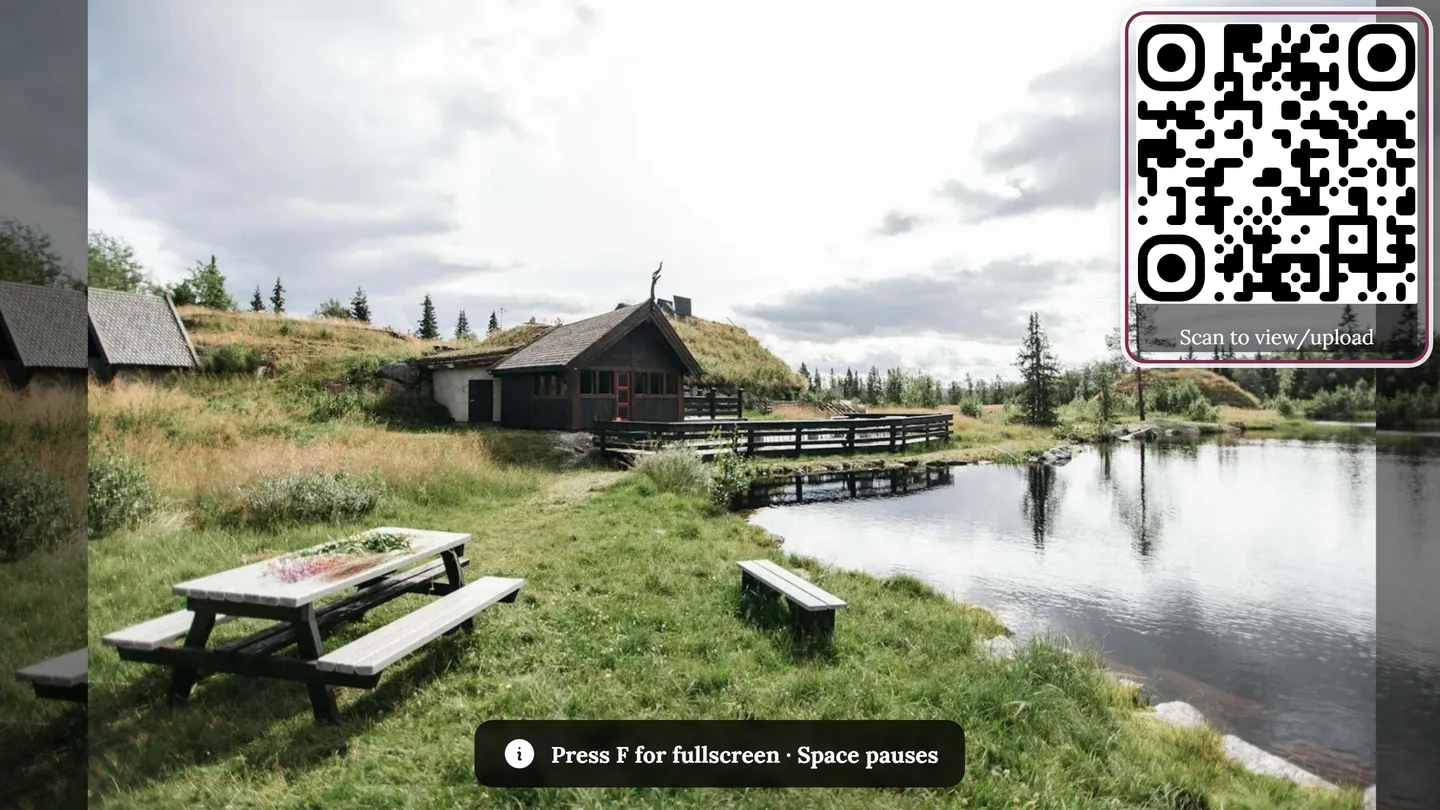
The finished wall on a TV or projector. The ring marks the QR card: guests scan it and upload straight away – you can also hide it in the photo wall settings. On a computer the wall is keyboard-driven: → / ↓ / Page Down move on, ← / ↑ / Page Up go back, Space (or K) pauses, F switches to full screen, M turns video sound on and off. -
For real use, press F on the wall – it toggles fullscreen on and off. Esc also leaves it.
-
On touch devices (tablet, touch kiosk) there is no keyboard: a small round fullscreen button appears at the top center there. It fades out after about ten seconds so it does not sit on the picture permanently – reloading the page brings it back.
Every way to open the wall, the fullscreen mode and what happens live on it are covered in the guest guide Live photo wall. Related: Fullscreen and slideshow.
Where guests find the photo wall button
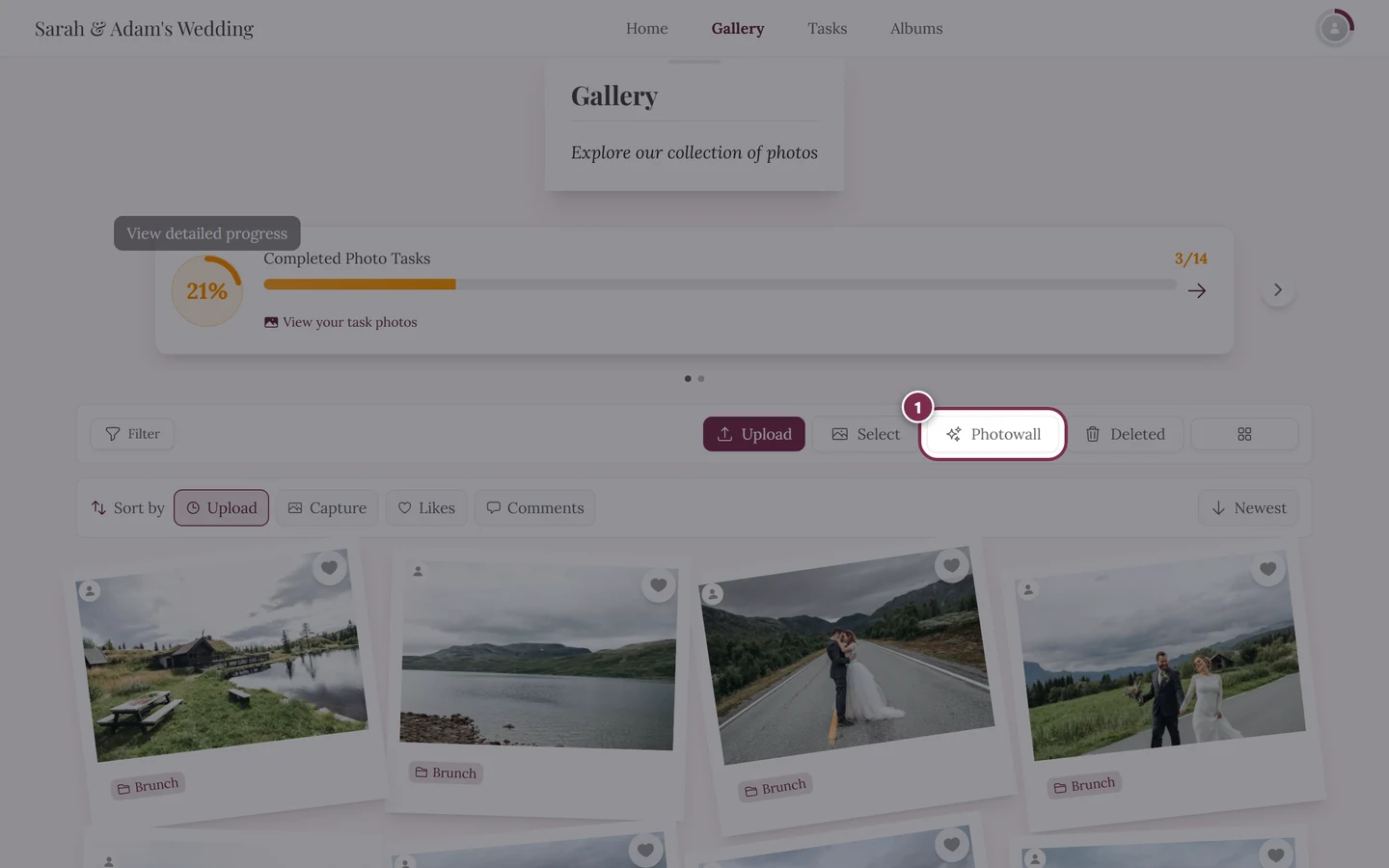
Section titled “Where guests find the photo wall button”With Offer the photo wall on, Photo wall appears in the gallery toolbar – but only from a certain screen width. That matters when you are explaining over the phone where somebody should click:
- From 960 px width Photo wall is its own button in the bar.
- Below 960 px the button disappears and lives in the ⋮ menu at the far right of the bar instead.
- The Map button has a different threshold: it is already its own button from 720 px.
Troubleshooting
Section titled “Troubleshooting”- No photo wall tab / locked preview: your plan does not include the photo wall – an upgrade is needed.
- Photo wall suddenly gone, although it was in your plan: the gallery is in the archive. The photo wall is paused there; your settings are kept. Upgrade and it is back right away – see Archive – keep it for less.
- No photo wall button in the gallery: the Offer the photo wall switch at the top of the photo wall tab is off – or the screen is narrower than 960 px, in which case the entry sits in the ⋮ menu.
- Logo uploaded but not on the wall: the separate logo feature is missing.
- Album or task list empty or locked: no albums feature, or no albums/tasks created yet.
- The wall stays empty: click Why is it empty? – the diagnosis tells you, per restriction, how many photos there would be without it. Reset all restrictions is the fastest way back, and Undo restores the previous state for a few seconds.
- The wall keeps repeating itself: the preview count already warns you (“Only 4 photos — the wall will repeat itself very quickly.”). Loosen a restriction.
- Videos do not play / stay muted: Collage mode has no video playback. In the slideshow the sound stays muted until someone has clicked on the page once – the M key unmutes it, and the wall shows the hint itself.
- Timeline grayed out: Direction is set to Shuffled – the timeline has no effect then.
- Captions/names do not appear: the wall is running in Collage mode; the On the photo group only applies to the slideshow.
- Changes gone: probably not saved – watch for the red dot on the tab and click Save changes.
- QR code missing on a narrow screen: that is intentional – it only appears from 720 px width.
- Milestone not celebrated: marks already passed when the wall opens are skipped silently; only what is crossed live gets celebrated.
Related topics
Section titled “Related topics”- Live photo wall – the guest guide: opening, fullscreen, what happens live.
- Settings: Features – where the other gallery switches live.
- Customizing the look – the colors the wall inherits its accent from, and the QR design.
- Managing albums – the basis for the album filter.
- Manage photo tasks – for the task filter and the task overlay.
- AI processing – prerequisite for the people filter.
- Plan & term – if the photo wall or the logo is locked.