Likes & comments
Show others which photos you love – and start a conversation through comments. There’s more than one way to do both, and this guide covers them all: the heart on the tile, the double-tap in fullscreen, the tile’s context menu, the bulk like for a whole selection, the emoji bar when commenting, replies and @ mentions.
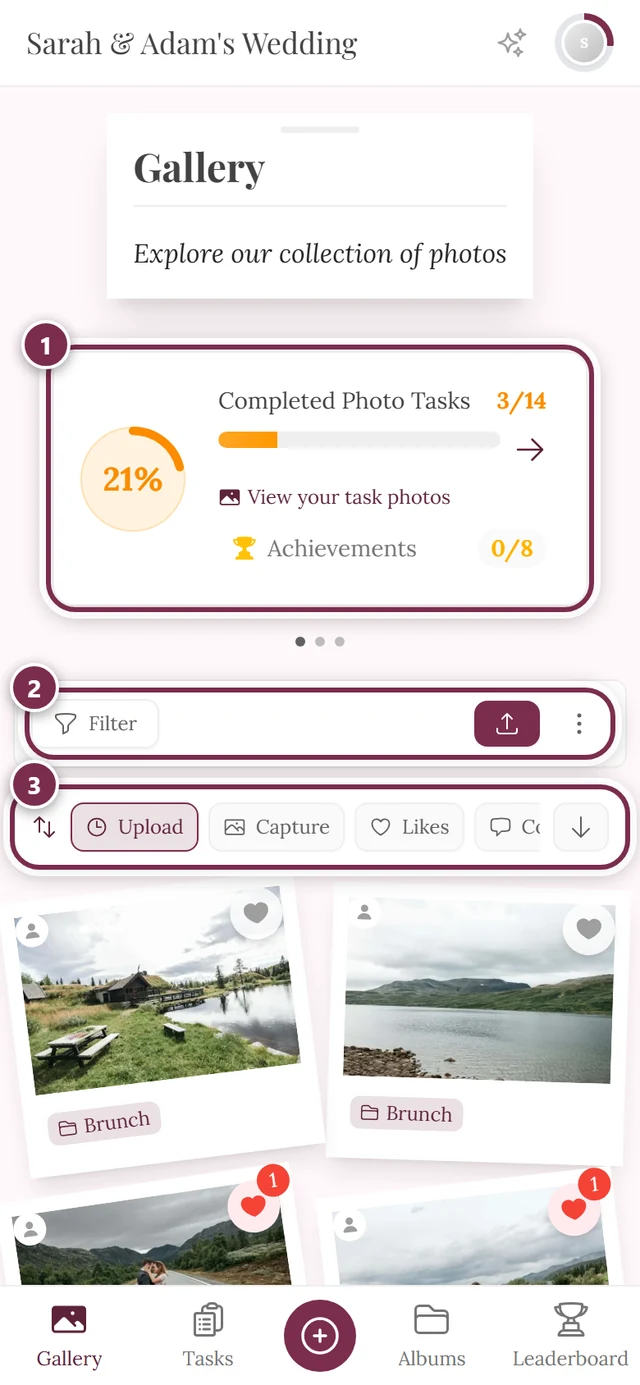
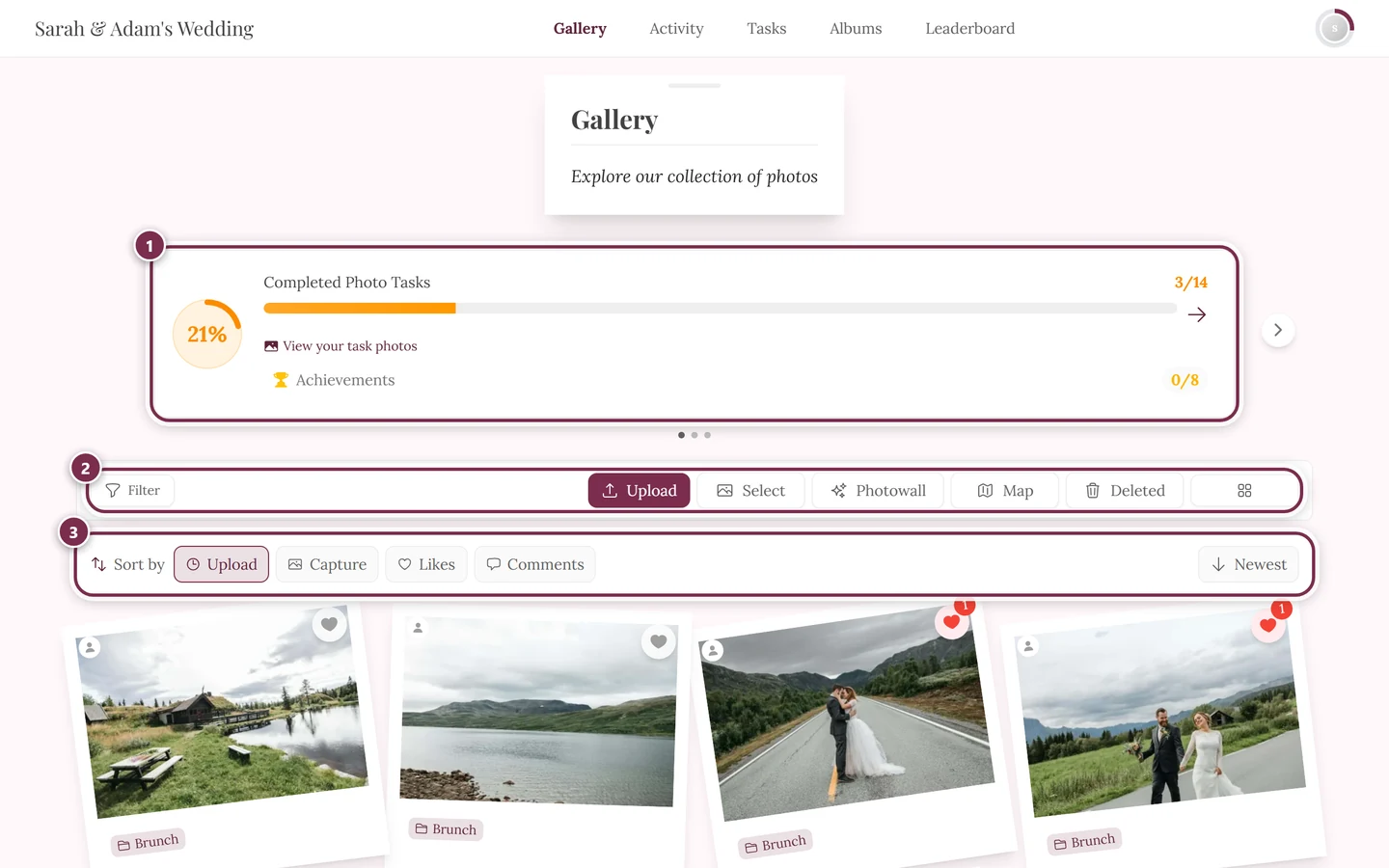
Who can do what?
Section titled “Who can do what?”- Liking is open to everyone, as long as the feature is on – including view-only guests.
- Reading comments is also open to everyone.
- Writing comments requires the contributor role or higher. View-only guests see the comment list but, instead of the input box, the note “Only contributors can comment”. More under Roles & permissions.
Likes – every way
Section titled “Likes – every way”There are five ways to like a photo. Three of them (heart icon, context menu and bulk like) work right from the grid; the other two work inside the opened photo.
Way 1: Heart icon on the tile
Section titled “Way 1: Heart icon on the tile”-
Hover over a tile (on a phone the heart is always visible). The heart icon sits in the top-right corner of the tile.
-
Tap the heart – it fills in and a small heart animation (confetti burst) plays. Tapping again removes the like.
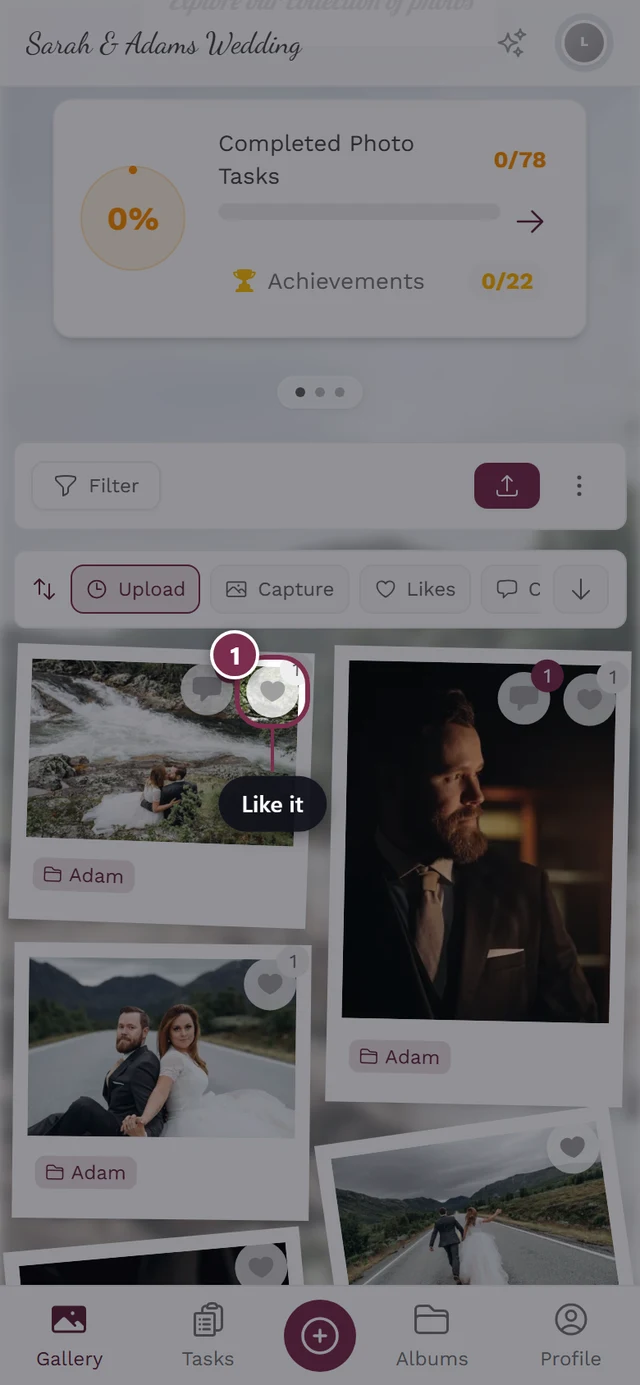

The heart in the top-right corner of the tile – tap to like, tap again to remove. -
Once a photo has at least one like, a small number (the like counter) appears next to the heart.
Way 2: The tile’s context menu
Section titled “Way 2: The tile’s context menu”You can reach a tile’s context menu on every device – only the gesture differs.
-
On a computer: right-click a tile.
-
On a phone or tablet: press and hold the tile (long-press). Keep your finger still on the image for about half a second – then the very same menu opens right where you pressed.
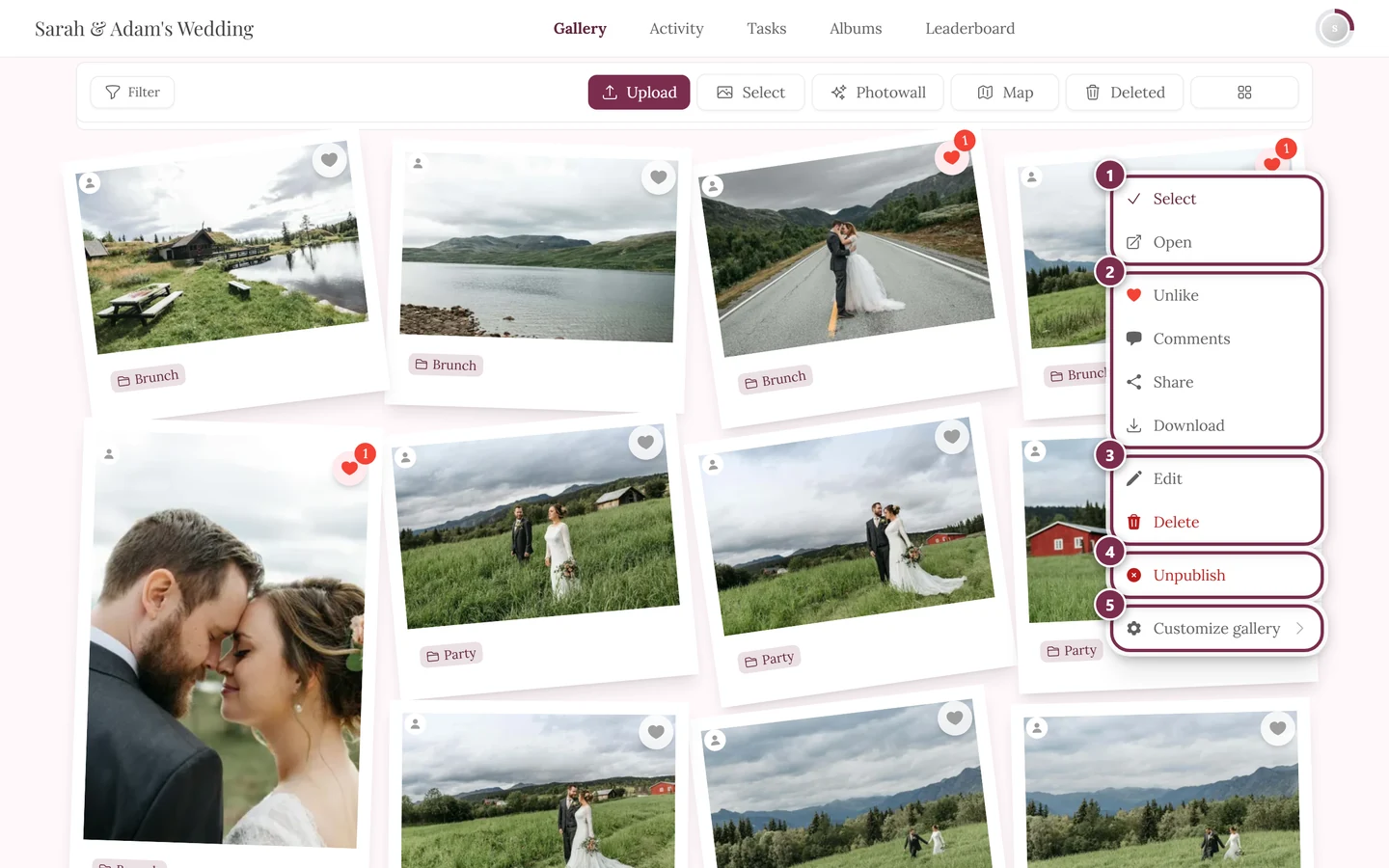
Right-click on a computer and long-press on a phone open the same menu. ① Select and Open, ② Like, Comments, Share and Download – Share only appears when sharing is switched on for the event, Download only when single downloads are allowed, ③ Edit and Delete – on your own photos, on other people’s only with moderation rights, ④ Unpublish – only with moderation rights; on a photo that is not approved yet the entry reads Publish, ⑤ Customize gallery – for hosts and admins only. -
Choose Like (or Unlike to remove the like).
Way 3: Double-tap the opened photo
Section titled “Way 3: Double-tap the opened photo”-
Open a photo by tapping the tile (slideshow / fullscreen).
-
Double-tap (or double-click) directly on the image. A heart animation plays exactly where you tap and the photo is liked.
Way 4: Heart button in the slideshow bar
Section titled “Way 4: Heart button in the slideshow bar”-
Open a photo and show the controls if needed (tap the image briefly).
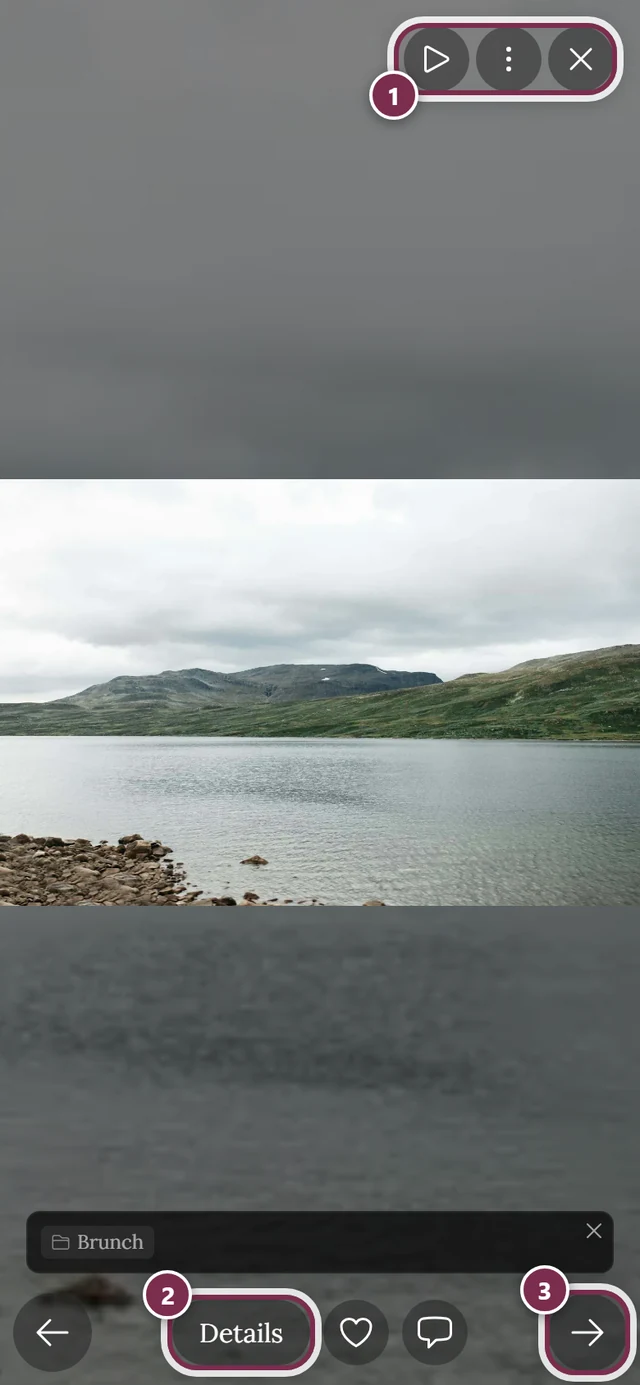
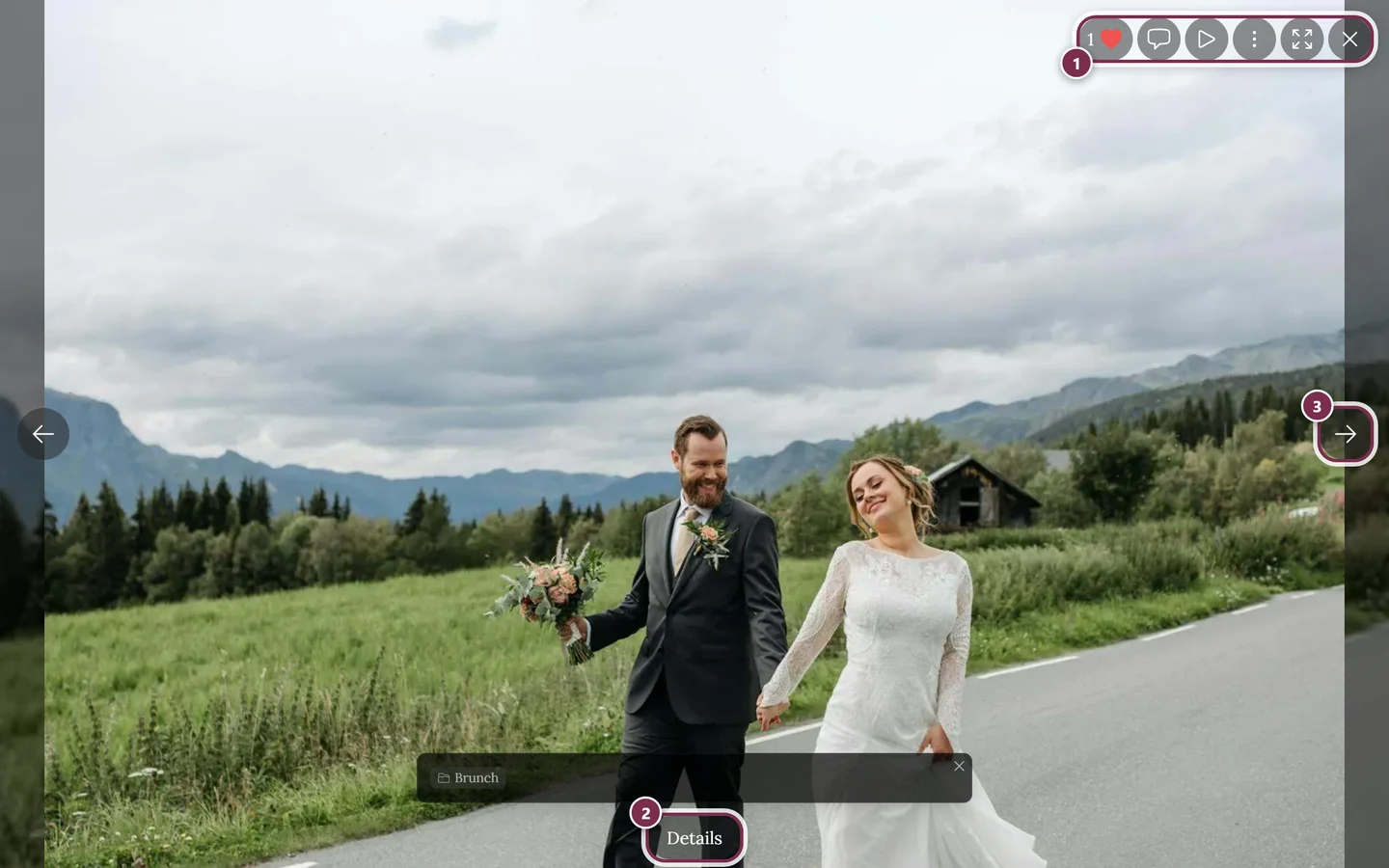
In fullscreen you'll find the control bar with the heart and comment buttons. ① the icon bar in the top right – on a computer with Like, Comments, Slideshow, the three-dot menu, Fullscreen and Close, on a phone only Slideshow, the menu and Close, ② Details reveals title, album and capture data, ③ the arrow to the next photo – on a phone you can swipe instead. Like and Comments sit next to Details at the bottom on a phone. -
Tap the heart in the control bar. On a computer it’s in the top bar, on a phone in the bottom bar. The current like count sits next to it.
-
Tapping again removes the like – unlike the double-tap, you can unlike here.
Way 5: Bulk like for a whole selection
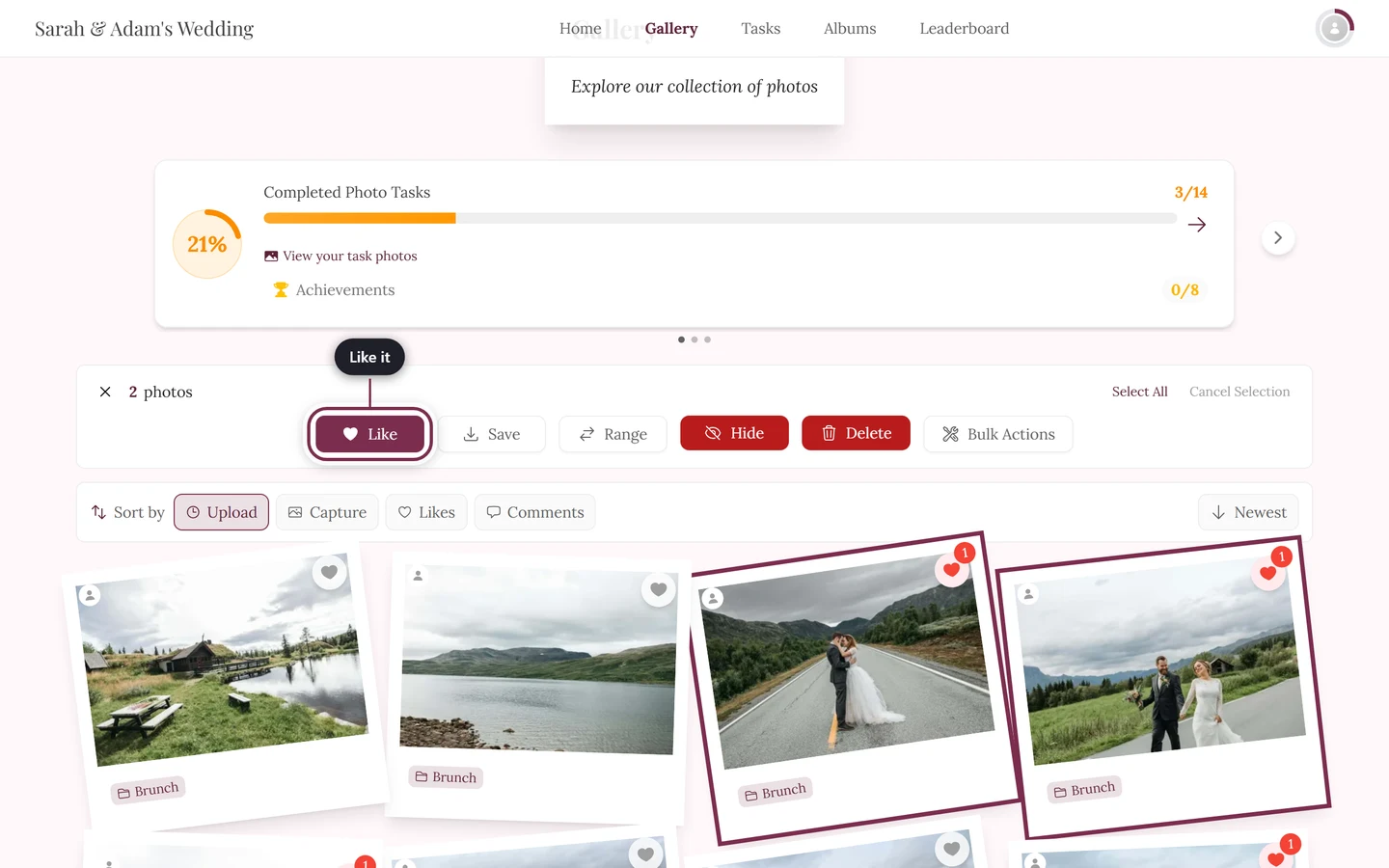
Section titled “Way 5: Bulk like for a whole selection”To give several photos a heart at once, use selection mode.
-
Enter selection mode and mark the photos you want. How that works is covered under Selecting multiple photos.
-
Tap Like in the selection bar at the top. Every marked photo gets a heart in one go.
-
Selection mode then closes automatically and the selection is cleared.
Small hints on your first visit
Section titled “Small hints on your first visit”So that nobody misses the heart, the gallery shows a few short hints once on your first visit:
- In the gallery, after a few seconds a speech bubble points at a heart: “Like this photo?” – “Give it a heart. Open the photo to like it with a double-click or double-tap, too.”
- In the opened photo you’ll see “Tap the heart or double-tap the photo.” instead (on a computer: “Click the heart or double-click the photo.”).
- For commenting: if you have liked a photo but never commented, after a while the bubble asks “What happened here?” – “Share something about this moment.” This only happens if you are allowed to comment.
Each hint appears at most once per event and device, and only one is ever visible at a time. Close it with the X (Dismiss hint), the Esc key, or simply by tapping the heart. If you have already liked a photo, the like hints don’t appear at all; they also stay away for videos, in the map view, during the automatic slideshow and while a menu or dialog is open.
Who liked it?
Section titled “Who liked it?”For comments you can see who liked them: tap the like count under a comment – this opens the Comment Likes list with names and avatars. From there you can also open the relevant profile.
Sorting by likes and comments
Section titled “Sorting by likes and comments”Above the gallery sits the Sort by bar. Next to Upload and Capture you’ll find:
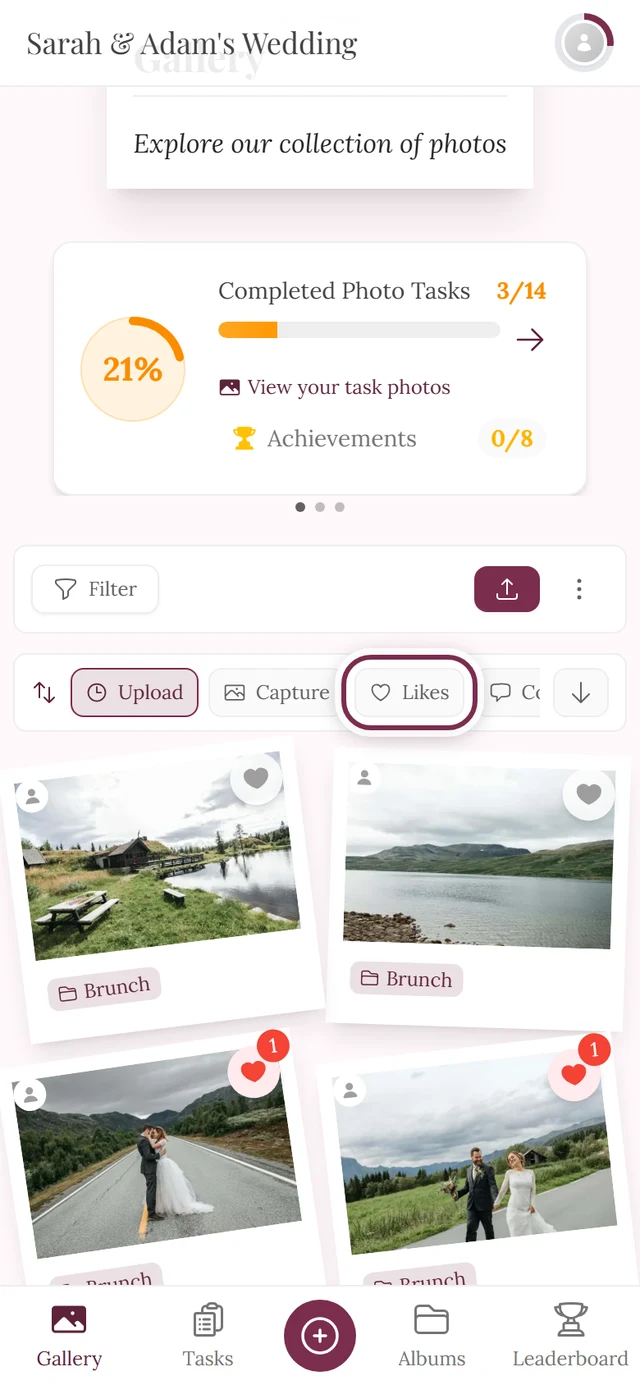
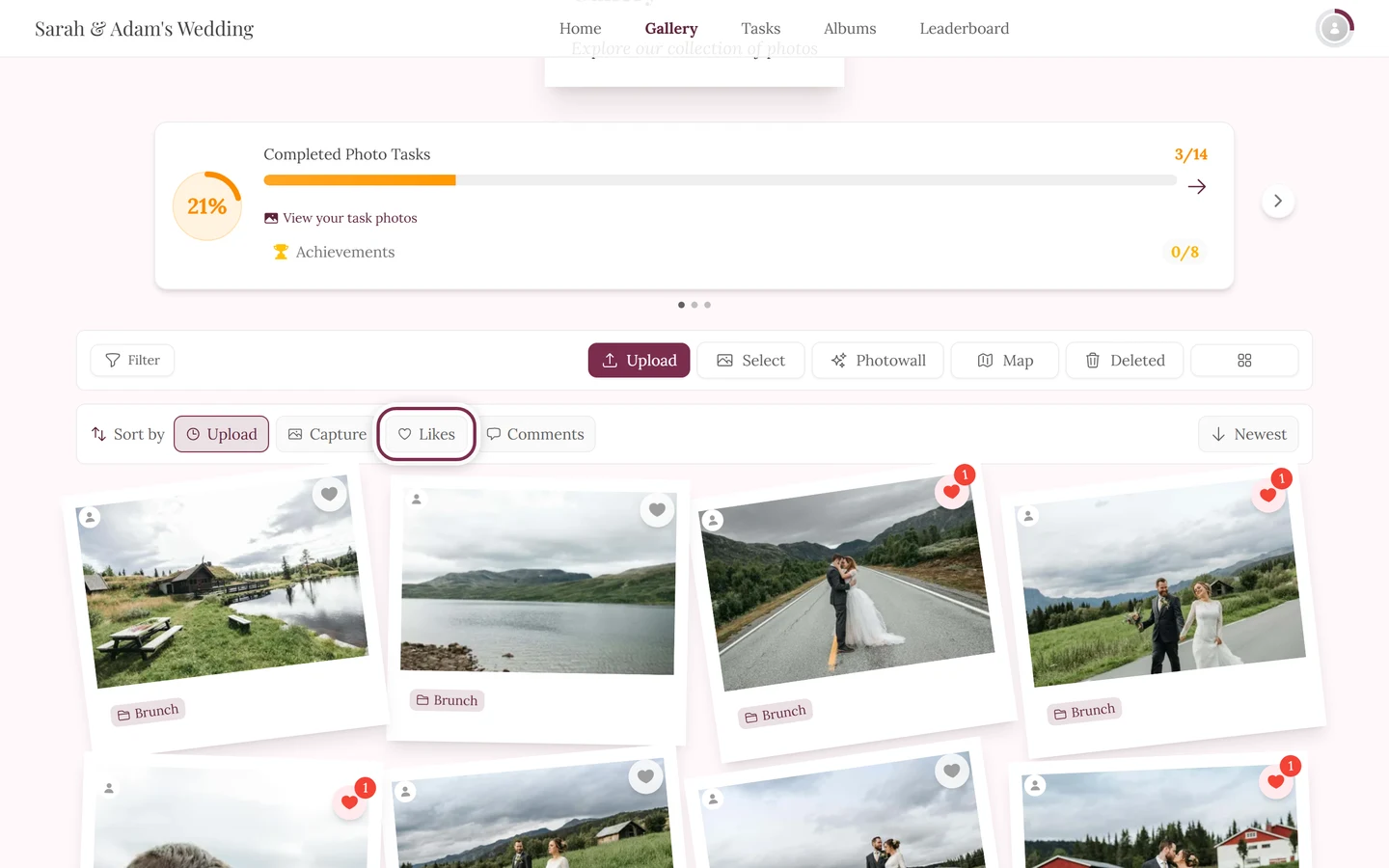
- Likes – only appears when likes are enabled for this event.
- Comments – only appears when comments are enabled for this event.
The arrow button beside it flips the order: for the engagement sorts it switches between Most and Least.
Commenting
Section titled “Commenting”Opening comments
Section titled “Opening comments”There are three ways to open the comment dialog:
-
From the tile: tap the speech-bubble icon. Important: it only appears once a tile has at least one comment. On an as-yet uncommented tile you won’t see a speech bubble – open the photo to write the first comment.
-
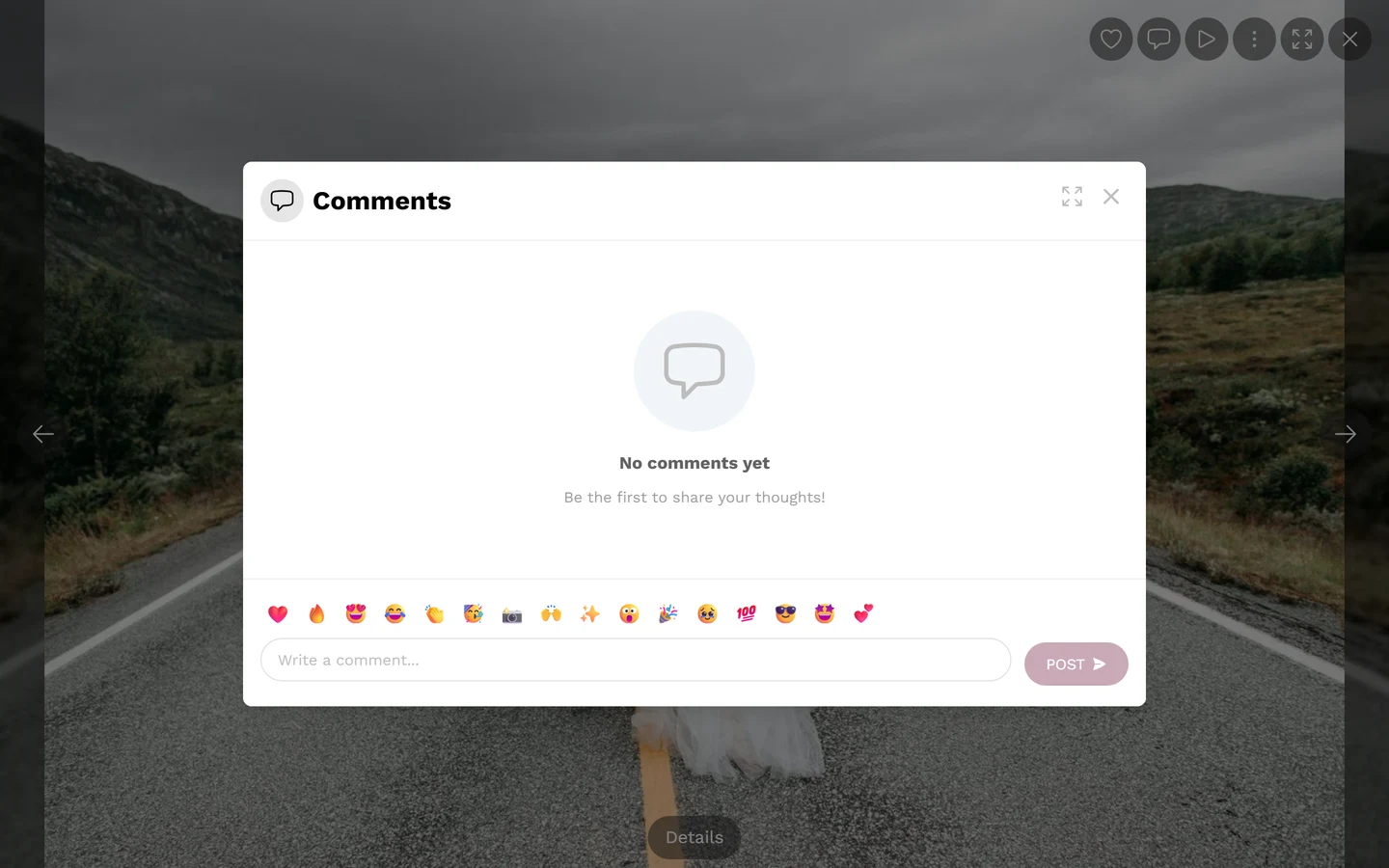
In the opened photo: tap the comment button in the control bar. This is always available (even with zero comments), as long as comments are on.
-
Via the tile’s context menu: right-click on a computer or press and hold on a phone, then choose the Comments entry.
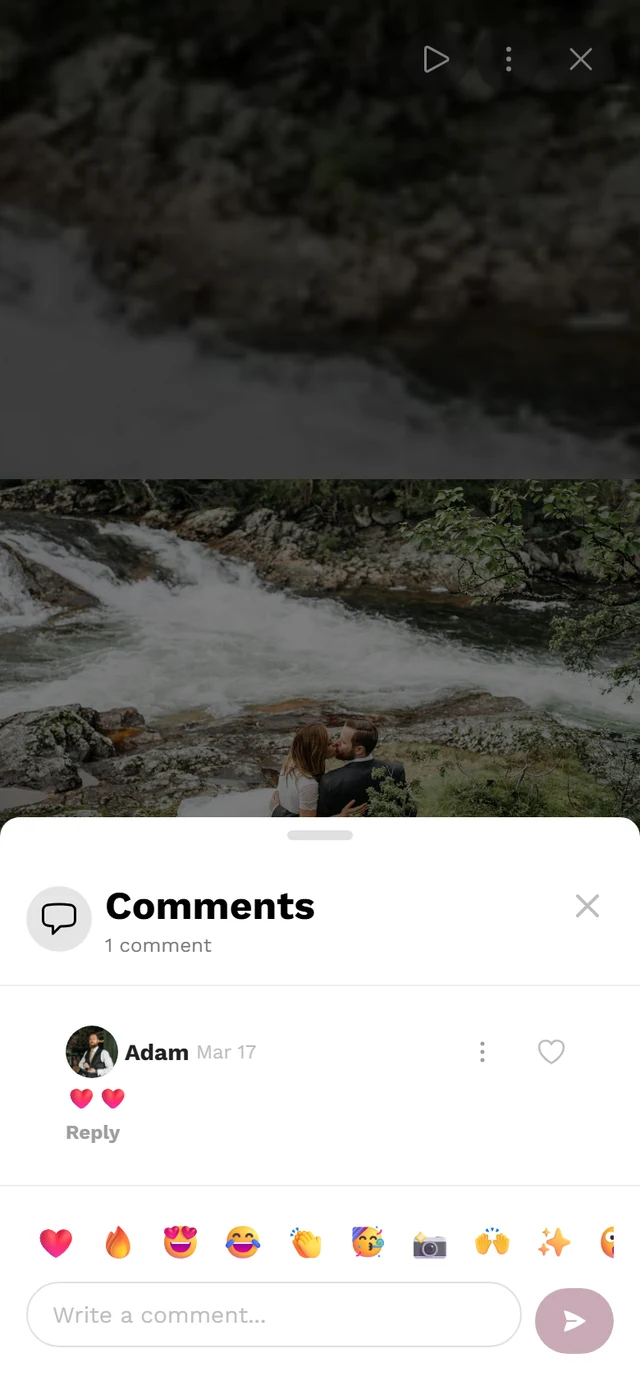
The comment dialog opens, titled “Comments” with the count below it.
Writing a comment
Section titled “Writing a comment”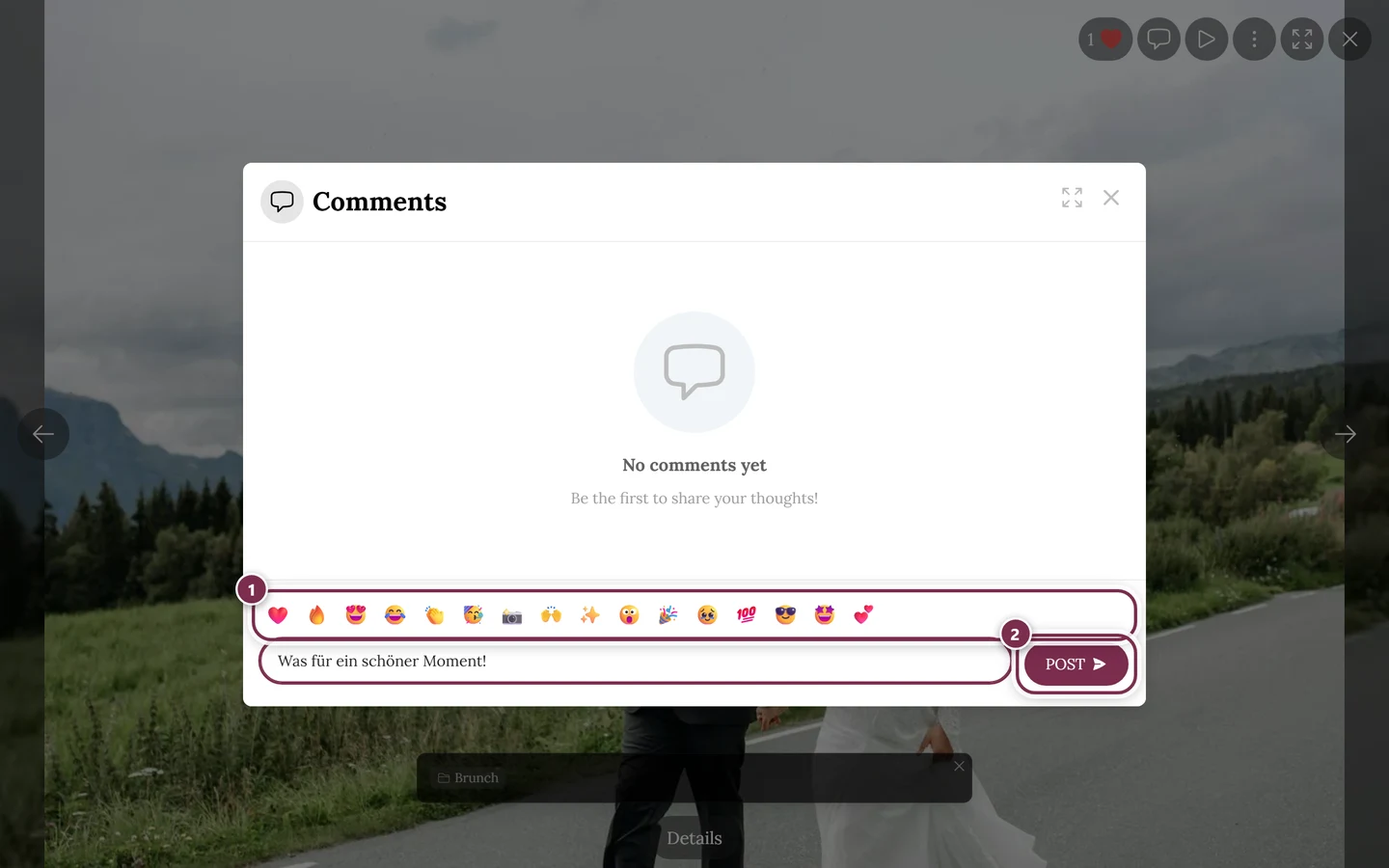
-
Tap the input box at the bottom with the placeholder “Write a comment …”.
-
Use the emoji quick bar above the field if you like: a scrollable row of popular emojis. A tap inserts the emoji at the cursor position.
-
Send the comment with the Post button (paper-plane icon) or with the keyboard shortcut Ctrl + Enter (on a Mac Cmd + Enter). Enter on its own just adds a line break.
Editing or deleting your own comment
Section titled “Editing or deleting your own comment”The ⋮ menu on your comment gives you these options:
- View Profile – opens the author’s profile (if available).
- Edit – only on your own comments. Change the text and tap Save. Edited comments carry a “• edited” note.
- Delete – with a confirmation prompt (“Are you sure you want to delete this comment?” / “This action cannot be undone.”).
Your own comment is marked with “• You”.
Liking comments
Section titled “Liking comments”Every comment has its own heart on the right. Tap it to like the comment or remove your like. The number below shows the like count (large numbers are abbreviated as 1k/1M) and is tappable – it opens the Comment Likes list (see “Who liked it?” above).
Replies & mentions
Section titled “Replies & mentions”Replying to a comment
Section titled “Replying to a comment”-
Tap Reply under a comment.
-
A reply banner appears above the input field (“Replying to comment”) with an X to cancel. The name of the person you’re replying to is pre-filled automatically as an @ mention, and the placeholder changes to “Write a reply …”.
-
Write your reply and send it like a normal comment.
Show existing replies with “Show replies”; if there are many, load more with “Load more replies”.
Mentioning someone (@ mention)
Section titled “Mentioning someone (@ mention)”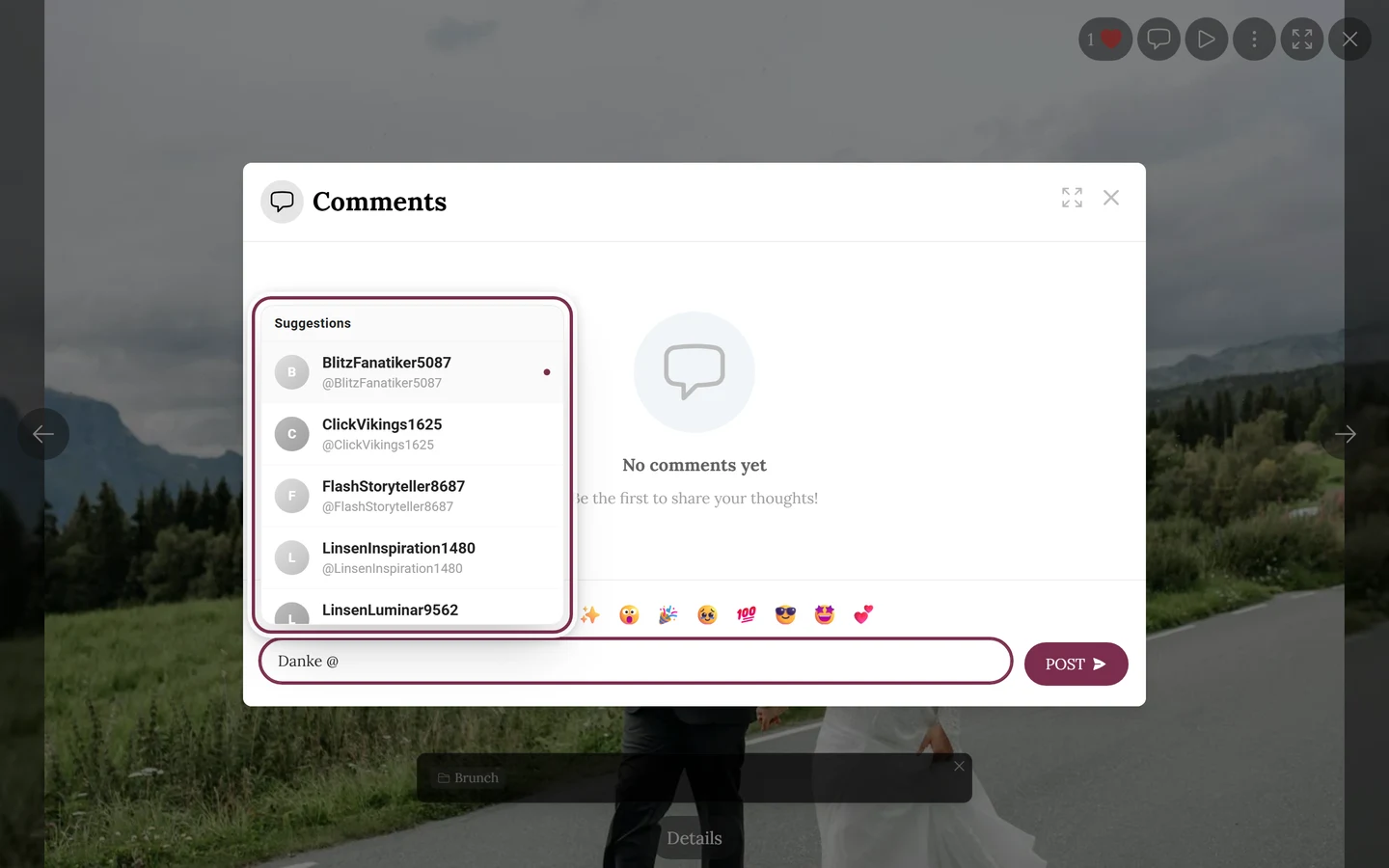
-
Type an @ in the input field. A suggestion list opens, headed “Suggestions”.
-
Keep typing the name to filter. Up to eight suggestions are shown. If no one matches, it says “No users found”.
-
Pick the person by tapping – or, on a computer, with arrow up/down and Enter; Escape closes the list. Valid mentions appear blue and bold in the field.
In the published comment the mention is a clickable link to the profile. The mentioned person is also notified.
Good to know
Section titled “Good to know”- Your likes and comments are visible to the other guests too – together you build a shared album of memories.
- Likes and comments count towards points & rewards.
- Comment details such as likes and views also show in the Image Details dialog (⋮ menu in fullscreen → Details).
Related topics
Section titled “Related topics”- Selecting multiple photos – selection mode and the bulk like.
- Slideshow & fullscreen – all the controls in the opened photo.
- Reporting content – how to report a photo.
- Notifications – when you’re told about likes and mentions.
- Settings: Features – enable likes and comments.