Backing up all photos
Once your event is over, you’ll want all the photos saved safely – a backup before the storage period ends. Photogala packs the entire gallery into one or more ZIP archives server-side. You can choose between a simple one-click download and an advanced download with seven numbered steps (folder structure, file names, filters, recycle bin and more).
How to reach the download area
Section titled “How to reach the download area”-
In the top right, use the profile menu to switch into the admin area (entry Management → Admin portal).
-
In the left sidebar, category Gallery, click Full Download (down-arrow icon). Route:
/admin/download.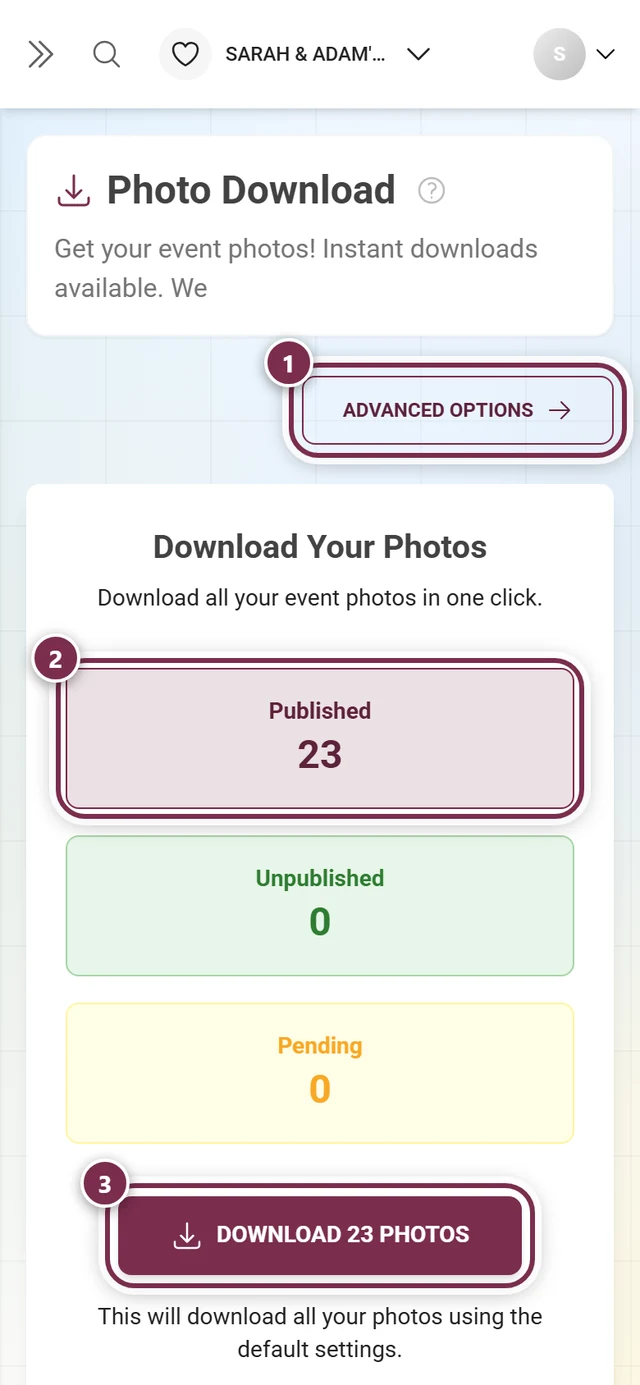
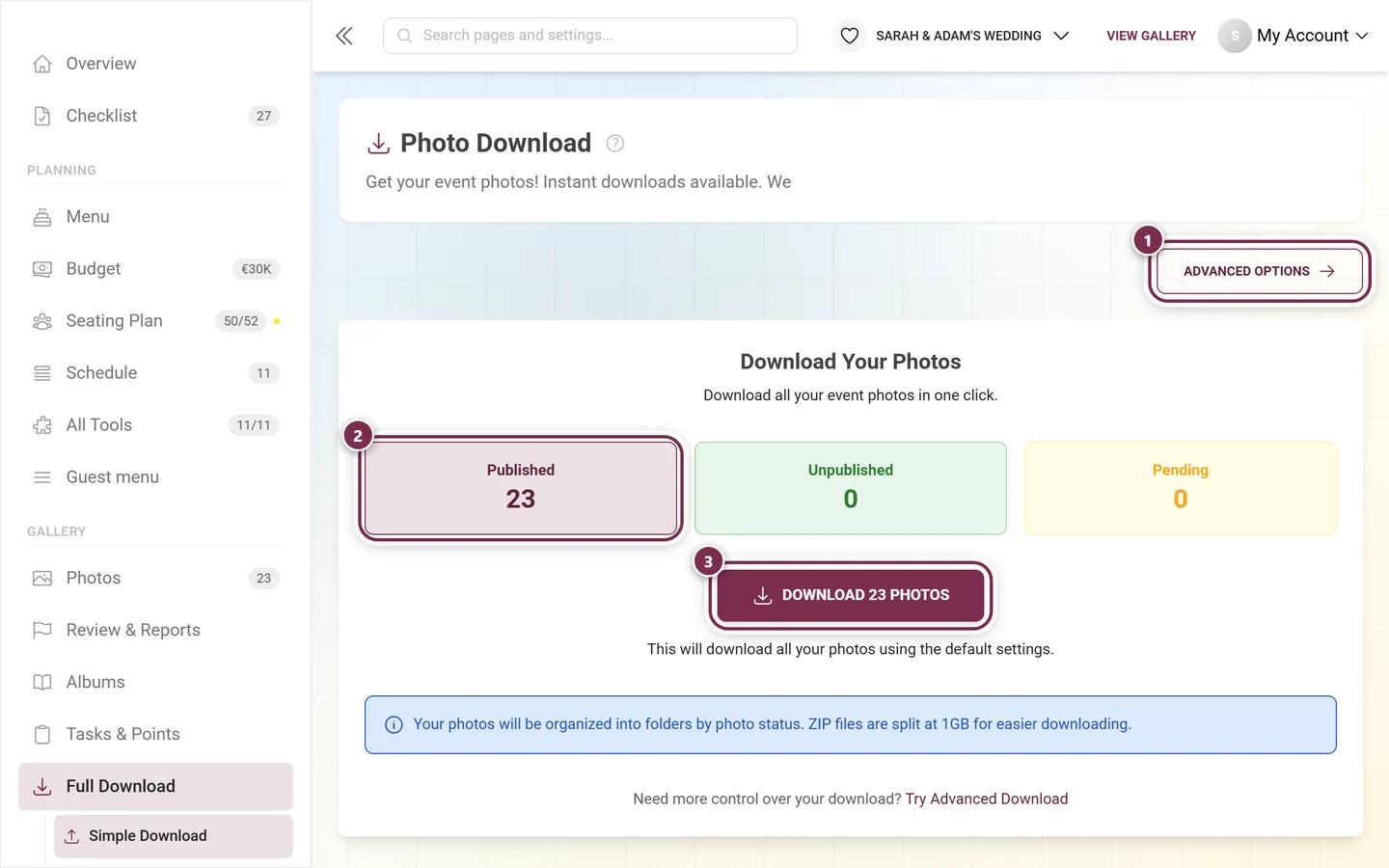
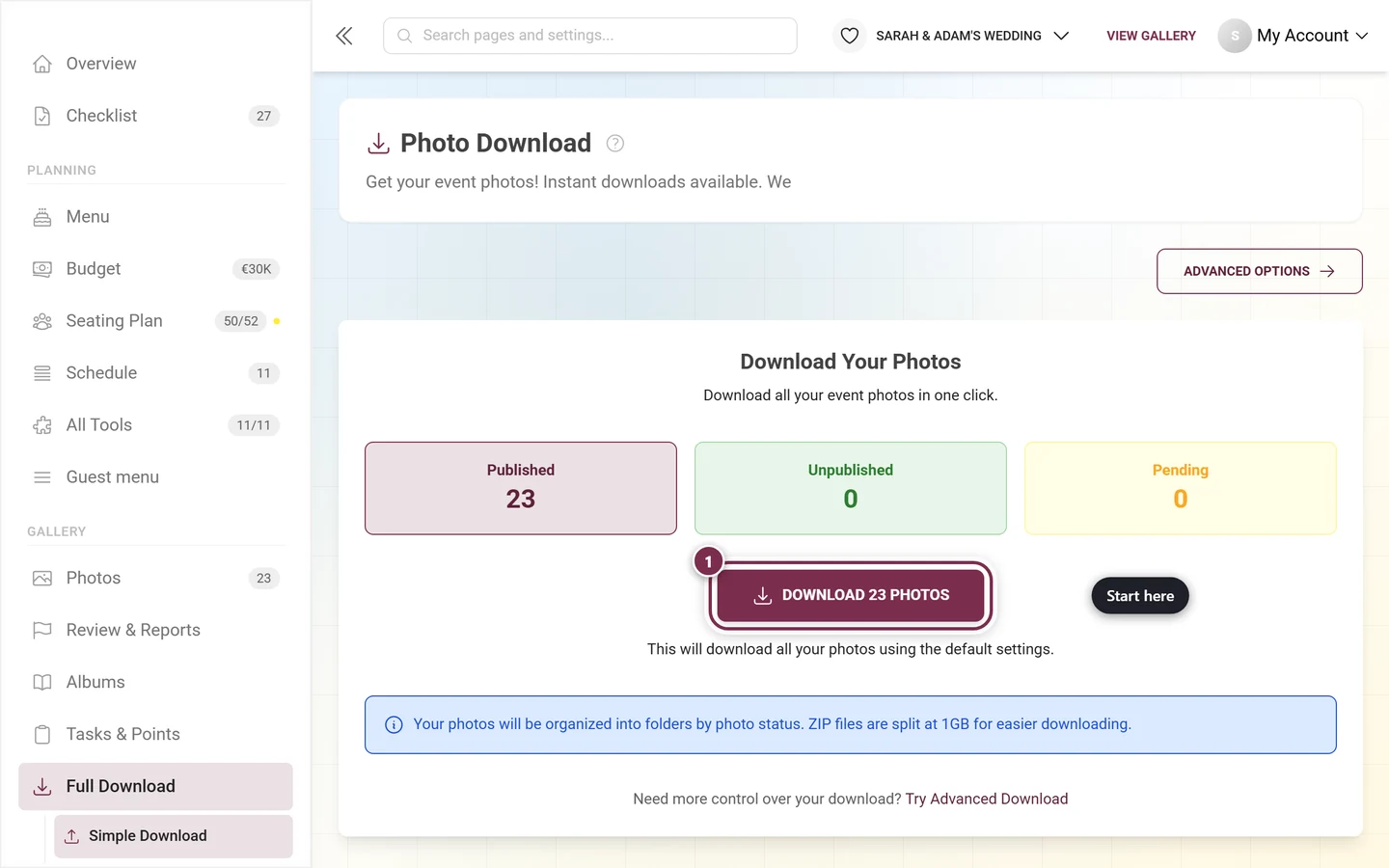
The download page in simple mode: ① “Advanced Options” switches to the seven-step setup – folder structure, file names, description files, recycle bin, photo selection, splitting by status and the structure preview. ② the status tiles: published, unpublished and waiting for approval. ③ downloads every photo with the default settings; the ZIP is split into parts at 1 GB. -
The page is titled Photo Download. In the top right you’ll find the toggle Advanced Options – in advanced mode it reads Back to Simple Download.
Part A – Simple download (default)
Section titled “Part A – Simple download (default)”The default view is the fastest route to a backup: one click and the entire gallery is packed with the default settings.
The three stat tiles
Section titled “The three stat tiles”At the top you see three counters showing what will be included:
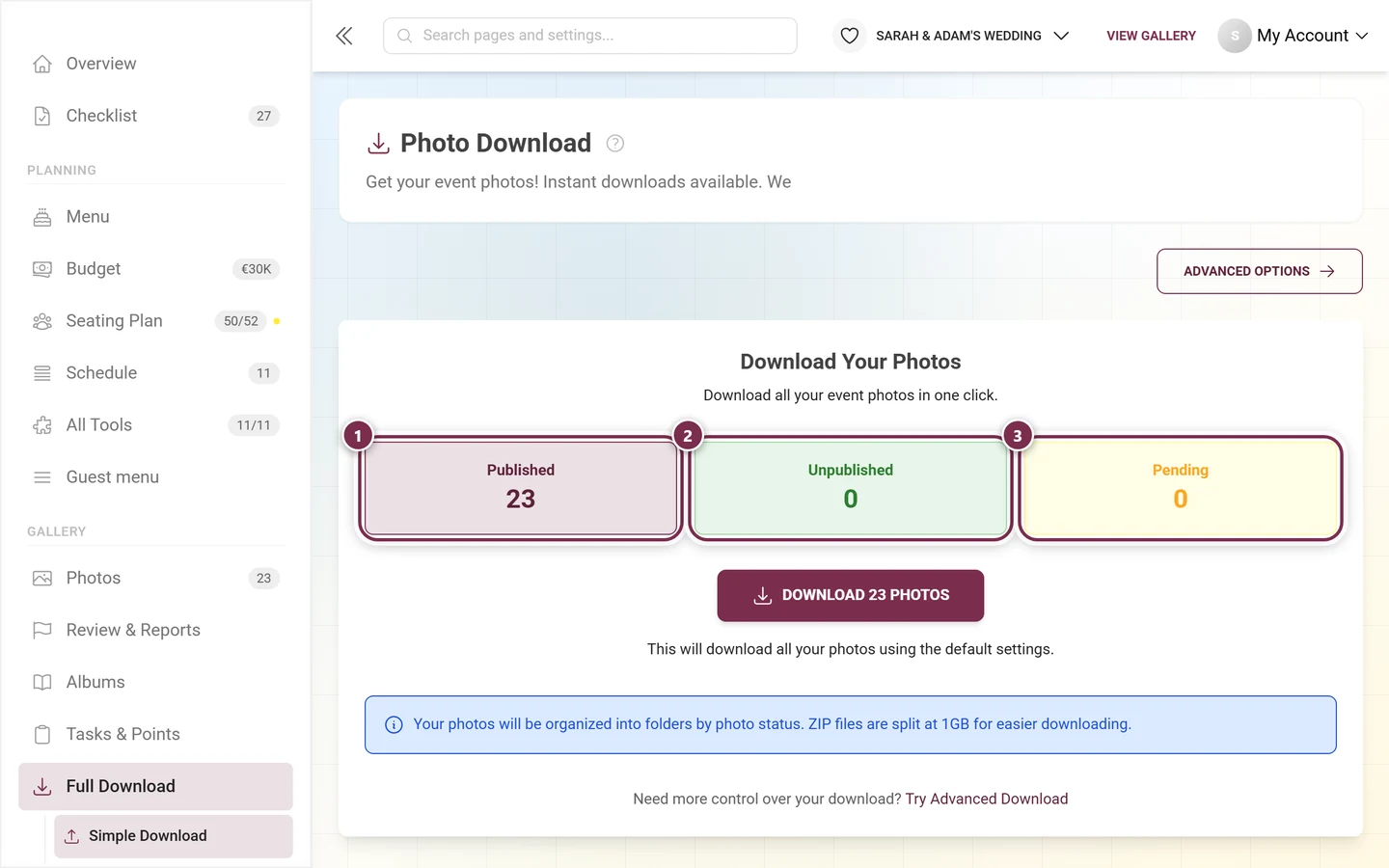
- Published – the published photos, visible to guests.
- Unpublished – photos that aren’t published (internal only).
- Pending – photos still waiting for your approval (moderation).
The simple download includes all three statuses – nothing is left out.
Download with one click
Section titled “Download with one click”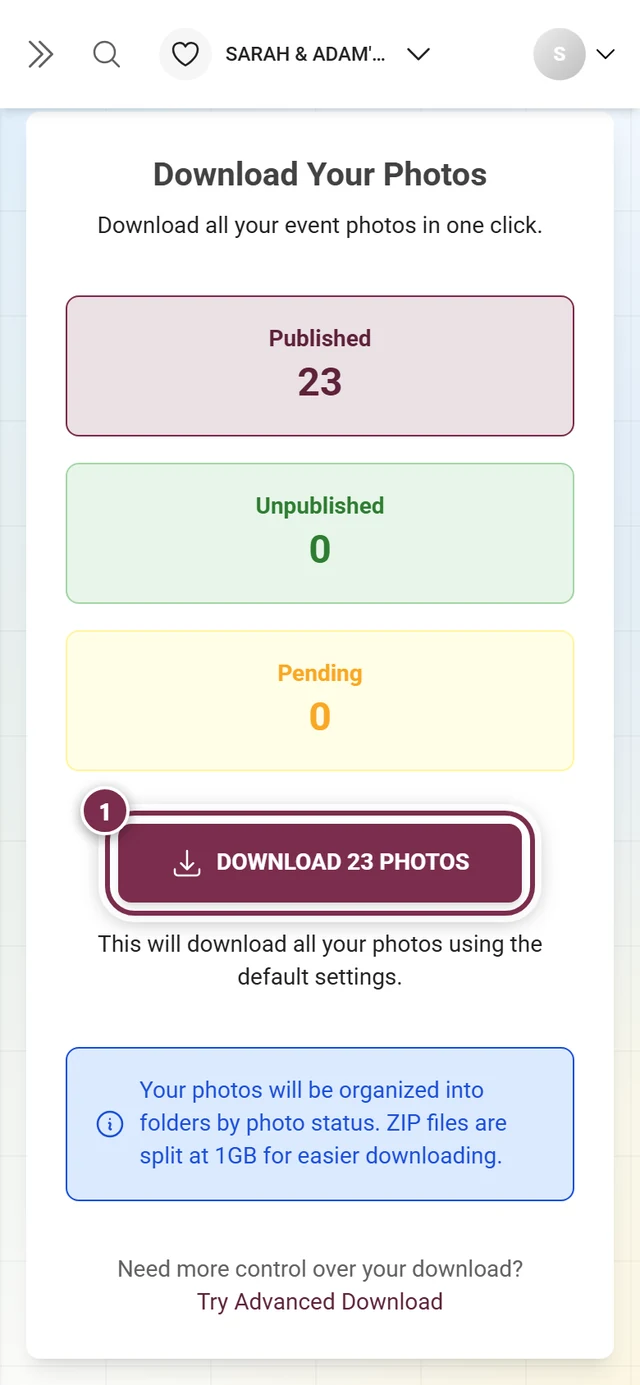
-
Under the heading Download Your Photos (“Download all your event photos in one click.”) sits the big button Download N Photos – N is the sum of published, unpublished and pending photos.
-
Click the button. The line below tells you what happens: “This will download all your photos using the default settings.” In practice that means split by status is on (photos go into folders by status), and archives are split automatically at 1 GB.
-
The screen switches to the progress screen (see Part B).
No photos available
Section titled “No photos available”If there are no photos in the gallery yet, the page shows the card No photos yet instead of the button, with the note “Once your guests have uploaded photos you can download everything here in one go.” Below it sit two buttons that lead exactly where photos come from: Get QR code opens the share dialog with a QR code and link to pass around, Open gallery jumps into the guest view. As soon as guests upload, the download button is back.
Part B – The progress and result screen
Section titled “Part B – The progress and result screen”Whether simple or advanced: once a download has been requested, this screen replaces the configuration. Progress comes in live over a WebSocket connection – you don’t need to reload the page.
It has three states, and each one looks different.
1. While the archive is being packed
Section titled “1. While the archive is being packed”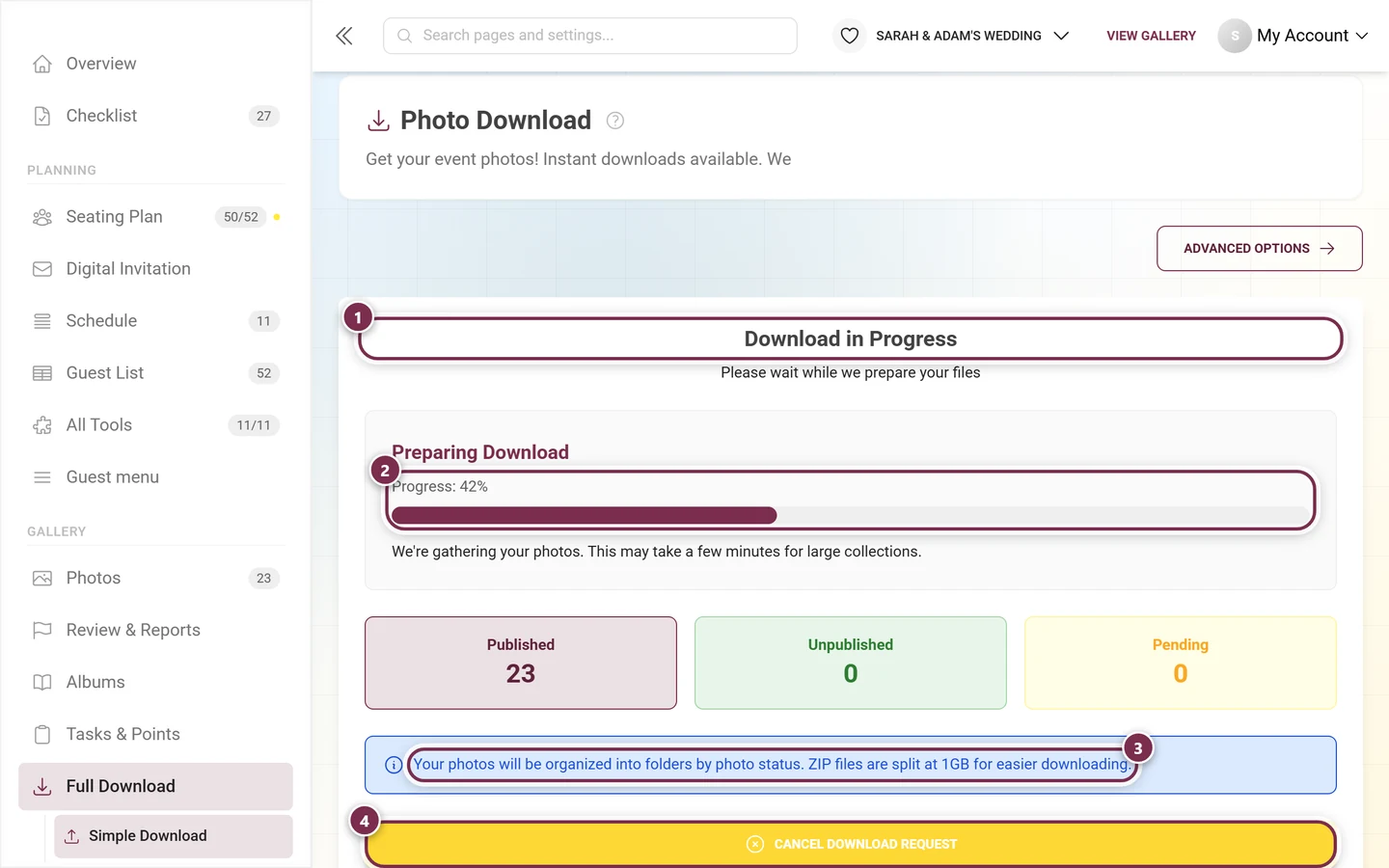
Below it, as reassurance: “We’re gathering your photos. This may take a few minutes for large collections.” Progress arrives over a WebSocket, so you can safely close the tab – the download keeps running on the server.
2. When the archive is ready
Section titled “2. When the archive is ready”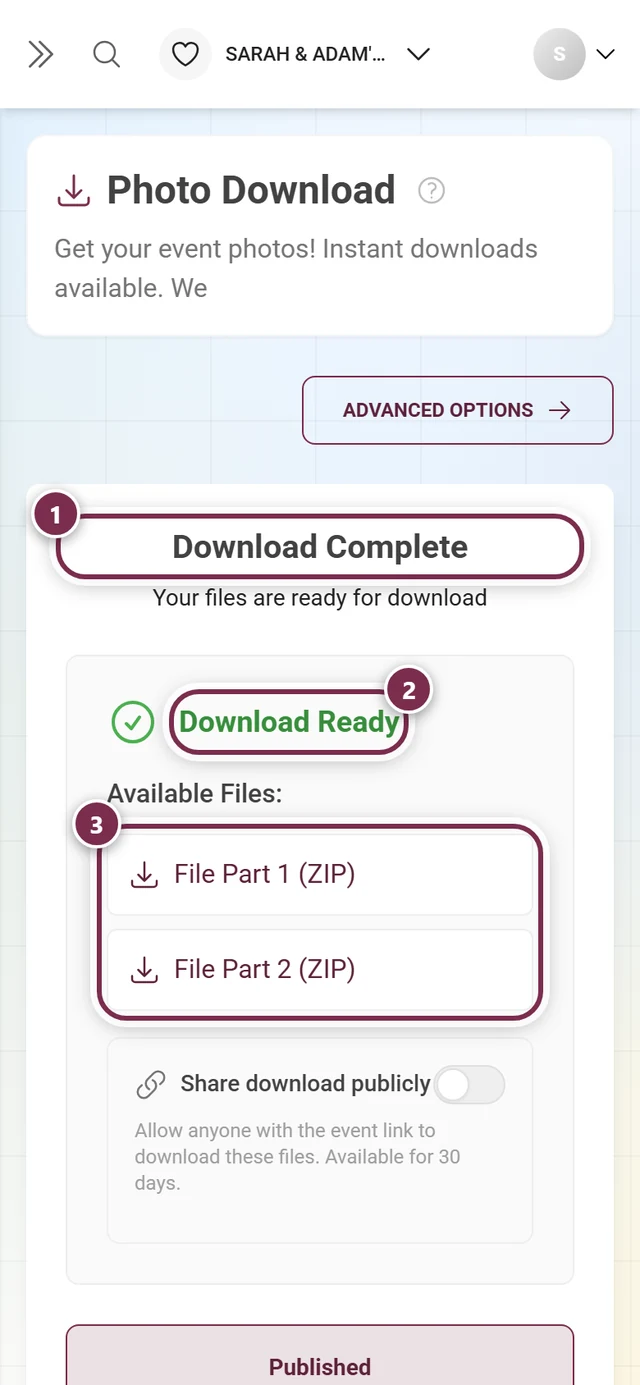
At the very bottom, Delete Generated ZIP & Start New Download (in advanced mode: … & Configure New Download) resets everything so you can build a fresh archive. While the old archive is around, the settings stay locked.
3. When something goes wrong
Section titled “3. When something goes wrong”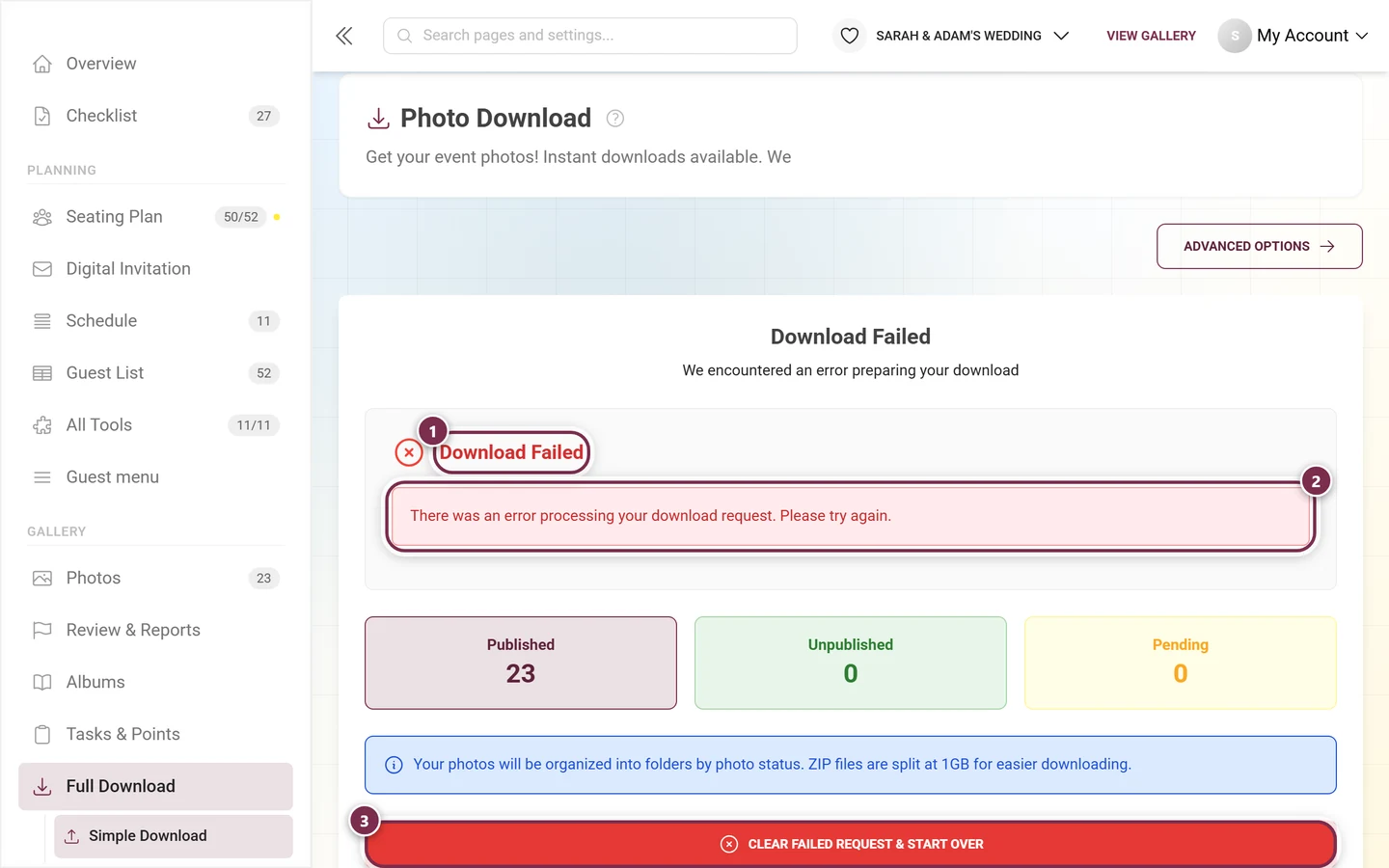
Multiple ZIP parts for large galleries
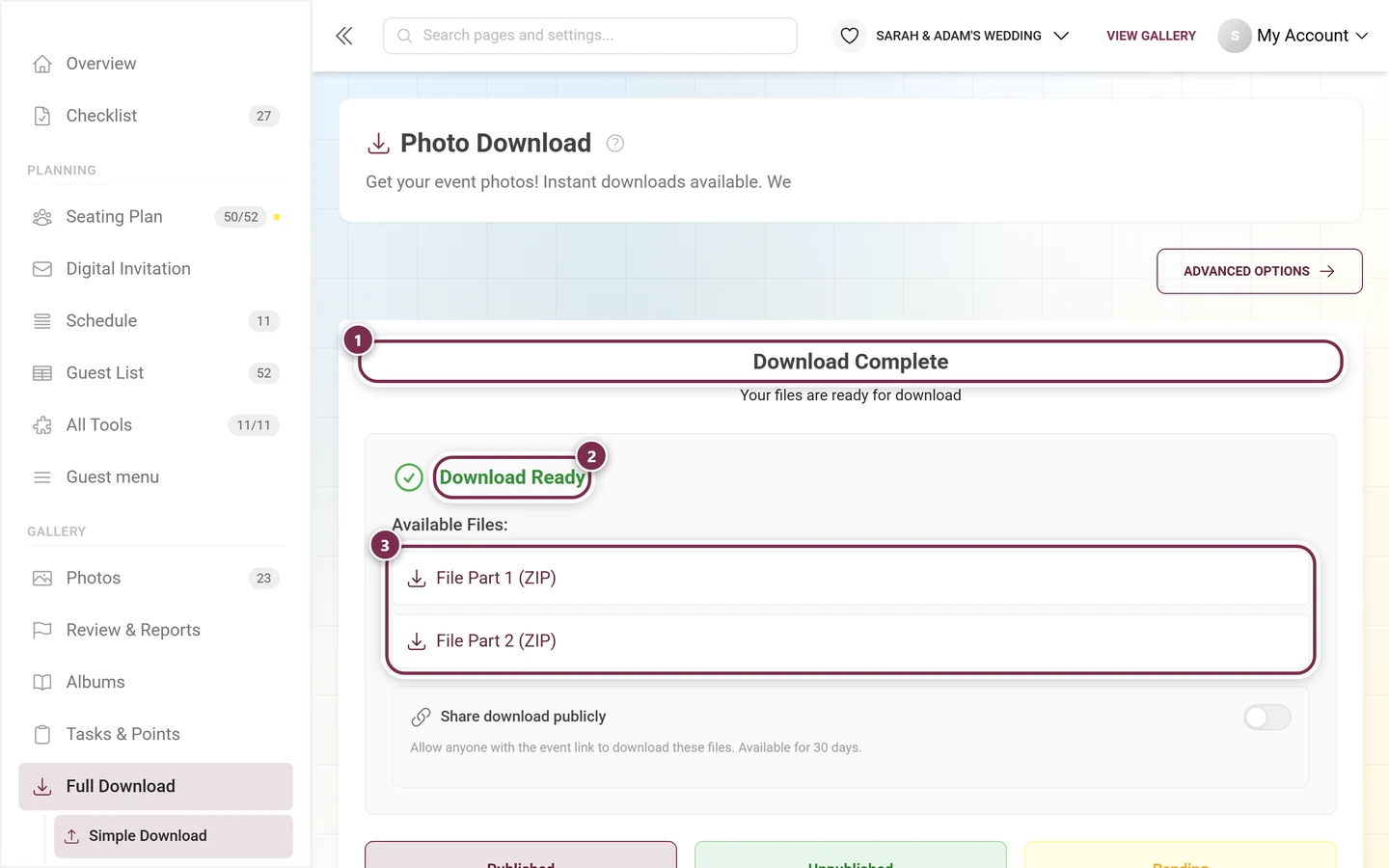
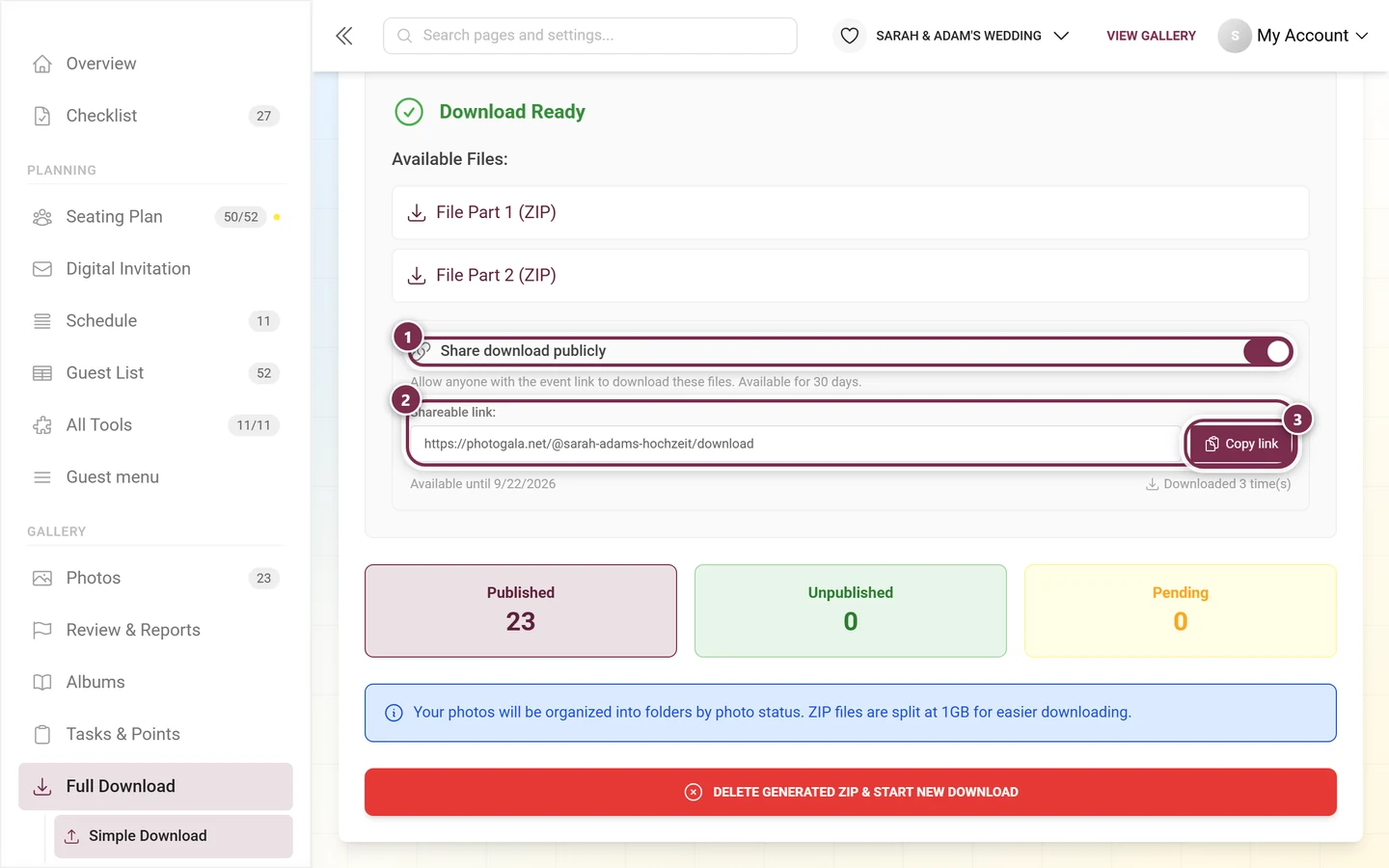
Section titled “Multiple ZIP parts for large galleries”Large collections are split automatically into several archives at 1 GB – large videos can make individual parts bigger. The Available Files: list then holds one File Part N (ZIP) entry per part; for a single file it is one plain download link. In that case download every part – each part holds different photos, they complement each other, and no single part is a complete backup on its own.
Share the ZIP publicly
Section titled “Share the ZIP publicly”Once the download is finished, the sharing area appears at the bottom of the result screen – in both modes, simple and advanced:
-
Turn on the Share download publicly toggle. The hint explains: “Allow anyone with the event link to download these files. Available for 30 days.” From then on anyone with the link downloads the finished files – without logging in.
-
Under Shareable link: a field with the finished address appears alongside a Copy link button (briefly showing Link copied! after the click). The address is the event link with
/downloadappended – if your event has a slug it looks like this:photogala.net/@sarah-adams-hochzeit/download. -
Below it you’ll see Available until DATE on the left (expiry, 30 days after you switch it on) and Downloaded N time(s) on the right (how often the link was used).
Part C – Advanced download
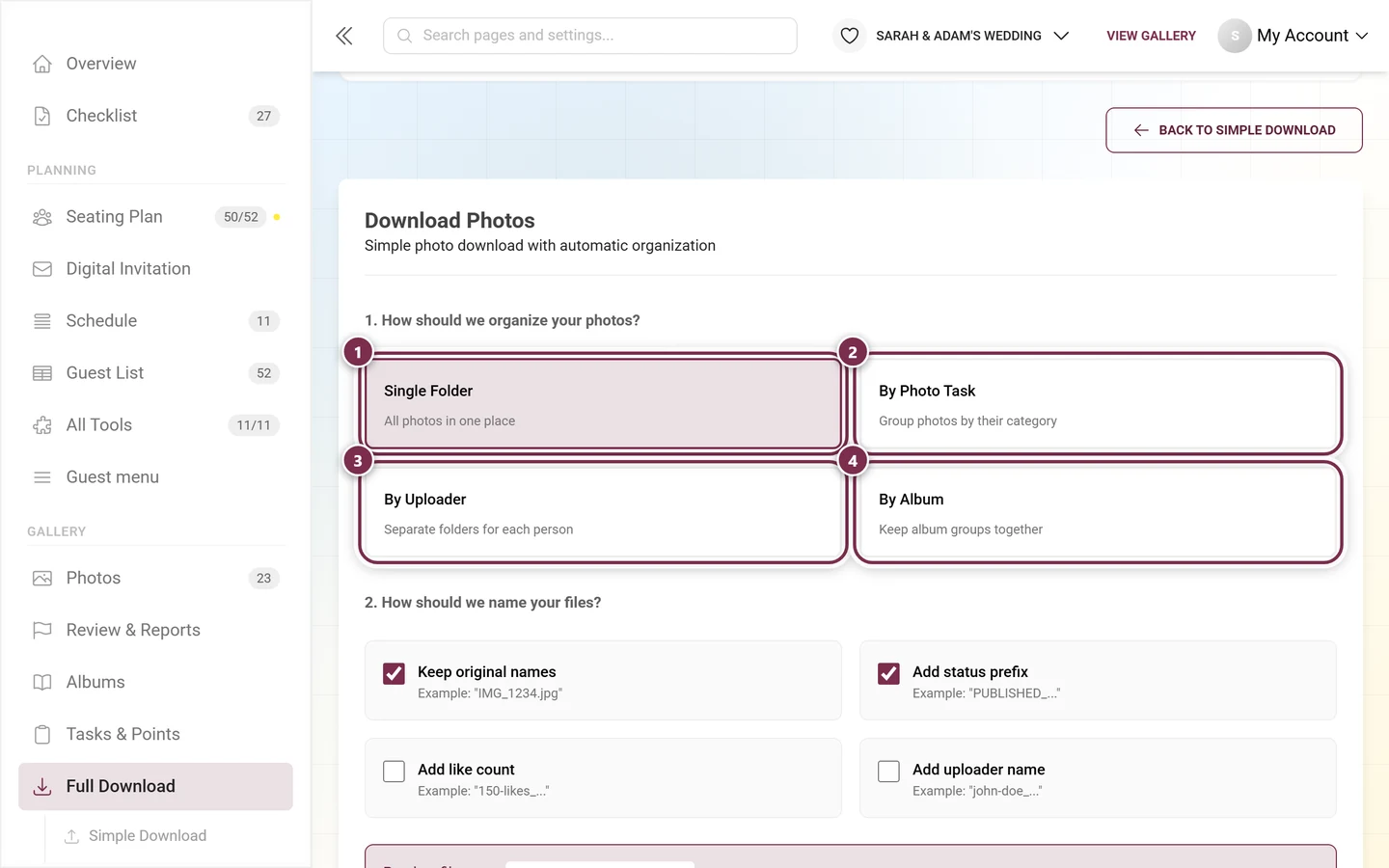
Section titled “Part C – Advanced download”Click Advanced Options in the top right to switch to advanced mode (route with ?mode=advanced). The area is headed Download Photos with the subtitle “Simple photo download with automatic organization”. Here you control exactly what and how things are packed in seven numbered steps. Every setting is reflected immediately in the live preview (step 7).
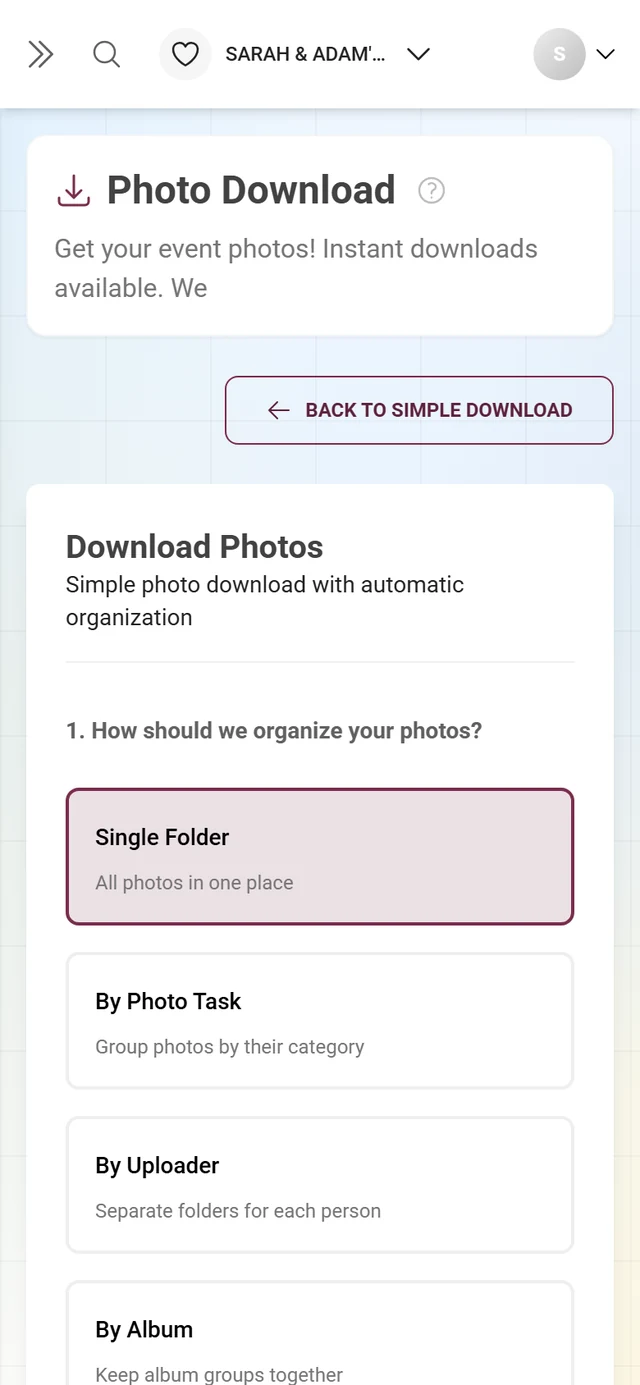
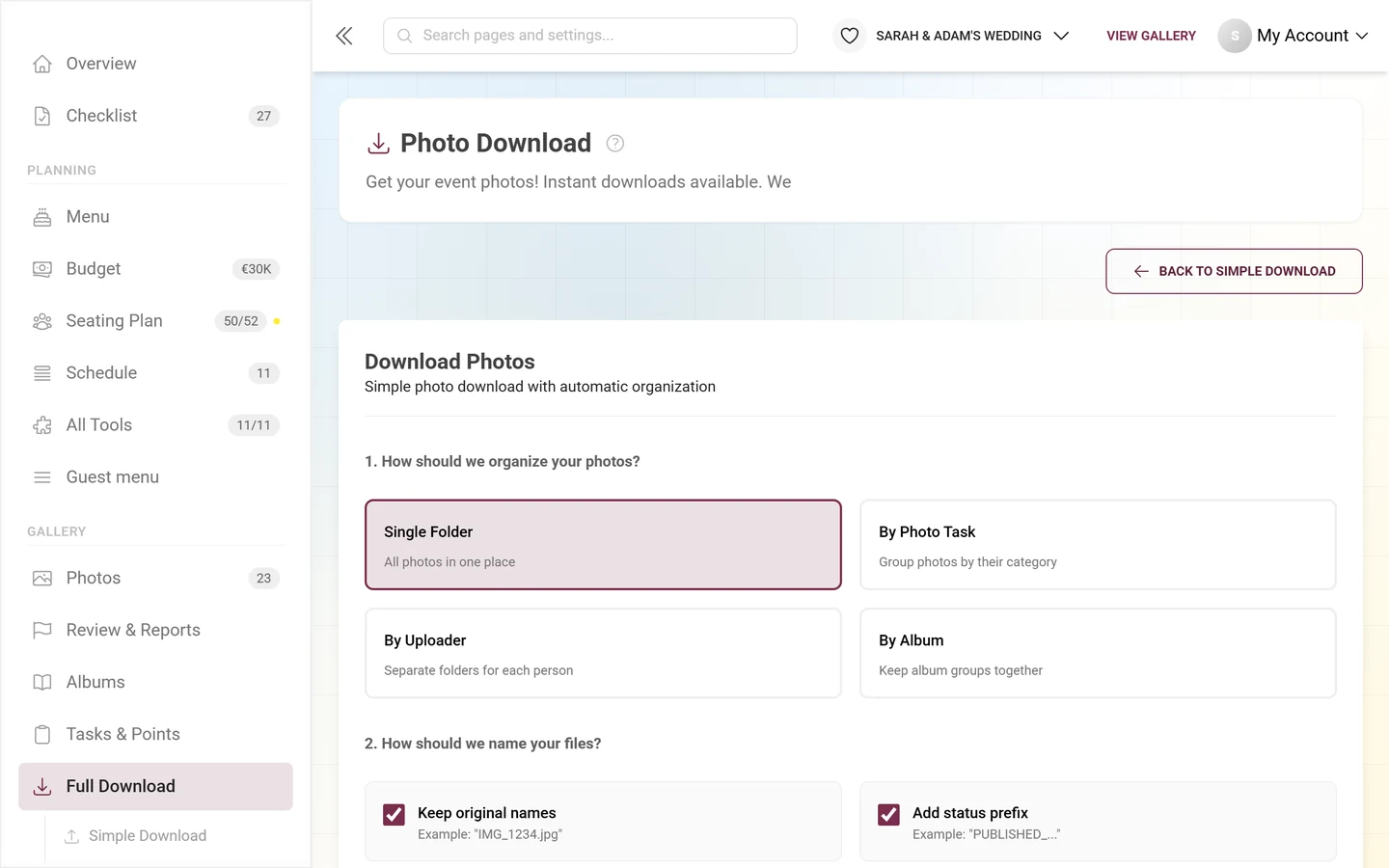
1. How should we organize your photos?
Section titled “1. How should we organize your photos?”Pick one of four folder structures (default: Single Folder):
- Single Folder – “All photos in one place”.
- By Photo Task – “Group photos by their category” (see Managing tasks).
- By Uploader – “Separate folders for each person”.
- By Album – “Keep album groups together” (see Creating albums).
2. How should we name your files?
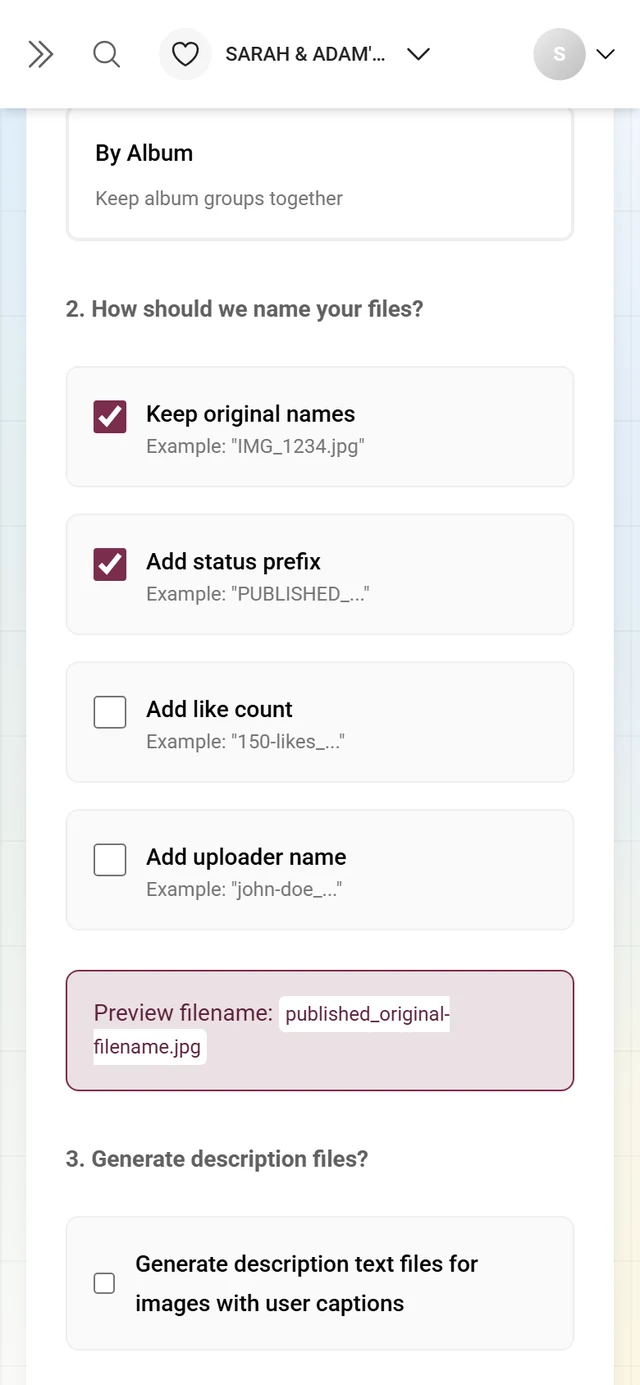
Section titled “2. How should we name your files?”Four combinable checkboxes (default: original name and status prefix on):
- Keep original names – example: “IMG_1234.jpg”.
- Add status prefix – example: “PUBLISHED_…”.
- Add like count – example: “150-likes_…”.
- Add uploader name – example: “john-doe_…”.
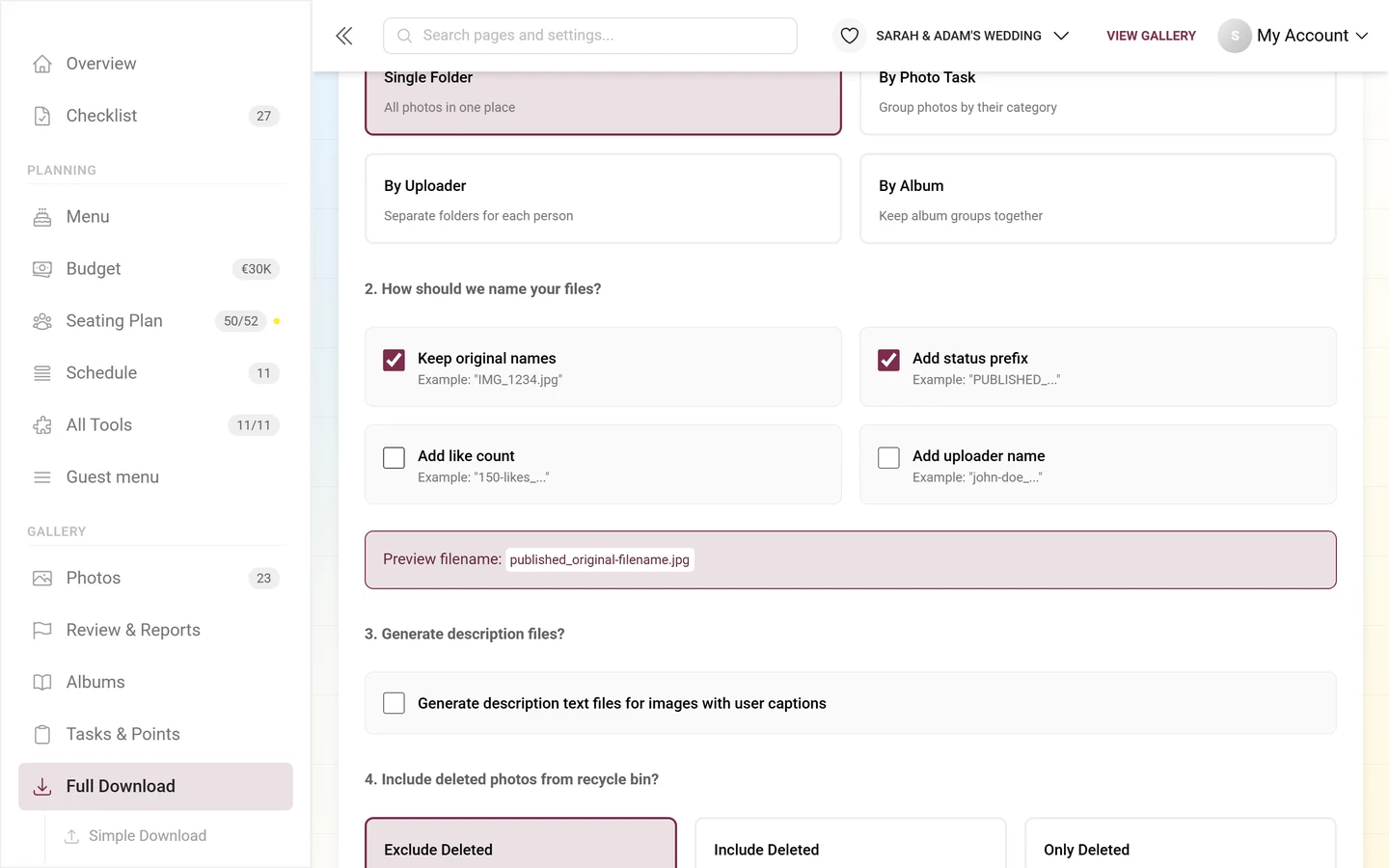
Under Preview filename: you see a live example file name from your combination.
3. Generate description files?
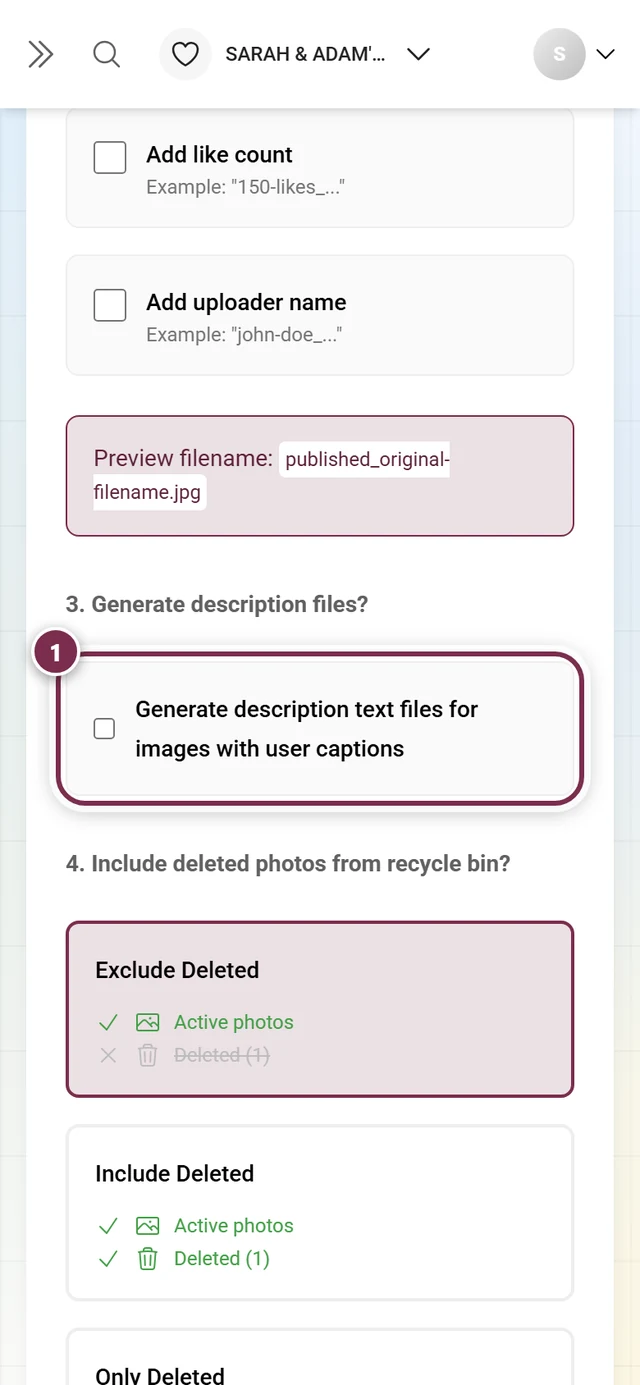
Section titled “3. Generate description files?”The checkbox Generate description text files for images with user captions creates a .txt file next to each photo that has a caption – handy if you want to keep your guests’ captions. Default: off.
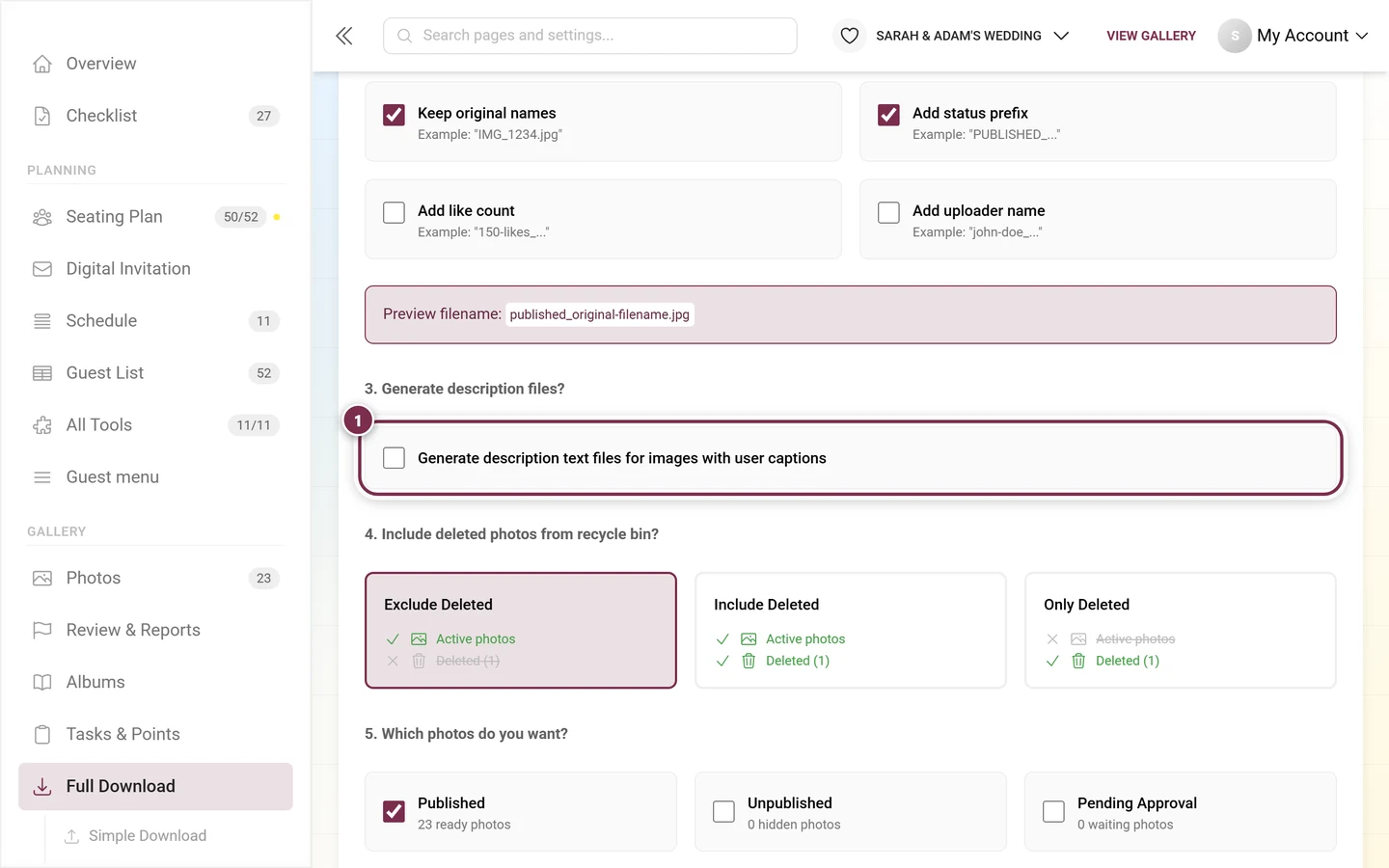
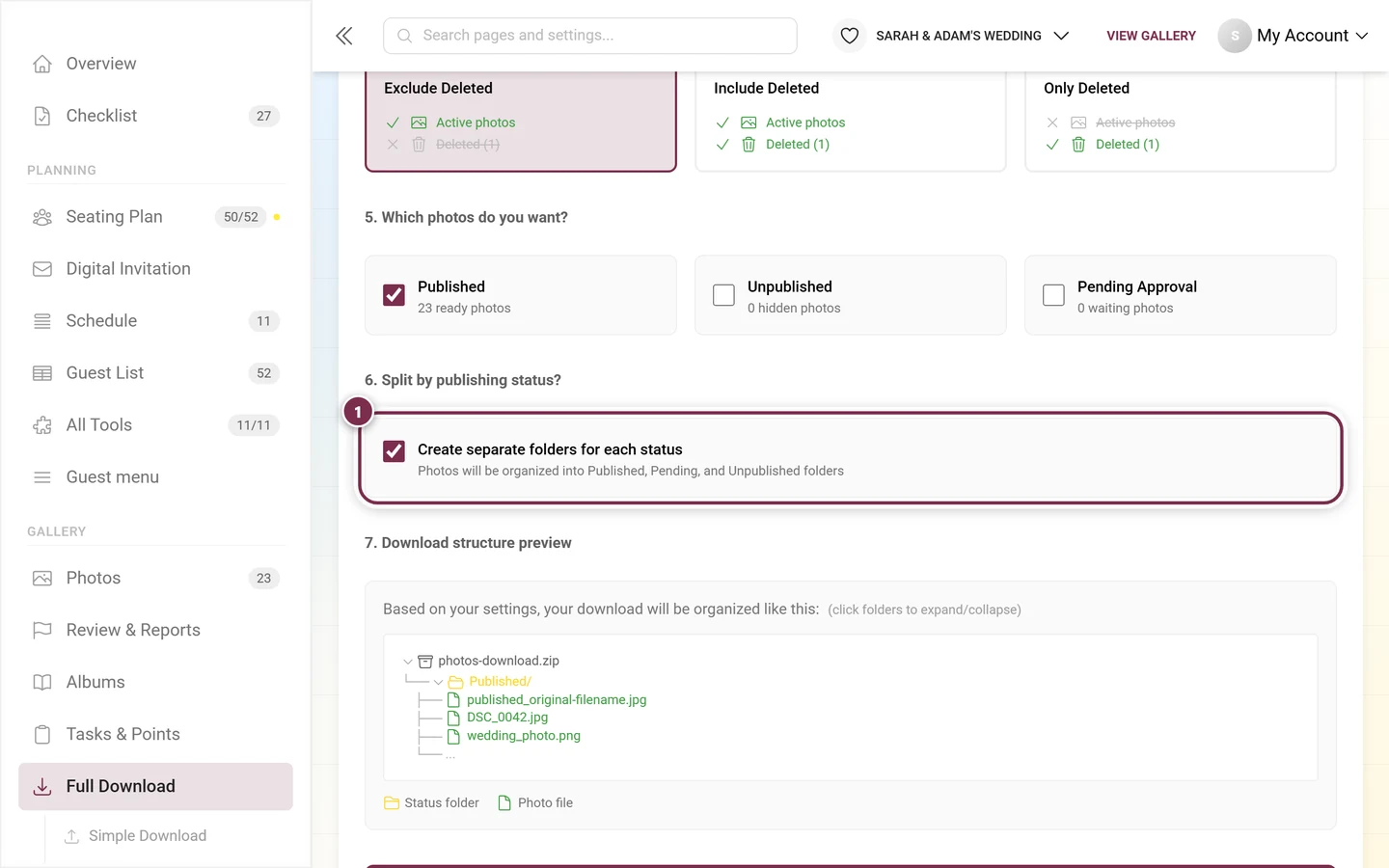
4. Include deleted photos from recycle bin?
Section titled “4. Include deleted photos from recycle bin?”Three selection cards (default: Exclude Deleted), each with a small tree preview and a count:
- Exclude Deleted – “Only include active photos (default)”.
- Include Deleted – “Include both active and deleted photos”, with the number of extra deleted photos.
- Only Deleted – “Only include photos from recycle bin”, with the count.
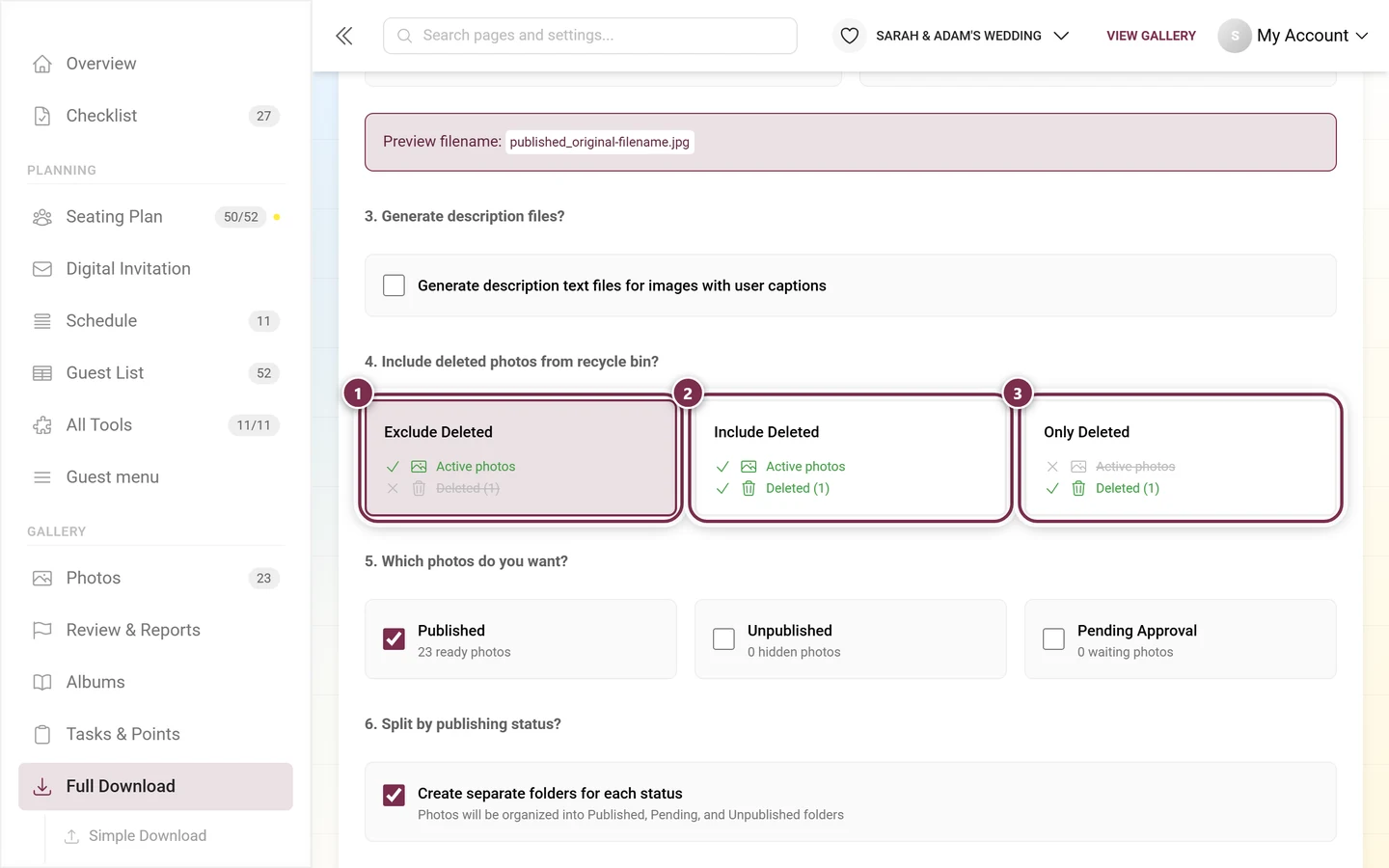
This is the lifeline when someone deleted photos by accident: Only Deleted pulls the recycle-bin contents and nothing else. For what the recycle bin can otherwise do and how long it keeps things, see Recycle bin.
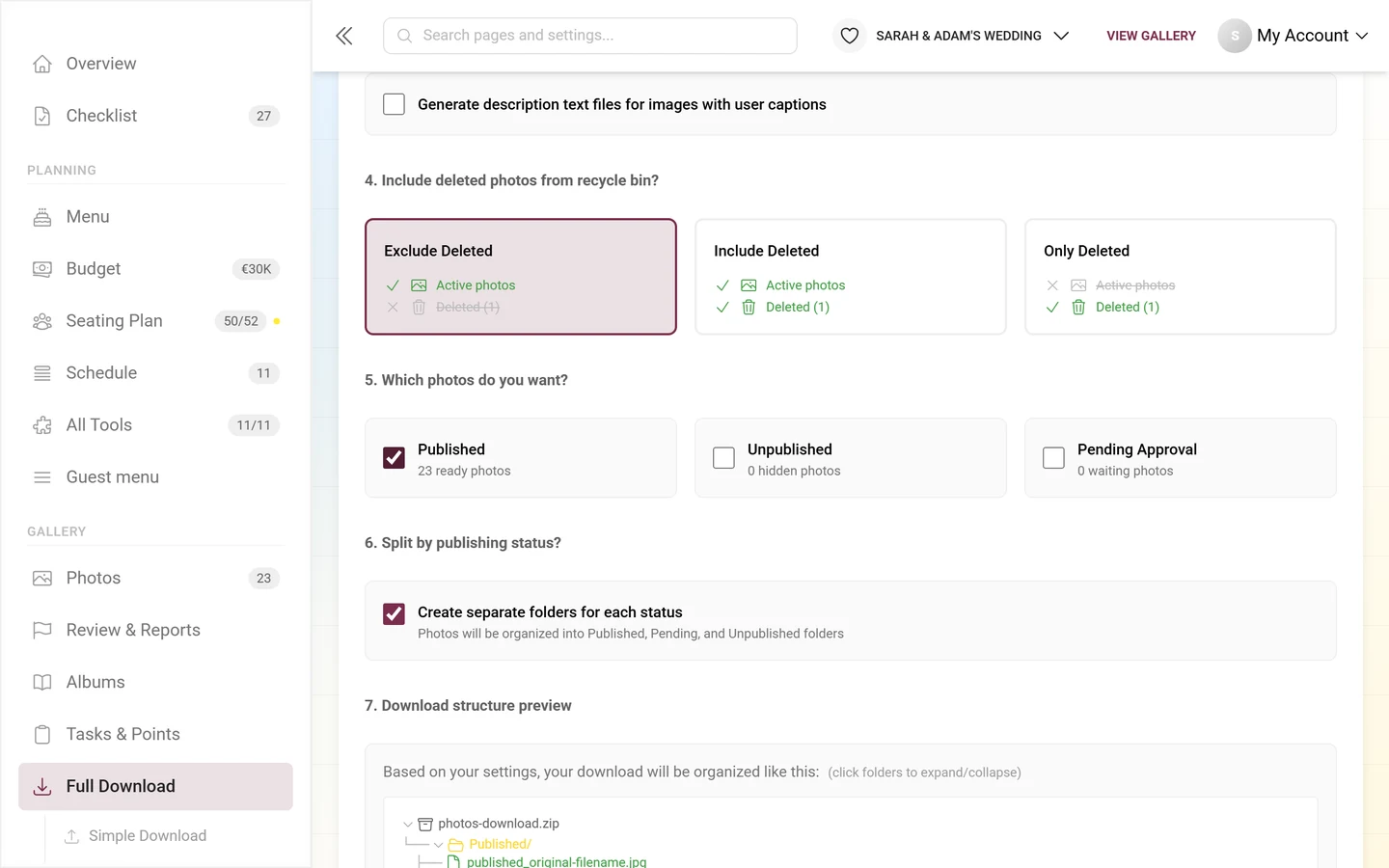
5. Which photos do you want?
Section titled “5. Which photos do you want?”Three checkboxes with live counters – this is where you select by publishing status (default: only Published on):
- Published – “N ready photos”.
- Unpublished – “N hidden photos”.
- Pending Approval – “N waiting photos”.
Watch out: unlike the simple download, not all three statuses are ticked here by default. For a true full backup, tick all three. The counter on the download button below updates live from these checkboxes and the recycle-bin filter.
6. Split by publishing status?
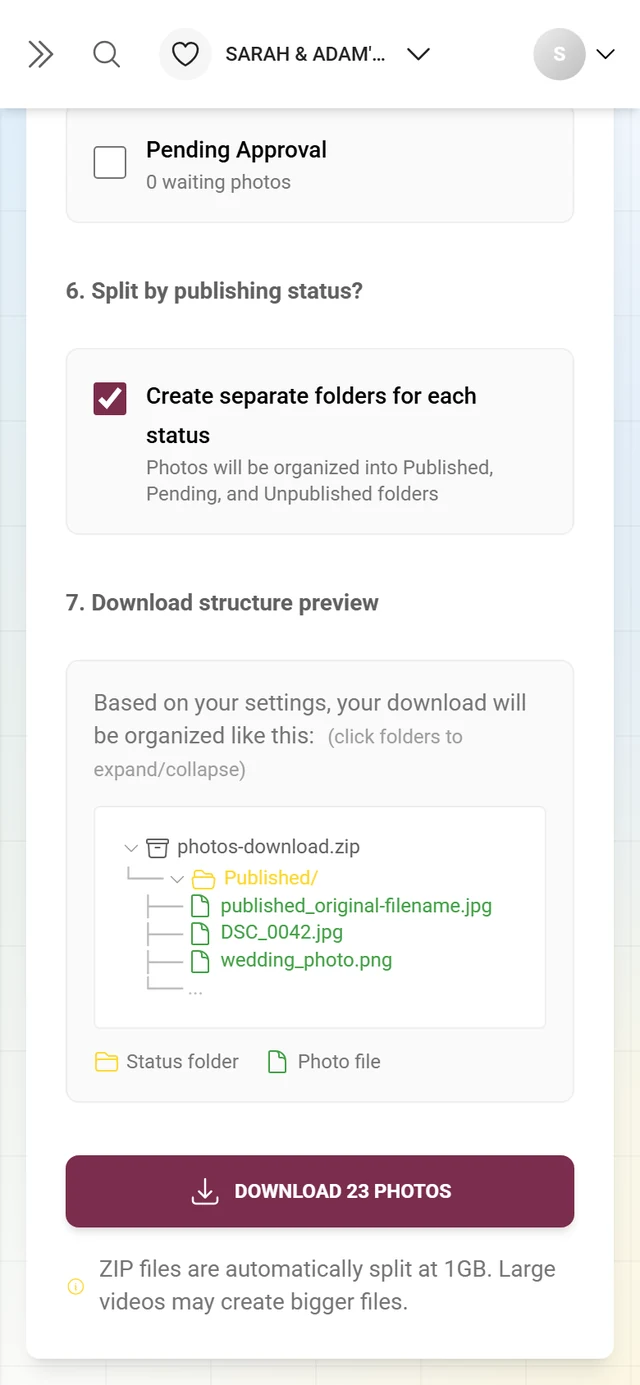
Section titled “6. Split by publishing status?”The checkbox Create separate folders for each status (default on) sorts photos into folders: “Photos will be organized into Published, Pending, and Unpublished folders”.
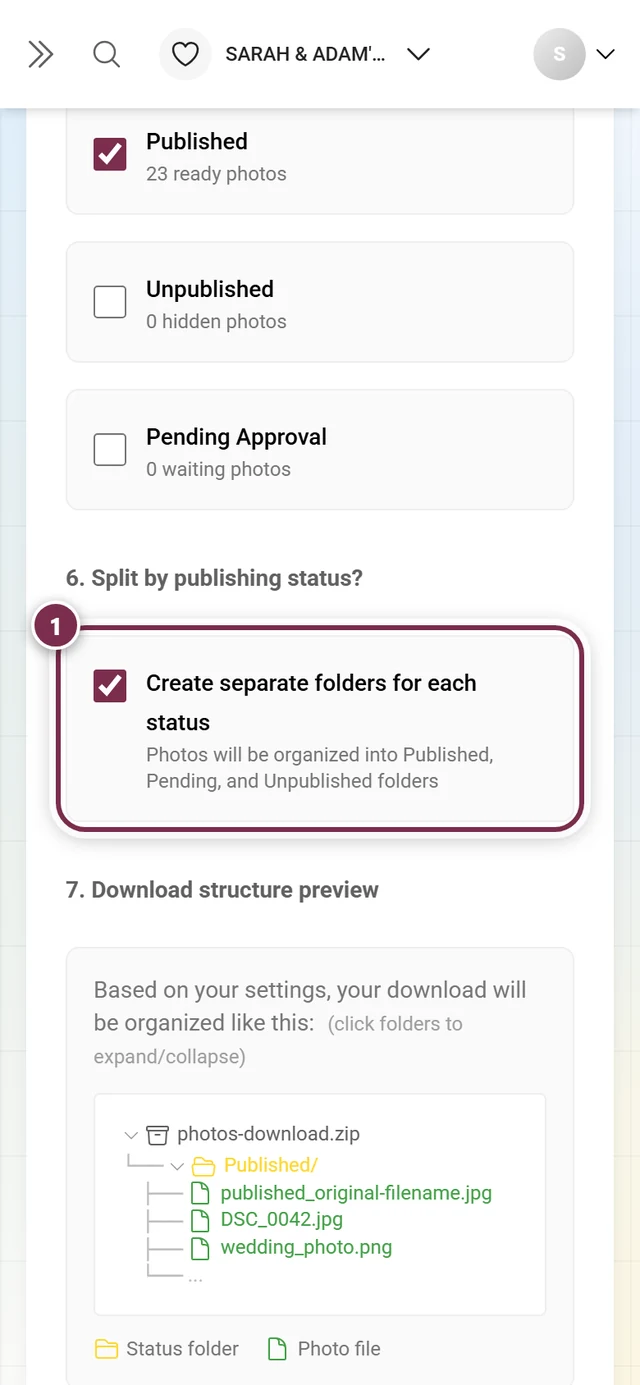
7. Download structure preview
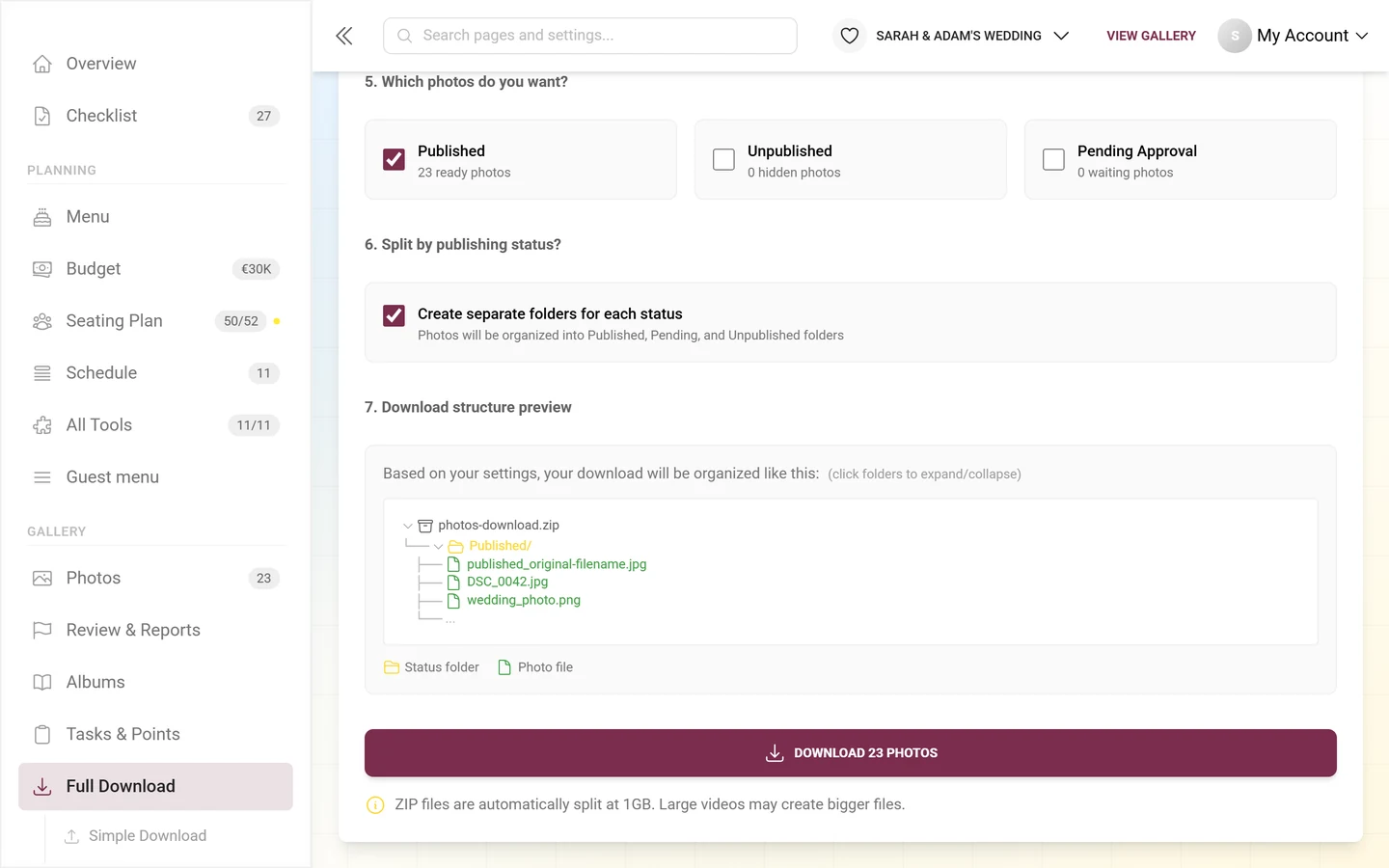
Section titled “7. Download structure preview”An interactive, expandable folder tree (root: photos-download.zip) shows you live how the archive will look with your settings – “Based on your settings, your download will be organized like this:” plus the hint “(click folders to expand/collapse)”. The legend below explains the colors: Status folder, Grouping folder, Photo file, Description file (only when step 3 is active) and Deleted items (only when step 4 is not set to “Exclude Deleted”).
Starting the advanced download
Section titled “Starting the advanced download”-
Check the preview. The button Download N Photos shows how many files will be packed with the current filters.
-
If no files remain with your filters, the button is disabled and you see “There are no downloadable files with the current filters!” – then loosen the filters.
-
Click Download N Photos. The note “ZIP files are automatically split at 1GB. Large videos may create bigger files.” reminds you of the 1 GB split.
-
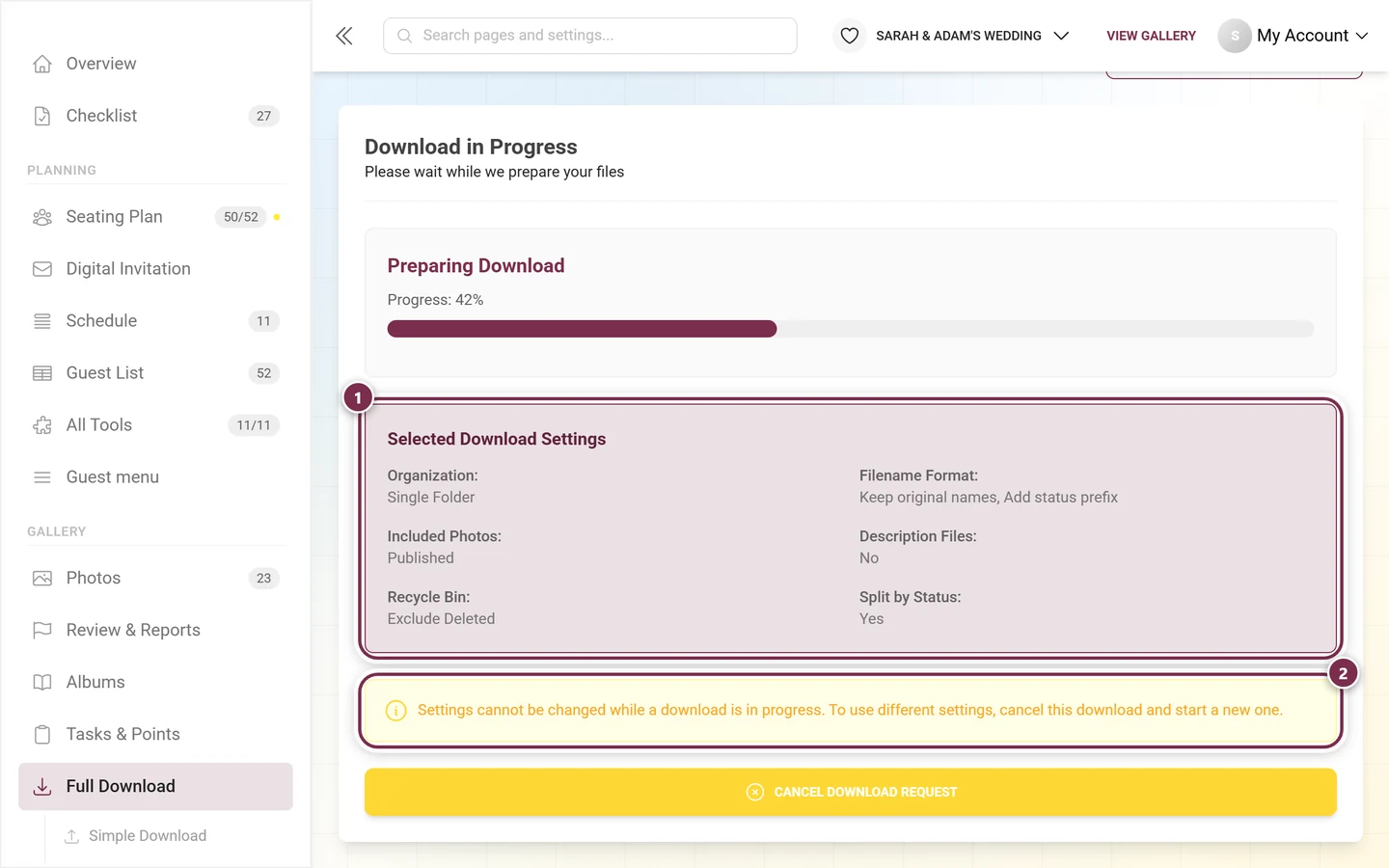
The progress screen follows (Part B) – in advanced mode with an extra summary of your choices.
New-photos reminder
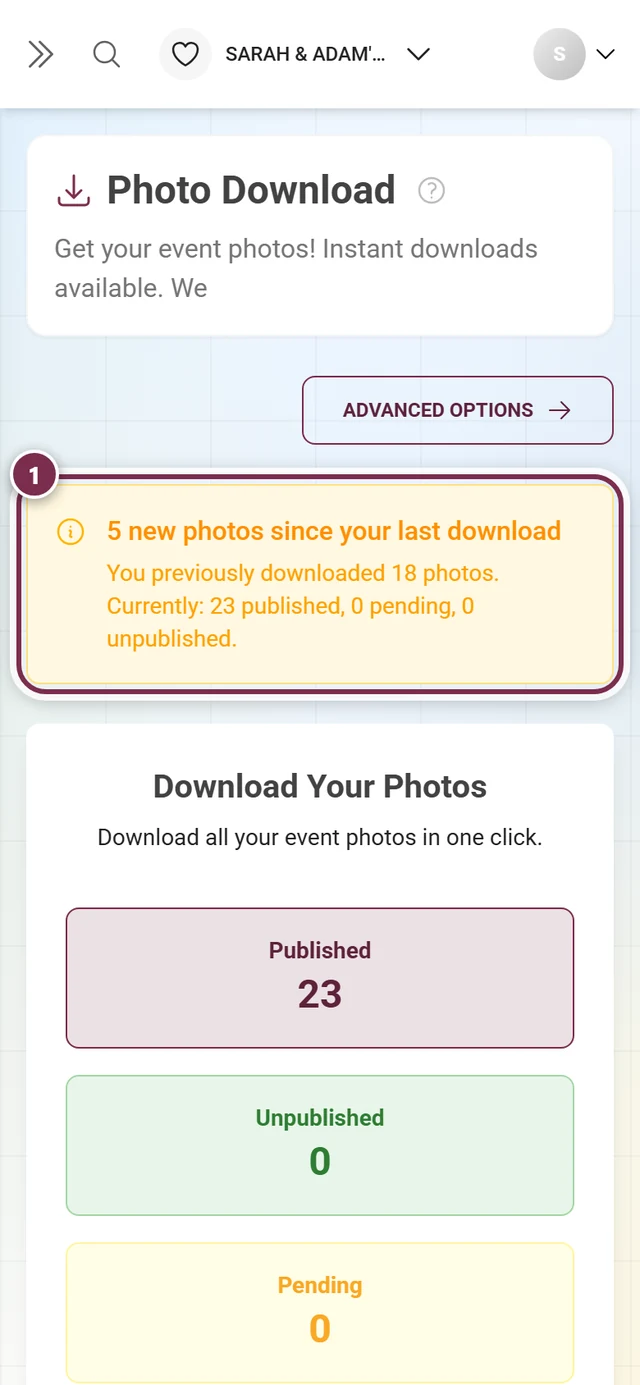
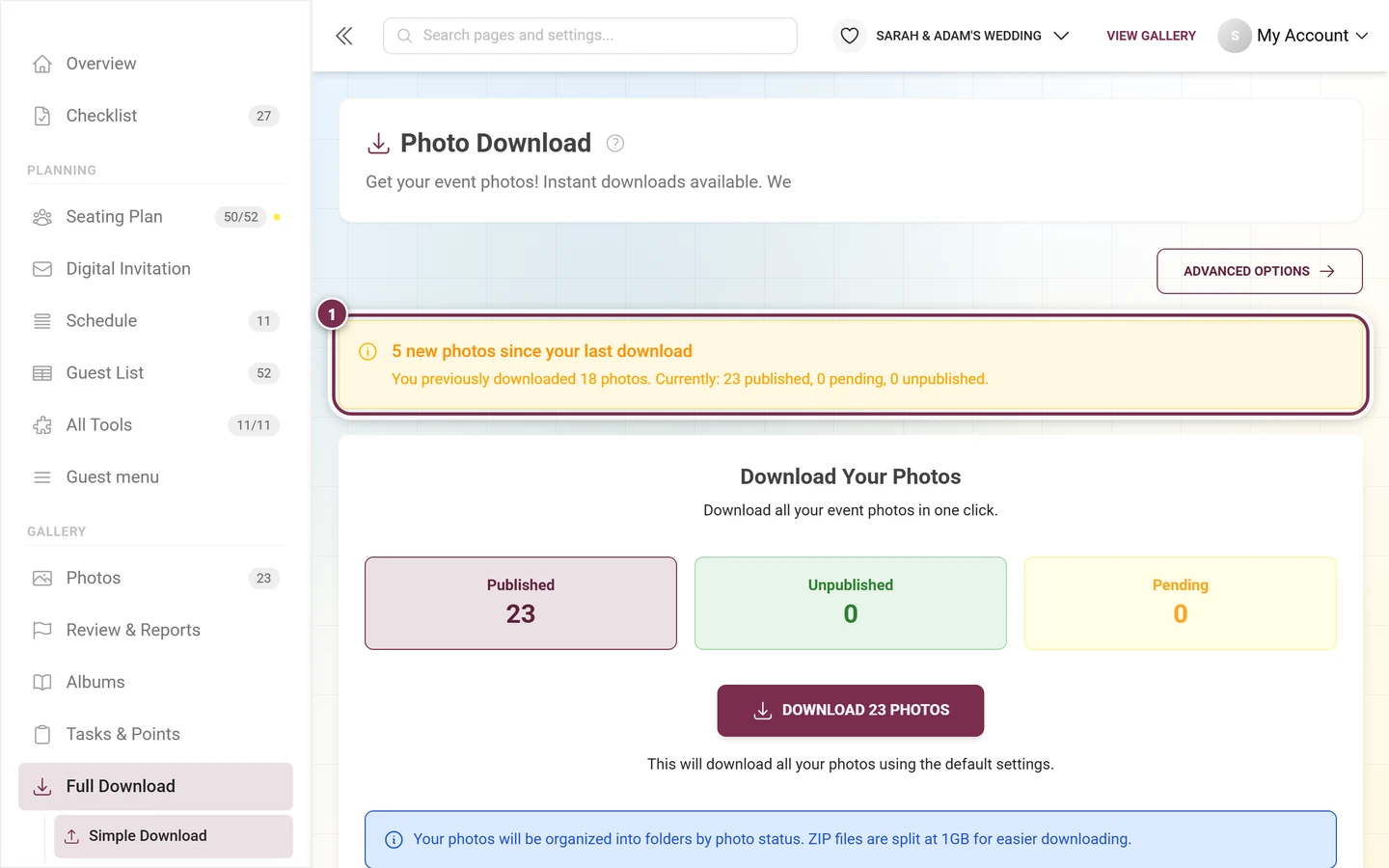
Section titled “New-photos reminder”If you’ve downloaded before and new photos have arrived since, a yellow banner appears between the page header and the download card: “N new photos since your last download”. The line below spells out the numbers – “You previously downloaded N photos. Currently: X published, Y pending, Z unpublished.” – or, when no detail data from last time is available, just the total. Use the banner as a reminder to refresh your backup after new uploads; it only disappears once you have downloaded again.
Edge cases & troubleshooting
Section titled “Edge cases & troubleshooting”- Feature not in your plan: on non-branded events the page shows an upgrade prompt; on branded (white-label) events the menu item is hidden and a direct visit redirects to the dashboard. Fix: upgrade your plan, see Plan & term.
- 0 photos / 0 filtered files: “No photos yet” or “There are no downloadable files with the current filters!” – wait for uploads or loosen the filters in advanced mode.
- Download hangs or takes long: large collections take time; progress arrives live via WebSocket, and you’re notified by email. If needed, stop with Cancel Download Request.
- Failed: reset with Clear Failed Request & Start Over; reduce the scope or filters if necessary.
- Settings can’t be changed: a download is still running. Cancel it or delete the generated ZIP first, then reconfigure.
- Photos missing from the advanced download: most likely only Published is ticked in step 5. Tick Unpublished and Pending Approval as well.
- New photos after the backup: the banner at the top reminds you – just run the download again.
- Gallery in the archive: here a ZIP is possible once every 7 days; a second attempt within that window is rejected. If the gallery comes from the free Starter, there is no ZIP at all in the archive – only individual downloads. The archive is not a backup, so it pays to make a ZIP before you switch to the archive. See Archive – keep it for less.
Best-practice tips
Section titled “Best-practice tips”- Back up in good time: download the backup before your event’s storage period ends (terms in the glossary).
- Full backup in advanced mode: tick all three statuses in step 5, add Include Deleted if needed, and Keep original names for unchanged file names.
- Per-guest attribution matters? Use By Uploader and/or Add uploader name.
- Want to keep the captions? Enable step 3 – captions land as
.txtnext to the photo. - Enable public sharing only deliberately – the link grants access without a login and expires after 30 days.
Related pages
Section titled “Related pages”- Downloading photos (guests) and Select & download
- Slideshow – save individual photos straight from the slideshow
- Recycle bin · Creating albums · Managing tasks
- Plan & term · Glossary