Your profile
Your profile is your personal space in the gallery. It holds your name and picture, your stats, your achievements, your task progress and your own and liked photos – all in one place. This page walks you through every part of your profile step by step.
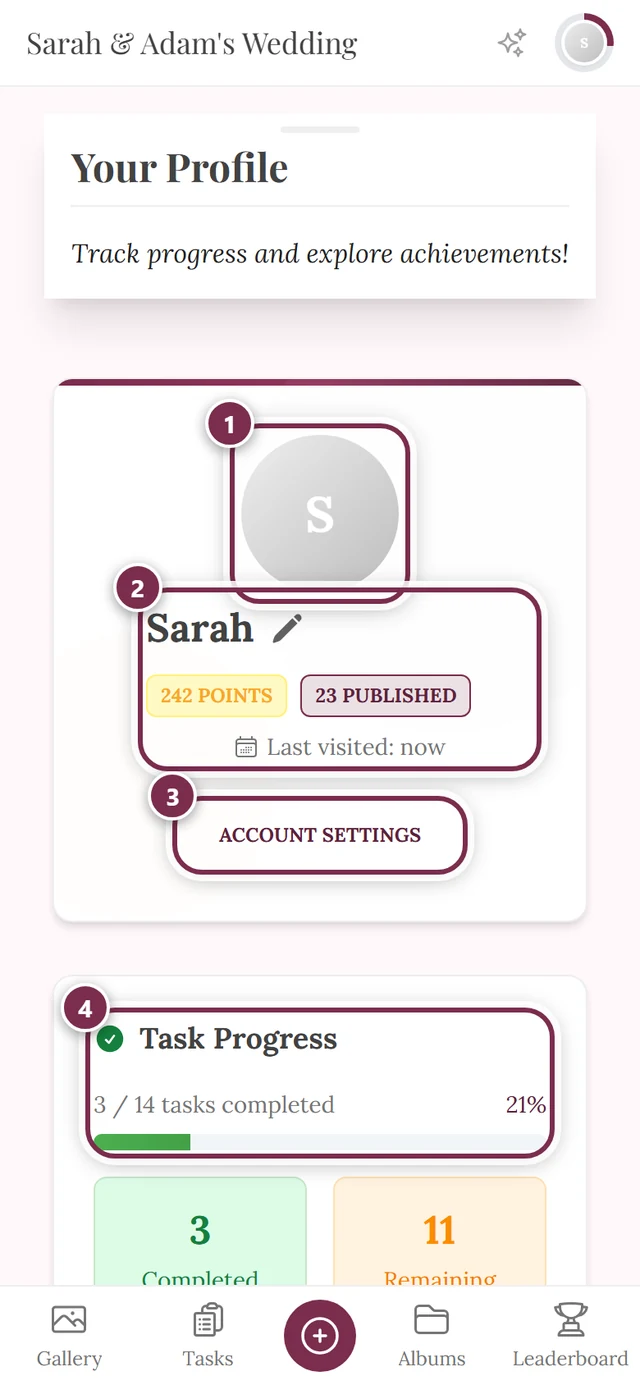
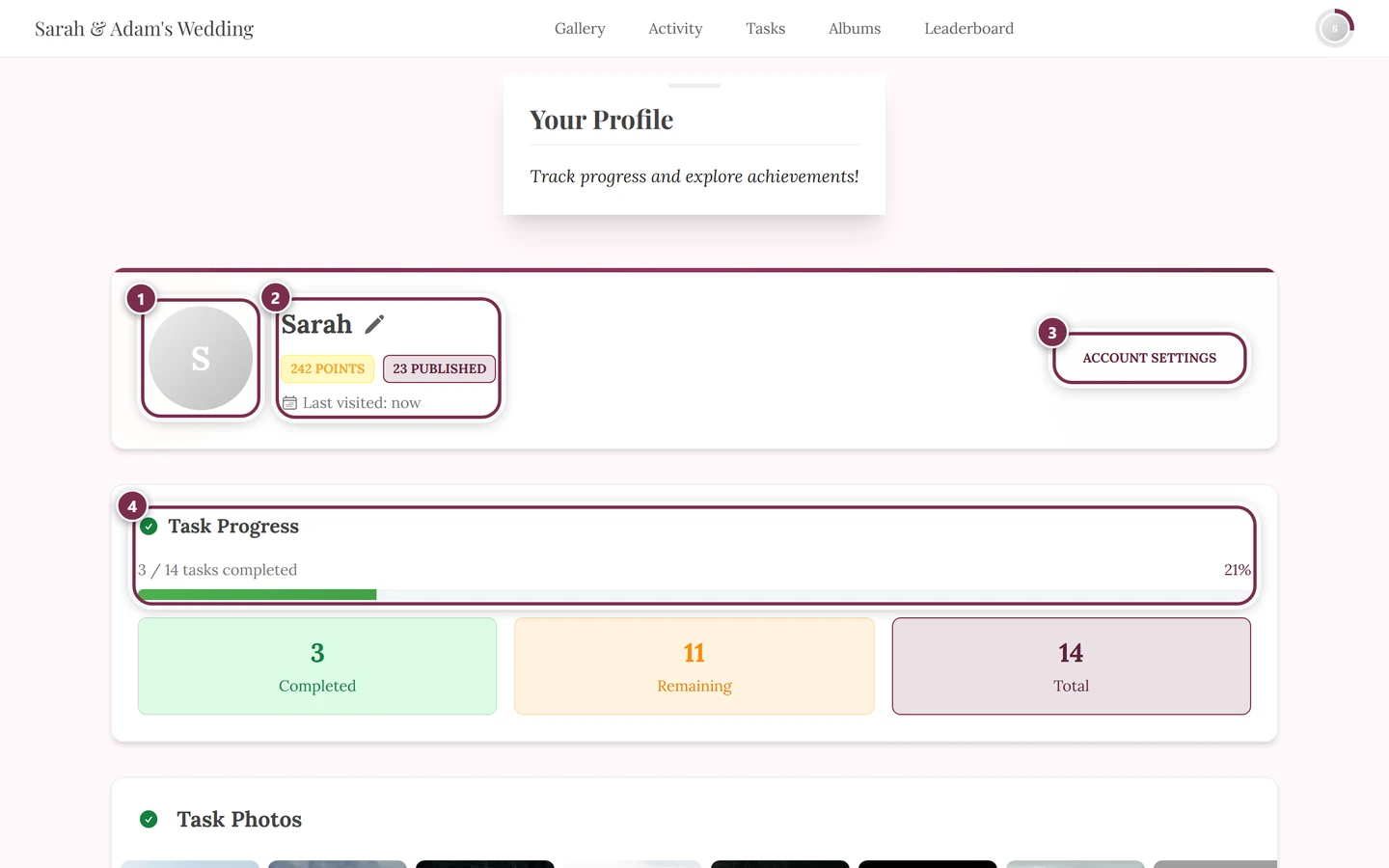
How to reach your profile
Section titled “How to reach your profile”There are two ways:
-
Via the navigation. On a phone, tap Profile in the bottom bar. On a computer, click your avatar (your profile picture) in the top right.
-
Via the profile menu. Click your avatar in the top right and choose My Profile.
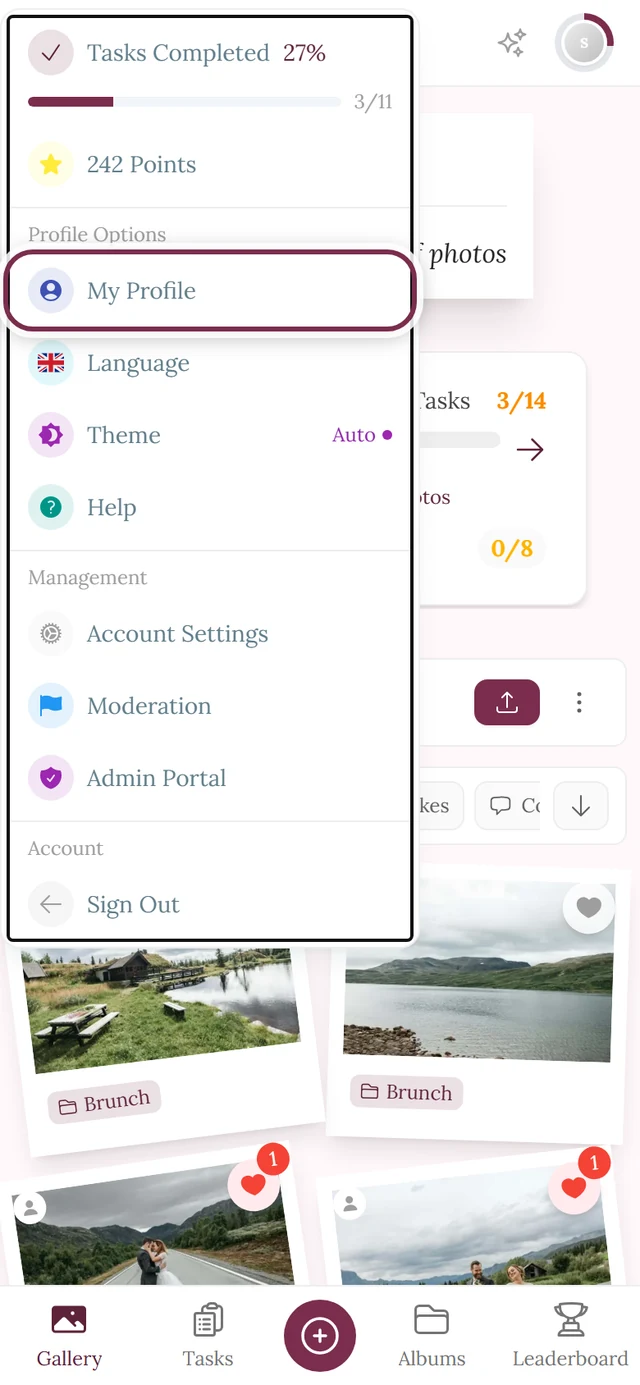
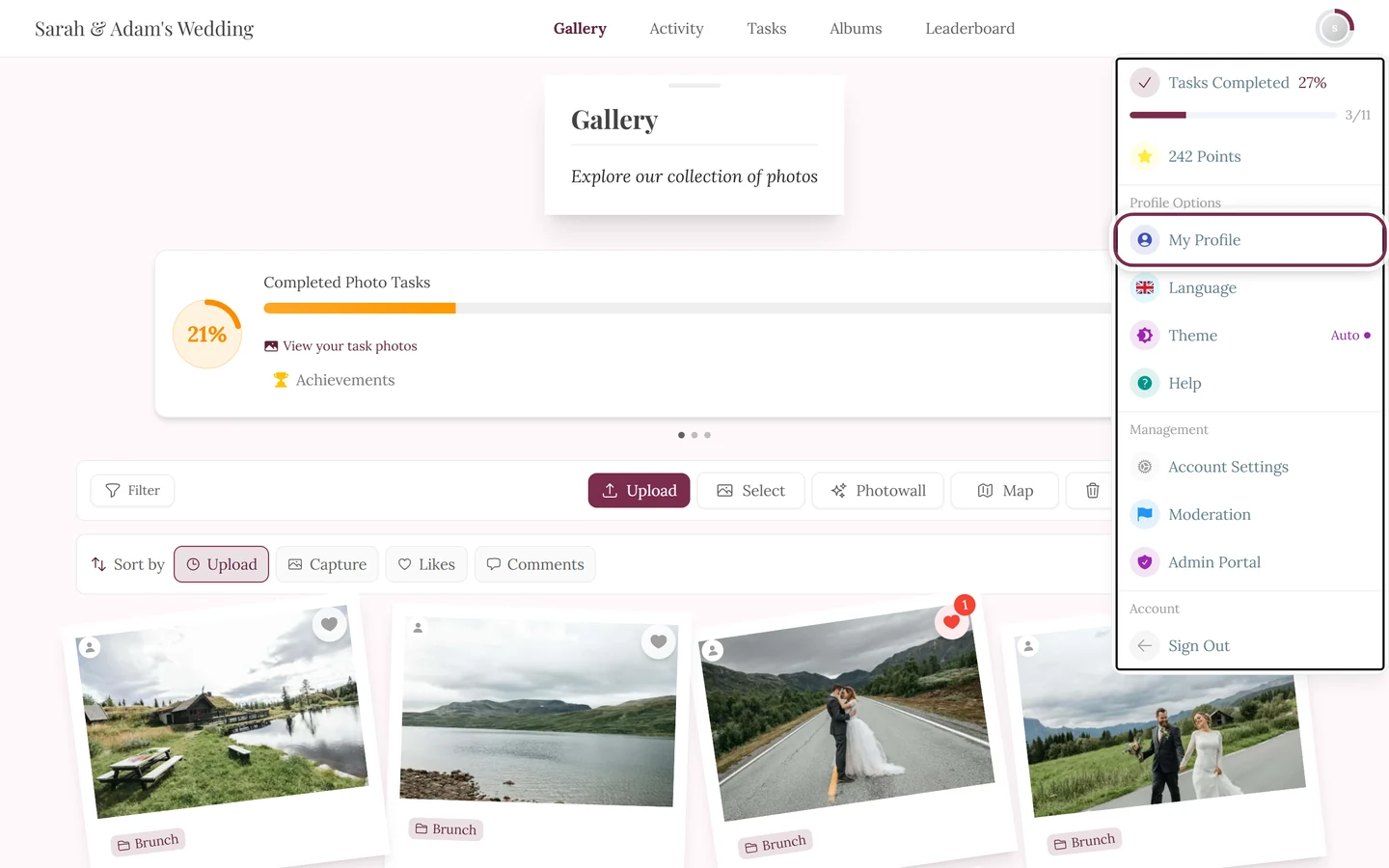
The avatar top right opens My Profile and many more options.
Change your nickname
Section titled “Change your nickname”Your nickname appears on every photo you upload and on every comment. So pick something your friends will recognize.
-
Open your profile and tap the pencil icon next to your name (tooltip Edit your nickname).
-
In the Edit Nickname dialog, type your new name in the New Nickname field. The hint reads: “Choose something fun & unique!”
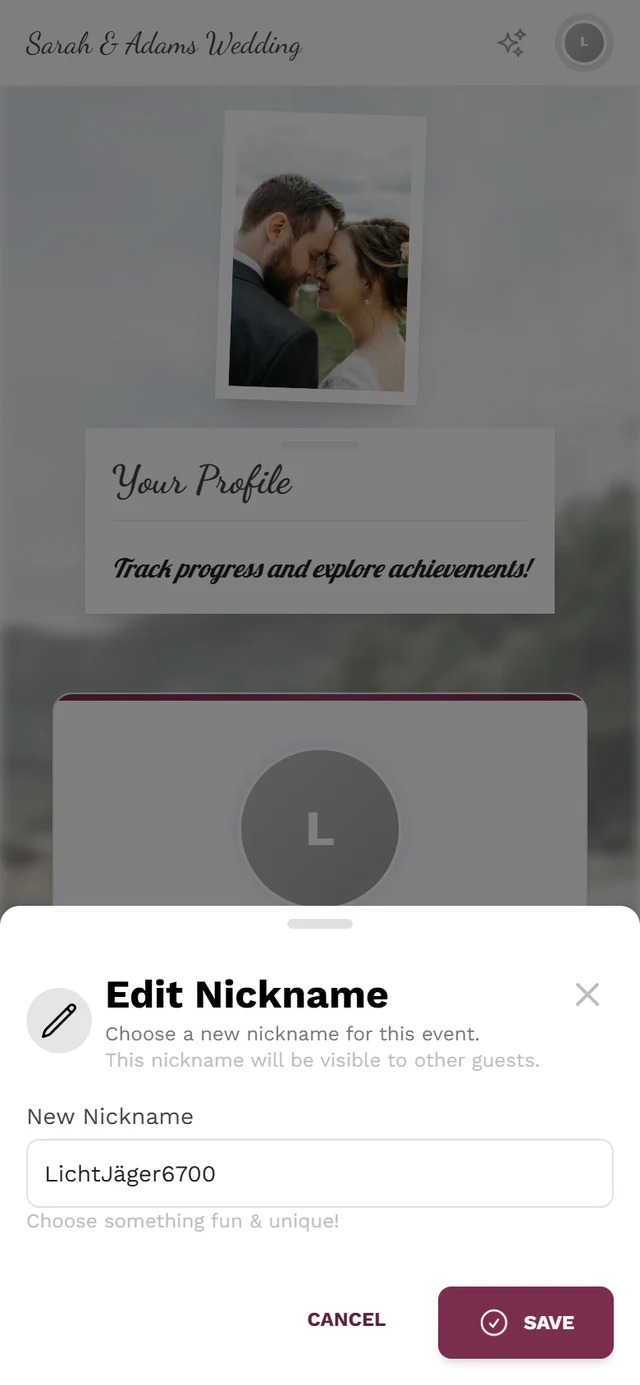
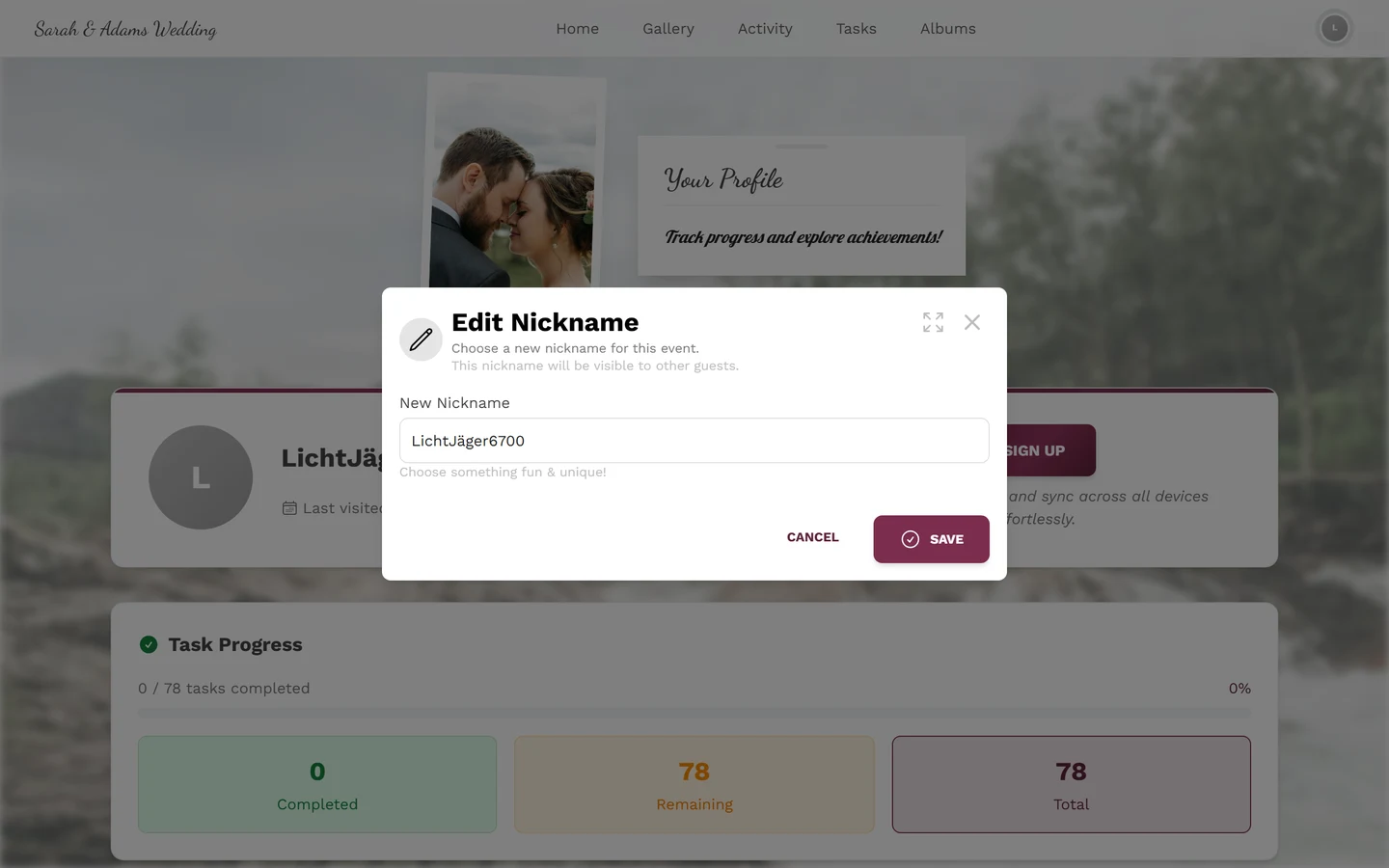
Enter a new nickname and save. -
Tap Save. Use Cancel to discard the change.
Upload, view and remove your profile picture
Section titled “Upload, view and remove your profile picture”Your own profile picture makes you easier to recognize in the gallery.
-
Open your profile and hover over your avatar (on a computer) or tap it (on a phone). A dark overlay with a camera icon and the label Change appears.
-
Click or tap it and choose an image file. Allowed formats are JPEG, PNG, WebP, HEIC and HEIF.
-
While uploading, a loading ring spins over the avatar. On success you see the message Profile picture updated!.
Once a picture exists, two more options appear:
- View – shows your current profile picture full size.
- Remove Picture – deletes the picture again (message Profile picture removed).
Create an account and save your progress
Section titled “Create an account and save your progress”As a guest you’re in right away – no sign-up needed. If you want to keep your uploads, points and achievements permanently and use them across devices, create an account.
-
Open your profile. As a guest you see the Sign Up button there with the hint “Store your progress and sync across all devices effortlessly.”
-
Follow the sign-up flow (Google or email). Details are under Guest or account.
Your stats
Section titled “Your stats”Your profile sums up your activity in numbers. At the very top are short chips – each shown only when the value is greater than 0. There are exactly four:
- X points – the points you collected.
- X achievements – opens the achievements overview on the Unlocked tab.
- X redeemable – opens the overview on the Redeemable tab.
- X published – jumps into the gallery filtered to you.
Right below – as its own line, not a chip – sits Last visited with how long ago that was. Device profiles additionally carry the Device badge next to the name; the points, achievements and redeemable chips are absent there.
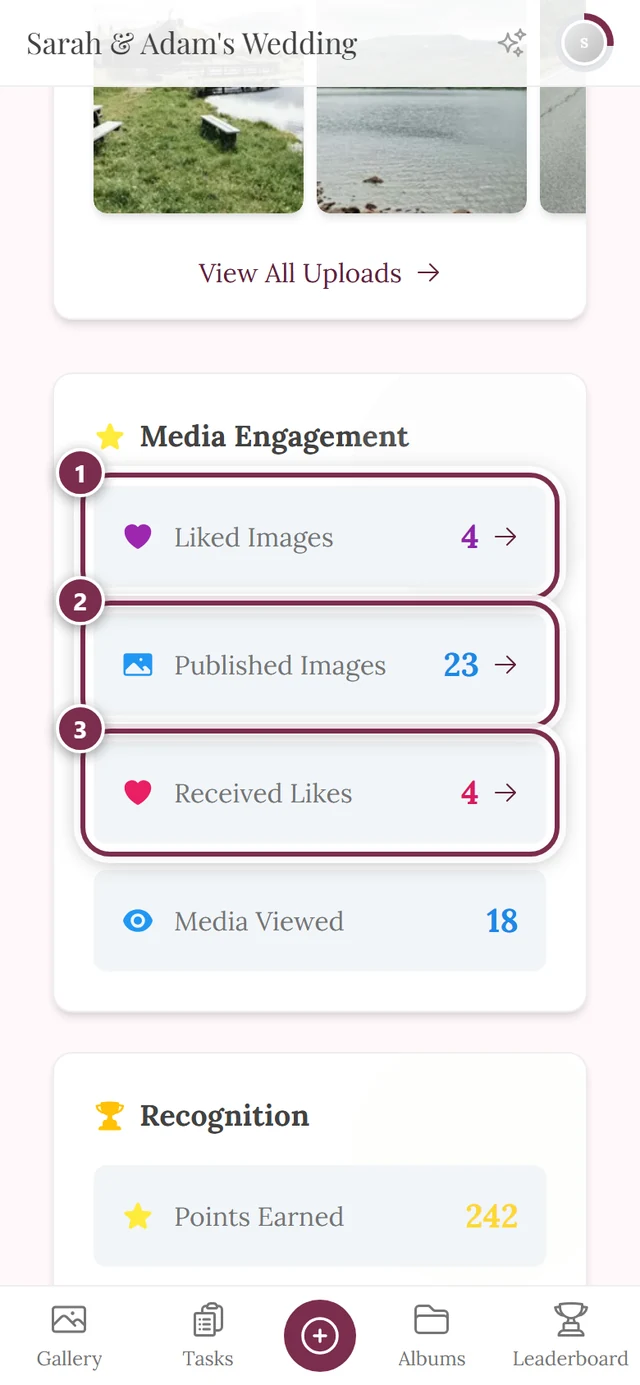
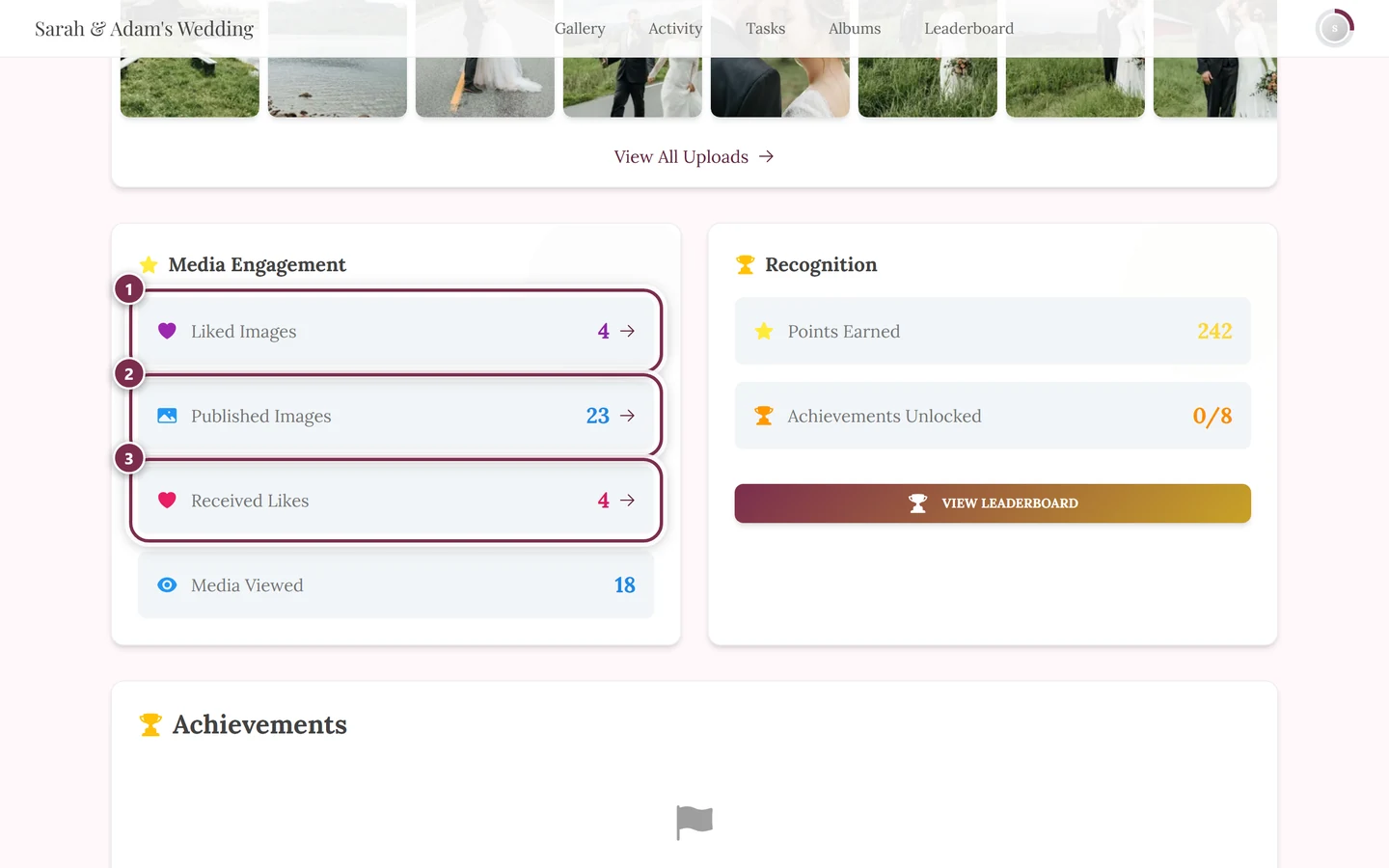
Below that you find two cards:
- Media Engagement – Liked Images, Published Images, Received Likes, Shares, Downloads, Views Received, Media Viewed, Comments Posted and Comments Received. Each shows only when it’s greater than 0; clickable values open the filtered gallery.
- Recognition – Points Earned, Achievements Unlocked (X/Y), Redeemable Rewards and the View Leaderboard button.
Task progress
Section titled “Task progress”When photo tasks are active in the event, your profile shows a dedicated section for them.
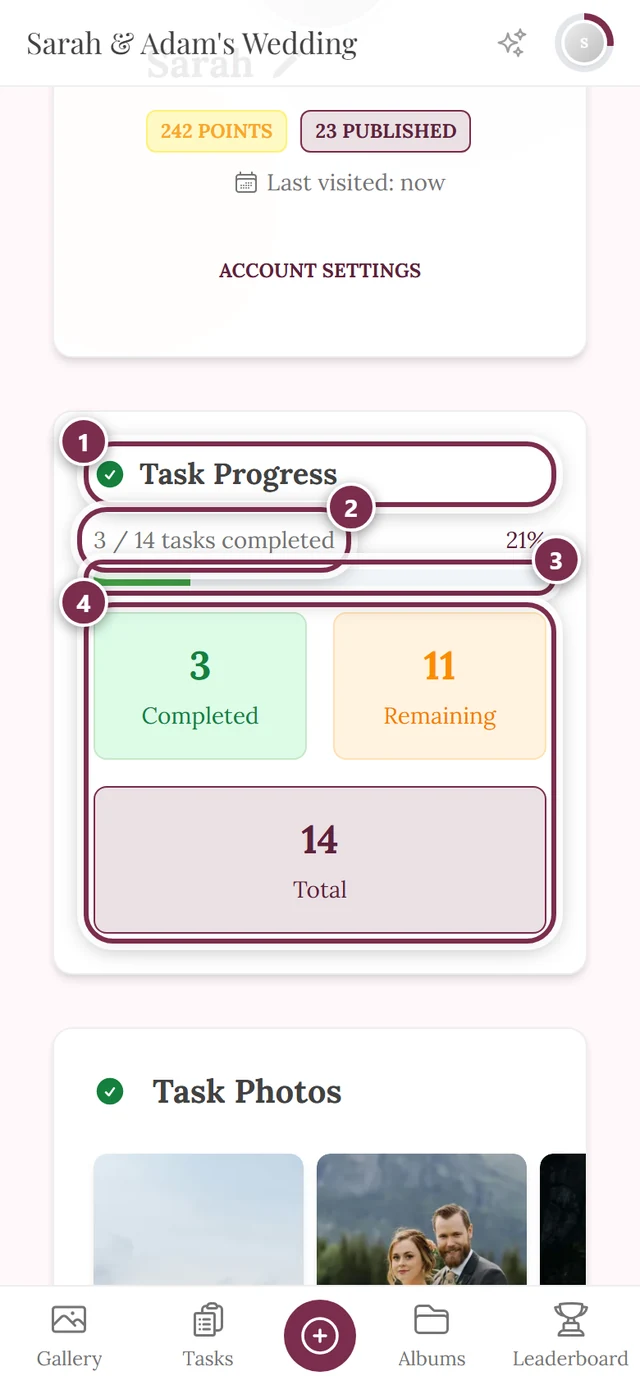
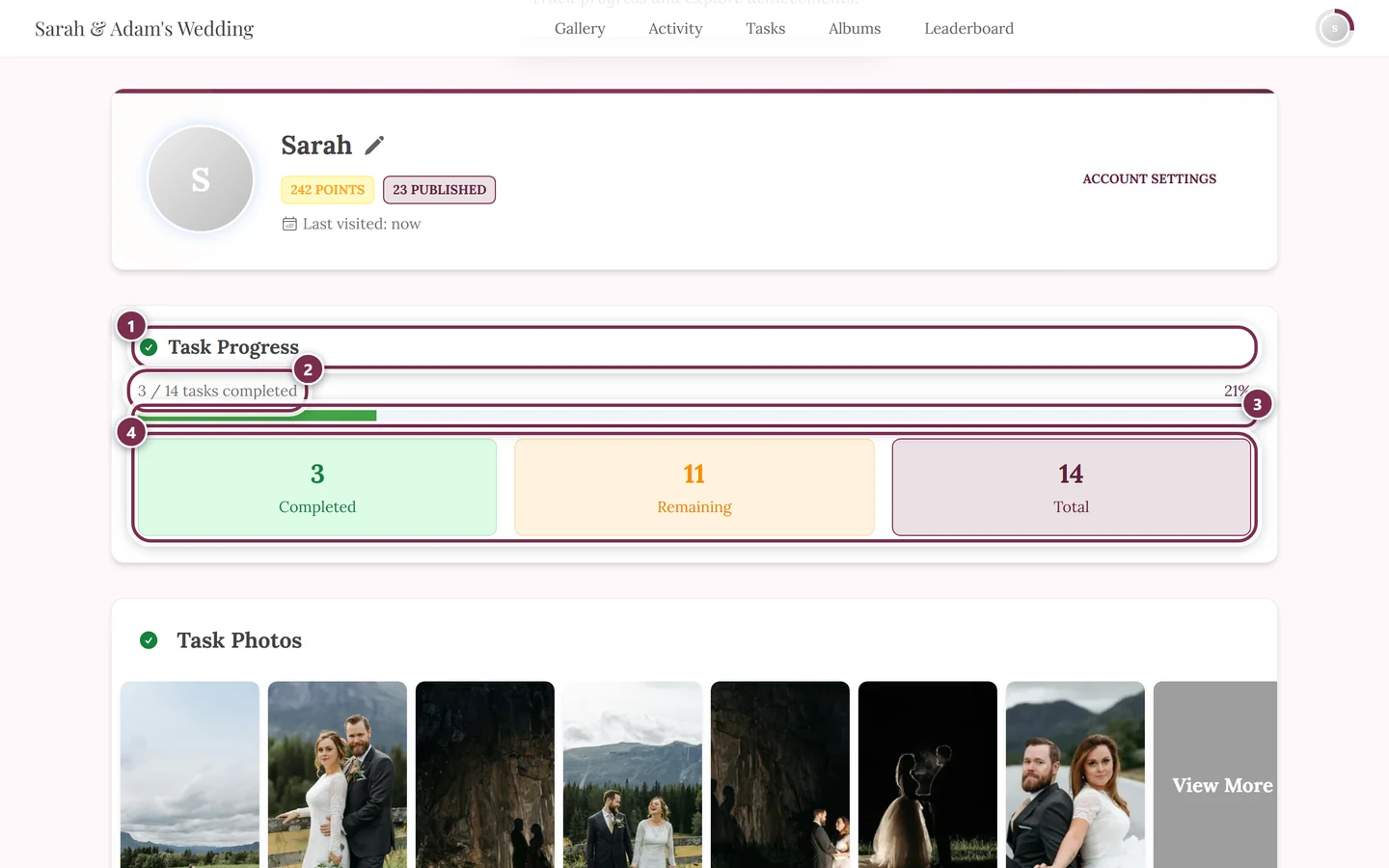
- A progress bar shows your status; at 100% the heading reads All Tasks Completed (with confetti).
- Three tiles sum everything up: Completed, Remaining and Total. A fourth one, Expired, only joins them when tasks have actually expired. Every tile is a button and opens the task status dialog on the matching tab (solved / expired / open / all).
- As soon as you’ve solved at least one task, your Task Photos gallery appears right below.
Learn more about the tasks themselves under Solving challenges.
Your uploads and liked photos
Section titled “Your uploads and liked photos”Further down, your profile collects your images:
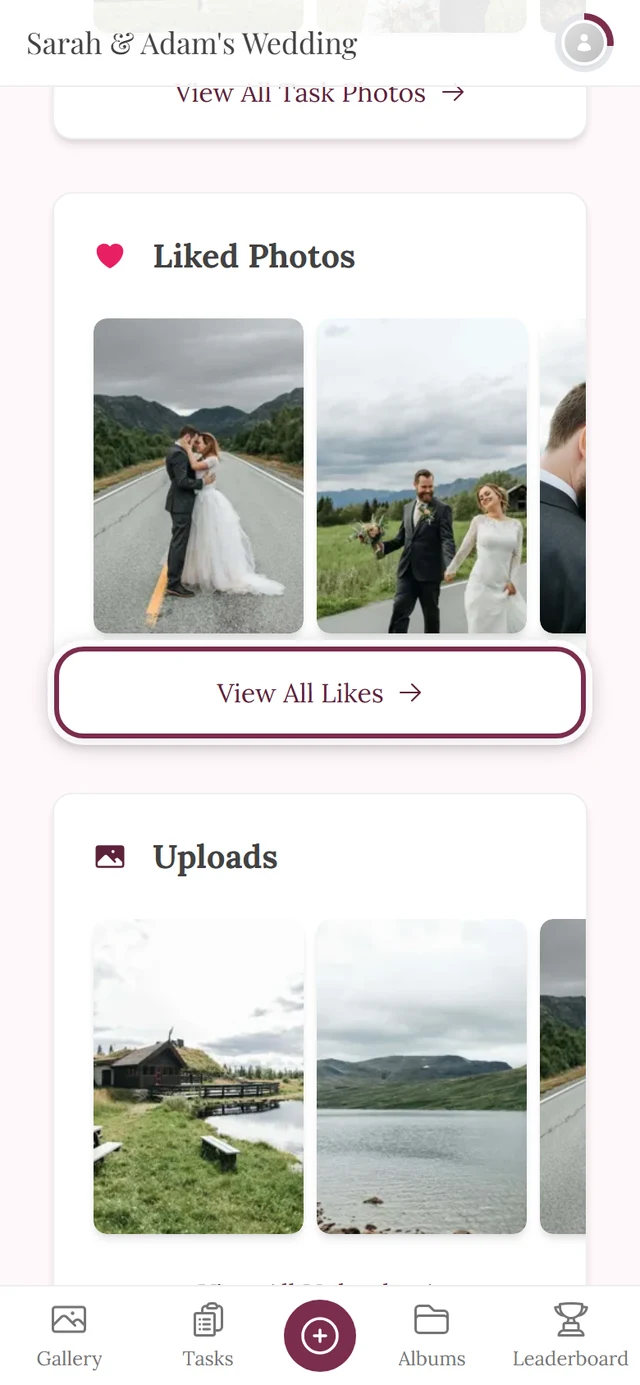
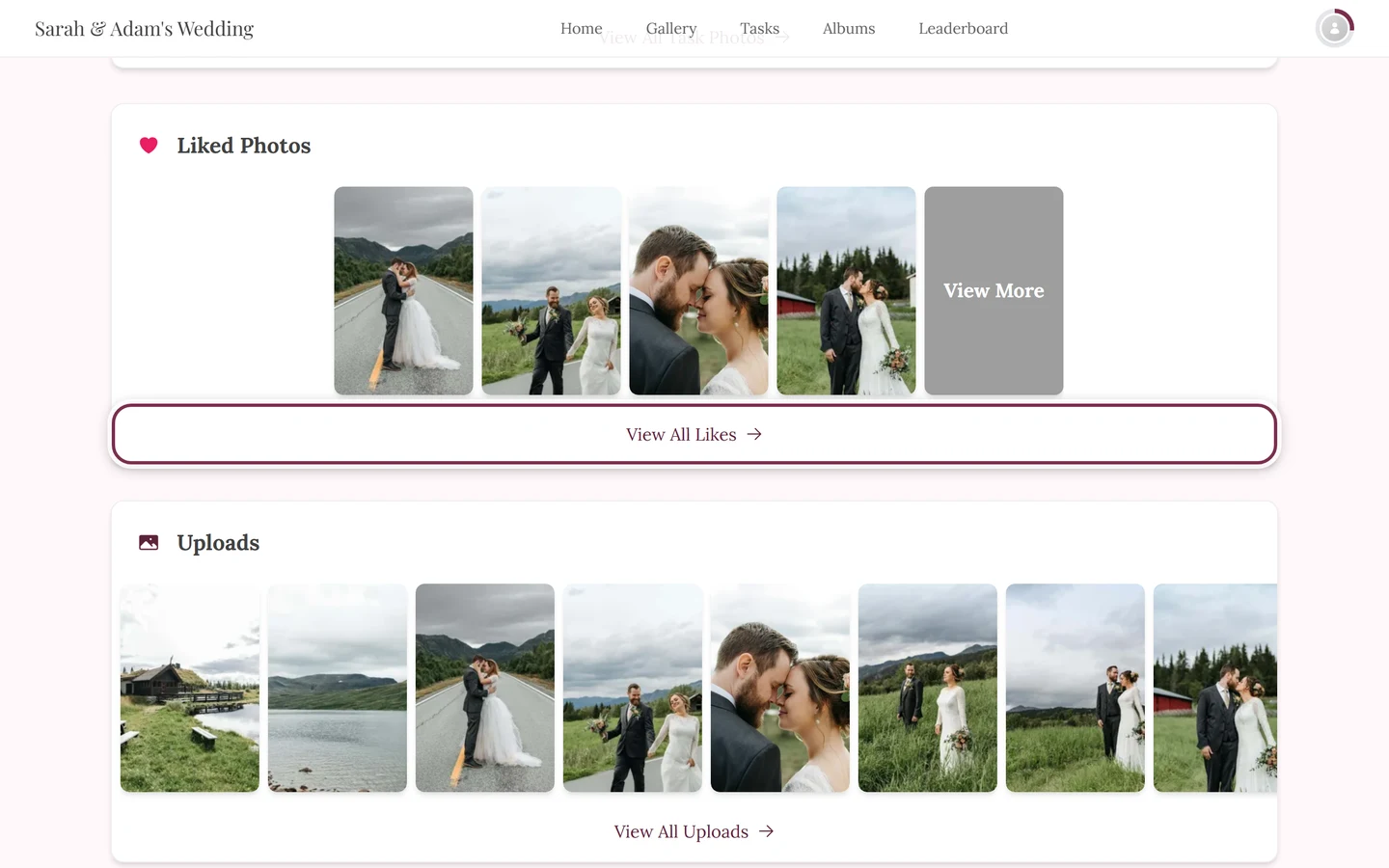
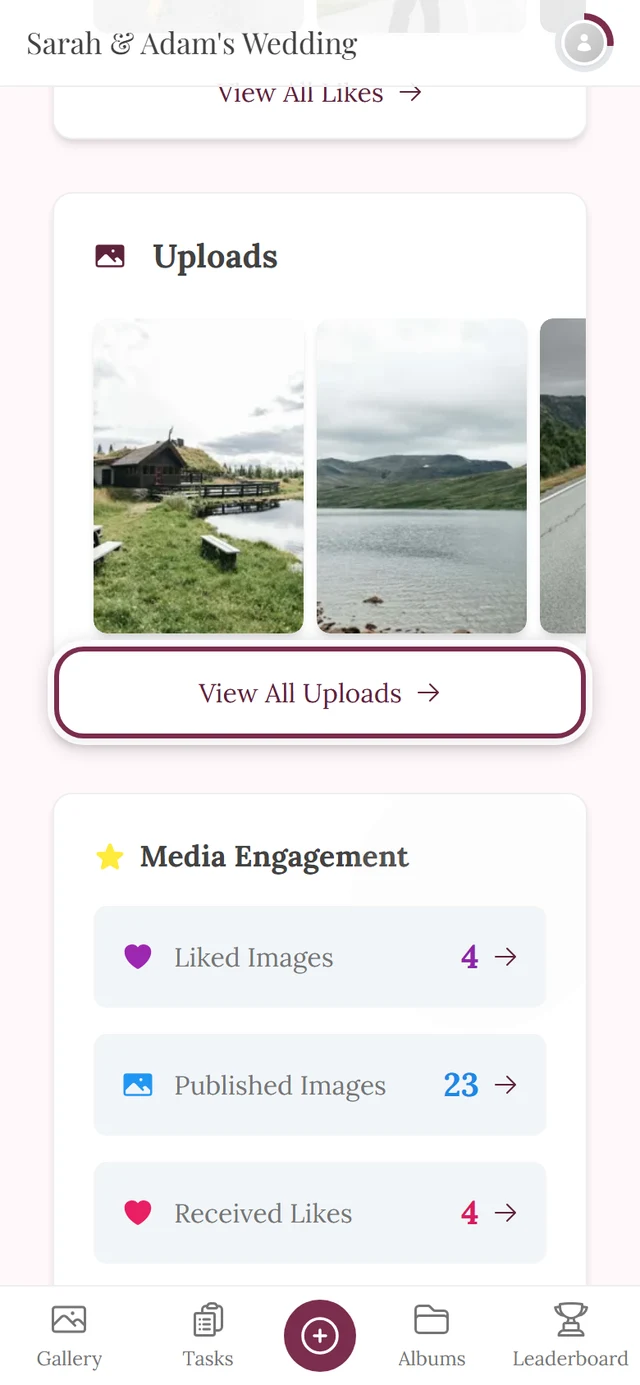
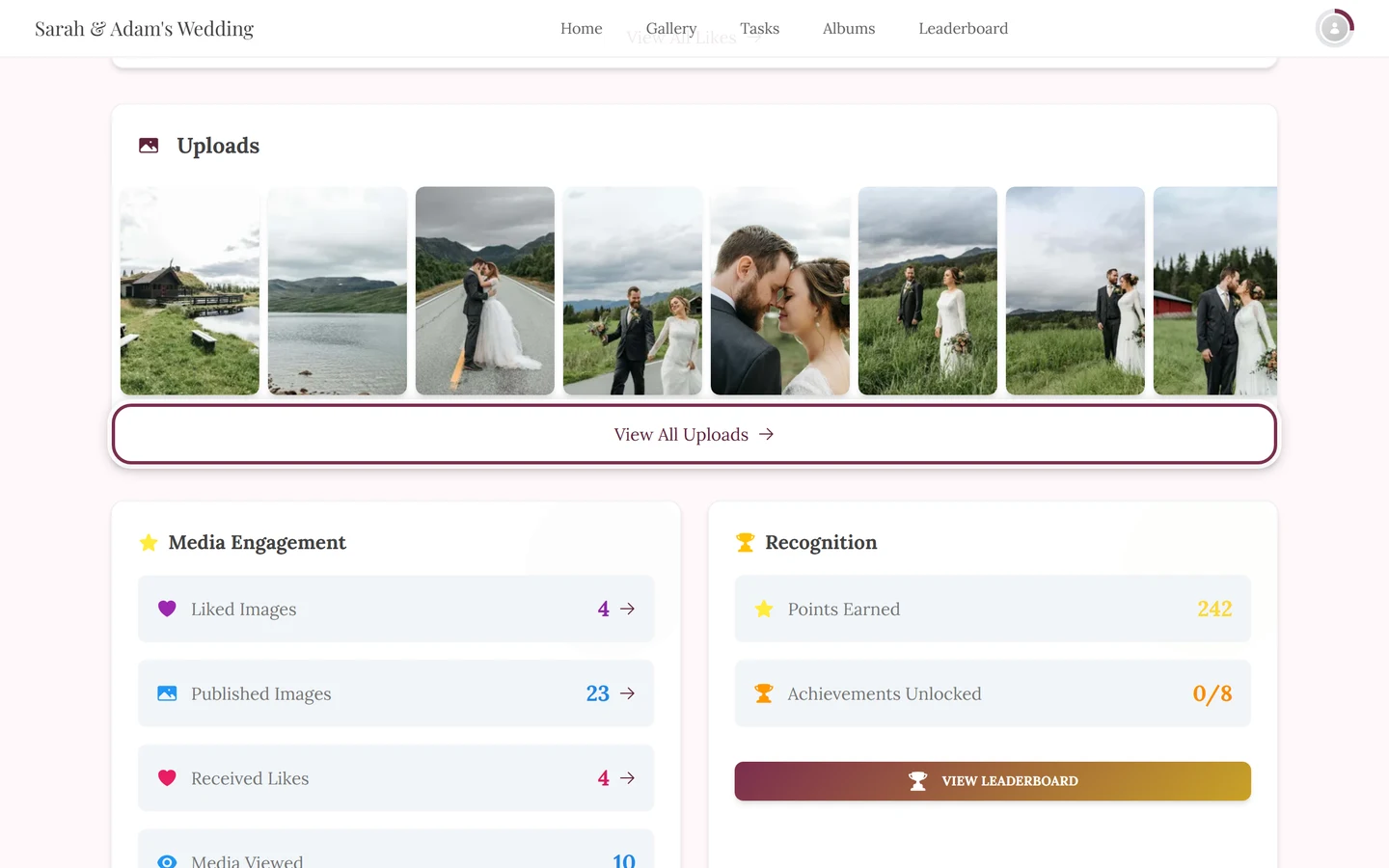
- Liked Photos – appears when likes are allowed and you’ve liked at least one photo.
- Uploads – appears when uploading is allowed in the event and you’ve already uploaded pictures. Use View All Uploads to jump into the gallery filtered to your uploads.
Related: Uploading photos and Browsing the gallery.
Achievements
Section titled “Achievements”Your achievements are shown as a badge grid. Use Show More to page through them (9 at a time) and See Available Achievements to open the full overview with tabs:
- All – every achievement,
- Unlocked – already earned,
- Locked – still open (with a progress bar toward the condition),
- Redeemable – only on your own profile and when a real reward is waiting (redeem it),
- Claimed – only when you’ve already collected something.
Viewing other profiles
Section titled “Viewing other profiles”Tap a guest’s name (on a photo or comment) to open their profile. You see their nickname, uploads and achievements. Personal values like points, rank or redeemable achievements stay hidden on other people’s profiles.
Moderating straight from someone’s profile
Section titled “Moderating straight from someone’s profile”If you are a moderator or host, another person’s profile shows an extra Moderation Controls card. So you do not have to switch to the moderation area first in order to act:
- Nickname – Edit replaces an unsuitable name; the profile afterwards shows who moderated it and what it originally was.
- Uploads and Comments can be banned separately. For each ban you can add a note in the Reason (optional) field and confirm with Confirm Ban. Unban reverses it.
- Remove Profile Picture – only appears when the person actually has a profile picture, and deletes it immediately.
Device profiles (photo booth, camera, live upload)
Section titled “Device profiles (photo booth, camera, live upload)”Device accounts are not people but upload sources – a photo booth, say, or a camera using live upload. Their profile therefore shows only the display name and the uploaded photos, and carries the Device badge. Points, rank, achievements and task progress are deliberately absent.
If you are the host or an admin of the event, a device profile instead gives you a Device settings card with its own controls:
- Status and usage – “last active …” or “no uploads yet” plus the upload count; next to it the state active or paused.
- Pause uploads or Resume uploads – stops or re-allows new uploads from this device without deleting the access.
- Logo – Set logo stores an image for the device, Remove logo deletes it again.
- Display name in the gallery – the name the device’s photos appear under; apply it with Save.
At the bottom it says Full management in the Live-Upload tab – that is where the remaining device functions live, see Live upload.
The profile menu in the top right
Section titled “The profile menu in the top right”The avatar in the top right opens a menu that gets you to far more than just your profile.
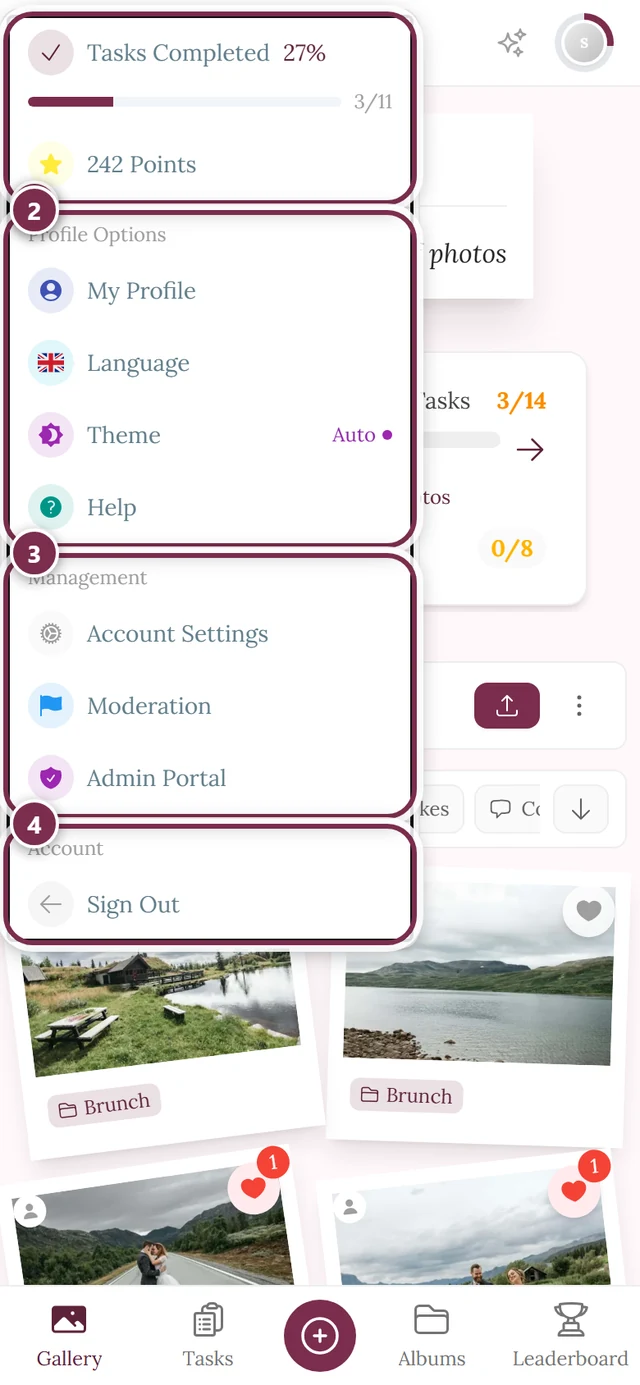
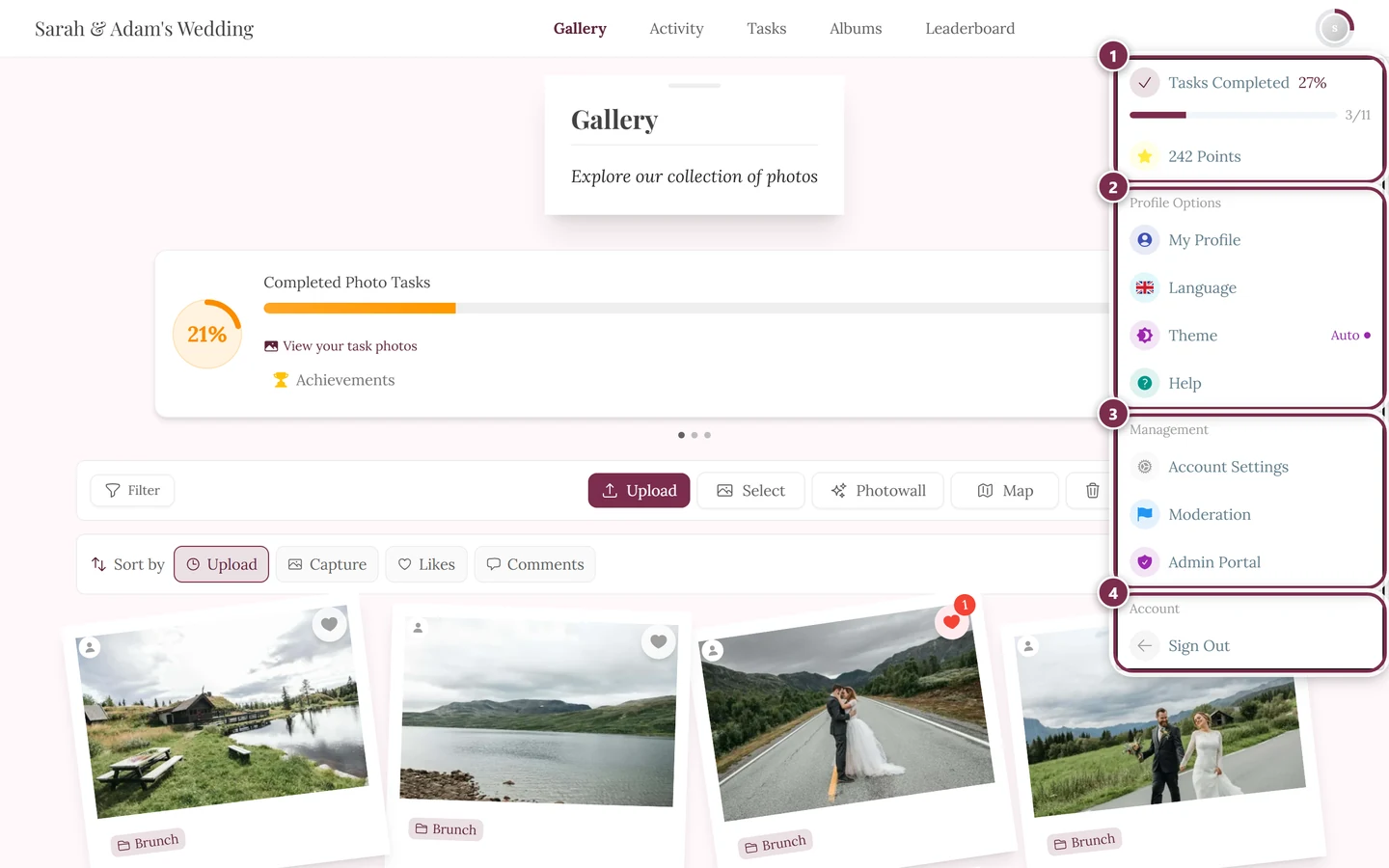
Depending on the event and your role you’ll find:
- Tasks Completed (only with active tasks) – takes you to the tasks page.
- Points (only with an active points system) – explains your points.
- Profile Options section: My Profile, Language, Theme (when dark mode is available) and Help (opens this help center).
- Management section (role-dependent): Account Settings (registered), Partner Dashboard (affiliate), Moderation (moderator), Admin Portal (admin) and Administration Portal (global admin).
- Account section: Sign Out (registered) or Sign In (guest).
Signing out and security
Section titled “Signing out and security”To sign out, open the profile menu in the top right and choose Sign Out. Only registered users see this entry; as a guest you see Sign In instead.
Everything else around your account and security lives in Account Settings – reachable via profile menu → Management → Account Settings or via the Account Settings button on your profile page. The dialog has these tabs:
- General – change your email address, timezone, language, connect or unlink your Google account.
- Security – set or change your password, active sessions, delete your account.
- Billing – payment history; only appears when your account has payments.
- Notifications – emails on/off and every notification type individually.
Troubleshooting
Section titled “Troubleshooting”Related topics
Section titled “Related topics”- Guest or account – account settings, password and active sessions
- Notifications
- Your privacy
- Banning users (moderation)
- Points & rewards