How do I delete my account or my data?
First the distinction: deletion only applies to a registered account.
If you joined without an account, there is no account to delete. You remove your uploaded photos one by one instead – see How do I delete my own photo?
Where deletion sits
Section titled “Where deletion sits”Open Account Settings from the avatar at the top right and switch to the Security tab. At the very bottom, expand Advanced Settings; inside, under Account Management, sits Delete Account.
The special case – events you are the sole owner of
Section titled “The special case – events you are the sole owner of”Before anything is deleted, Photogala checks whether you are the only owner of an event.
- If you are not, the green message No events to handle appears and you can carry on right away.
- If you are, you get Events That Need Your Attention with the list of those events. For each of them you have to decide: Transfer to another registered person, or Delete Event.
Only once every event is handled does Proceed to Delete Account become clickable. Until then it says “Please transfer or mark all events for deletion before proceeding”.
The confirmation
Section titled “The confirmation”-
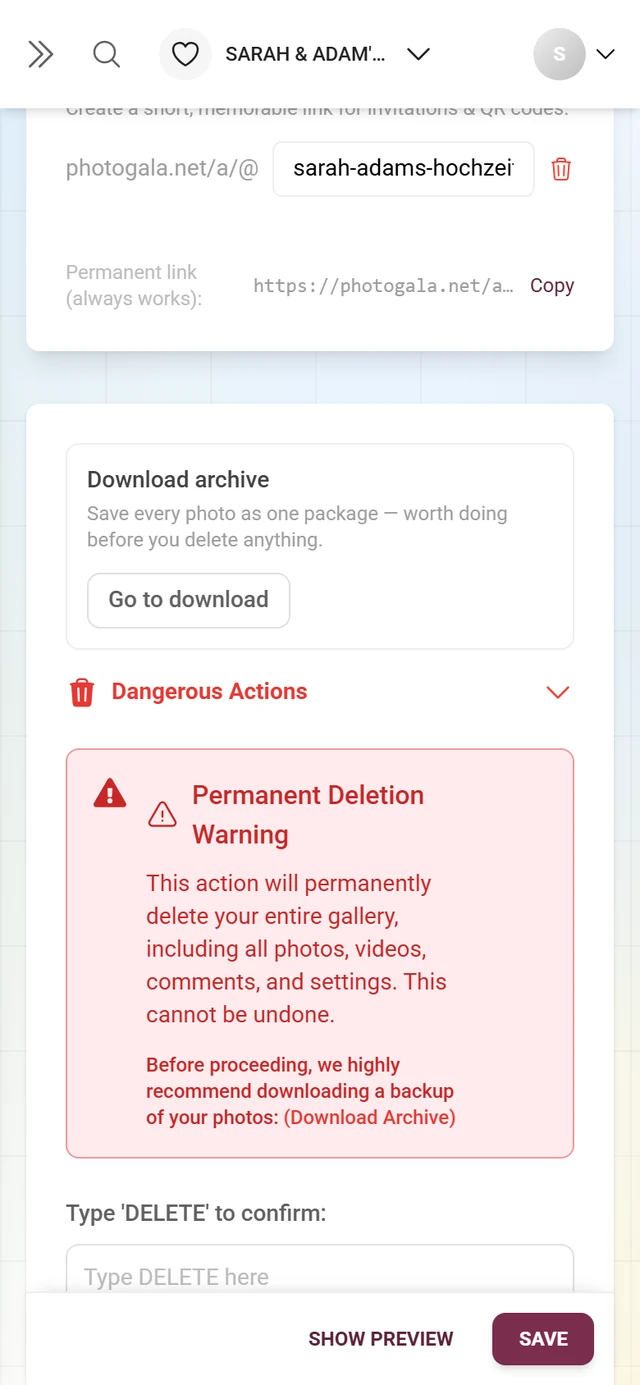
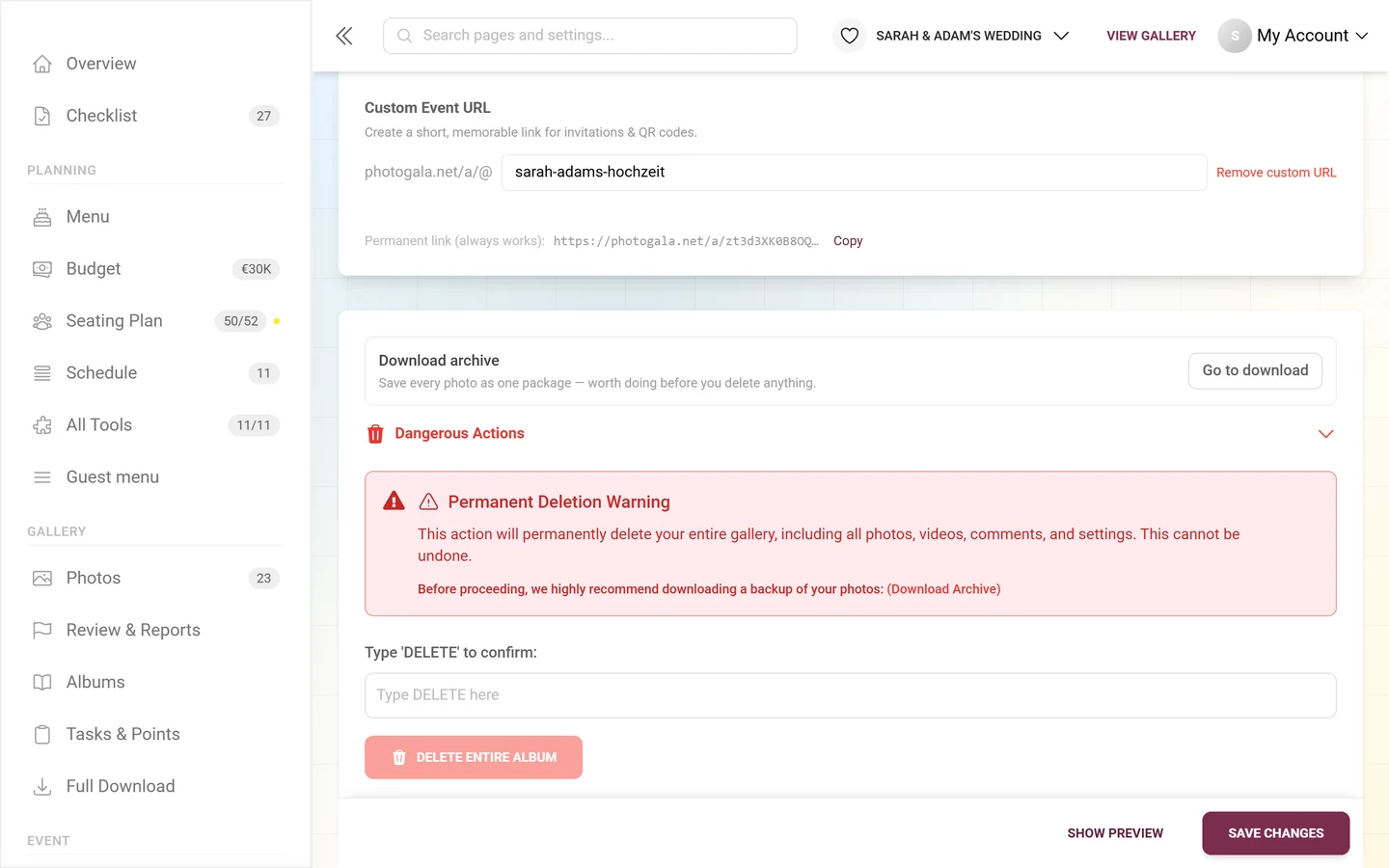
In the Delete Account Confirmation dialog, type your email address exactly as it belongs to your account.
-
Only then does Confirm Delete become active.
What happens to your photos
Section titled “What happens to your photos”Important, so it does not catch you out: photos you uploaded to someone else’s gallery do not automatically disappear when you delete your account. They stay in that gallery, but they are no longer linked to you.
If you really want them gone, do it beforehand:
- Delete your own photos one by one while you are still signed in – see How do I delete my own photo?
- Remove your selfie and face data if you used the people search – see Face recognition & privacy.
- Anything still open after that you settle with the respective organizer. You will find their contact details in the event’s legal pages – see Your privacy.