Crowning winners & handing out prizes
Winner mode freezes your event’s standing at a point in time and crowns winners from it. Without freezing, the result would keep changing later – when guests delete photos, for example. On the winners page you freeze the standing, see the ranked guests per category including their redemption code, and mark every prize you have handed out.
First: how to find the page
Section titled “First: how to find the page”Winners sits in the sidebar – as a follow-up page under Tasks & Points.
-
In the sidebar, in the Gallery group, click Tasks & Points.
-
The entry unfolds: below its three tabs sit the follow-up pages Real Rewards and Winners.
-
Choose Winners.
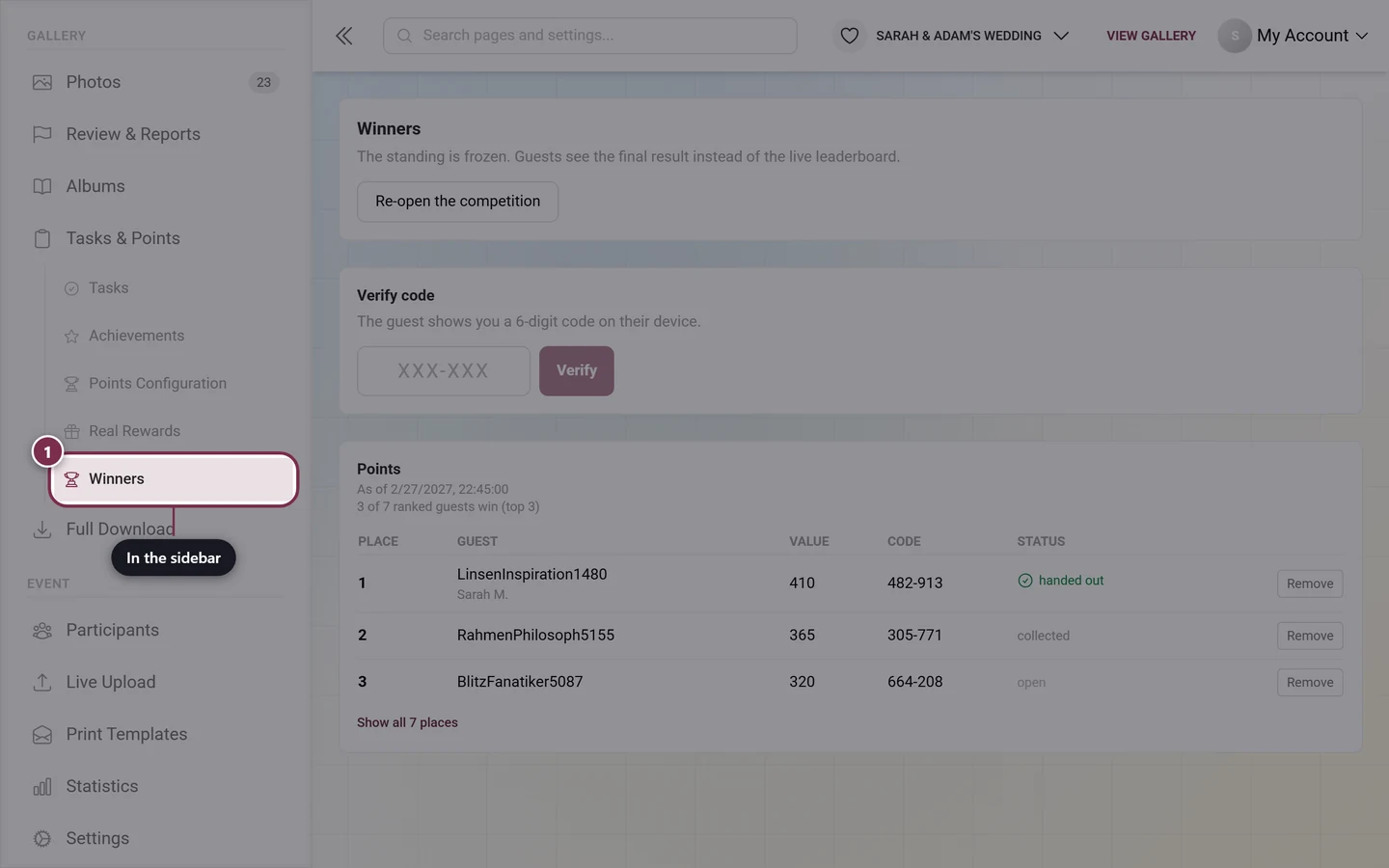
There are three more routes:
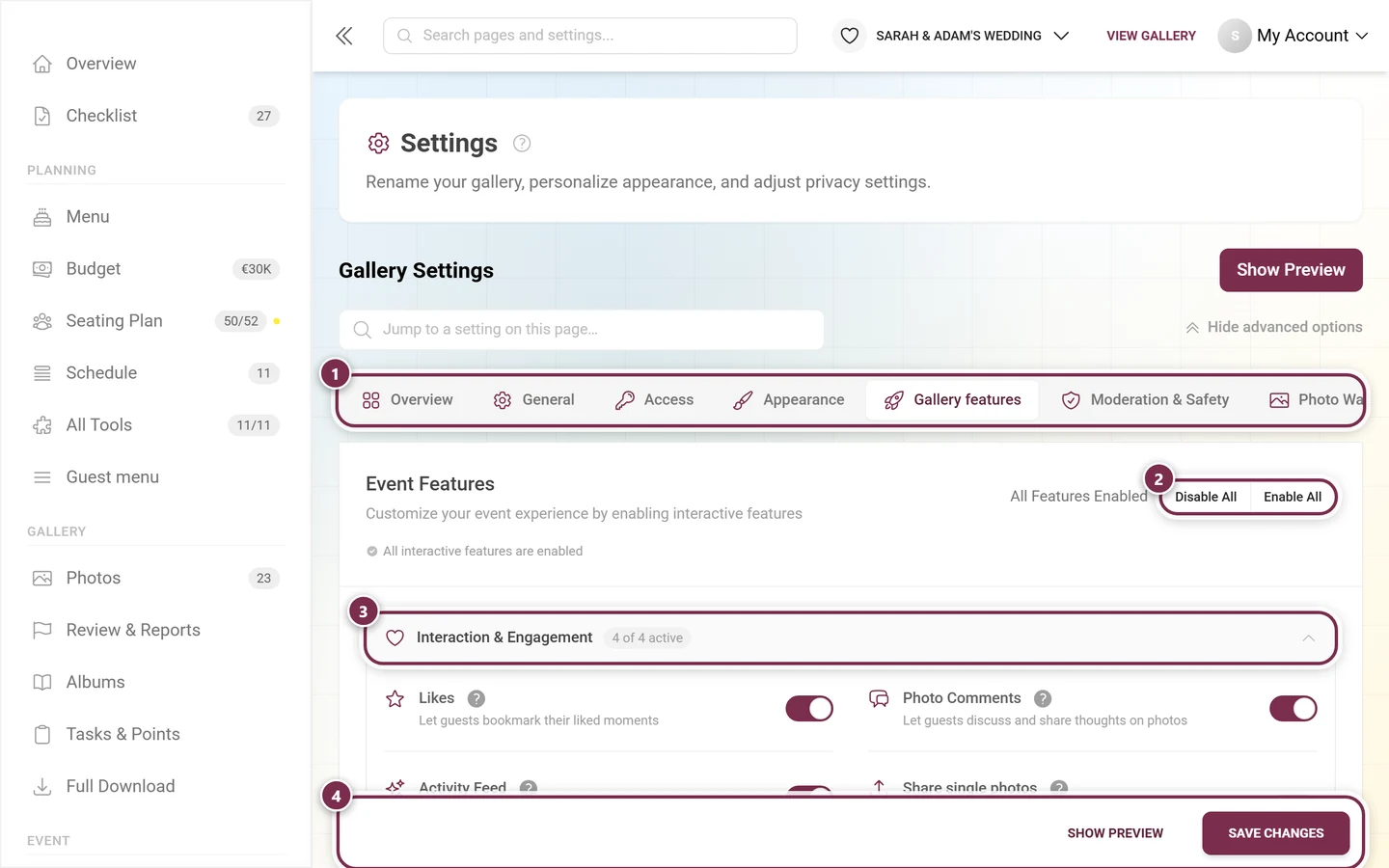
- From the settings: in Settings ▸ Gallery features ▸ Joining in & points, the Leaderboard card carries the link Manage winners, freeze the standing and hand out prizes below the Winner mode tick box.
- Global search: the magnifying glass at the top of the admin area, searching for “winner”, “freeze” or “prize” – the Winners hit jumps straight to the page.
- Direct path:
/admin/gallery/leaderboard-winnersinside the admin area. Ideal as a bookmark for the award ceremony.
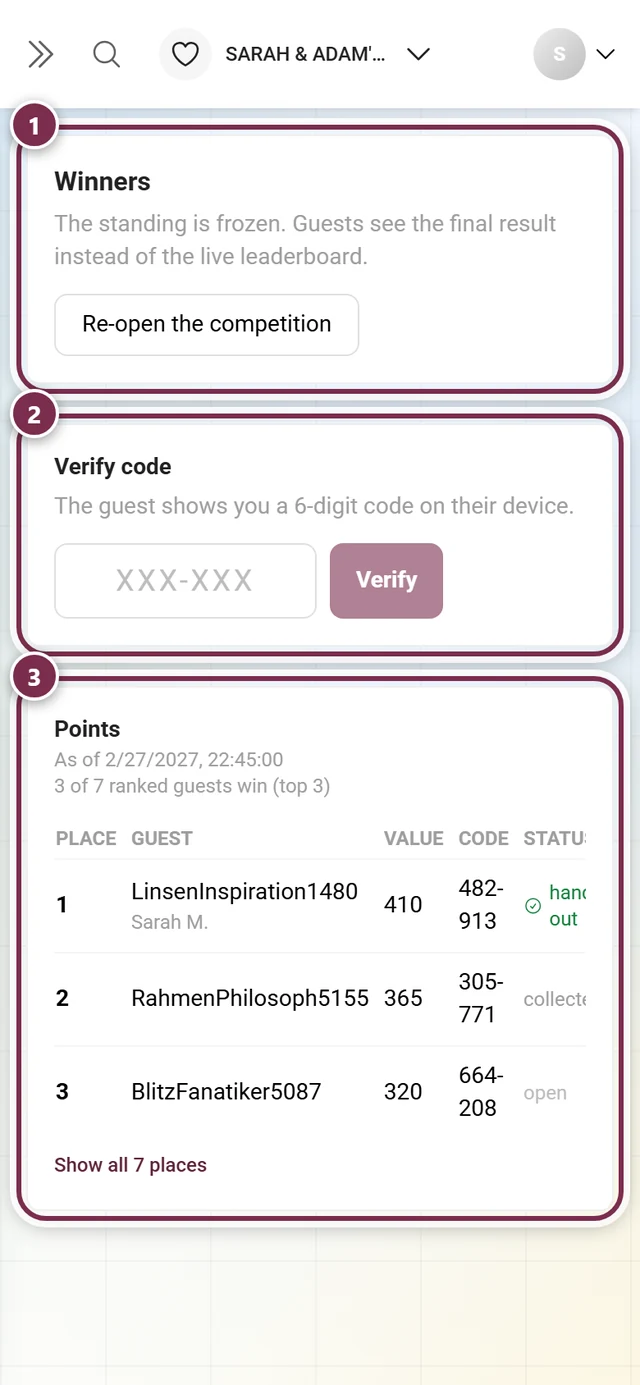
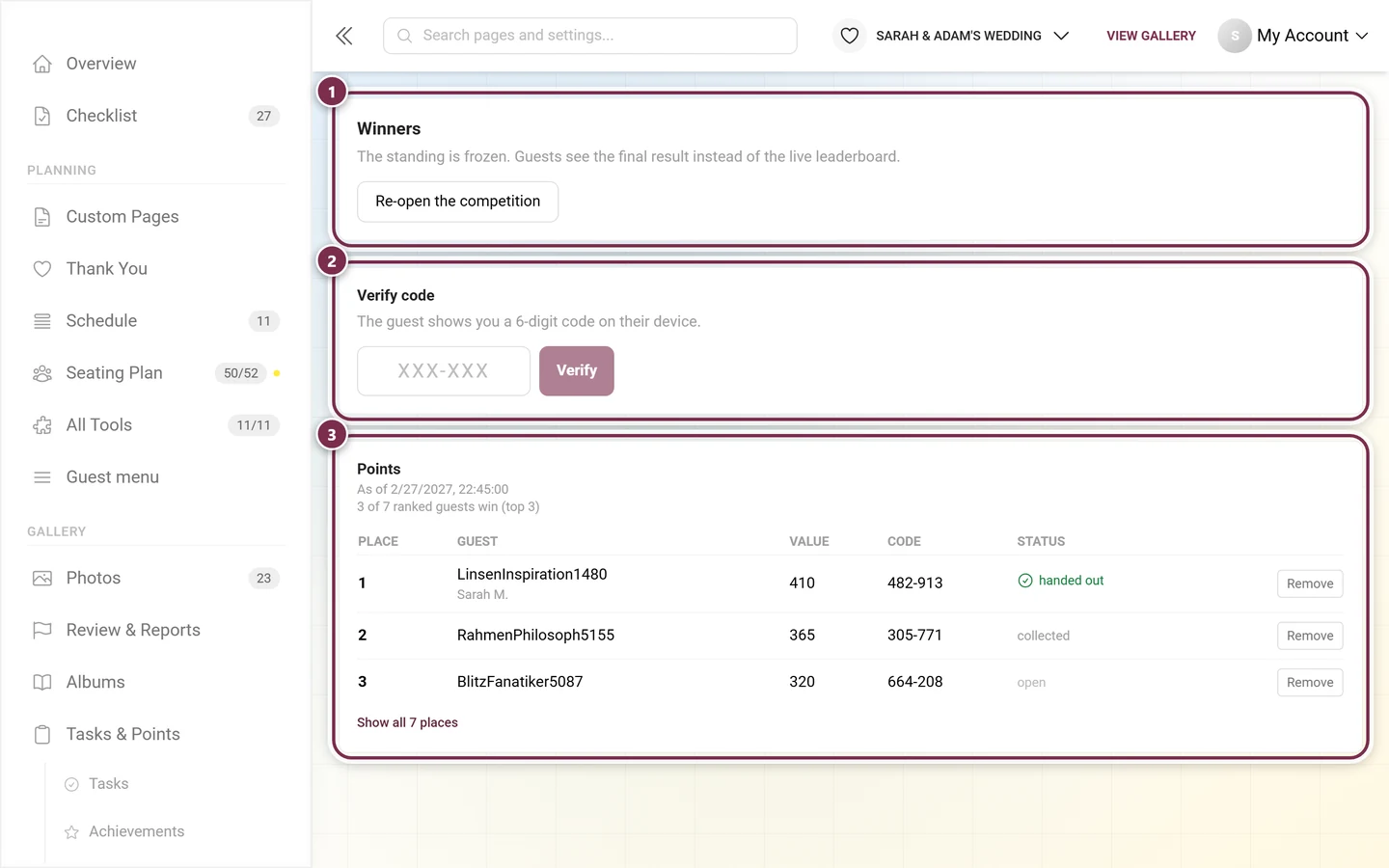
With the mode switched on and the standing frozen, the page looks like this:
Step 1 – Setting up winner mode
Section titled “Step 1 – Setting up winner mode”Everything that follows lives in the settings under Gallery features → Joining in & points → Leaderboard → Winner mode. The section used to be called “Gamification”; the settings themselves are unchanged.
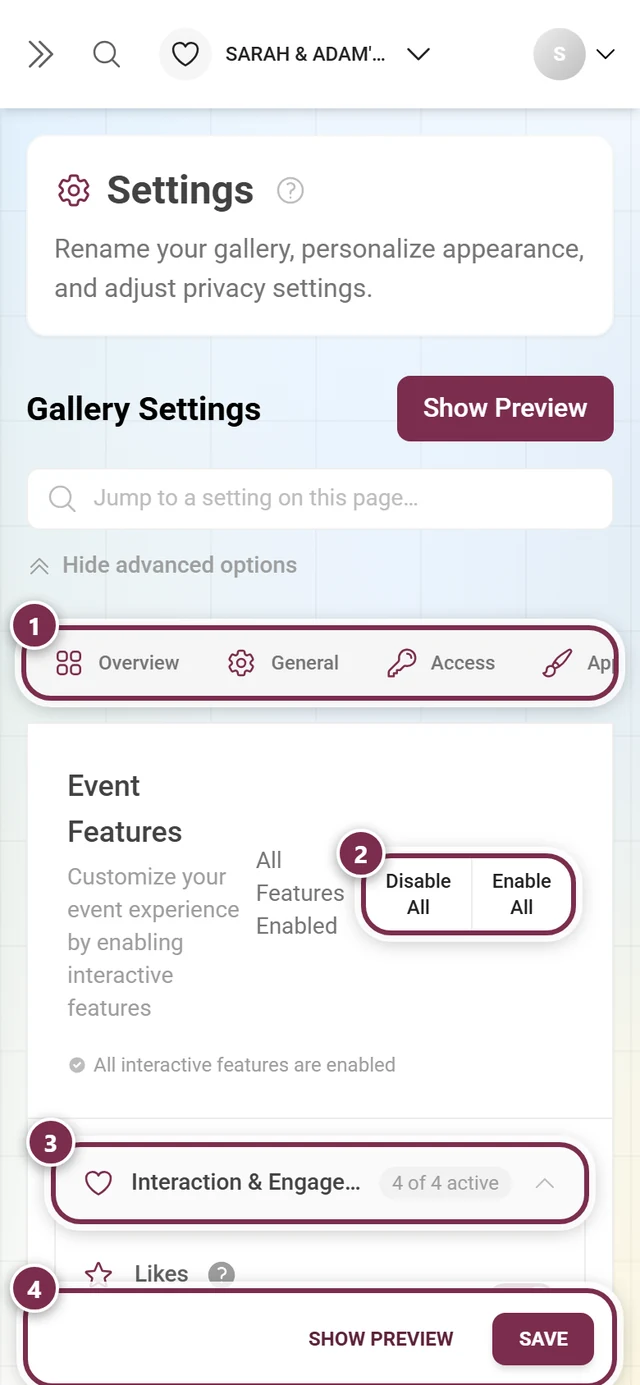
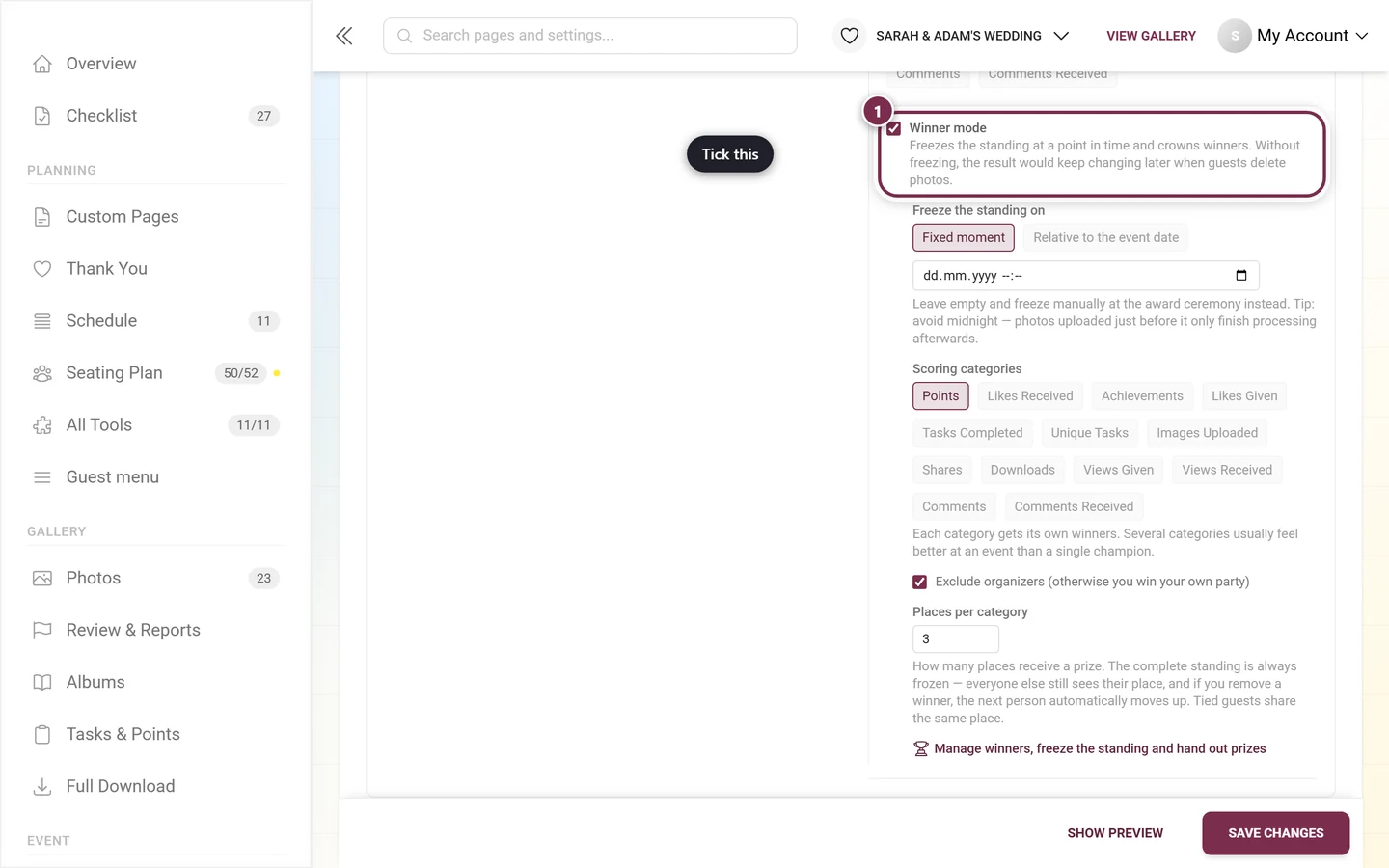
Ticking the box
Section titled “Ticking the box”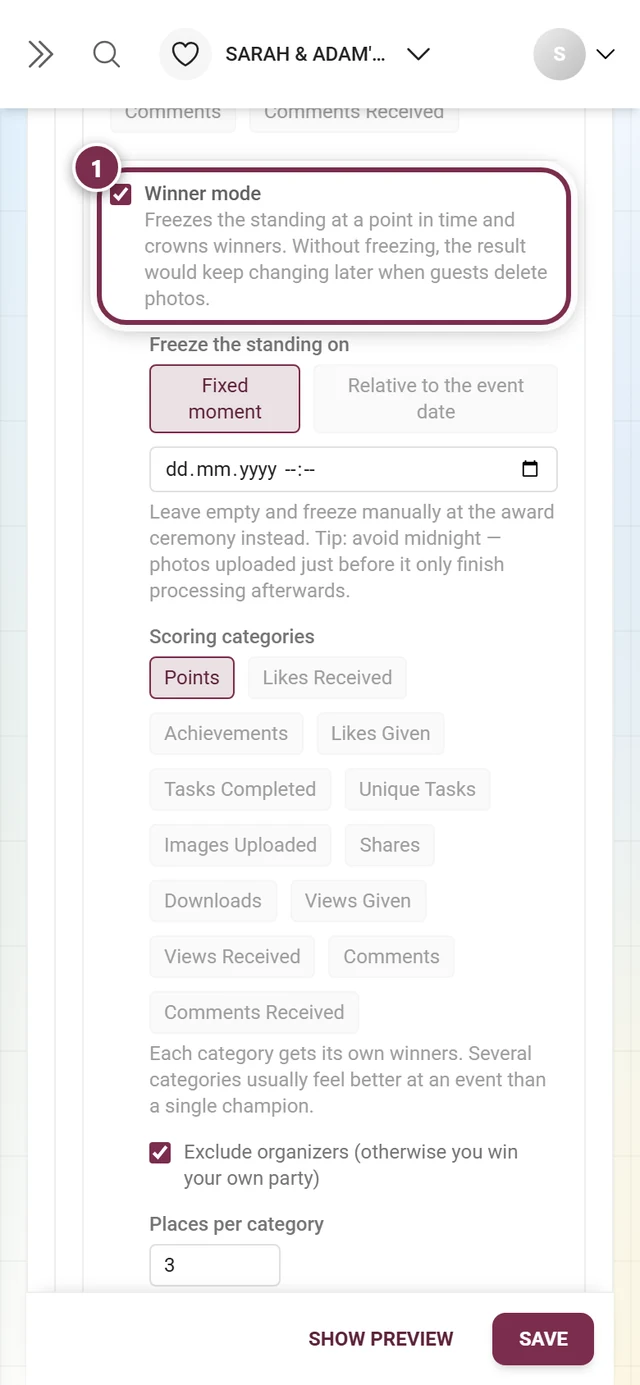
Freeze the standing on
Section titled “Freeze the standing on”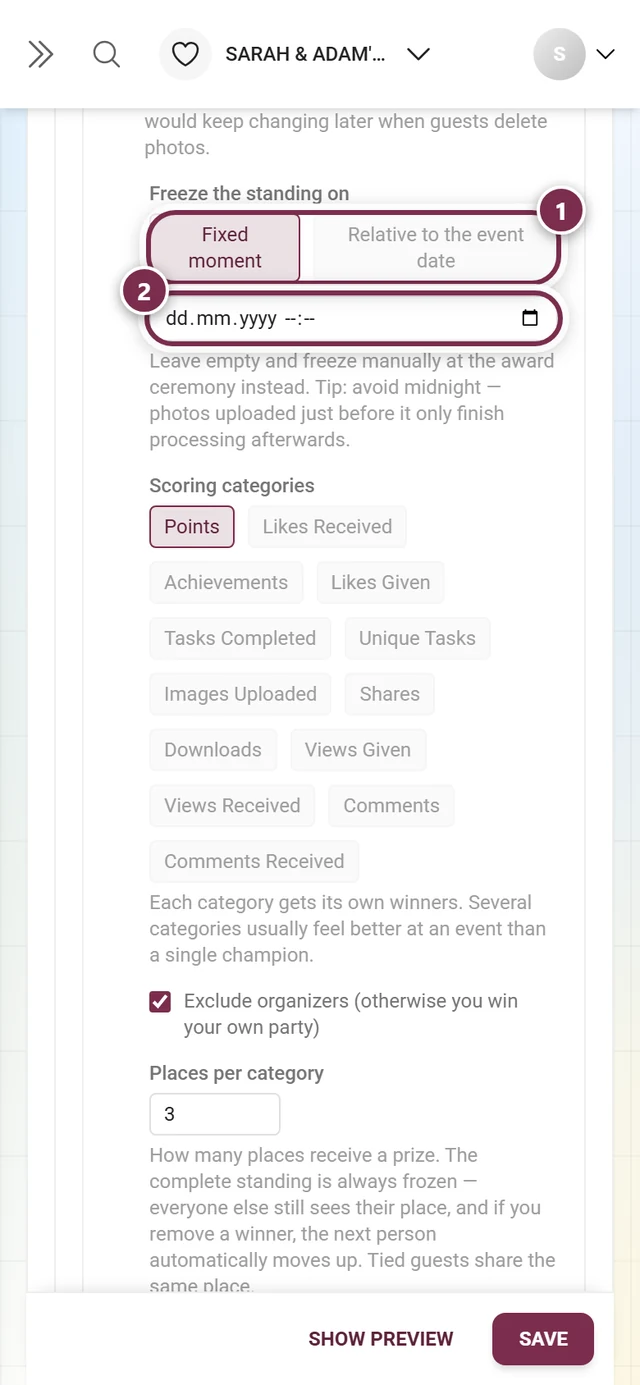
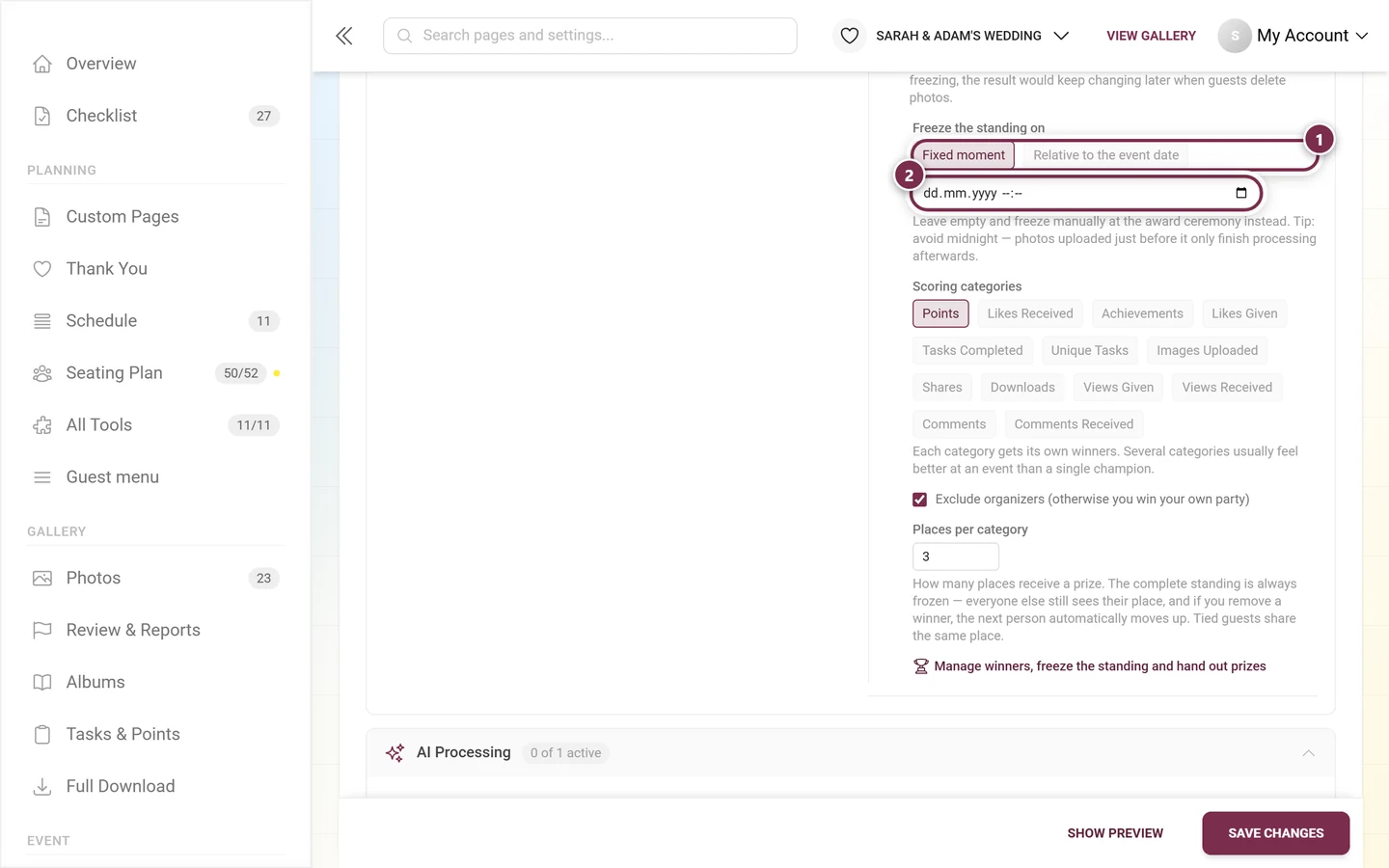
There are two modes:
- Fixed moment – a date and time field. Leave it empty and nothing happens automatically; you then freeze manually at the award ceremony. The hint below it explicitly advises against midnight: photos uploaded just before it only finish processing afterwards.
- Relative to the event date – a dropdown with five options: on the event day, 1 day after, 2 days after, 3 days after or 1 week after, plus at and a time field. This moment moves along automatically when you change the event date. Photogala takes the timezone from your device and shows it in the hint text.
Scoring categories
Section titled “Scoring categories”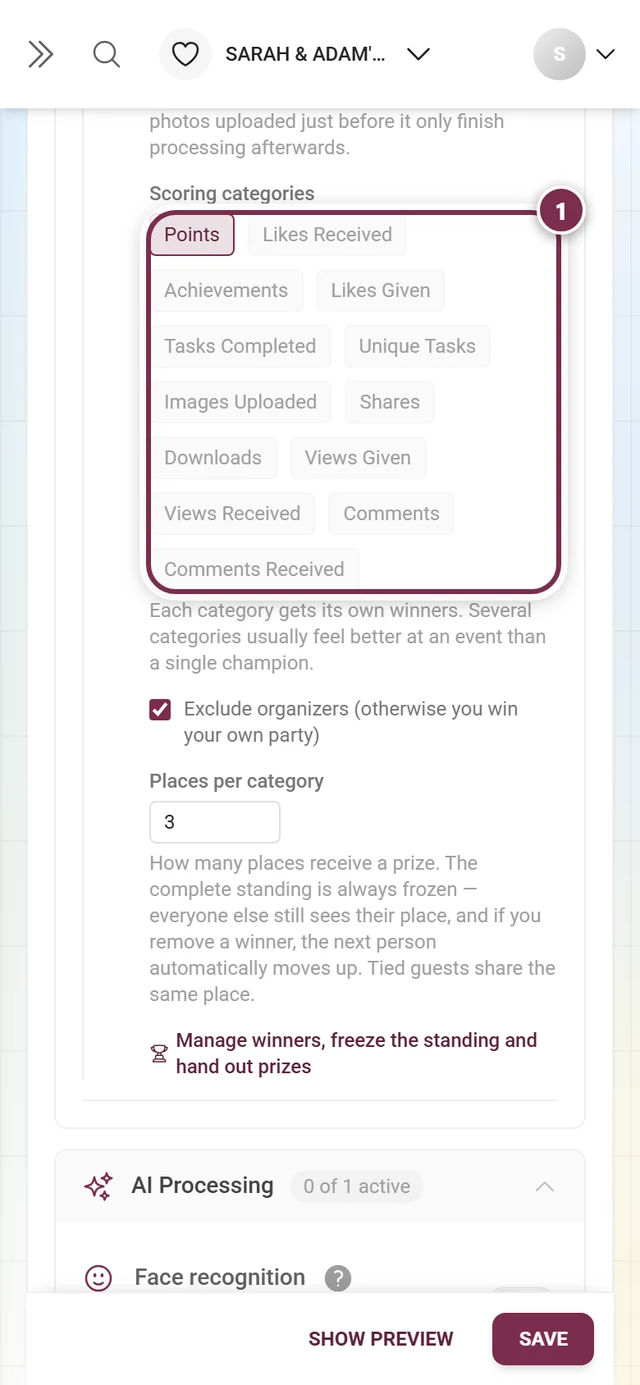
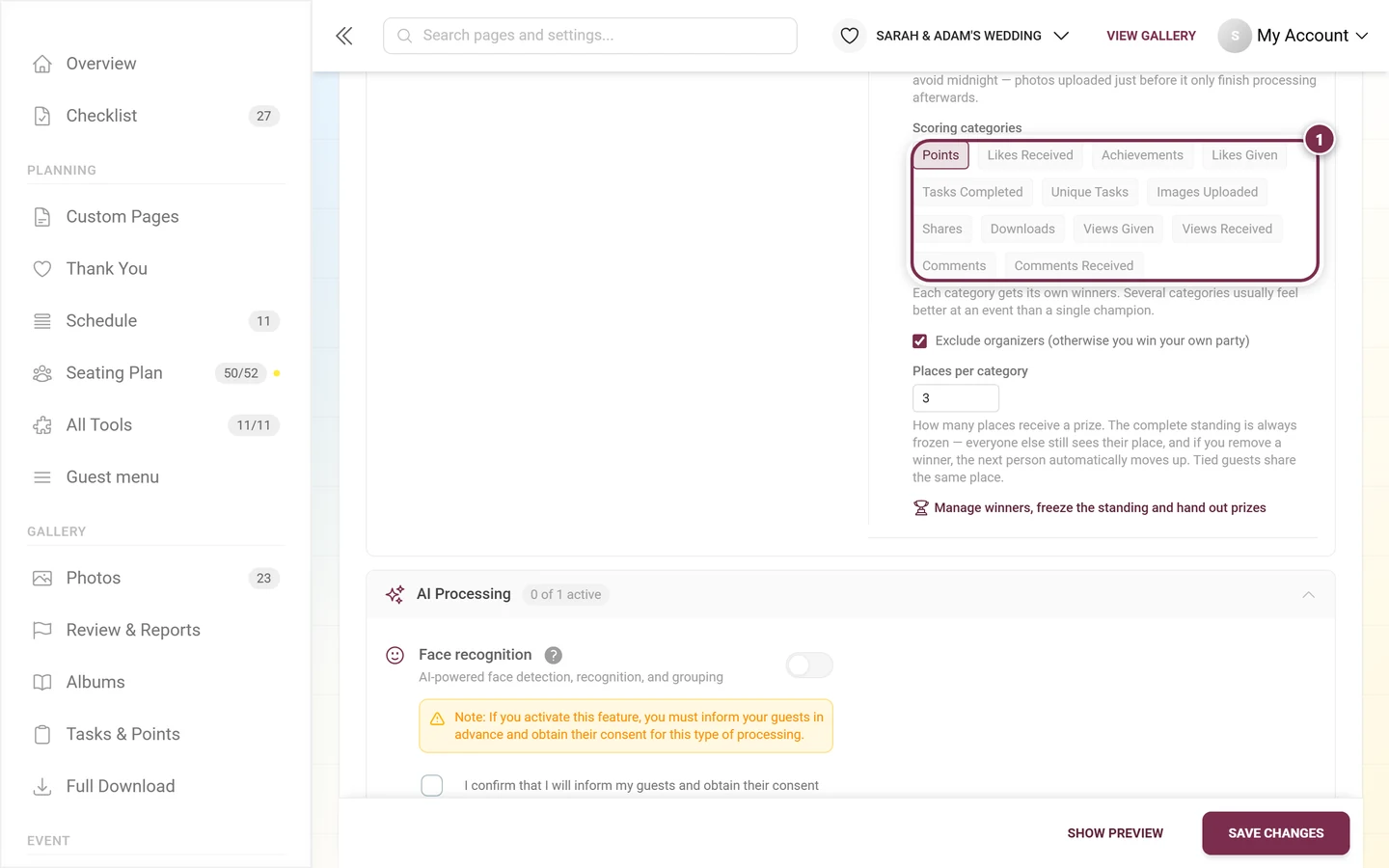
Every selected category gets its own winners. The same thirteen rankings as on the leaderboard are available: Points, Likes Received, Achievements, Likes Given, Tasks Completed, Unique Tasks, Images Uploaded, Shares, Downloads, Views Given, Views Received, Comments and Comments Received.
- Categories whose underlying feature is off are grayed out – Points needs the points system, Achievements needs achievements, Likes Given needs likes, and both task categories need photo challenges.
- The list can’t be emptied completely: remove the last category and the selection falls back to Points.
- Several categories usually feel better at an event than a single champion – that way different guests win something.
Places per category and organizers
Section titled “Places per category and organizers”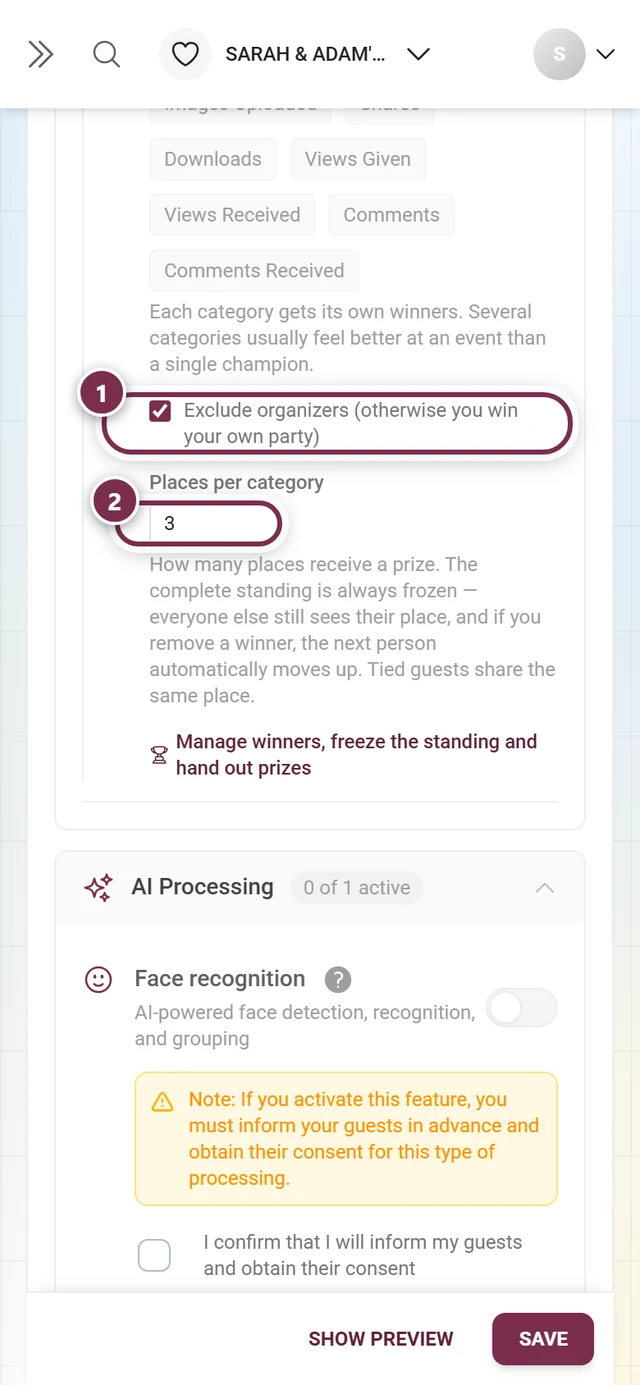
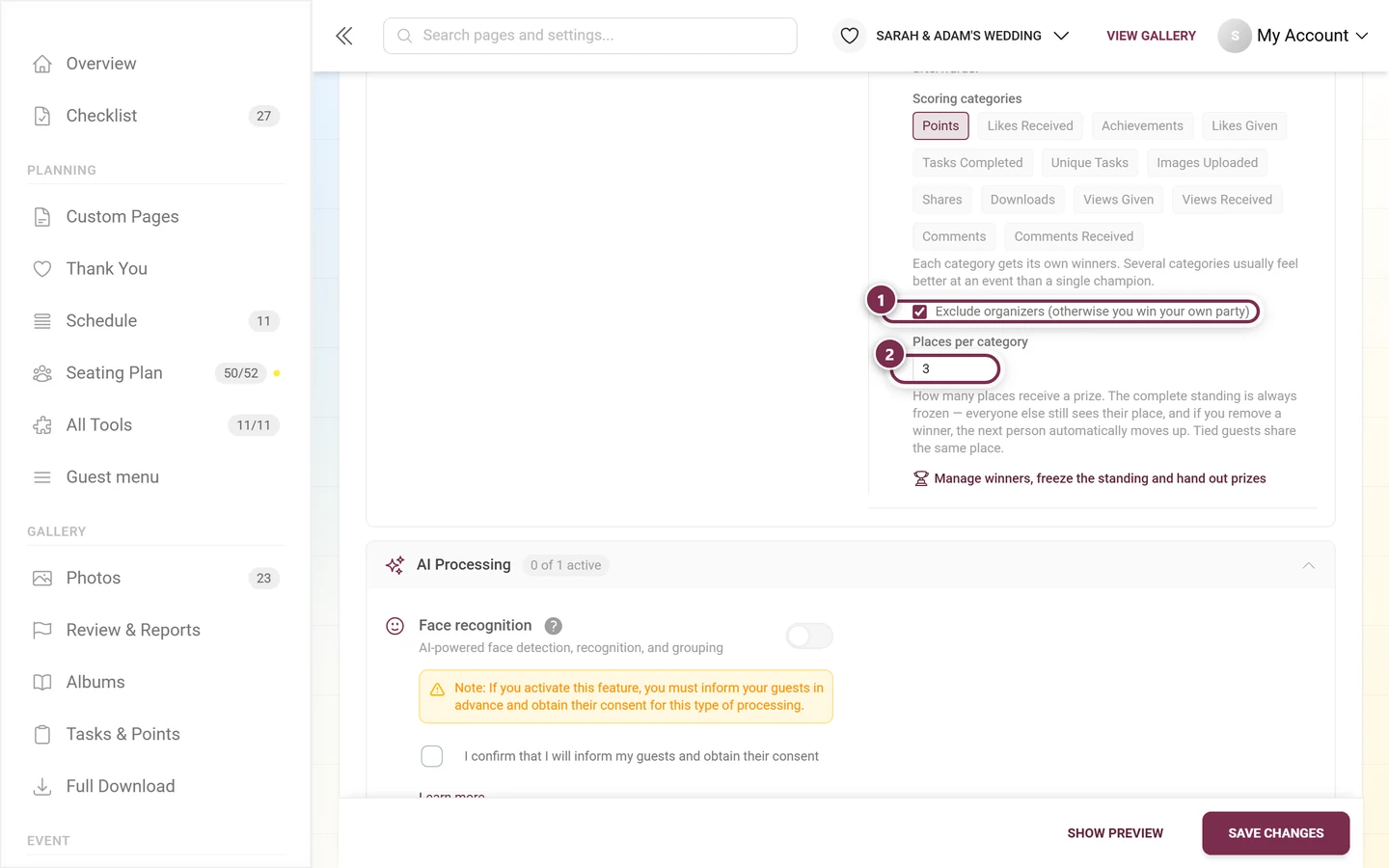
The number field ranges from 1 to 10 and is preset to 3.
Leave Exclude organizers on if you upload a lot yourself as a host – otherwise you end up on your own podium.
Step 2 – Freezing the standing
Section titled “Step 2 – Freezing the standing”At the top of the winners page sits the Winners block with the current state.
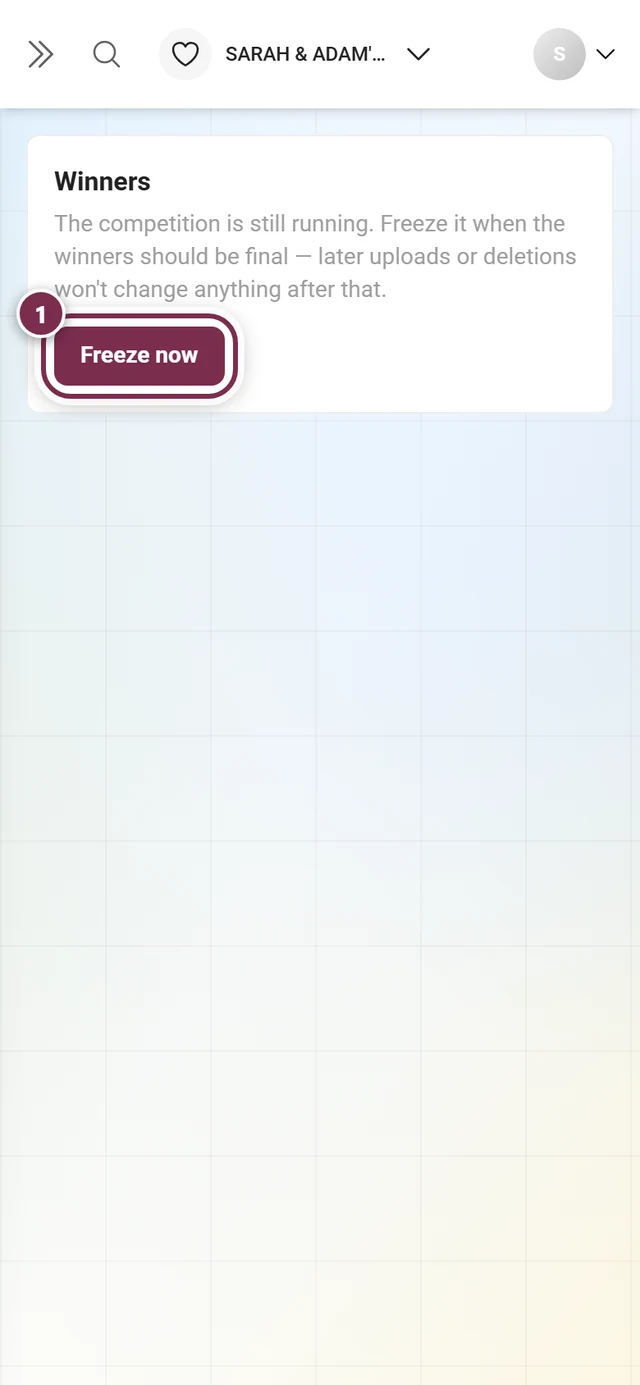
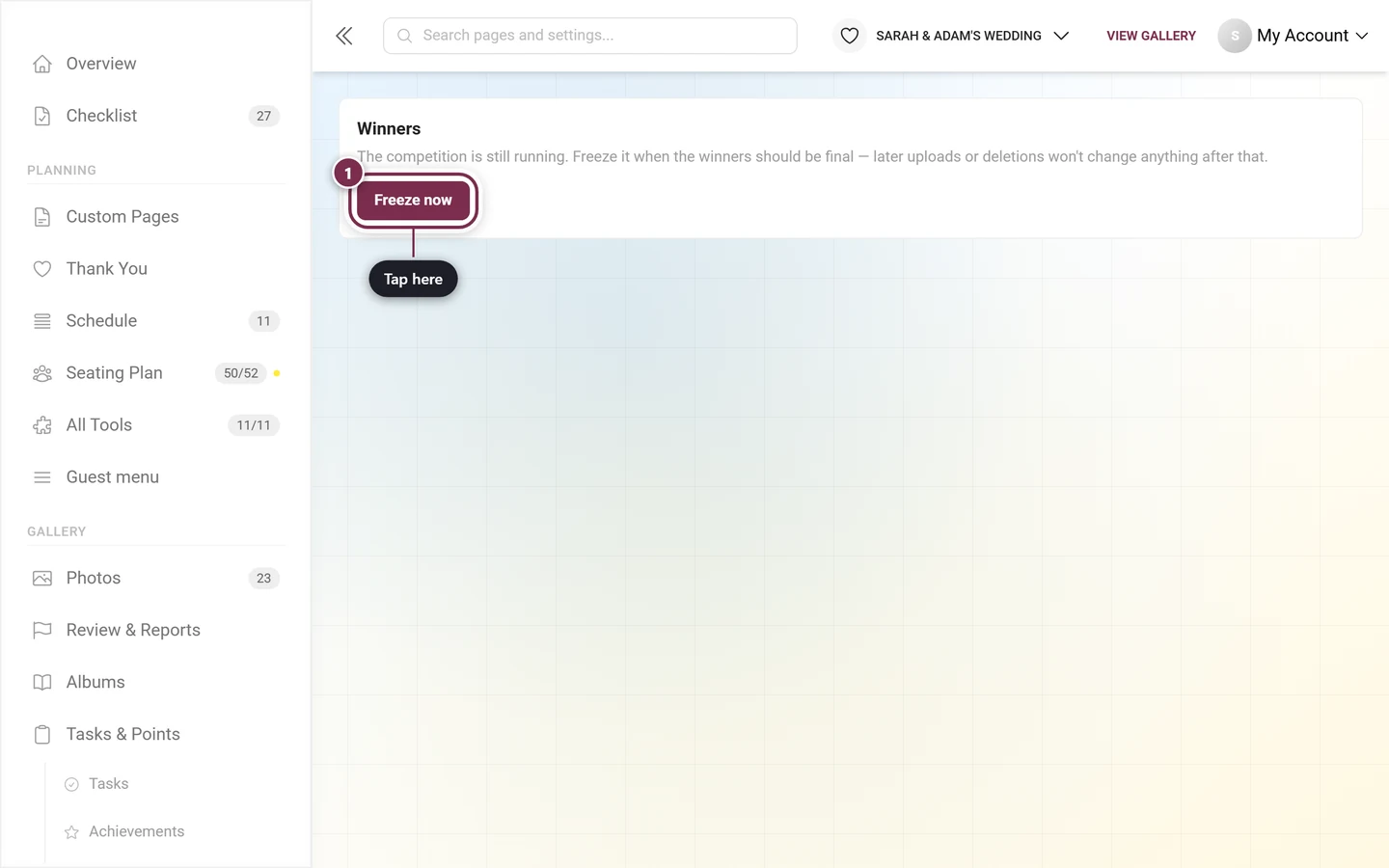
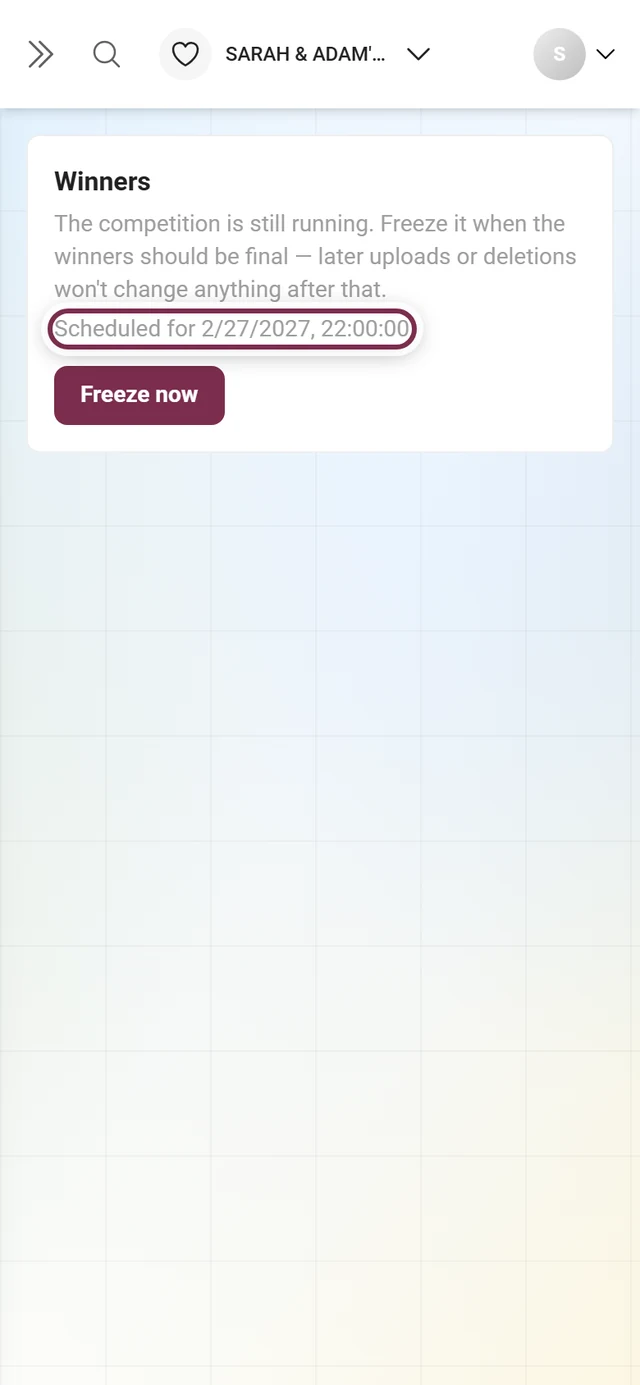
If a moment is configured as well, it appears as a line below:
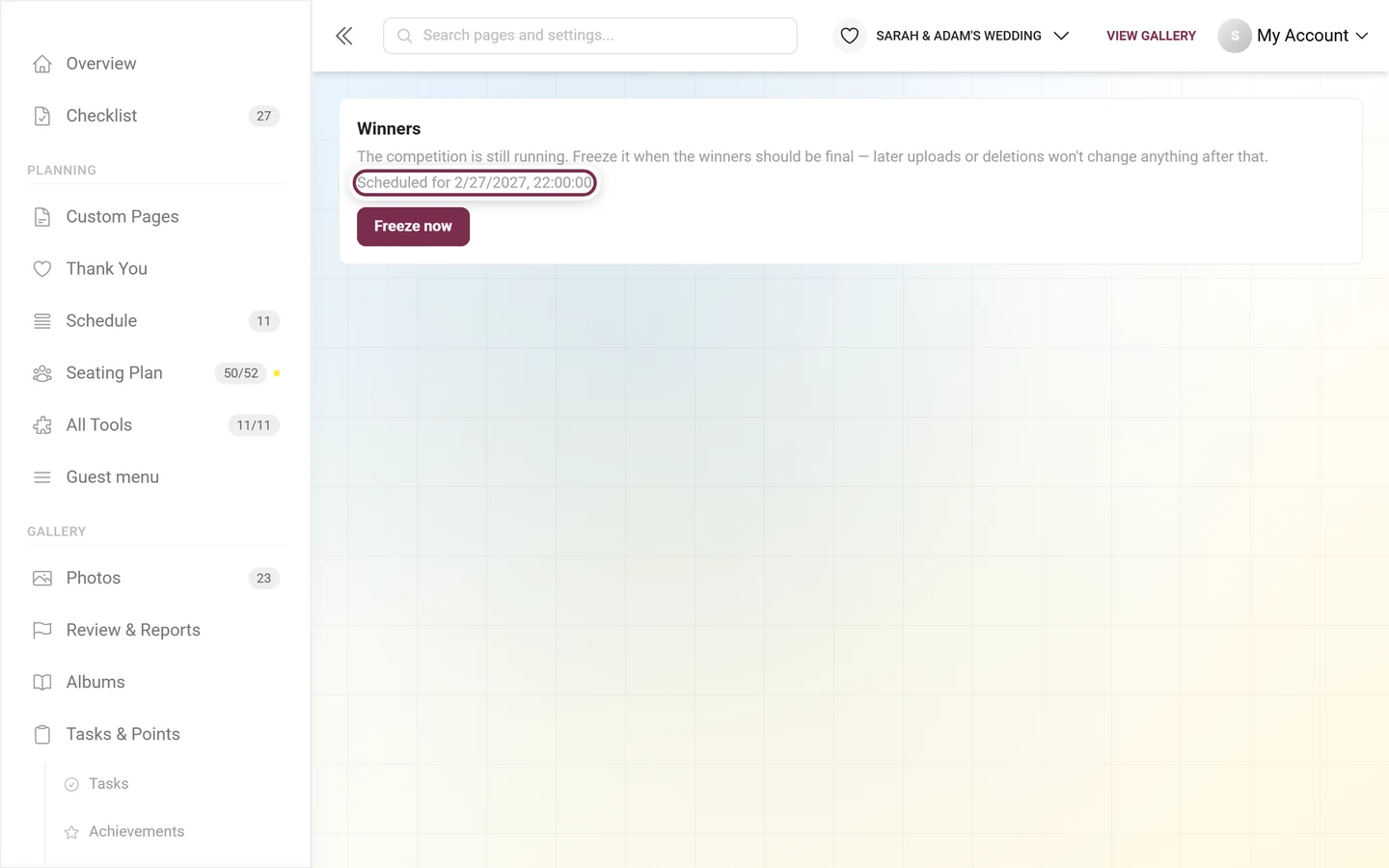
After freezing, the text changes to “The standing is frozen. Guests see the final result instead of the live leaderboard.”, and the button reads Re-open the competition.
If freezing doesn’t work, the message “Nobody has scored in the selected categories yet.” appears. Then the data is simply missing: only once somebody is ranked in at least one selected category can a result be recorded.
Reading the winners table
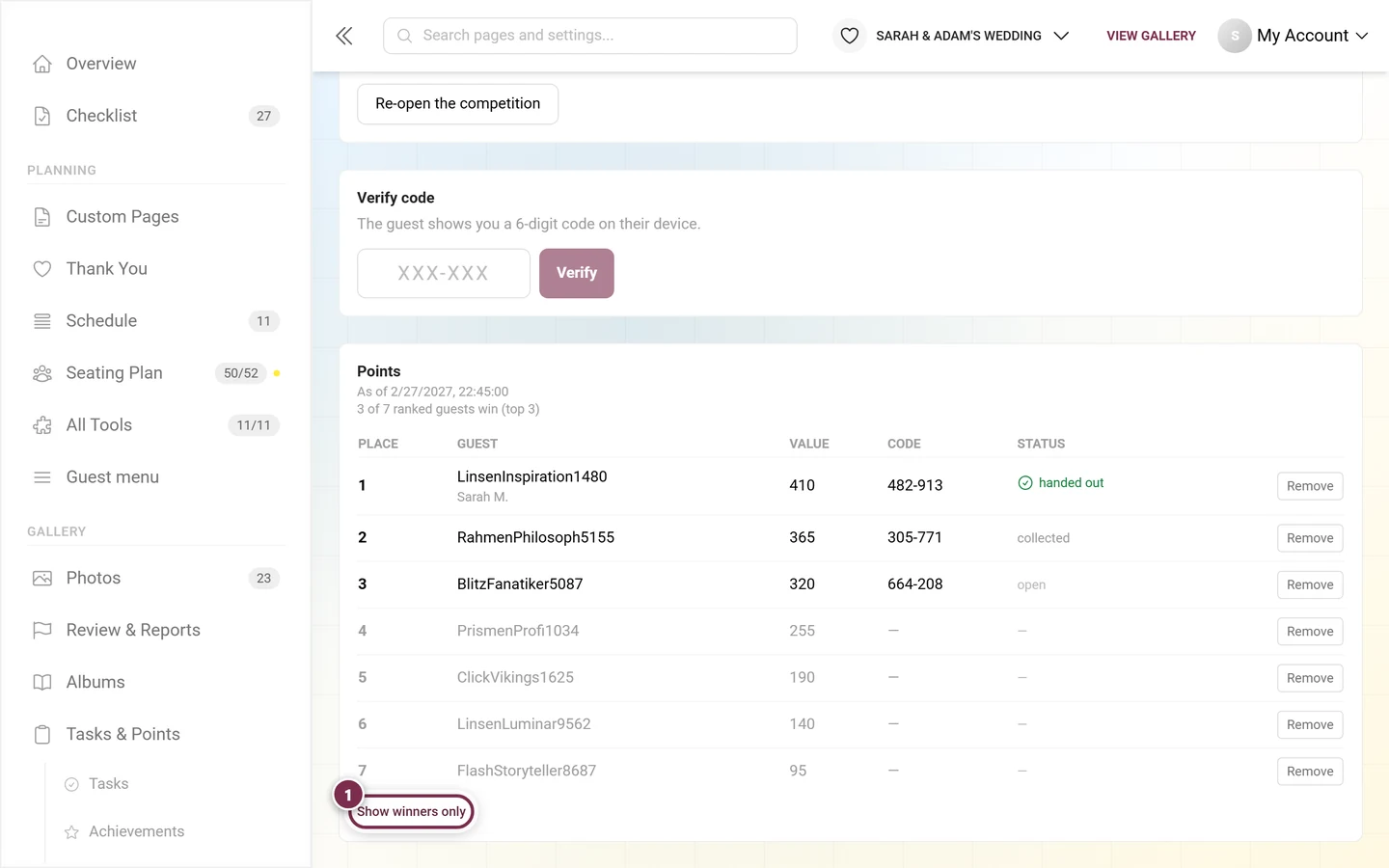
Section titled “Reading the winners table”Below the freeze buttons, every scoring category gets its own block: a heading with the category name, below it As of with the freeze date and a line along the lines of “3 of 7 ranked guests win (top 3)”.
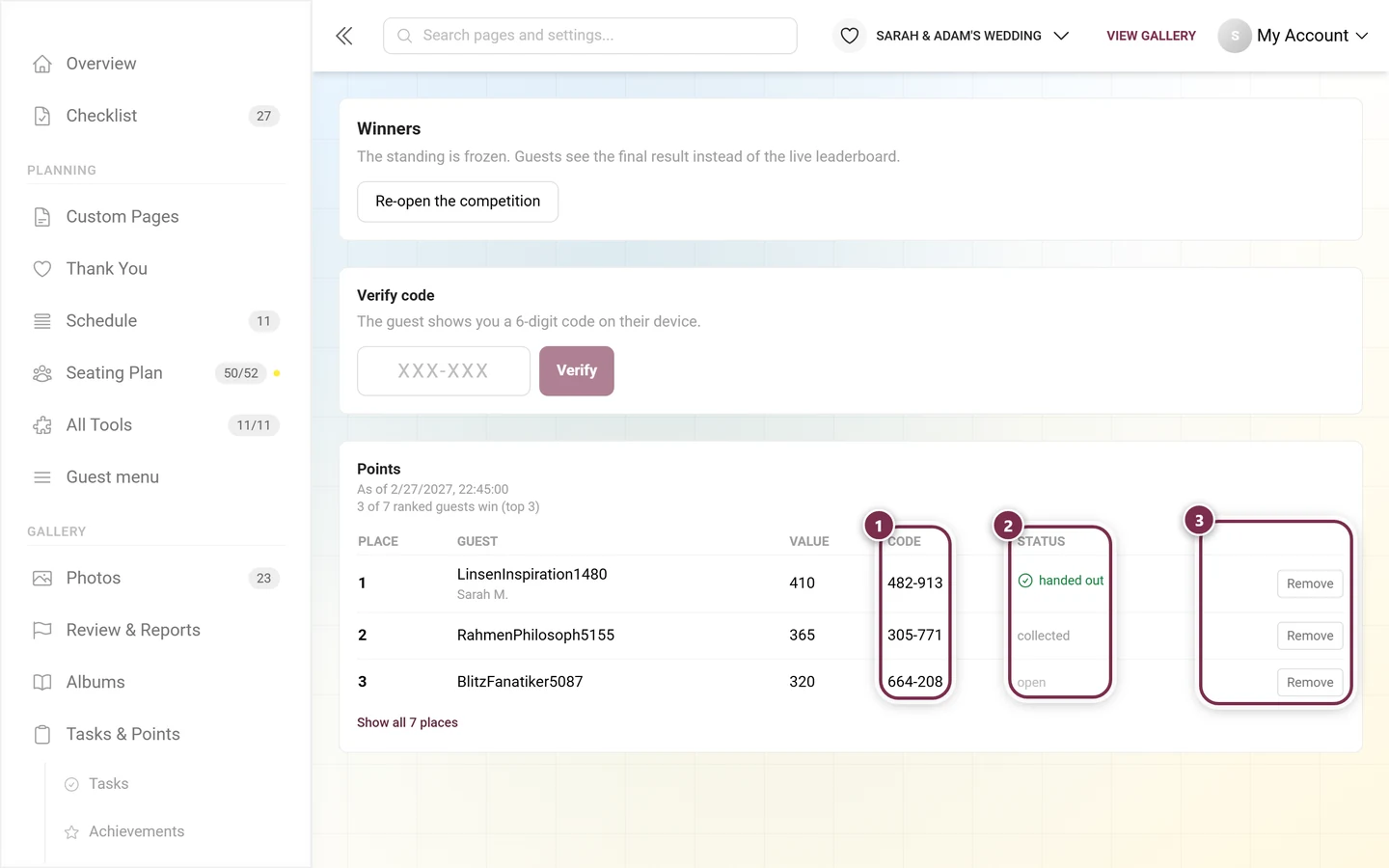
- Place – the ranking. Removed people show a dash here.
- Guest – the display name; without one it reads Anonymous. If the person voluntarily left their real name while collecting, it appears in small type underneath – “Sarah M.” below LinsenInspiration1480 in the shot above.
- Value – the frozen number for that category.
- Code – the six-digit redemption code in the format
XXX-XXX. Only winners have a code; every other row shows a dash. - Status – open, collected or handed out.
- Action – the button at the end of the row, see Removing winners.
The three statuses
Section titled “The three statuses”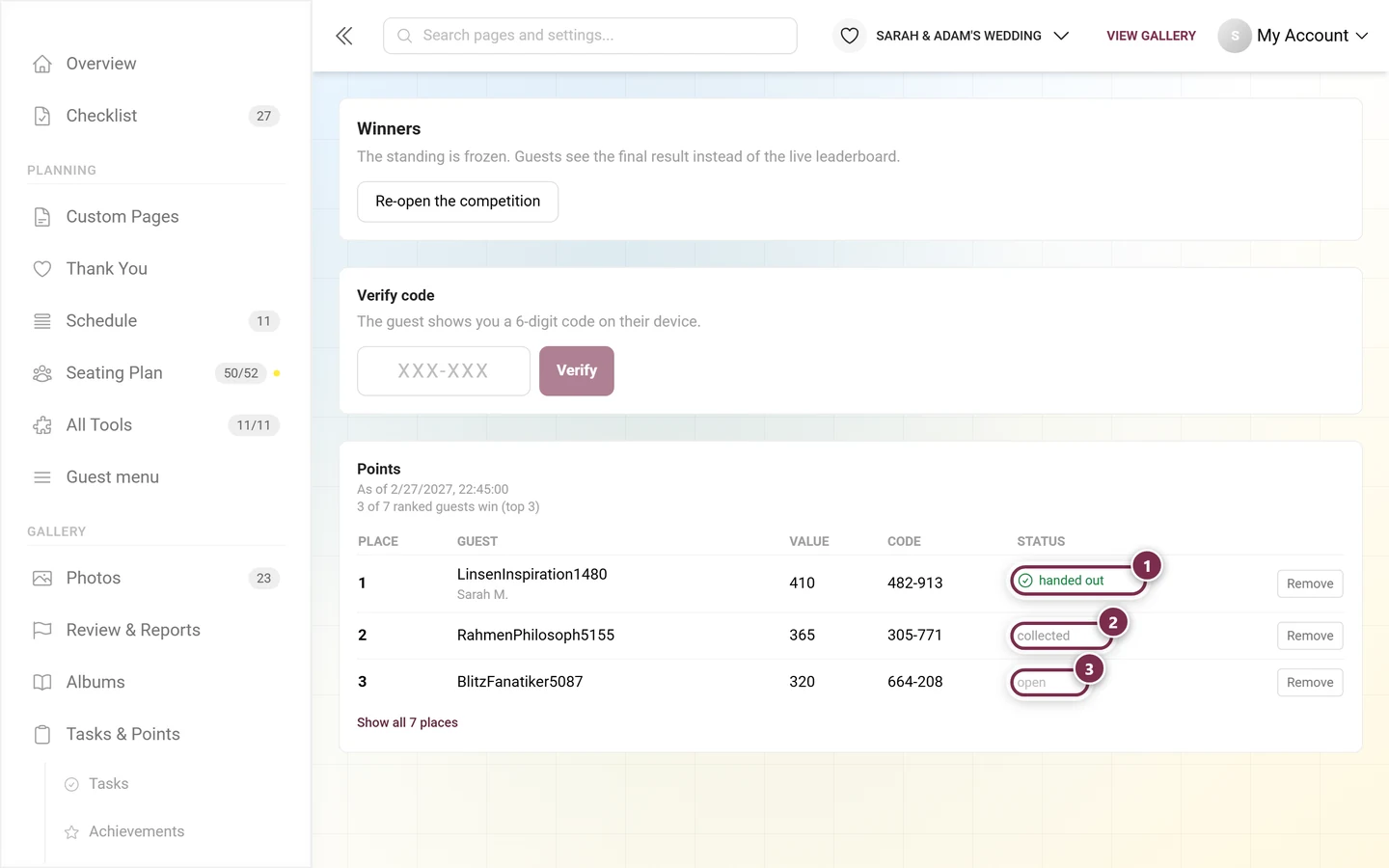
The status is pure documentation for your side: it locks nothing, it records what is already done – handy when several people staff the prize desk.
All places instead of just the podium
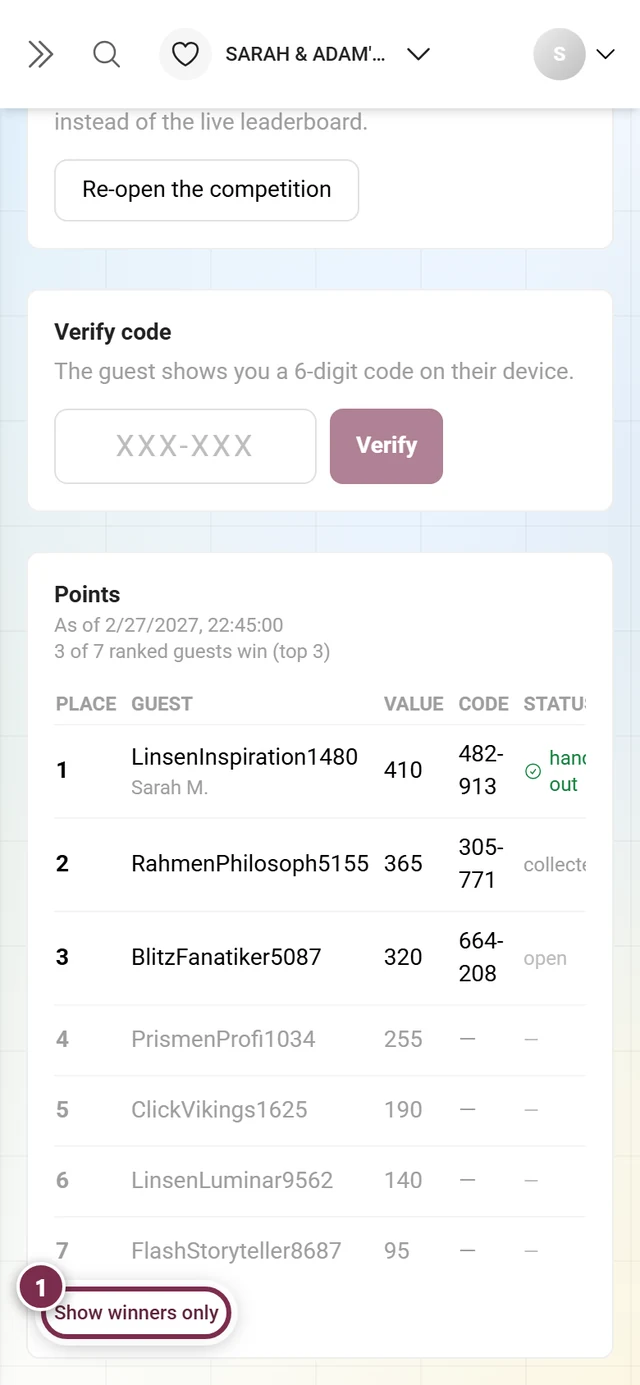
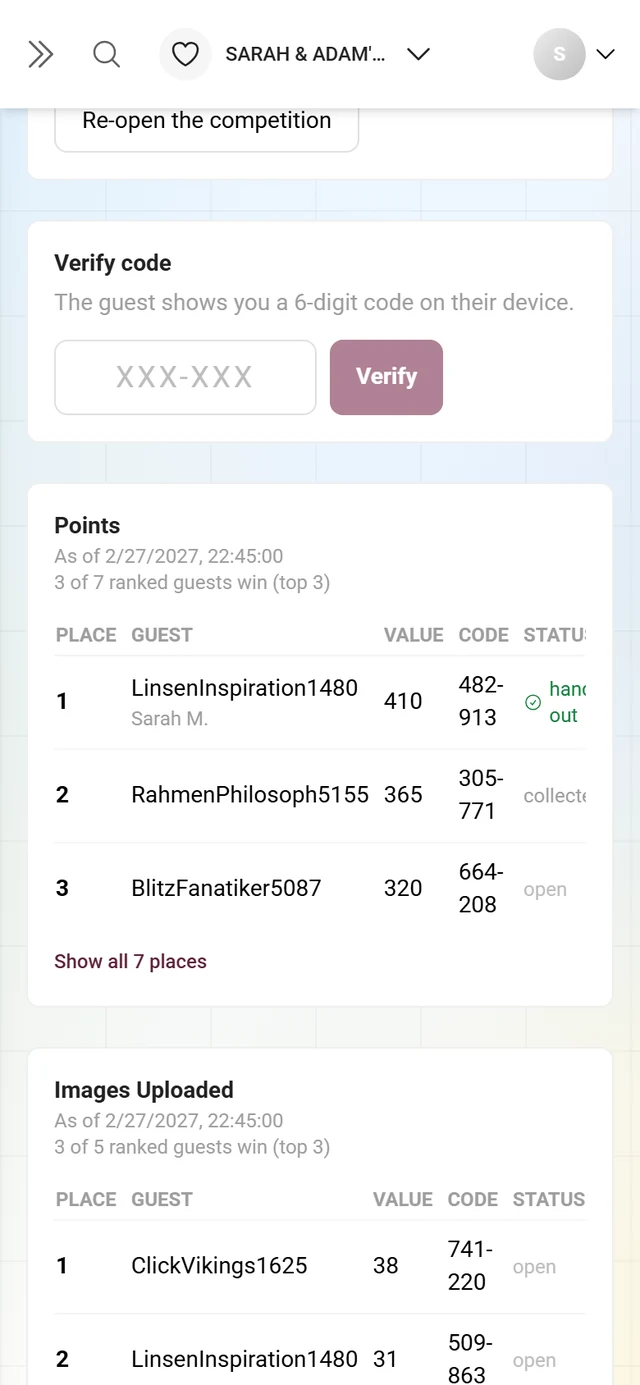
Section titled “All places instead of just the podium”By default you only see the winners. The link Show all N places below the table unfolds the complete standing, Show winners only folds it back. Removed people always stay visible so you can put them back.
Several categories
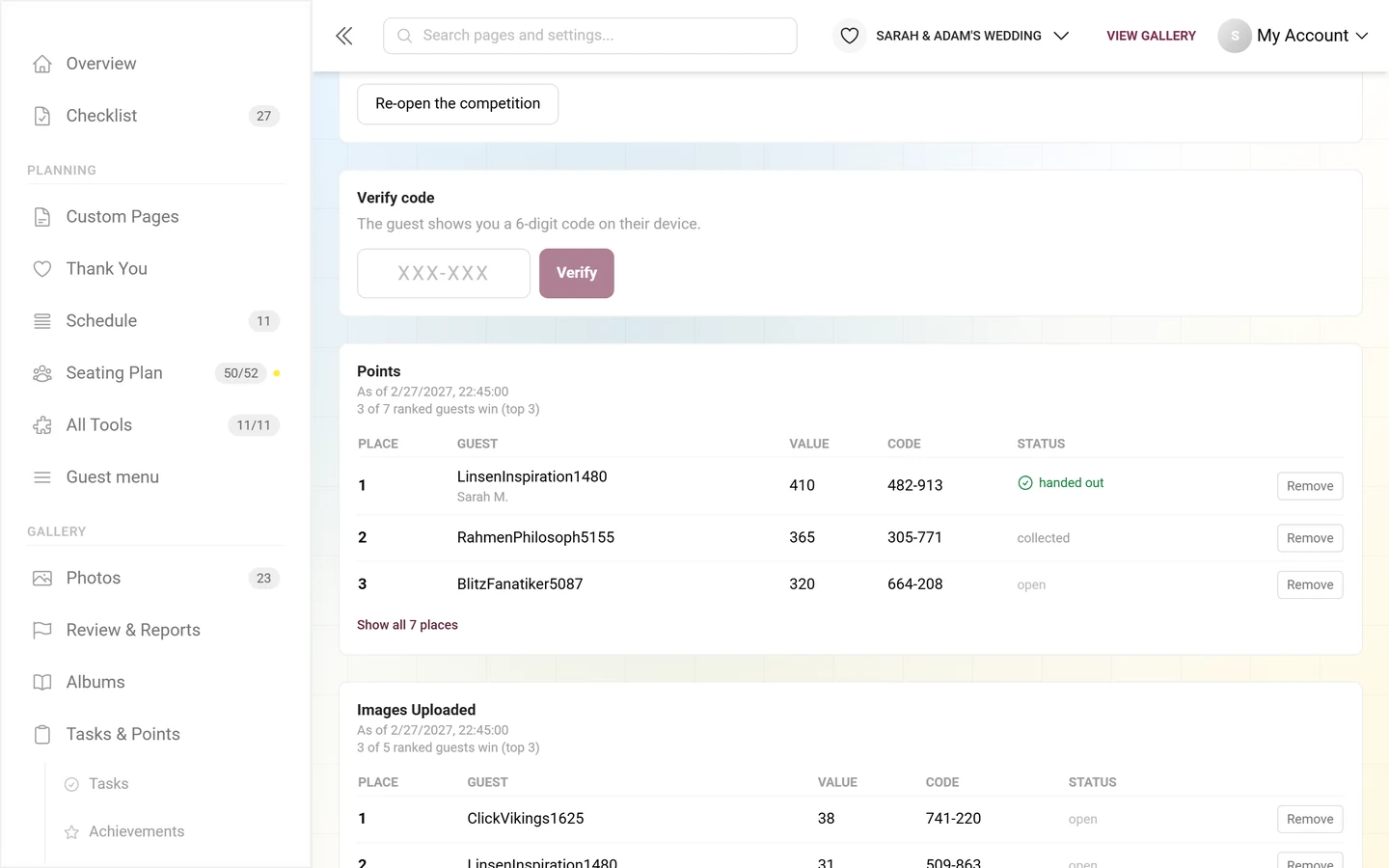
Section titled “Several categories”If you picked more than one scoring category in the settings, each gets its own table below the other – with its own podium, its own codes and its own statuses.
Handing out a prize – verifying the code
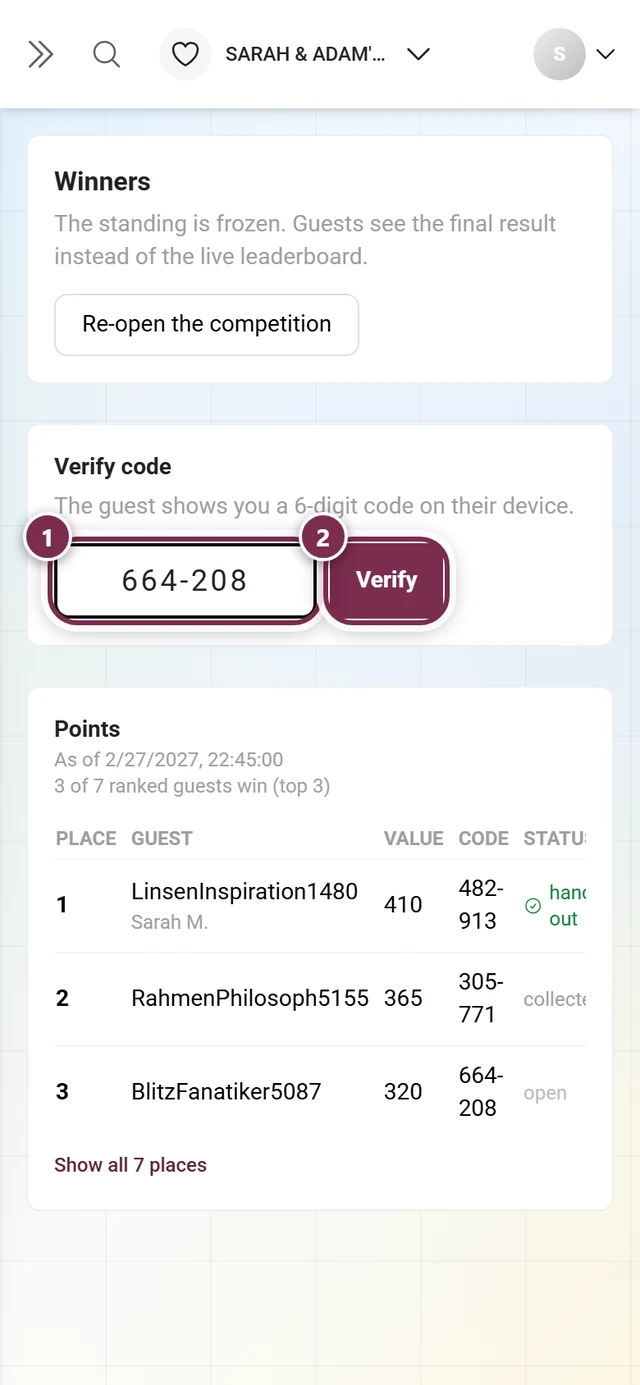
Section titled “Handing out a prize – verifying the code”As soon as the standing is frozen, the Verify code block appears. The flow mirrors the one for real rewards on achievements.
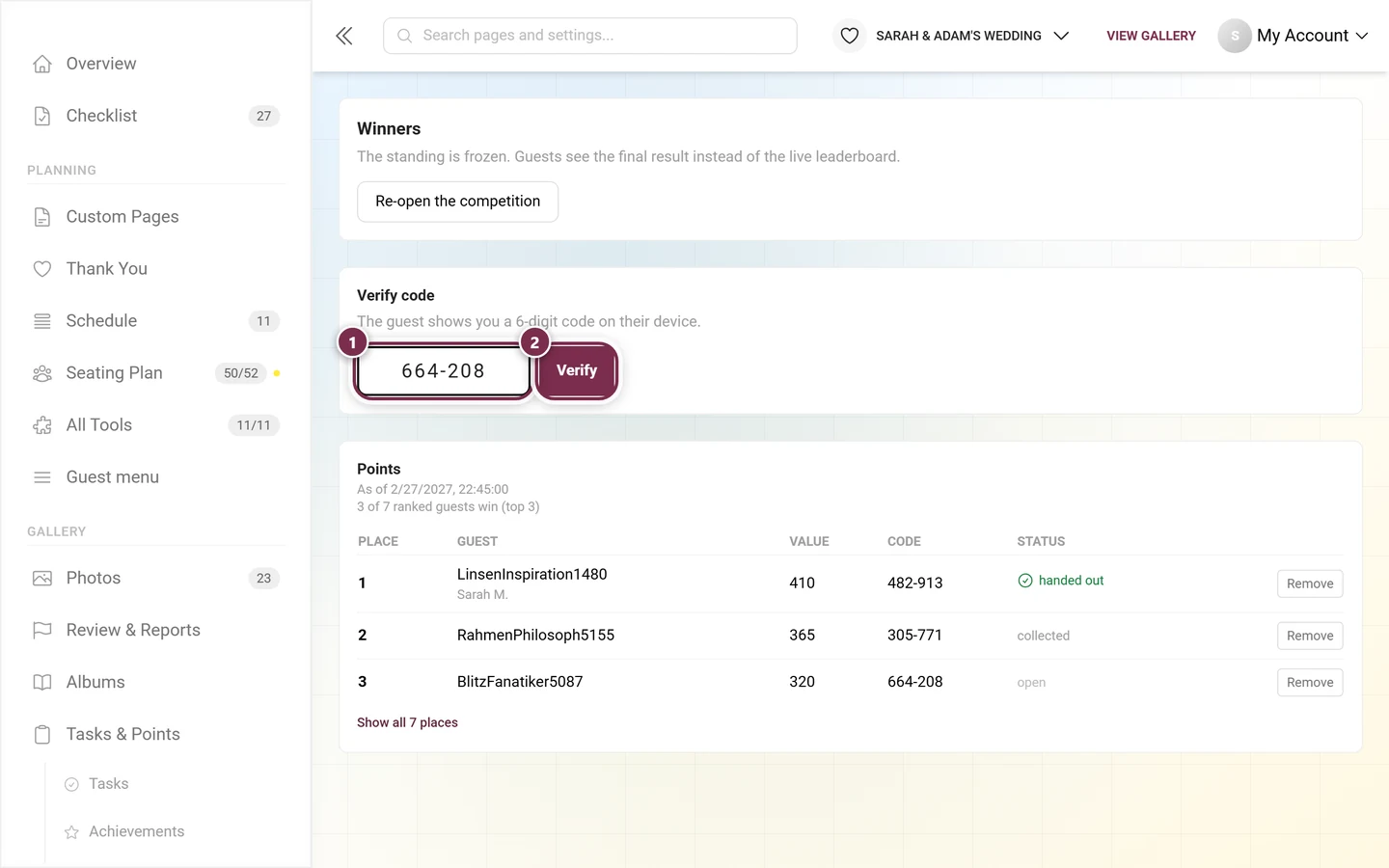
-
The guest shows you a six-digit code on their device (displayed as
XXX-XXX). -
Type the digits into the field. The field adds the dash itself; typing it makes no difference.
-
Click Verify.
-
On success Photogala reports “Prize marked as handed out.” – the status in the table flips to handed out. If the prize had been verified before, you get “This prize has already been handed out.” instead.
-
If the code matches nobody, “No winner found for this code.” appears. The most common reasons: a typo, or the code comes from a standing that has been re-opened in the meantime.
Removing and putting back winners
Section titled “Removing and putting back winners”At the end of every row sits a button:
- Remove takes the person out of the standing. Everyone below moves up – place 4 becomes place 3, and whoever slides onto the podium gets a code of their own.
- Put back undoes that. Removed rows stay in the table, grayed out, so you can find them again.
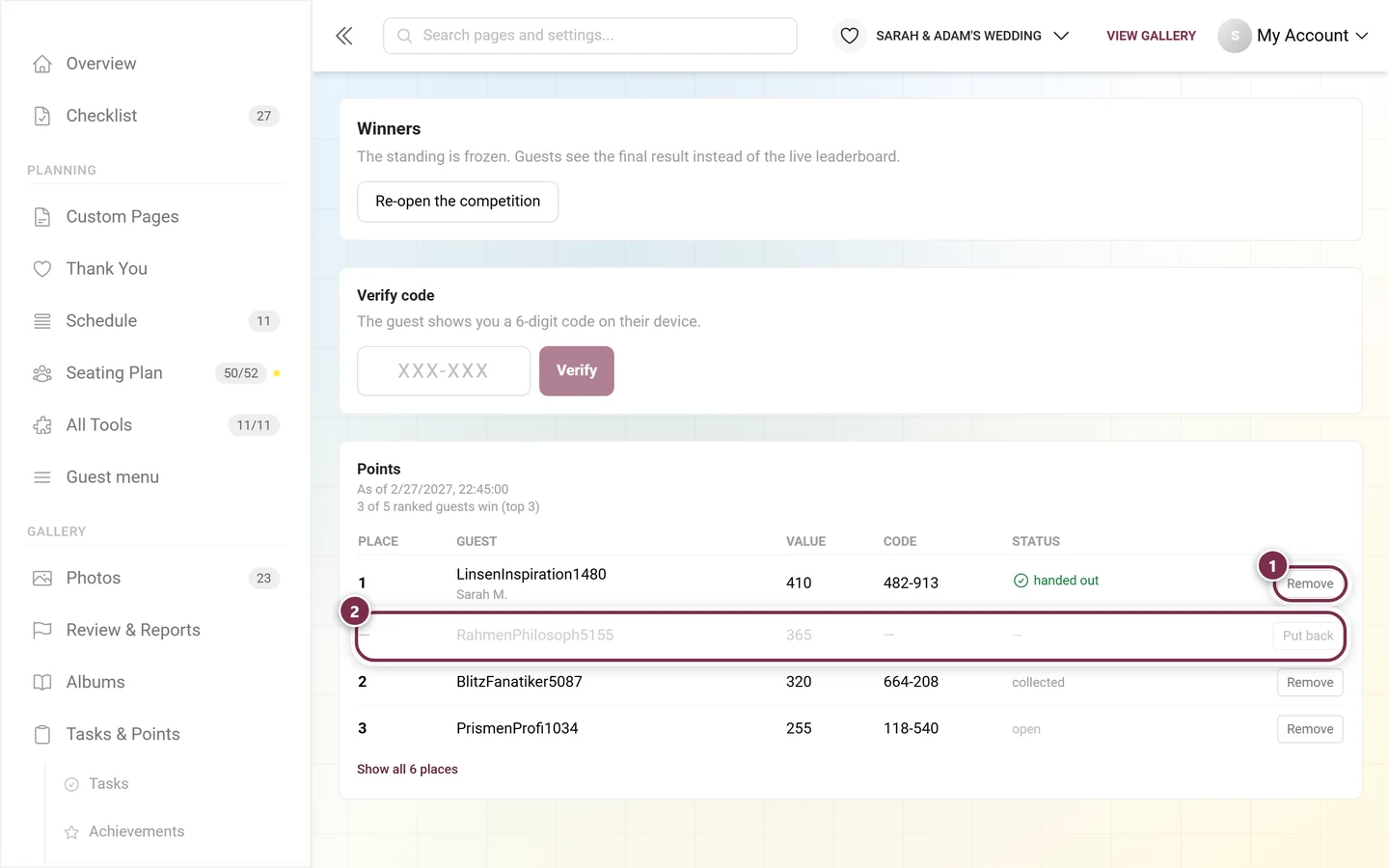
Typical cases: a device profile or a team member ended up in the standing after all, or somebody obviously gamed it.
Re-opening the competition
Section titled “Re-opening the competition”The Re-open the competition button lifts the freeze. It asks first.
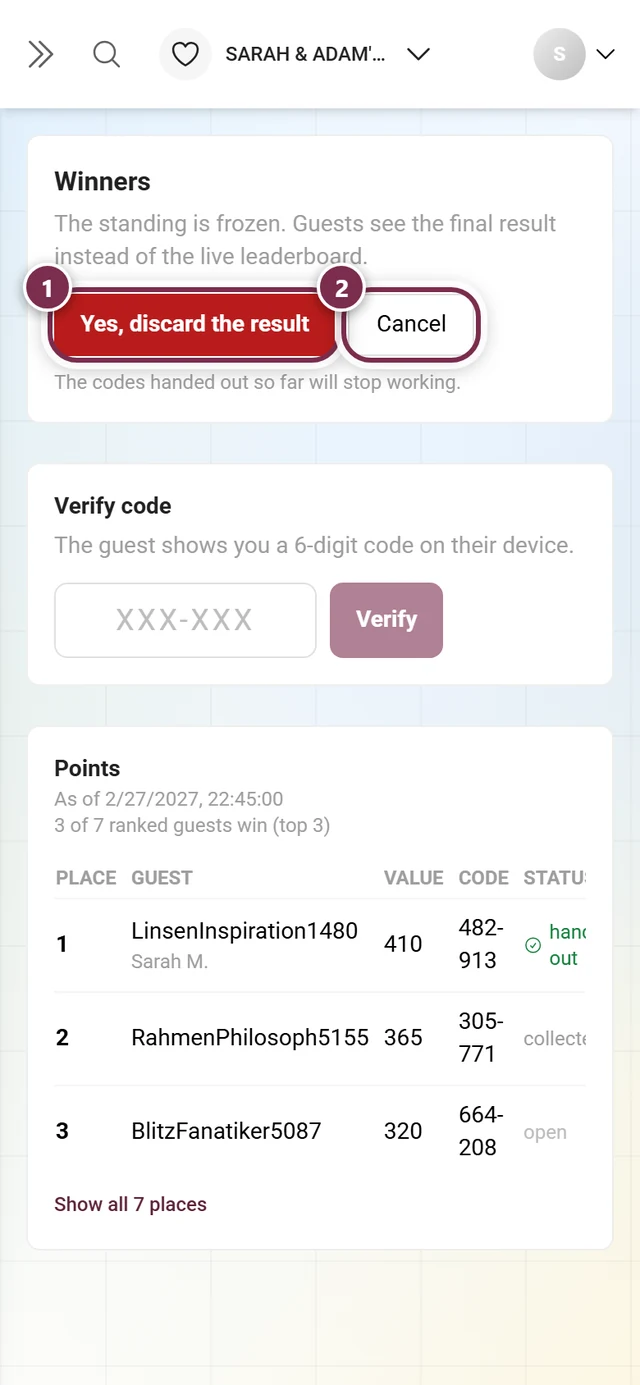
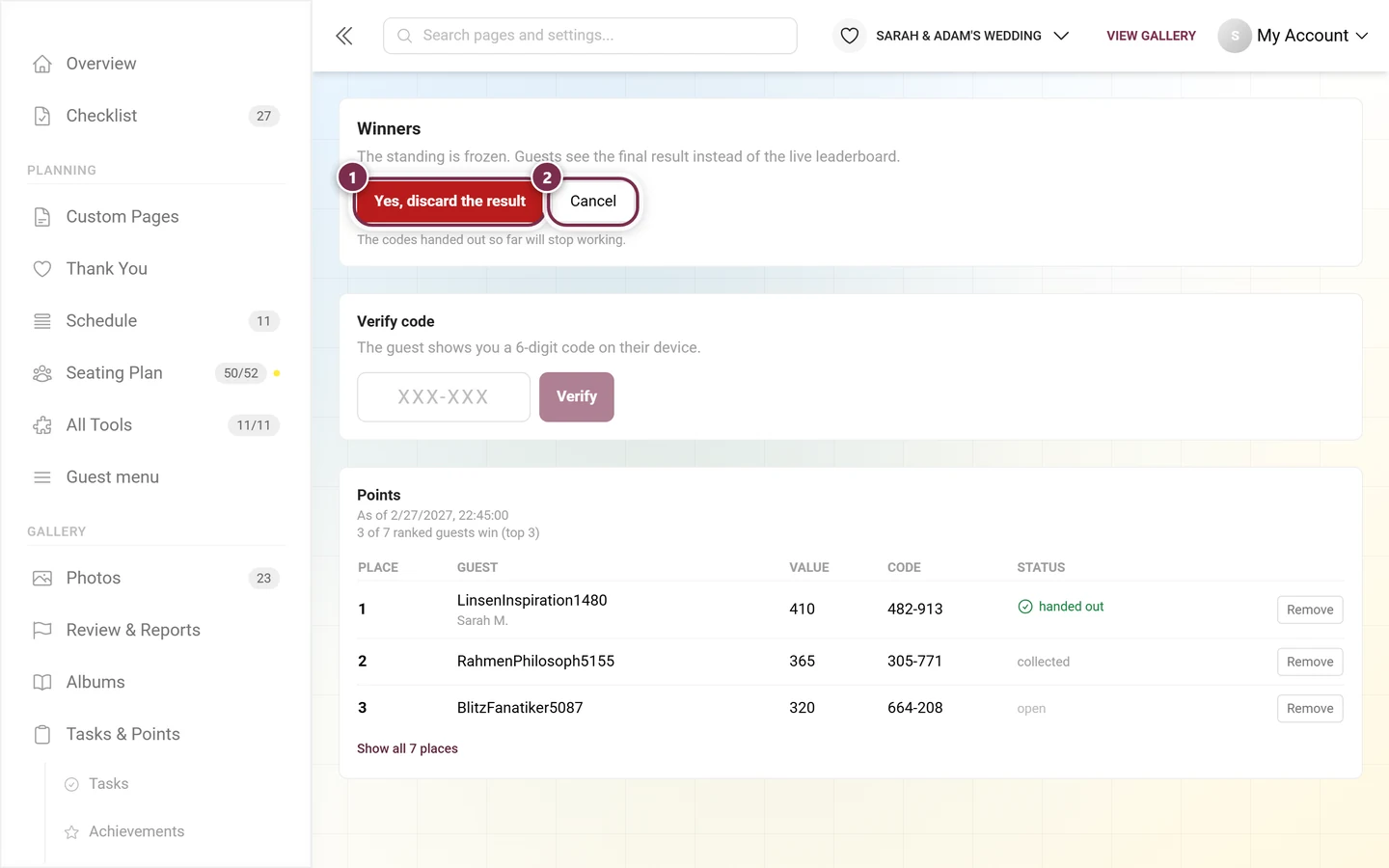
After re-opening, the competition runs on as normal and you can freeze again later – with fresh codes.
What your guests see
Section titled “What your guests see”The moment you freeze, every open device gets the notice The result is in with the text “The competition has ended — take a look at the winners!”. From then on the leaderboard page no longer shows the live ranking but the final result.
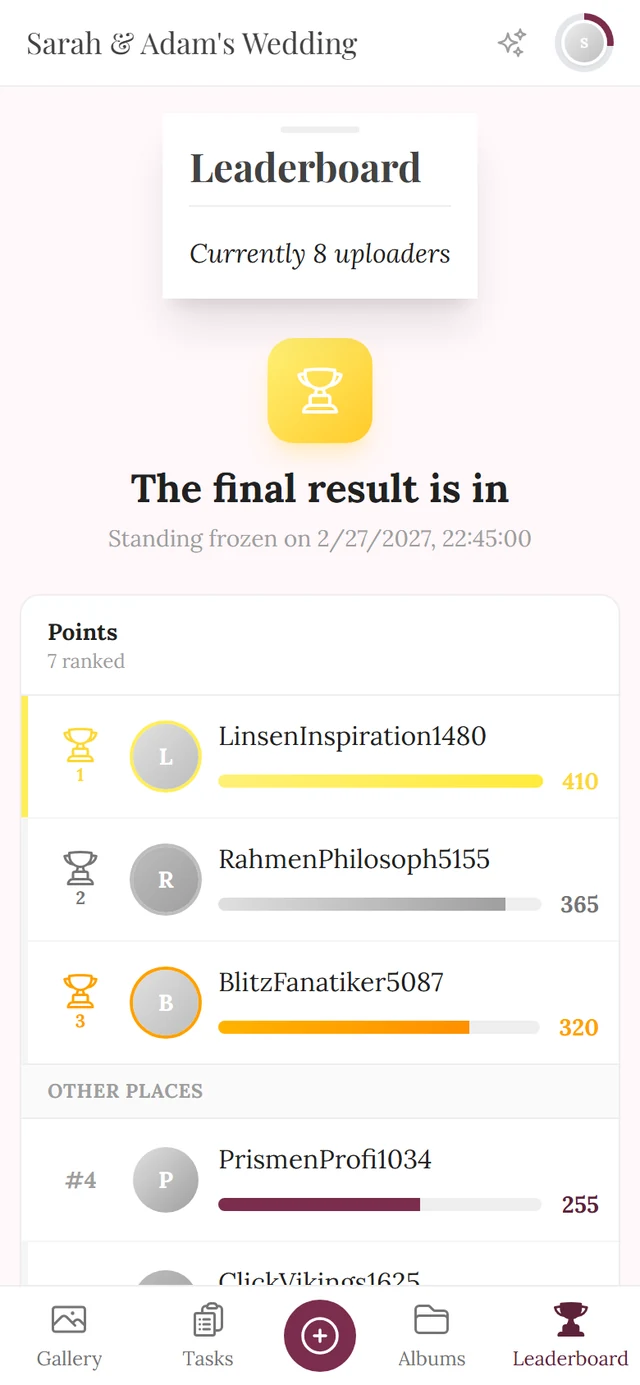
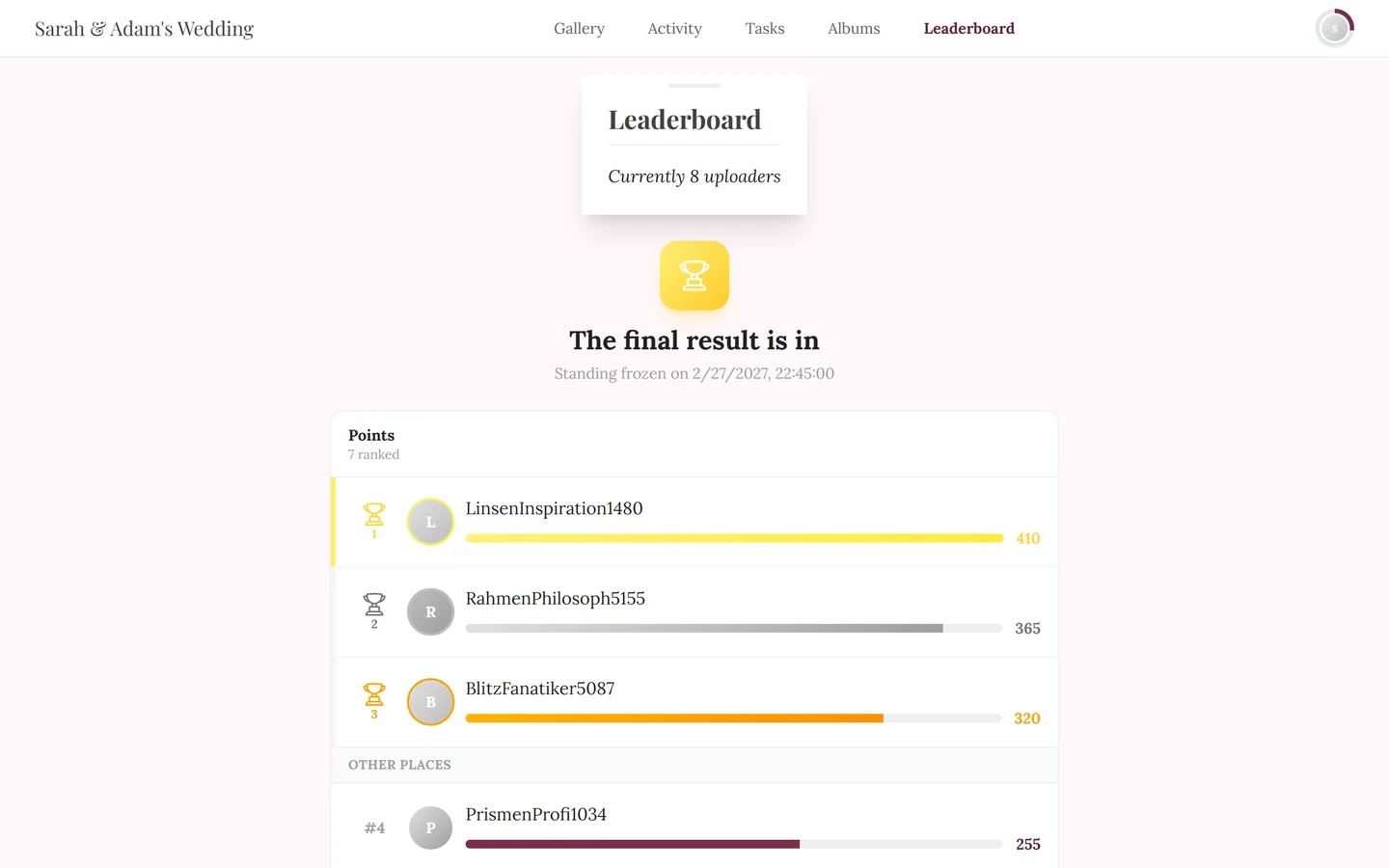
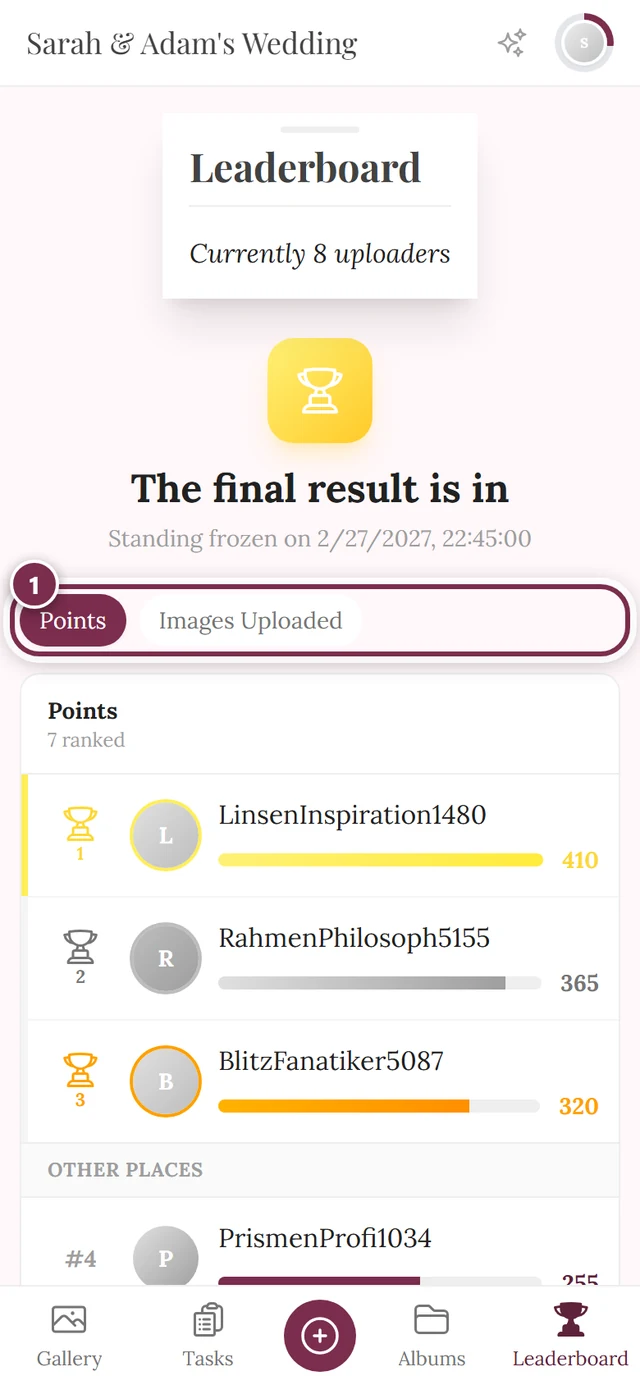
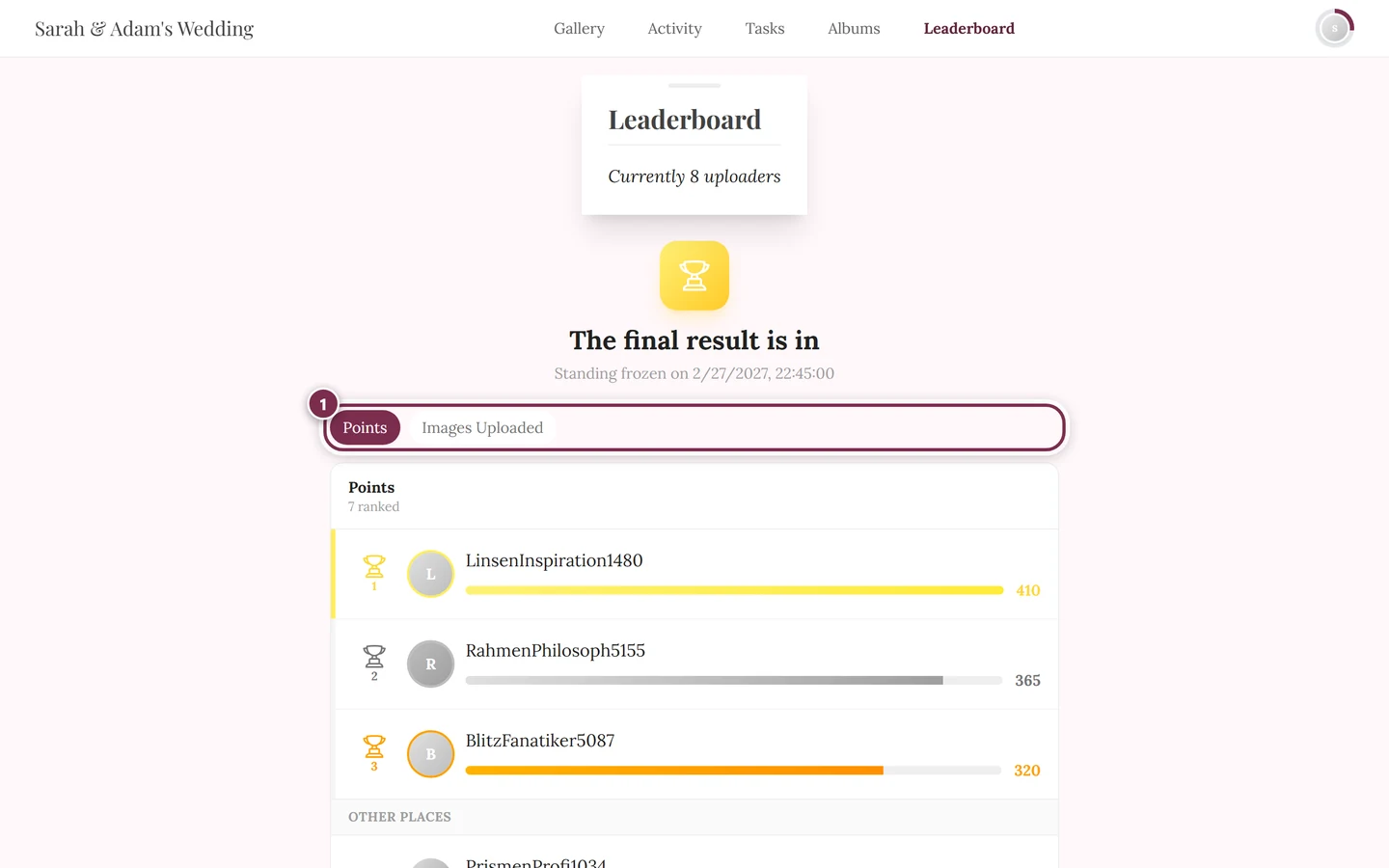
With more than one scoring category, they appear as a chip row above the list:
Whoever won additionally sees a card of their own:
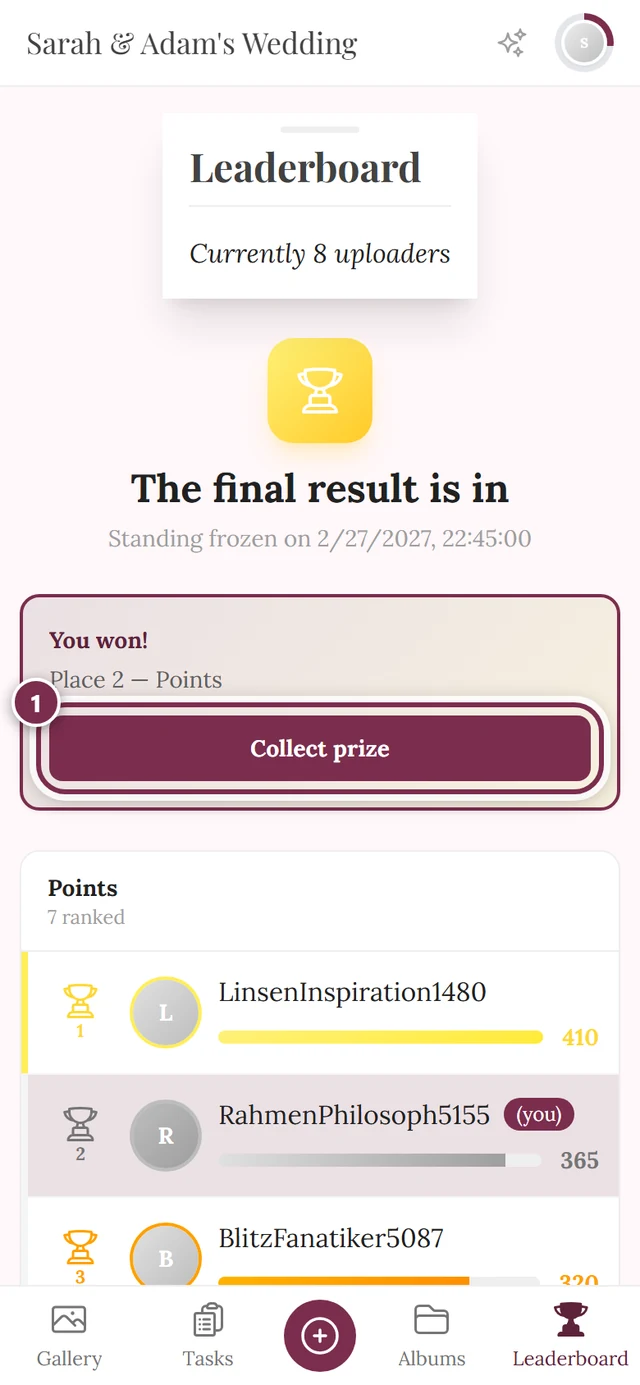
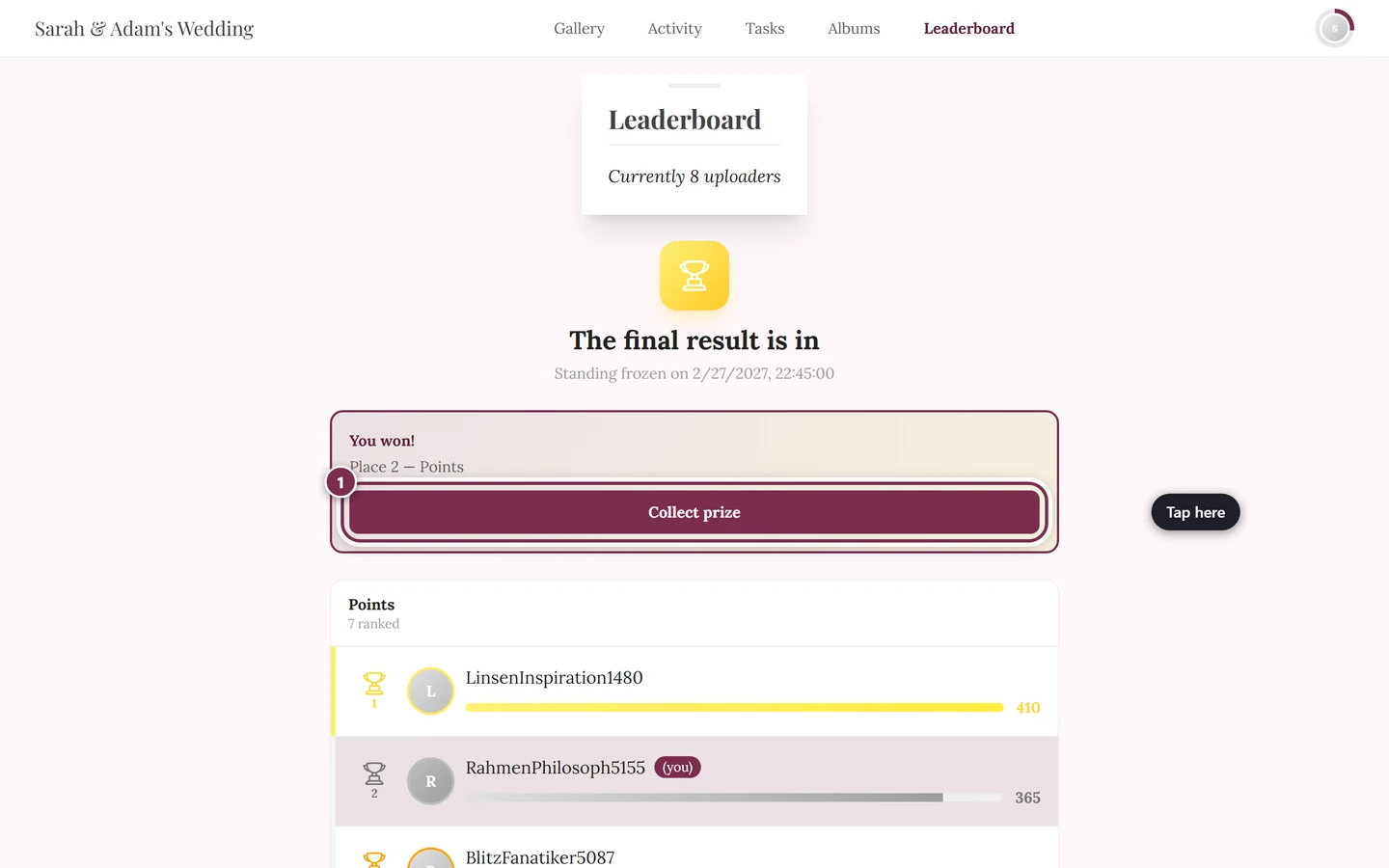
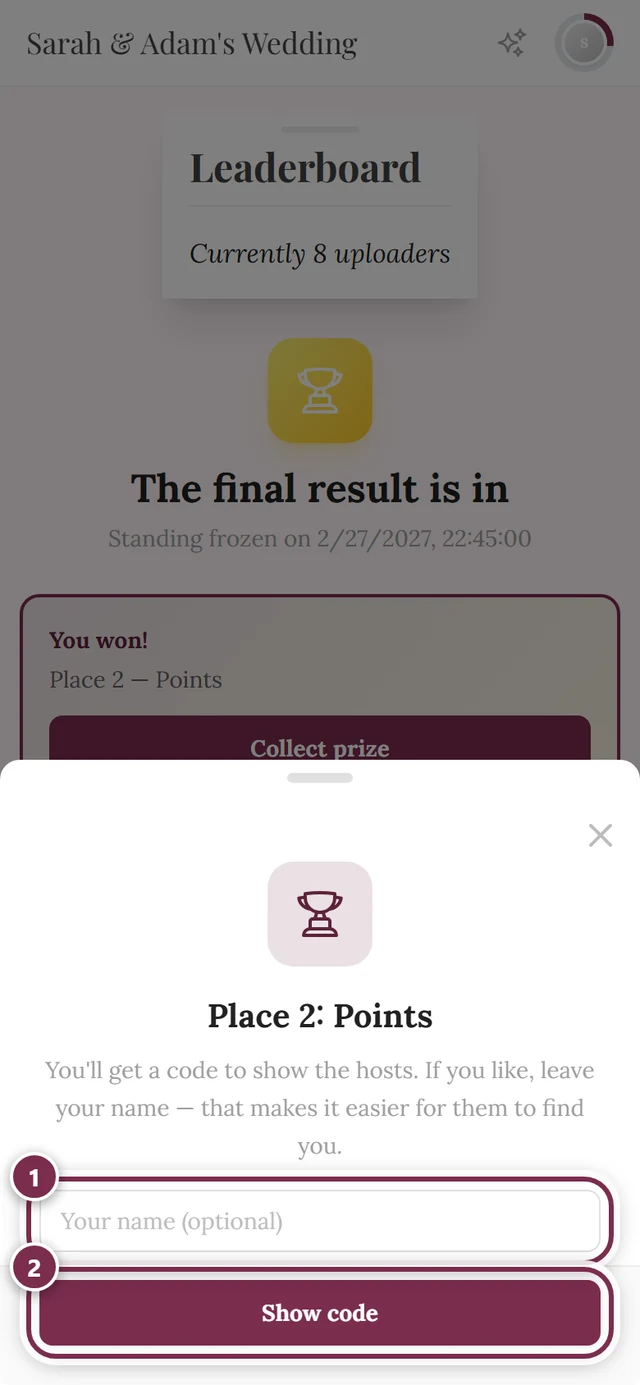
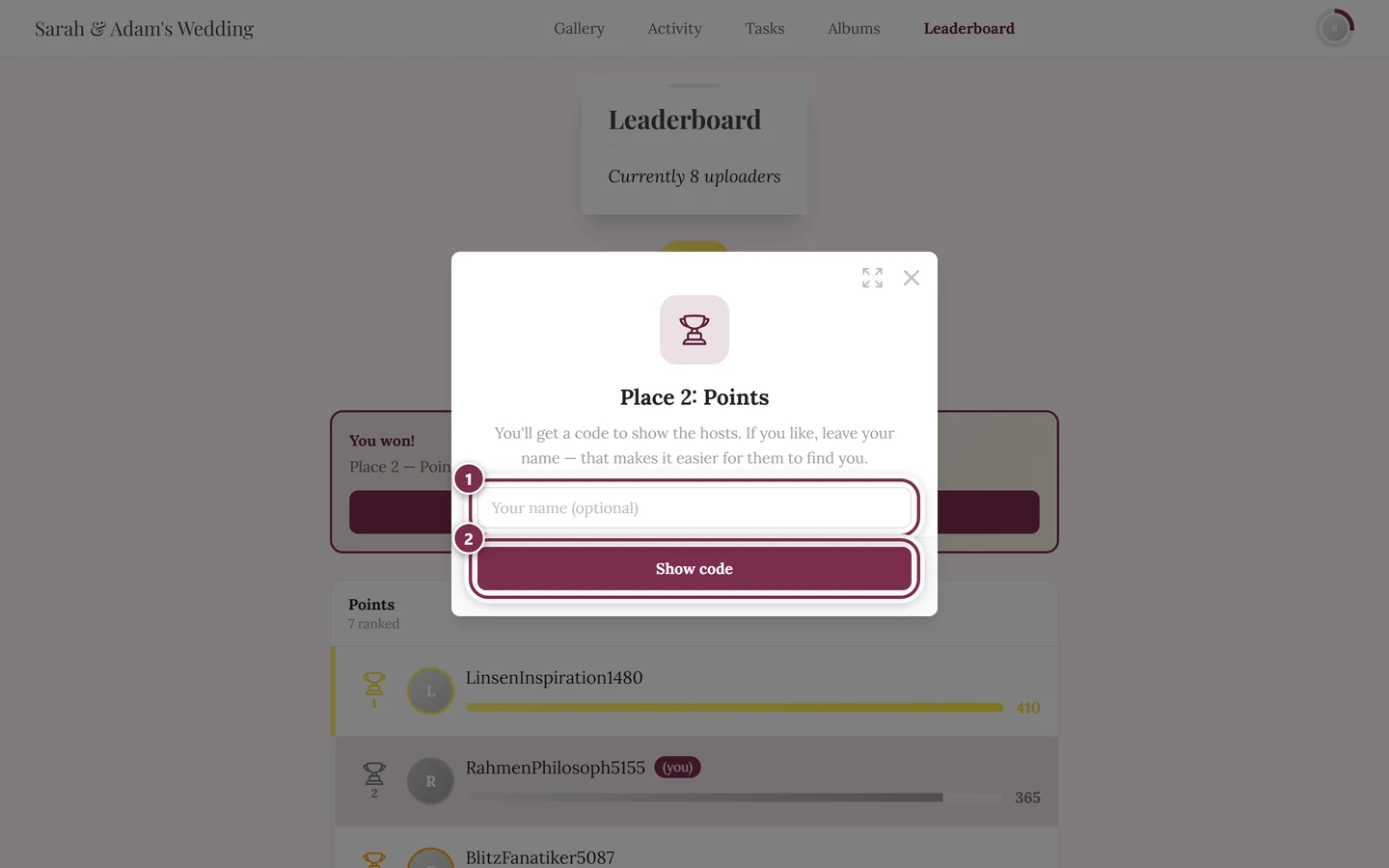
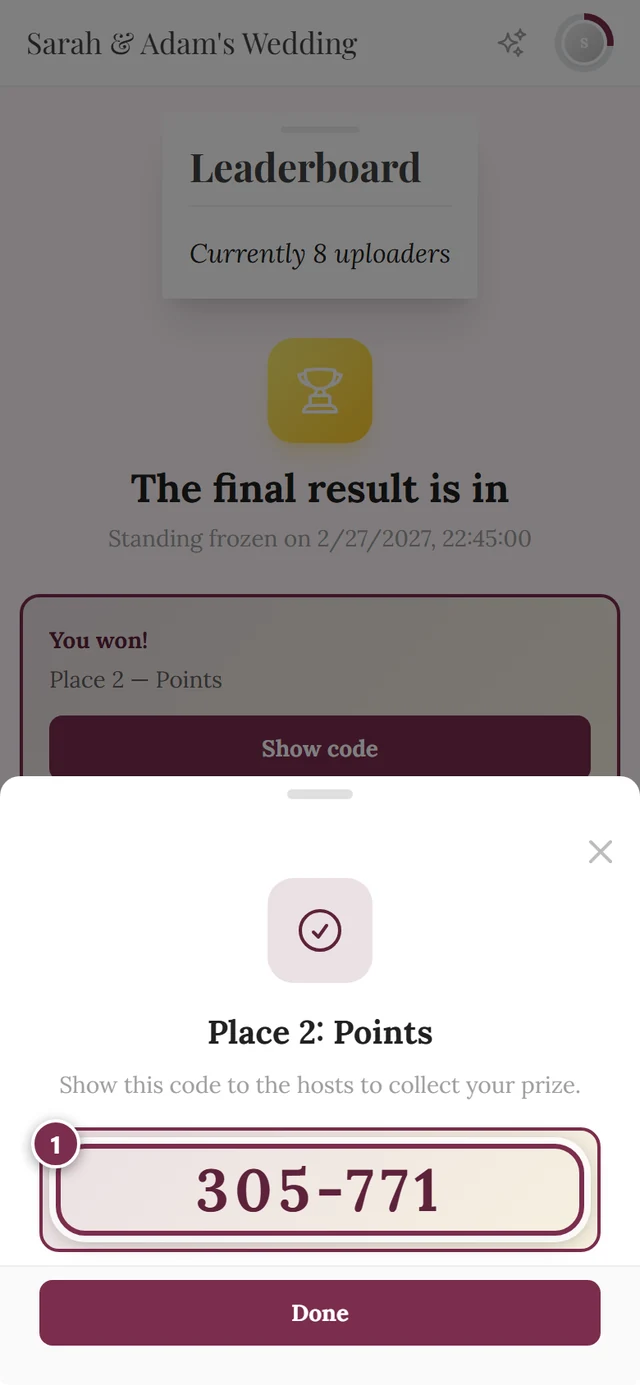
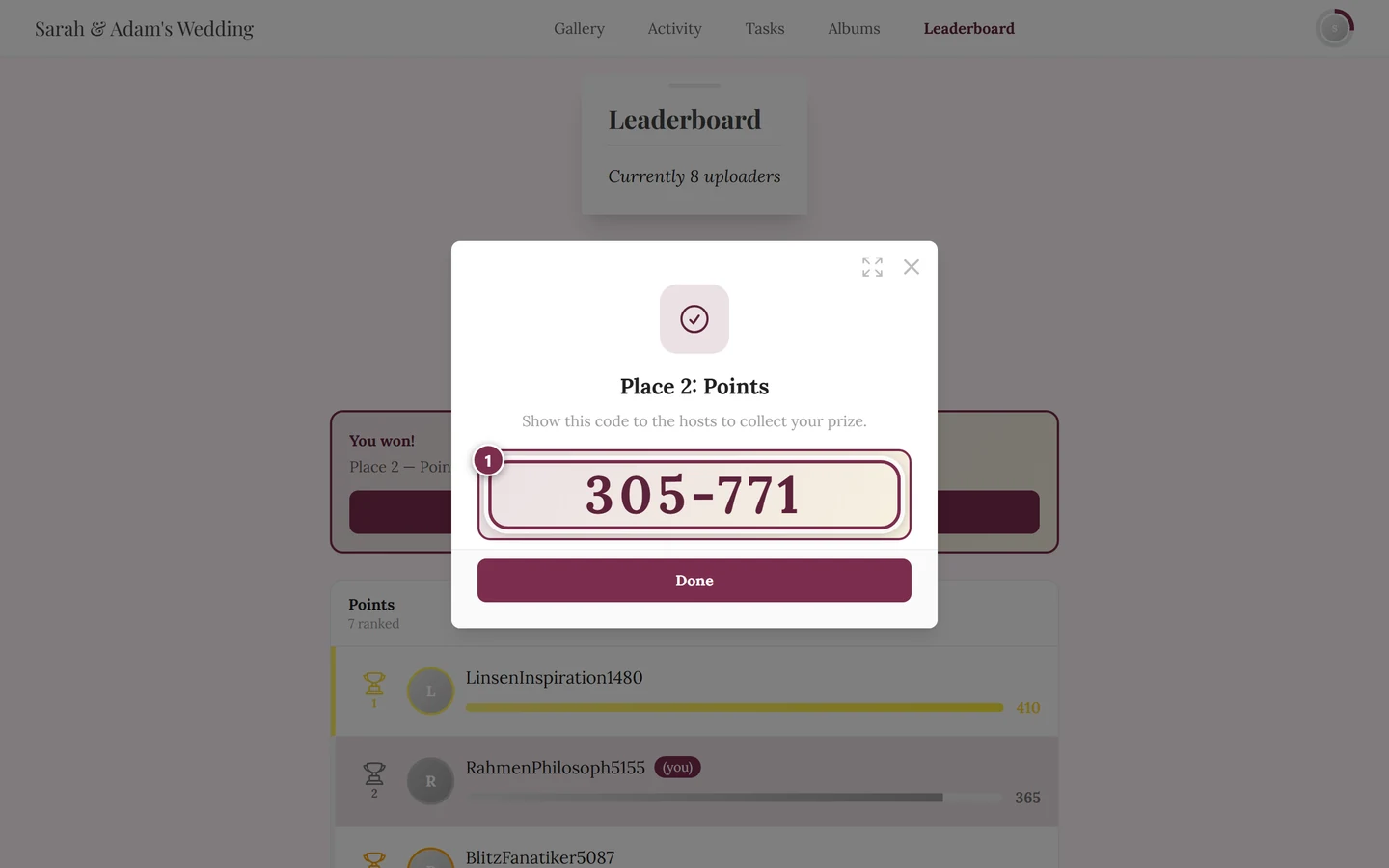
The full guest view of the leaderboard, points and rewards is described in Points & rewards.
When the page only shows a notice
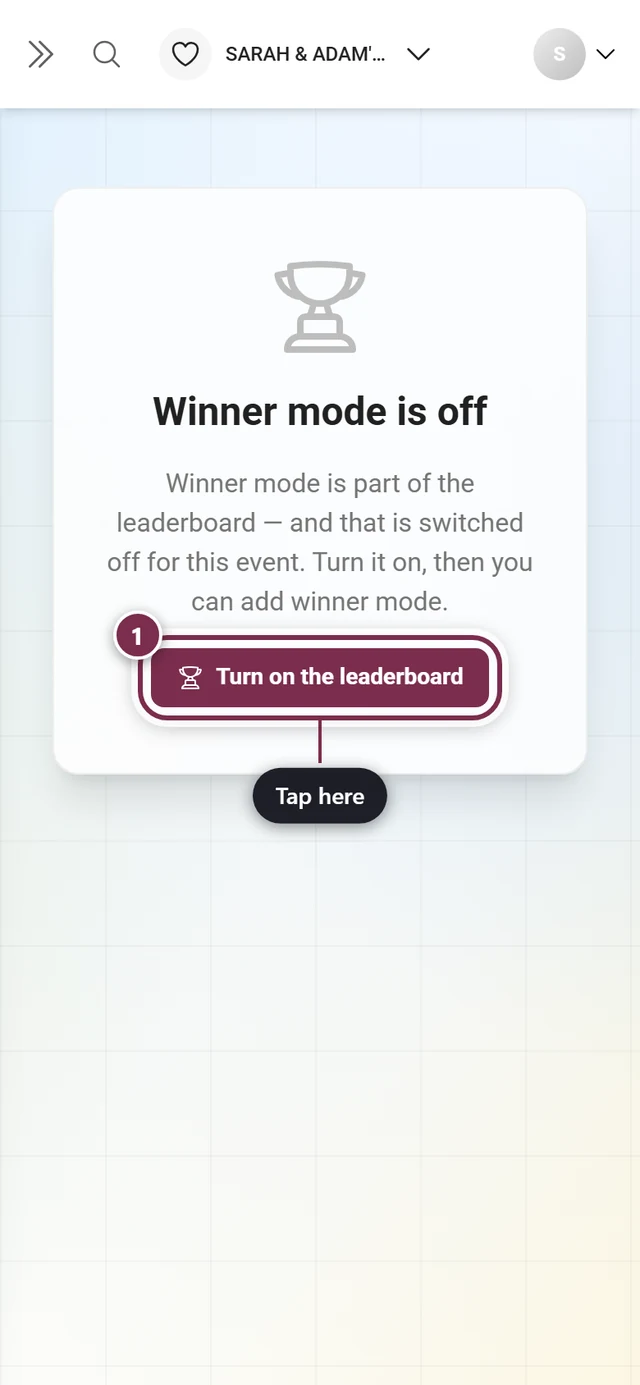
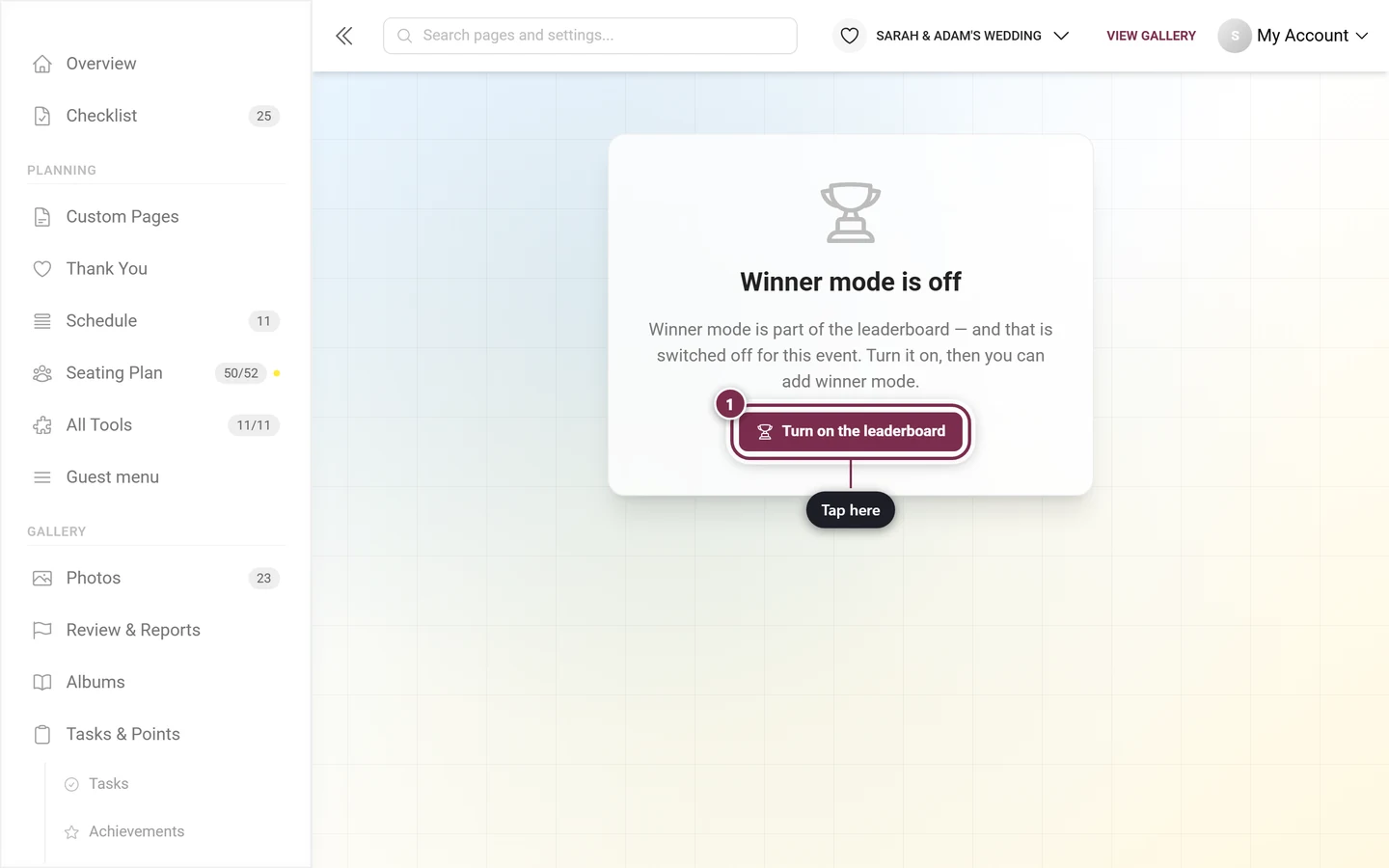
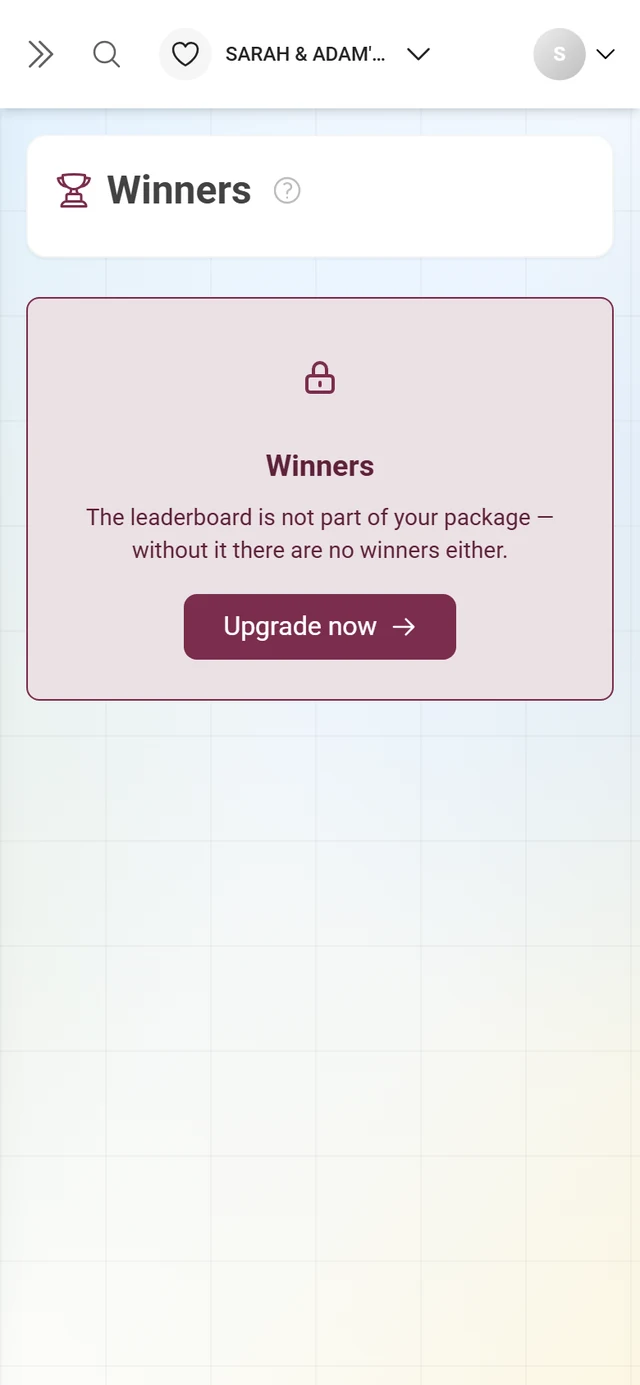
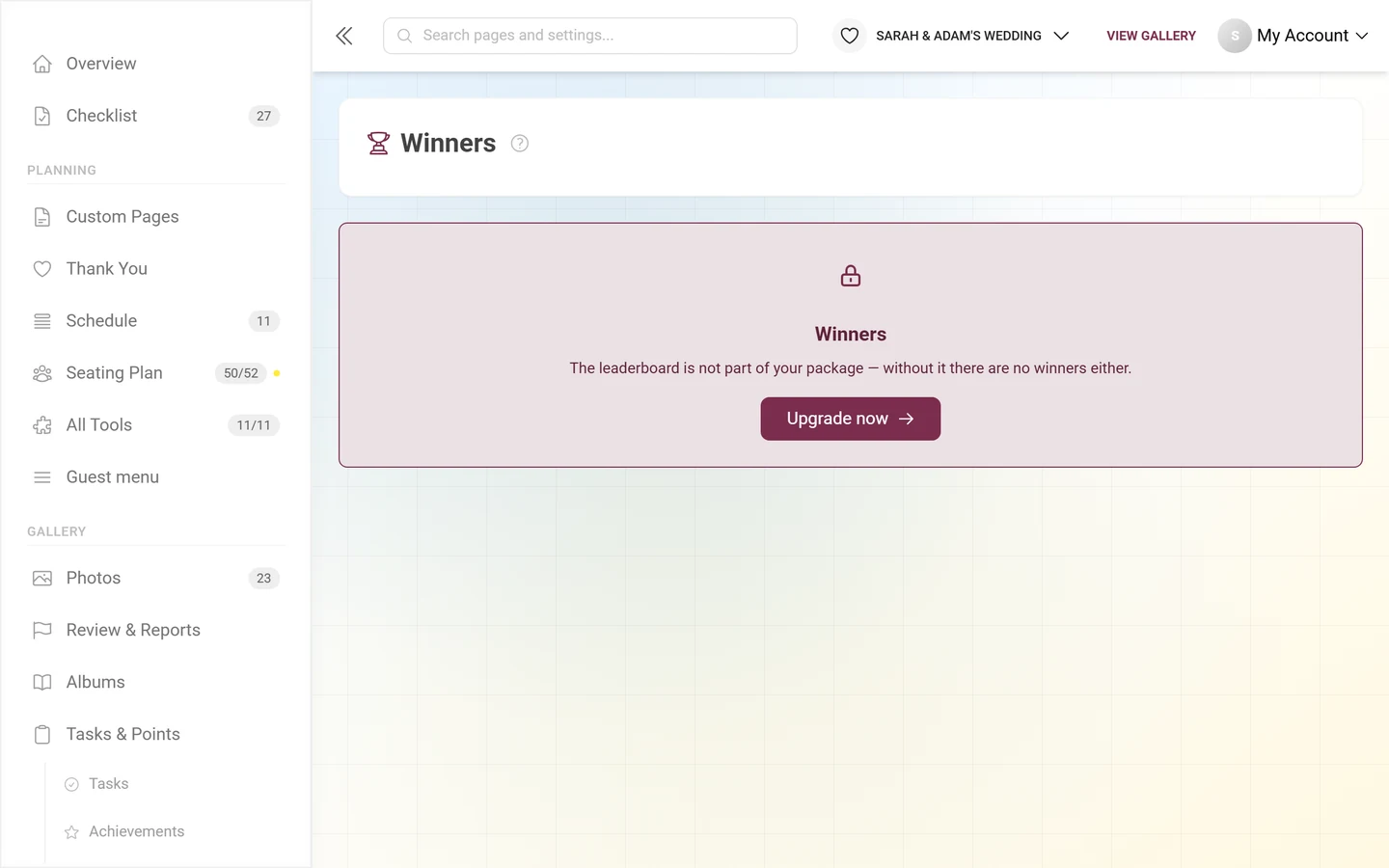
Section titled “When the page only shows a notice”Winner mode hangs off the leaderboard. Depending on what is missing, the page shows one of three cards – each with the matching button.
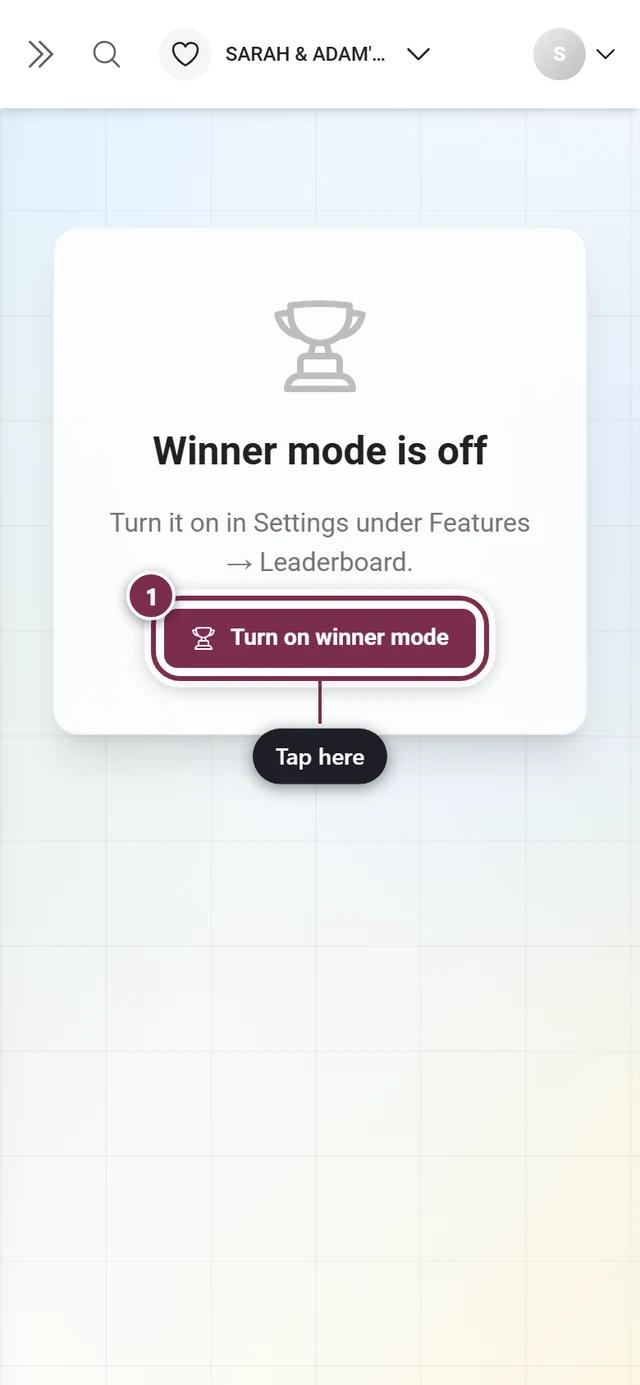
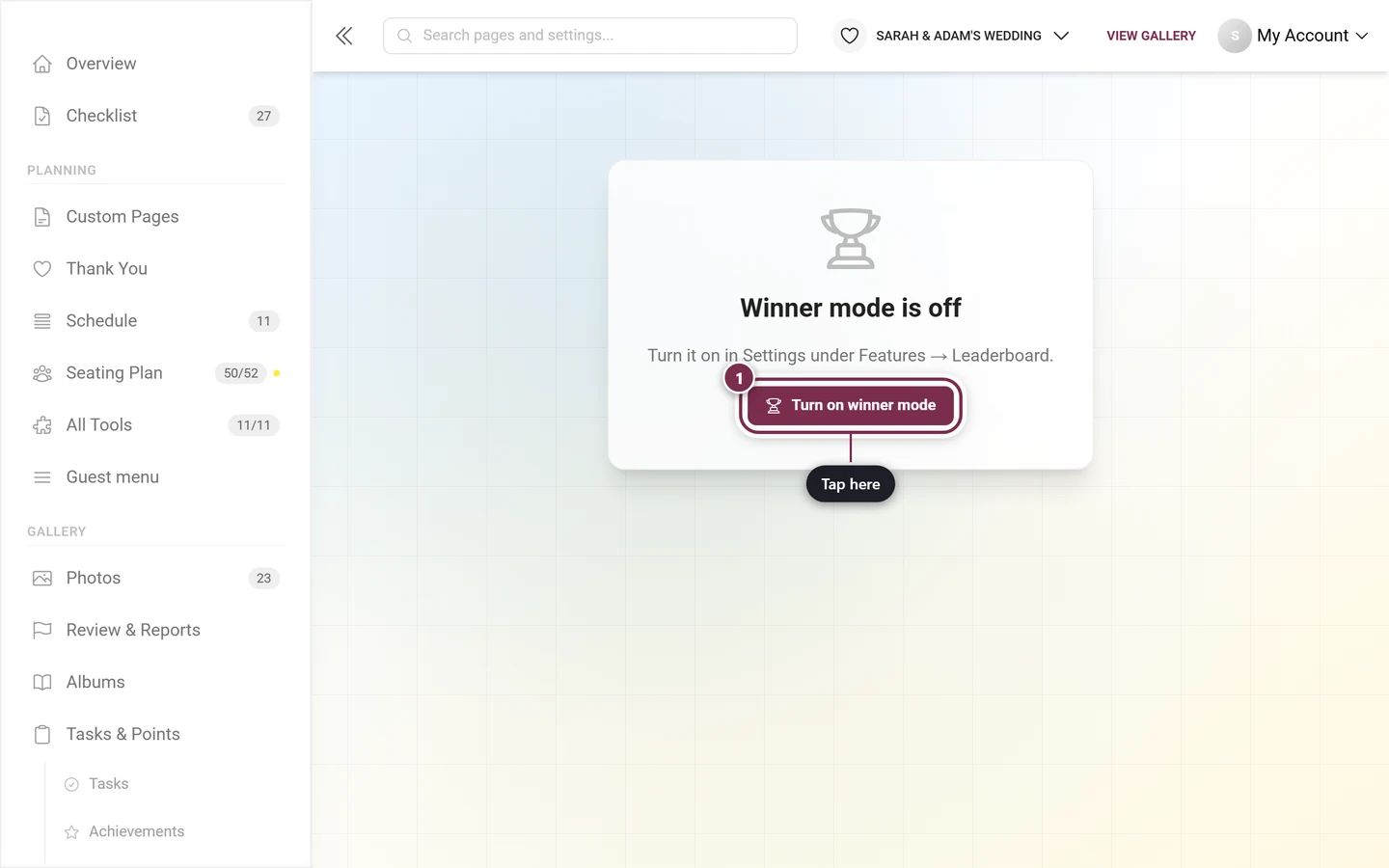
Troubleshooting
Section titled “Troubleshooting”Related help pages
Section titled “Related help pages”- Turning features on & off – where the leaderboard and winner mode get switched on
- Redeeming rewards – the same code flow for achievement rewards
- Achievements & rewards – tie rewards to activity instead of placements
- Points & rewards – the guest view of the leaderboard and the winners