Banning & restricting users
If a single person misbehaves, you don’t have to throttle the whole event. Instead of turning on approval for everyone, you can restrict one person in a targeted way – and decide exactly what stays allowed. There are four independent ban categories; each can be set individually and lifted individually.
There are three routes to get there. Which one suits you depends mostly on whether you have access to the admin area.
The four ban categories
Section titled “The four ban categories”For each person you decide independently what to block:
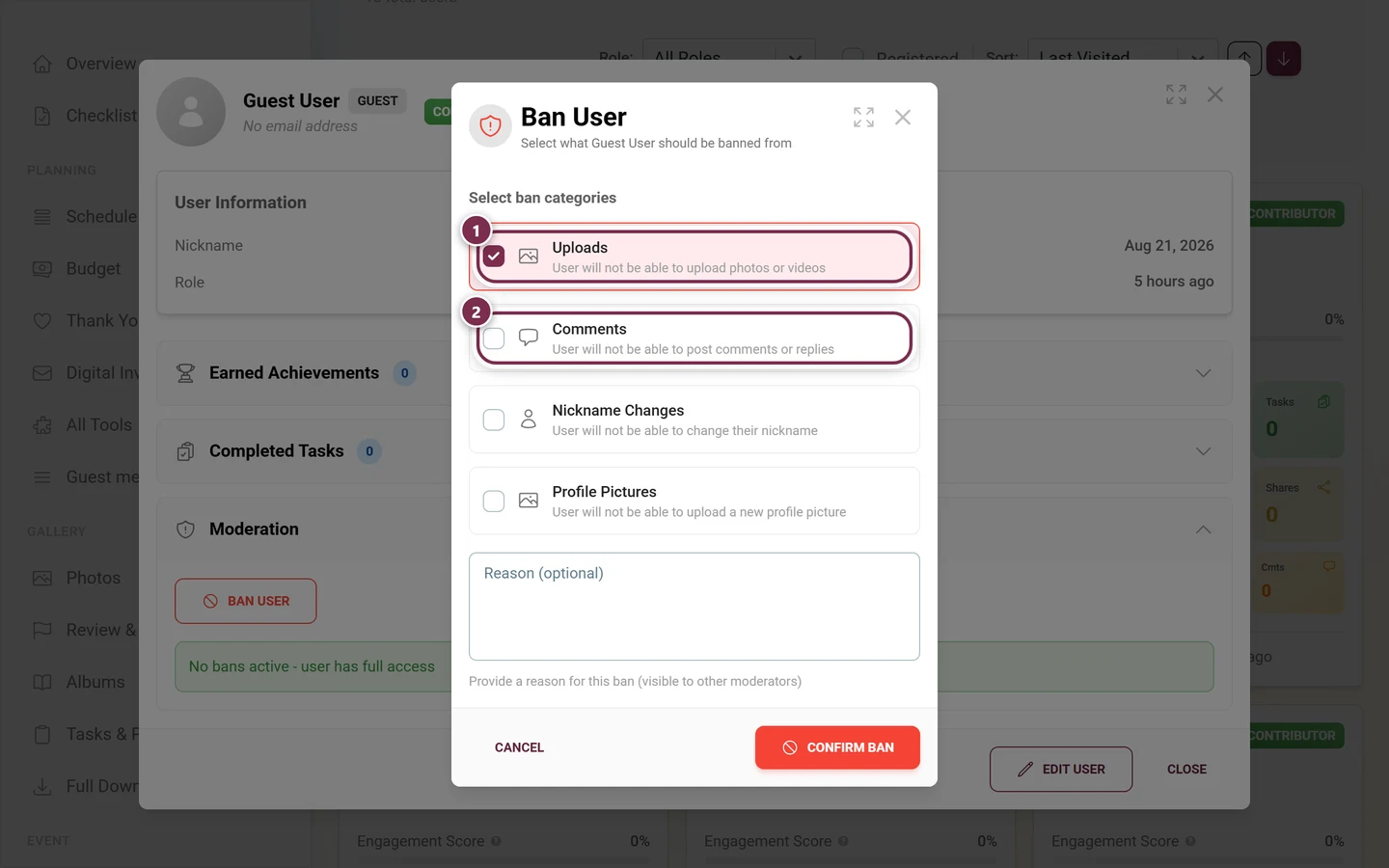
| Category | What happens |
|---|---|
| Uploads | User will not be able to upload photos or videos. |
| Comments | User will not be able to post comments or replies. |
| Nickname Changes | User will not be able to change their nickname. |
| Profile Pictures | User will not be able to upload a new profile picture. |
The categories combine freely. You can block only comments and keep uploads allowed – or set several categories at once. For every ban you can optionally add a reason.
Route A — Straight from the person’s profile
Section titled “Route A — Straight from the person’s profile”The most important route – and for moderators without admin access the only practical one, because the registered-users list lives in the admin area, which moderators don’t see. You need no list here: you restrict the person exactly where you noticed them.
-
Anywhere in the gallery, tap the person’s name or profile picture – under a comment, in the activity feed, in a photo’s image details, or on the leaderboard. Their profile opens.
-
Scroll down in the profile to the Moderation Controls card (shield icon). It only appears if you are allowed to moderate this person.
-
If the person is already under a ban, you’ll see the red box Currently banned from: with a colored chip per category – all four categories are listed here, including nickname and profile-picture bans.
-
Click Ban User (red) or Unban User (green). The ban dialog opens – see The dialog in two modes.
-
The same card also holds the Remove Profile Picture action, as long as the person currently has a profile picture.
Route B — Via Registered Users (admin area)
Section titled “Route B — Via Registered Users (admin area)”The systematic route when you want to search for a specific person – but it requires access to the admin area.
-
Open your event’s admin area (profile menu top right → Admin Portal).
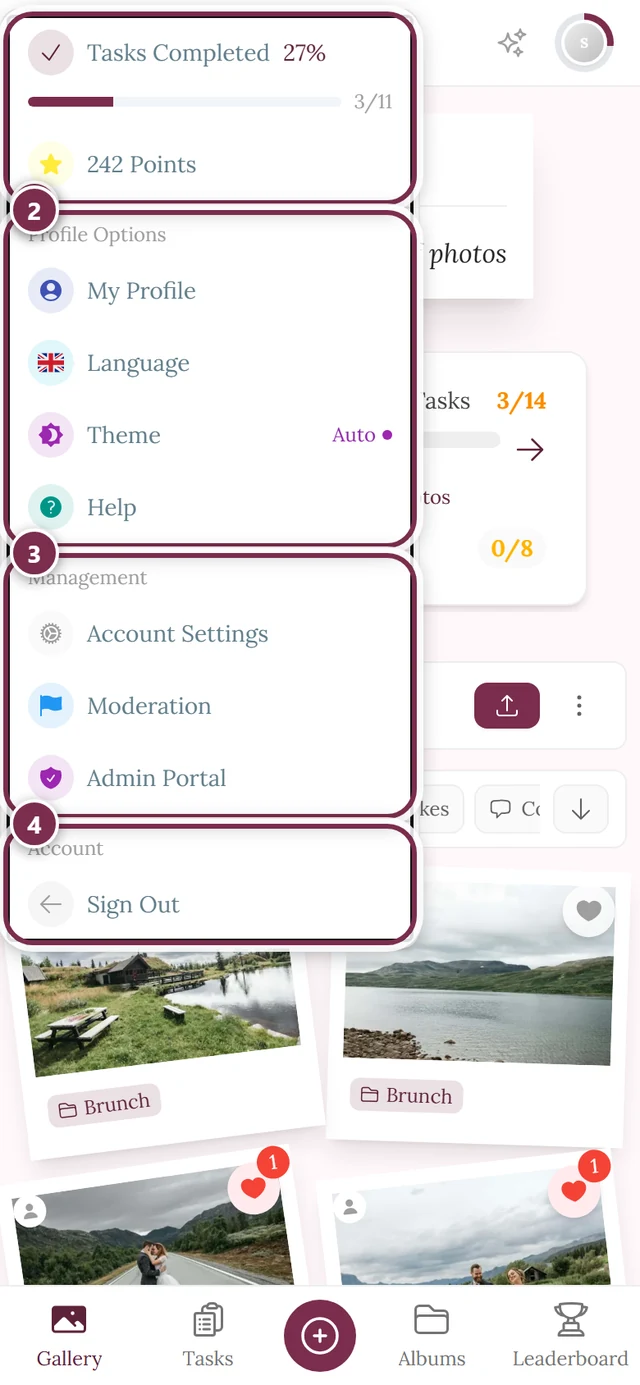
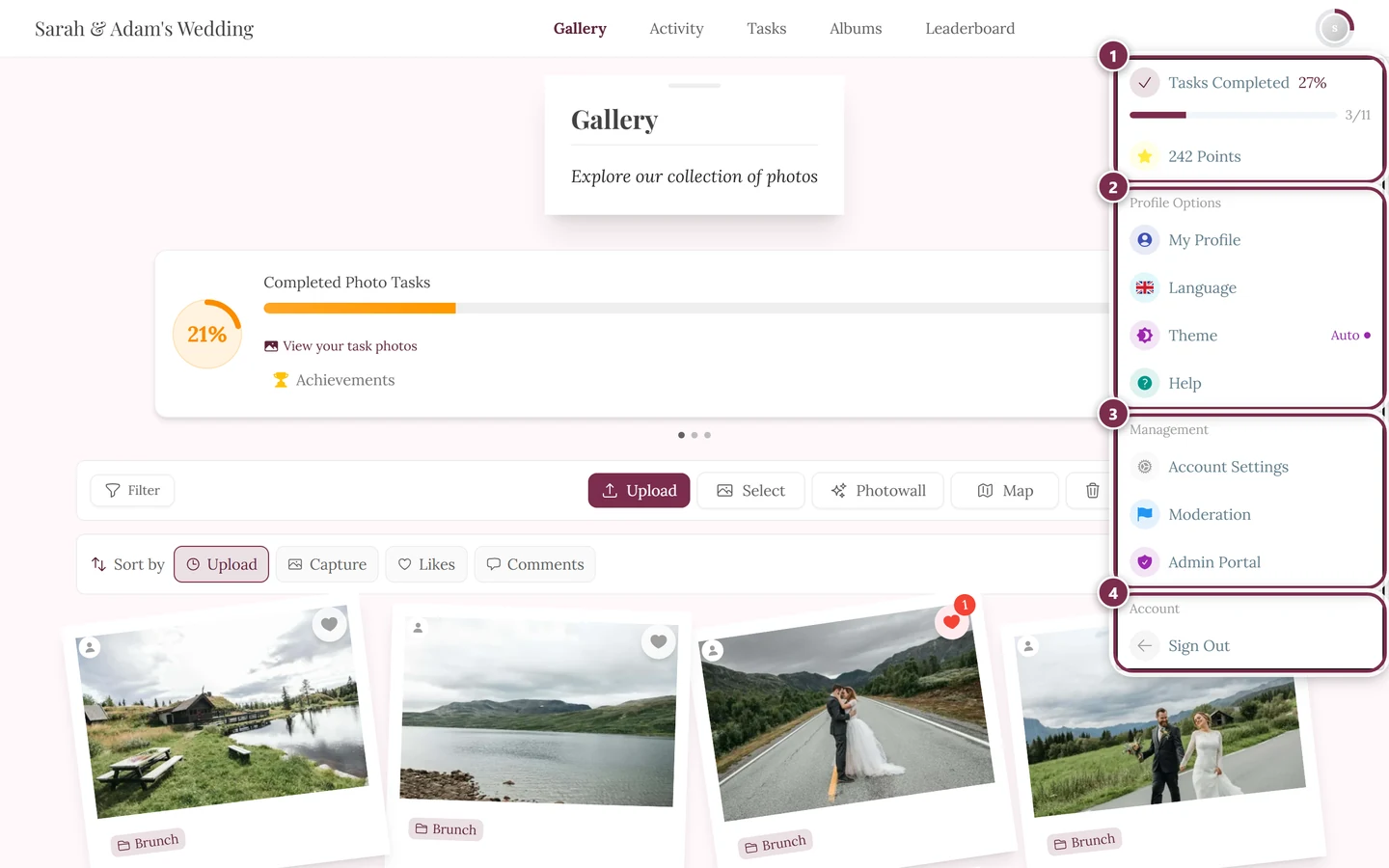
The profile menu top right takes you into the admin and moderation area. ① your points and solved tasks, ② Profile options with My Profile, Language, Theme and Help, ③ Management with Account Settings, Moderation and Admin Portal – this section is missing until you hold a role for it, ④ Account with Sign out. -
In the sidebar, click Registered Users.
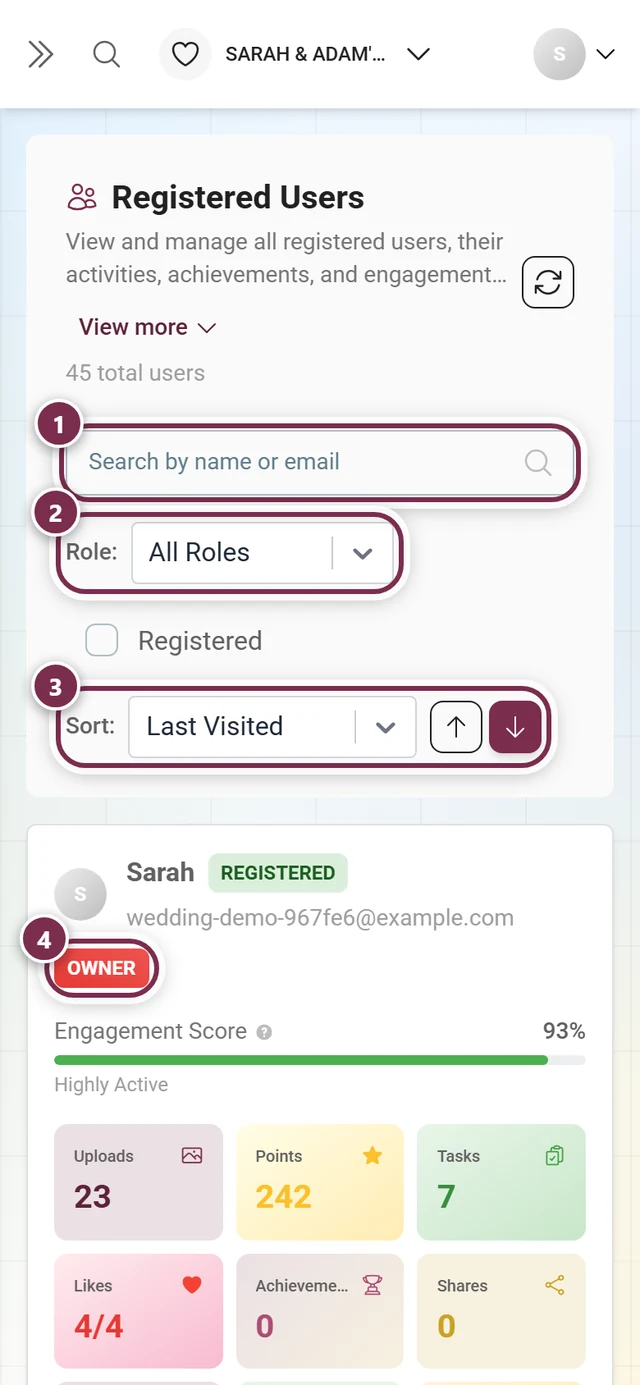
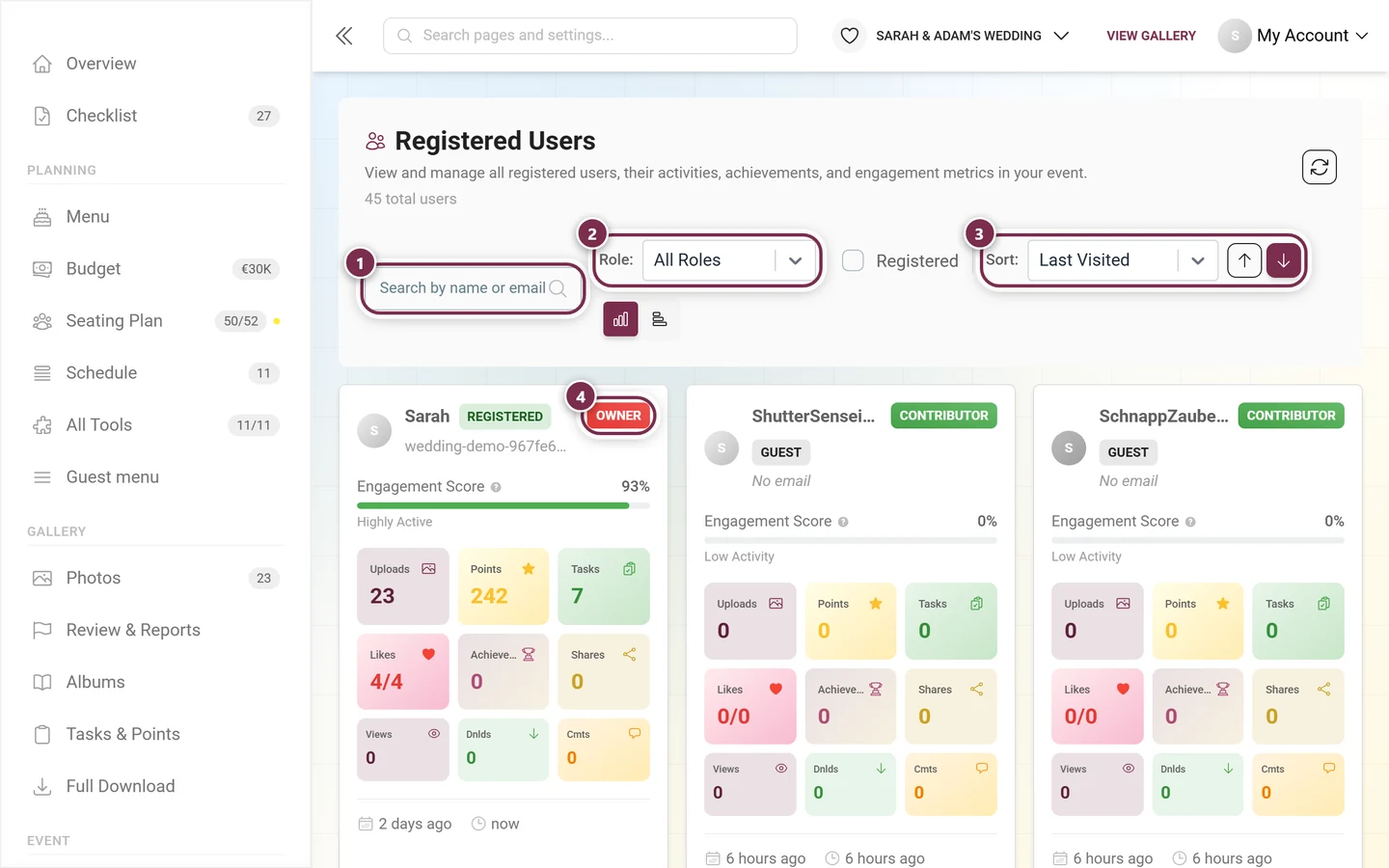
The registered users list is the admin entry point for banning an individual person: ① search by name or email, ② narrow it down by role, ③ sort the list, ④ check the role on the card. Clicking the card opens the details dialog, where you set the ban per area – uploads, comments and more. -
Find the person via the search field. The role filter, the Registered checkbox and the sort order help too. If needed, switch between card and table view.
-
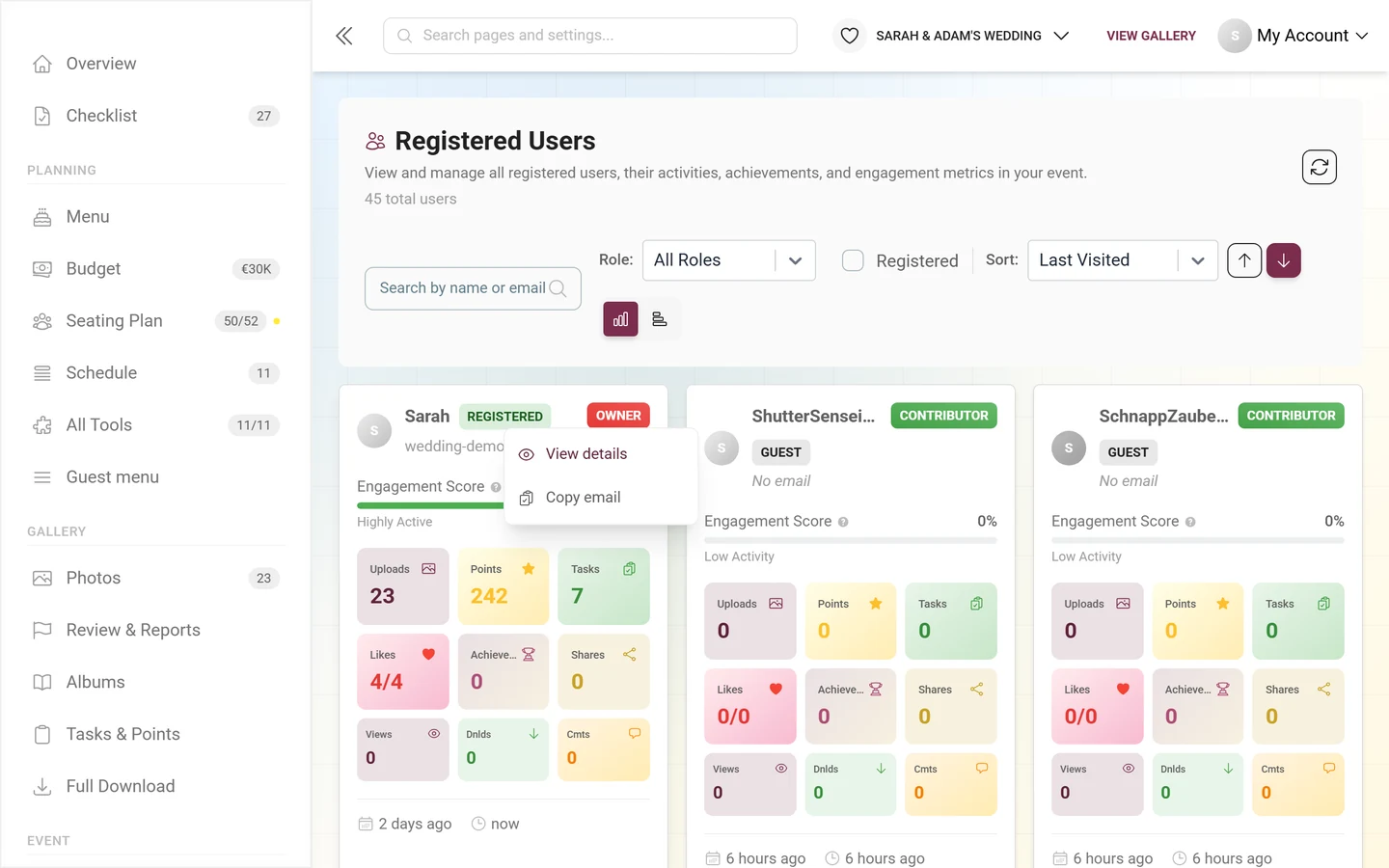
Click the user card – not the right-click menu, which only offers details and copy email, no ban action. The person’s detail dialog opens.
-
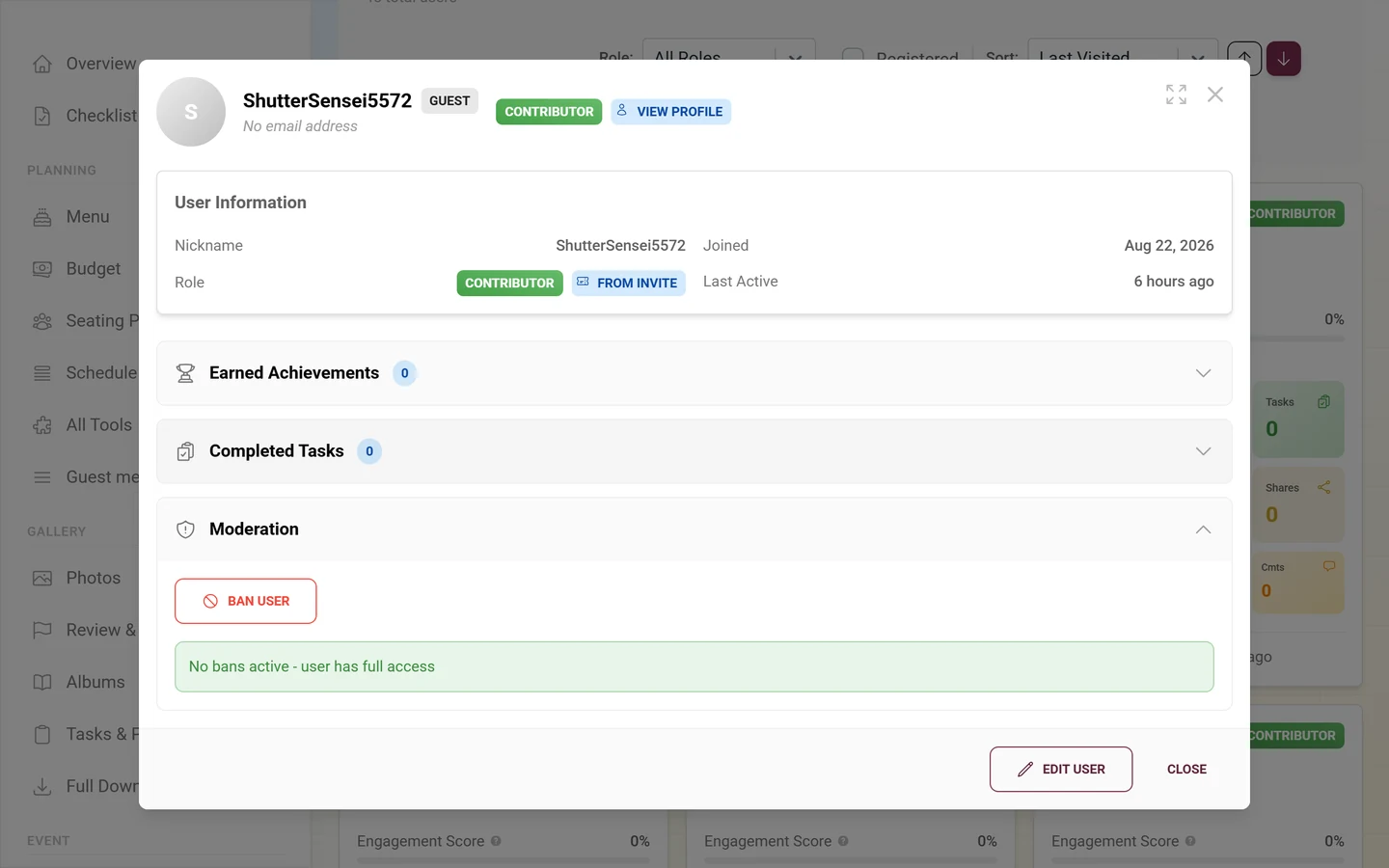
Scroll down in the dialog to the collapsible Moderation section (shield icon; a small badge shows the number of active bans) and expand it.
-
Click Ban User or Unban User.
The moderation section in the detail dialog
Section titled “The moderation section in the detail dialog”Once expanded, the section shows – depending on the person’s state – these elements:
- Ban User (red) – appears only while at least one category is still free.
- Unban User (green) – appears only when active bans already exist.
- Remove Profile Picture (blue) – appears only when the person currently has a profile picture.
- Status box: with active bans, a red box Currently banned from: with a chip per category. If all four categories are free, a green box reads No bans active - user has full access. That green box exists only here in the admin dialog, not on the profile page.
The dialog in two modes
Section titled “The dialog in two modes”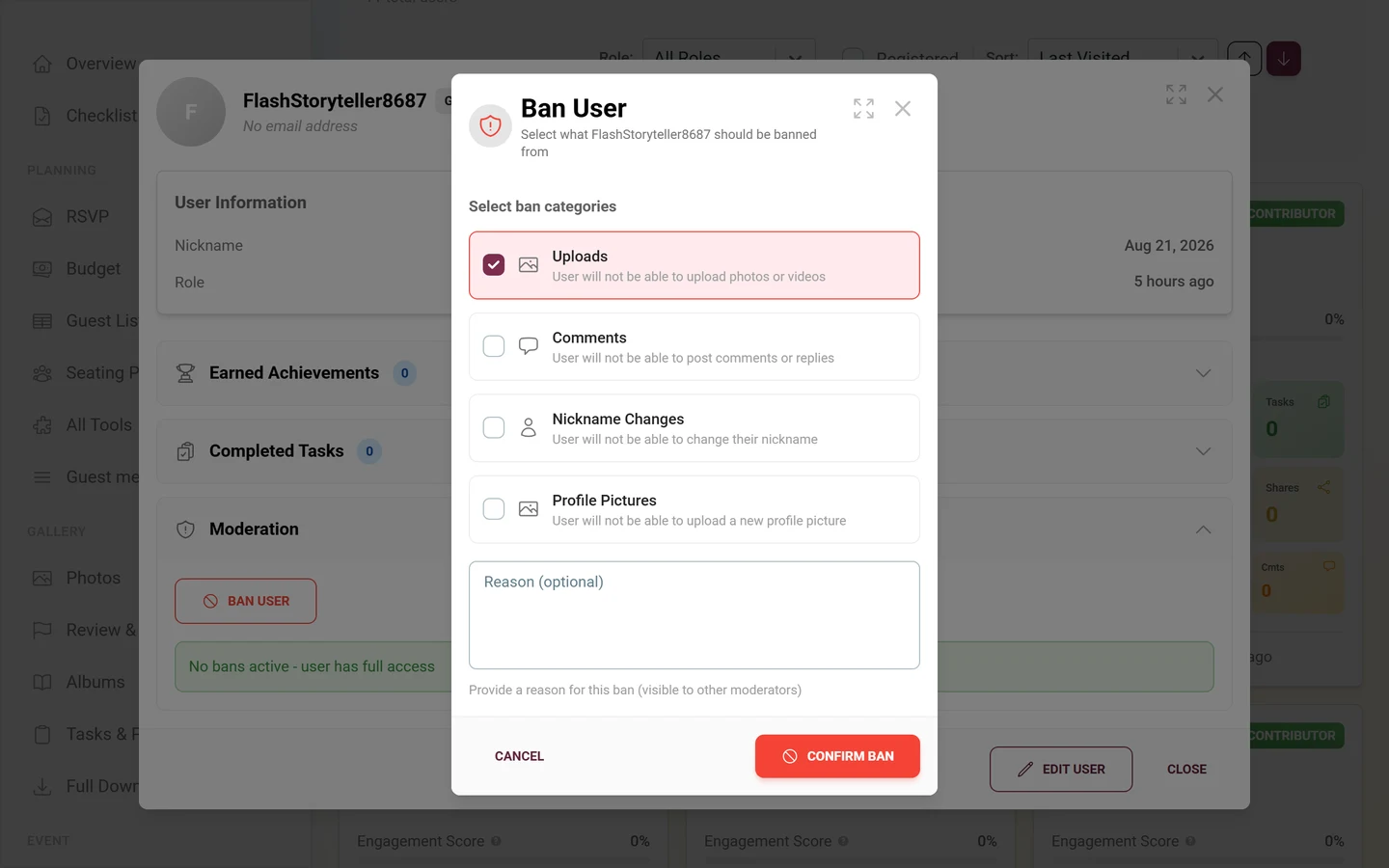
Banning and unbanning run through the same dialog, which merely switches between two modes. That explains why both look alike and why there is no reason field when unbanning.
| Ban mode | Unban mode | |
|---|---|---|
| Title | Ban User | Unban User |
| Subtitle | Select what … should be banned from | Select what … should be unbanned from |
| List heading | Select ban categories | Select categories to unban |
| Cards shown | only the categories not yet banned | only the active bans |
| Reason field | present | missing |
| Confirm | Confirm Ban (red) | Confirm Unban (green) |
Further details that apply in both modes:
- Multiple selection is allowed. Each category is a clickable card with a checkbox, icon, label and short description. One click on the confirm button writes all selected categories in a single operation.
- Partial unbanning works. You can lift the upload ban and keep the comment ban, for example.
- The confirm button stays disabled while no category is selected.
- Reason (optional): free-text field, up to 500 characters; there is no character counter. The help text reads “Provide a reason for this ban (visible to other moderators)”. The reason applies to every category chosen in this step, is visible to your team, and later appears in the Banned Users tab.
- Cancel closes the dialog without changes. The action takes effect immediately, and a toast confirms it.
Cleaning up in the same step
Section titled “Cleaning up in the same step”A ban only stops what comes next. Everything the person has already uploaded or written stays up – and that is usually the very reason for the ban. So in Ban mode the dialog offers to clear it out in one go.
Once you select a category, an indented cleanup checkbox appears underneath it – but only when there is actually something there. It is never pre-checked: taking content down is a separate decision from stopping the person.
| Under which category | Checkbox label | What happens |
|---|---|---|
| Uploads (only when visible photos exist) | “Also hide their N visible photos” | “Moves them to Unpublished – you can publish them again at any time.” |
| Comments (only when comments exist) | “Also delete their N comments” | “Permanent, including replies to them. This cannot be undone.” |
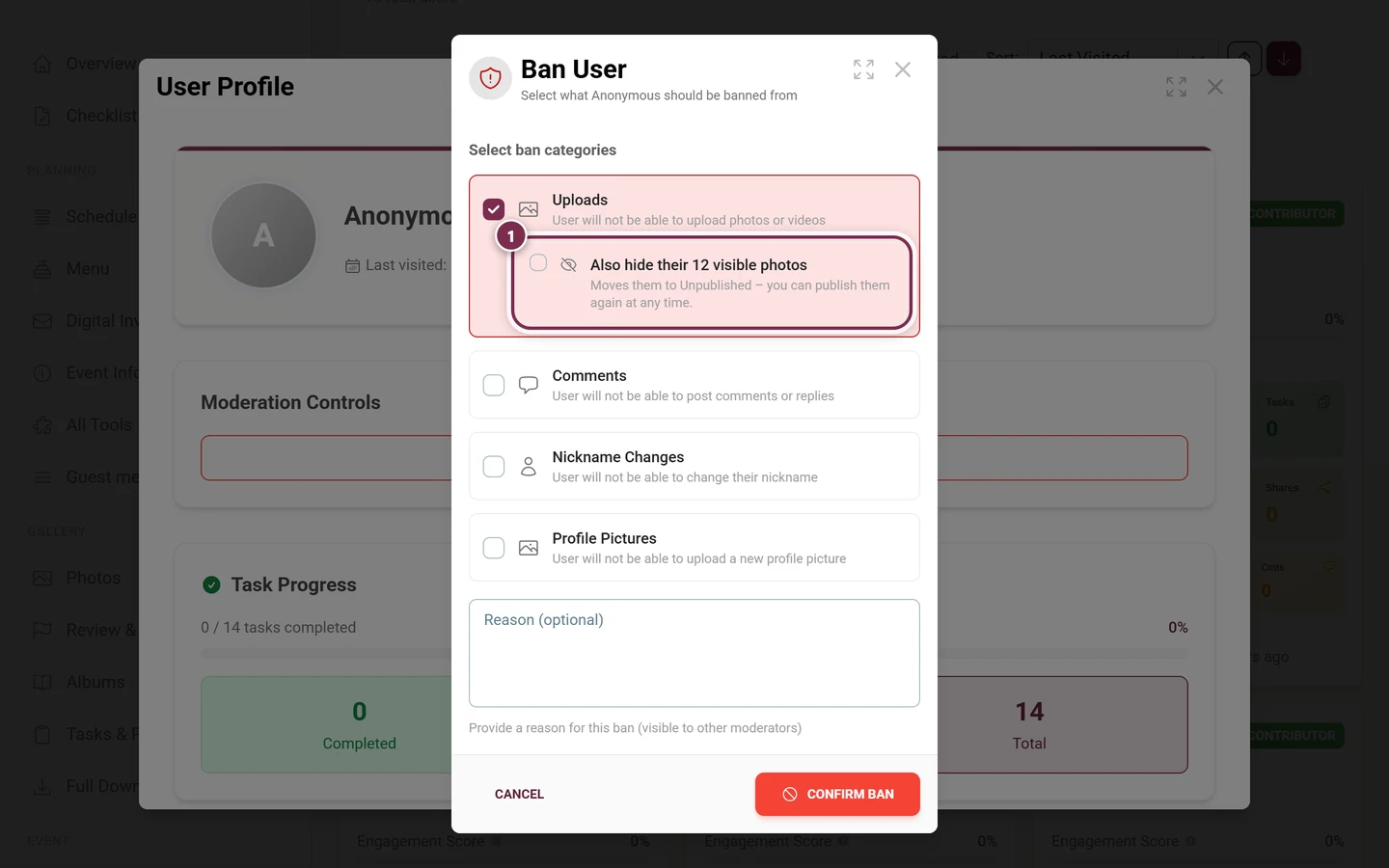
The cleanup runs after the ban. That way a failure there can never leave a person who lost their content but was never actually banned. The outcome is appended to the confirmation toast: “N photos hidden”, “N comments deleted”.
In Unban mode these checkboxes don’t exist – hidden photos are published again where you publish everything else: in the Media tab, see Approving & moderating photos.
Route C — Overview of everyone banned
Section titled “Route C — Overview of everyone banned”The Banned Users tab is the overview of every ban in the event. It lives in moderation – not in registered users – and is reachable without admin access.
-
Open moderation. As a moderator via the profile menu top right → Moderation; as a host or admin via the admin sidebar → Gallery group → Review & Reports. Both open the same page.
-
Switch to the Banned Users tab. In the admin sidebar it is also a sub-entry you can click directly.
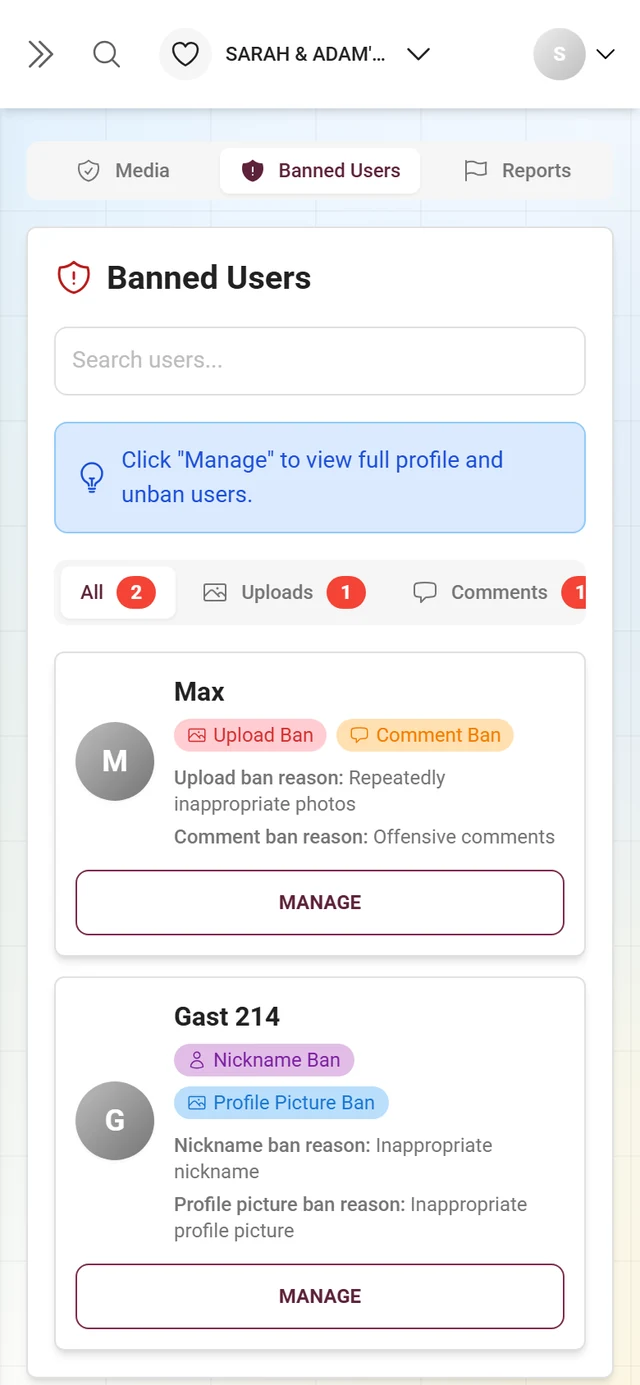
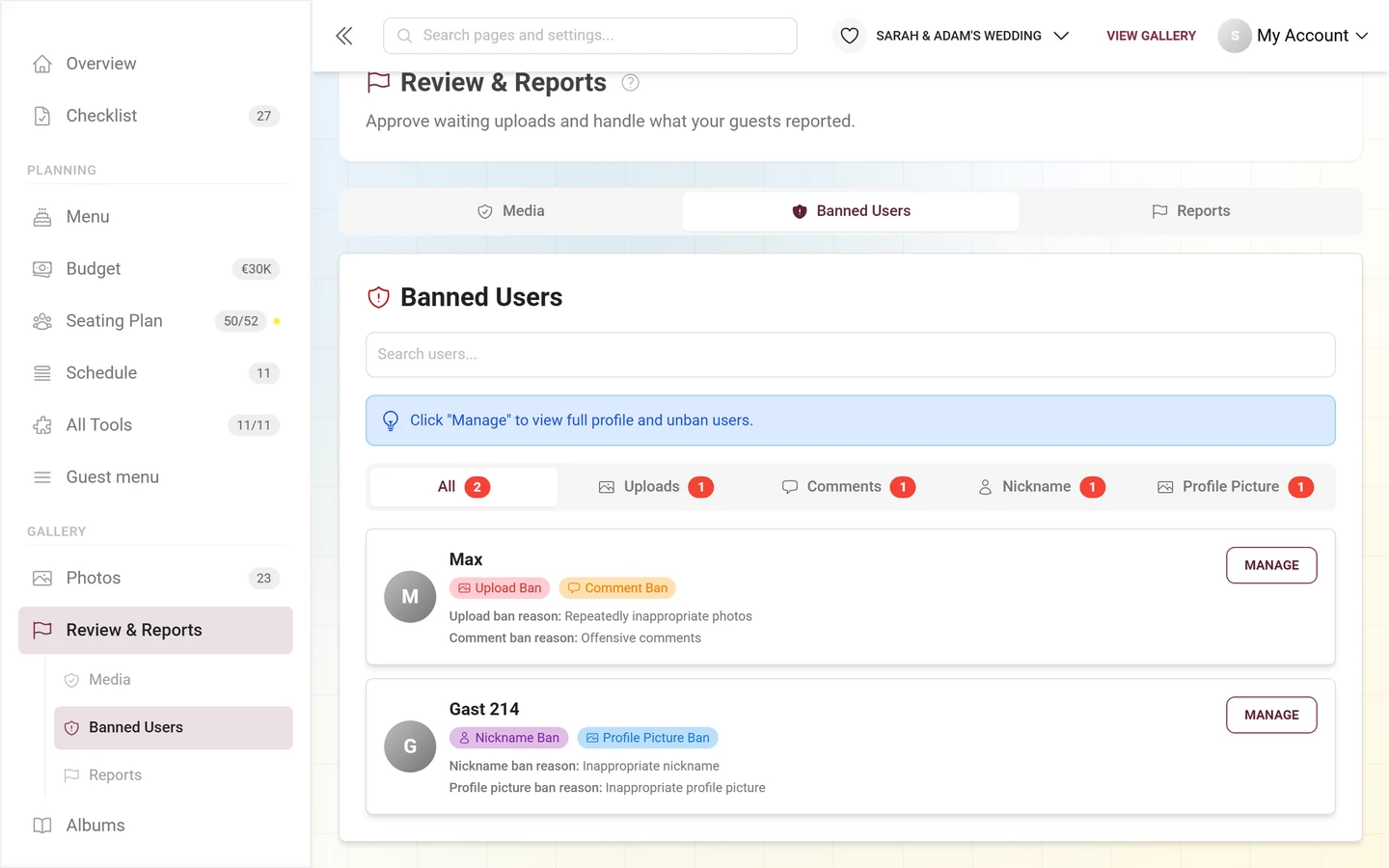
The Banned Users tab shows every ban at a glance – filtered by category. -
Filter as needed via the sub-tabs All, Uploads, Comments, Nickname and Profile Picture (each with a counter). Use the Search users… field to find a specific person.
-
Each card shows an avatar, the name (or Anonymous User), all four possible ban badges – Upload Ban, Comment Ban, Nickname Ban, Profile Picture Ban – and below them the reasons stored per category.
-
Click Manage on the person. Their profile dialog opens on top of the moderation page – you set and lift the bans there exactly as in Route A, without leaving the list. If you really want their profile page, click the name instead.
If nobody is banned, the tab shows the empty state No banned users with the note “All users are currently in good standing”.
FAQ & troubleshooting
Section titled “FAQ & troubleshooting”- I don’t see the Moderation Controls card. You lack the rights, the person ranks equal to or above you, or you are looking at your own profile.
- “Ban User” is missing even though the person is open. Then all four categories are already banned – only unbanning remains.
- I have no admin access and can’t find the user list. Correct – that list lives in the admin area. Use Route A via the profile, or Route C via the Banned Users tab.
- No badge on the user card, yet the person is banned. The card view only shows upload and comment bans. Check the profile or the Banned Users tab.
- A banned guest still uploads. Bans apply per person in the event. If someone creates a brand-new anonymous guest account, that bypasses the ban. For widespread problems, event-wide measures work better – see Approving & moderating photos and Moderation & safety.
- Error “Action failed”. Usually a brief network or permission hiccup – just try again.
Best practices
Section titled “Best practices”Related topics
Section titled “Related topics”- Approving & moderating photos – publish or unpublish media, handle reports
- Managing registered users – the admin entry point to the detail dialog
- Roles & permissions – who may moderate and ban
- Moderation & safety – event-wide alternatives to individual bans
- Profile & nickname – what the guest experiences when nickname or profile picture is banned
- Like & comment – the effect of a comment ban from the guest’s side